

How to Approve or Reject a Prescription
This is the job the plugin exists for. A customer has sent a prescription and their order is on hold until someone qualified looks at it.
The steps use the Pro review workspace. The free version makes the same decision from the order screen, covered at the end.
Step 1: Find the waiting prescriptions
Section titled “Step 1: Find the waiting prescriptions”Go to DevDiggers Plugins → Prescriptions → Orders and click the Pending tab. These are the prescriptions waiting for a decision.
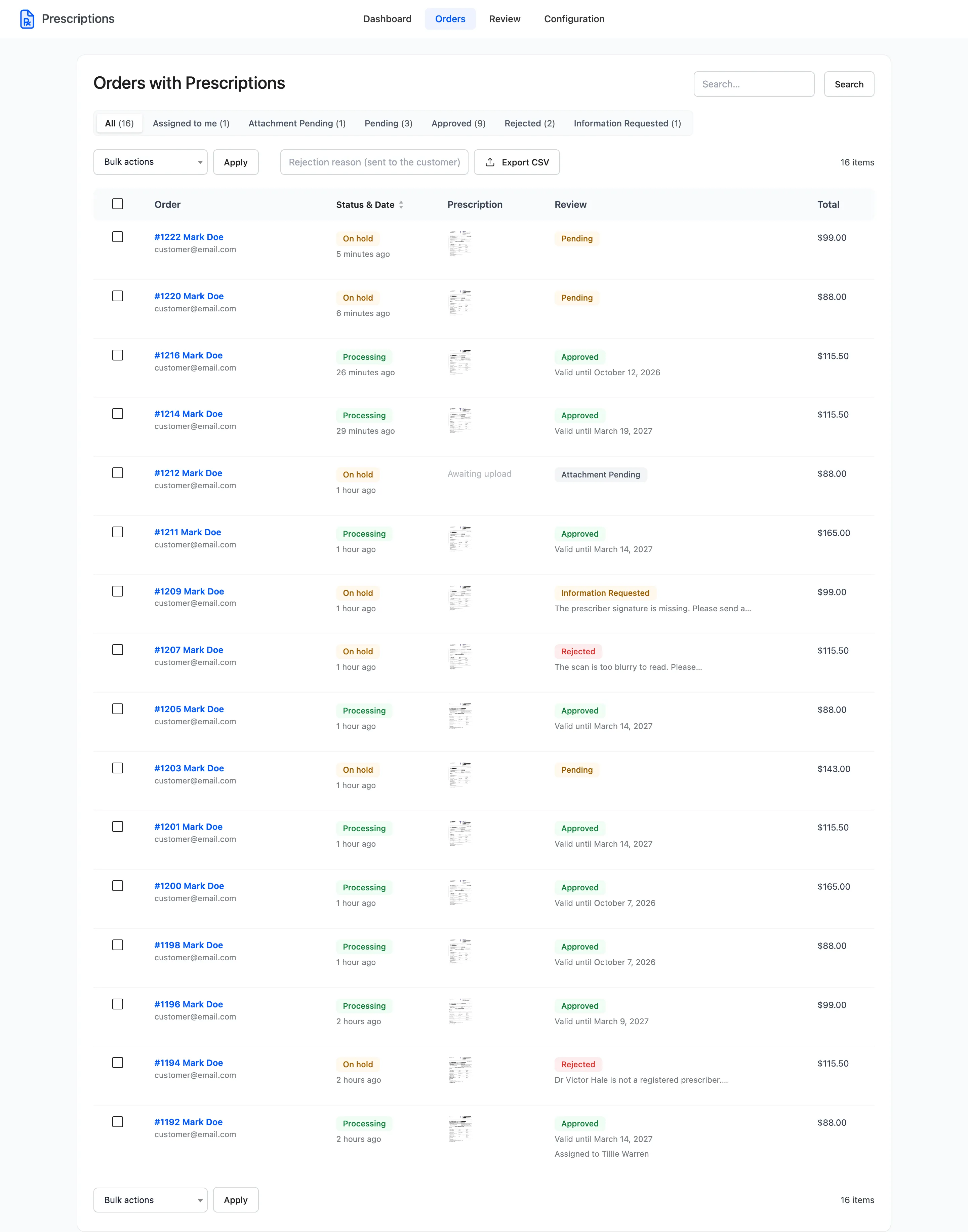
The quicker route is the Review tab. It opens the oldest waiting prescription straight away.
Step 2: Read the file
Section titled “Step 2: Read the file”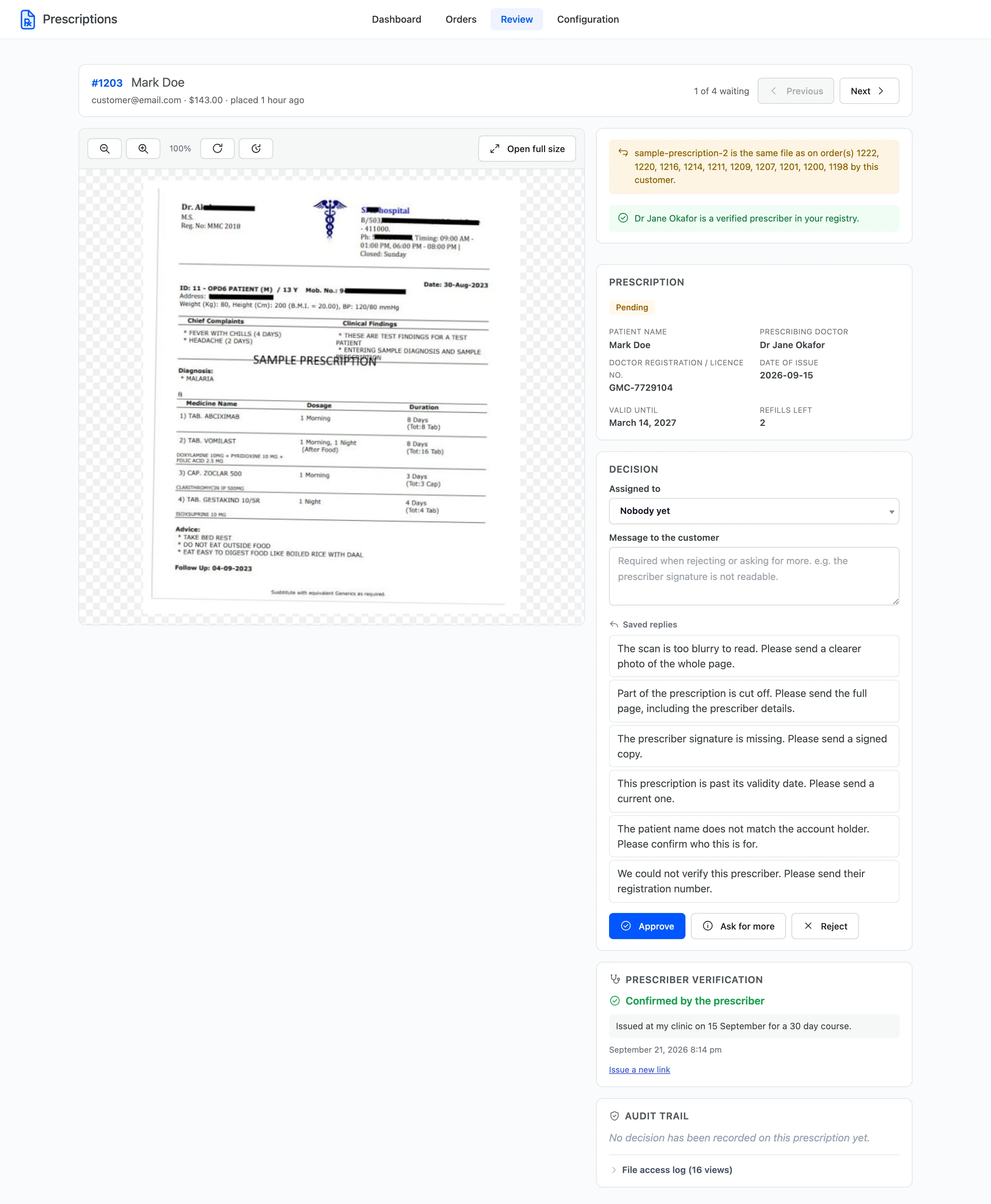
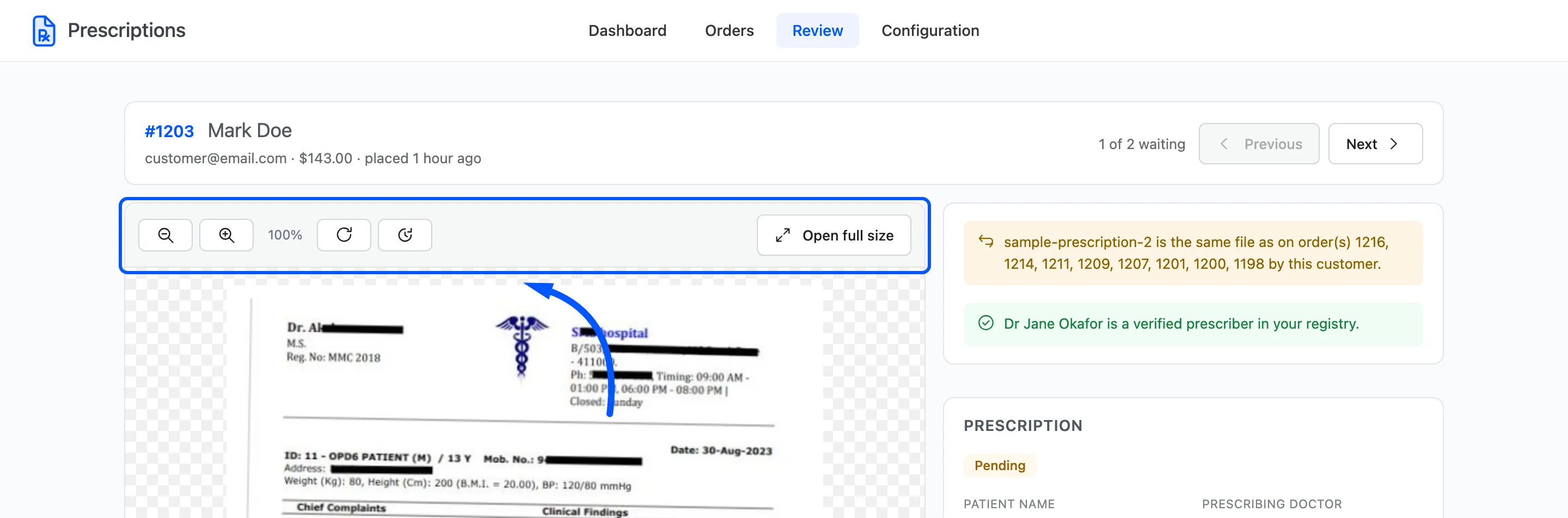
The prescription fills the left column. Use the toolbar to zoom in on the small print and rotate a photo taken sideways. Open full size opens it in a new tab.
Read the patient, the medicine, the dose, the date, the prescriber and the signature. If you cannot read one of them, that is a reason to ask for more, not to guess.
Step 3: Read the warnings and the details
Section titled “Step 3: Read the warnings and the details”Warnings sit at the top of the right column. They are there to be read before deciding.
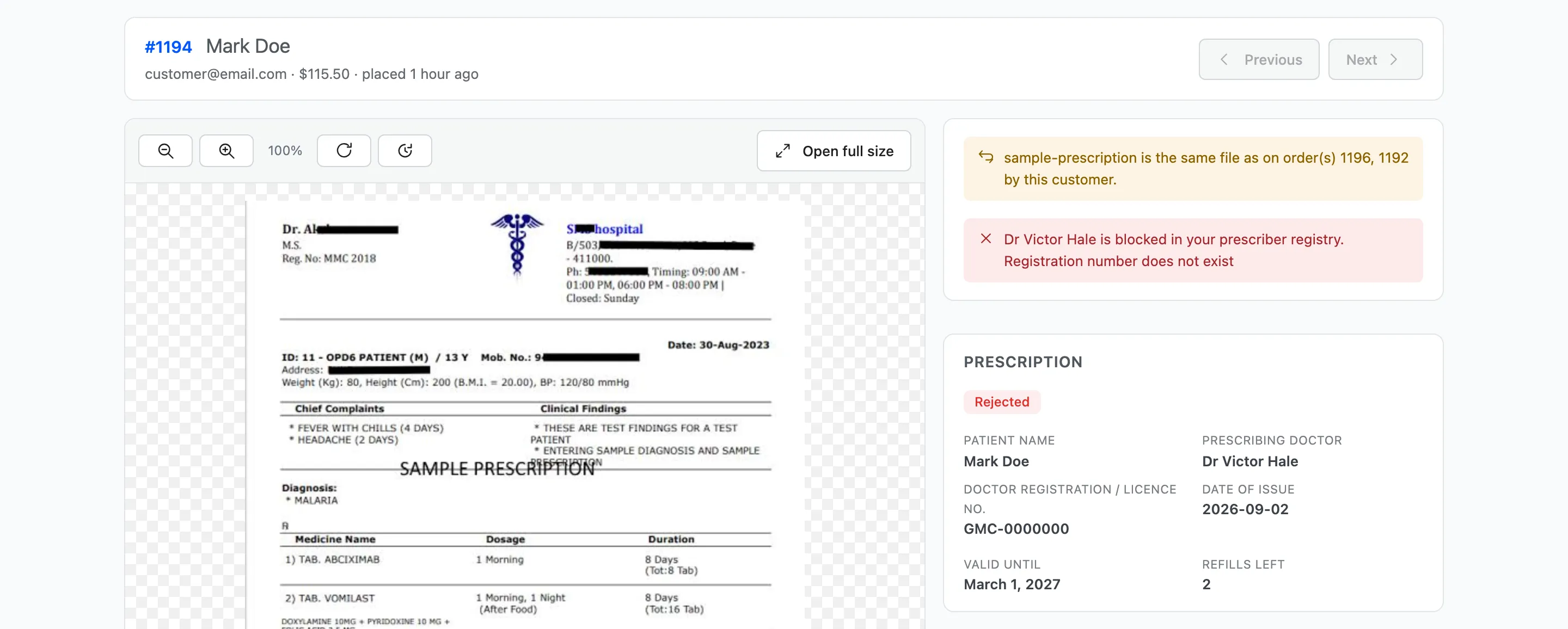
This one shows both kinds of trouble: the same scan was sent on two earlier orders, and the prescriber is blocked in the registry. Neither stops you approving. Both are reasons to look harder.
Below the warnings, the Prescription panel shows the details the customer typed. Check them against the file. A patient name on the form that does not match the page is worth a question.
Step 4: Approve it
Section titled “Step 4: Approve it”If everything checks out, click Approve.
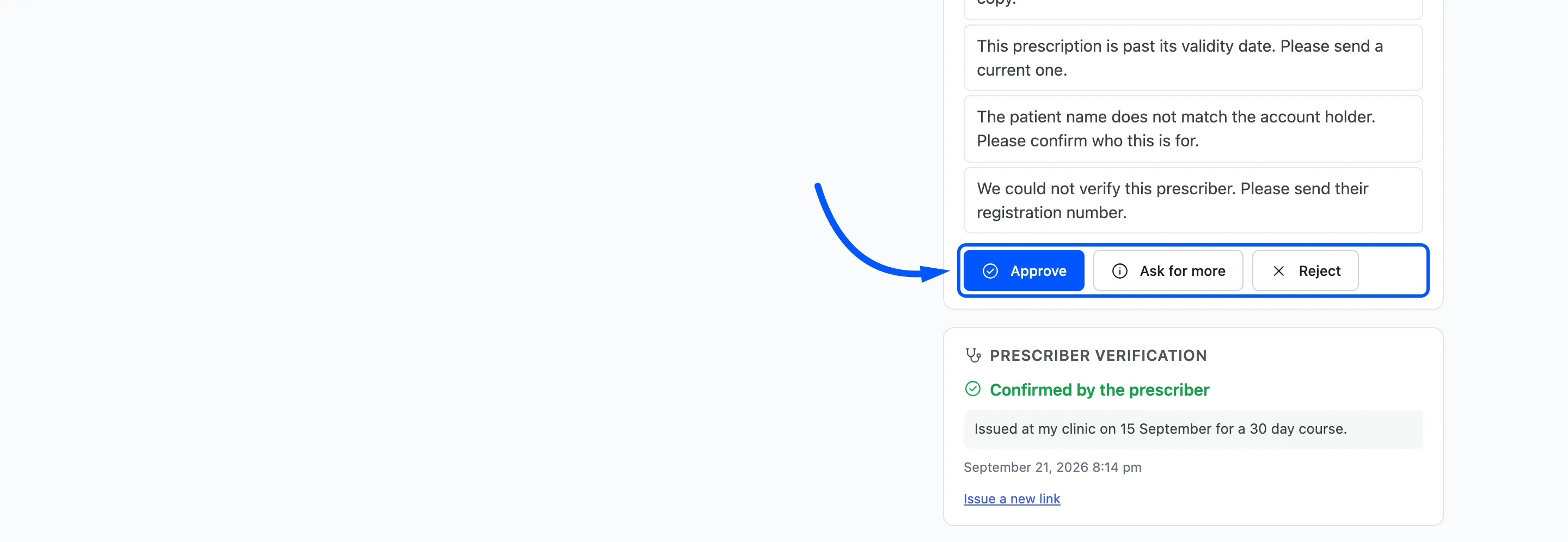
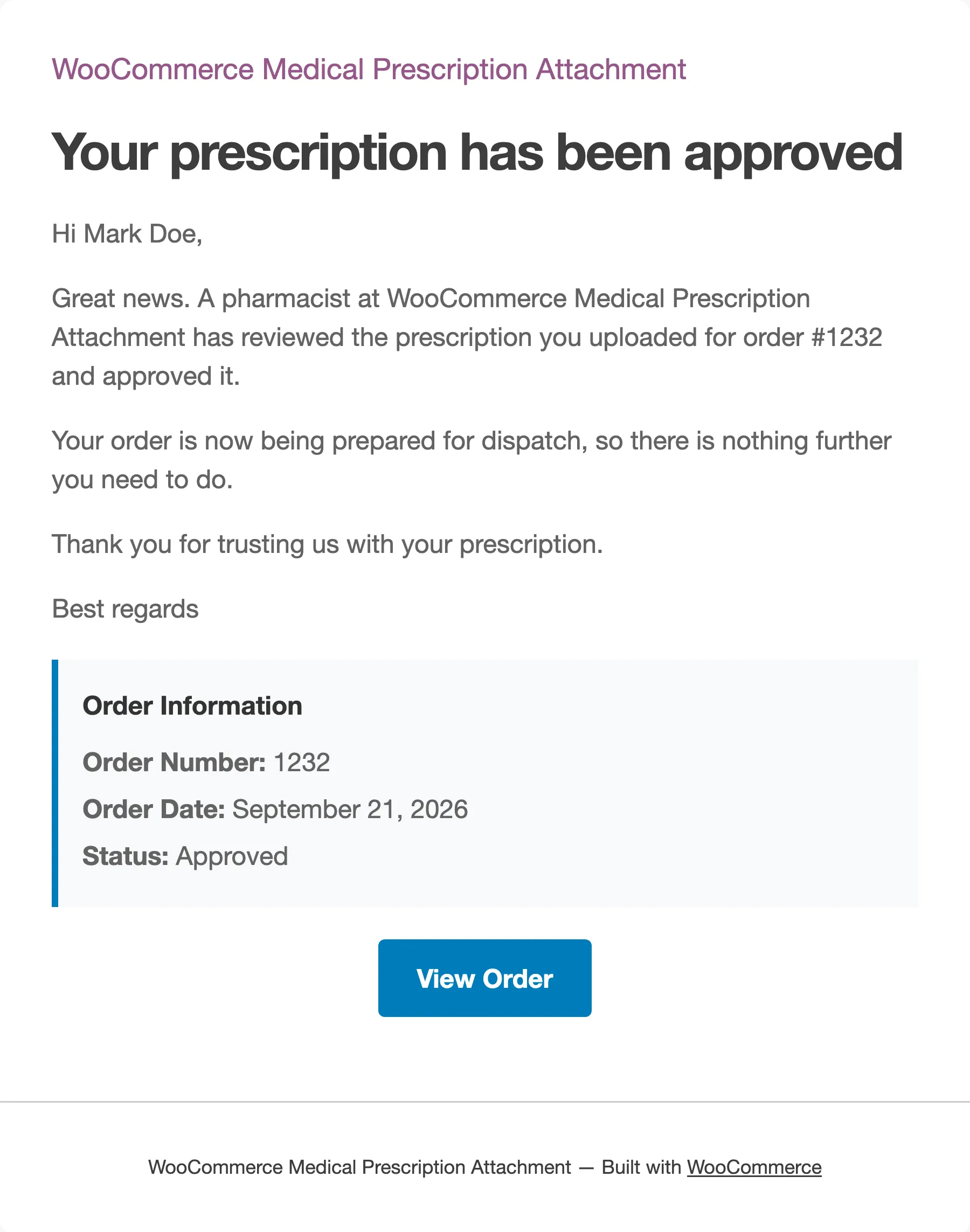
Four things happen at once:
- The order moves to Processing, or whatever On Approval is set to, and joins your normal fulfilment.
- The customer gets the Prescription Approved email.
- The decision is written to the order notes and the audit trail.
- The workspace opens the next prescription waiting.
Step 5: Or reject it with a reason
Section titled “Step 5: Or reject it with a reason”Type the reason into Message to the customer, or click a saved reply, then click Reject.
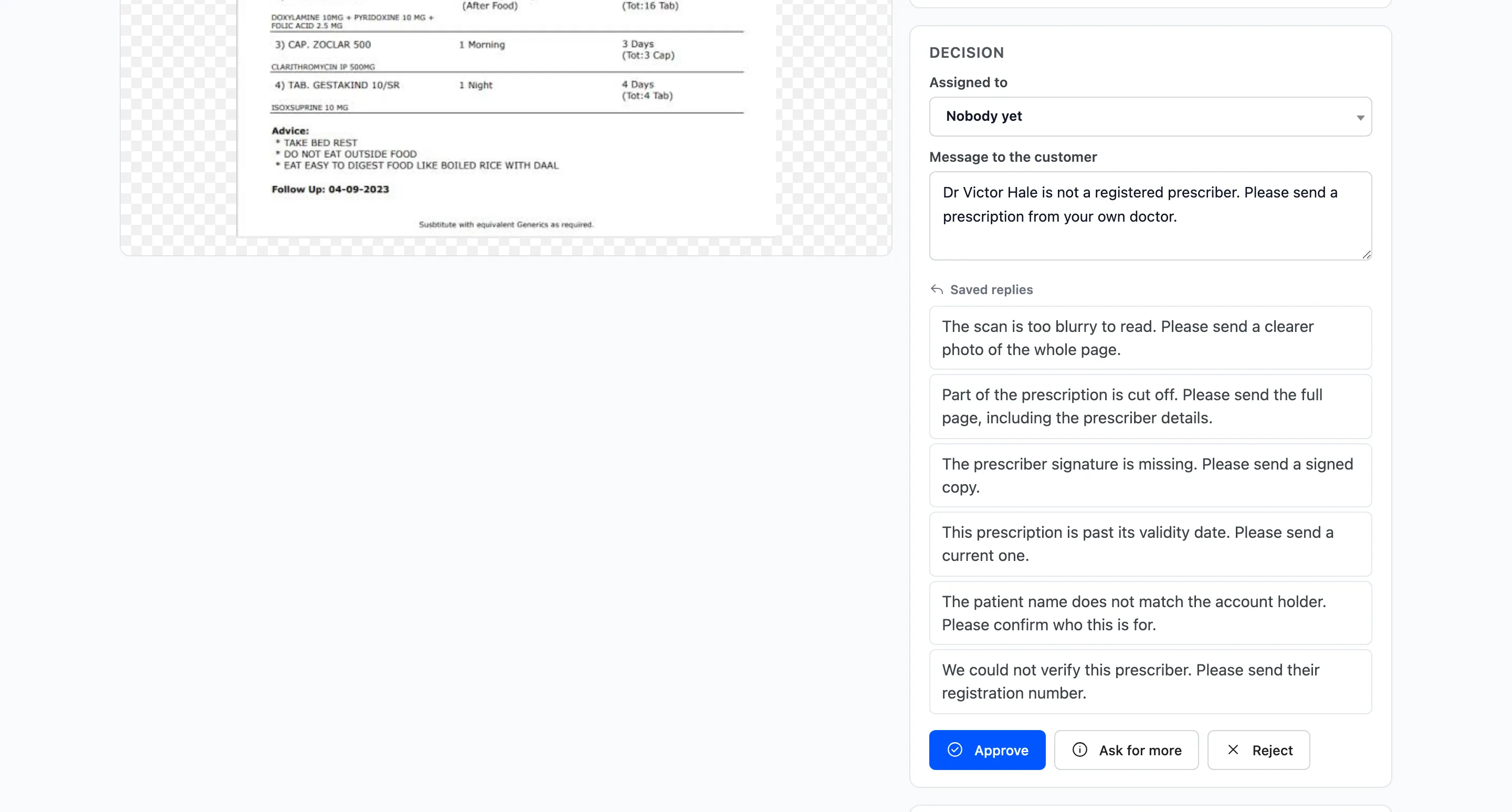
The reason is required. Click Reject with the box empty and the browser stops you. It says “Tell the customer what is wrong before rejecting or asking for more”, and nothing changes.
Write it for the customer, not for your colleagues. They will read it in an email and on their order page, and the next thing they do depends on it.
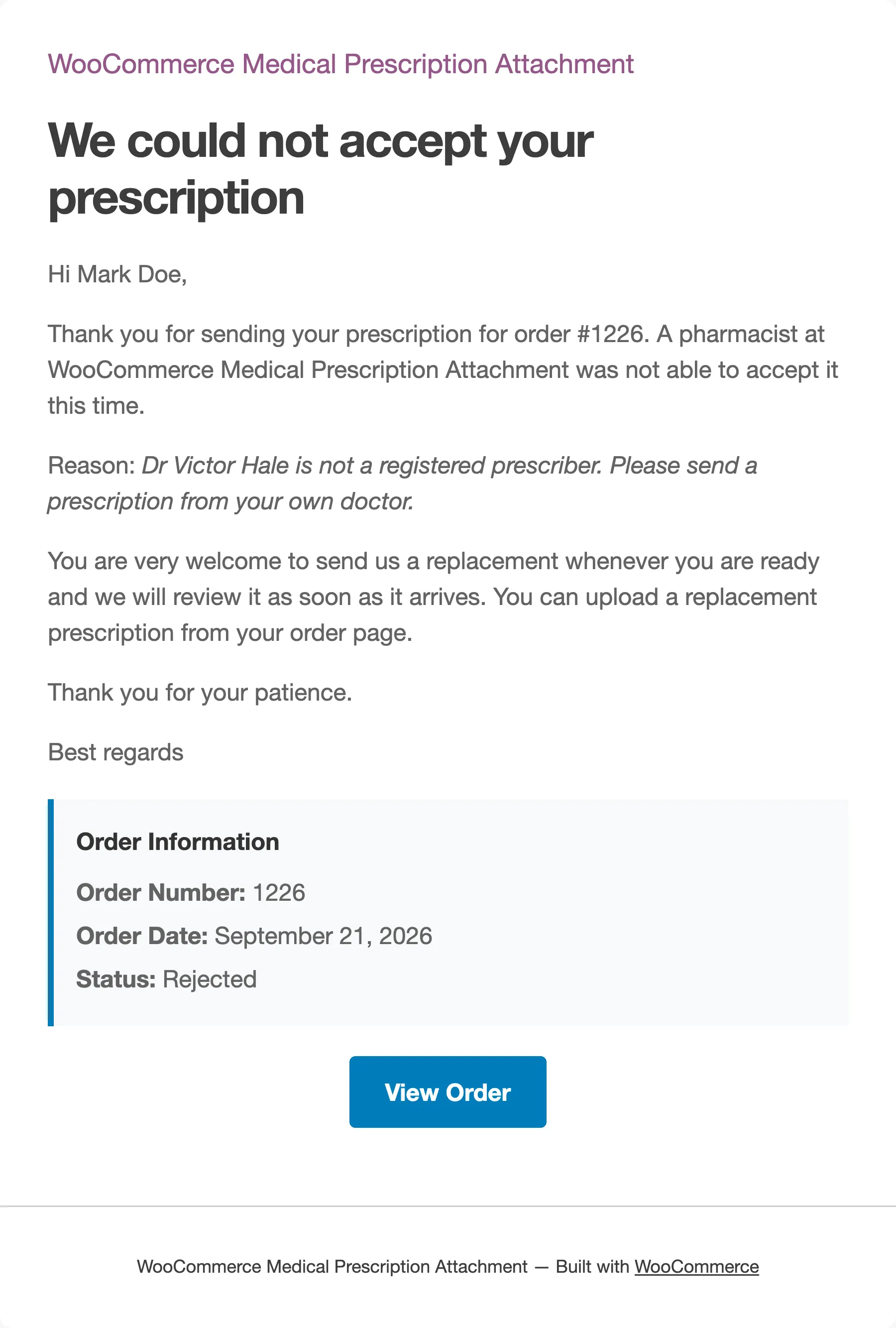
By default a rejected order stays On hold. Nothing is refunded or cancelled for you, so the customer can still send a replacement. Set On Rejection to Cancelled if a refusal should end the order.
Step 6: Check what the customer sees
Section titled “Step 6: Check what the customer sees”The customer’s order page shows the result. After a rejection it shows the reason in red and opens the upload box again, so they can act on it without writing to you.
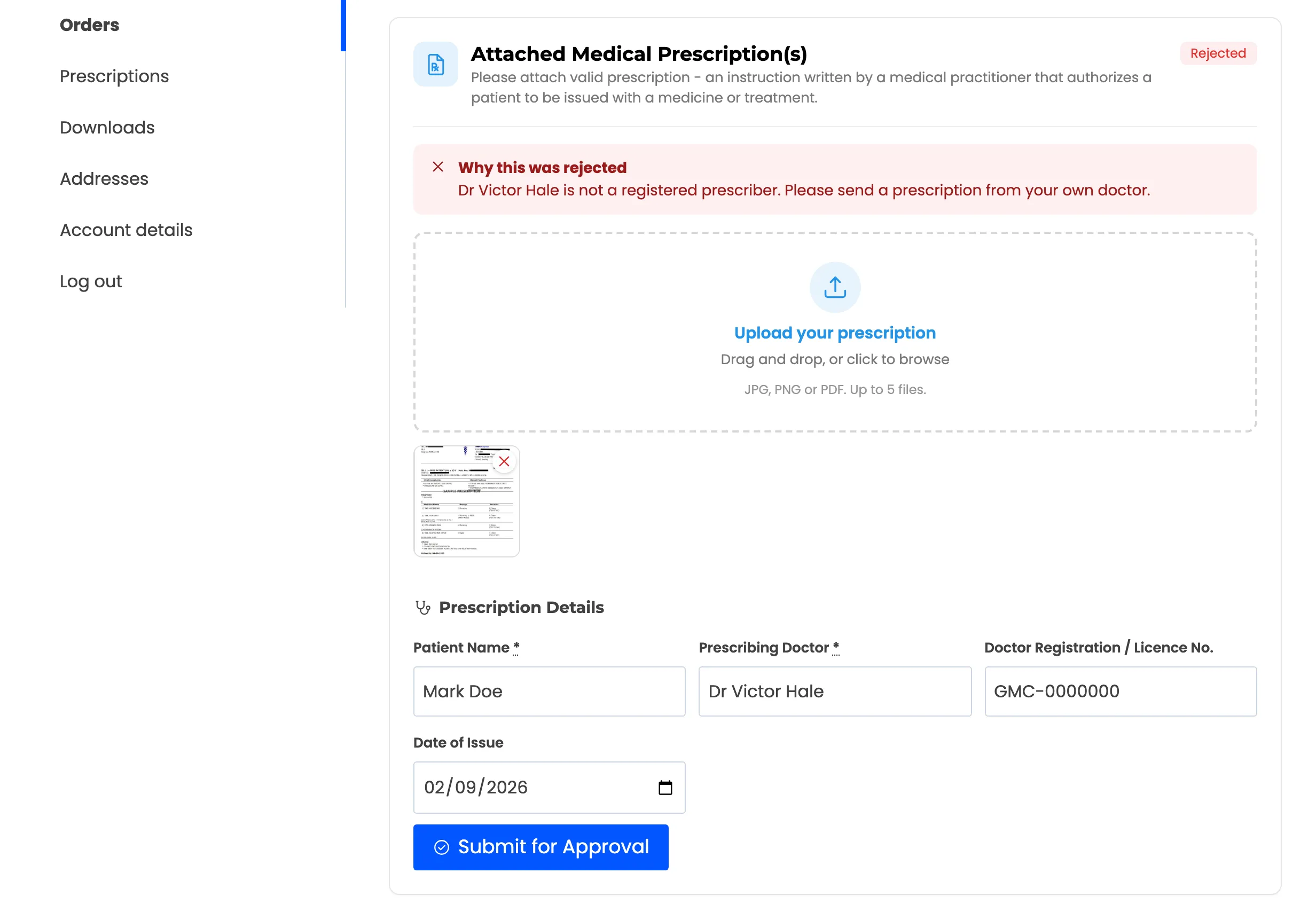
When they send a replacement, the prescription goes back to Pending and returns to your queue.
Deciding in the free version
Section titled “Deciding in the free version”The free version has no workspace. Open the order from WooCommerce → Orders and use the Medical Prescription Review panel.
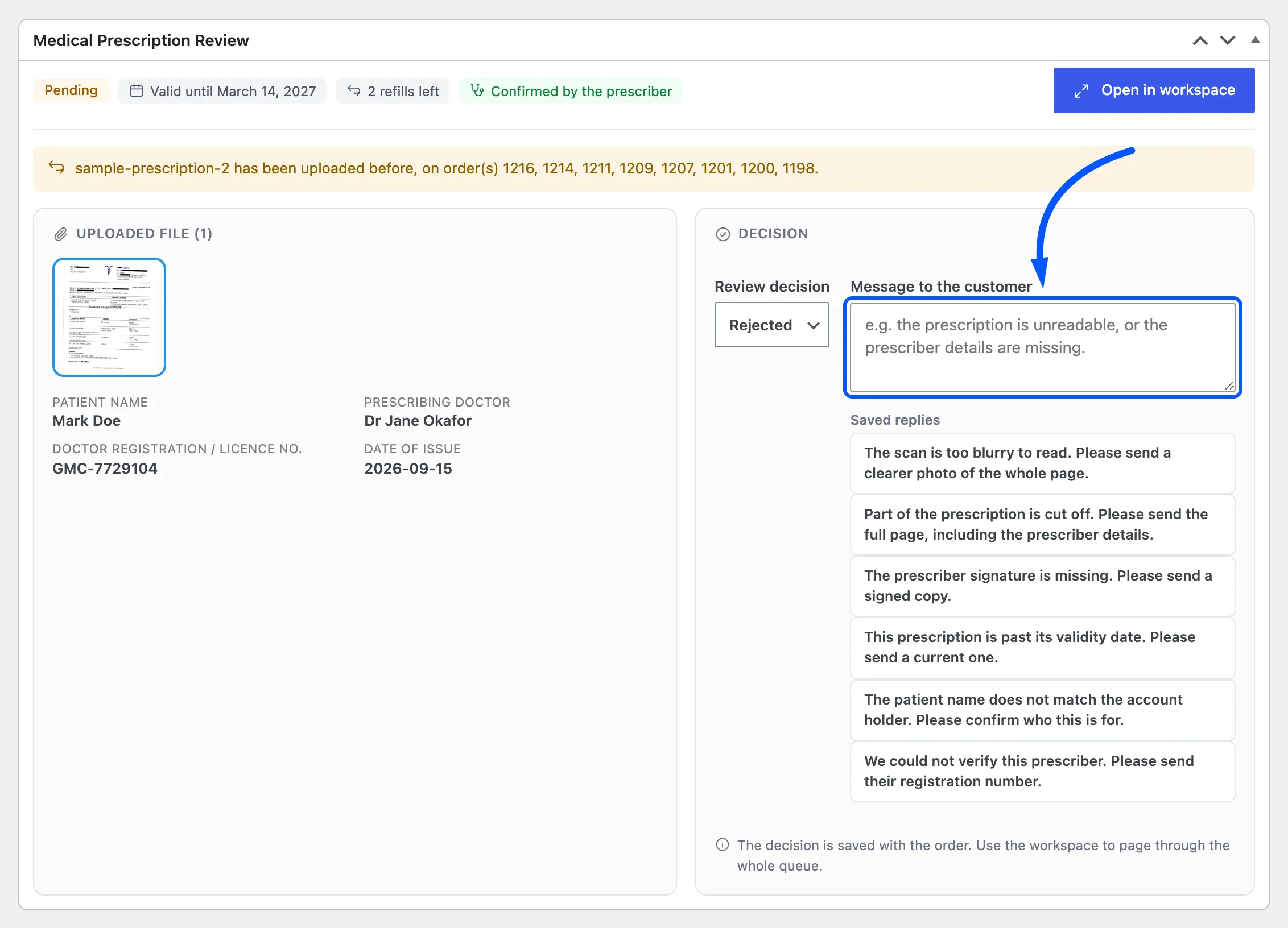
- Choose Approved or Rejected in Review decision.
- For a rejection, type the reason in Message to the customer.
- Click Update on the order.
The order status, the email and the order note follow exactly as in the workspace.