

How to Show Campaigns on a Page
Campaigns do not appear in the shop. A page with the grid shortcode lists them, and the card shortcode drops one into any page or post.
Step 1: Create a page
Section titled “Step 1: Create a page”Go to Pages → Add New Page and title it, for example, Campaigns.
Step 2: Add the grid shortcode
Section titled “Step 2: Add the grid shortcode”Add a Shortcode block and paste:
[ddwccf_campaigns filters="yes" columns="3"]Without options, [ddwccf_campaigns] shows twelve active campaigns, newest first, three per row. Every option
is on the Shortcodes page.
Step 3: Publish and check
Section titled “Step 3: Publish and check”Publish and open the page in a private window.
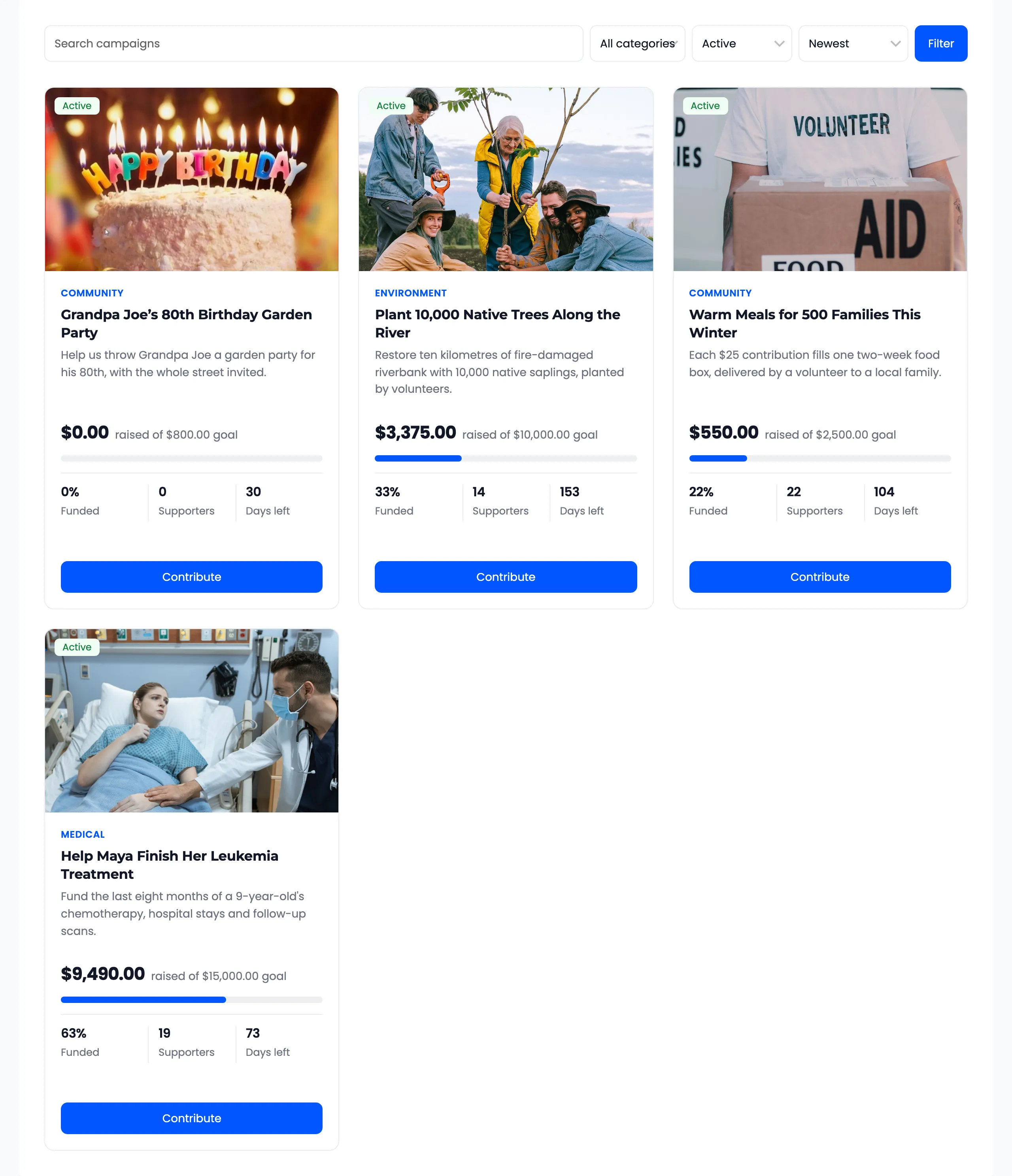
Each card shows the image, category, name, summary, amount raised, progress and the contribute button. With
filters="yes", visitors can search, pick a category or a status and sort by Newest, Ending soon,
Most supporters, Most raised or Closest to goal.
The default status is active, so funded and ended campaigns drop off the grid. Show them with
status="active,funded,ended", or status="all".
Step 4: Add a single campaign card
Section titled “Step 4: Add a single campaign card”For a blog post or landing page about one campaign, use its ID:
[ddwccf_campaign id="59"]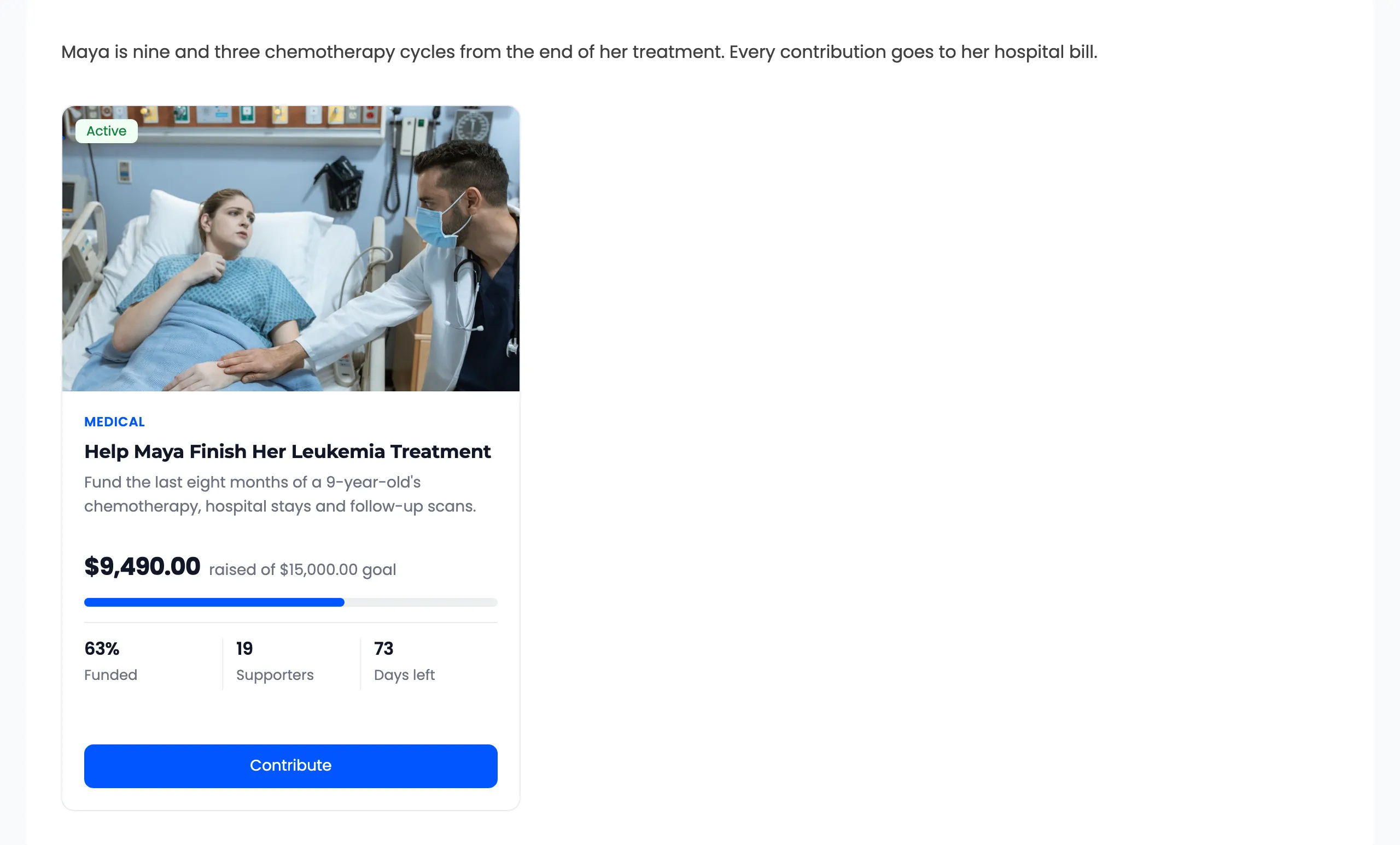
Find the ID by hovering the campaign’s name on the Campaigns screen and reading id= in the Edit link.
Common setups
Section titled “Common setups”- Only featured campaigns on the home page:
[ddwccf_campaigns featured="yes" limit="3"]. Pro. - One category:
[ddwccf_campaigns category="education"]. Pro. - A creator’s campaigns:
[ddwccf_campaigns author="3"]with their user ID. Pro. - Almost there:
[ddwccf_campaigns orderby="funded"]puts the campaigns closest to their goal first.