

How to Close a Campaign at Its Goal
A funded campaign can stop at its goal, or keep raising until its end date. One setting decides which.
Step 1: Choose the store rule
Section titled “Step 1: Choose the store rule”Go to Configuration → Contributions → Goal Reached.
- Close on goal on, the default: contributions stop the moment the goal is reached.
- Off: campaigns can raise more than their goal until their end date. A campaign without an end date then never closes on its own.
All or nothing campaigns with an end date ignore this and always stay open until that date.
Step 2: Watch a campaign reach its goal
Section titled “Step 2: Watch a campaign reach its goal”On the demo store, the school campaign needed $900. The contribution that took it to $900.60 closed it as soon as its order was marked paid.
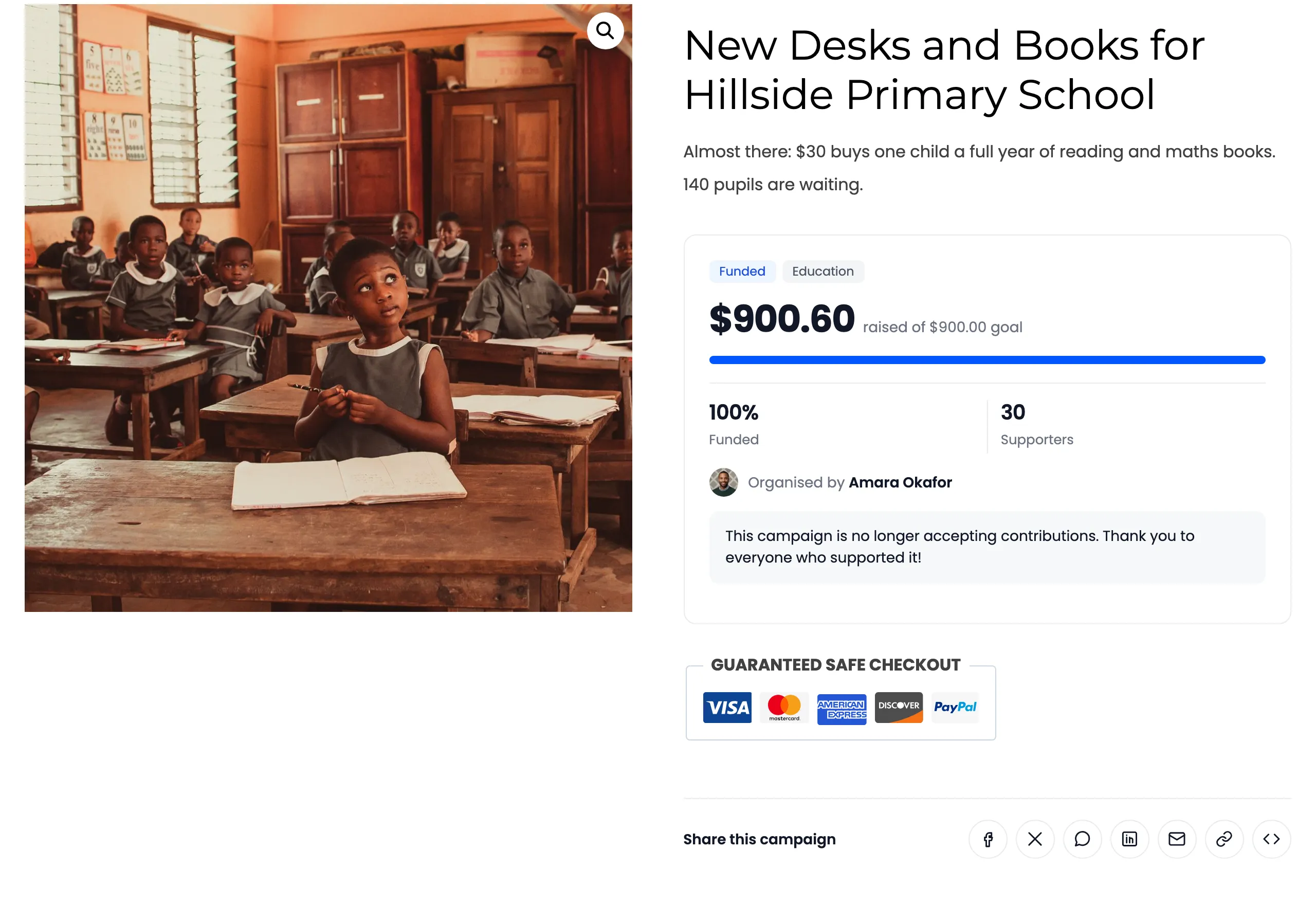
- The badge reads Funded and the bar is full.
- The form is replaced by “This campaign is no longer accepting contributions. Thank you to everyone who supported it!”
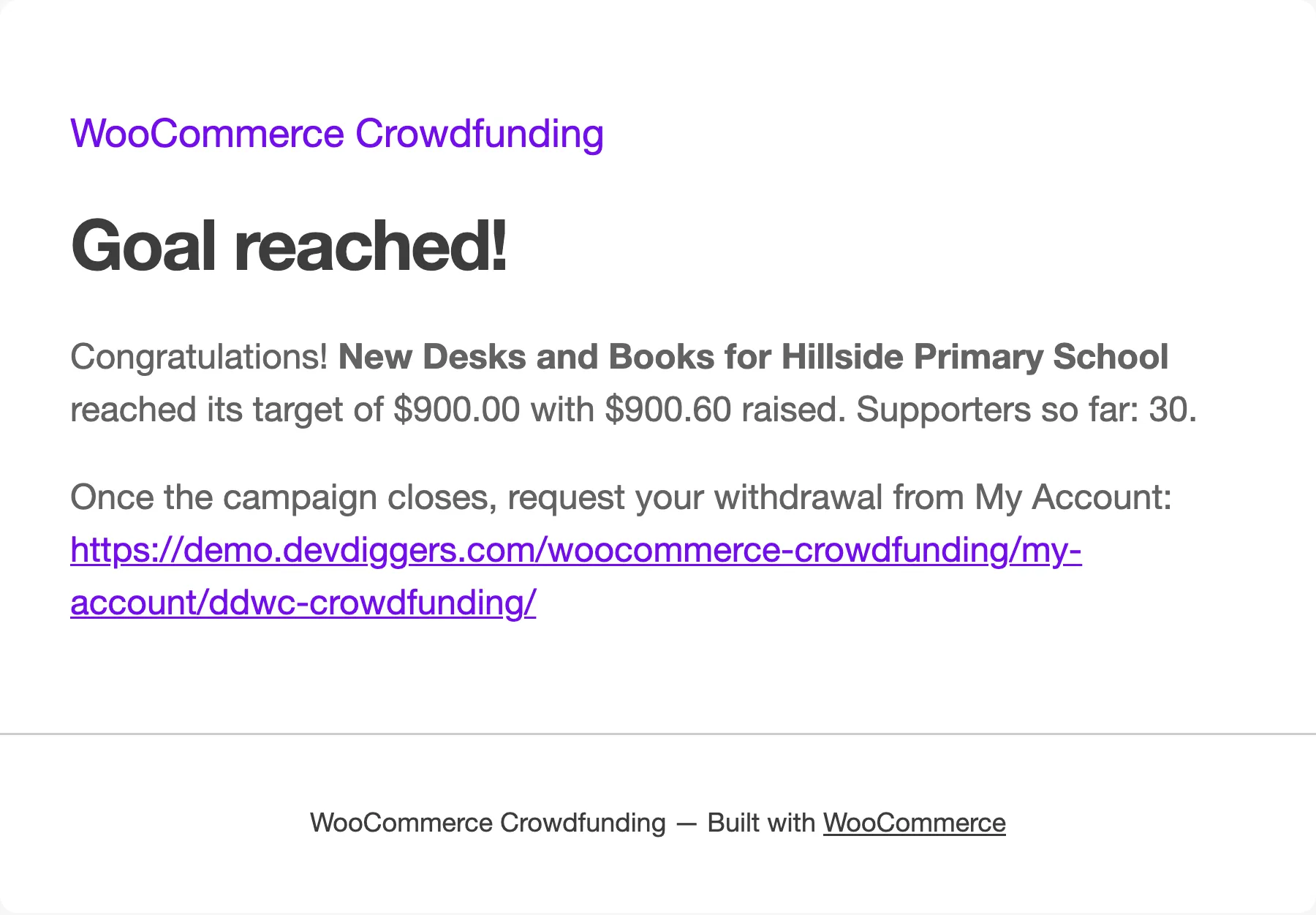
- The creator gets Goal Reached, with a copy to you.
Step 3: Close or reopen by hand
Section titled “Step 3: Close or reopen by hand”- Close now: set the campaign’s Status to Disabled, or use Disable on the Campaigns screen. It disappears from supporters. A flexible campaign can then be paid out in Pro.
- Reopen: raise its goal, move its end date later, or set it back to Live.
Overfunding
Section titled “Overfunding”With Close on goal off, the progress card goes past 100%, and stretch goals in Pro show supporters what the extra pays for. See How to Add Stretch Goals.