

The Contributions Screen
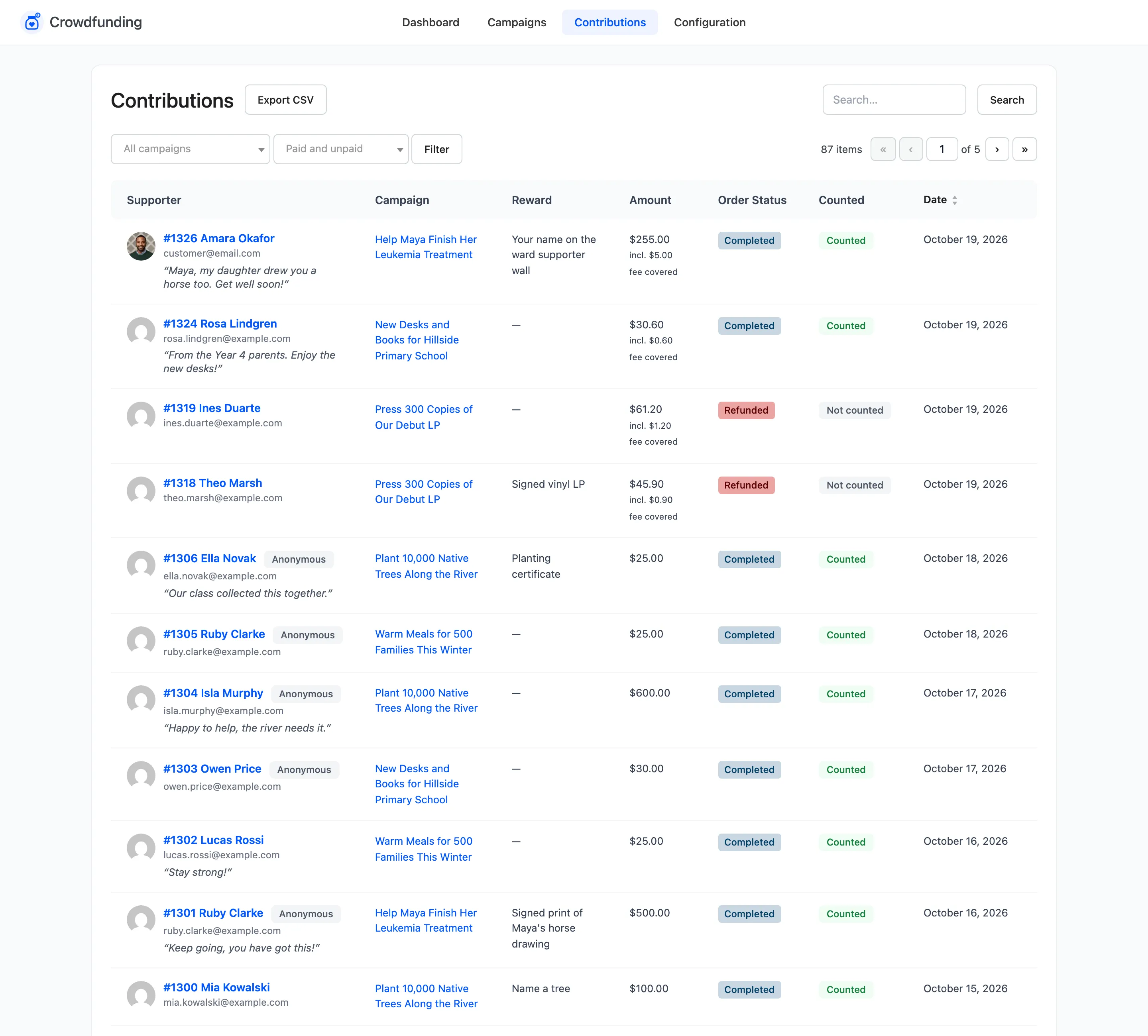
Open DevDiggers Plugins → Crowdfunding → Contributions. Each row is an order that contains a contribution.
Columns
Section titled “Columns”- Supporter: The order number and billing name, with the email. A guest without a name shows as Guest. An anonymous supporter still shows their name here, marked Anonymous.
- Campaign: The campaign it went to.
- Reward: The reward they chose, or a dash.
- Amount: What they gave. A covered fee is noted as “incl. $X fee covered”.
- Order Status: WooCommerce’s status for the order.
- Counted: Whether it is in the campaign’s total.
- Date: When the order was placed. Click to sort.
The order number opens the WooCommerce order.
Counted or not
Section titled “Counted or not”Counted only reads Yes once the order is paid, that is Processing or Completed. A bank transfer waiting on hold is Not counted. A cancelled, refunded or failed order goes back to Not counted and its amount leaves the campaign total. See How Crowdfunding Works.
Filters
Section titled “Filters”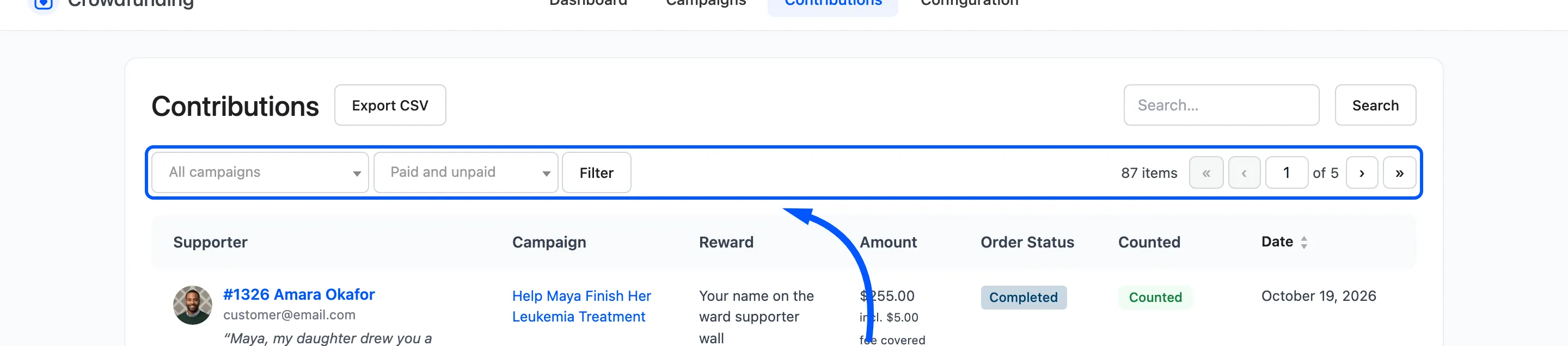
- All campaigns or one campaign.
- Paid and unpaid, Counted toward goal or Not counted.
Click Filter. The search box finds an order by its number or by the supporter’s exact email.
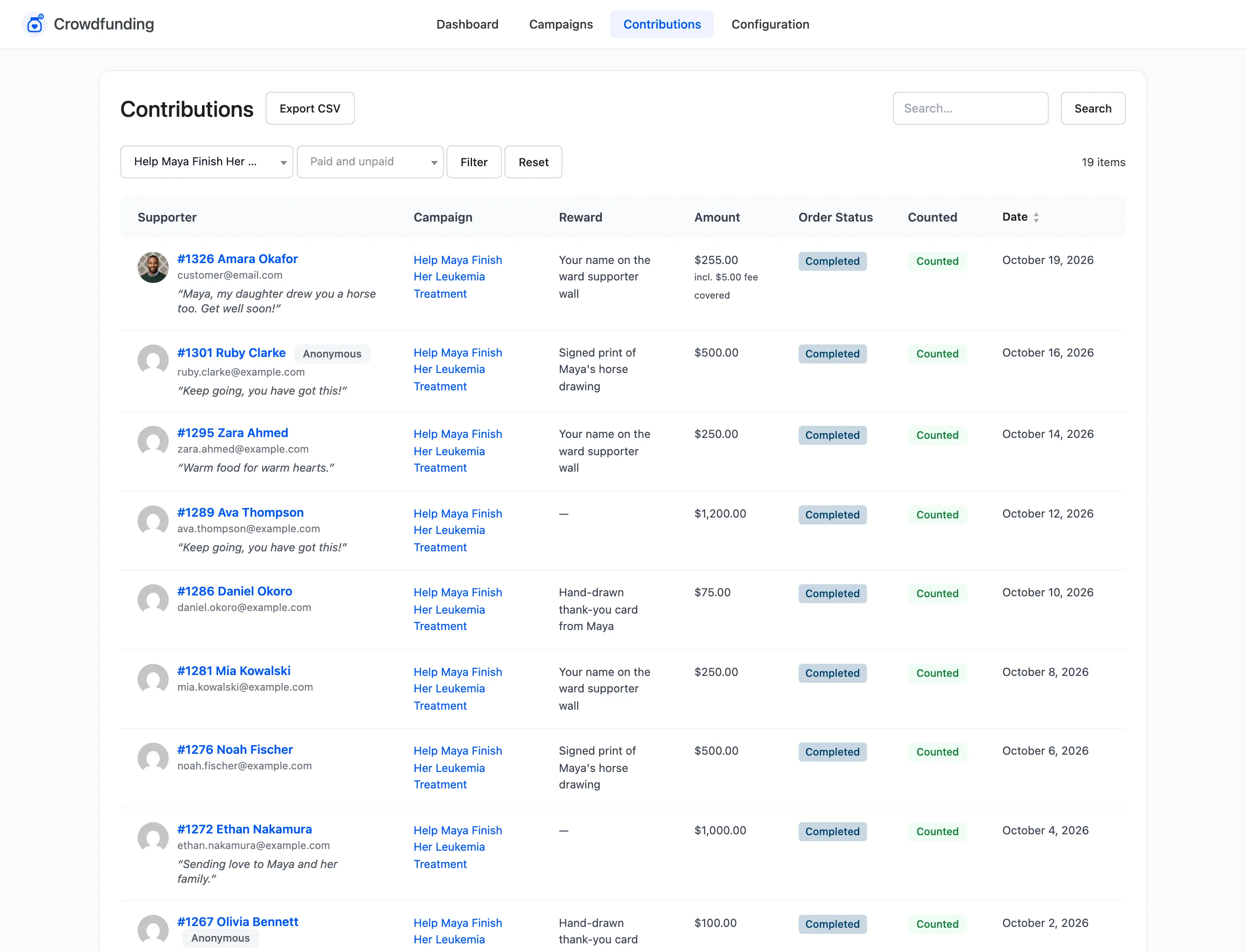
The Contributions button on a campaign’s editor opens this screen filtered to that campaign.
Export CSV
Section titled “Export CSV”Pro. Export CSV next to the heading downloads the contributions in the current filter.