

How to Let Customers Start Campaigns (Pro)
With customer campaigns on, your store becomes a fundraising platform: customers raise money for their own causes, and you approve them and pay them out. On the demo store, the customer Amara Okafor runs three campaigns.
Step 1: Turn on customer campaigns
Section titled “Step 1: Turn on customer campaigns”Go to Configuration → General → Who Can Start Campaigns.
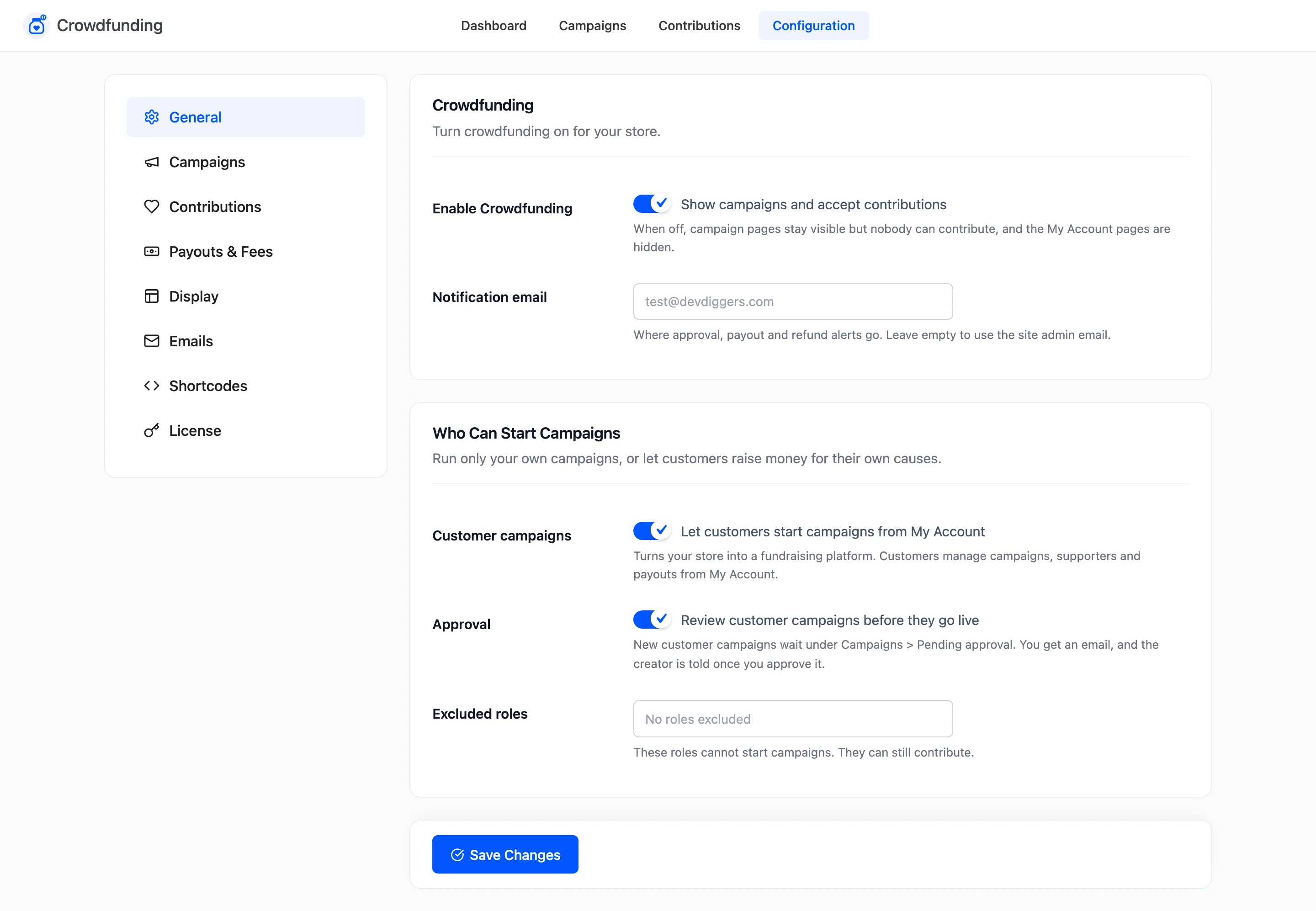
- Tick Customer campaigns.
- Keep Approval ticked so nothing goes live without you.
- Add any Excluded roles that should only contribute, never start campaigns.
Click Save Changes. Any signed-in customer not in an excluded role now sees your campaign manager page in My Account. Guests do not: starting a campaign needs an account.
Step 2: Choose the creator tools
Section titled “Step 2: Choose the creator tools”On Configuration → Campaigns:
- Default funding model for their new campaigns.
- Maximum duration (days), for example 60.
- Which of Rewards, Stretch goals and Updates they may use.
On Configuration → Payouts & Fees, set your platform fee. Customers see it on their form.
Step 3: The customer starts a campaign
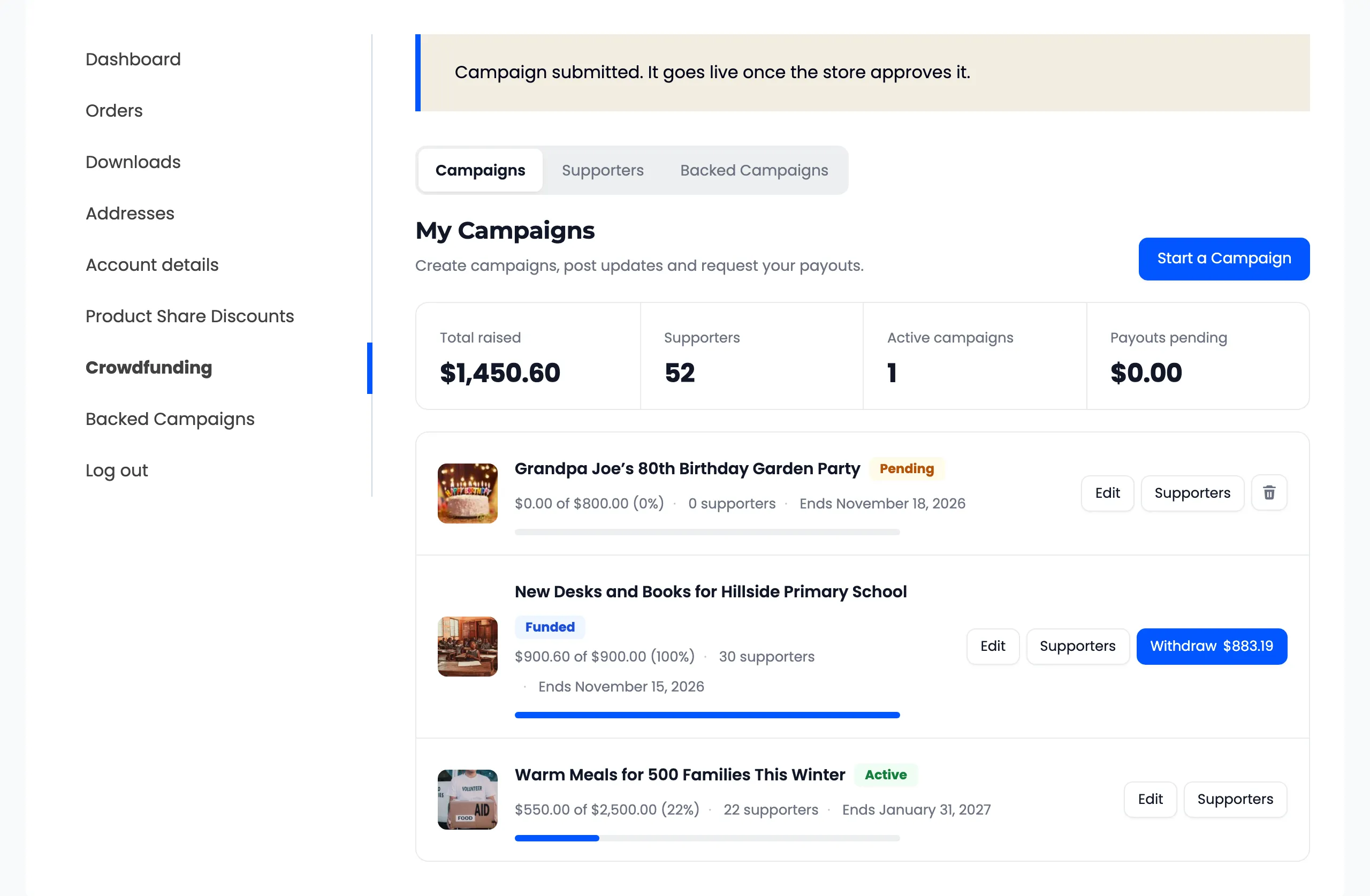
Section titled “Step 3: The customer starts a campaign”In My Account, the customer opens My Campaigns, called Crowdfunding on the demo store, and clicks Start a Campaign.
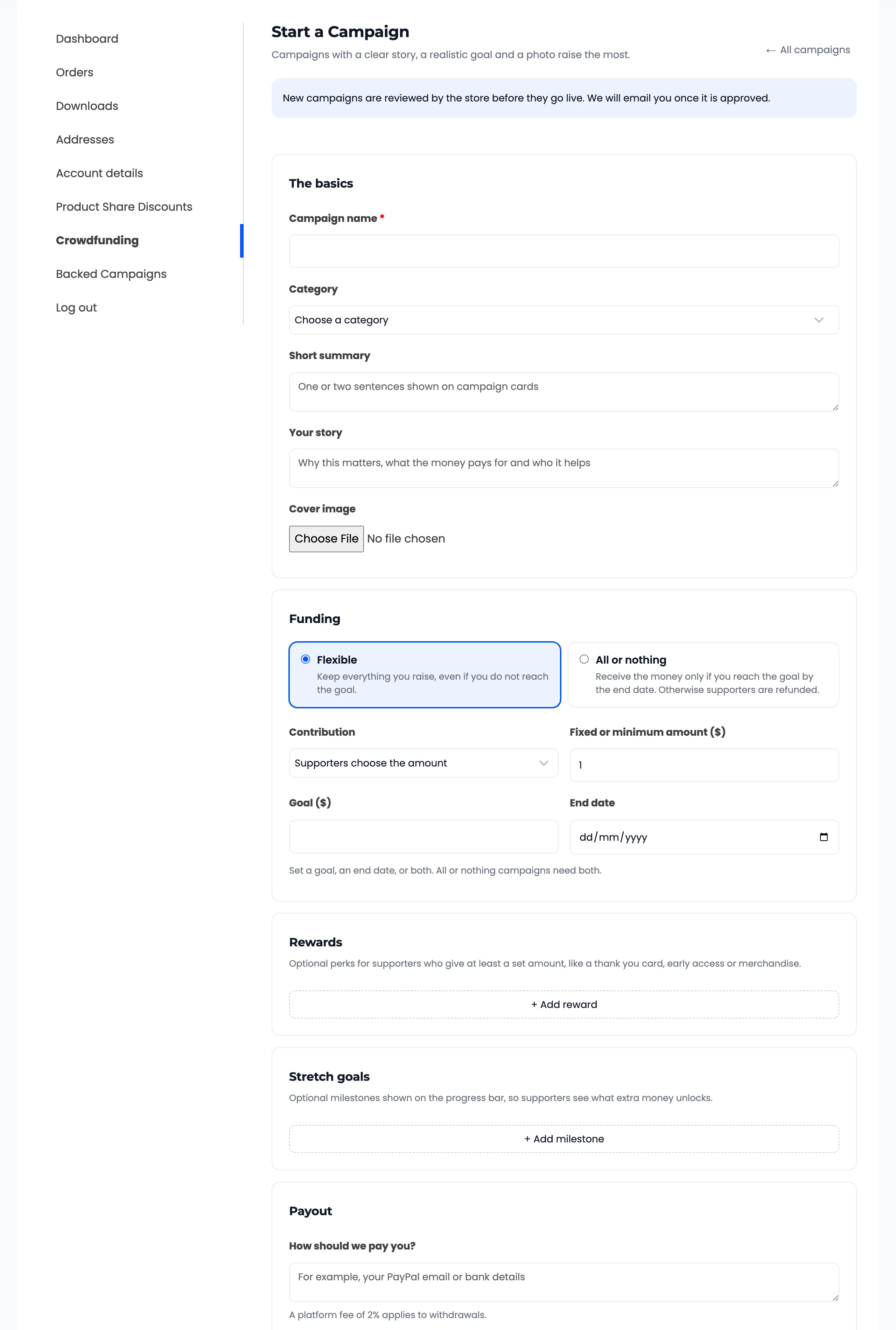
With approval on, the form says “New campaigns are reviewed by the store before they go live. We will email you once it is approved.”
Step 4: The customer submits it
Section titled “Step 4: The customer submits it”The form has the same parts as yours.
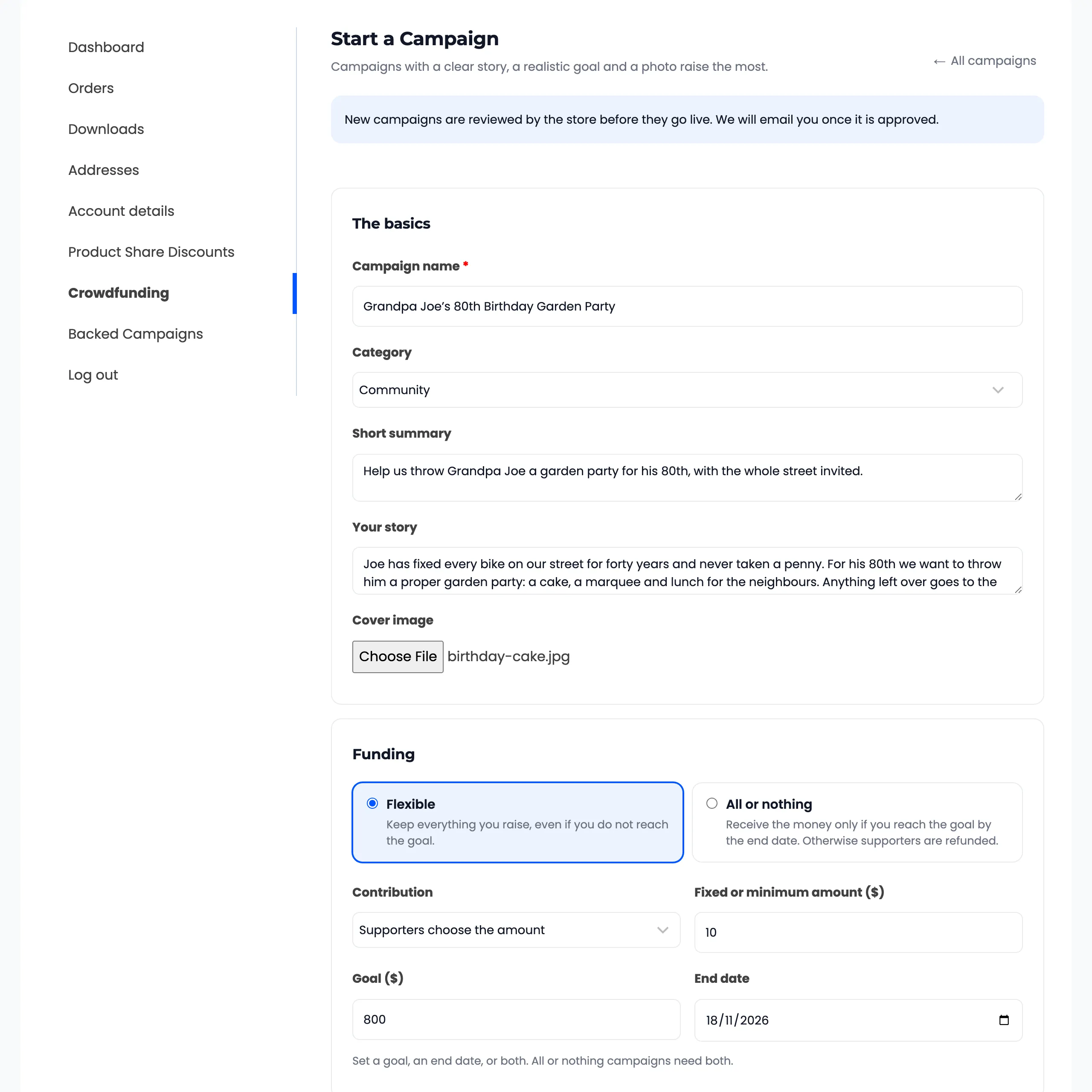
- The basics: campaign name, category, short summary, story and a cover image uploaded from their device.
- Funding: Flexible or All or nothing as two cards, how supporters give, the amount, goal and end date.
- Rewards and Stretch goals, if you allow them.
- Payout: “How should we pay you?”, for example their PayPal email. The form reminds them of your platform fee.
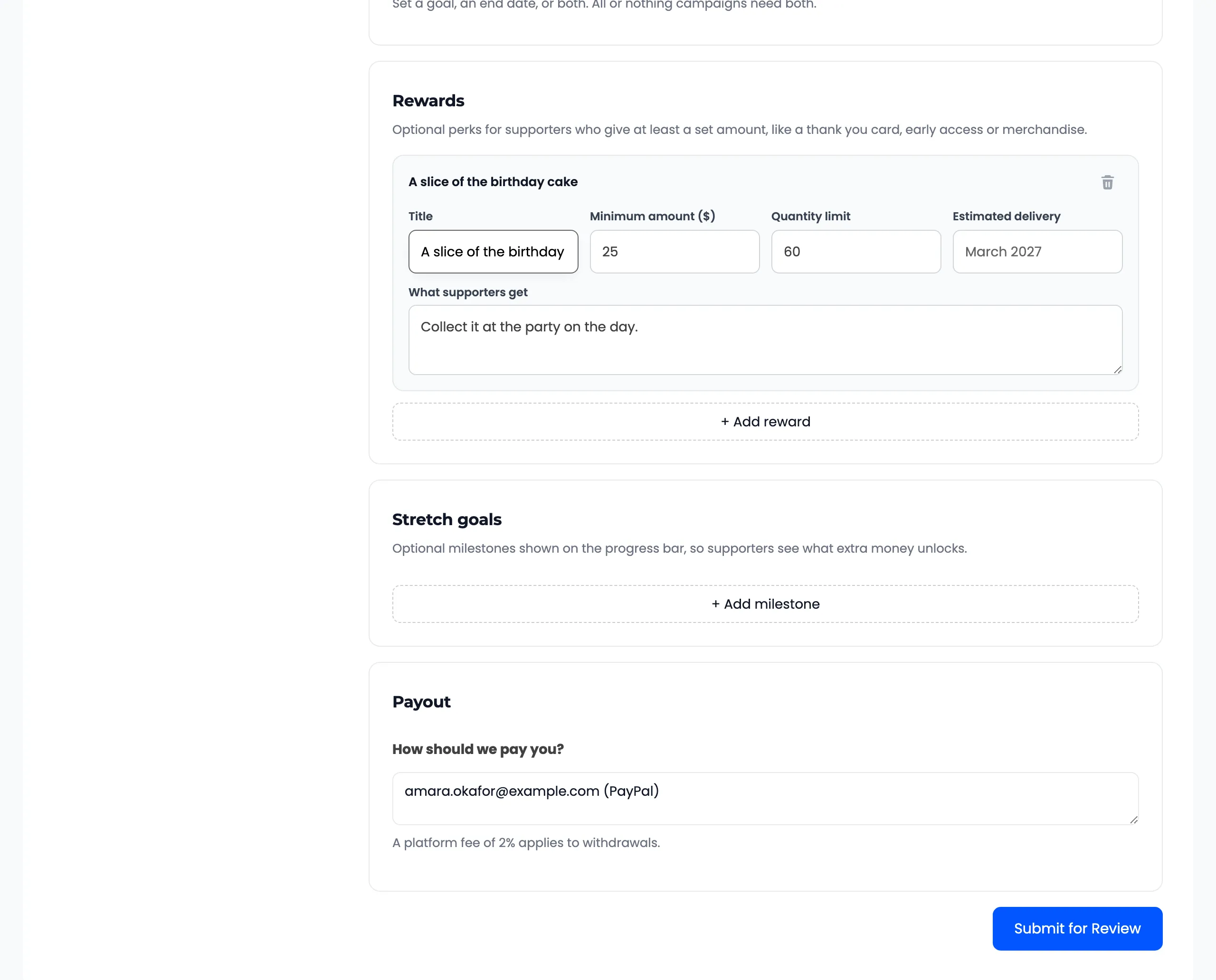
They click Submit for Review. My Campaigns shows “Campaign submitted. It goes live once the store approves it.” with the campaign marked Pending.
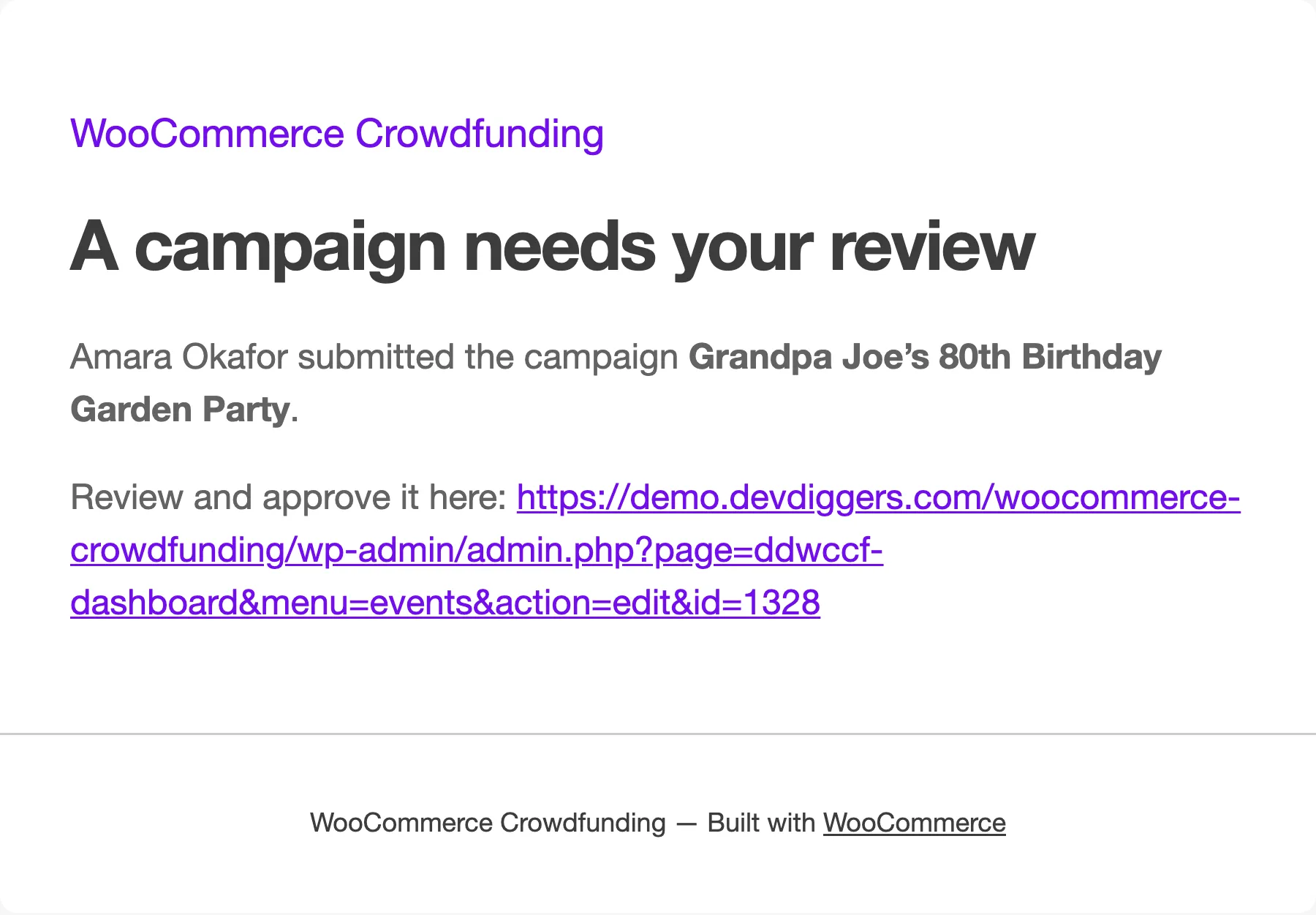
You get the Campaign Submitted to Admin email.
Step 5: Approve it
Section titled “Step 5: Approve it”See How to Approve Customer Campaigns. Once approved, the campaign goes live and the customer is emailed.
What a customer can and cannot do
Section titled “What a customer can and cannot do”- They can edit their own campaigns, post updates, read their supporters and request payouts.
- They cannot edit anyone else’s campaign, or change the funding model after the first contribution.
- They cannot delete a campaign that has contributions. They can switch it to Paused, hidden from supporters.
- Edits to a campaign still waiting for approval keep it waiting.
The creator’s side is described in The Creator Experience.