

How to Let Supporters Cover the Fee (Pro)
Many supporters are happy to pay a little extra so the cause gets every penny. This checkbox lets them.
Step 1: Use a percentage fee
Section titled “Step 1: Use a percentage fee”The checkbox only shows when the campaign’s fee is a percentage, from the store setting or the campaign’s own. A fixed fee or No fee hides it.
Step 2: Turn on Cover the fee
Section titled “Step 2: Turn on Cover the fee”Go to Configuration → Contributions → Supporter Options and tick Cover the fee. It is on by default.
Step 3: Check the campaign page
Section titled “Step 3: Check the campaign page”The form shows “Add 2% to cover the platform fee”, ticked, with the extra in money: “Adds $5.00 so the creator receives your full contribution.” The figure follows the amount as the supporter types.
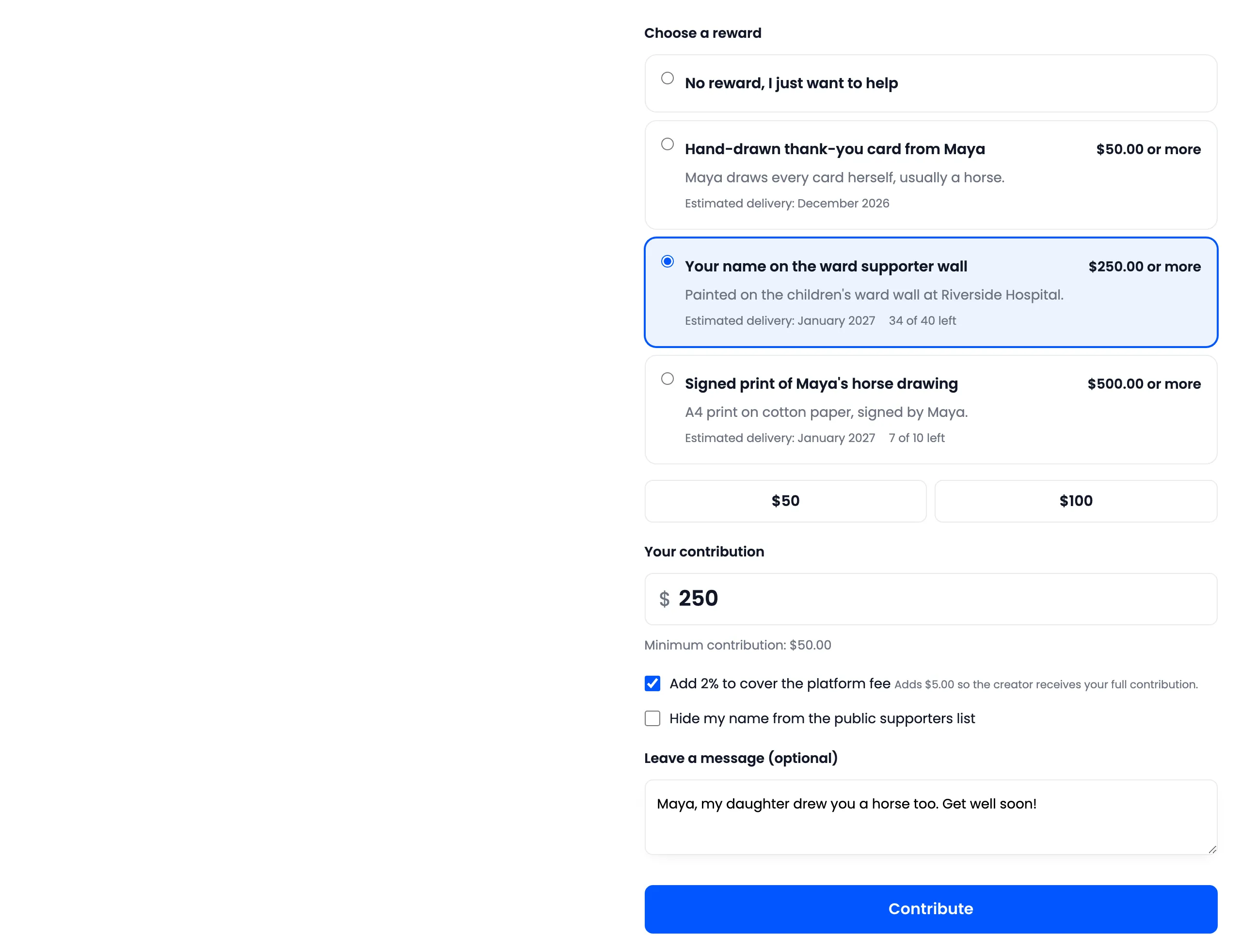
The supporter can untick it.
Step 4: See it in the cart and order
Section titled “Step 4: See it in the cart and order”The covered fee is added to the contribution’s price and listed under it as Fee covered.
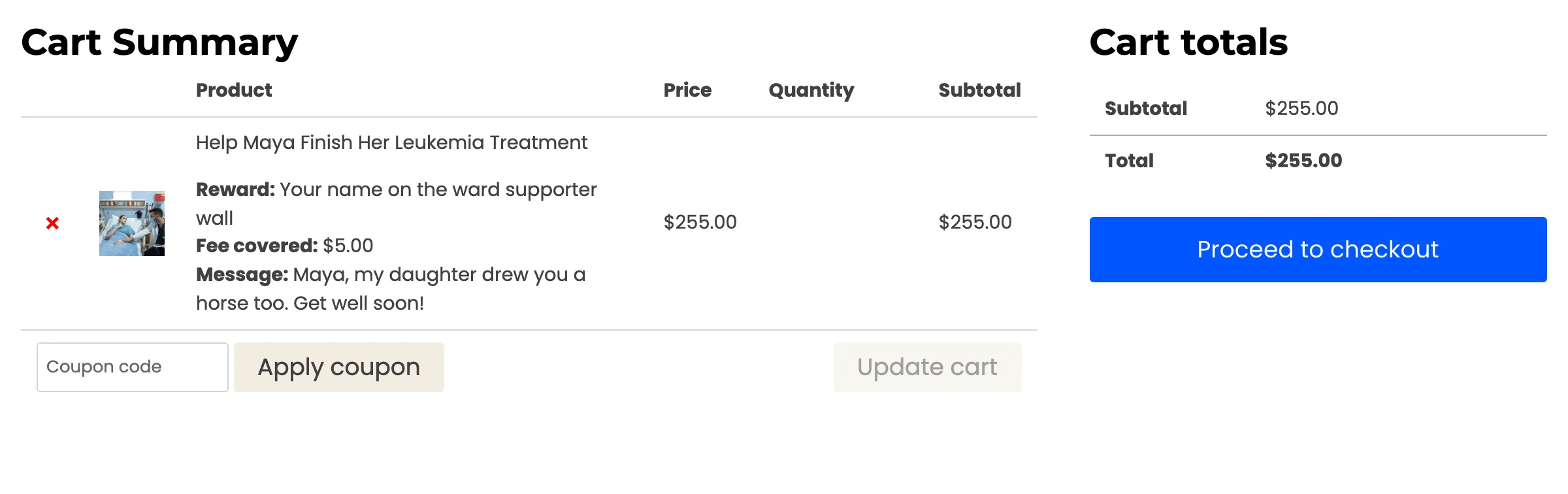
The Contributions screen shows the amount with “incl. $5.00 fee covered”.
Step 5: See it at payout
Section titled “Step 5: See it at payout”Covered fees count toward the raised total. At payout they are taken off the creator’s fee, so the creator receives what supporters meant to give. On the demo store’s school campaign, $0.60 was covered, so a $18.01 fee became $17.41.