

Email Settings
Open Configuration → Emails. Every email uses your WooCommerce email design. Change its header image, colours and footer under WooCommerce → Settings → Emails.
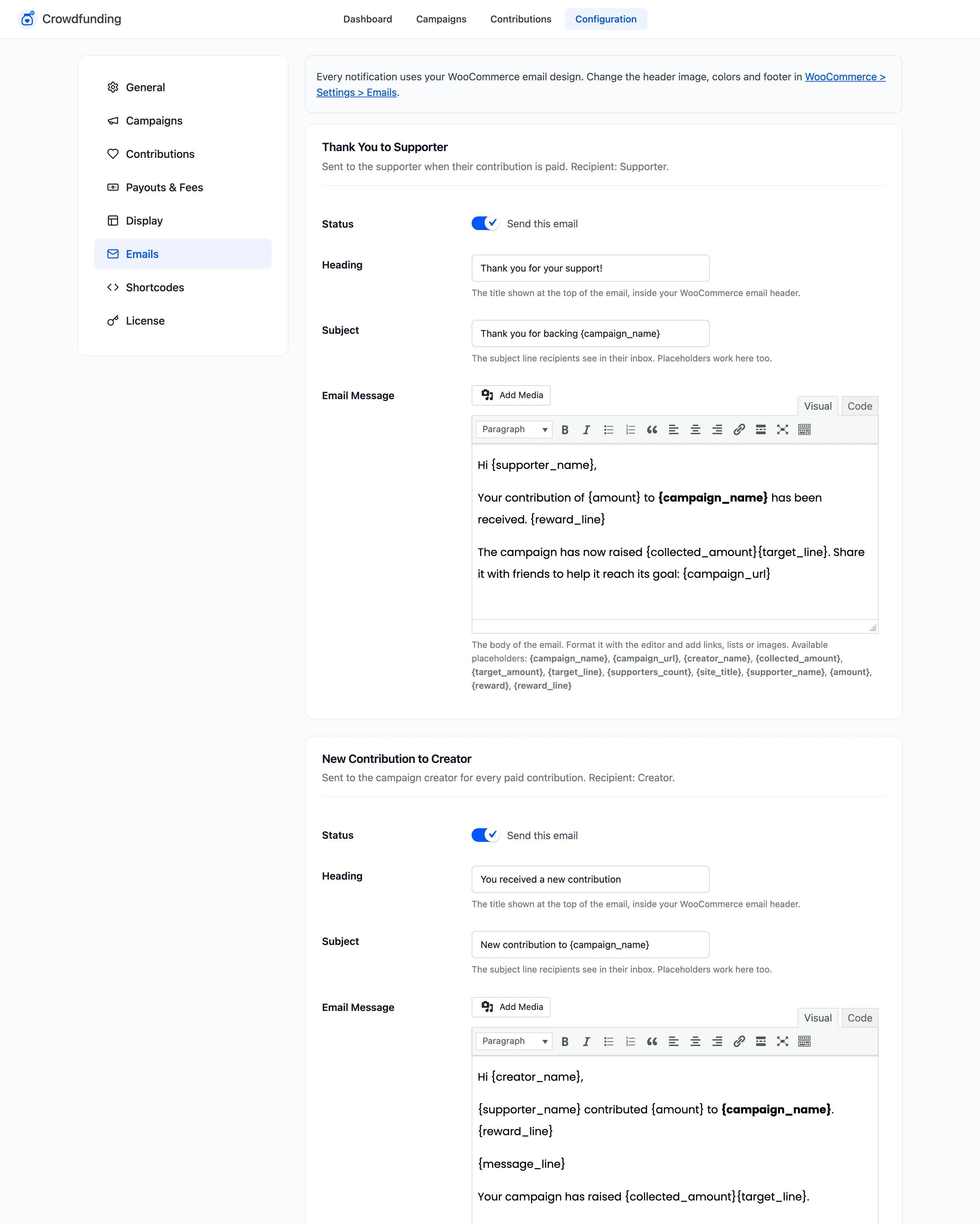
The emails
Section titled “The emails”| Sent to | When | |
|---|---|---|
| Thank You to Supporter | Supporter | Their contribution is paid. |
| New Contribution to Creator | Creator | Any paid contribution to their campaign. |
| Goal Reached | Creator, copy to you | The campaign reaches its goal. |
| Campaign Ended to Creator | Creator, copy to you | The day after the end date passes. |
| Campaign Submitted to Admin | You | Pro. A customer campaign waits for approval. |
| Campaign Approved to Creator | Creator | Pro. You approve their campaign. |
| Campaign Update to Supporters | Every supporter | Pro. The creator posts an update and chooses to email it. |
| Withdrawal Requested to Admin | You, confirmation to creator | Pro. A creator requests a payout. |
| Withdrawal Paid to Creator | Creator | Pro. You mark the payout paid. |
| Withdrawal Rejected to Creator | Creator | Pro. You reject the payout request. |
“You” is the Notification email on the General tab, or the site admin email. The creator is the campaign’s author, which is you for campaigns you create without picking someone else. The creator does not get New Contribution for a contribution they made themselves.
Each email’s fields
Section titled “Each email’s fields”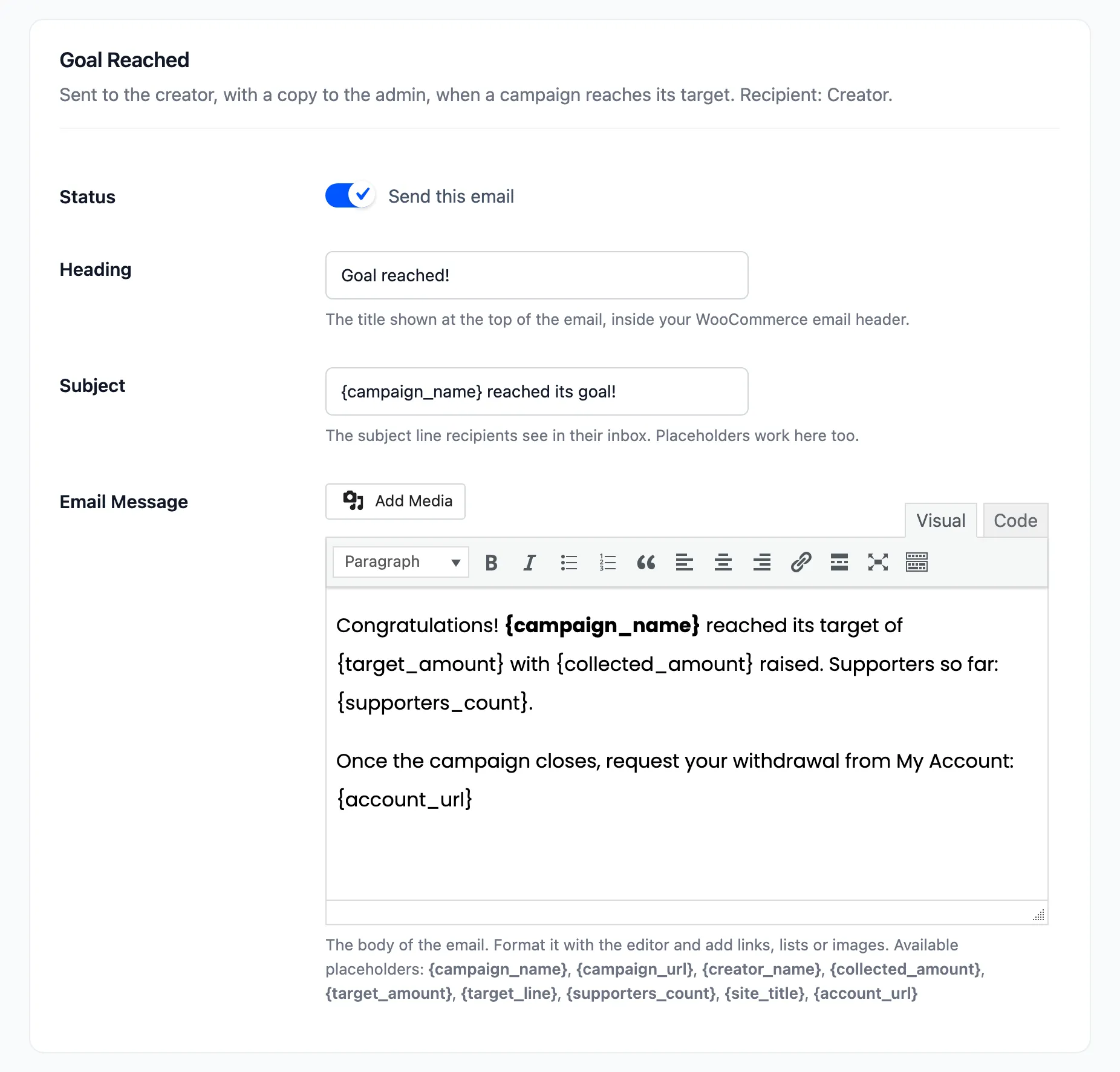
- Status: “Send this email”. On by default for all ten.
- Heading: The title at the top of the email.
- Subject: The subject line. Placeholders work here too.
- Email Message: The body, with a full editor for links, lists and images.
Placeholders that work in every email: {campaign_name}, {campaign_url}, {creator_name},
{collected_amount}, {target_amount}, {target_line}, {supporters_count} and {site_title}.
Each email lists its own extra ones under its message, such as {supporter_name}, {amount} and
{reward_line} for the thank you email.
See every email as it arrives in How to Customize Crowdfunding Emails.