

How to Approve Customer Campaigns (Pro)
With Approval on, every new customer campaign waits for you. Approving one puts it live and tells its creator.
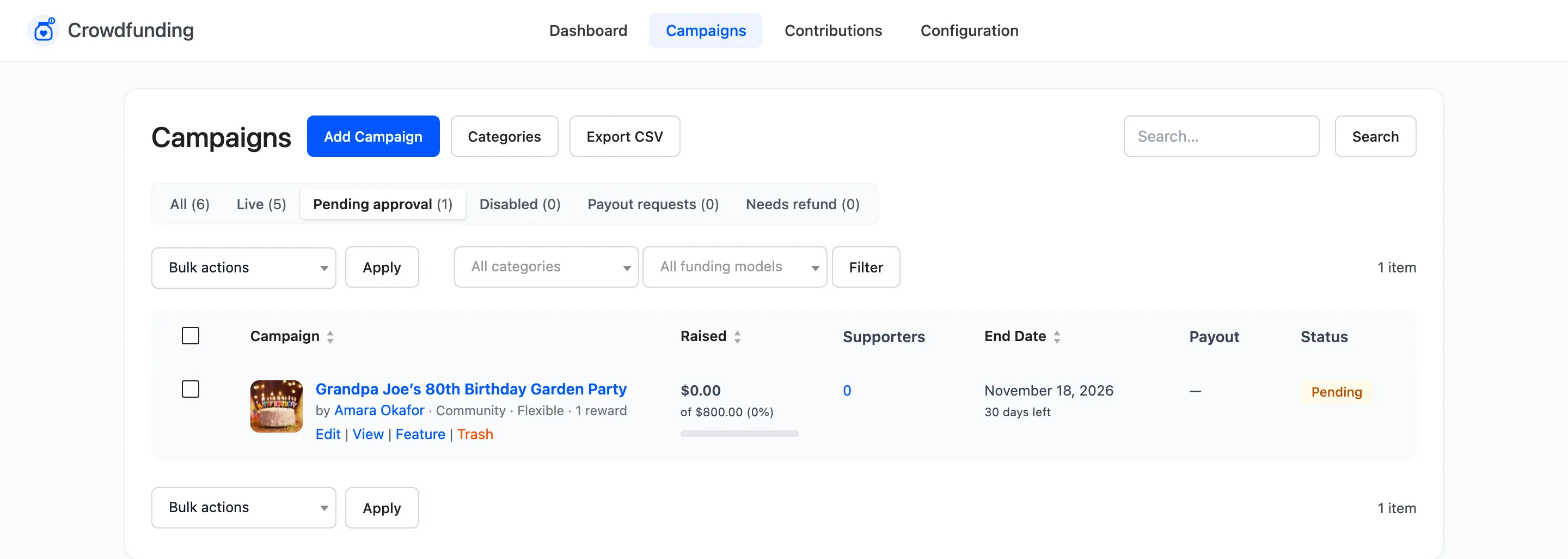
Step 1: Open Pending approval
Section titled “Step 1: Open Pending approval”Go to Campaigns and click Pending approval. New submissions also show in the dashboard’s Needs Attention list with an Approve button, and you get the Campaign Submitted email.
Step 2: Review the campaign
Section titled “Step 2: Review the campaign”Click Edit. Check the story and image, that the goal and end date are realistic, and that the rewards are things the creator can deliver. Check Pay to too: a payout goes there.
You can fix anything here, including setting a Category, Featured or a Platform fee of its own.
Step 3: Approve it
Section titled “Step 3: Approve it”Hover the row and click Approve. To approve several, tick them and use Bulk actions → Approve.
Setting Status to Live in the editor and saving does the same.
Step 4: Check it is live
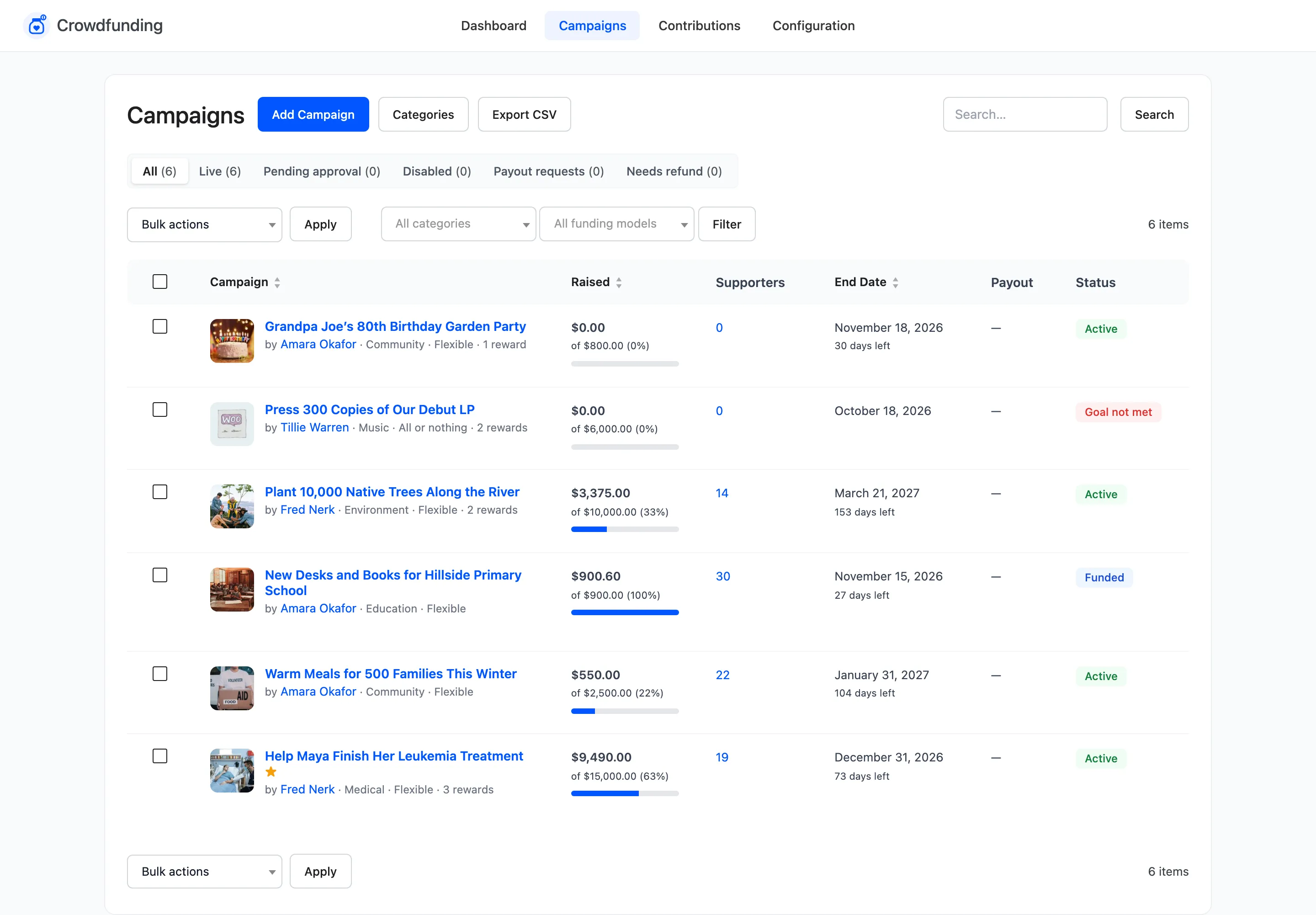
Section titled “Step 4: Check it is live”The campaign moves to Live.
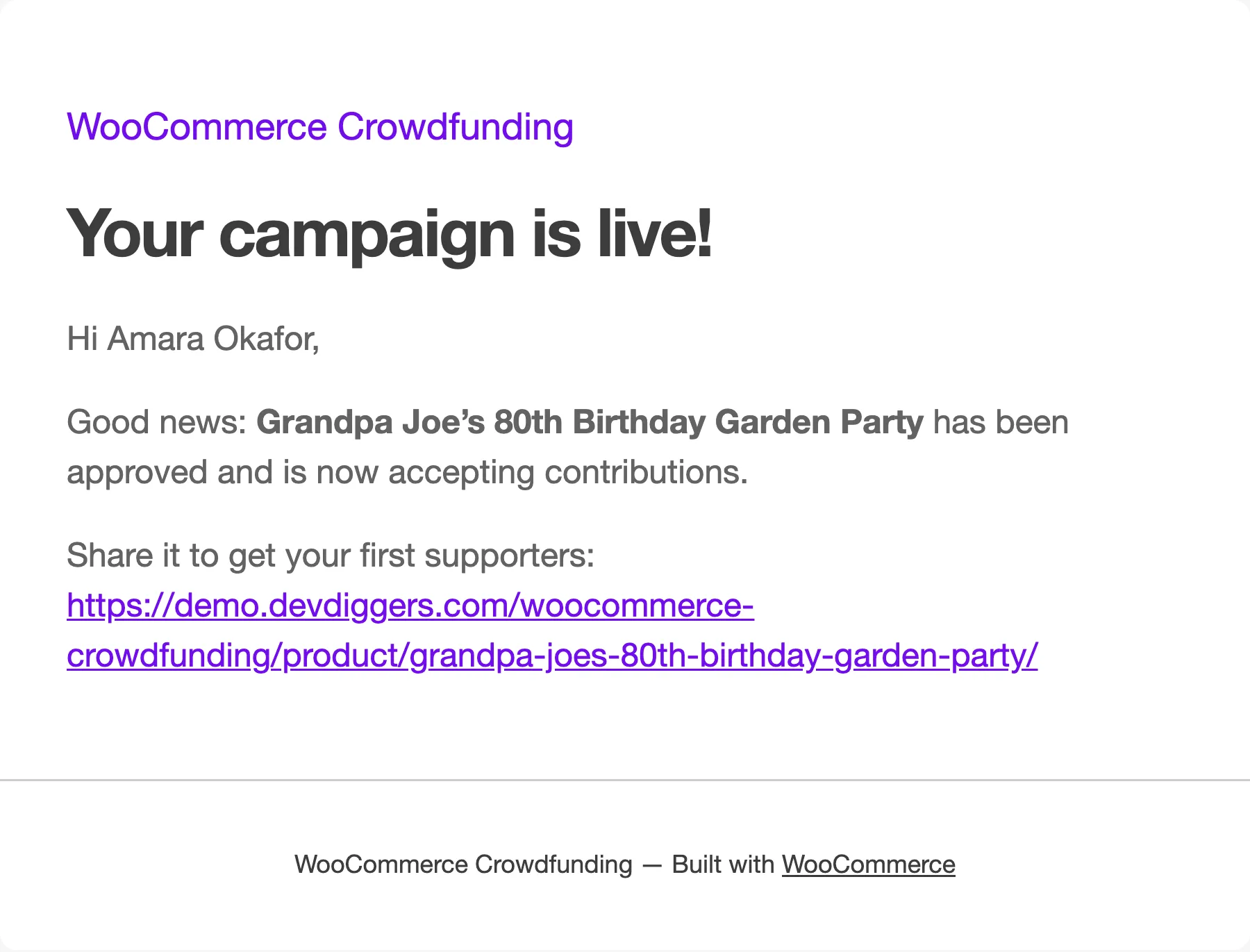
The creator gets Campaign Approved to Creator: “Your campaign is live!” with a link to share.
In their My Account the campaign now reads Active.
Turning one down
Section titled “Turning one down”There is no reject button for a campaign. Either leave it pending and contact the creator, set it to Disabled, or move it to the trash. None of these emails the creator.