

The Campaign Editor
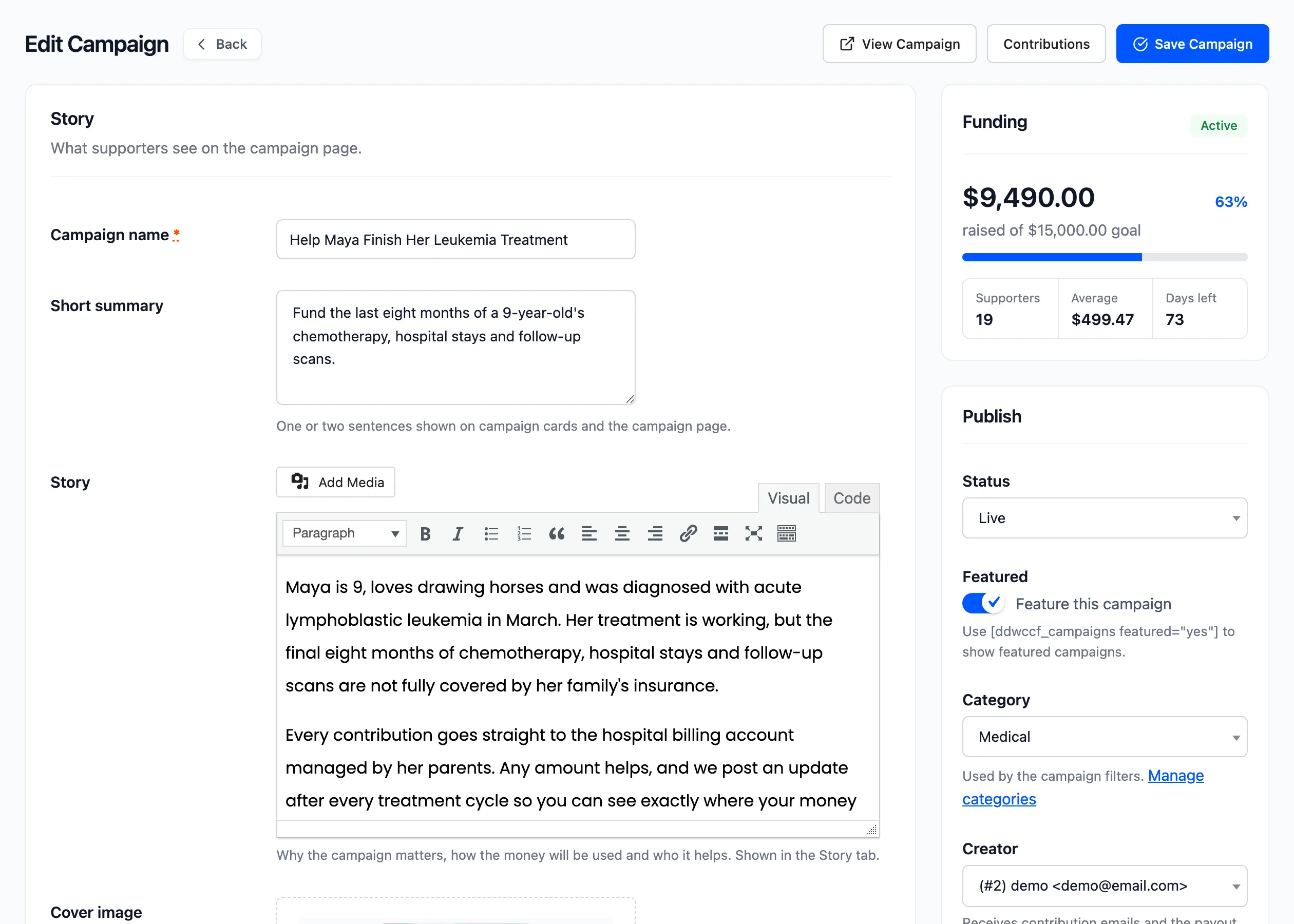
Click Add Campaign on the Campaigns screen, or Edit on a row. The editor has a main column and a side column. Click Save Campaign at the top right.
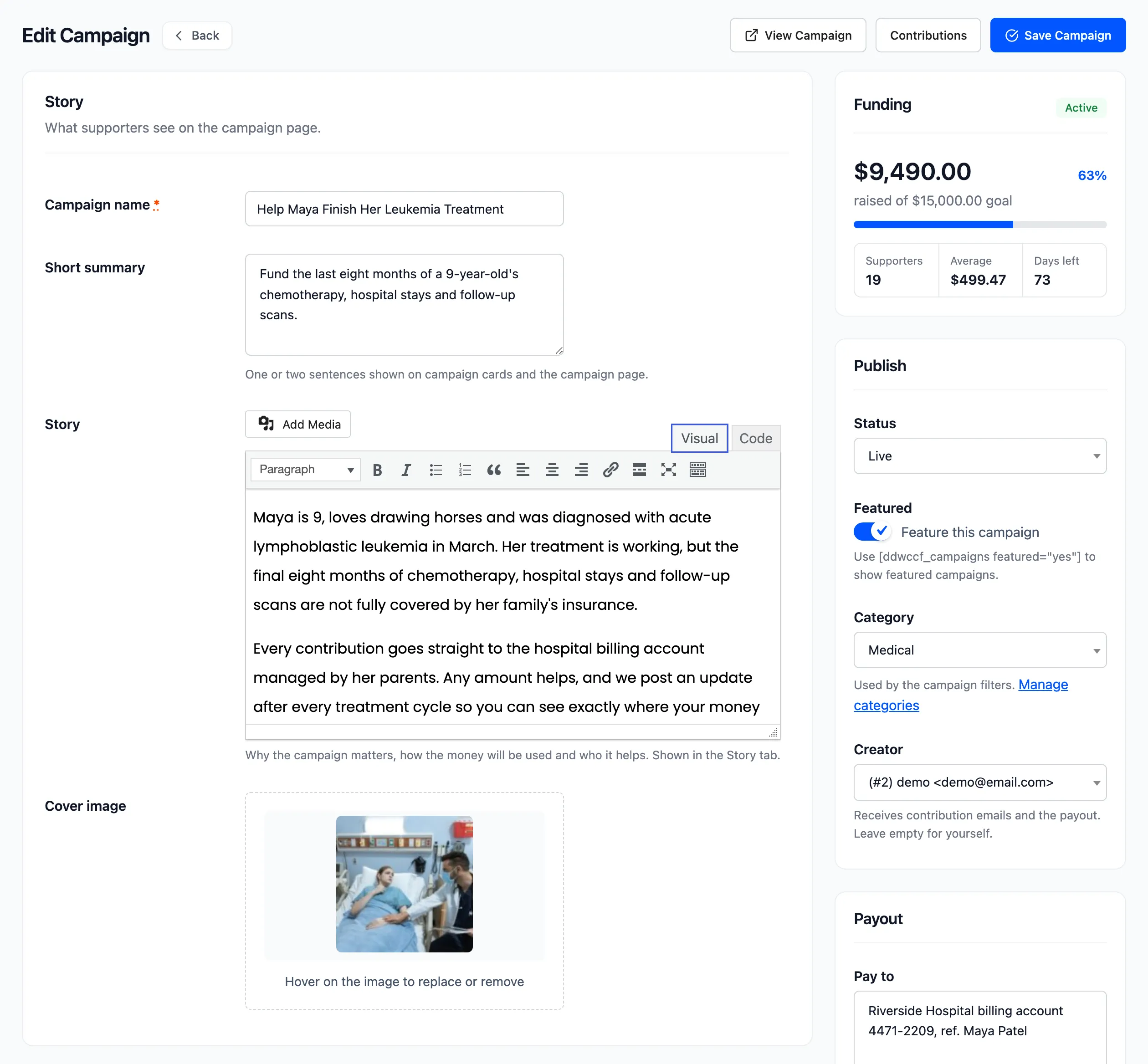
- Campaign name: Required. It must be unique among your products and campaigns.
- Short summary: One or two sentences for campaign cards and the top of the campaign page. Left empty, the first 30 words of the story are used.
- Story: The full text, shown in the Story tab.
- Cover image: The campaign’s image.
Funding
Section titled “Funding”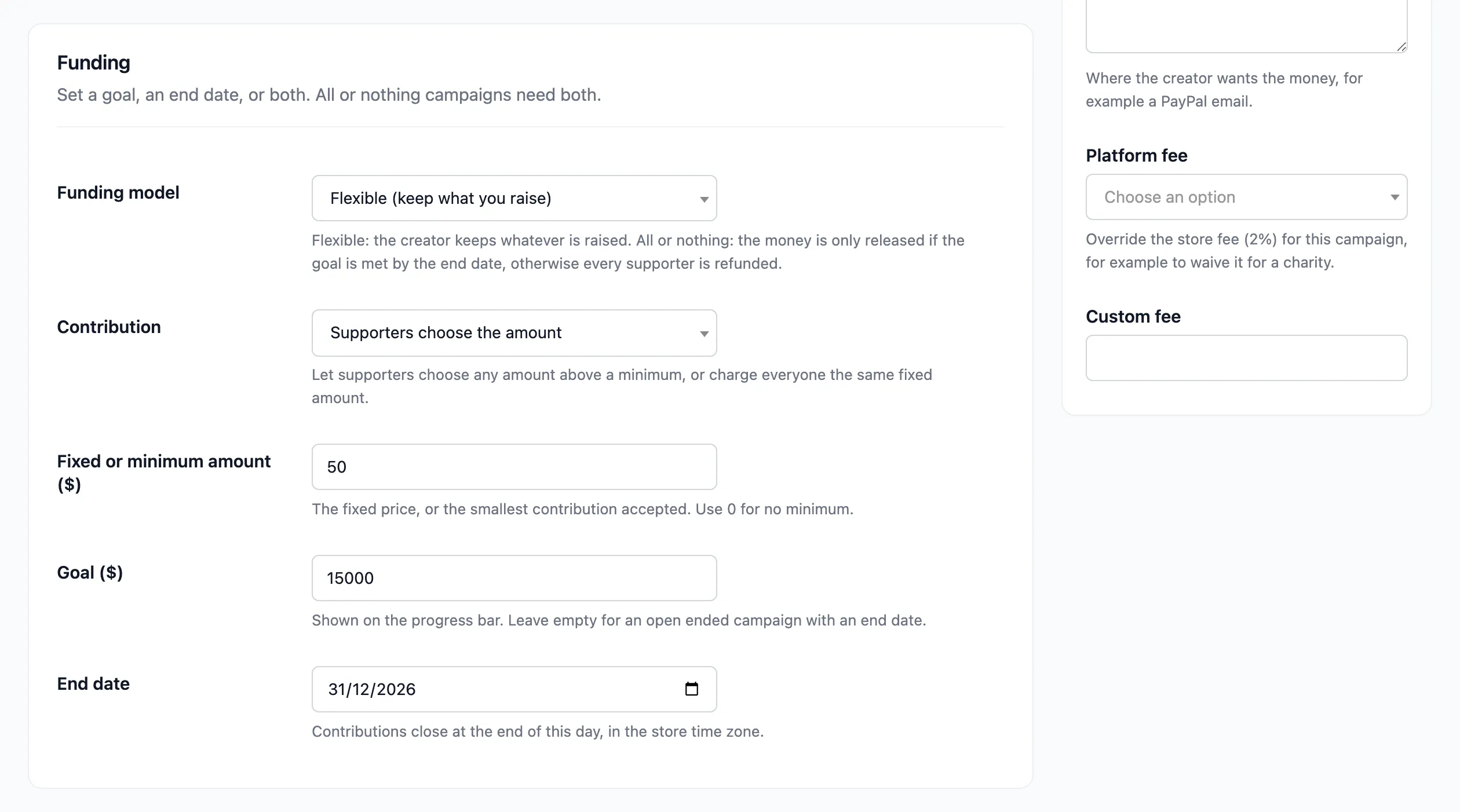
- Funding model: Pro. Flexible (keep what you raise) or All or nothing. A new campaign starts on the default from the Campaigns tab.
- Contribution: Supporters choose the amount or Fixed amount.
- Fixed or minimum amount: The fixed price, or the smallest contribution. Use 0 for no minimum.
- Goal: Shown on the progress bar. Leave it empty for an open ended campaign with an end date.
- End date: Contributions close at the end of this day, in the store’s time zone.
A campaign needs a goal, an end date or both. All or nothing needs both. Save without them and you see “Please add a name, a contribution amount and a target amount or an end date.”
Rewards
Section titled “Rewards”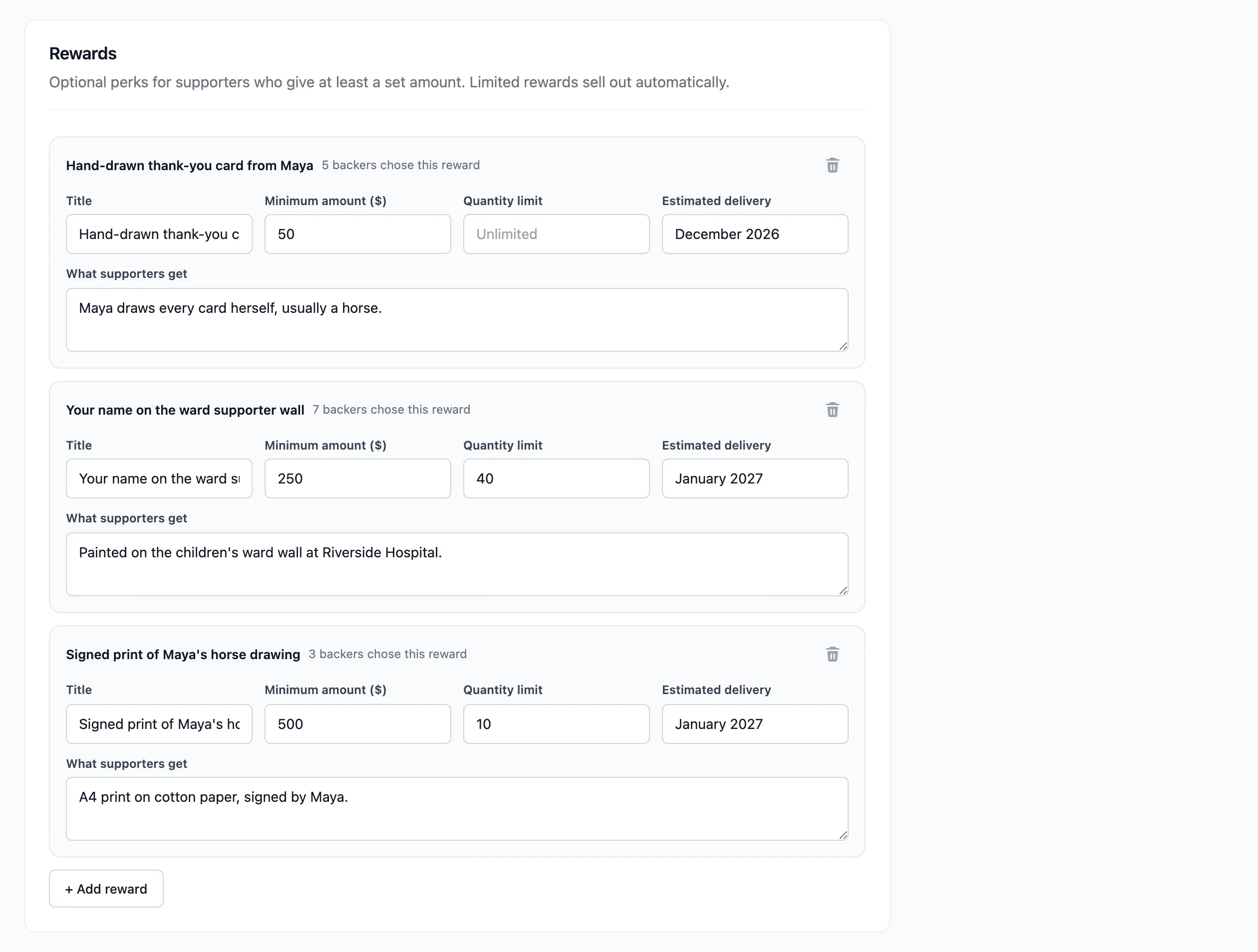
Click + Add reward for each tier:
- Title: What the supporter gets.
- Minimum amount: The least a supporter gives to choose it.
- Quantity limit: How many are available. Empty is unlimited.
- Estimated delivery: Free text, such as “January 2027”.
- What supporters get: A longer description.
Each saved reward shows how many backers chose it. Tiers are sorted by amount when you save. The bin icon removes one. The free version allows up to three per campaign.
Stretch goals
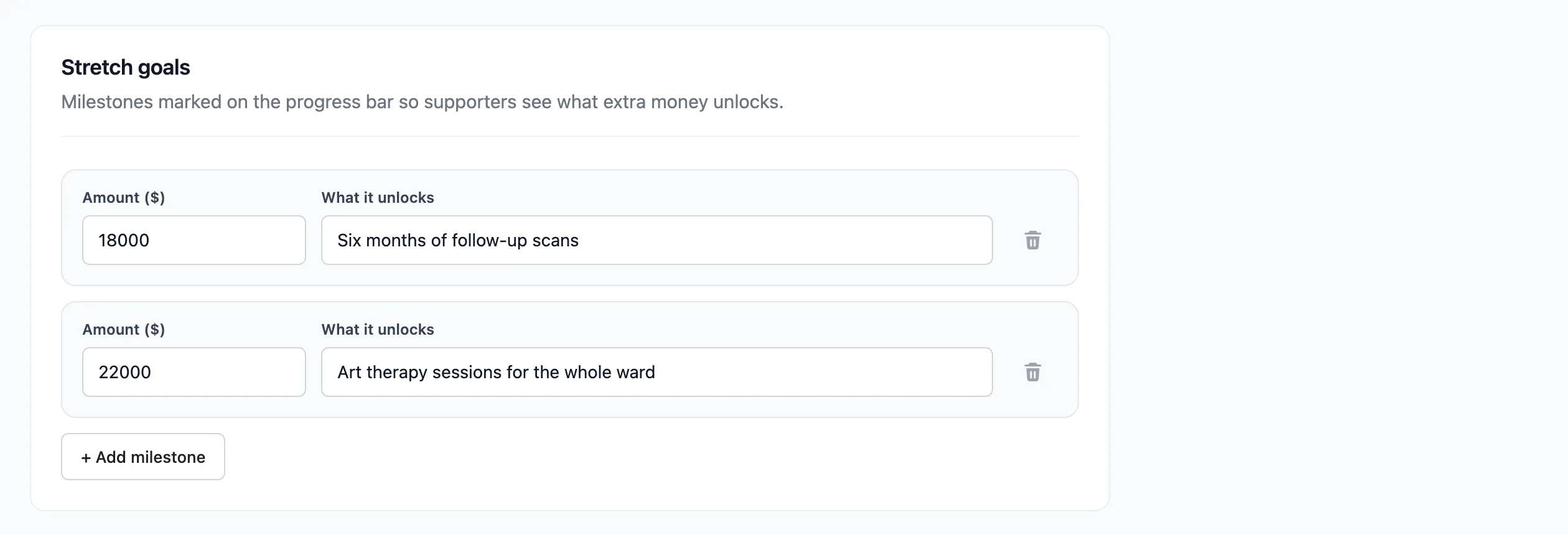
Section titled “Stretch goals”Pro. Milestones marked on the progress bar. Click + Add milestone and enter an amount and what it unlocks.
Updates
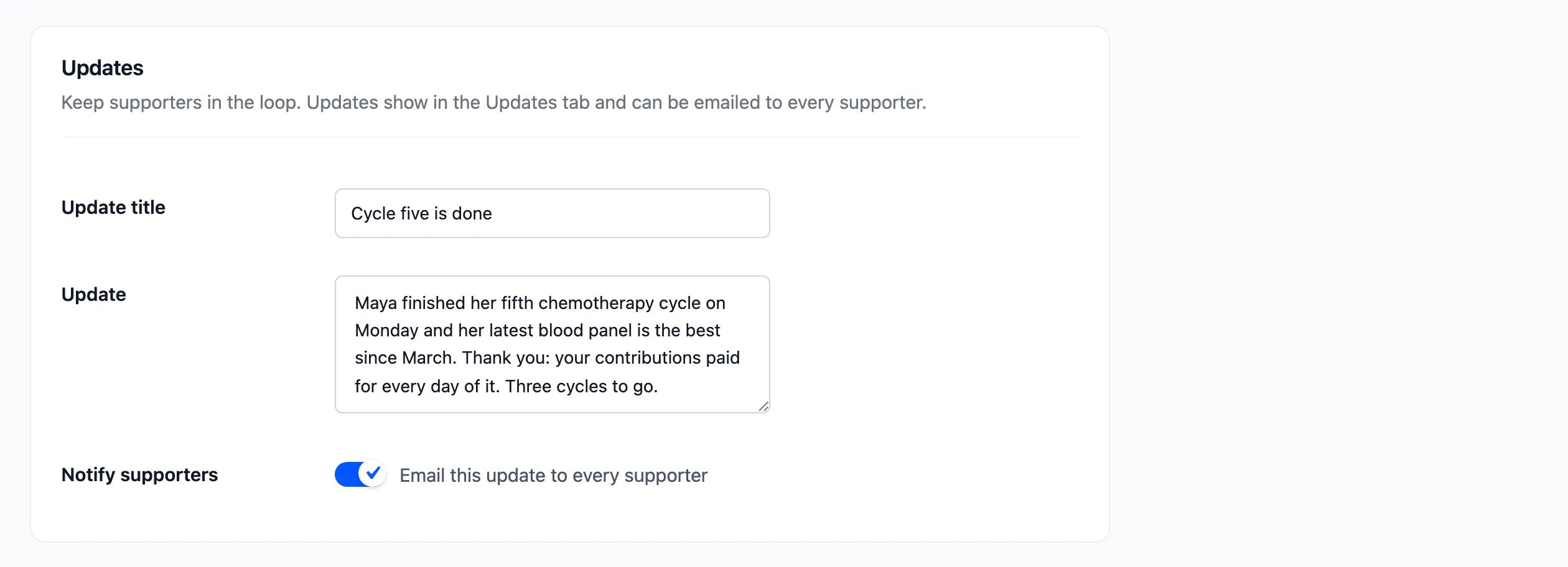
Section titled “Updates”Pro. Shown once the campaign is saved. Write an Update title and Update, tick Notify supporters to email it to every supporter, and save. Earlier updates are listed above the fields, each with a Delete box.
Funding box
Section titled “Funding box”On a saved campaign, the side column starts with its state, amount raised, percentage, progress bar, supporters, average contribution and days left.
Publish
Section titled “Publish”- Status: Live, Pending approval or Disabled.
- Featured: Pro. “Feature this campaign”. Use
[ddwccf_campaigns featured="yes"]to show featured campaigns. - Category: Pro. Used by the campaign filters. Manage categories opens the Categories screen.
- Creator: Who receives contribution emails and the payout. Empty means you.
Payout
Section titled “Payout”Pro.
- Pay to: Where the creator wants the money, for example a PayPal email.
- Platform fee: Use store setting, Custom percentage, Custom fixed amount or No fee. The description shows the store fee.
- Custom fee: The amount for a custom fee.
After saving
Section titled “After saving”The page reloads with “Campaign saved.” On a saved campaign the top bar adds View Campaign and Contributions, which opens the Contributions screen filtered to it.
A new campaign is created as a hidden, virtual product, sold one at a time and without tax. It does not show in the shop or in product searches.