

How to Embed a Campaign on Another Site (Pro)
A campaign spreads furthest on its creator’s own channels. The embed code puts a live card on any other website. It shows the current amount, progress and supporters, and its button opens the campaign in your store.
Step 1: Turn on Embed
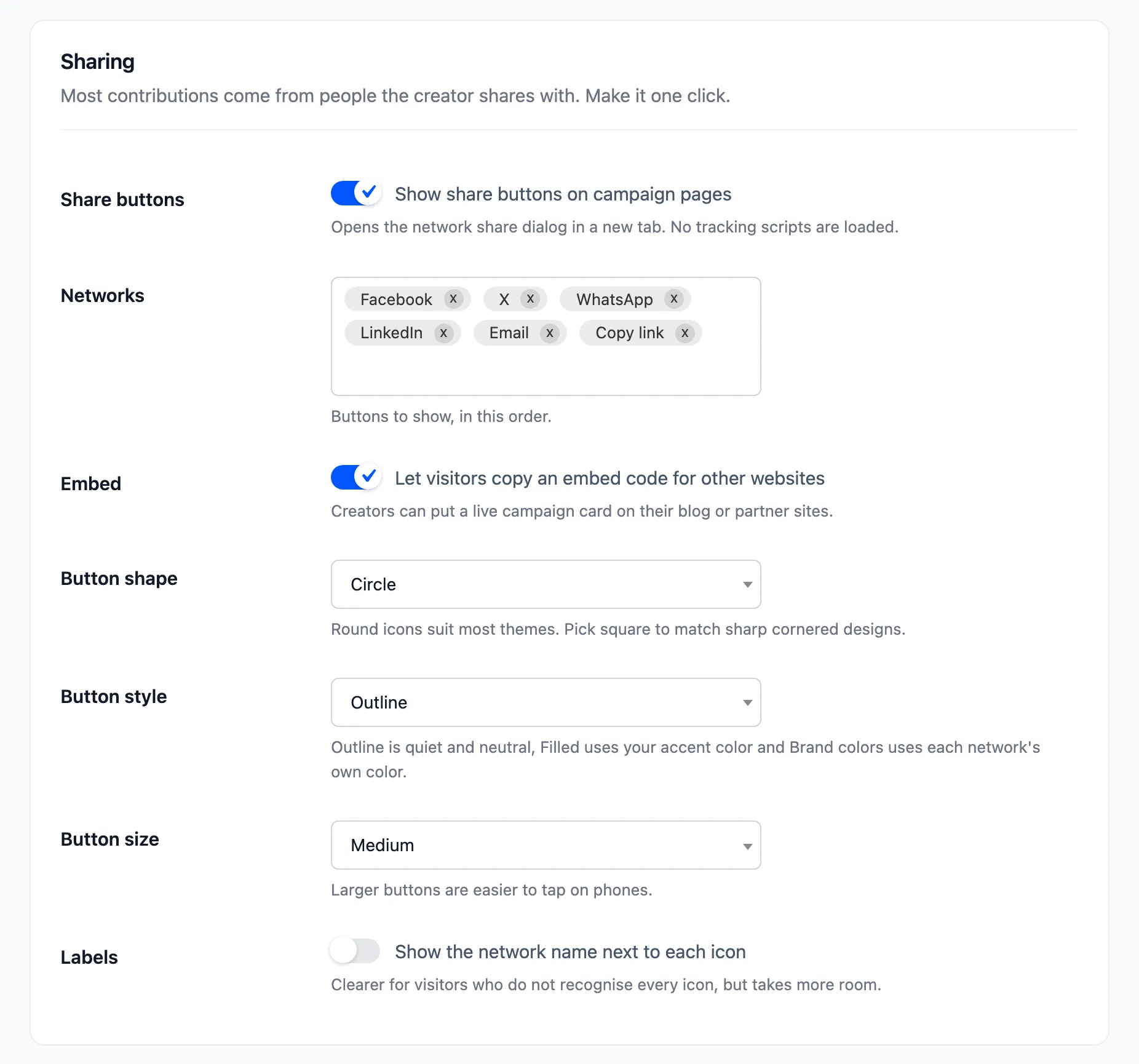
Section titled “Step 1: Turn on Embed”Go to Configuration → Display → Sharing and tick Embed: “Let visitors copy an embed code for other websites”. It is on by default, along with Share buttons.
Step 2: Copy the embed code
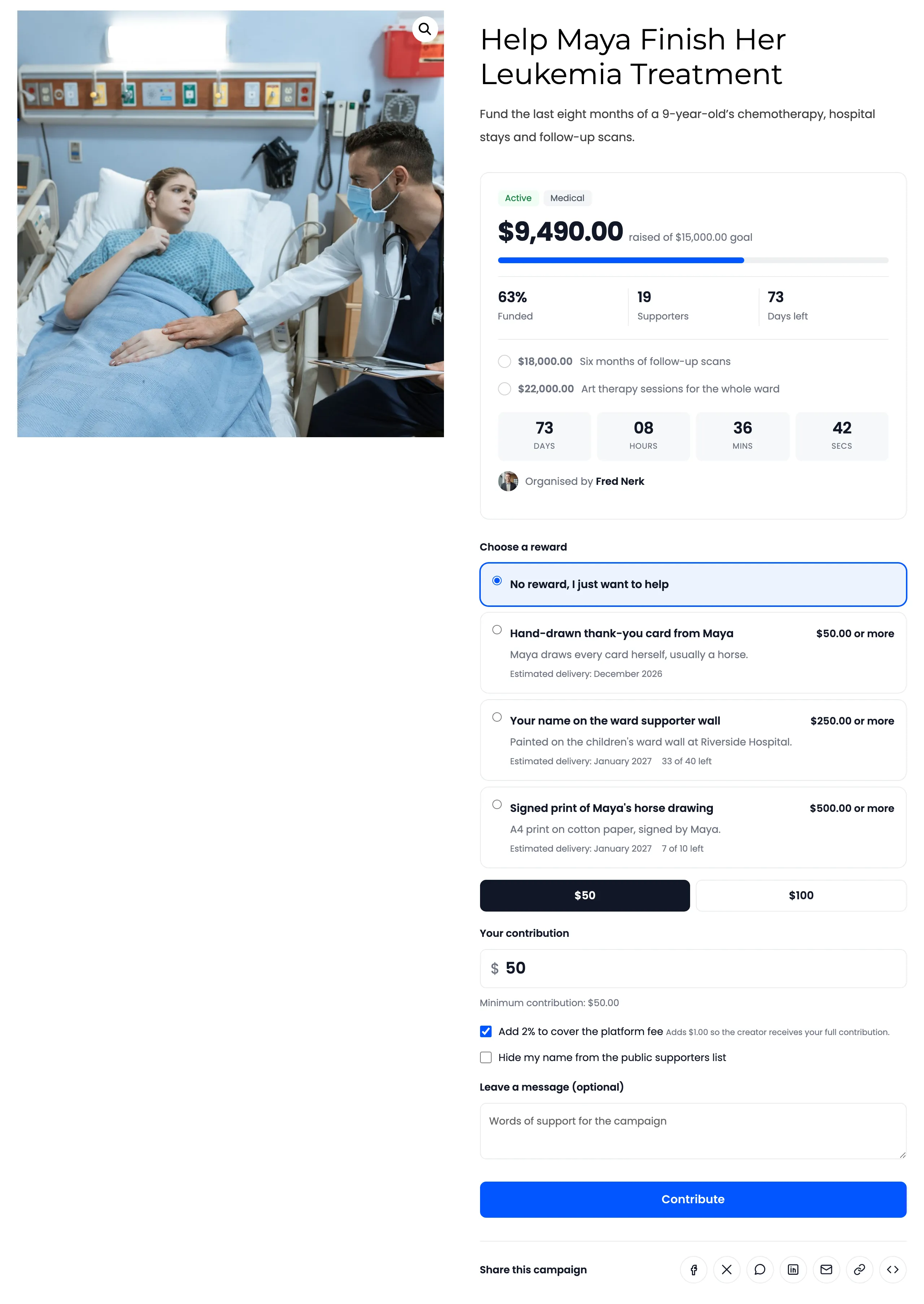
Section titled “Step 2: Copy the embed code”On the campaign page, the share row ends with an embed button, drawn as two angle brackets. Clicking it copies an
<iframe> code that points at the campaign’s embed page.
Step 3: Paste it on the other site
Section titled “Step 3: Paste it on the other site”On the other website, paste the code into an HTML block, or wherever its editor accepts HTML.

The card shows the image, state, category, name, summary, amount raised, progress, supporters and days left, with a contribute button. It reads live from your store each time it loads, so it is always current.
Things to know
Section titled “Things to know”- Contributions happen in your store. The card’s button opens the campaign page there.
- Any campaign can be embedded. The embed page is public, like the campaign page.
- Turning Embed off removes the button and the embed page. Cards already placed elsewhere stop showing.