

How to Post Campaign Updates (Pro)
Updates keep supporters close. They show what their money did, and a supporter who hears good news is more likely to share the campaign again.
Step 1: Open the campaign
Section titled “Step 1: Open the campaign”Go to Campaigns and click Edit. The Updates section only appears on a saved campaign.
Step 2: Write the update
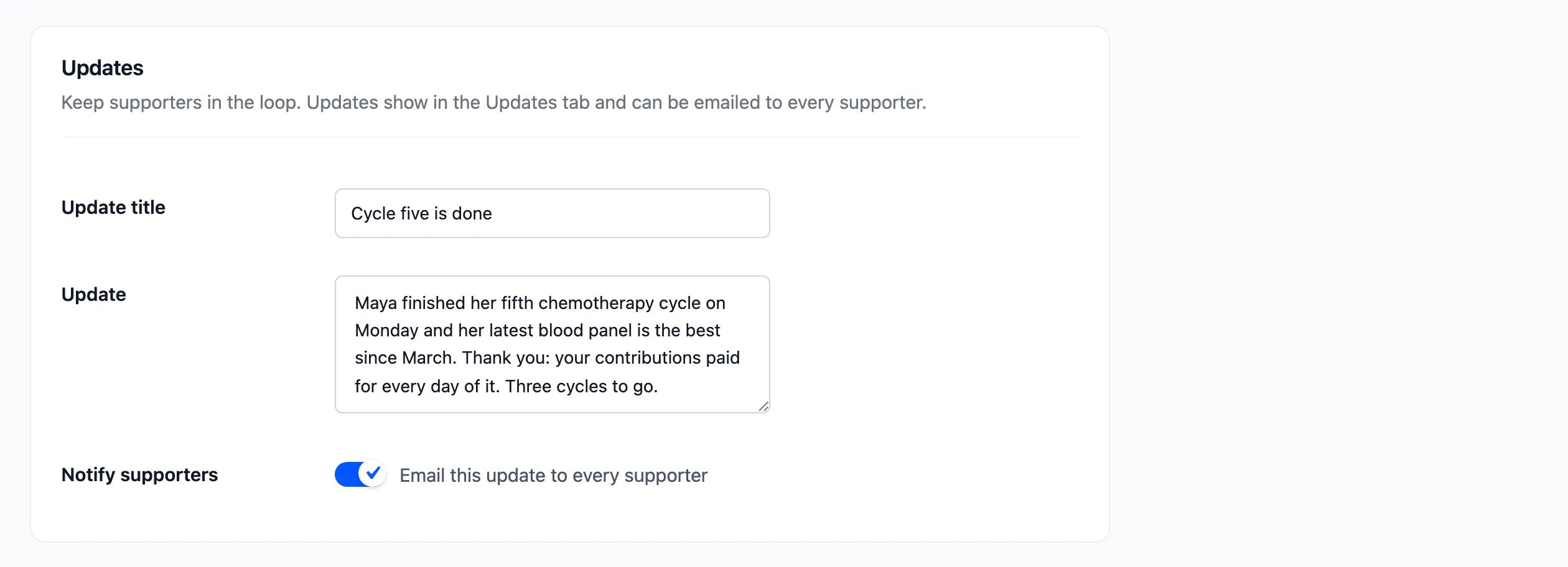
Section titled “Step 2: Write the update”Enter an Update title and the Update itself.
Step 3: Choose to email it
Section titled “Step 3: Choose to email it”Tick Notify supporters to “Email this update to every supporter”. Leave it unticked to post it on the page only.
Step 4: Save and check
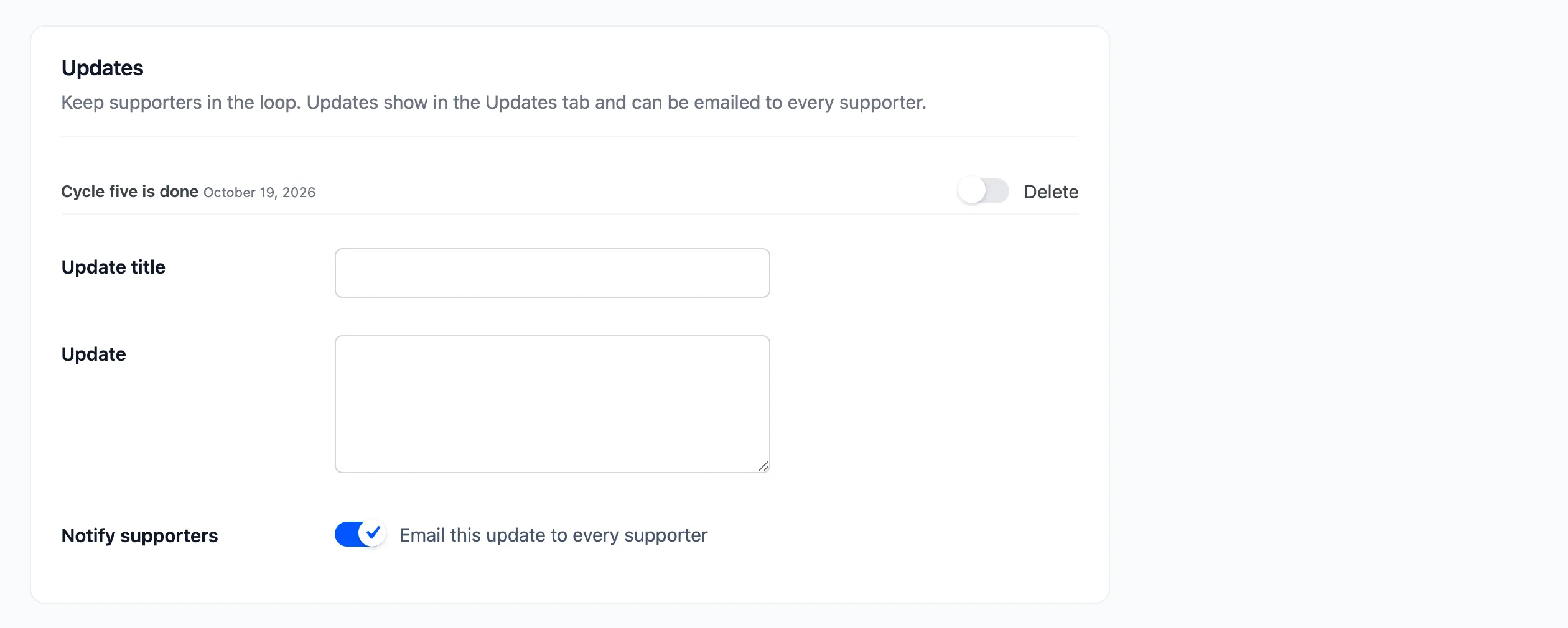
Section titled “Step 4: Save and check”Click Save Campaign. The update is listed in the section, newest first, with a Delete box beside each.
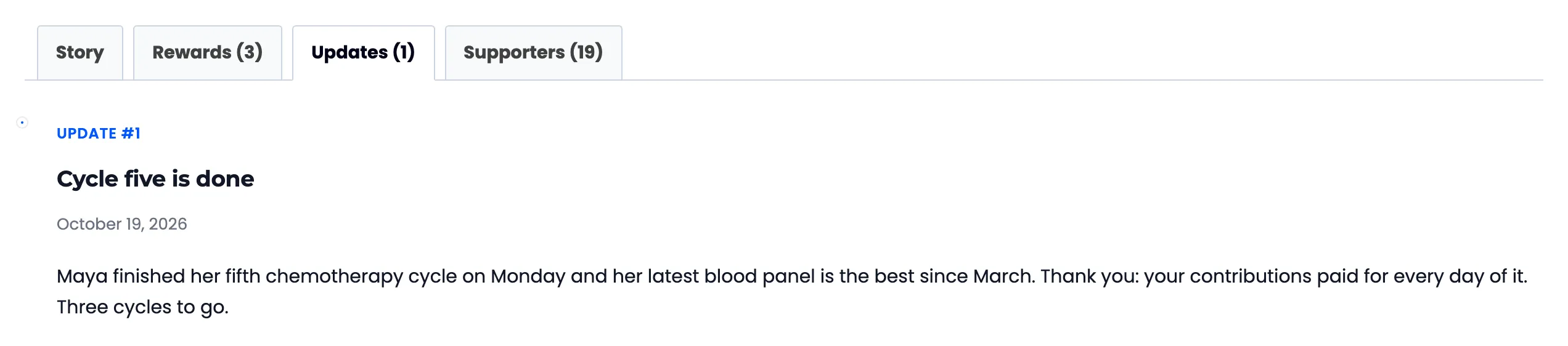
On the campaign page, the Updates tab shows each update with its number, title, date and text.
The email
Section titled “The email”Every supporter whose contribution counts gets Campaign Update to Supporters, once per email address. The update’s title is the email’s heading.
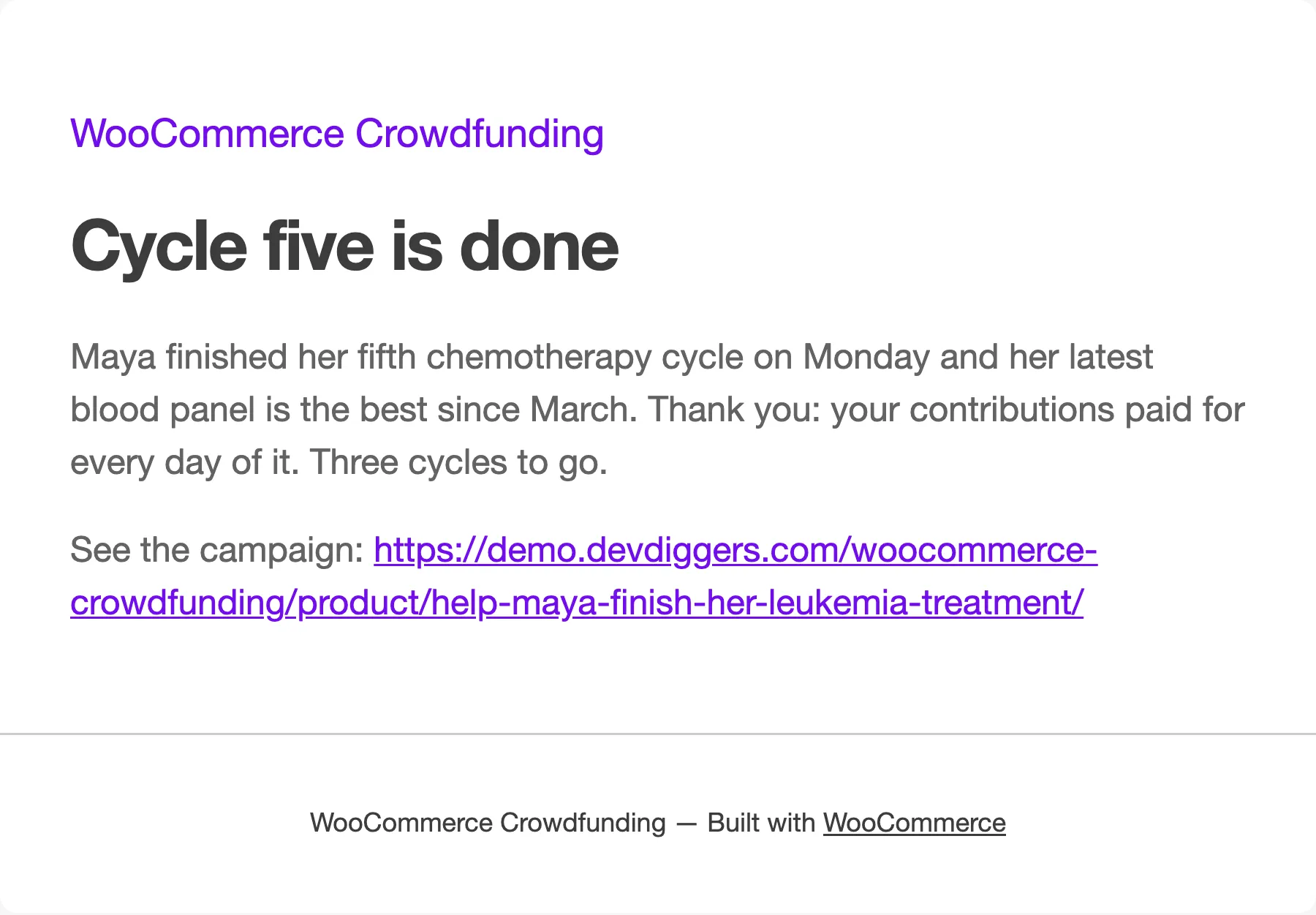
Emails go out in the background through WooCommerce’s scheduled actions, so a campaign with many supporters does not slow the save down. Expect them within a few minutes.
As the creator
Section titled “As the creator”A customer who runs the campaign posts updates the same way, from Edit on their campaign in My Account, with Email this update to my supporters.
To delete an update, tick its Delete box and save.