

The Campaigns Screen
Open DevDiggers Plugins → Crowdfunding → Campaigns. Every campaign is listed here, yours and your customers’.
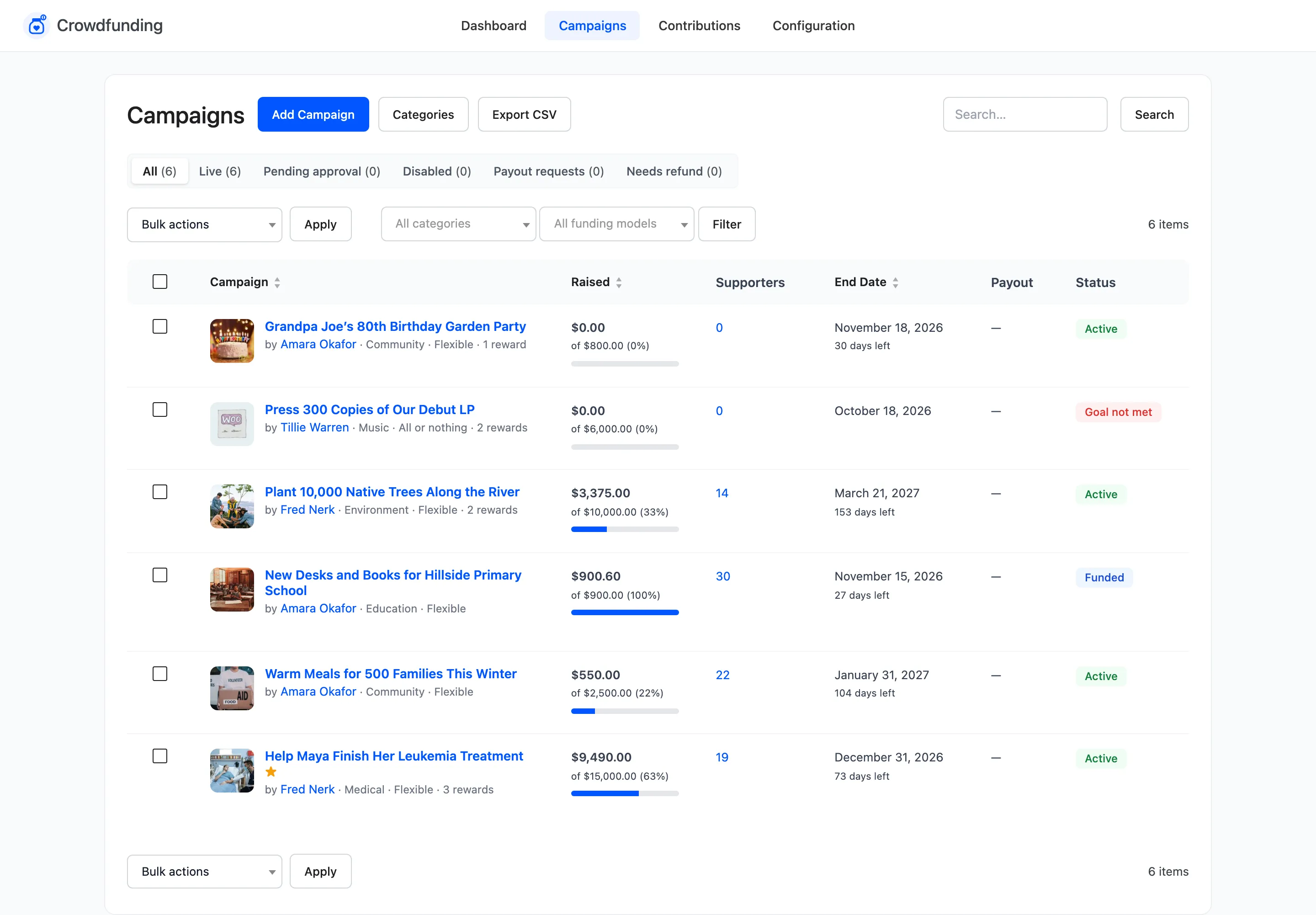
At the top: Add Campaign, Categories (Pro) and Export CSV (Pro).
The links above the table filter it by state:
- All, Live, Pending approval and Disabled, by the campaign’s status.
- Payout requests: Pro. Campaigns whose creator asked to be paid.
- Needs refund: Pro. All or nothing campaigns that missed their goal and still hold contributions.
Filters and search
Section titled “Filters and search”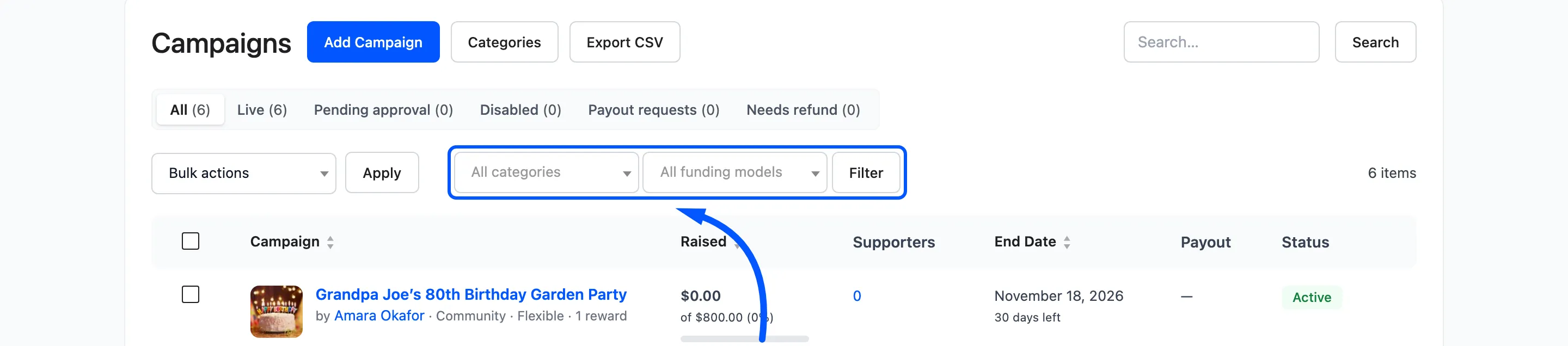
Filter by category (Pro) and funding model (Flexible or All or nothing), then click Filter. Reset clears them. The search box finds campaigns by name.
Columns
Section titled “Columns”- Campaign: The image, name and a star if featured. Under it, the creator, the funding model, the category and how many rewards it has.
- Raised: The amount, “of $X (Y%)” and a progress bar.
- Supporters: How many paid contributions it has.
- End Date: With the days left, or a dash for no end date.
- Payout: Pro. Not requested, Requested with a Review button, Paid or Rejected. A missed all or nothing campaign shows Refund supporters here instead.
- Status: The campaign’s state, such as Active, Funded, Ended, Goal not met, Pending or Disabled.
Click Raised or End Date to sort.
Row actions
Section titled “Row actions”Hover a row for its actions.
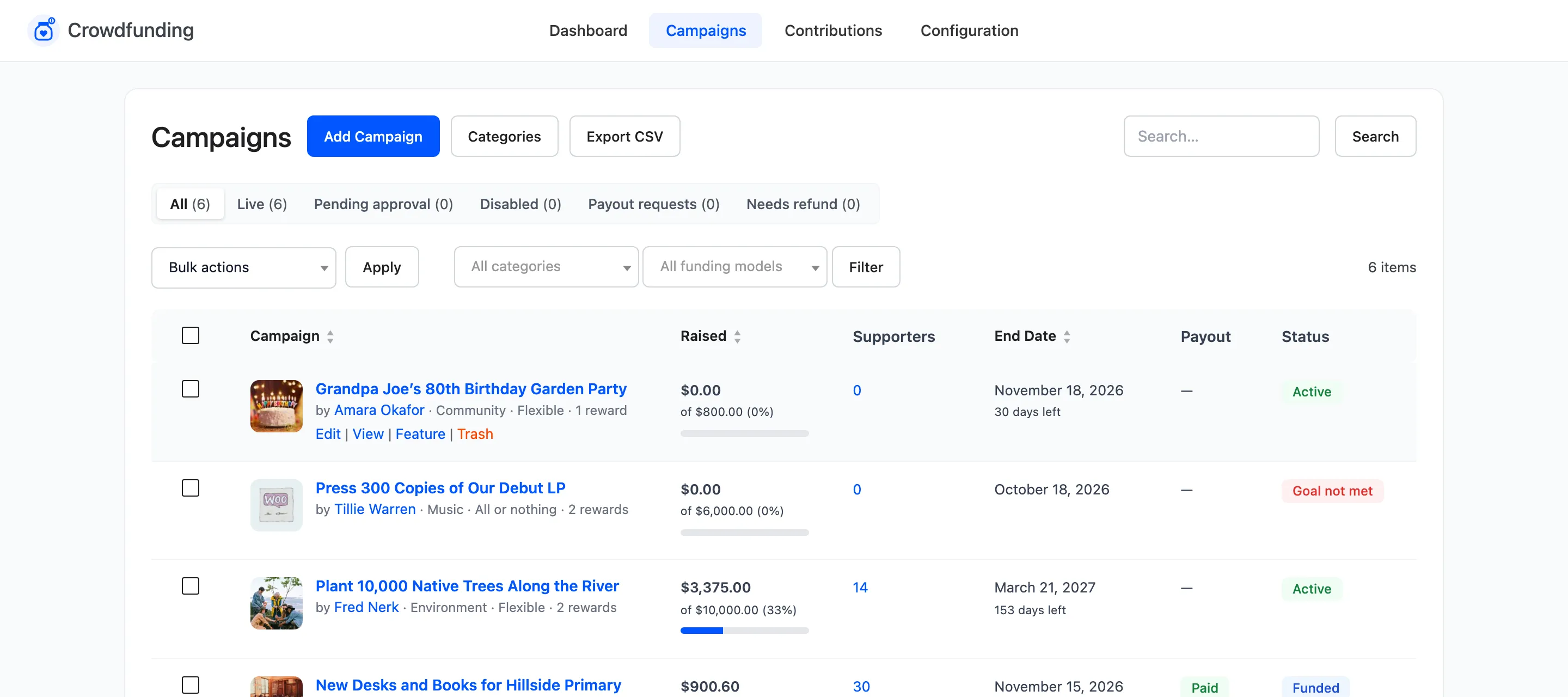
- Edit opens the campaign editor.
- View opens the campaign page.
- Approve on a pending campaign. Pro.
- Enable or Disable.
- Feature or Unfeature. Pro.
- Trash moves it to the trash.
Bulk actions
Section titled “Bulk actions”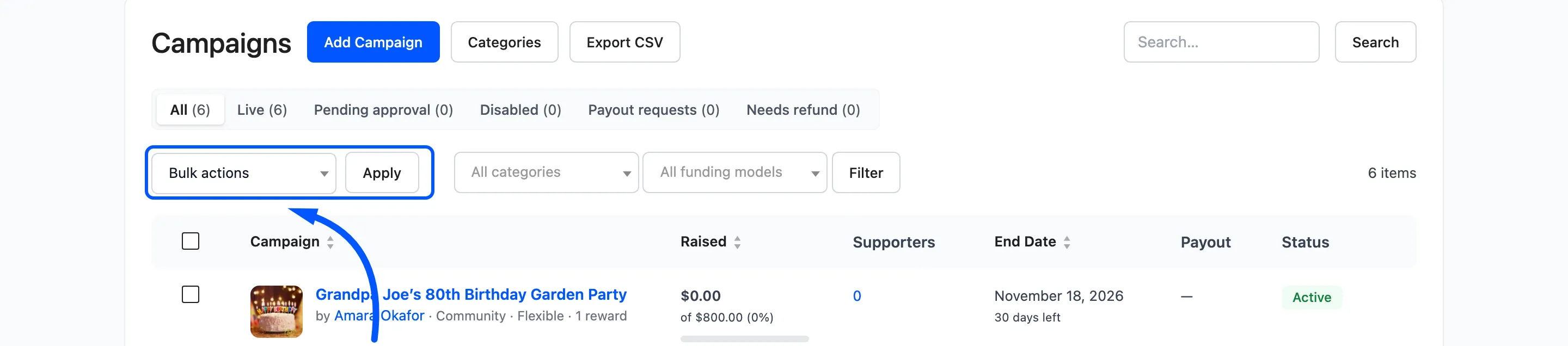
Tick rows, then pick Approve, Enable, Disable, Feature or Move to trash and click Apply.
Export CSV
Section titled “Export CSV”Pro. Export CSV downloads the campaigns in the current view.
