

How to Add Reward Tiers
Rewards give supporters a reason to give a little more. On the demo store, Maya’s campaign has three. A thank you card starts at $50, a name on the ward wall at $250 and a signed print at $500.
Step 1: Open the campaign
Section titled “Step 1: Open the campaign”Go to Campaigns and click Edit on the campaign, or start a new one.
Step 2: Add a reward
Section titled “Step 2: Add a reward”In Rewards, click + Add reward.
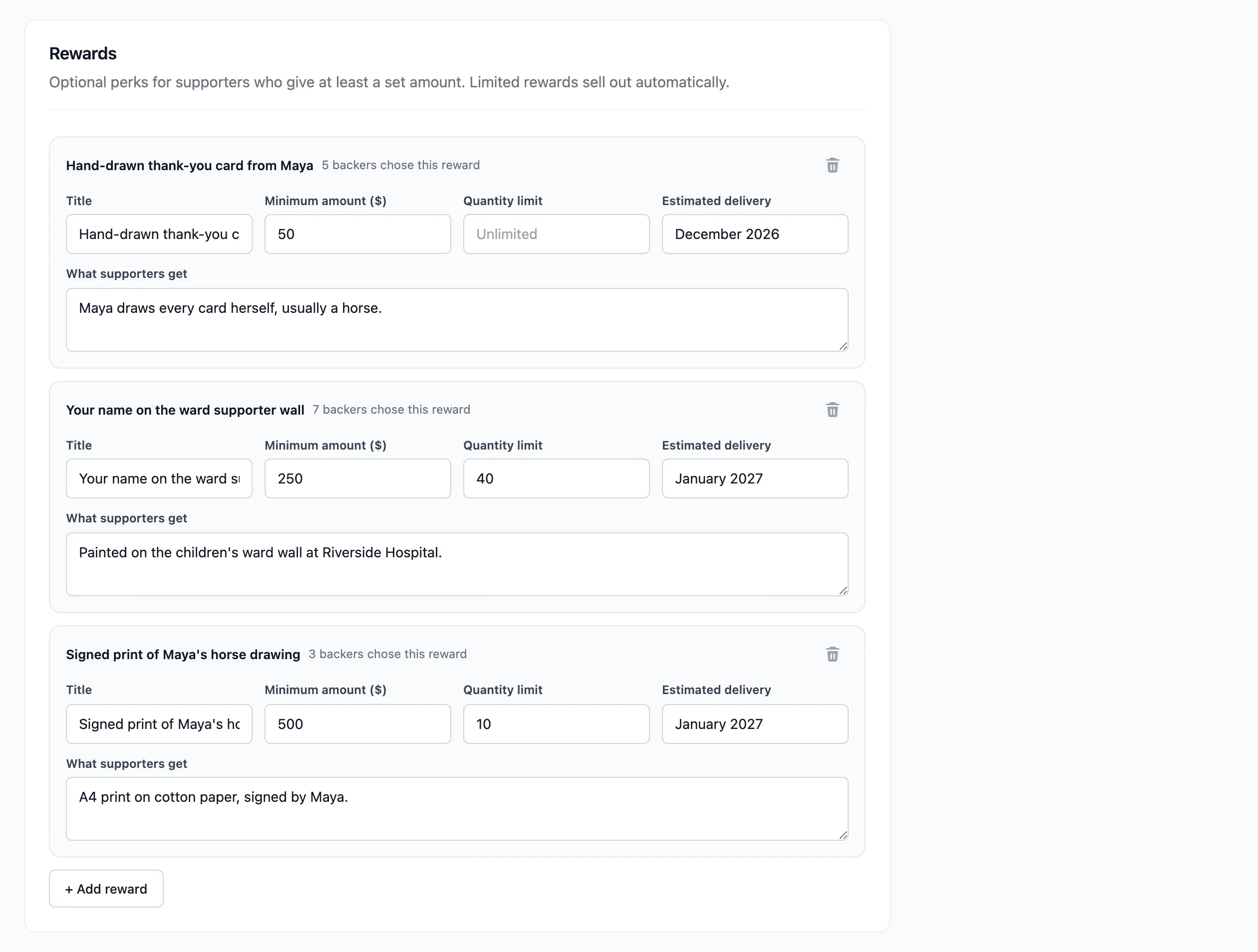
- Title: Short and concrete: “Signed print of Maya’s horse drawing”.
- Minimum amount: The least a supporter gives to choose it.
- Quantity limit: Leave empty for unlimited. With a limit, the reward sells out by itself.
- Estimated delivery: Free text such as “January 2027”. Leave it empty for something with no delivery.
- What supporters get: The details.
Add more tiers the same way. The bin icon removes one.
Step 3: Save
Section titled “Step 3: Save”Click Save Campaign. The tiers are sorted from the lowest amount up.
Step 4: Check the page
Section titled “Step 4: Check the page”On the campaign page, the rewards are listed above the amount. The first option is always “No reward, I just want to help”.
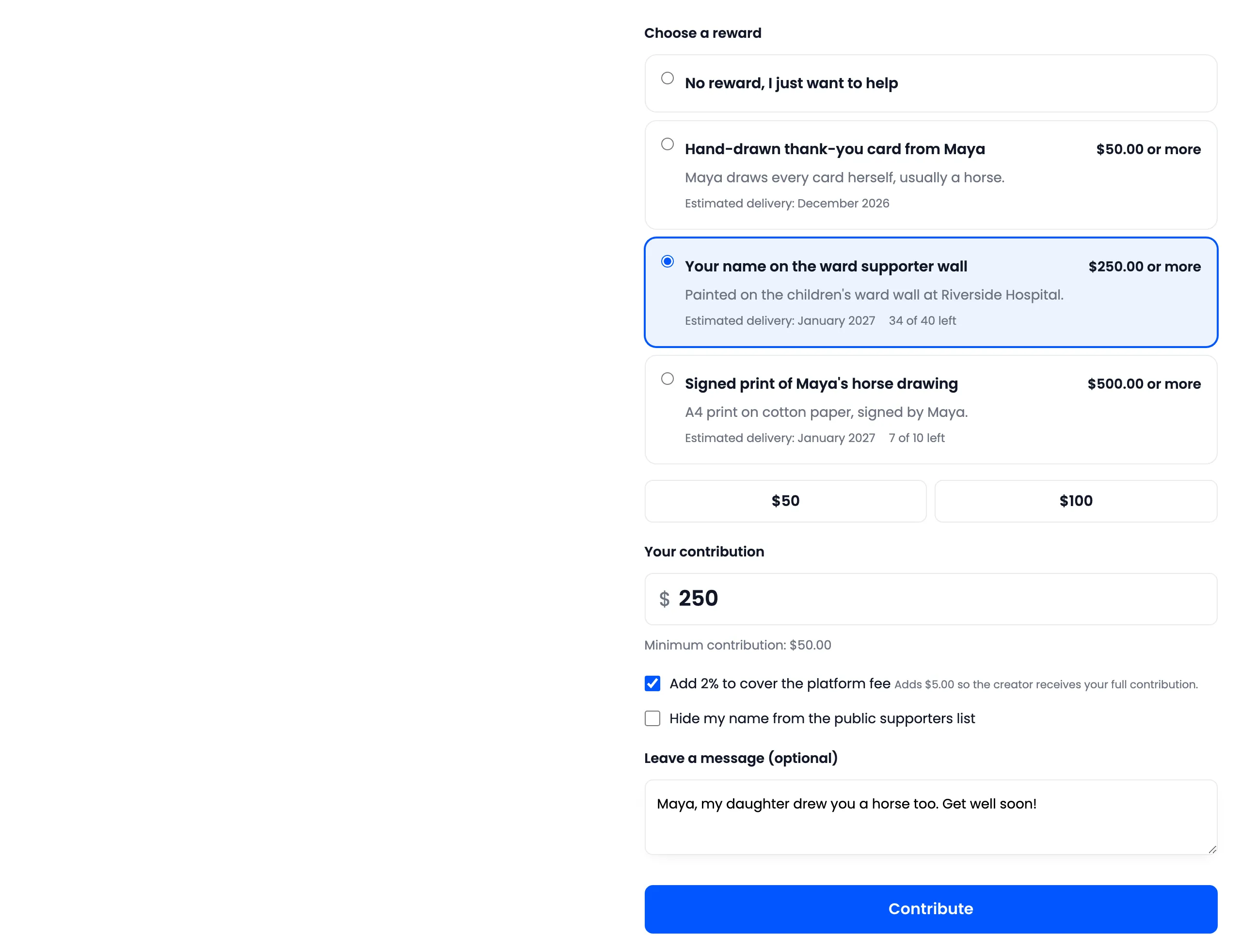
Choosing a reward raises the amount to that reward’s minimum. A supporter can give more. A limited reward shows “31 of 40 left” and, at the limit, Sold out.
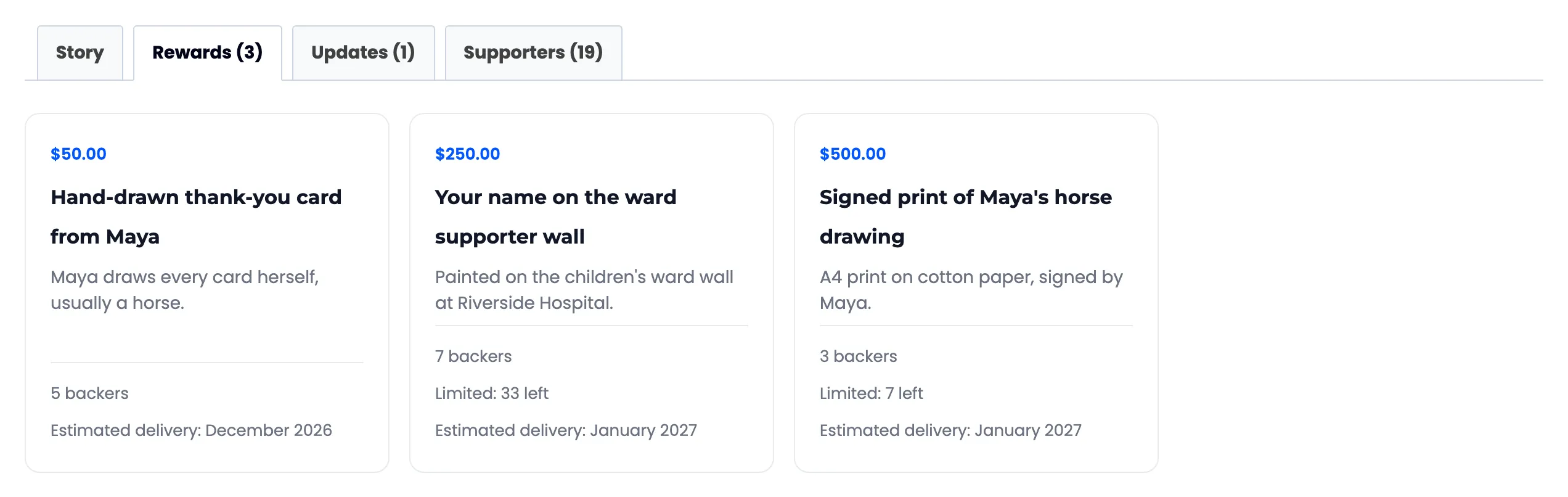
The Rewards tab lists them again with their details.
See who chose what
Section titled “See who chose what”- In the editor, each reward shows “6 backers chose this reward”.
- On the Contributions screen, the Reward column names it per order.
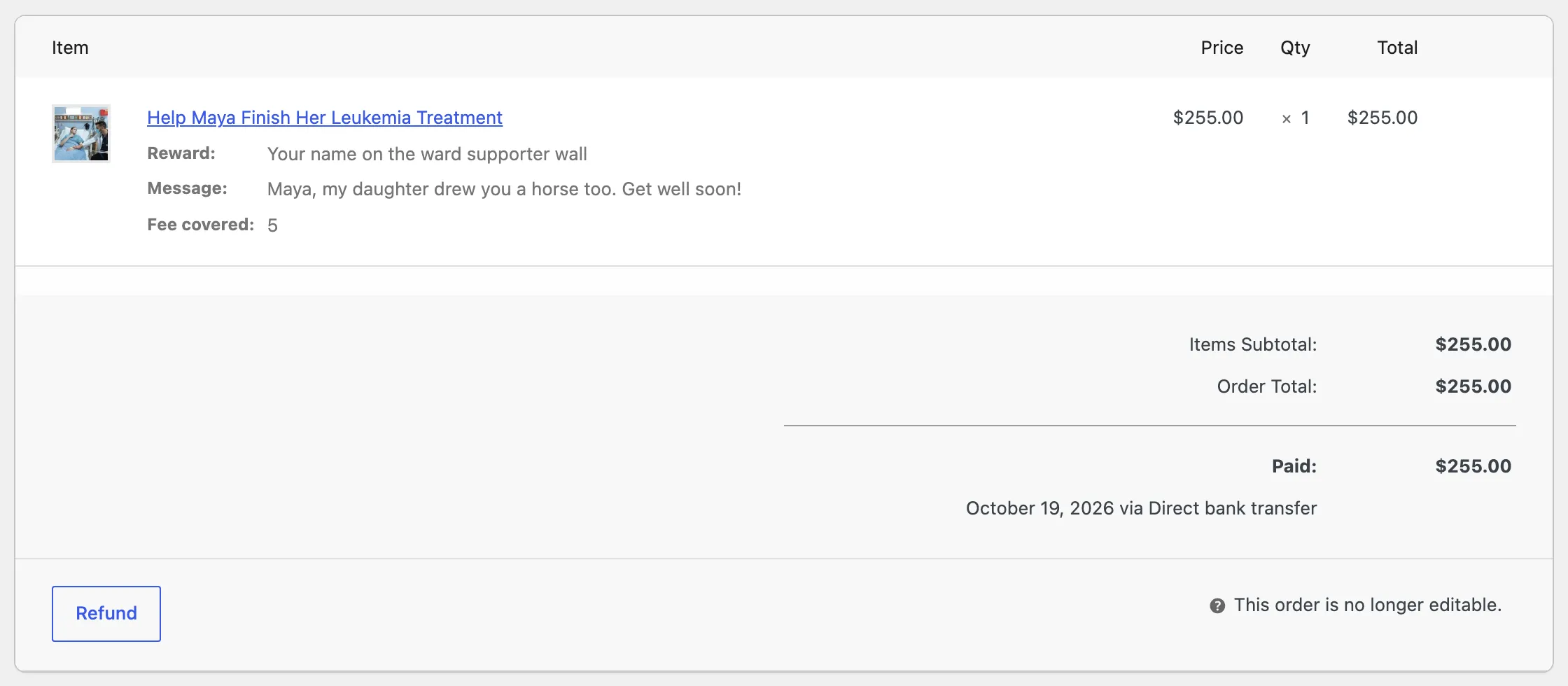
- On the order itself, the reward is listed under the campaign line.
A cancelled or refunded contribution gives its reward back, so a sold out reward can open up again.