

The Setup Wizard
The wizard opens the first time you open DevDiggers Plugins → Crowdfunding. It takes about a minute and leaves you ready to create your first campaign. To run it again, use the Setup Wizard link under the plugin’s name on the Plugins screen.
Every step opens on your current settings, so running it again changes nothing you do not touch.
Step 1: Welcome
Section titled “Step 1: Welcome”A summary of what the plugin does. Click Continue, or Skip Setup to go straight to the dashboard.
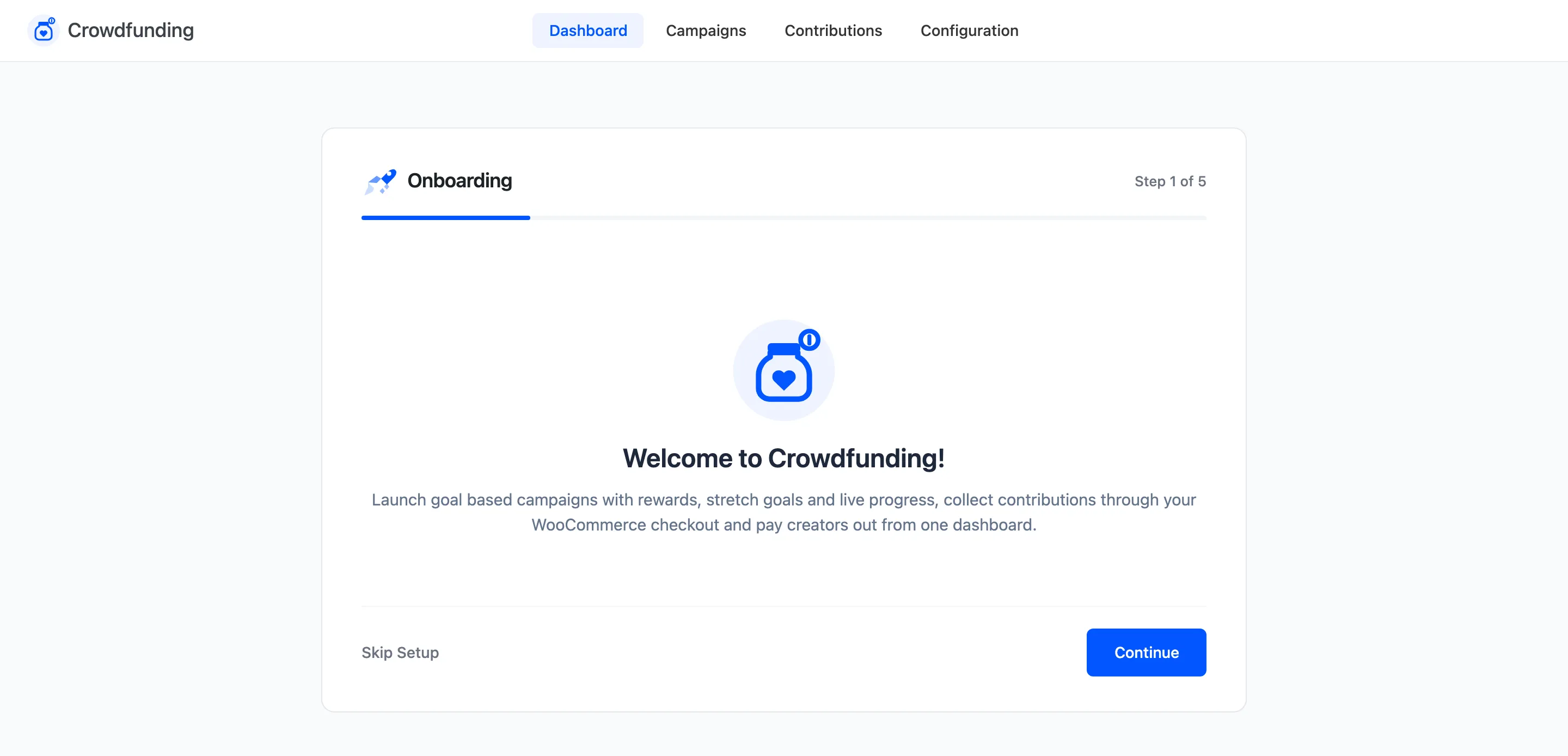
Step 2: License
Section titled “Step 2: License”Pro only. Enter your purchase code and email, then activate. The wizard does not move on until the license is active.
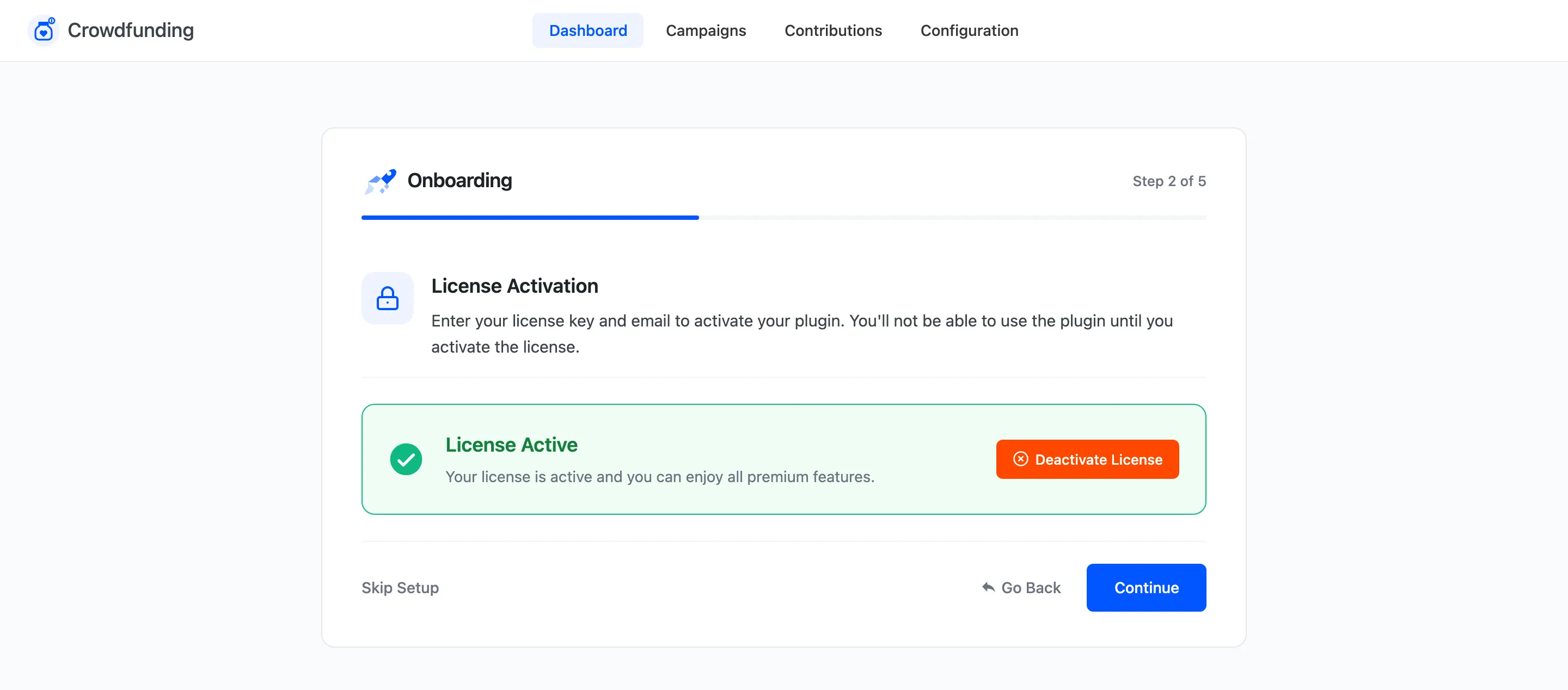
Step 3: Campaigns
Section titled “Step 3: Campaigns”“Who runs campaigns?”
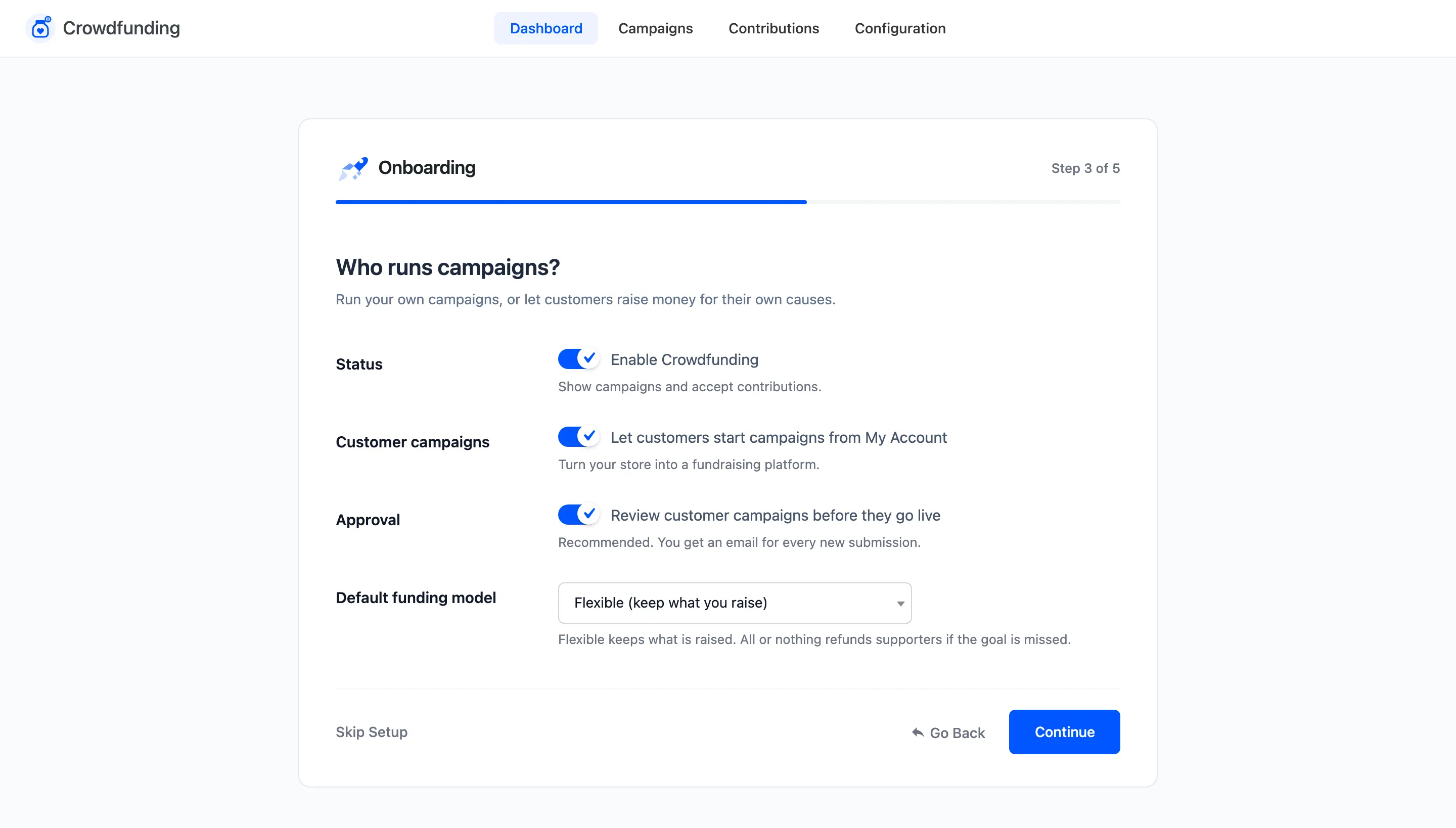
- Status: Enable Crowdfunding. Shows campaigns and accepts contributions.
- Customer campaigns: “Let customers start campaigns from My Account”. Leave it off to run every campaign yourself.
- Approval: “Review customer campaigns before they go live”. Recommended if customers can start campaigns. You get an email for every new submission.
- Default funding model: Flexible (keep what you raise) or All or nothing. This is the starting value for new campaigns. Each campaign can change it.
In the free version this step is called Campaign basics and holds Enable Crowdfunding and Close on goal instead.
Step 4: Contributions
Section titled “Step 4: Contributions”“How do supporters give?”
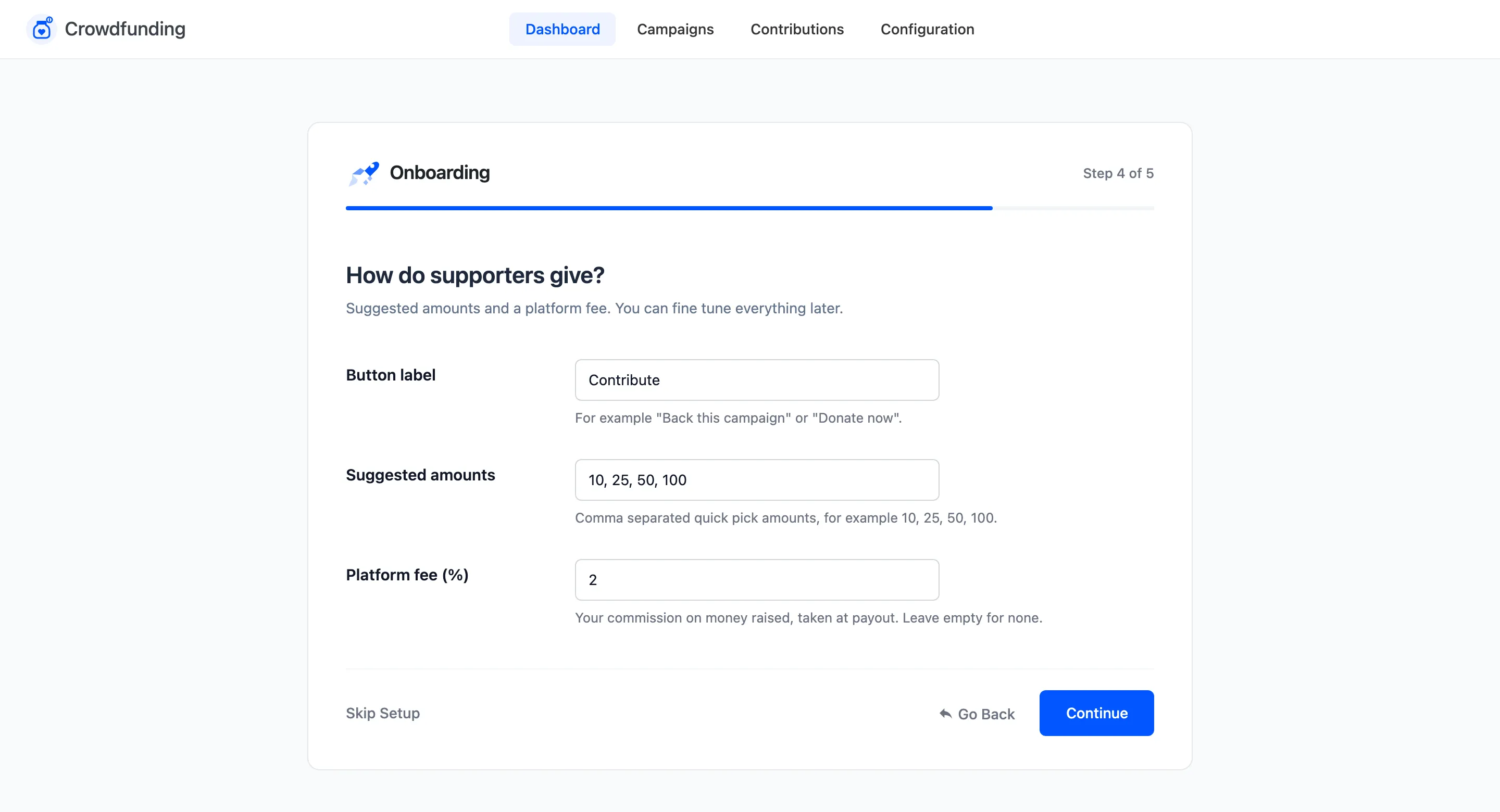
- Button label: The contribute button’s text, for example “Back this campaign” or “Donate now”.
- Suggested amounts: Quick pick amounts, separated by commas, for example 10, 25, 50, 100.
- Platform fee (%): Pro only. Your commission on money raised, taken when a creator is paid out. Leave it empty for none.
The free version asks for Anonymous giving and Messages here instead of a fee.
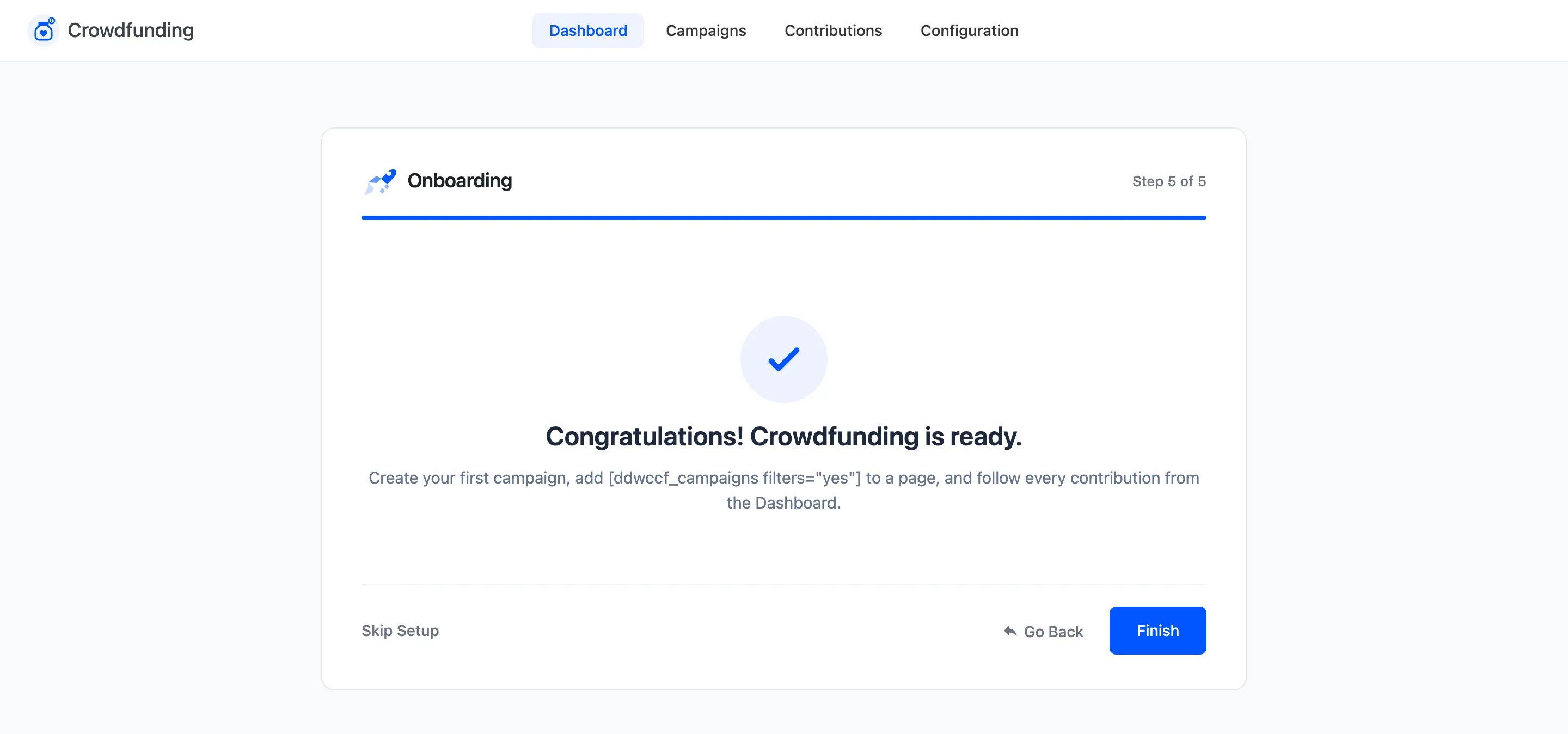
Step 5: Ready
Section titled “Step 5: Ready”“Congratulations! Crowdfunding is ready.” The page suggests three next steps: create your first campaign,
put the [ddwccf_campaigns] shortcode on a page, and follow contributions from the dashboard.
After the wizard
Section titled “After the wizard”- Create your first campaign.
- Give campaigns a page. Campaigns are hidden from the shop, so they need one.
- Fine tune every field in Configuration.