

How to Pay Out a Campaign (Pro)
When a customer’s campaign raises money, the money arrives in your store as orders. A payout passes it on to the creator, less your fee. This walk through follows the demo store’s school campaign, which raised $900.60.
Step 1: The creator requests the payout
Section titled “Step 1: The creator requests the payout”A campaign can be paid out once it has closed with money raised: its end date passed, it reached its goal with Close on goal on, or it was disabled. An all or nothing campaign also has to have met its goal.
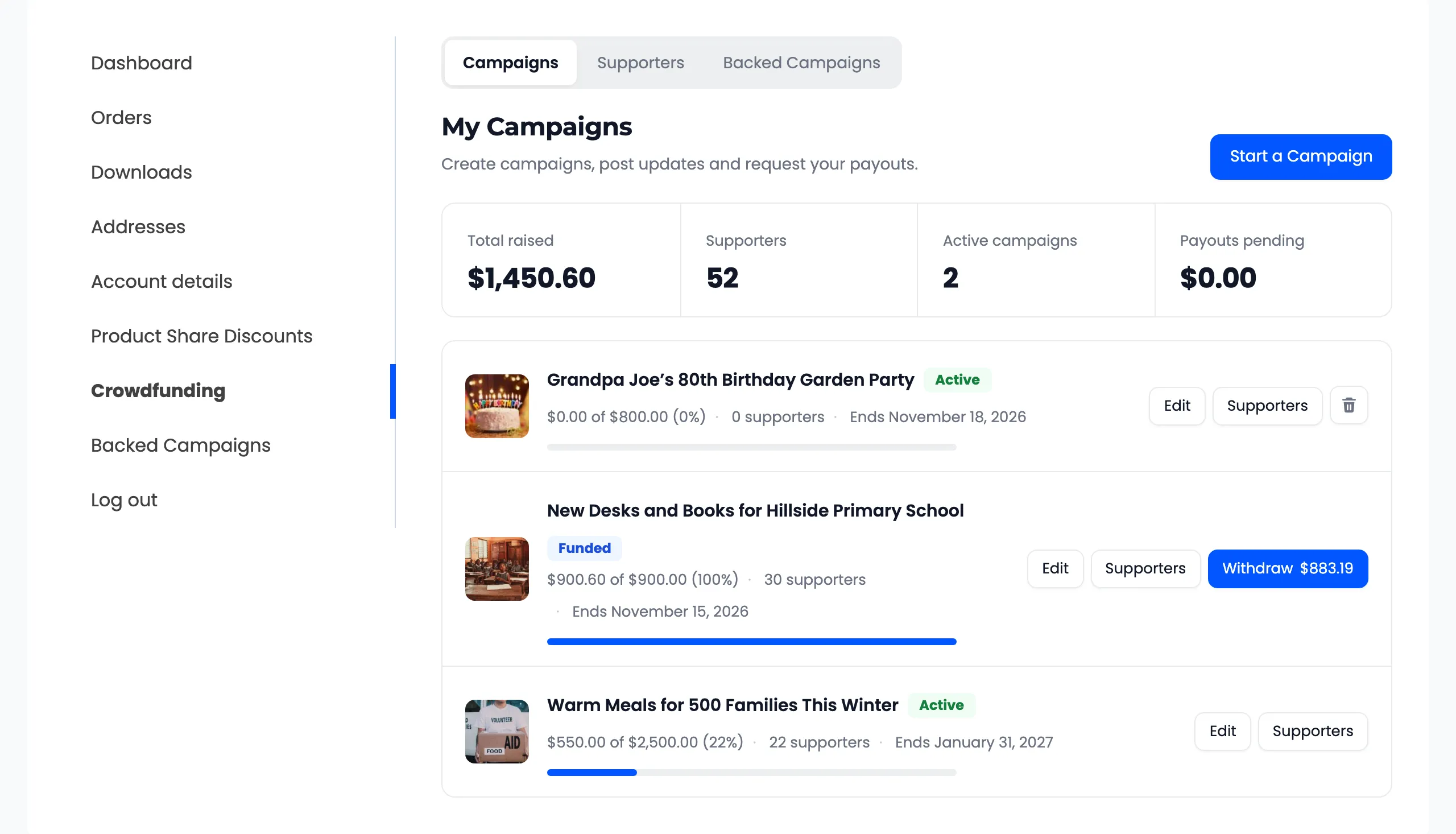
In My Account → My Campaigns, the campaign shows Withdraw with the amount.
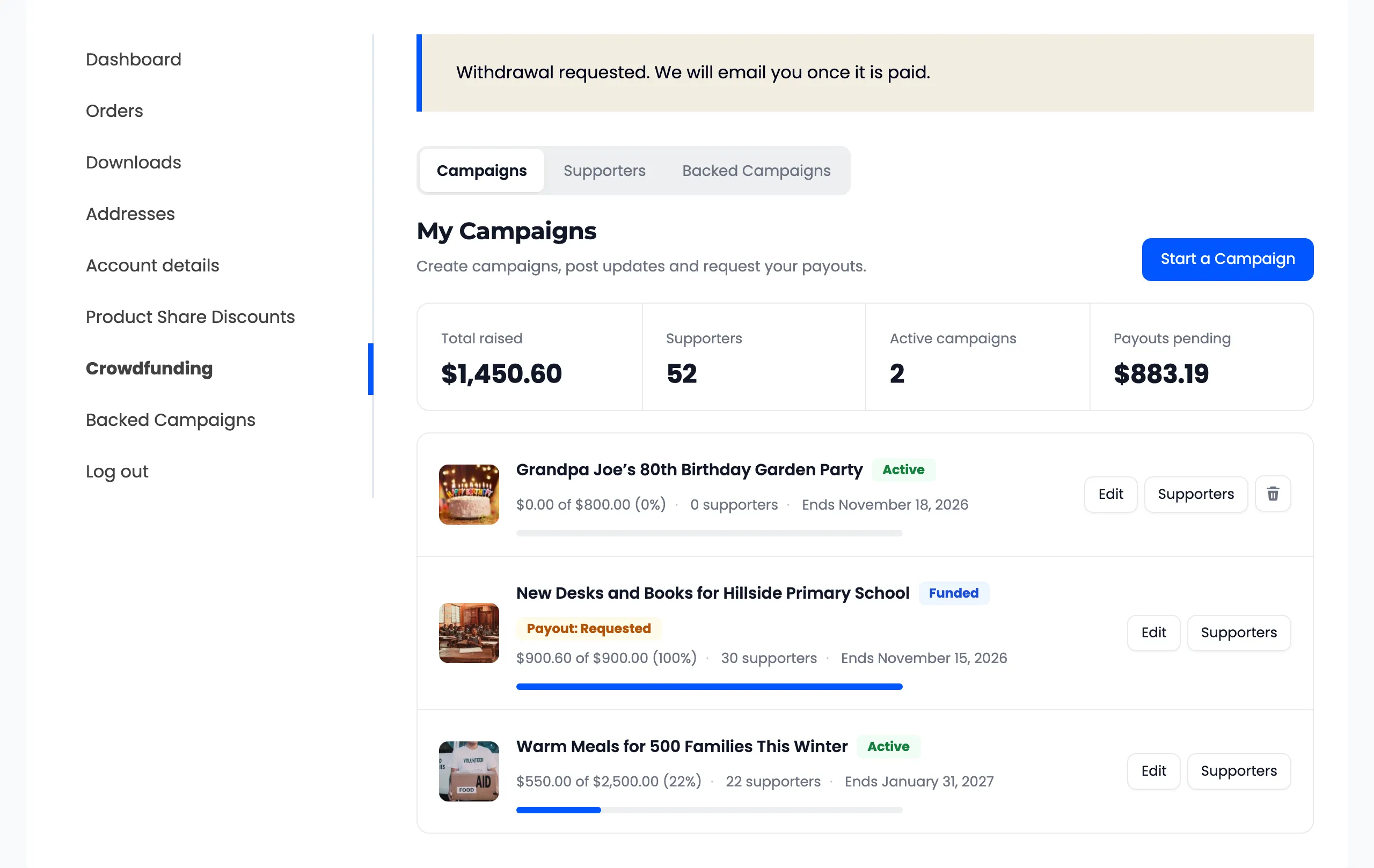
The creator clicks it and sees “Withdrawal requested. We will email you once it is paid.” The row reads Payout Requested, and Payouts pending shows the amount.
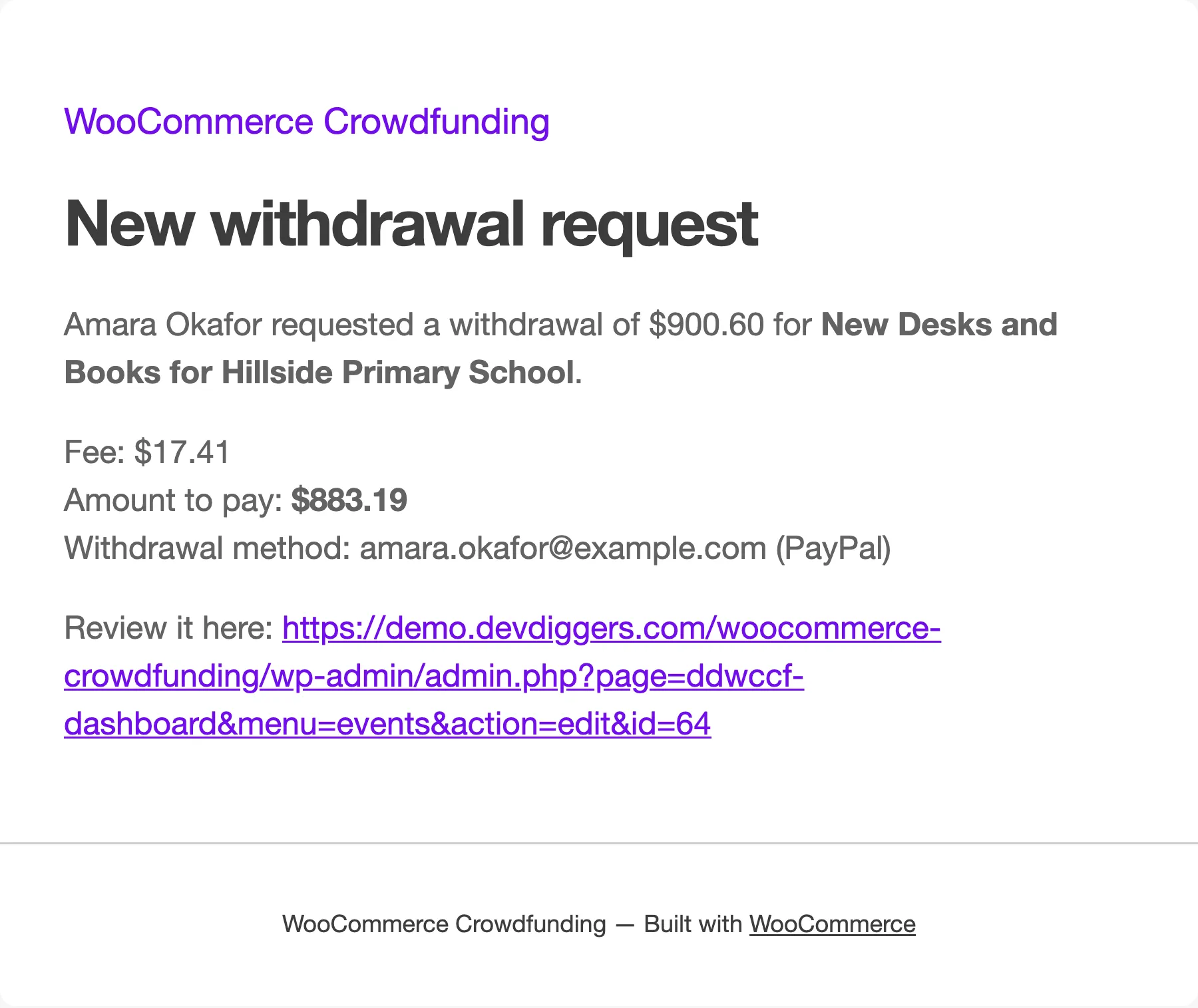
You get Withdrawal Requested to Admin.
Step 2: Open the request
Section titled “Step 2: Open the request”Go to Campaigns → Payout requests, or use Pay out in the dashboard’s Needs Attention.
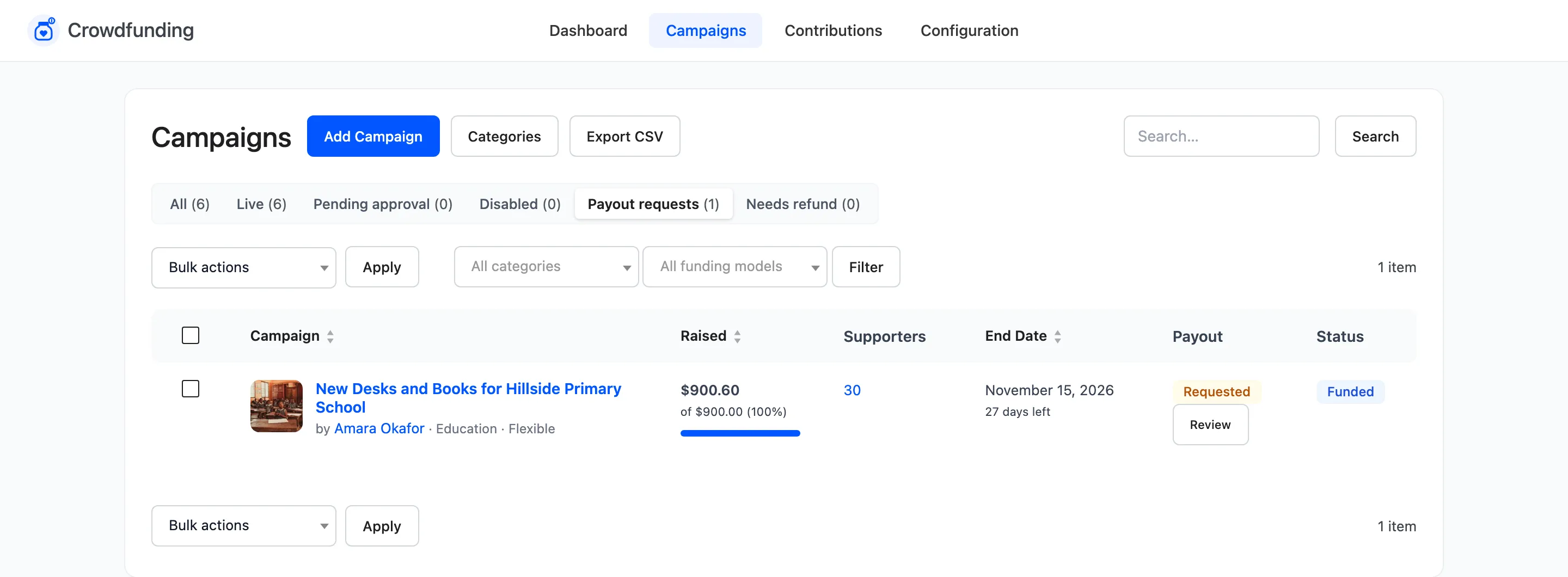
Click Review in the Payout column.
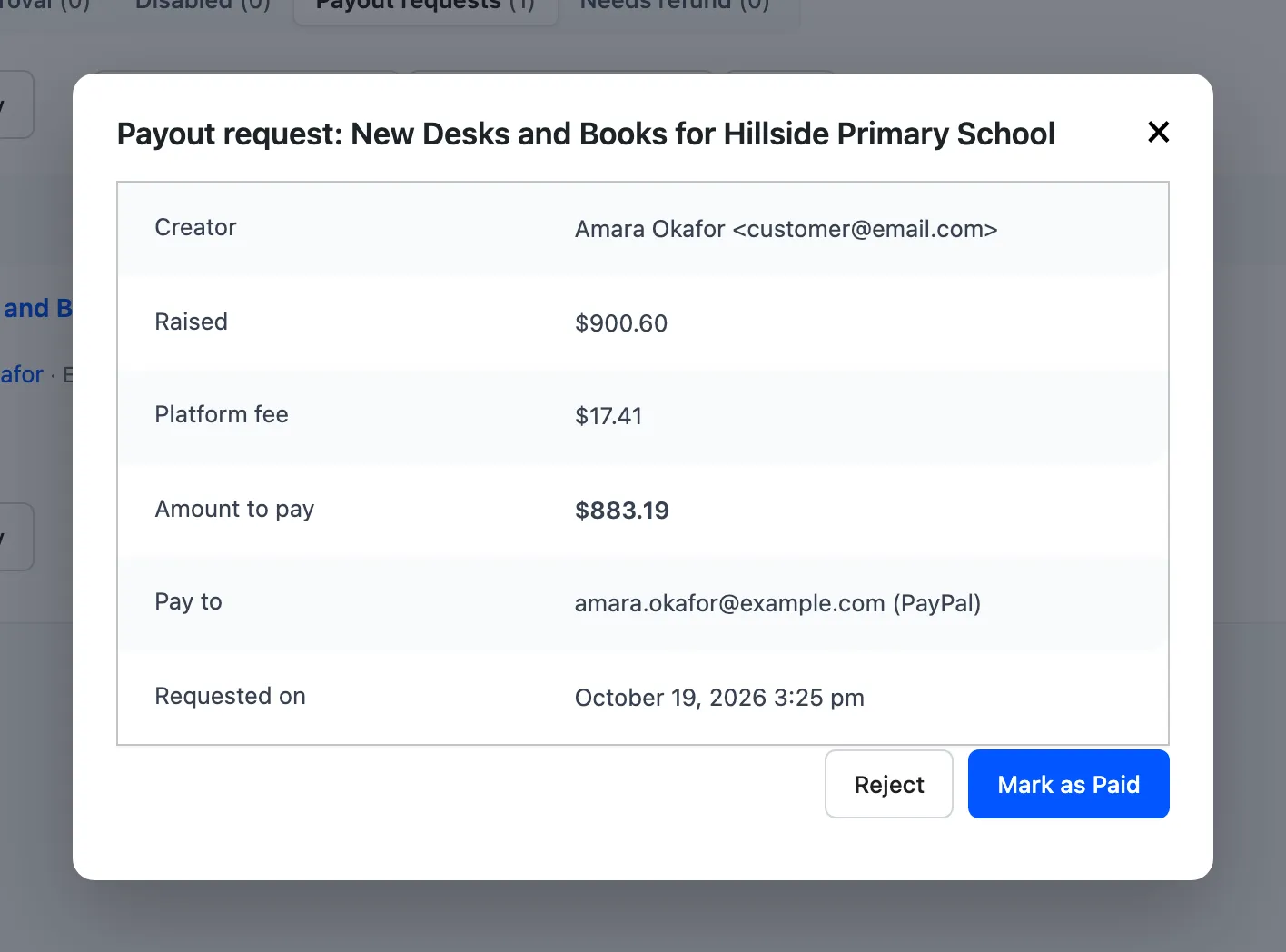
Step 3: Send the money
Section titled “Step 3: Send the money”The plugin does not move money. Send the Amount to pay to the Pay to details yourself, by PayPal, bank transfer or however you agreed.
The fee here is 2% of $900.60, which is $18.01, minus the $0.60 supporters chose to cover. So the creator receives $883.19.
Step 4: Mark it paid
Section titled “Step 4: Mark it paid”Click Mark as Paid and confirm “Mark this payout as paid? The creator gets an email.”
With Wallet payouts on and DevDiggers Wallet active, Pay to Wallet credits the amount to the creator’s store wallet instead. The creator can then spend it in your store or withdraw it through the wallet.
If the details look wrong, click Reject. The creator is told to check their payout method and request again.
Step 5: Check both sides
Section titled “Step 5: Check both sides”The Payout column reads Paid. The creator sees Payout Paid on the campaign and gets the email.
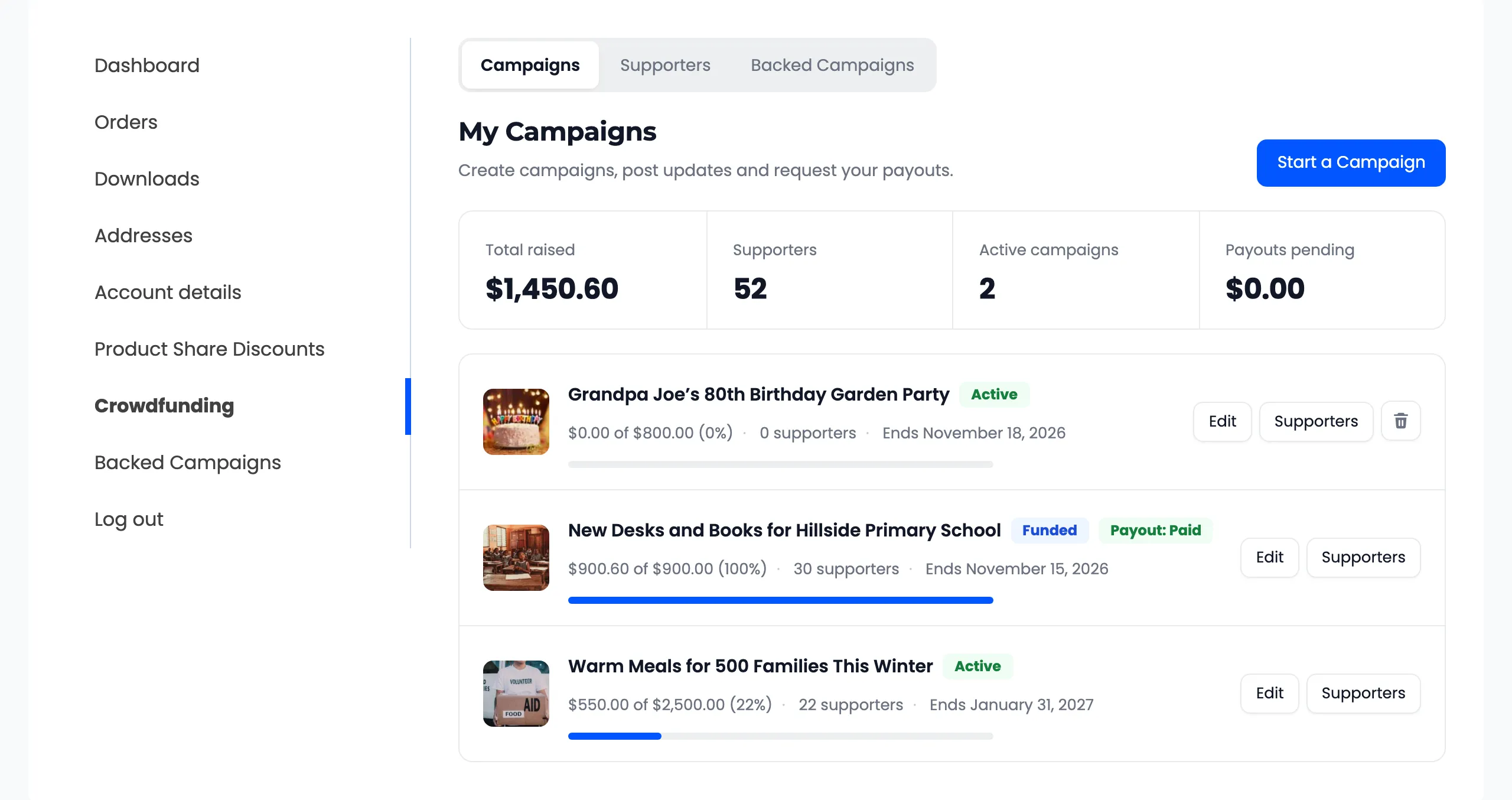
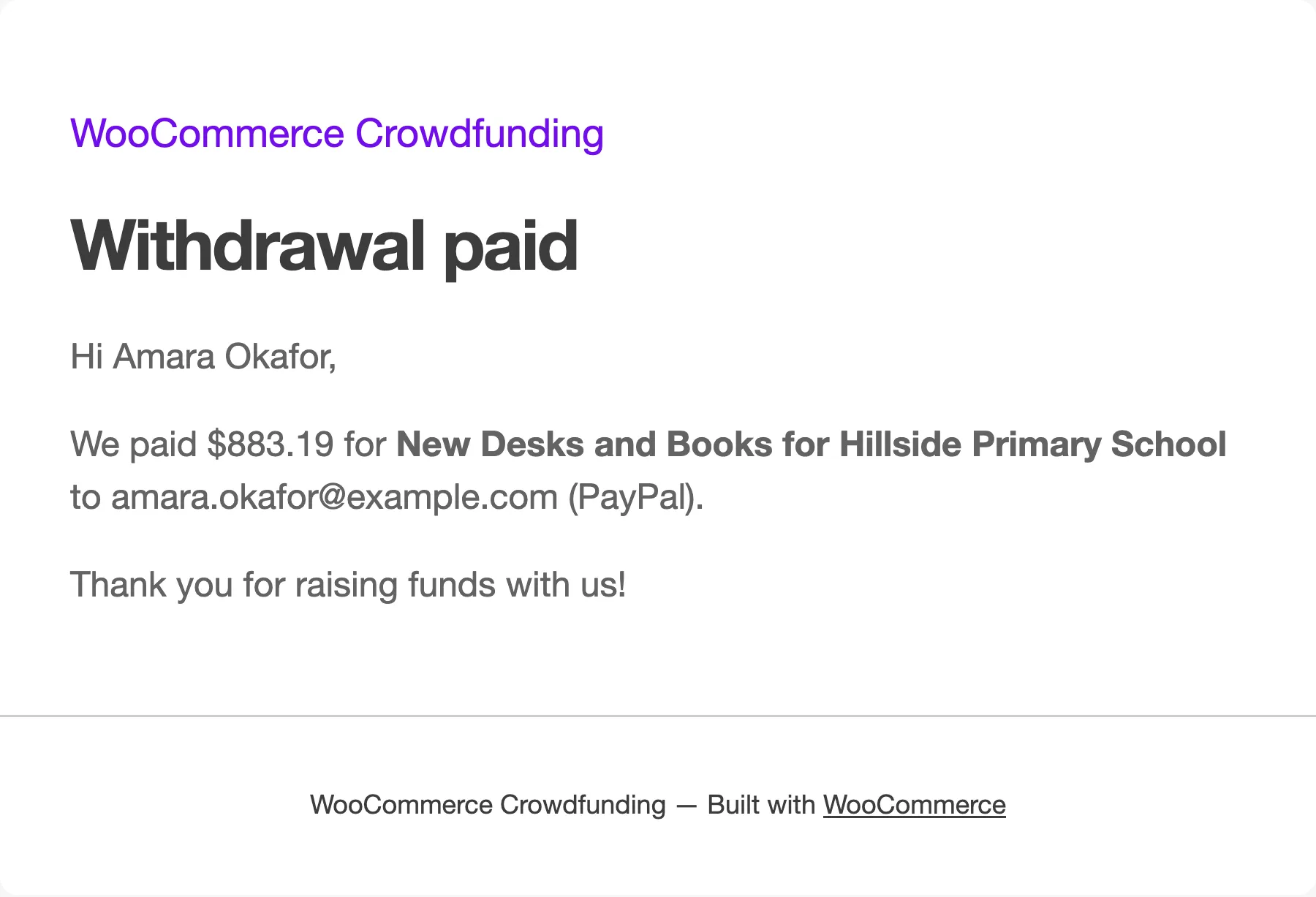
A campaign is paid out once. After that there is no Withdraw button on it.
Your own campaigns
Section titled “Your own campaigns”A campaign you created for yourself has you as its creator. You can leave it alone: the money is already yours.