

How to Customize Crowdfunding Emails
Crowdfunding sends up to ten emails. All use your WooCommerce email design, so they match your order emails.
Step 1: Open the Emails tab
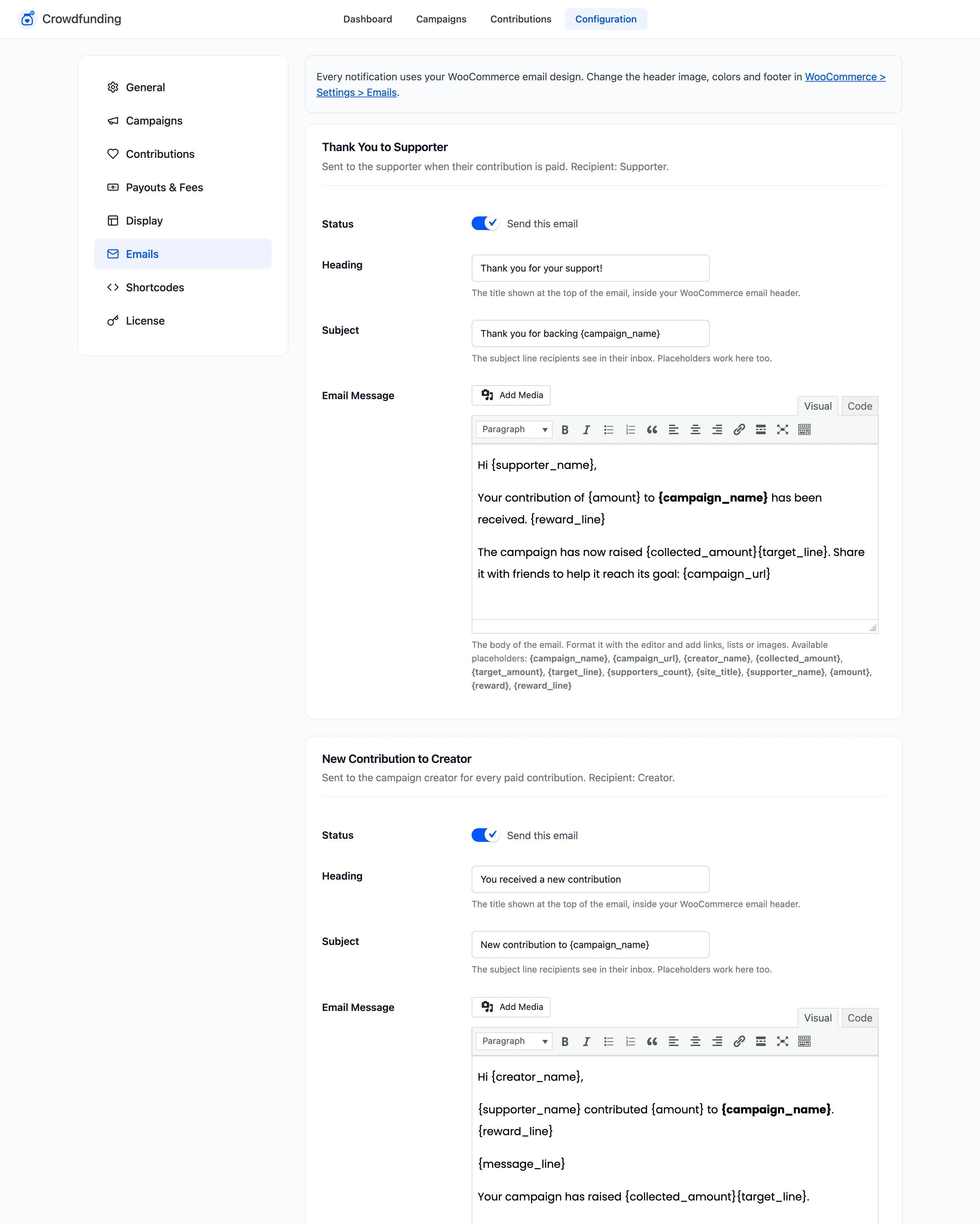
Section titled “Step 1: Open the Emails tab”Go to Configuration → Emails. Each email has its own section, with who receives it in the description.
Step 2: Choose an email
Section titled “Step 2: Choose an email”Untick Send this email to stop one. All are on by default.
Step 3: Rewrite it
Section titled “Step 3: Rewrite it”In Pro, each email has a Heading, a Subject and an Email Message with a full editor.
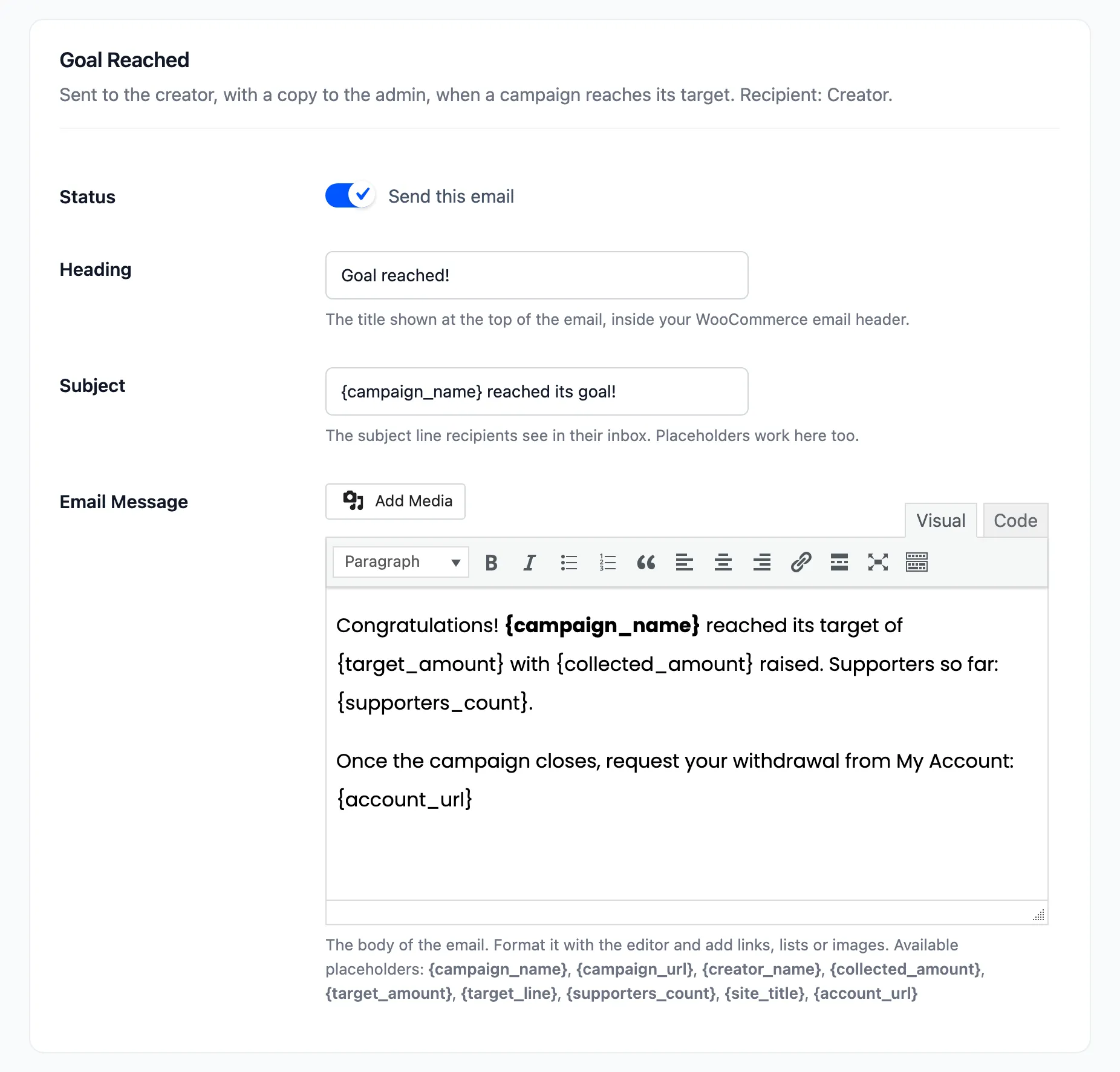
Placeholders are listed under each message, for example {campaign_name}, {collected_amount} and
{account_url}. A few fill a whole sentence only when it applies:
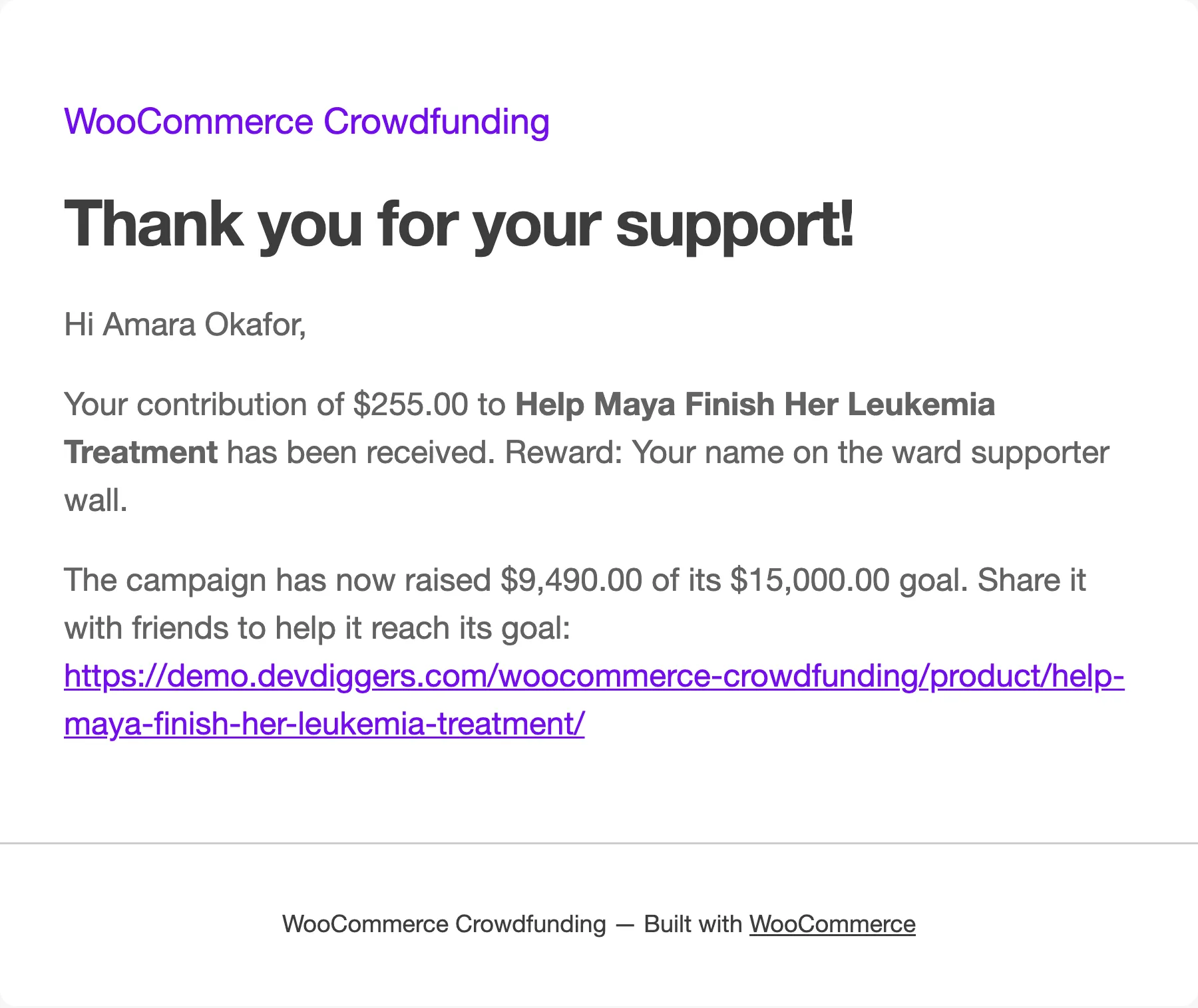
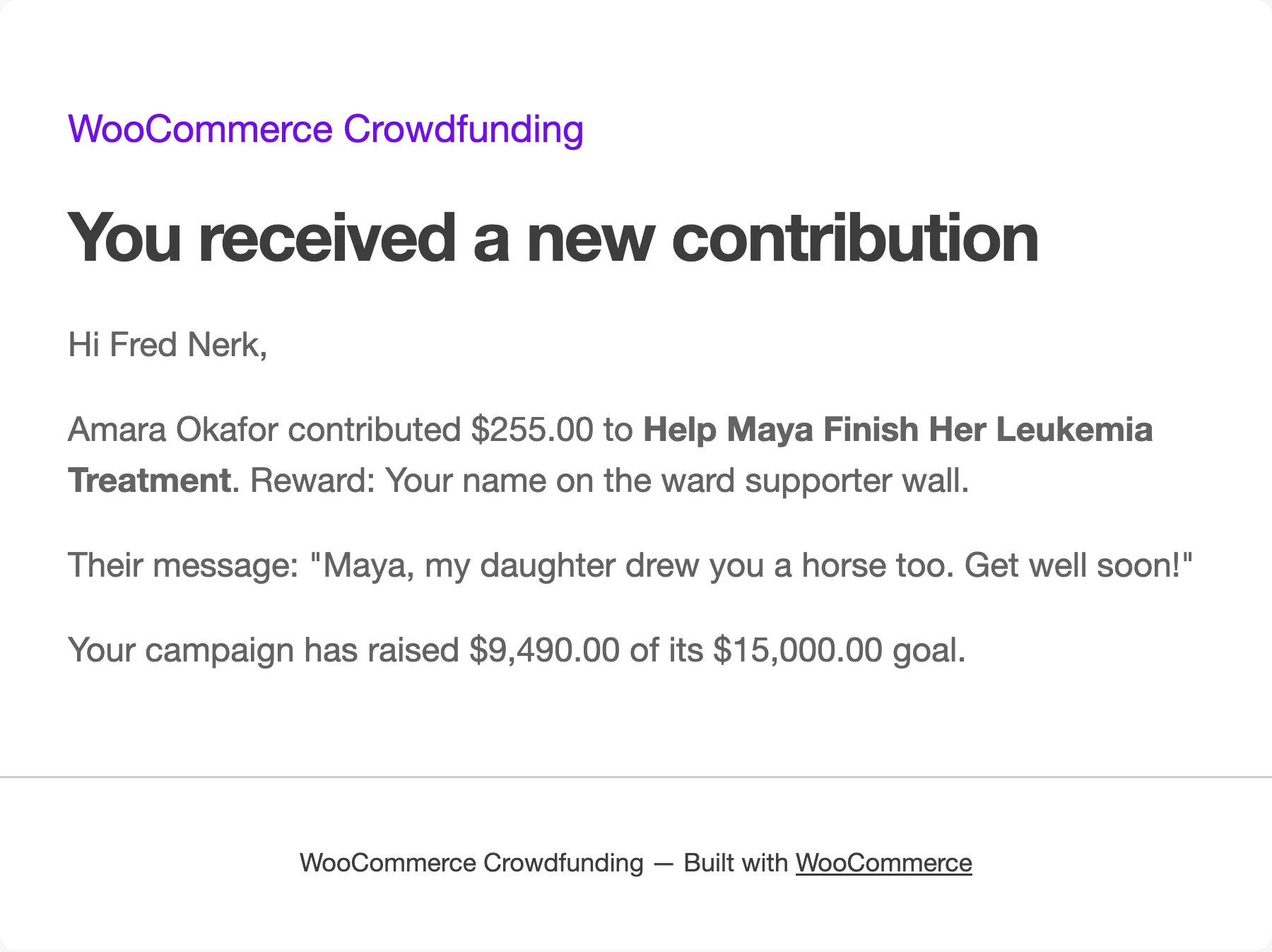
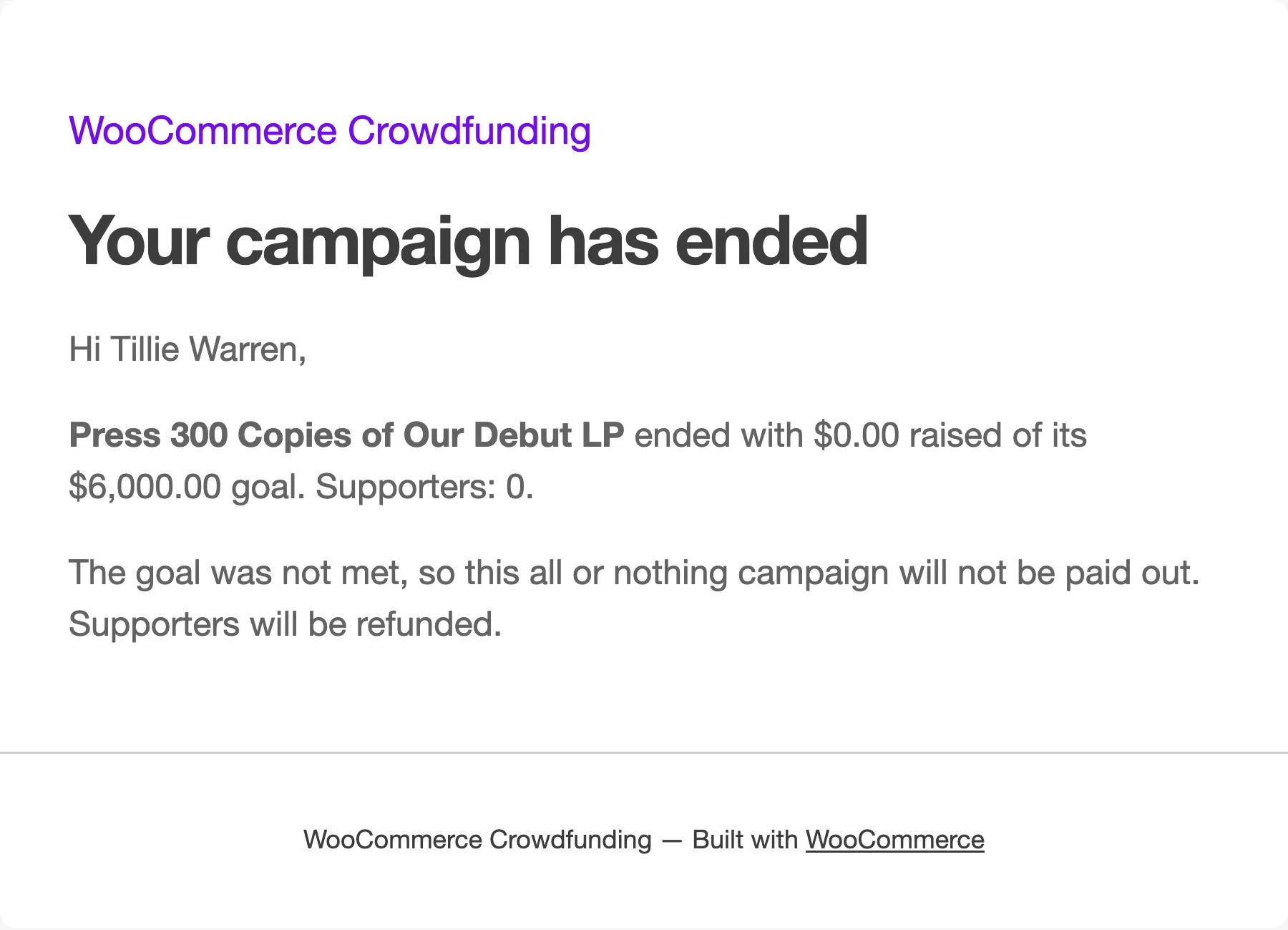
{target_line}becomes “ of its $15,000.00 goal“ when the campaign has a goal.{reward_line}becomes “Reward: Your name on the ward supporter wall.” when a reward was chosen.{message_line}carries the supporter’s message, in the creator’s email.{outcome_line}says what happens next, in Campaign Ended.
Step 4: Save and test
Section titled “Step 4: Save and test”Click Save Changes. To see an email, trigger it: a test contribution sends the two contribution emails.
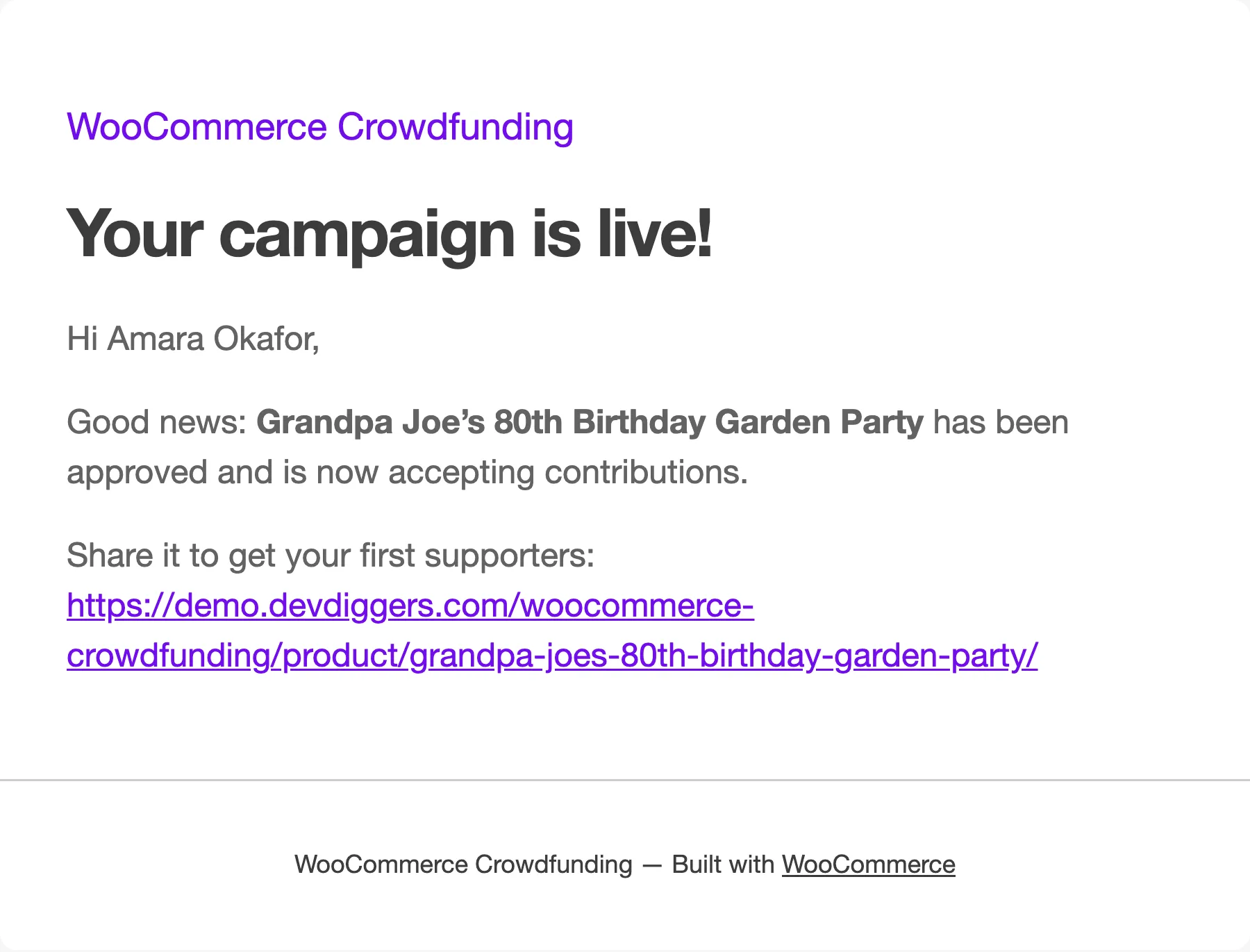
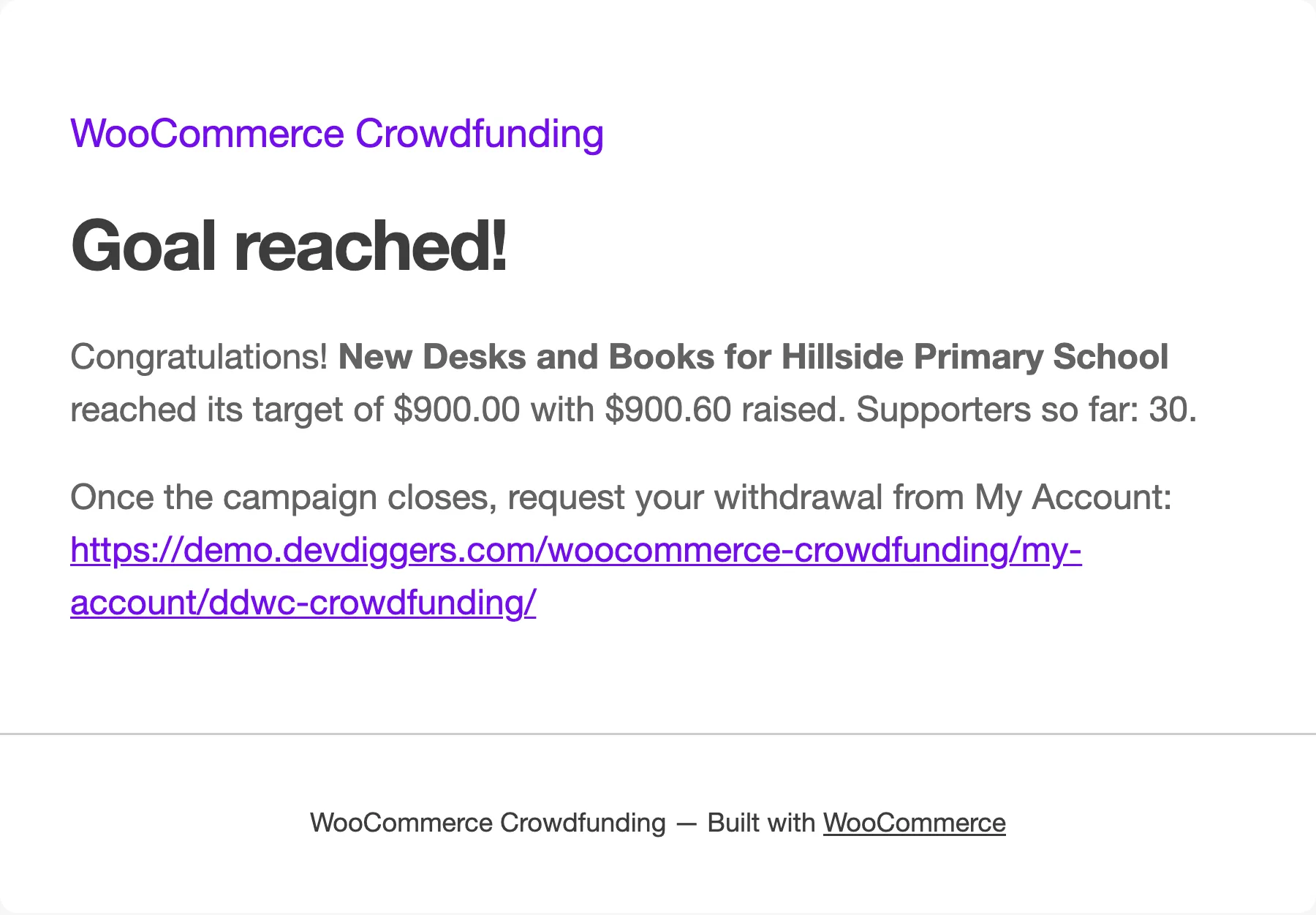
The ten emails as they arrive
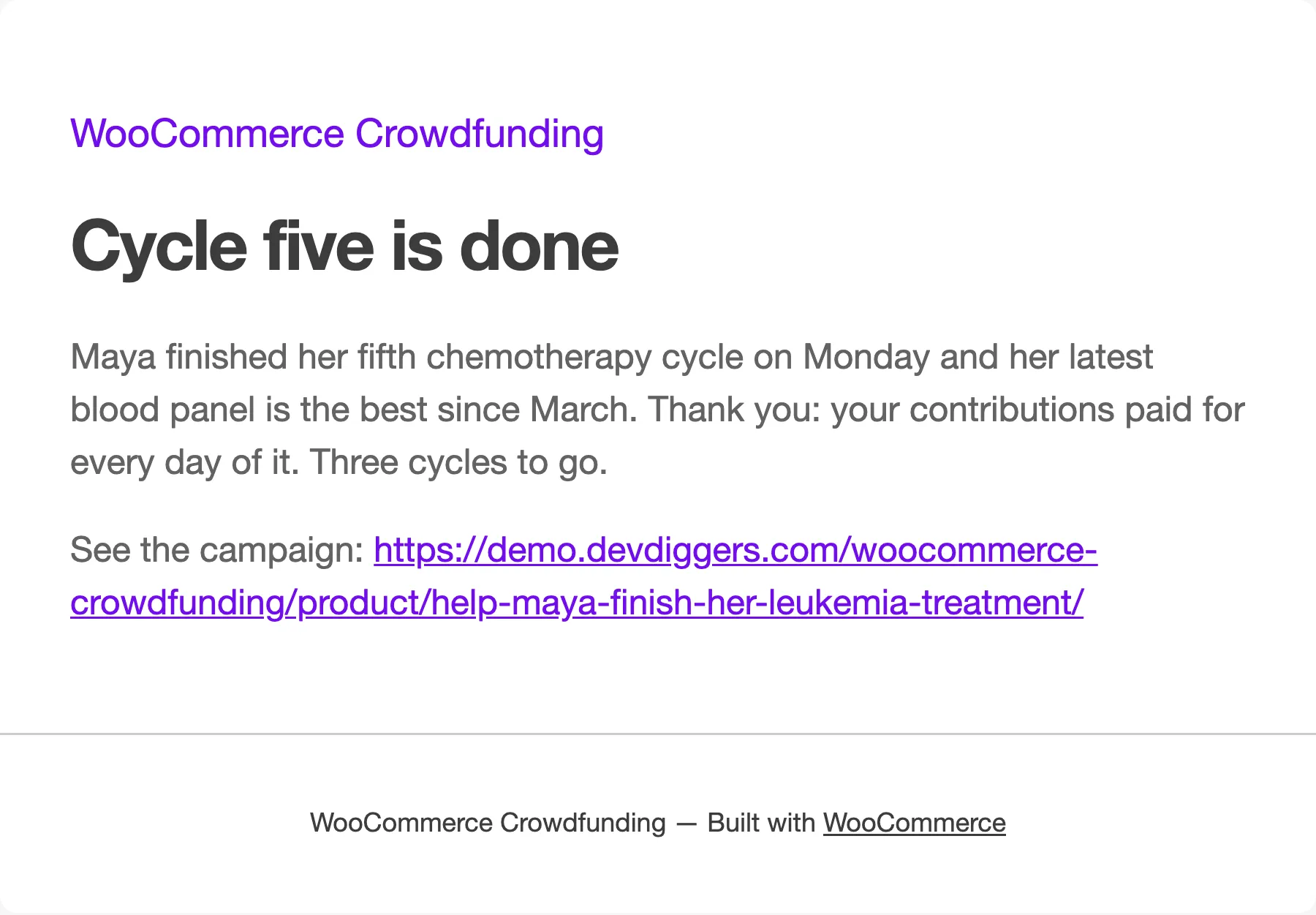
Section titled “The ten emails as they arrive”Each is shown with the wording it ships with.
To supporters
To creators
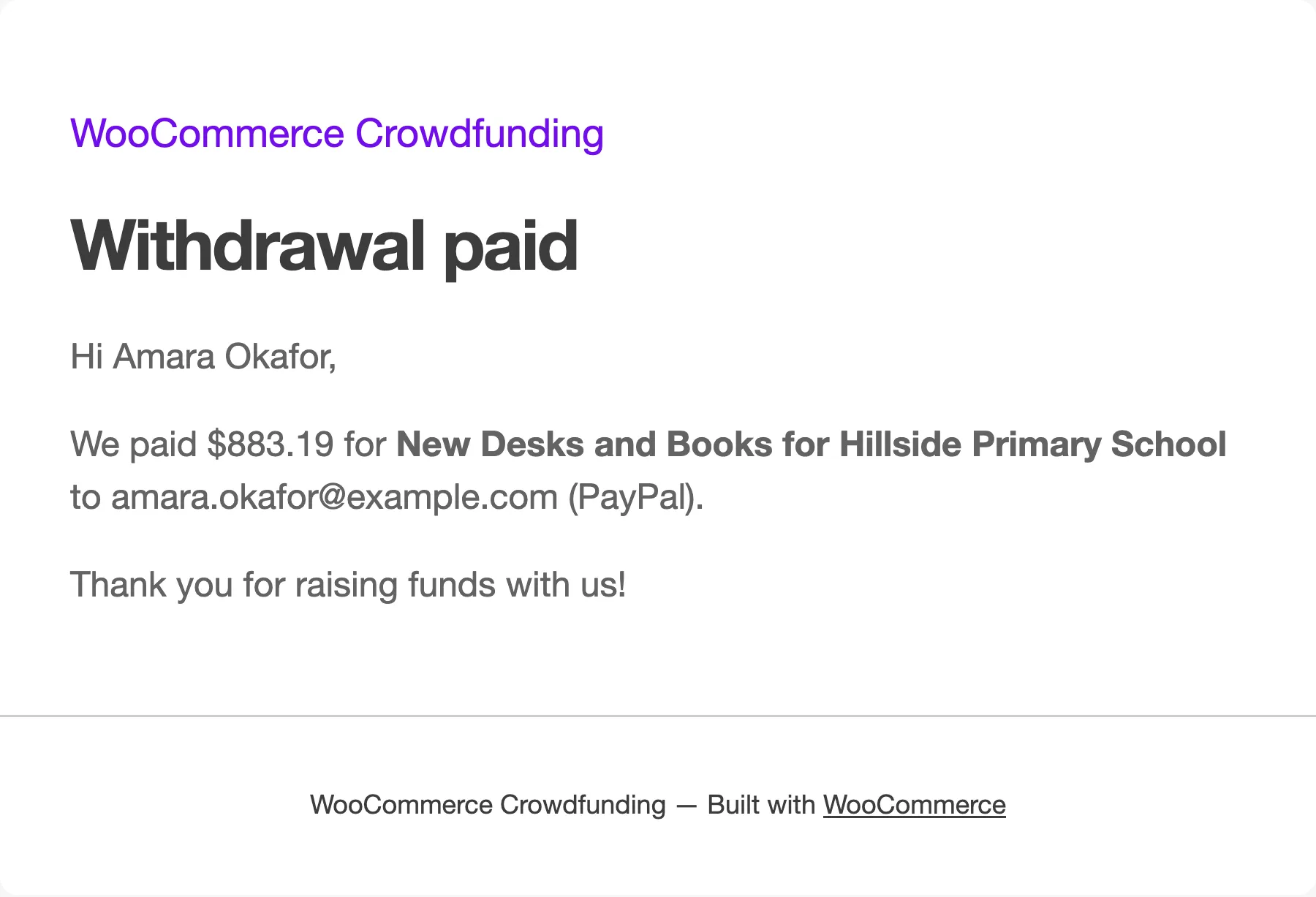
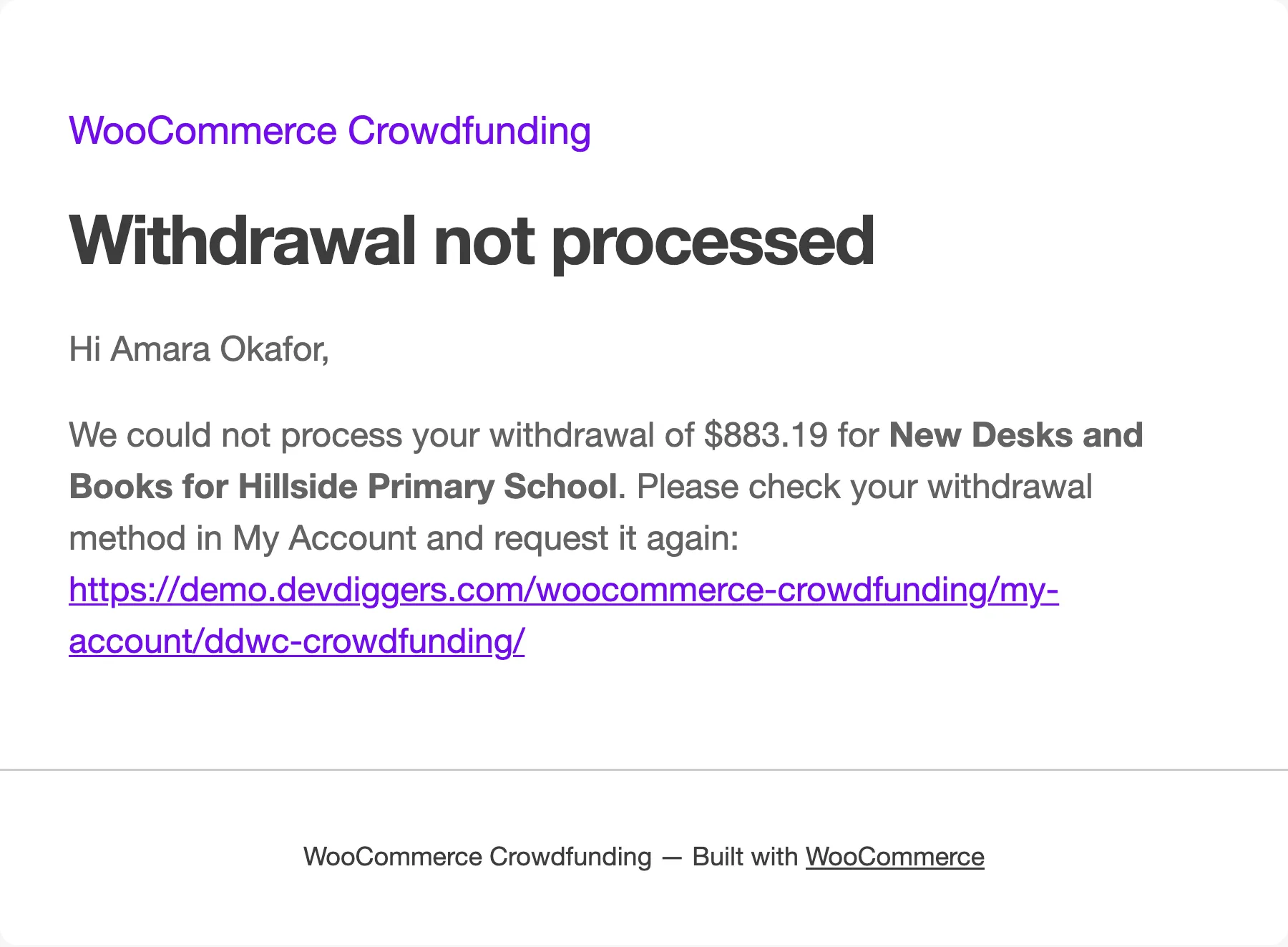
To you
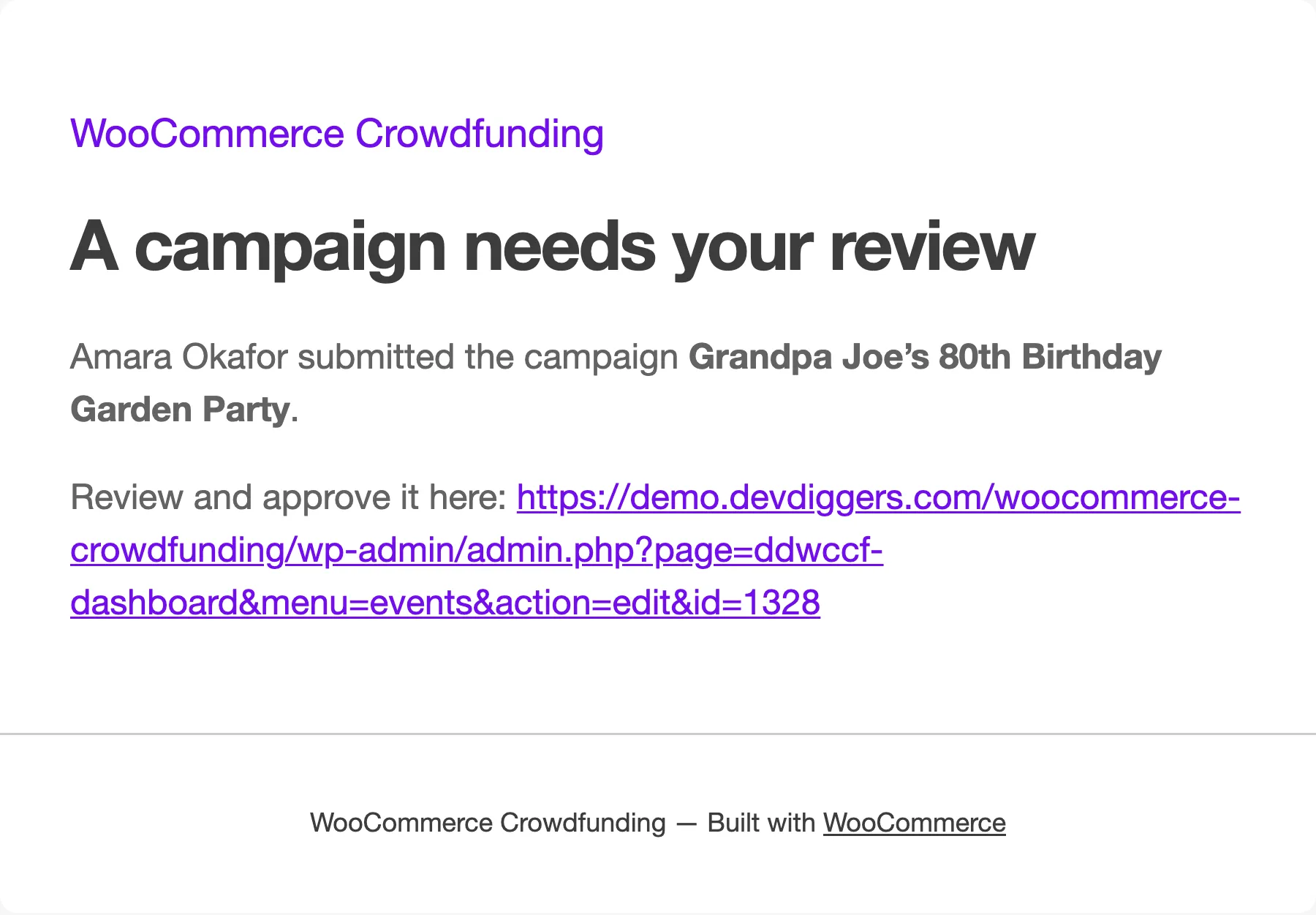
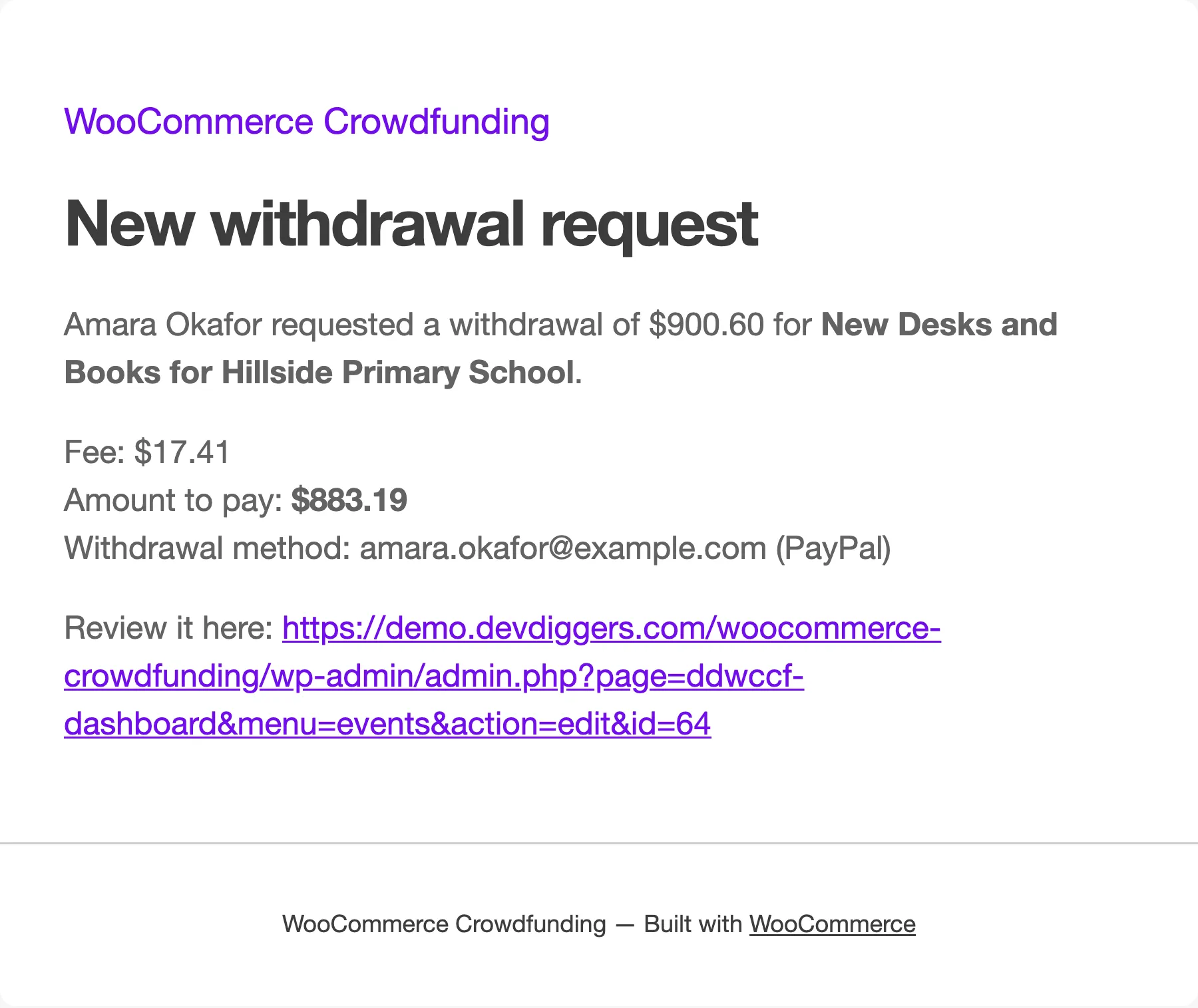
The header image, colours and footer come from WooCommerce → Settings → Emails.