

How to Use Smart Mode (Pro)
Smart mode hides the CAPTCHA from people who have done nothing wrong. Every visitor still gets the invisible honeypot and fill timer. Only an IP that has failed something sees the challenge.
Step 1: Check the honeypot is on
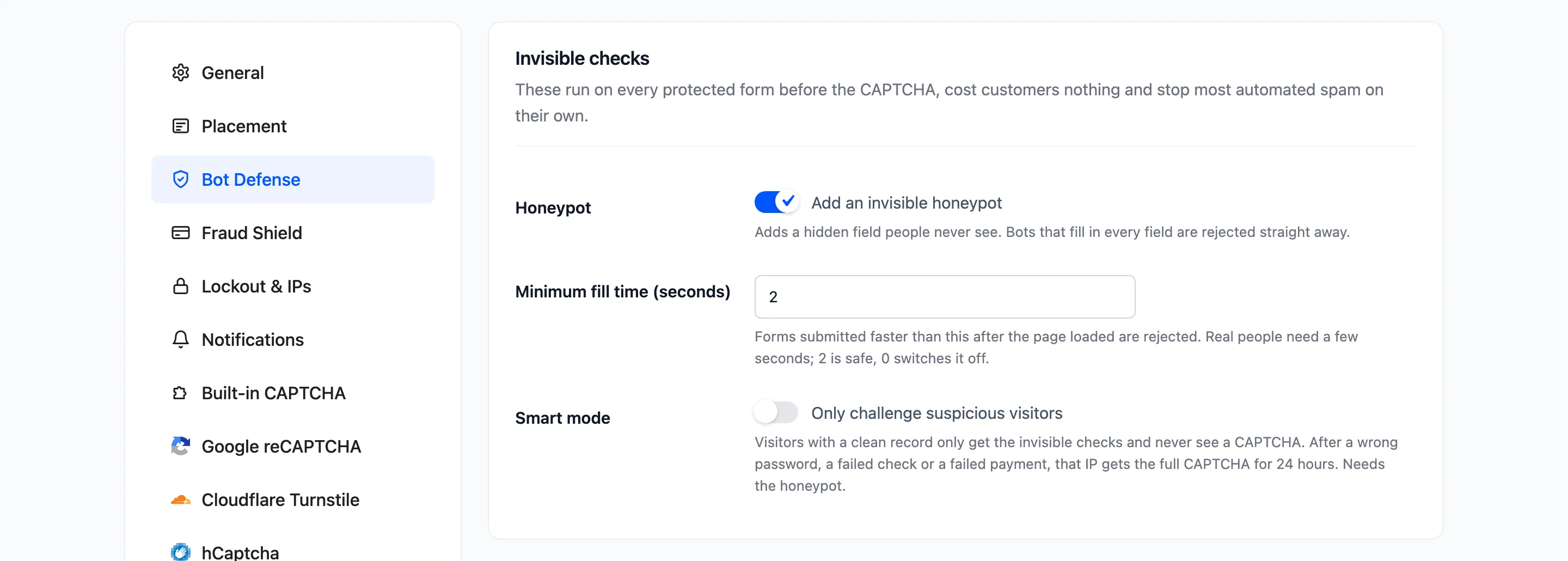
Section titled “Step 1: Check the honeypot is on”Smart mode leans on the honeypot to catch bots that never trigger a failure. Go to Configuration → Bot Defense and make sure Honeypot is on. Smart mode does nothing while it is off.
Step 2: Switch smart mode on
Section titled “Step 2: Switch smart mode on”Tick Smart mode, “Only challenge suspicious visitors”, and click Save Changes.
Step 3: Open a form as a new visitor
Section titled “Step 3: Open a form as a new visitor”In a private window, open /wp-login.php. There is no CAPTCHA. The honeypot is there, invisible.
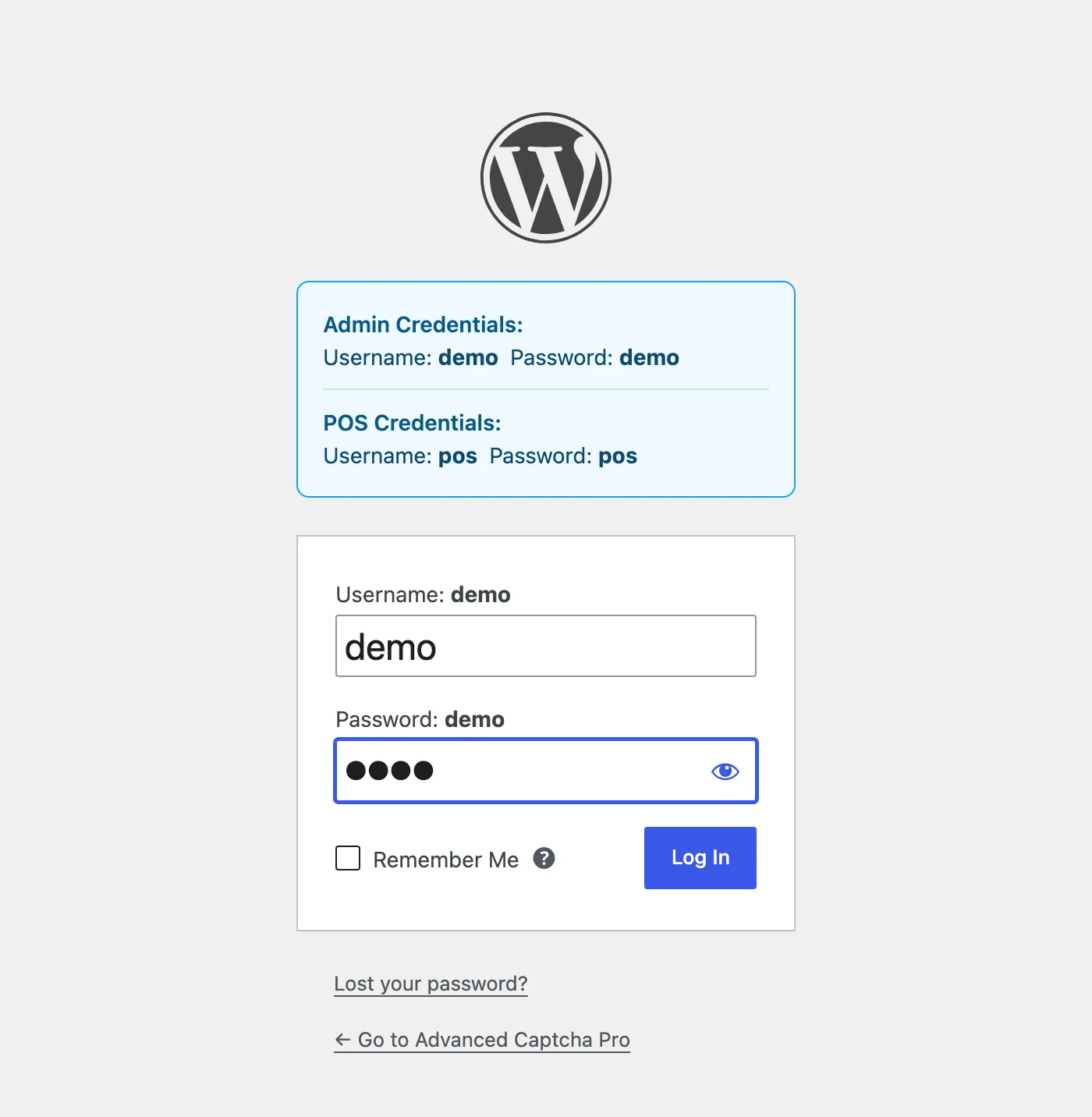
Submitting the form passes the check. The log reads Passed, “Trusted visitor (smart mode)”, and the dashboard counts it under Humans Passed.
Step 4: Fail once
Section titled “Step 4: Fail once”Log in with a wrong password. Then open the login page again. The CAPTCHA is back, for this IP, for the next 24 hours.
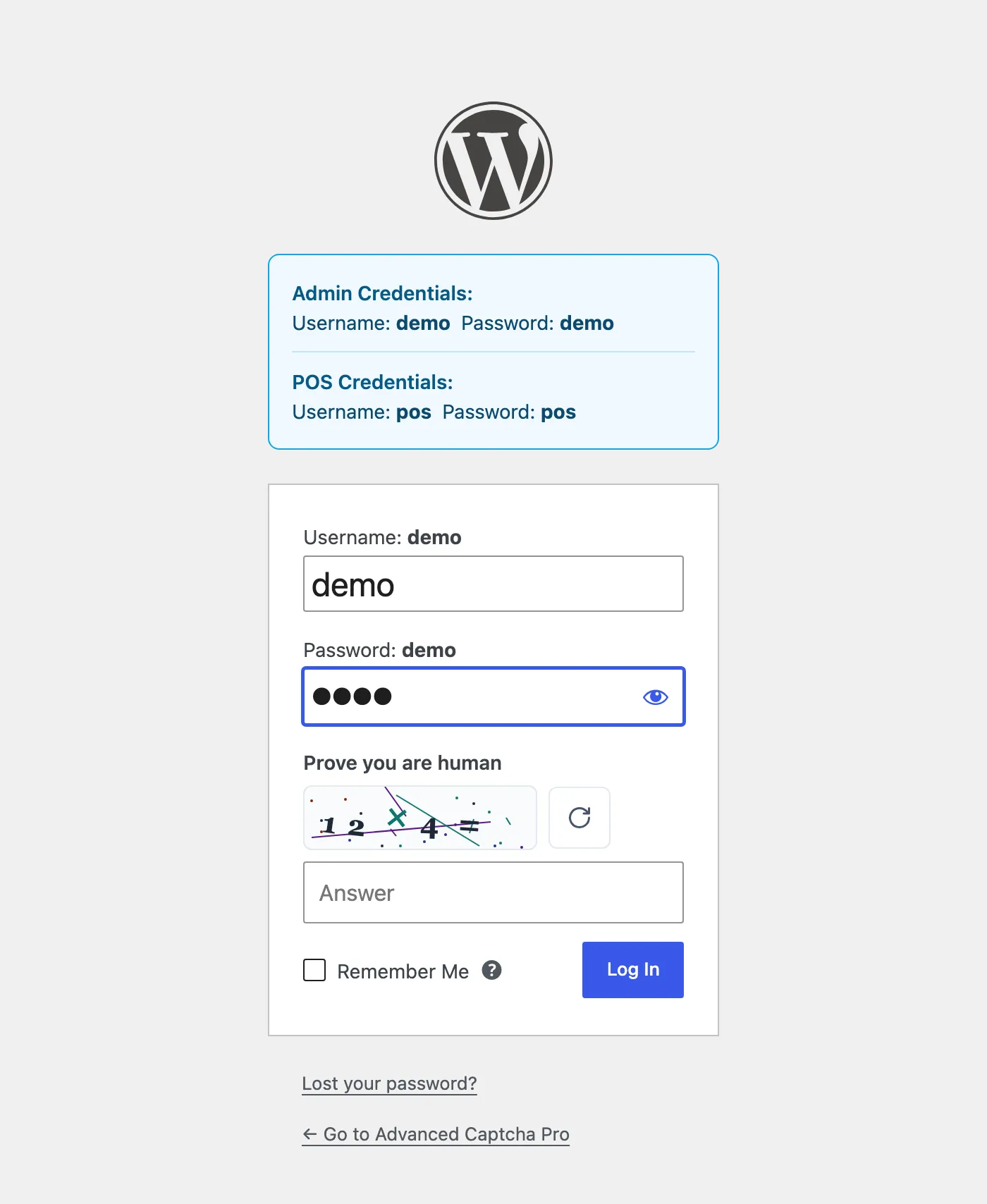
Three things make an IP suspect:
- A wrong password on the login form.
- Any failed check: a wrong CAPTCHA, the honeypot, a form submitted too fast.
- A failed payment at checkout.
Things to know
Section titled “Things to know”- Lift Lockout clears it. Lifting a lockout from the Firewall also clears the IP’s suspicion, so it goes back to no challenge.
- A missing honeypot field fails in smart mode. A bot that posts straight to a form without the page’s hidden fields is refused as “Bot check fields missing”, where it would only meet the CAPTCHA otherwise.
- Shared networks share a record. An office or a mobile network behind one IP shares its 24 hours of suspicion.