

How to Block and Trust IP Addresses
The Firewall keeps two lists. The block list refuses an IP on every protected form, for good. The trusted list does the opposite: those IPs are never challenged and never locked out.
Step 1: Block an IP or range
Section titled “Step 1: Block an IP or range”Go to Advanced CAPTCHA → Firewall. Under Block List, type an IP or range and click Block.
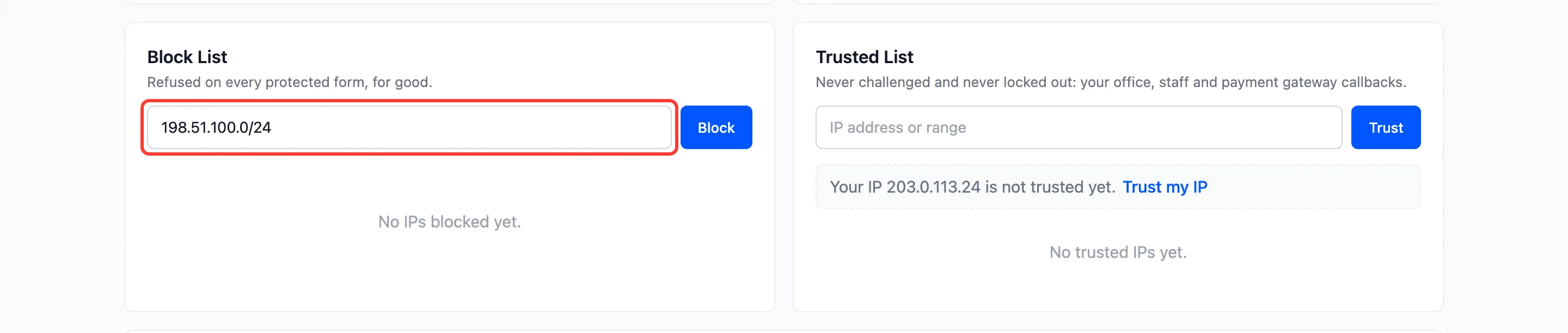
Faster: click Block IP next to an IP under Repeat Offenders, Block under Top Offending IPs on the dashboard, or Block IP under a visitor in the log.
Step 2: Trust an IP
Section titled “Step 2: Trust an IP”Under Trusted List, type an IP and click Trust. To trust the computer you are on, click Trust my IP.

Trust your office, your staff’s home IPs, and payment gateways or services that post to your forms. The trusted list is in the free plugin too. In the free plugin, the log also offers Trust IP under each visitor.
Step 3: Check the lists
Section titled “Step 3: Check the lists”Each entry shows with a Remove link.

Both lists take a single IP (203.0.113.7), a wildcard (203.0.113.*) or a CIDR range
(203.0.113.0/24), IPv4 or IPv6. Separate several with spaces to add them in one go.
Step 4: See the result
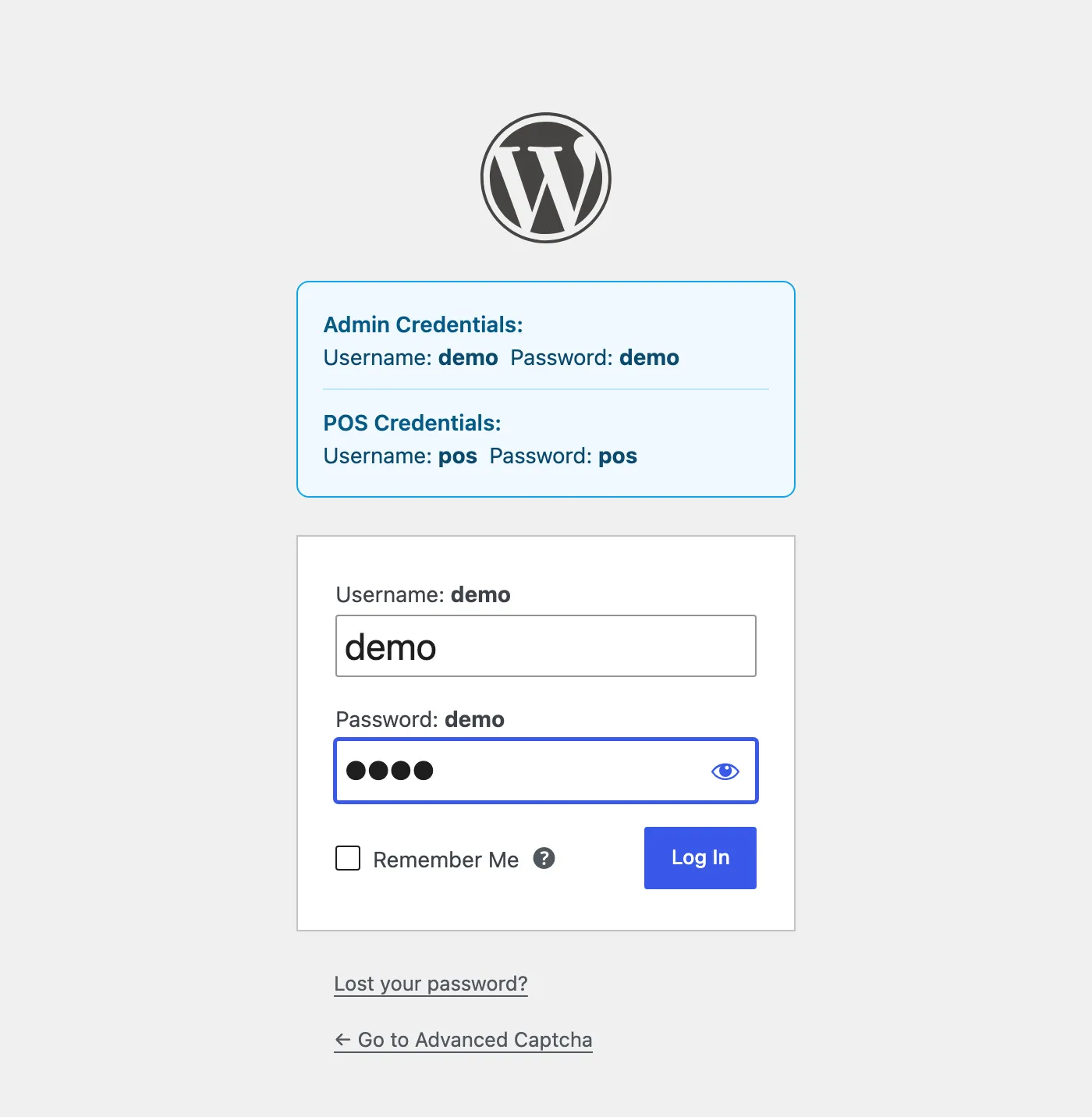
Section titled “Step 4: See the result”A trusted visitor’s login page has no CAPTCHA at all:
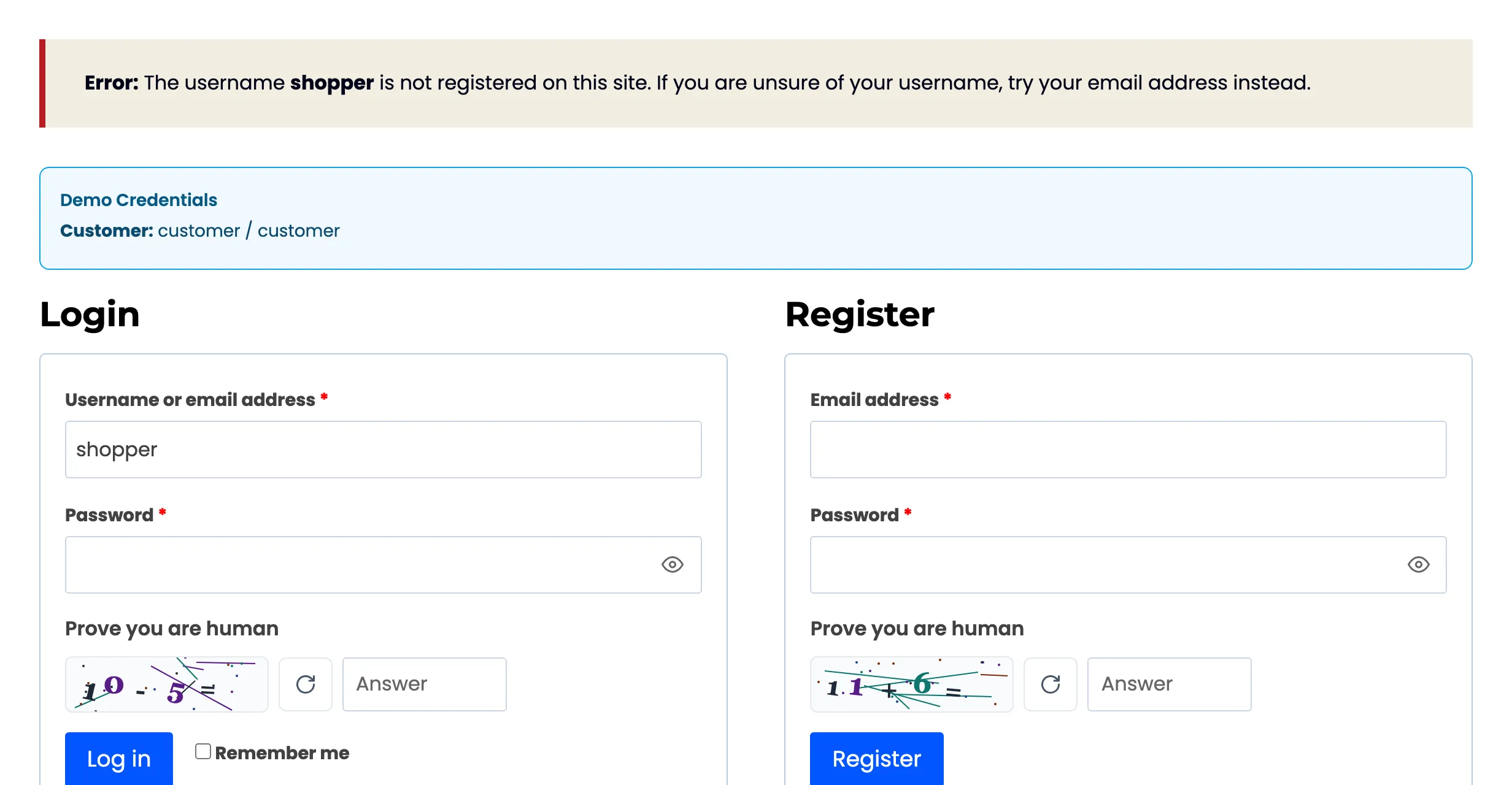
A blocked visitor still sees the form. When they submit, they get the Lockout message, and the log reads Blocked, “IP on block list”:
Things to know
Section titled “Things to know”- Trusted beats blocked. An IP on both lists is trusted: the checks never run for it.
- Trusting your own IP hides the CAPTCHA from you. Test your forms from another network, or remove your IP while testing.
- Trusted visitors also skip the fraud shield and the email guard in Pro.
- Check the visitor IP source first if your site is behind Cloudflare or a proxy. See How to Set the Visitor IP Behind a Proxy.