

How to Set the Visitor IP Behind a Proxy
Behind Cloudflare, a load balancer or a reverse proxy, a visitor can reach WordPress from the proxy’s address rather than their own. Then every visitor looks the same: one lockout would shut out everyone, trusting one IP would trust everyone, and the logs would show one address.
Step 1: Check what the plugin sees
Section titled “Step 1: Check what the plugin sees”Open Advanced CAPTCHA → Firewall. The bottom of the screen shows Your IP address as the plugin reads it. Compare it with your real IP (search “what is my IP” in another tab).
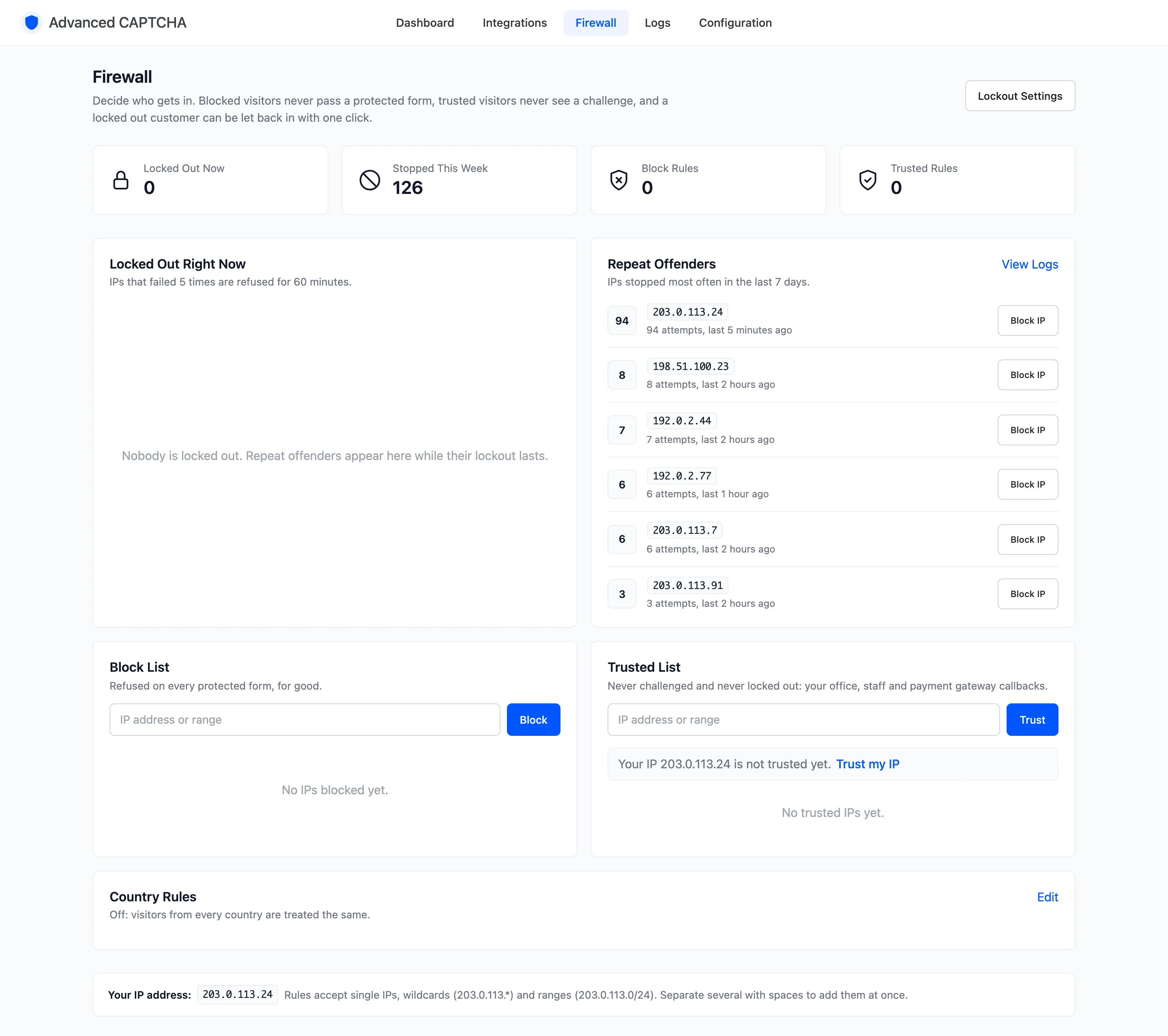
If they match, leave the setting alone. Many hosts pass the real IP through already; the demo store, behind Cloudflare, does.
Step 2: Pick the header your proxy sets
Section titled “Step 2: Pick the header your proxy sets”Go to Configuration → Lockout & IPs and set Visitor IP source:
- Cloudflare (CF-Connecting-IP) if your site runs through Cloudflare.
- Proxy or load balancer (X-Forwarded-For) for most load balancers. The first address in the header is used.
- Nginx proxy (X-Real-IP) for an Nginx reverse proxy that sets it.
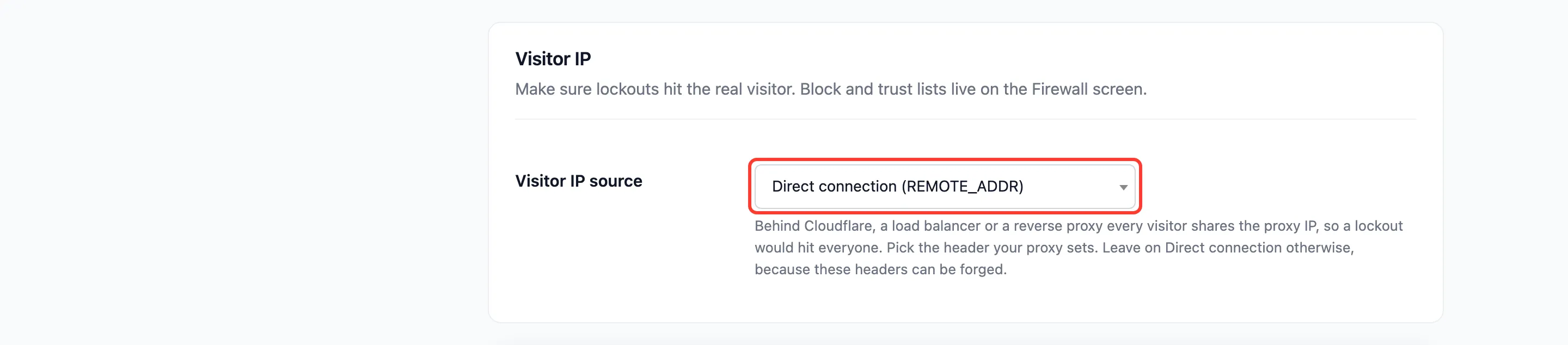
Click Save Changes. If the chosen header is missing on a request, the plugin falls back to the direct connection.
Step 3: Check again
Section titled “Step 3: Check again”Reload the Firewall. Your IP address should now be yours.
Do not pick a header you do not have
Section titled “Do not pick a header you do not have”Without a proxy that overwrites it, the header is whatever the visitor’s browser sends. A bot can claim any IP and dodge every lockout.
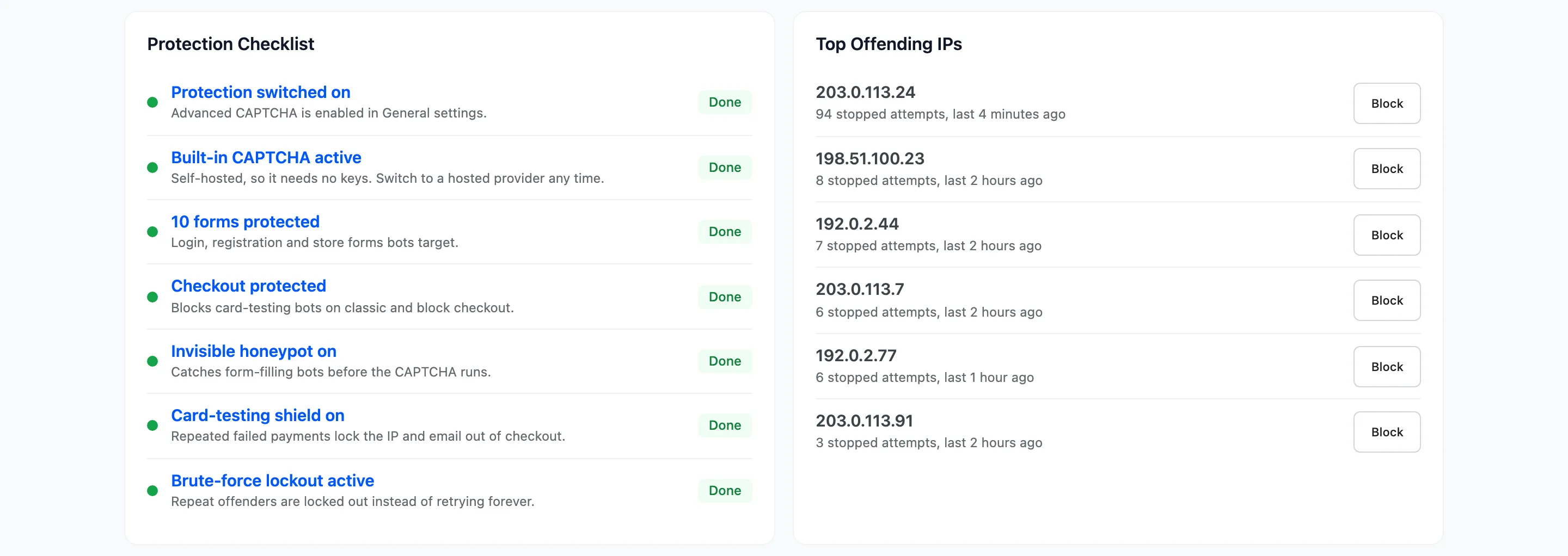
On the demo store, the source was switched to X-Forwarded-For for a test. One browser sending a different X-Forwarded-For value showed up in the logs as seven different attackers. That is fine for a demo, and exactly what an attacker would do to your store. Switch back to Direct connection if you are not sure.
The simulated attackers, as the dashboard’s Top Offending IPs list saw them:
Things to know
Section titled “Things to know”- The setting is in the free plugin too. There it keeps the logs and the trusted list accurate.
- Lockouts already running stay on the address they were recorded under.