

How to Let a Locked-Out Customer Back In (Pro)
A real customer sometimes locks themselves out: a forgotten password tried five times, or a shared office network that a bot also uses. You do not have to make them wait out the hour.
Step 1: Find the customer’s IP
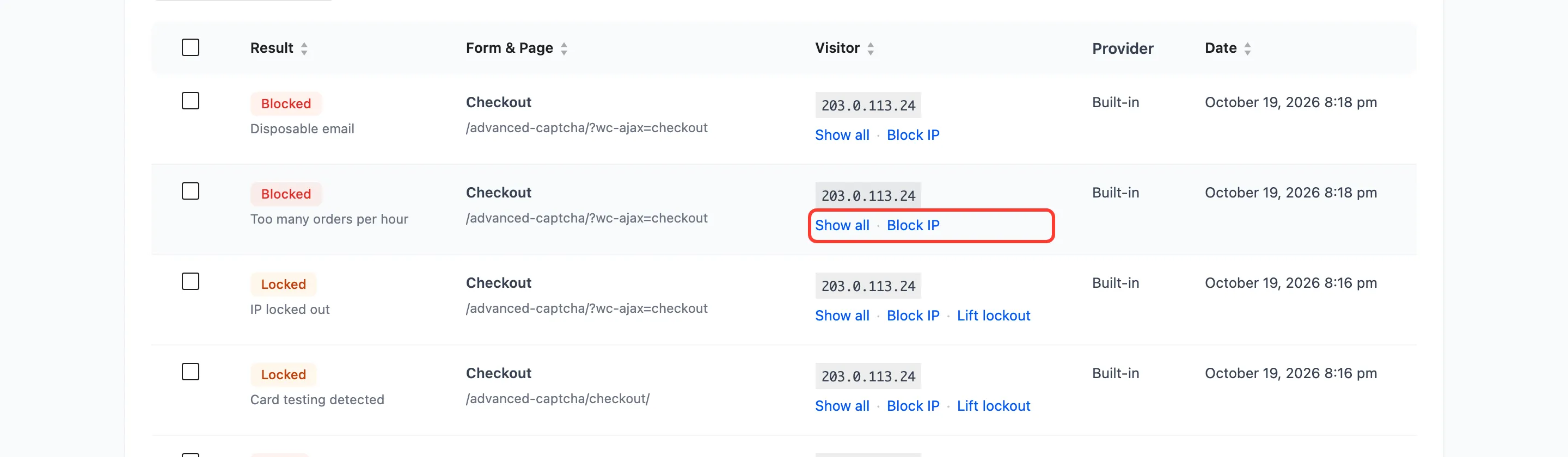
Section titled “Step 1: Find the customer’s IP”The customer may not know their IP. On the Logs screen, search for the page they were on, or look for a run of Failed rows at the time they called. Show all under an IP lists everything from it.
Step 2: Open the Firewall
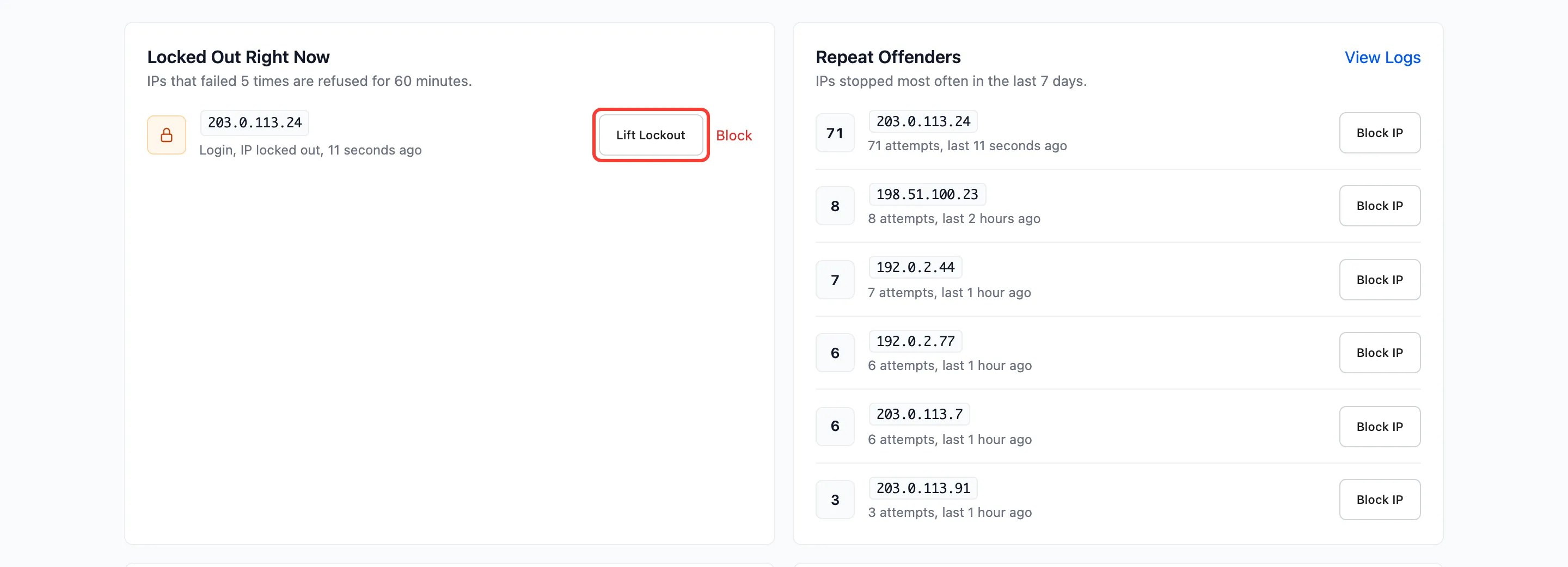
Section titled “Step 2: Open the Firewall”Go to Advanced CAPTCHA → Firewall. The IP is listed under Locked Out Right Now.
Step 3: Lift the lockout
Section titled “Step 3: Lift the lockout”Click Lift Lockout next to it.
The same action is on the Logs screen as Lift lockout, under the IP of any row while it is locked.
Step 4: Confirm it is gone
Section titled “Step 4: Confirm it is gone”The IP leaves the list, and the customer can use every form again.
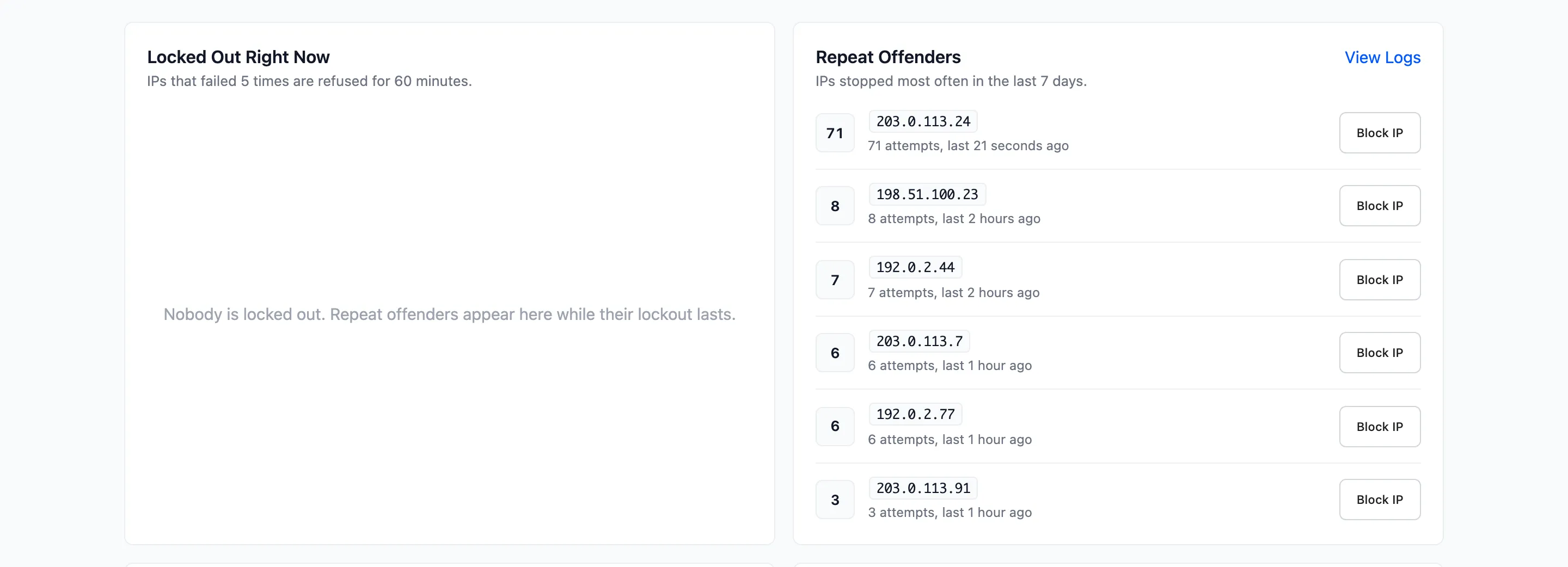
Lift Lockout also clears the IP’s failure count and its smart mode suspicion, so the customer starts clean.
A card-testing lockout is two locks
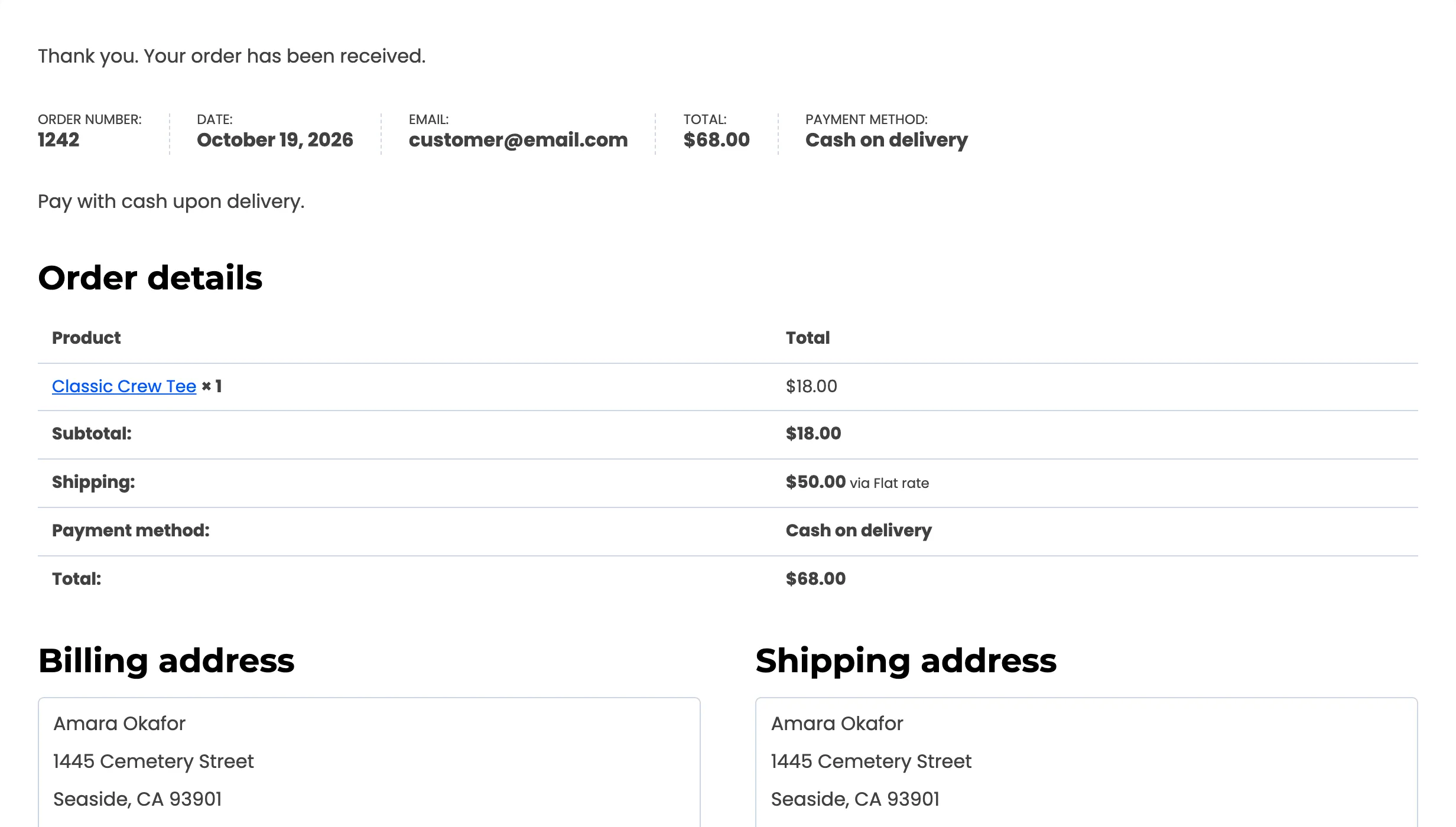
Section titled “A card-testing lockout is two locks”When the card-testing shield locks a customer out of checkout, it locks the IP and the billing email. Lift Lockout releases both. On the demo store, the same customer’s next checkout after the lift went straight through:
Stop it happening again
Section titled “Stop it happening again”If the customer always works from the same office, add that IP to the Trusted List on the Firewall. Trusted IPs are never challenged and never locked out.