

How to Set Up hCaptcha
hCaptcha is a checkbox challenge, sometimes followed by an image puzzle.
Step 1: Add your site in hCaptcha
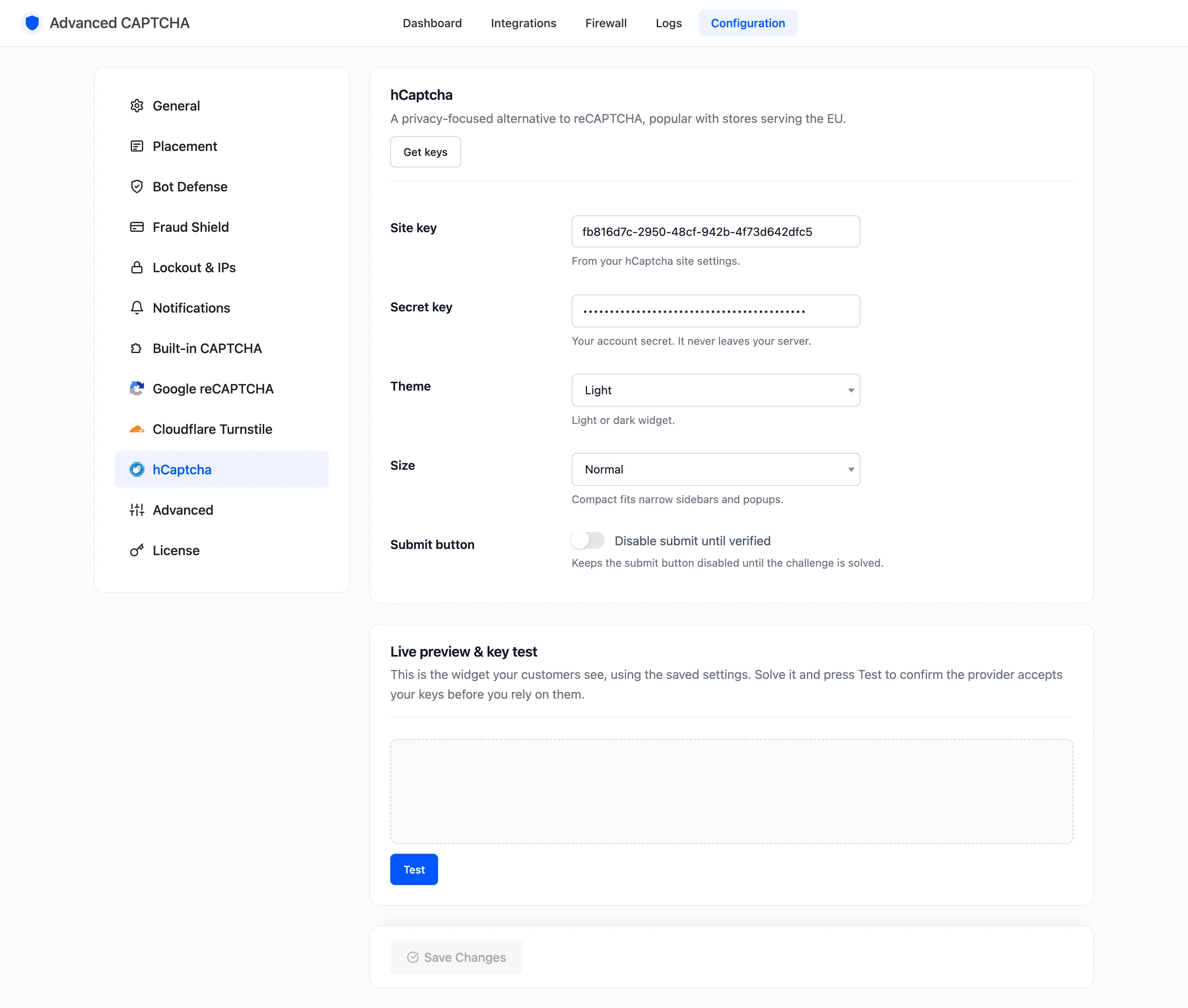
Section titled “Step 1: Add your site in hCaptcha”- On the hCaptcha tab, click Get keys. It opens the sites list in your hCaptcha dashboard.
- Add a site and enter your domain. Copy its Site key.
- Copy your account Secret key from the dashboard’s account settings.
The hCaptcha dashboard needs your own sign-in, so it is not shown here.
Step 2: Paste the keys
Section titled “Step 2: Paste the keys”Go to Configuration → hCaptcha, paste the Site key and Secret key, pick Theme and Size, and click Save Changes.
Step 3: Test the keys
Section titled “Step 3: Test the keys”Solve the Live preview & key test at the bottom of the tab and press Test.
Step 4: Switch to hCaptcha
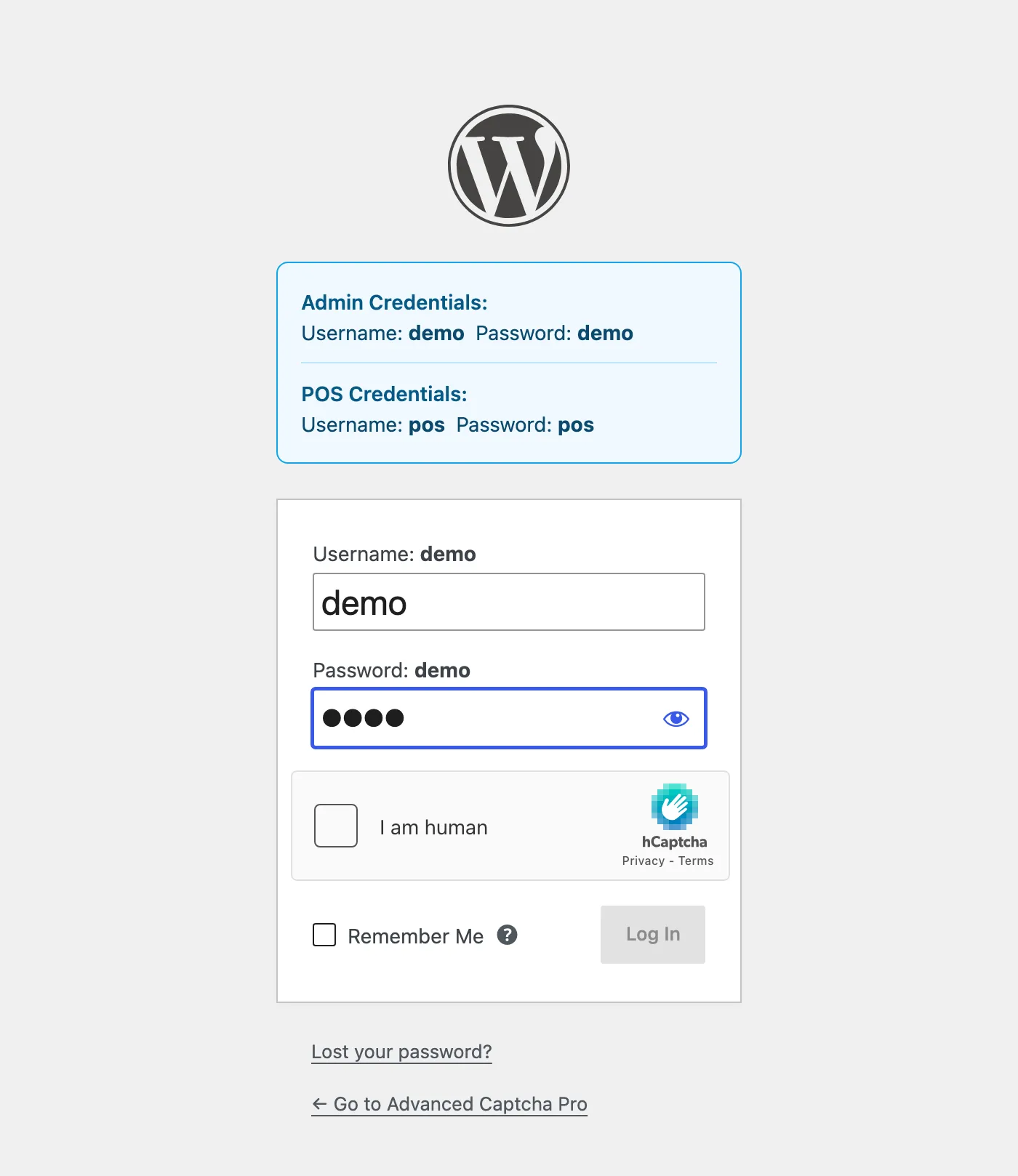
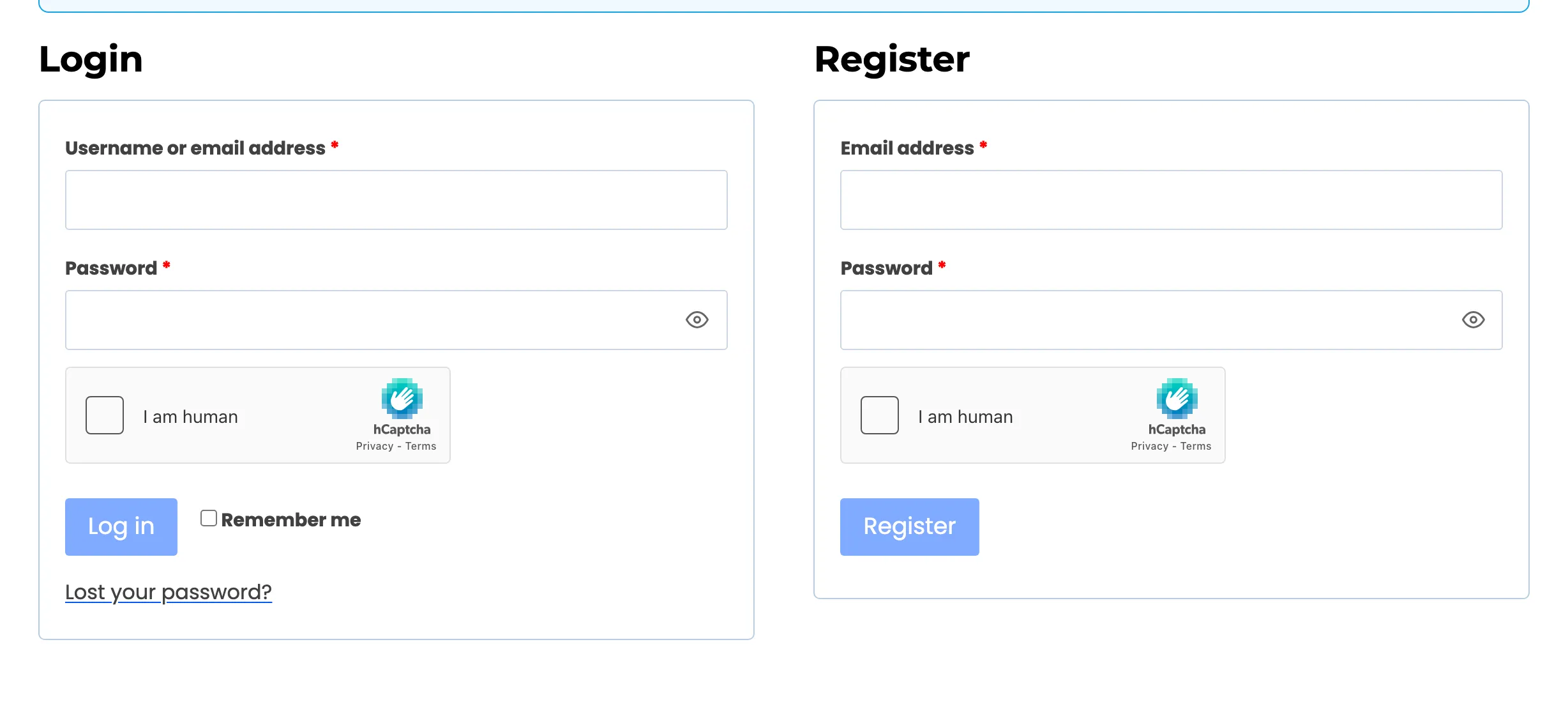
Section titled “Step 4: Switch to hCaptcha”On Configuration → General, set CAPTCHA provider to hCaptcha and click Save Changes. Open your login page in a private window to see it.
Things to know
Section titled “Things to know”- Compact size fits narrow sidebars and popups.
- The secret is your account’s, not the site’s. One secret works for every site in your hCaptcha account.
- If hCaptcha is unreachable, Provider outage on the Advanced tab decides whether forms let people through.