

How to Investigate an Attack
When a store is attacked, the plugin has already recorded who, where and how. This is the order to read it in. The shots come from a simulated attack on the demo store. Seven bots from documentation IP ranges hit the login, registration, lost password and comment forms.
Step 1: Spot the spike
Section titled “Step 1: Spot the spike”Open the dashboard. A tall red line in Verification Activity is an attack. Set the date range to the days around it.
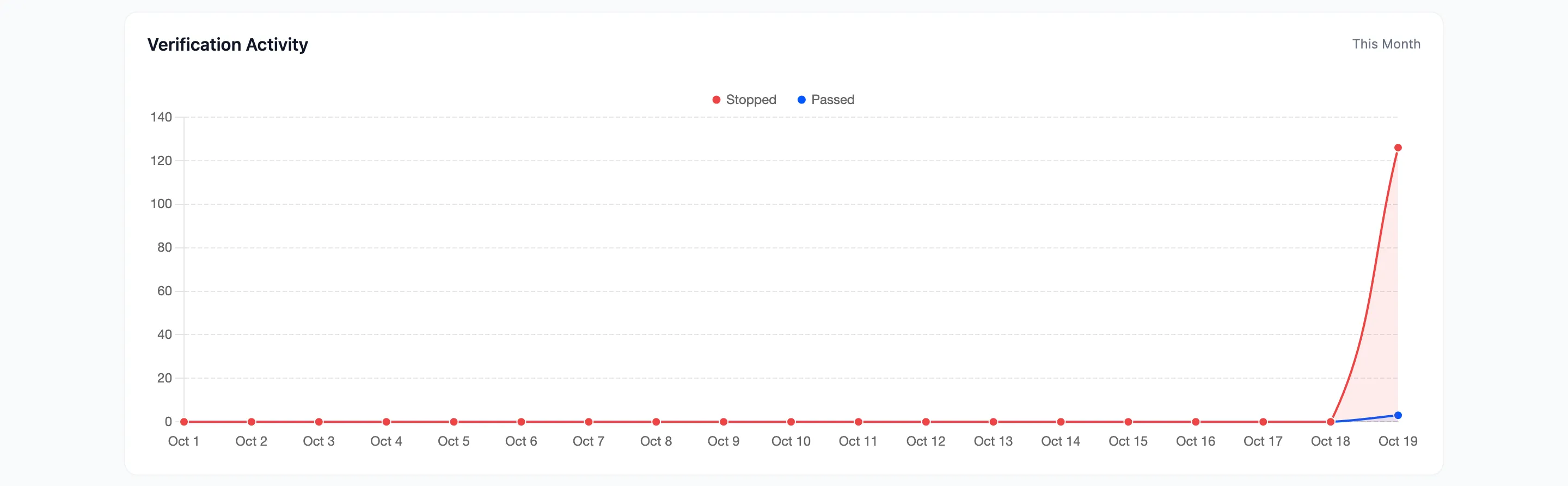
The counters above it give the size: on the demo store, 75 of 77 checks were stopped, a 97.4% block rate.

Step 2: See what was hit
Section titled “Step 2: See what was hit”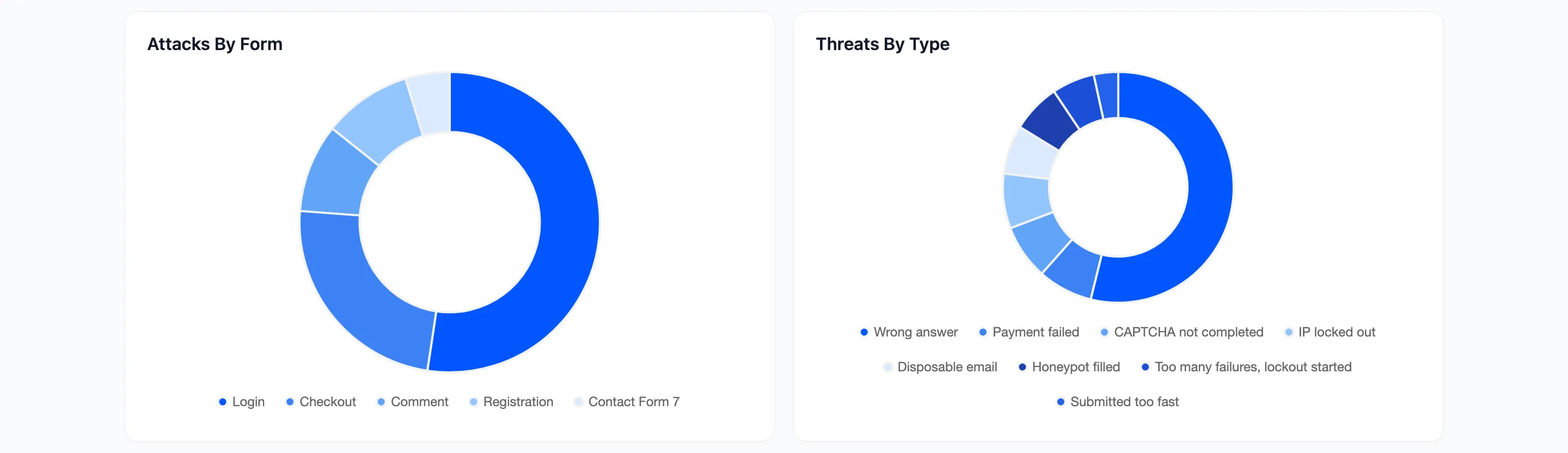
- Attacks By Form shows the target. Login means password guessing; Registration means fake accounts; Checkout means card testing.
- Threats By Type shows the kind of bot. Mostly Honeypot filled or Submitted too fast is a crude bot. Mostly Wrong answer is one that tries the CAPTCHA.
Step 3: Find the attackers
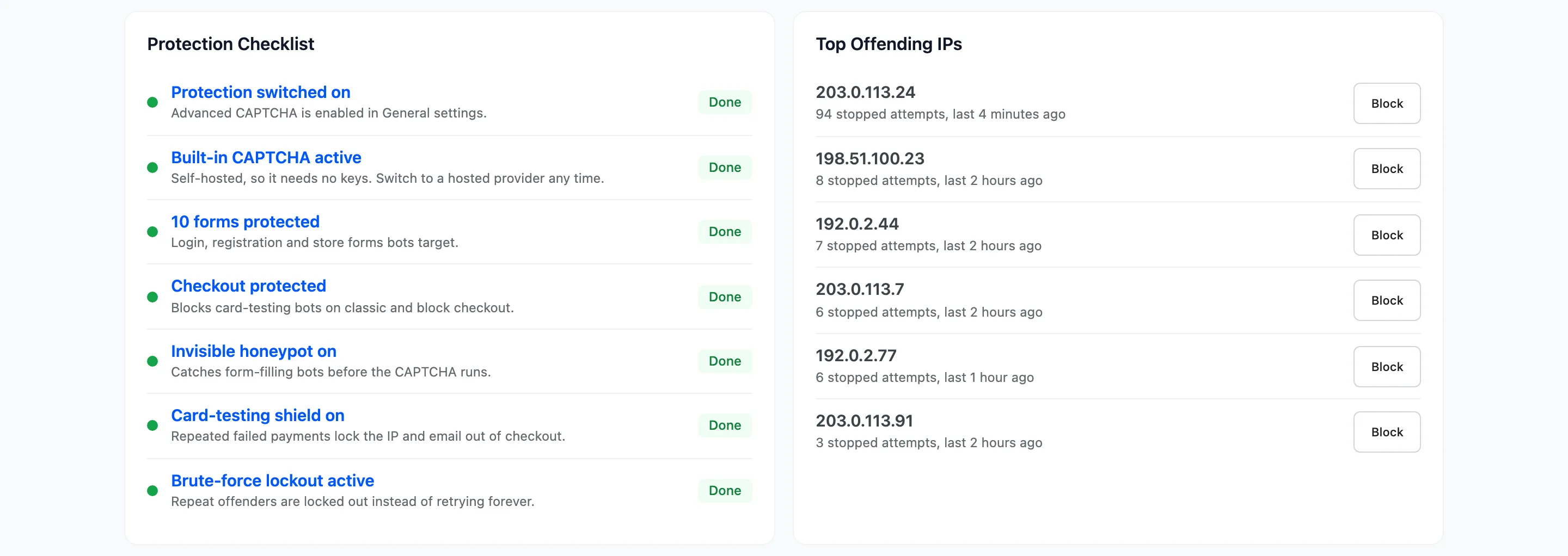
Section titled “Step 3: Find the attackers”Top Offending IPs on the dashboard, and Repeat Offenders on the Firewall, rank the IPs by stopped attempts.
Step 4: Read the attempts
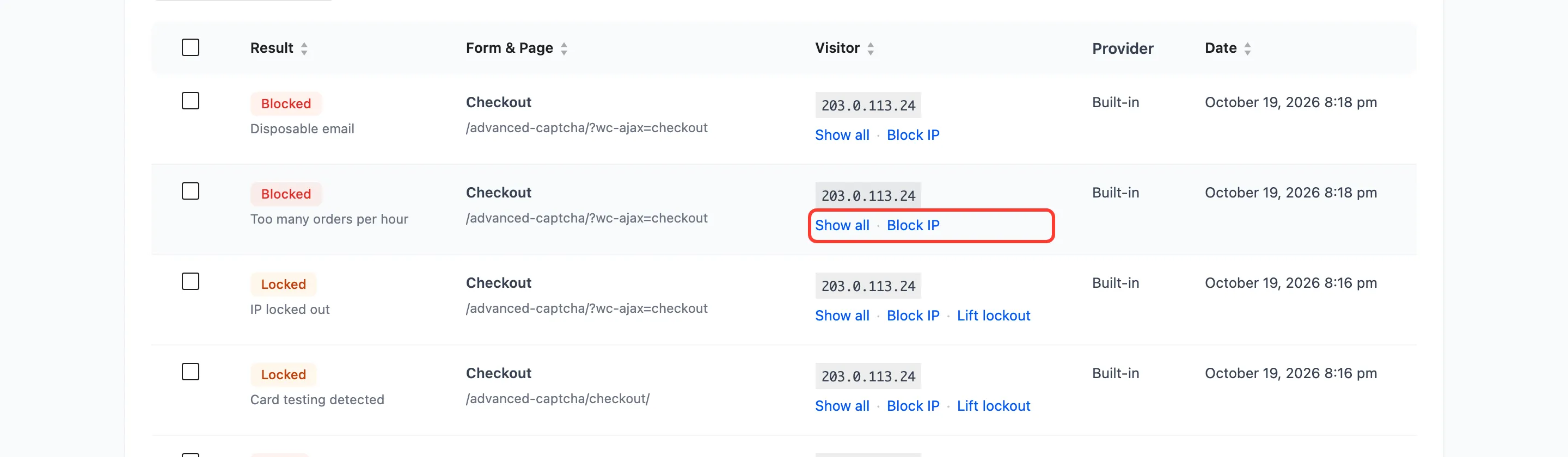
Section titled “Step 4: Read the attempts”On Logs, click Show all under an IP to see every attempt from it: which forms, which reasons, which pages.
Step 5: Act
Section titled “Step 5: Act”- Block the worst IPs or their range. One click under Top Offending IPs or in the log (Pro).
- Turn on the lockout if it is off, so the next attacker stops itself (Pro).
- Turn on smart mode or a stricter provider if bots get through the CAPTCHA.
- Trust an IP that turns out to be a real customer or a service you use.
Then watch the next few days. A block rate that stays high with few lockouts means the CAPTCHA is doing its job on its own.