

The Setup Wizard
The wizard opens the first time you open the plugin on a fresh install. It takes about a minute and leaves protection switched on. To run it again, use the Setup Wizard link under the plugin on the Plugins screen.
Pro shows six steps. The free plugin has no License step, so it shows five.
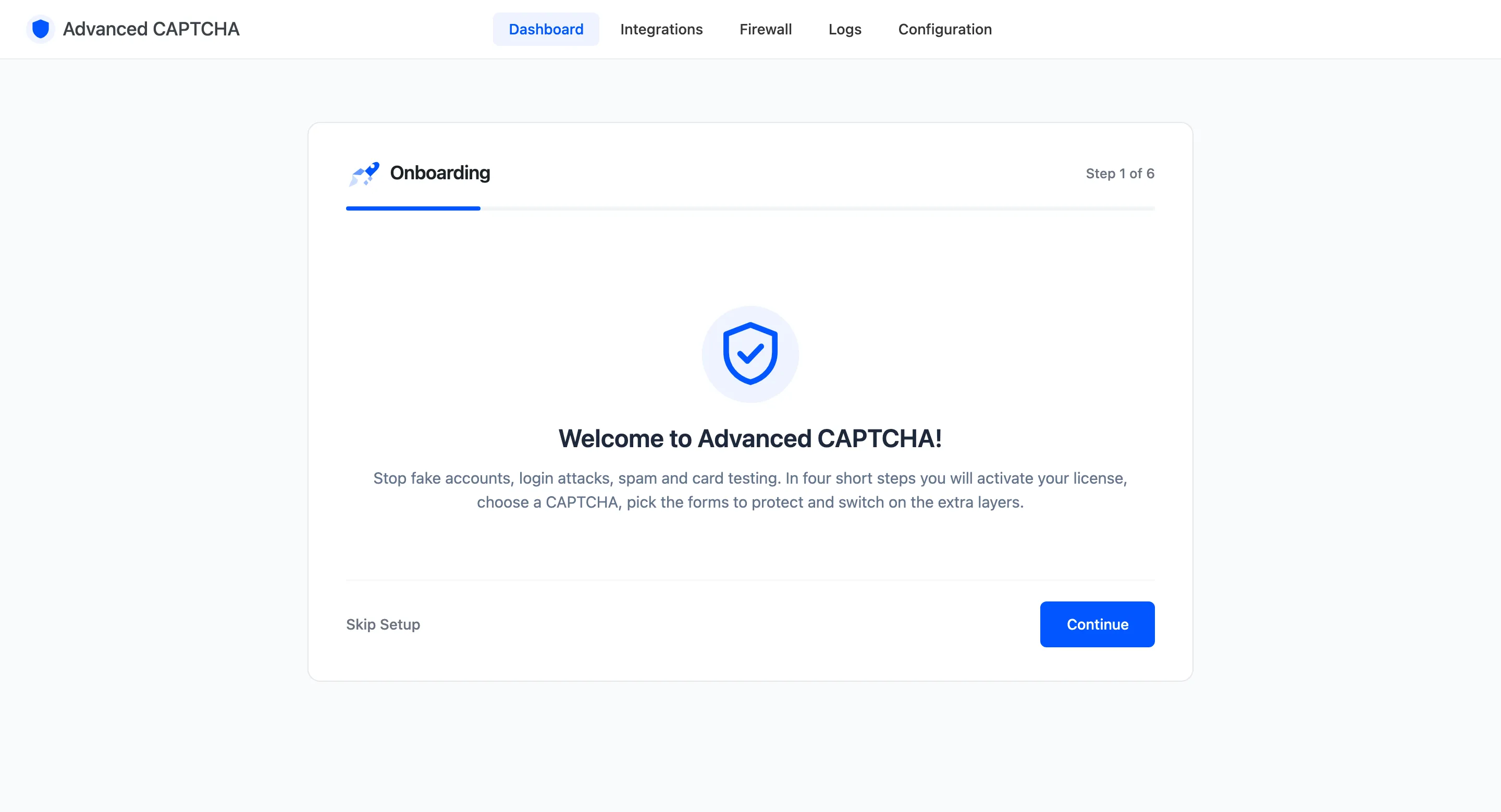
Step 1: Welcome
Section titled “Step 1: Welcome”A summary of what the wizard will do. Click Continue, or Skip Setup to go straight to the dashboard.
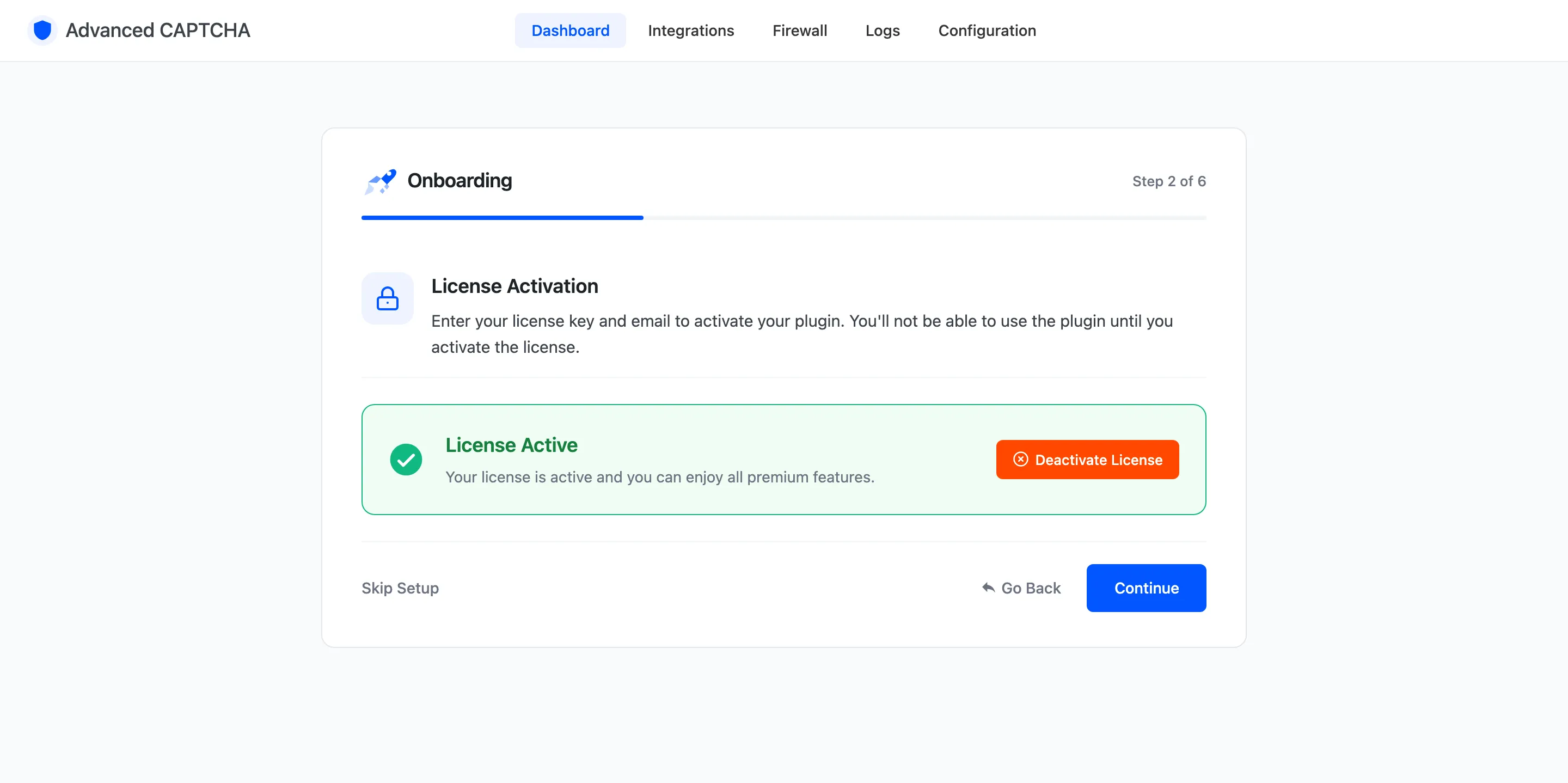
Step 2: License (Pro)
Section titled “Step 2: License (Pro)”Enter your license key and purchase email, then click Activate License. The wizard does not continue until the license is active. If it already is, the step says so and you click Continue.
Step 3: Provider
Section titled “Step 3: Provider”“Choose your CAPTCHA.”
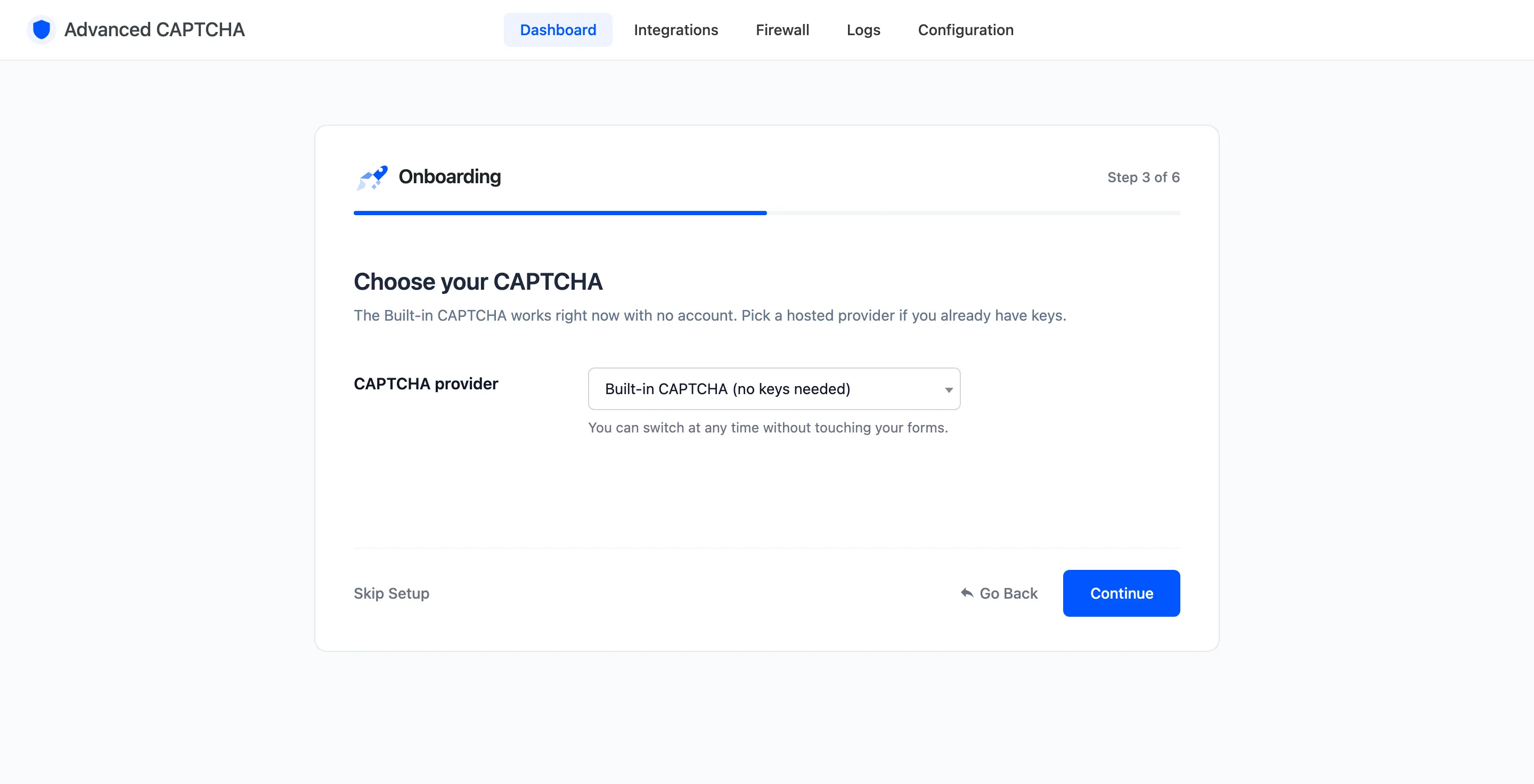
- CAPTCHA provider: Built-in CAPTCHA (no keys needed), Cloudflare Turnstile, Google reCAPTCHA v2 Checkbox or hCaptcha.
- Site key and Secret key: shown for the hosted providers. Paste the pair from the provider’s dashboard.
Choosing a hosted provider without both keys stops the step with “Enter both keys for the selected provider, or choose the Built-in CAPTCHA.” Without keys, pick the Built-in CAPTCHA. You can switch later without touching a form.
Saving this step also switches Enable protection on. Picking Google here always sets the version to v2 Checkbox; choose v2 Invisible or v3 later on the Google reCAPTCHA tab.
Step 4: Forms
Section titled “Step 4: Forms”“Where should bots be stopped?” Each switch covers a WordPress form and its WooCommerce twin.
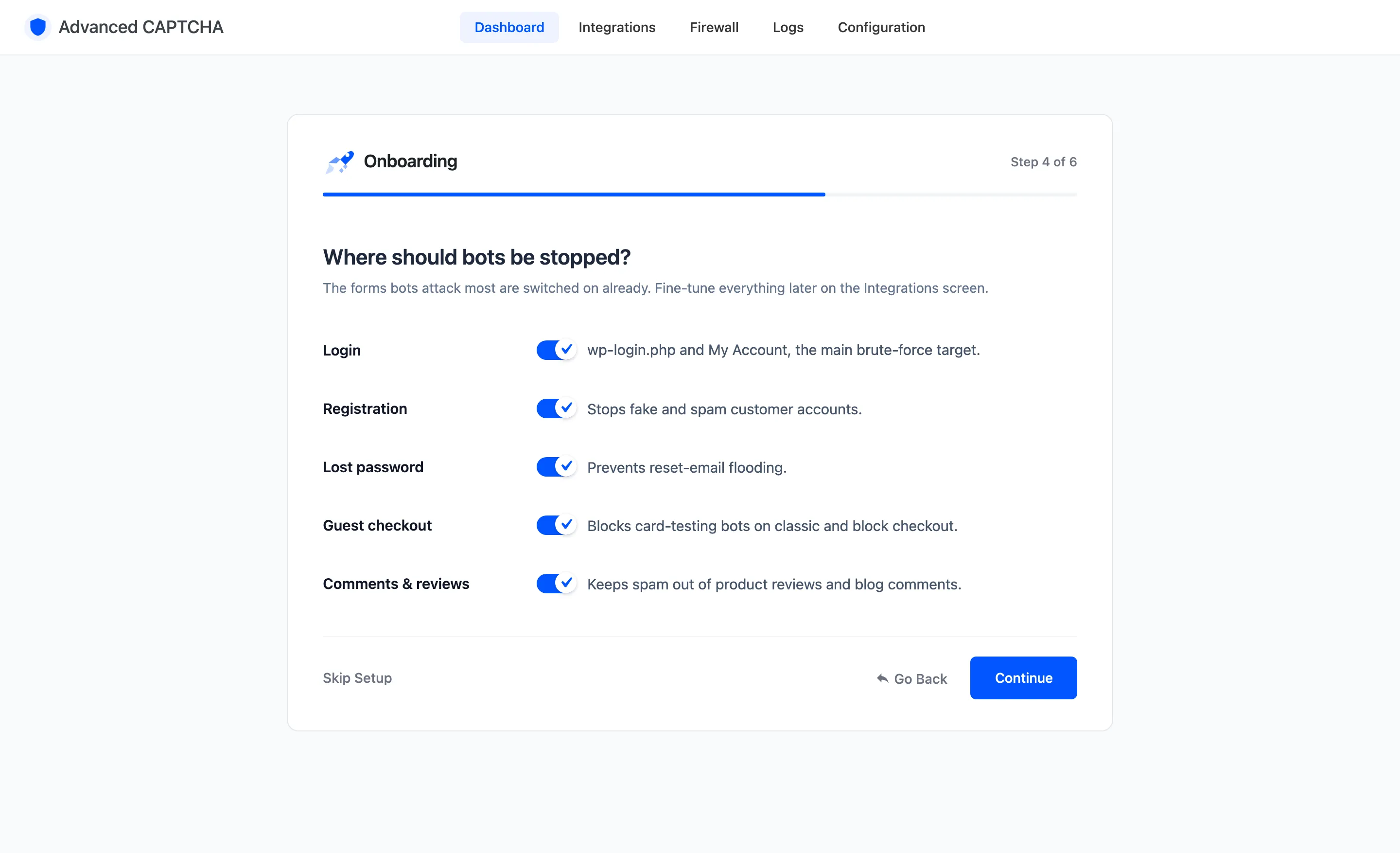
- Login: wp-login.php and My Account login.
- Registration: WordPress and My Account registration.
- Lost password: both lost password forms.
- Guest checkout: the checkout, for visitors who are not signed in.
- Comments & reviews: blog comments and product reviews.
- Your form plugins: shown only when a supported form plugin is active, and lists them by name.
Every other form (pay for order, account details, the form plugins one by one) is on the Integrations screen.
Step 5: Protection
Section titled “Step 5: Protection”“Extra layers.” These work alongside the CAPTCHA.
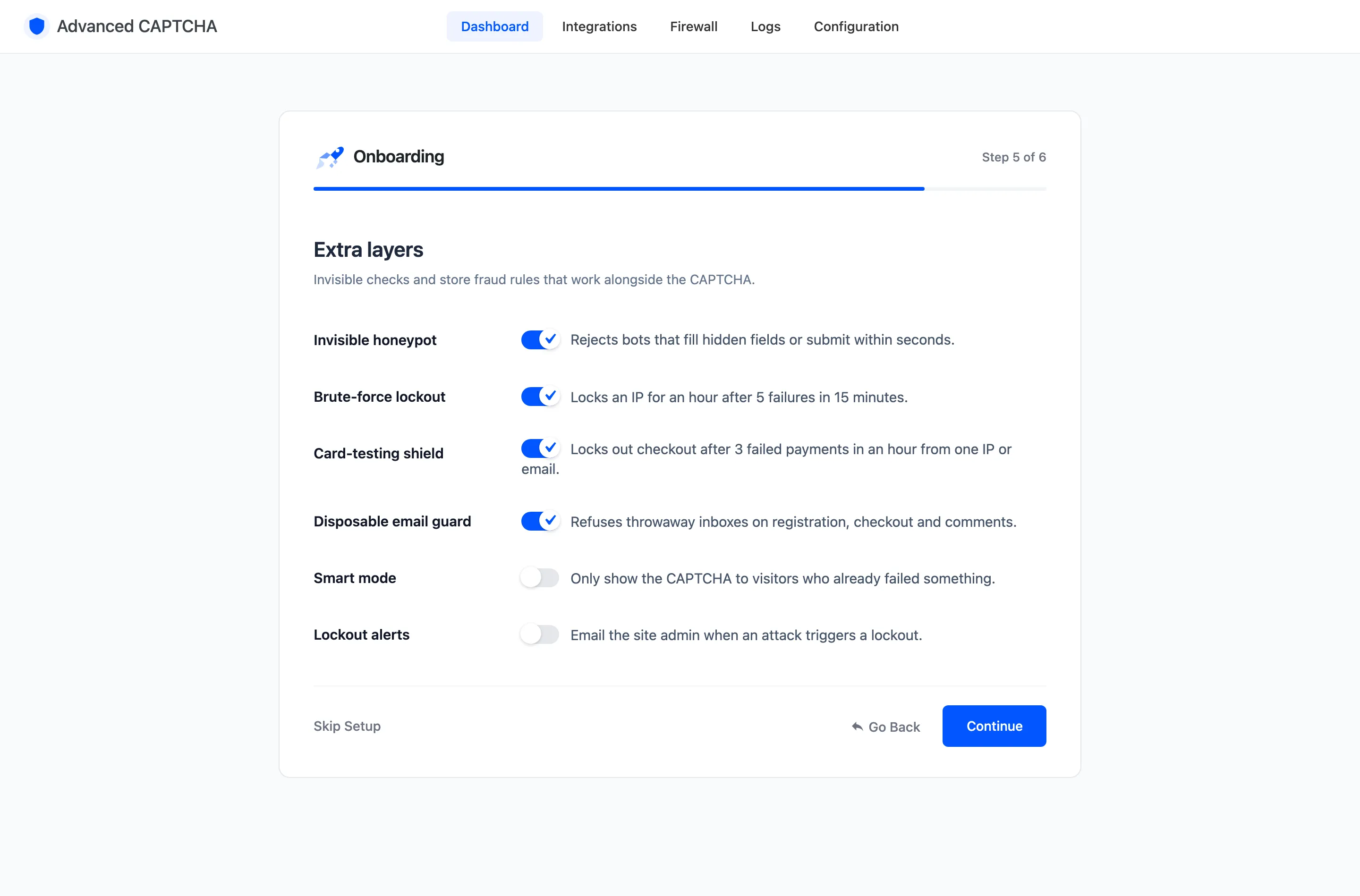
- Invisible honeypot: rejects bots that fill hidden fields or submit within seconds. On by default.
- Brute-force lockout: locks an IP for an hour after 5 failures in 15 minutes.
- Card-testing shield: locks out checkout after 3 failed payments in an hour from one IP or email.
- Disposable email guard: refuses throwaway inboxes on registration, checkout and comments.
- Smart mode: only shows the CAPTCHA to visitors who already failed something.
- Lockout alerts: emails the site admin when an attack triggers a lockout.
Step 6: Ready
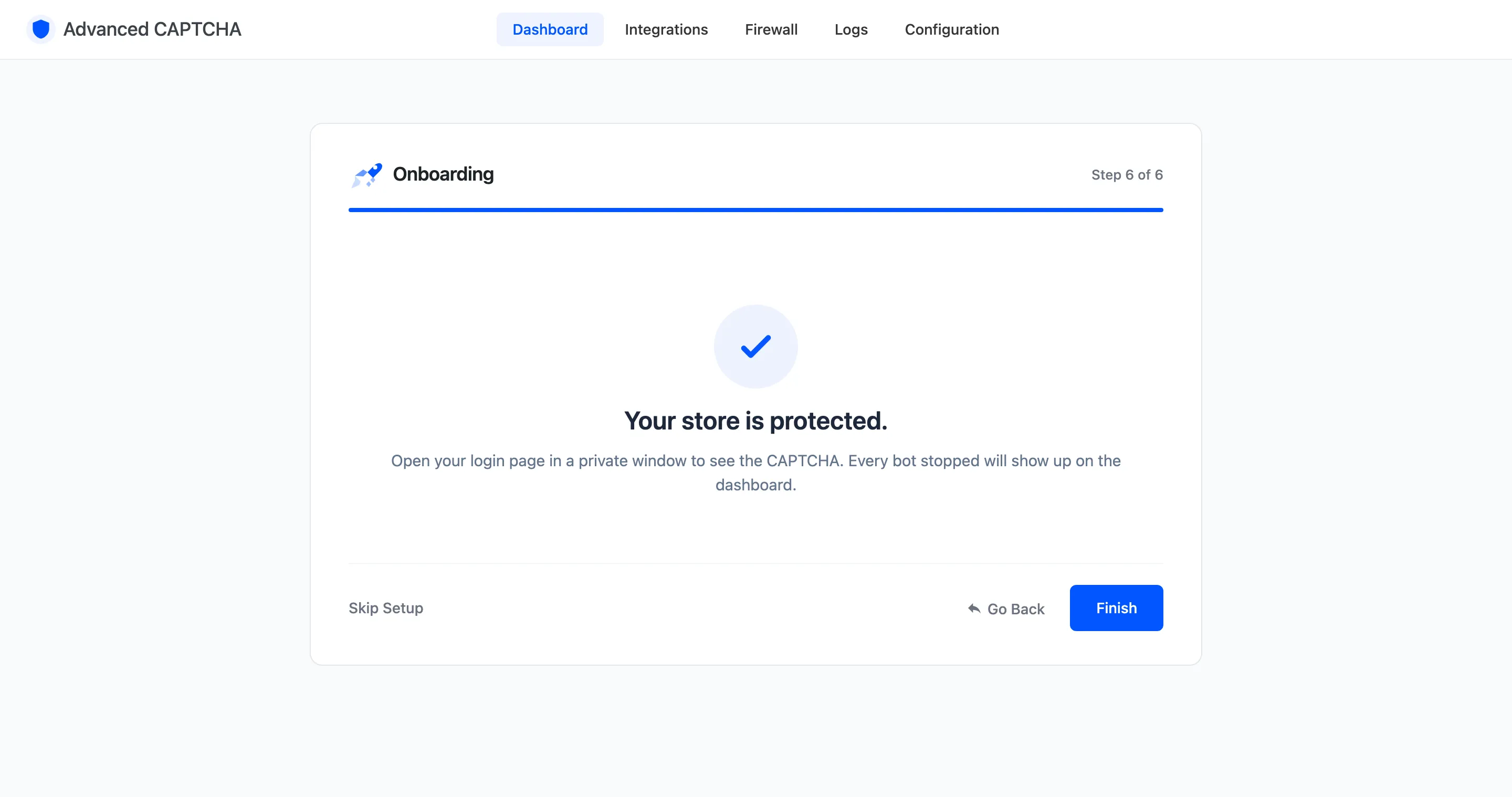
Section titled “Step 6: Ready”“Your store is protected.” Open your login page in a private window to see the CAPTCHA.
After the wizard
Section titled “After the wizard”Read How Protection Works, then look at The Visitor Experience to see each protected form as a customer sees it.