

How to Set Up Cloudflare Turnstile
Turnstile is Cloudflare’s free CAPTCHA. Most customers pass without clicking anything. Your site does not have to be on Cloudflare to use it.
Step 1: Create a Turnstile widget
Section titled “Step 1: Create a Turnstile widget”You need a free Cloudflare account.
- On the Cloudflare Turnstile tab in Advanced CAPTCHA, click Get keys. It opens the Turnstile section of the Cloudflare dashboard.
- Add a widget. Give it a name, and add your shop’s domain under Hostnames.
- Leave the widget mode on Managed, which lets Cloudflare decide when to show a checkbox.
- Create it, then copy the Site Key and the Secret Key.
The Cloudflare dashboard needs your own sign-in, so it is not shown here.
Step 2: Paste the keys
Section titled “Step 2: Paste the keys”Go to Configuration → Cloudflare Turnstile. Paste the Site key and Secret key, set Theme and Size if you want, and click Save Changes.
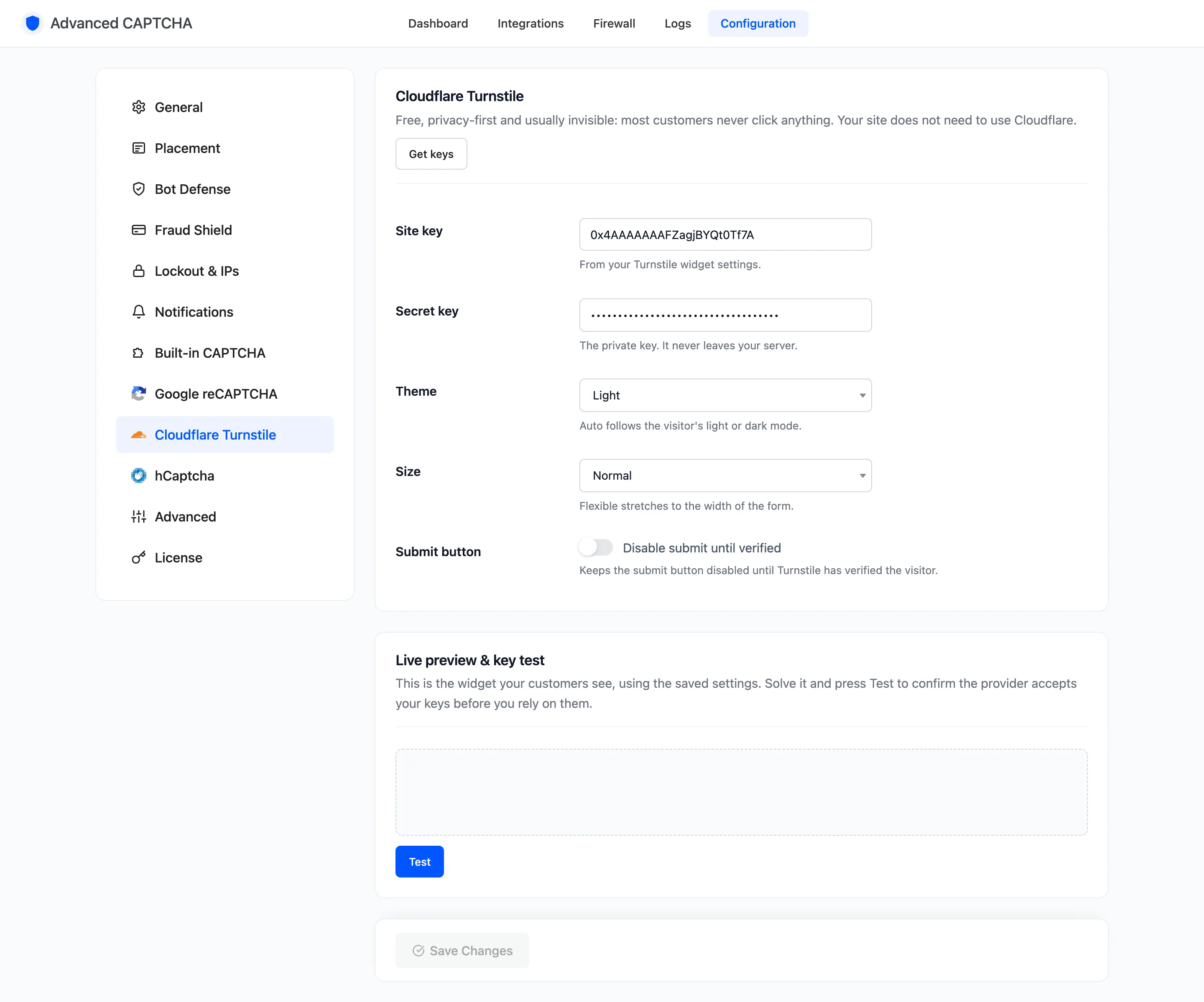
Theme Auto follows each visitor’s light or dark mode. Size Flexible stretches the widget to the width of the form, which suits the checkout.
Step 3: Test the keys
Section titled “Step 3: Test the keys”The Live preview & key test at the bottom of the tab shows the real widget with the saved keys. Let it verify, then press Test. A key pair made for another domain fails here, before any customer sees it.
Step 4: Switch to Turnstile
Section titled “Step 4: Switch to Turnstile”On Configuration → General, set CAPTCHA provider to Cloudflare Turnstile and click Save Changes.
Step 5: Check a form
Section titled “Step 5: Check a form”Open your login page in a private window. Turnstile sits above the Log In button.
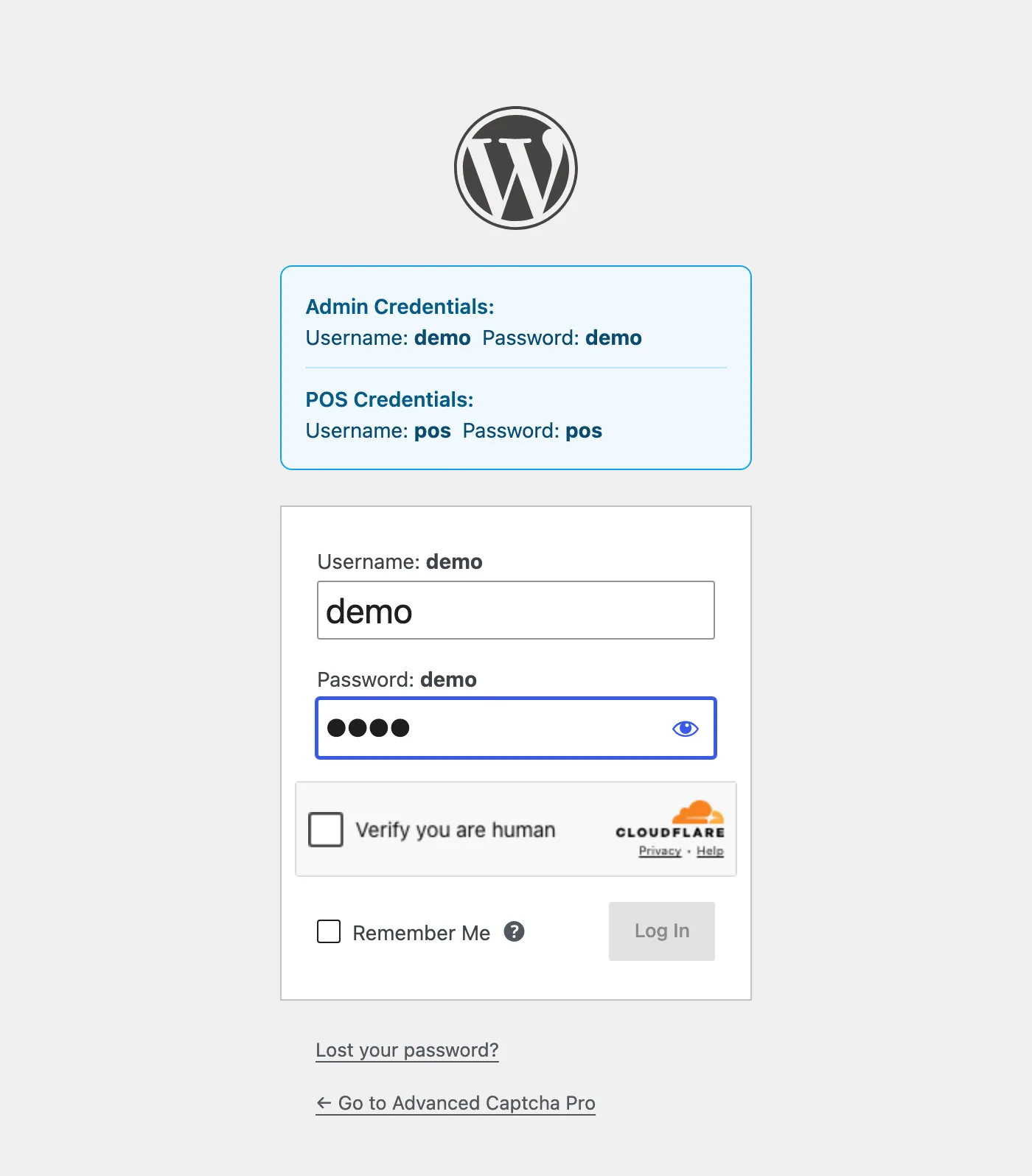
It shows the same way on My Account, checkout, reviews and every other protected form.
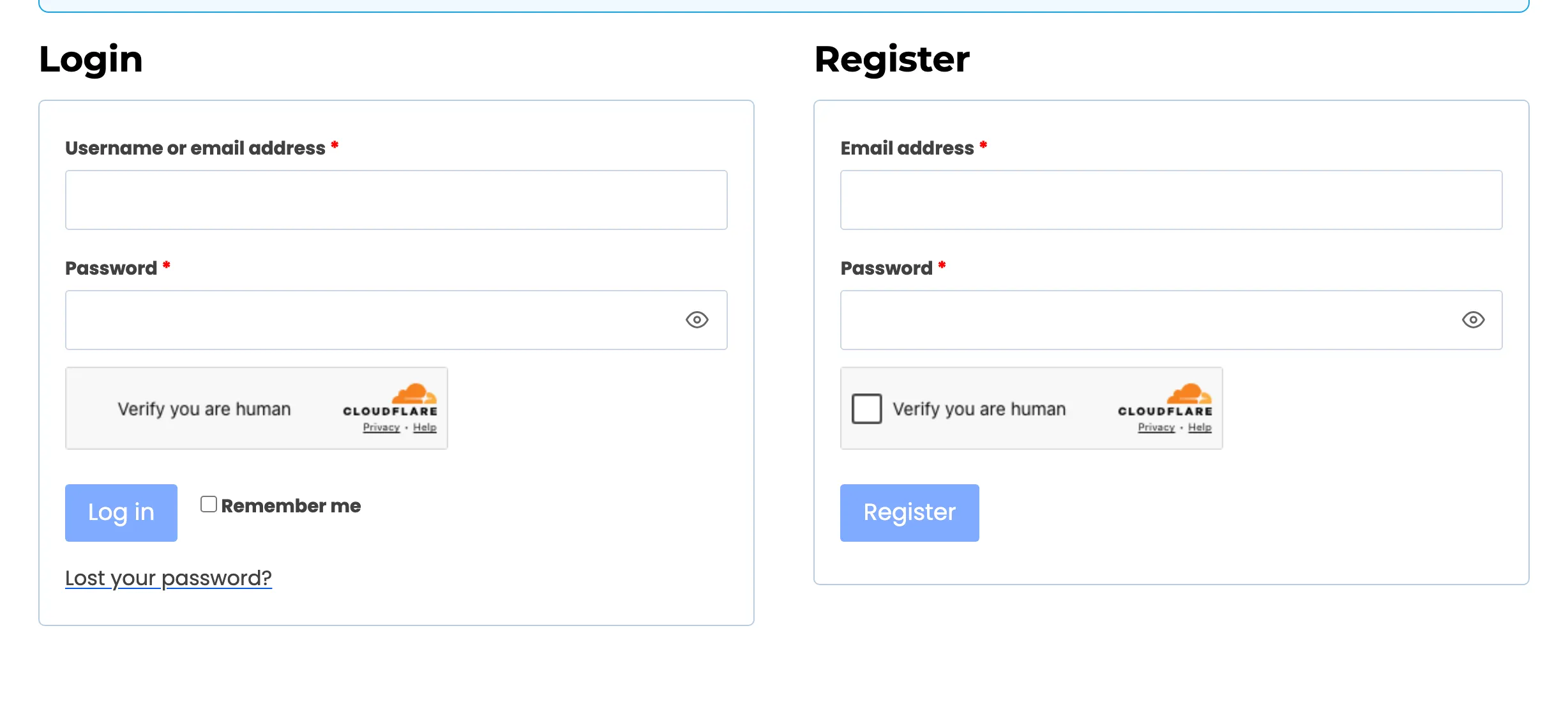
Things to know
Section titled “Things to know”- Disable submit until verified keeps the form’s button greyed out until Turnstile finishes, as in the shot above. Leave it off if you would rather let the server refuse an unverified submit.
- The widget language follows Widget language on the General tab.
- If Cloudflare is unreachable, Provider outage on the Advanced tab decides: on, the form lets people through and logs a Provider Error; off, it refuses them.