

General Settings
The General tab switches protection on and decides what visitors are challenged with. Open DevDiggers Plugins → Advanced CAPTCHA → Configuration → General. Everything on this tab is in the free plugin.
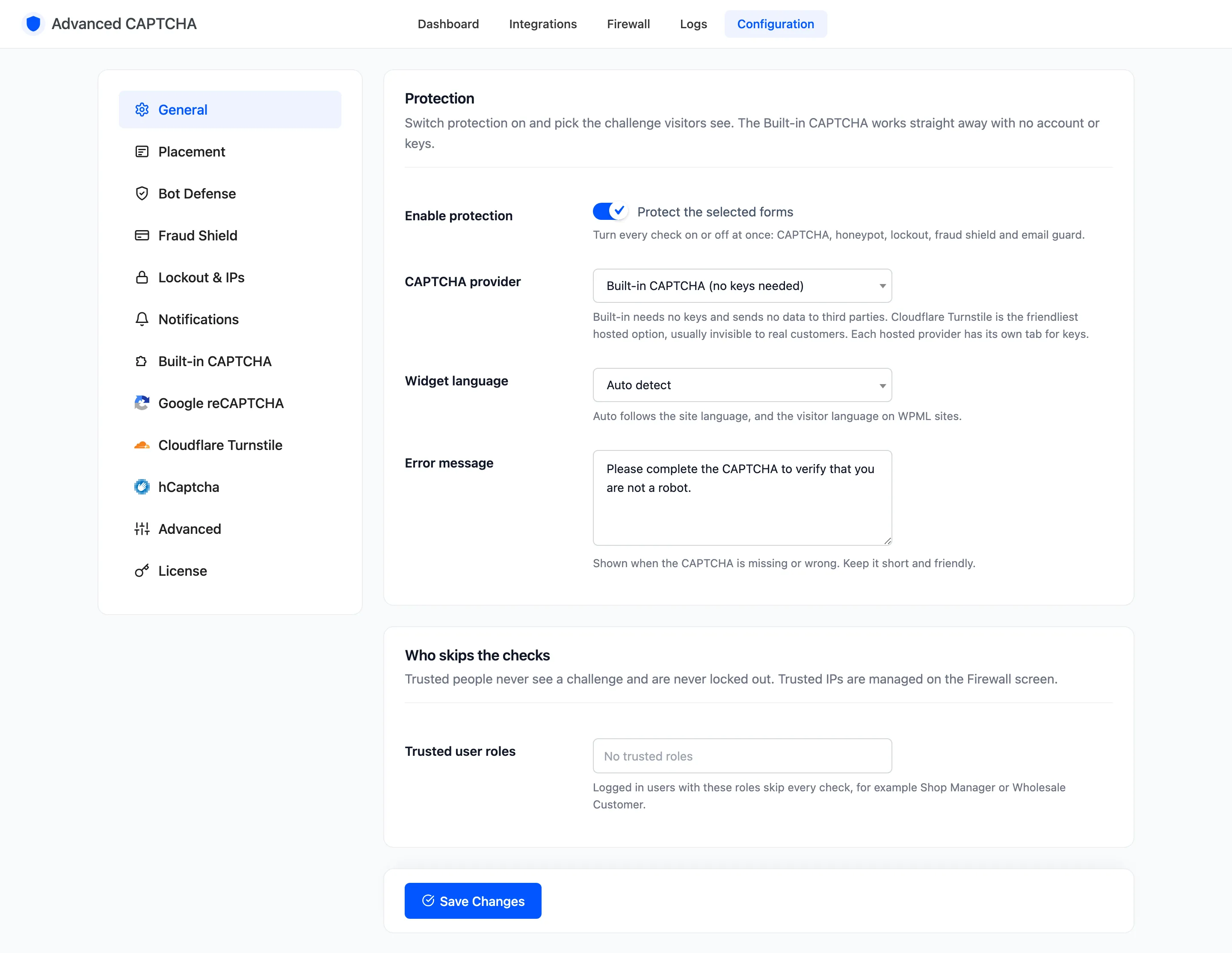
Protection
Section titled “Protection”-
Enable protection: “Protect the selected forms”. Turns every check on or off at once: the CAPTCHA and the honeypot, and in Pro the lockout, fraud shield and email guard too. On after the setup wizard.
-
CAPTCHA provider: what visitors are challenged with. Default Built-in CAPTCHA (no keys needed).
- Built-in CAPTCHA: drawn by your own server. No account, no keys, nothing sent to a third party.
- Cloudflare Turnstile: usually invisible to real customers. Needs keys.
- Google reCAPTCHA: v2 checkbox, v2 invisible or v3. Needs keys.
- hCaptcha: a checkbox challenge. Needs keys.
Each hosted provider has its own tab for keys and options. Switching provider changes every form at once; nothing on the forms needs editing.
-
Widget language: Auto detect by default, which follows the site language, and the visitor’s language on WPML sites. Or pick one of 20 languages. Turnstile, reCAPTCHA and hCaptcha use it. The Built-in CAPTCHA’s wording comes from its own Label and your site translation.
-
Error message: shown when the CAPTCHA is missing or wrong. Default “Please complete the CAPTCHA to verify that you are not a robot.” An emptied box falls back to the default.
Who skips the checks
Section titled “Who skips the checks”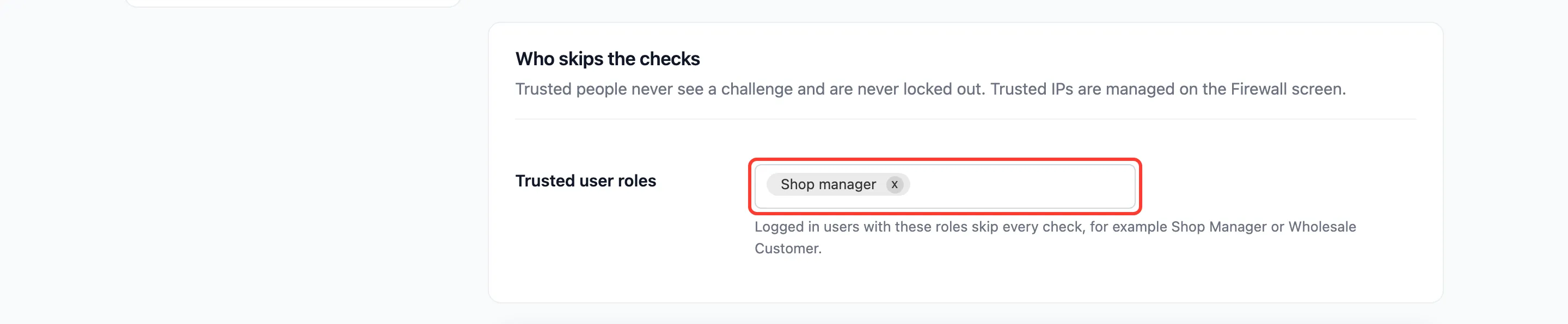
- Trusted user roles: signed-in users with these roles never see a challenge and are never locked out. Empty by default. Shop Manager or a wholesale role are typical choices.
Trusted IP addresses are kept on the Firewall screen, not here.
A trusted role only helps once the person is signed in. The login form itself still challenges them, because WordPress does not know who they are yet.
Click Save Changes at the bottom of the tab.