

How to Block Countries (Pro)
Most fake signups and card-testing runs come from a handful of countries you never ship to. Country rules refuse them before the CAPTCHA is looked at.
Before you start
Section titled “Before you start”The plugin needs to know each visitor’s country:
- Behind Cloudflare, it reads Cloudflare’s country header. Nothing to set up.
- Otherwise, it uses WooCommerce geolocation, which needs a free MaxMind license key under WooCommerce → Settings → Integration.
A visitor whose country cannot be found is let through.
Step 1: Choose the mode
Section titled “Step 1: Choose the mode”Go to Configuration → Bot Defense. Under Country rules, set Mode:
- Block the listed countries: refuse visitors from the countries you pick.
- Allow only the listed countries: refuse everyone except the countries you pick.
Step 2: Pick the countries
Section titled “Step 2: Pick the countries”Type in Countries to search, and add each one. Click Save Changes.
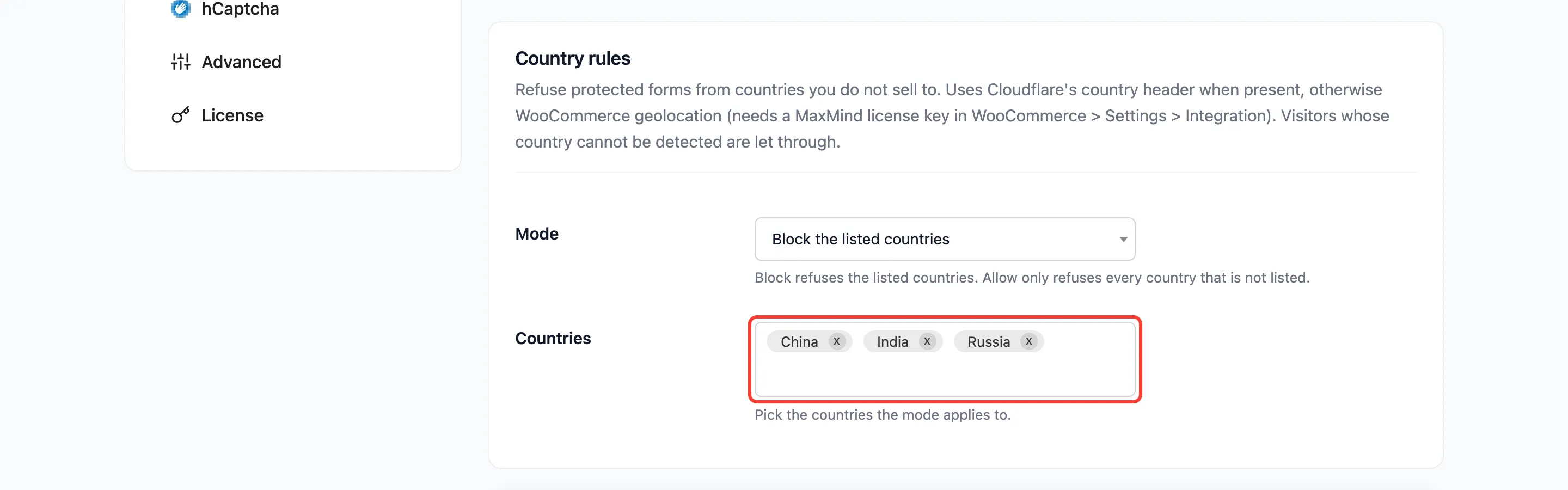
Allow only is strict: a customer travelling abroad is refused too. Block is the safer start.
Step 3: Check the Firewall summary
Section titled “Step 3: Check the Firewall summary”The Country Rules panel on the Firewall screen sums up the rule in one line. Edit returns to the Bot Defense tab.

Step 4: See a refused visitor
Section titled “Step 4: See a refused visitor”A visitor from a refused country still sees the form. When they submit it, they get the Lockout message and the form is not processed. The log reads Blocked, “Country not allowed”.
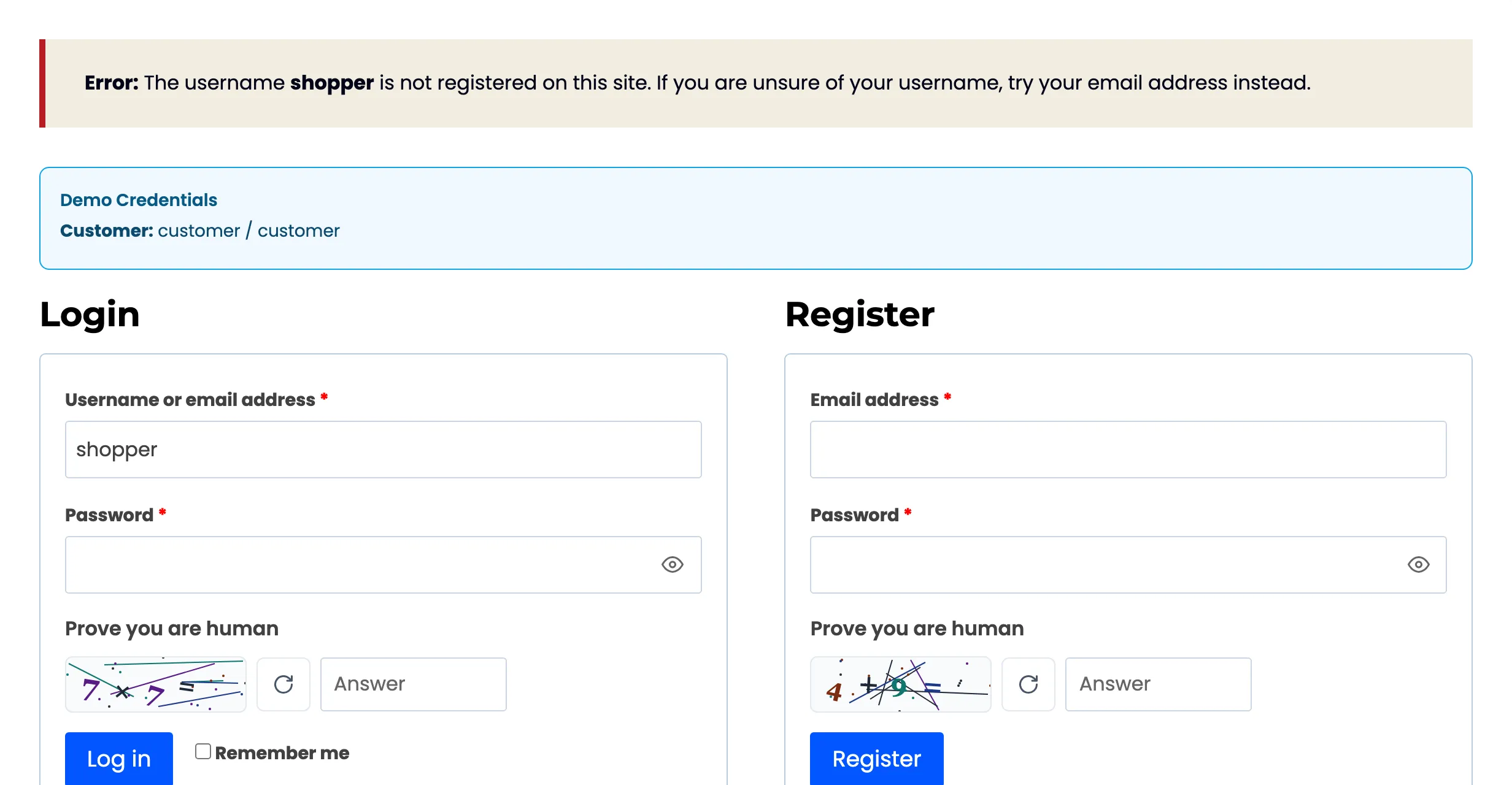
On the demo store, the rule blocked the tester’s own country, and their next login was refused this way.
Things to know
Section titled “Things to know”- Only protected forms are affected. Visitors from a refused country can still browse the shop. Protect checkout to stop them buying.
- Trusted IPs and roles are never refused.
- To undo it, set Mode back to Off and save.