

Bot Defense Settings
The Bot Defense tab holds the checks that run before the CAPTCHA. Open Configuration → Bot Defense.
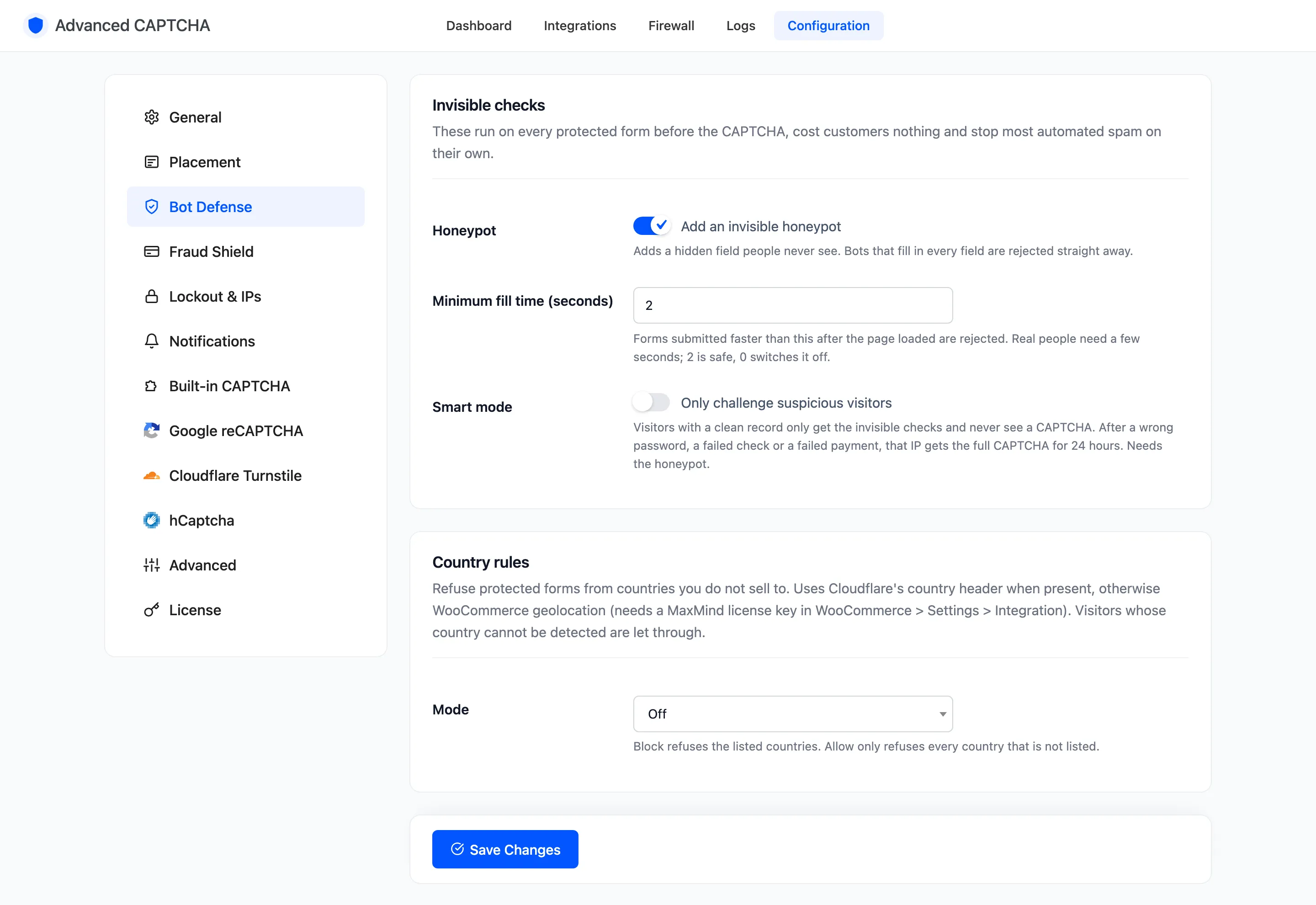
Invisible checks
Section titled “Invisible checks”“These run on every protected form before the CAPTCHA, cost customers nothing and stop most automated spam on their own.”
- Honeypot: “Add an invisible honeypot”. On by default. Adds a hidden field people never see. A bot that fills every field it finds is rejected straight away, logged “Honeypot filled”.
- Minimum fill time (seconds): default
2, from 0 to 30. A form submitted faster than this after the page loaded is rejected, logged “Submitted too fast”.0switches the timer off. The timer only runs while the honeypot is on. - Smart mode (Pro): “Only challenge suspicious visitors”. Off by default. A visitor with a clean record gets only the invisible checks and never sees a CAPTCHA. After a wrong password, a failed check or a failed payment, that IP gets the full CAPTCHA for 24 hours. Needs the honeypot.
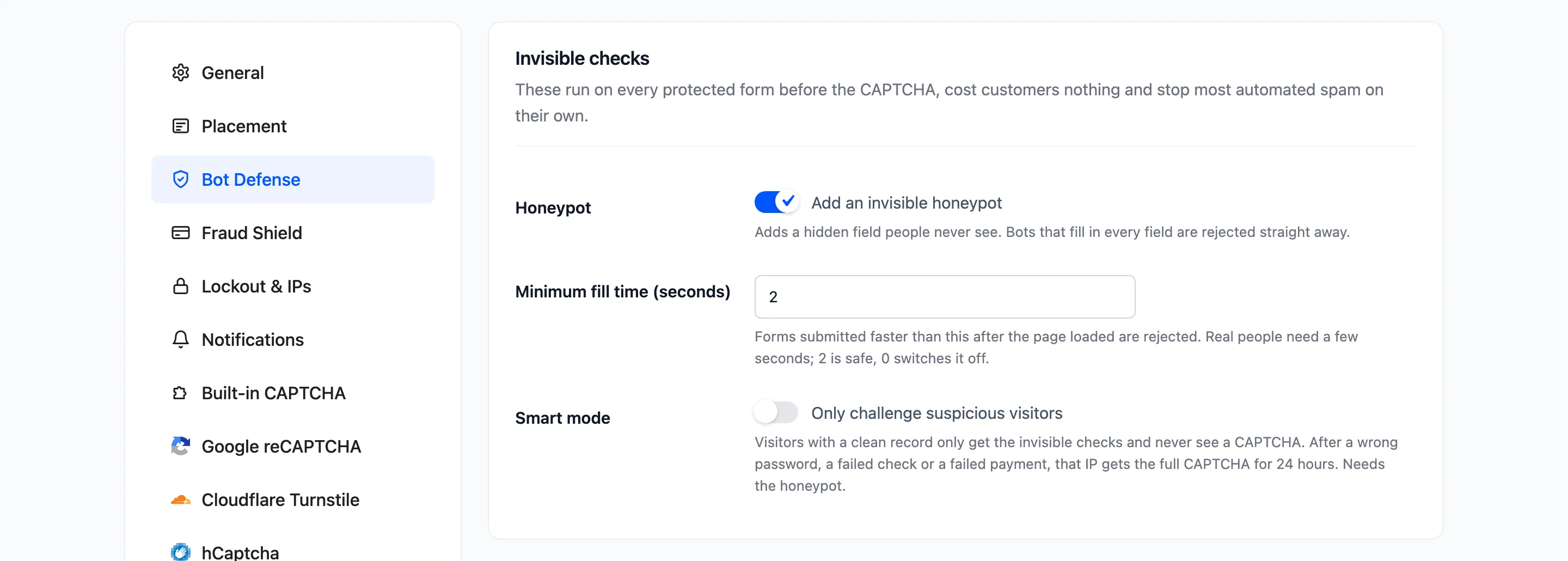
How to Use Smart Mode shows both sides of it on a real login page.
Country rules (Pro)
Section titled “Country rules (Pro)”“Refuse protected forms from countries you do not sell to.”
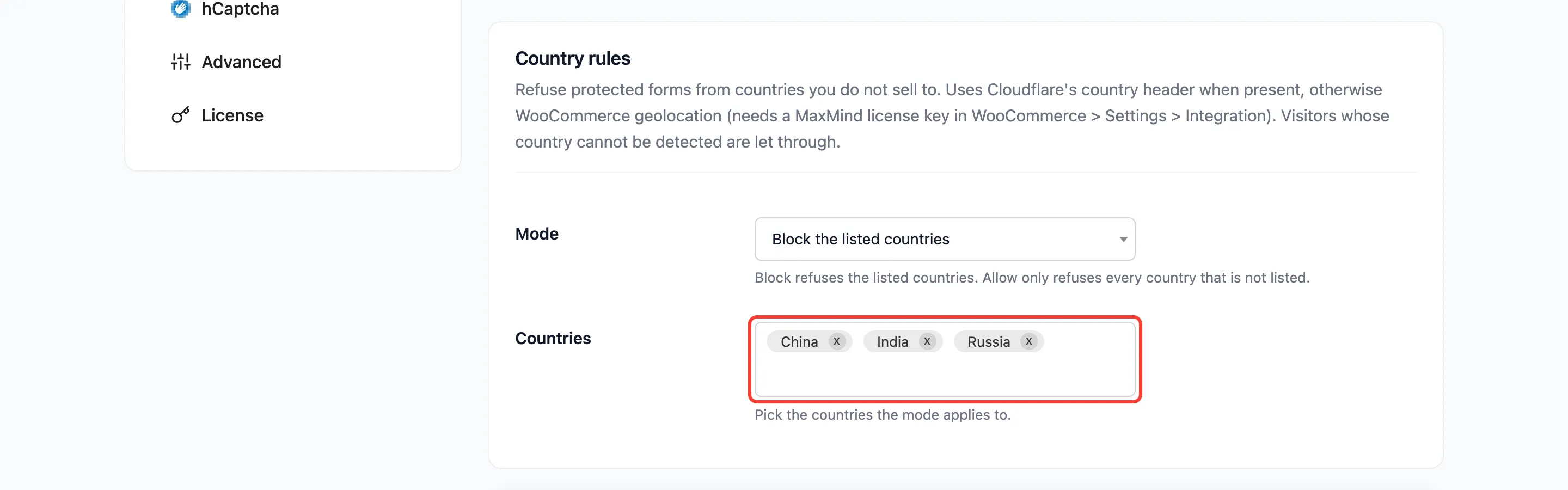
- Mode: default Off. Block the listed countries refuses visitors from the countries you pick. Allow only the listed countries refuses every country you did not pick.
- Countries: the countries the mode applies to. Type to search.
The country comes from Cloudflare’s country header when your site is behind Cloudflare. Otherwise WooCommerce geolocation is used, which needs a MaxMind license key under WooCommerce → Settings → Integration. A visitor whose country cannot be detected is let through.
A refused visitor gets the Lockout message and the log reads “Country not allowed”.
Click Save Changes at the bottom of the tab.