

The Firewall Screen
The Firewall screen decides who gets in. Blocked visitors never pass a protected form, trusted visitors never see a challenge, and a locked-out customer can be let back in with one click. Open Advanced CAPTCHA → Firewall.
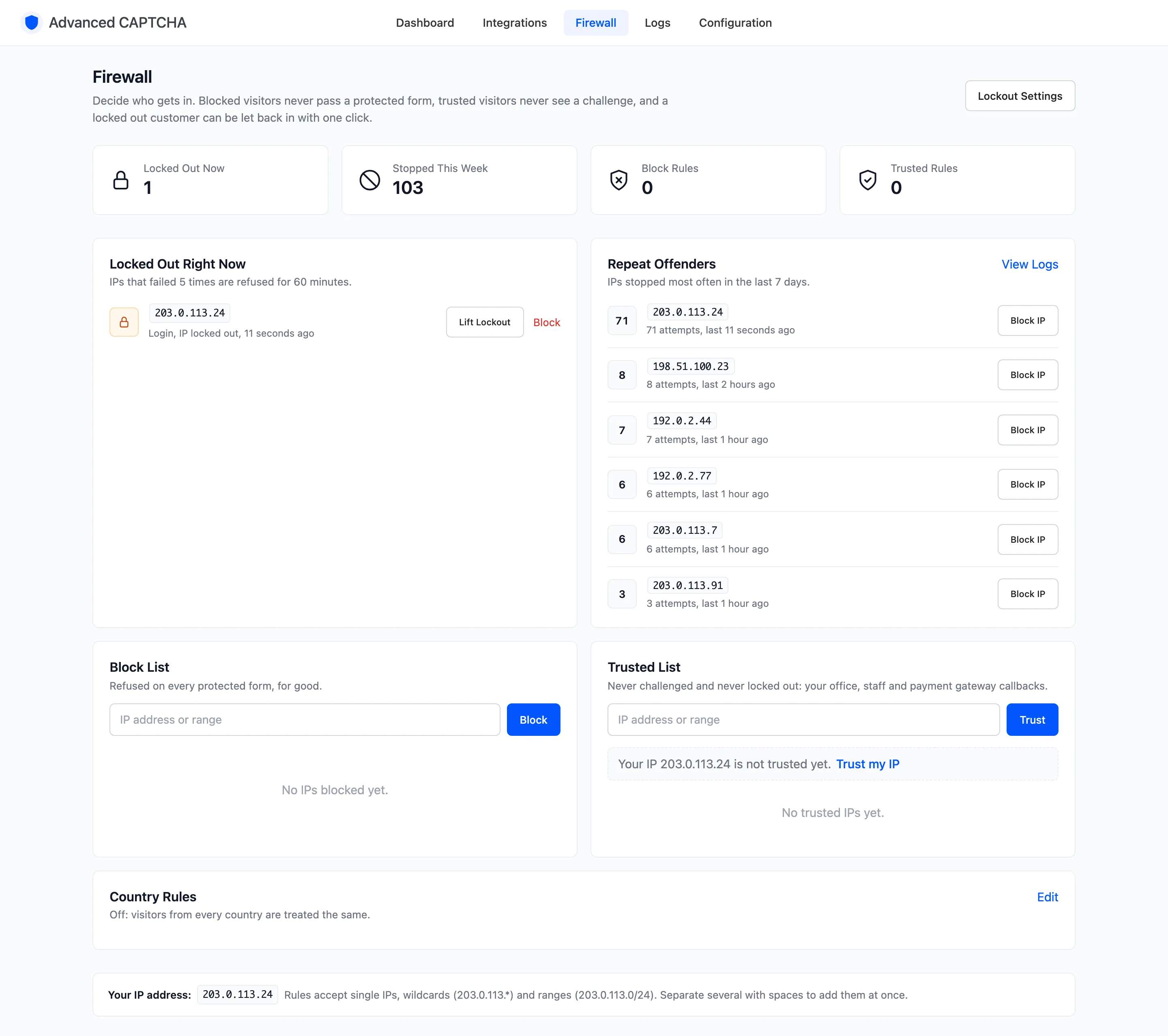
Lockout Settings at the top right opens the Lockout & IPs tab.
The counters
Section titled “The counters”- Locked Out Now: IPs currently locked out.
- Stopped This Week: stopped checks in the last 7 days.
- Block Rules: entries on the block list.
- Trusted Rules: entries on the trusted list.
Locked Out Right Now (Pro)
Section titled “Locked Out Right Now (Pro)”Every IP serving a lockout, with the form and reason that started it and how long ago. The line under the heading repeats your rule, such as “IPs that failed 5 times are refused for 60 minutes”.
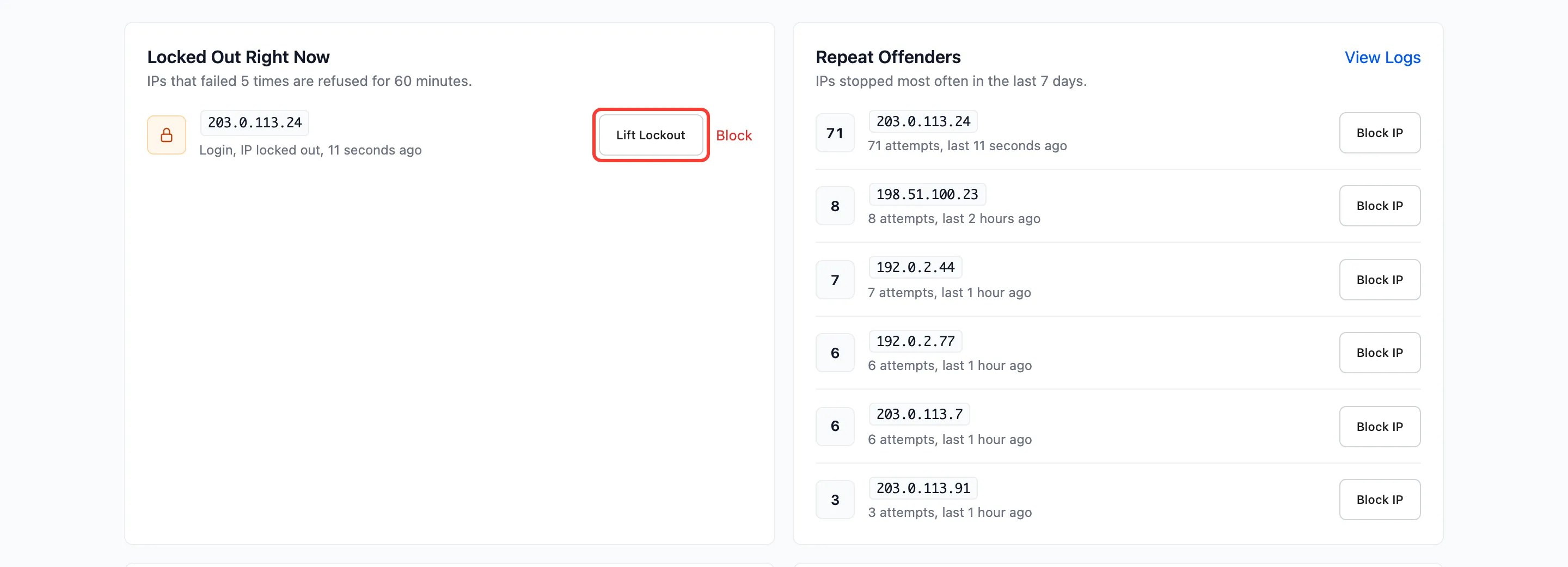
- Lift Lockout: ends the lockout at once. It also clears the IP’s failure count and smart mode’s suspicion, so the next attempt starts clean.
- Block: moves the IP onto the block list for good.
A card-testing lockout also locks the billing email. Lift Lockout releases that email too, so the customer can check out again at once. See How to Stop Card Testing.
Repeat Offenders
Section titled “Repeat Offenders”The IPs stopped most often in the last 7 days, with their count. Block IP adds one to the block list. View Logs opens the full log.
Block List (Pro)
Section titled “Block List (Pro)”“Refused on every protected form, for good.” Type an IP or range and click Block.
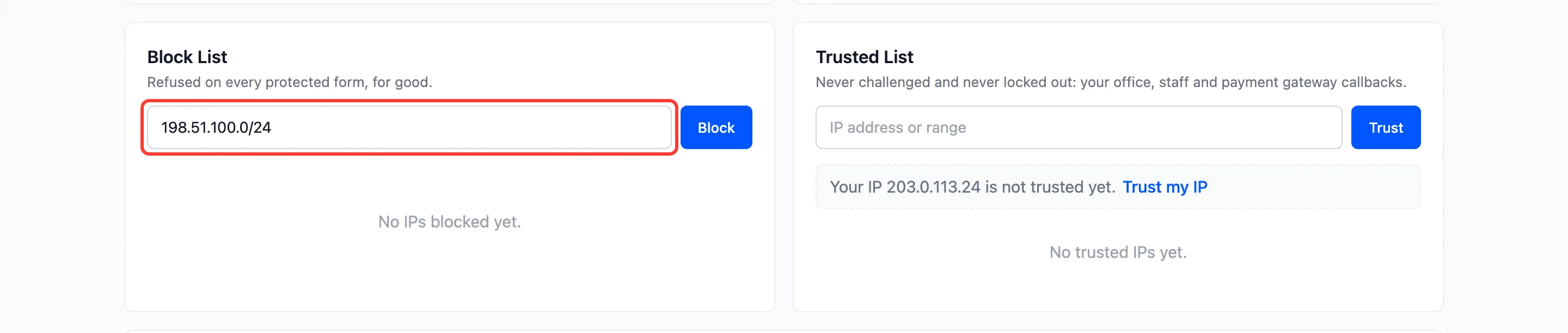
A blocked visitor still sees the form. On submit, they get the Lockout message and the log reads “IP on block list”.
Trusted List
Section titled “Trusted List”“Never challenged and never locked out: your office, staff and payment gateway callbacks.” Type an IP or range and click Trust.
When your own IP is not on the list, the panel offers it: “Your IP … is not trusted yet.” with a Trust my IP link.

Each entry on either list has a Remove link.

Rule format
Section titled “Rule format”Both lists take:
- a single IP, such as
203.0.113.7, - a wildcard, such as
203.0.113.*, - a range in CIDR form, such as
203.0.113.0/24. IPv6 works too.
Separate several with spaces to add them at once. The bottom of the screen shows Your IP address as the plugin sees it.
Country Rules (Pro)
Section titled “Country Rules (Pro)”A one-line summary of your country rules, with Edit opening the Bot Defense tab.
