

How to Lock Out Brute-Force Attacks (Pro)
A CAPTCHA slows a password-guessing bot down. A lockout stops it. After a few failures in a short time, the IP is refused on every protected form for a while.
Step 1: Set the lockout rule
Section titled “Step 1: Set the lockout rule”Go to Configuration → Lockout & IPs. Make sure Lockout is on, then set:
- Failed attempts allowed:
5by default. - Within (minutes):
15by default. Each failure restarts this window. - Lockout length (minutes):
60by default.
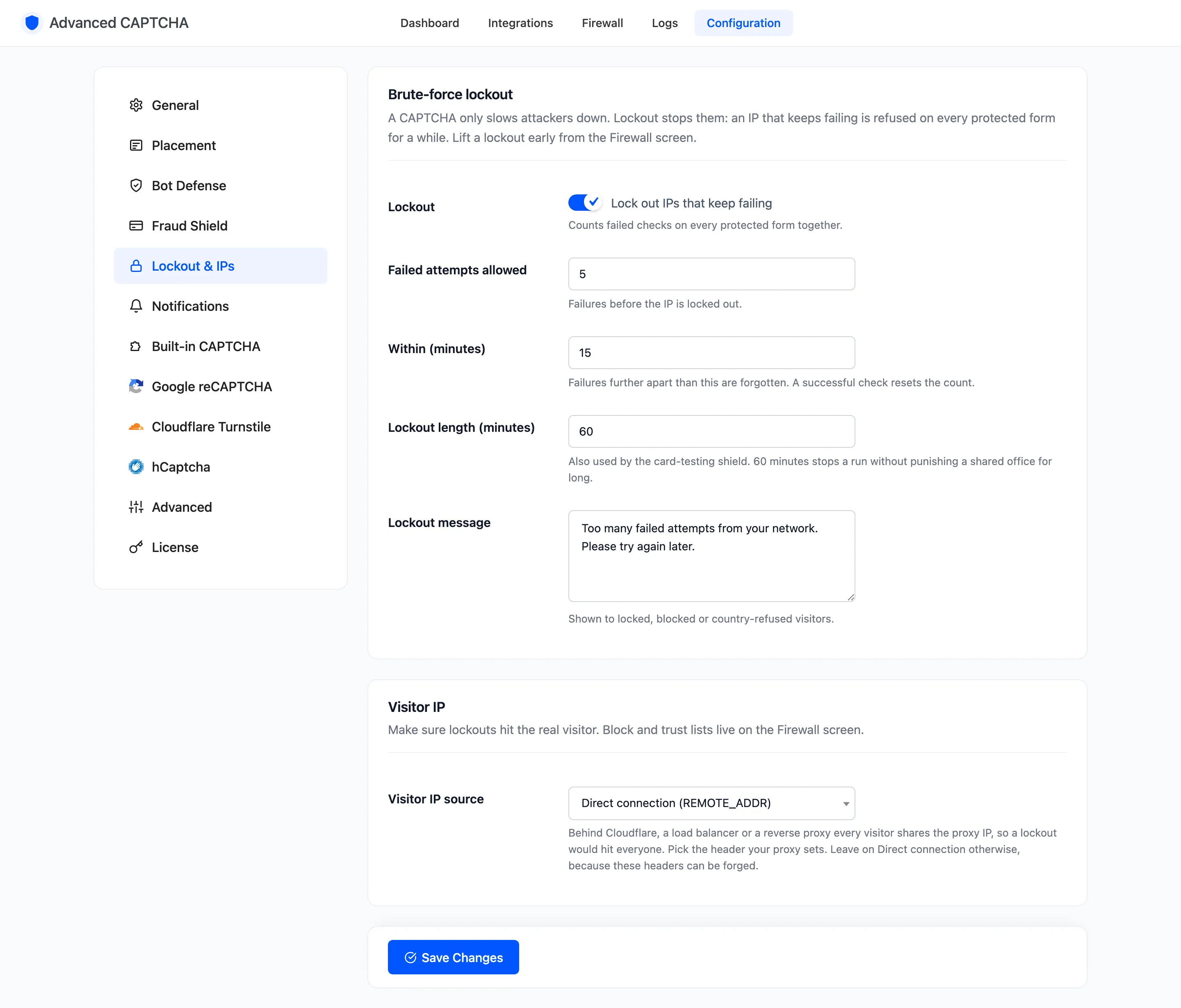
An hour stops an attack without punishing a shared office for long. Raise it for a site that sees the same attackers every day.
Step 2: Write the message
Section titled “Step 2: Write the message”Lockout message is what a locked-out visitor reads. Default “Too many failed attempts from your network. Please try again later.” Click Save Changes.
Step 3: Watch a lockout happen
Section titled “Step 3: Watch a lockout happen”In a private window, submit a protected form five times with a wrong answer. On the demo store this was the My Account login. Each failure is logged Failed. The fifth also adds a Locked row, “Too many failures, lockout started”.
The sixth attempt is refused before the CAPTCHA is even looked at:
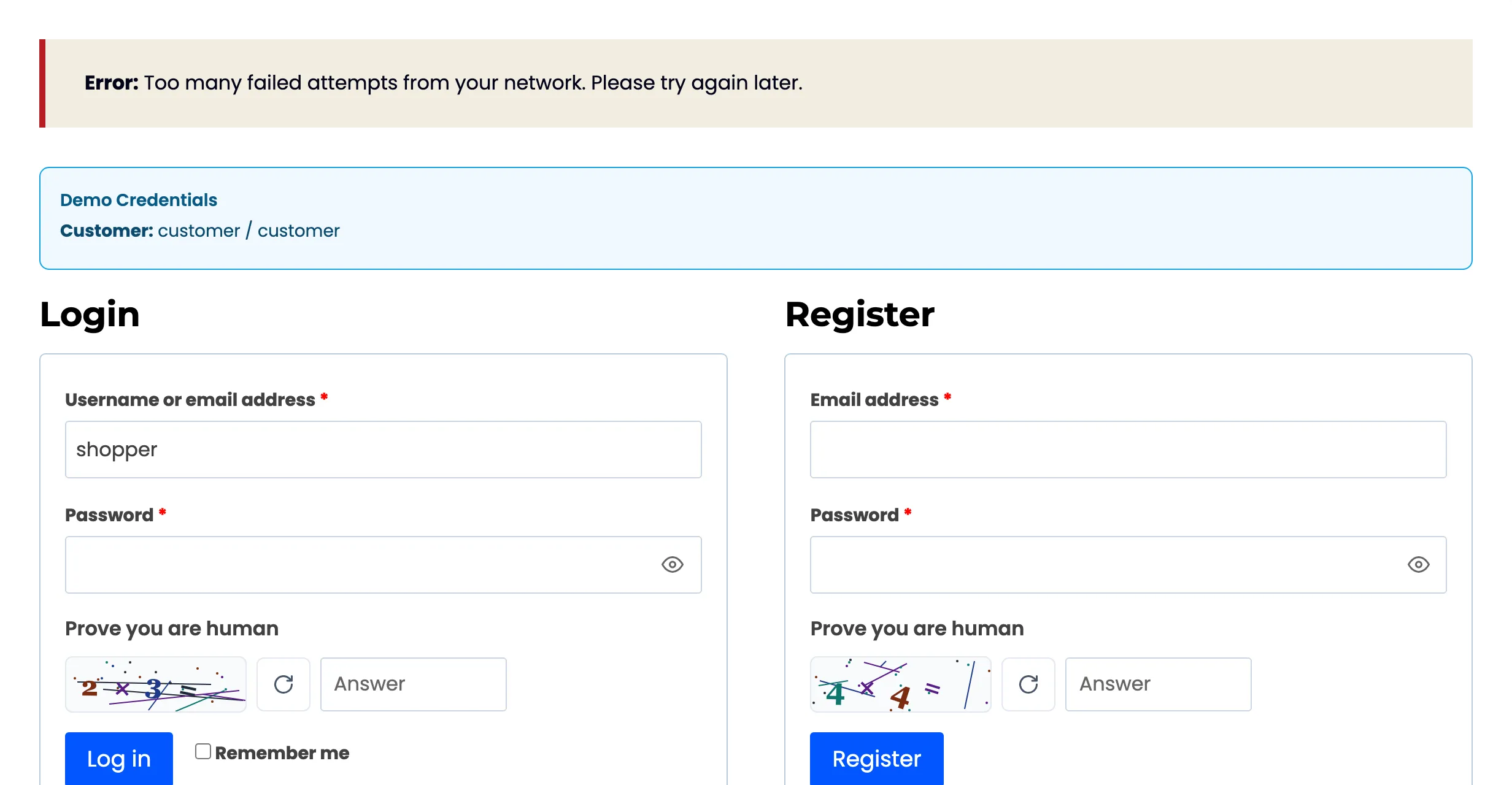
The lock covers every protected form, not just the one that was attacked.
Step 4: Find it on the Firewall
Section titled “Step 4: Find it on the Firewall”Open Advanced CAPTCHA → Firewall. The IP is under Locked Out Right Now, with the form and reason that started it.
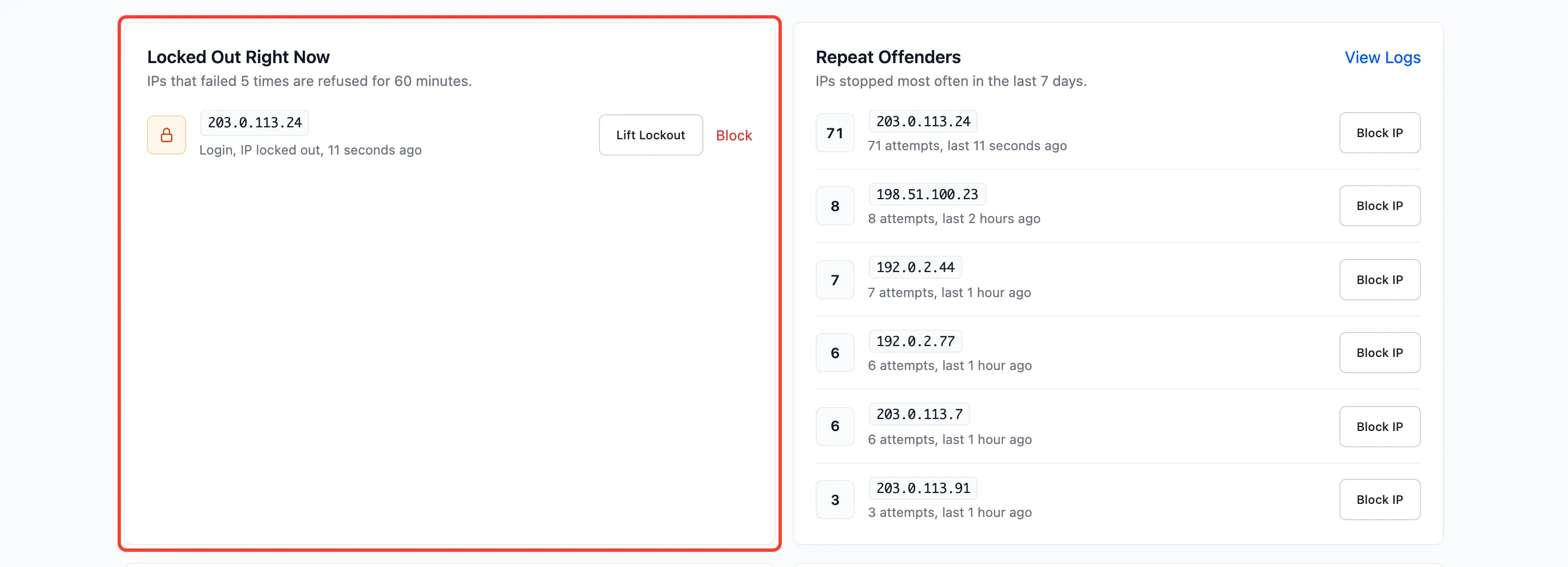
From here you can lift it early or block the IP for good. See How to Let a Locked-Out Customer Back In.
What counts as a failure
Section titled “What counts as a failure”- A wrong or missing CAPTCHA answer.
- The honeypot, or a form submitted too fast.
- A reCAPTCHA v3 score below the minimum.
Refusals by the block list, country rules, the email guard or the order limit do not count, because those visitors are already turned away. A passed check clears the count.
Things to know
Section titled “Things to know”- Behind a proxy, set the visitor IP first. Otherwise every visitor arrives from the proxy’s IP and one lockout shuts out everyone. See How to Set the Visitor IP Behind a Proxy.
- Trusted roles and trusted IPs are never locked out.
- Get told when it happens with lockout alerts.