

The Verification Logs Screen
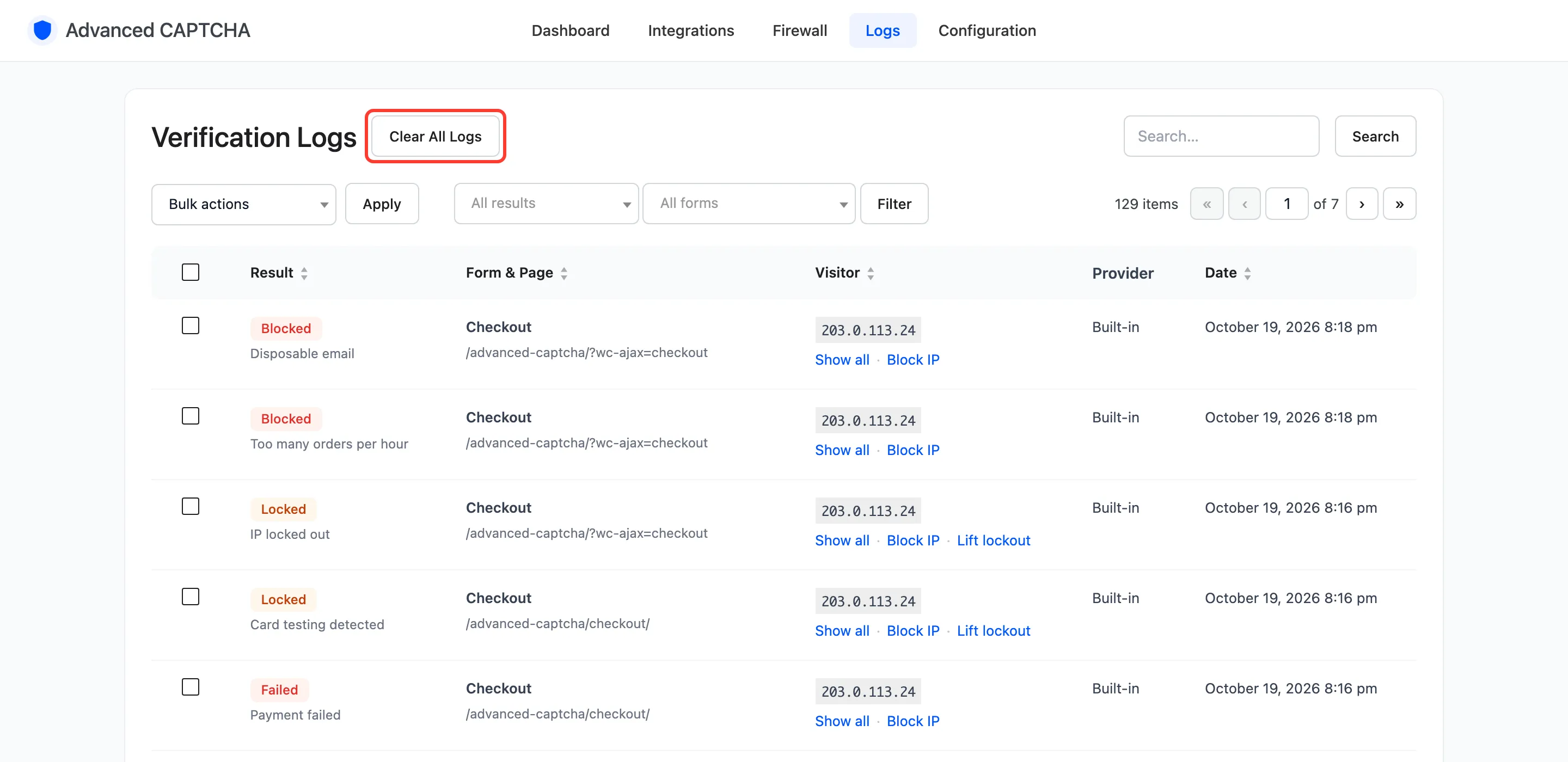
The Logs screen lists every check a protected form made. Open Advanced CAPTCHA → Logs. Logging must be on, under Configuration → Advanced.
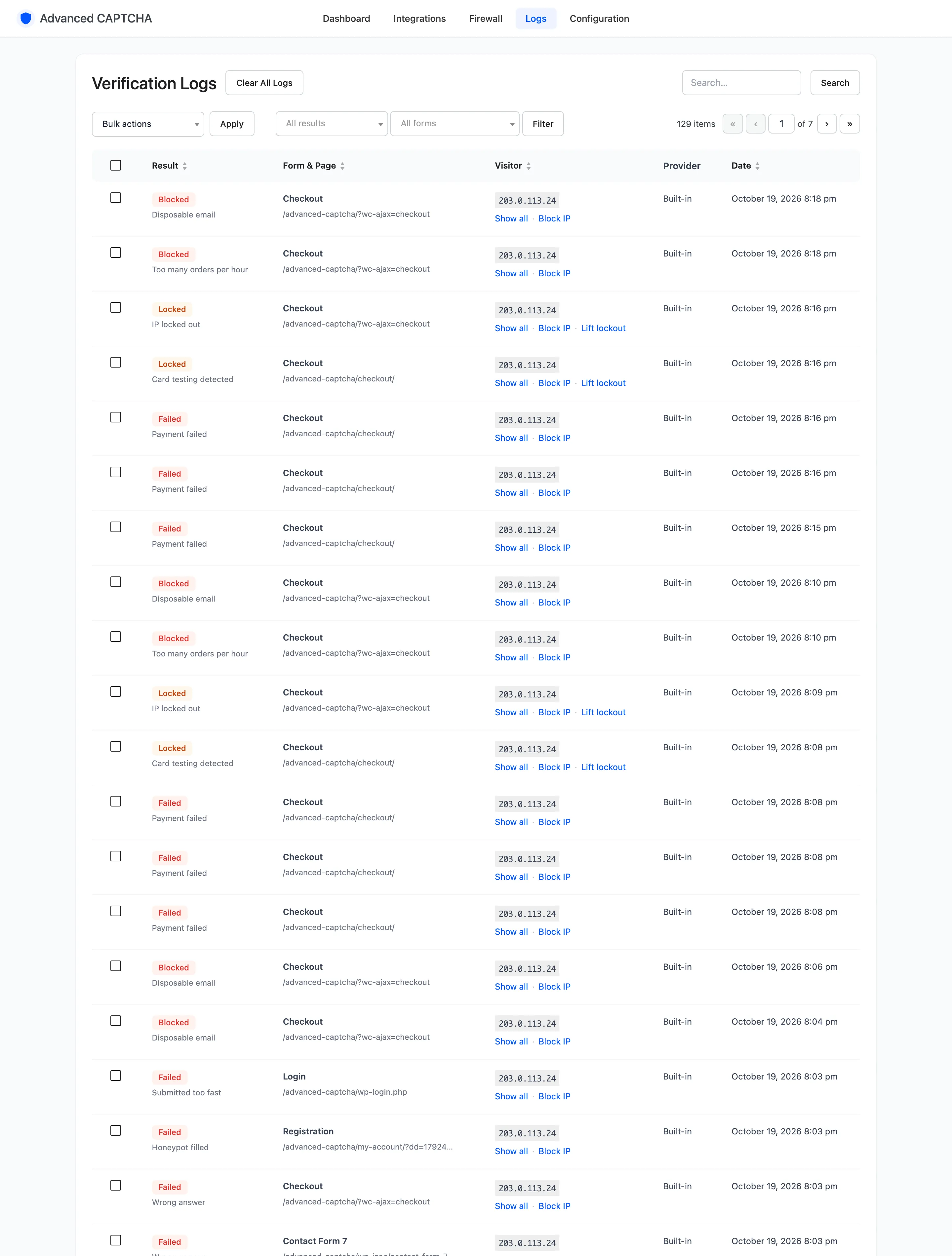
Columns
Section titled “Columns”- Result: a badge, with the reason under it.
- Passed: the check succeeded.
- Failed: a wrong or missing answer, the honeypot, or a failed payment.
- Blocked: the block list, a refused country, a disposable email or the hourly order limit.
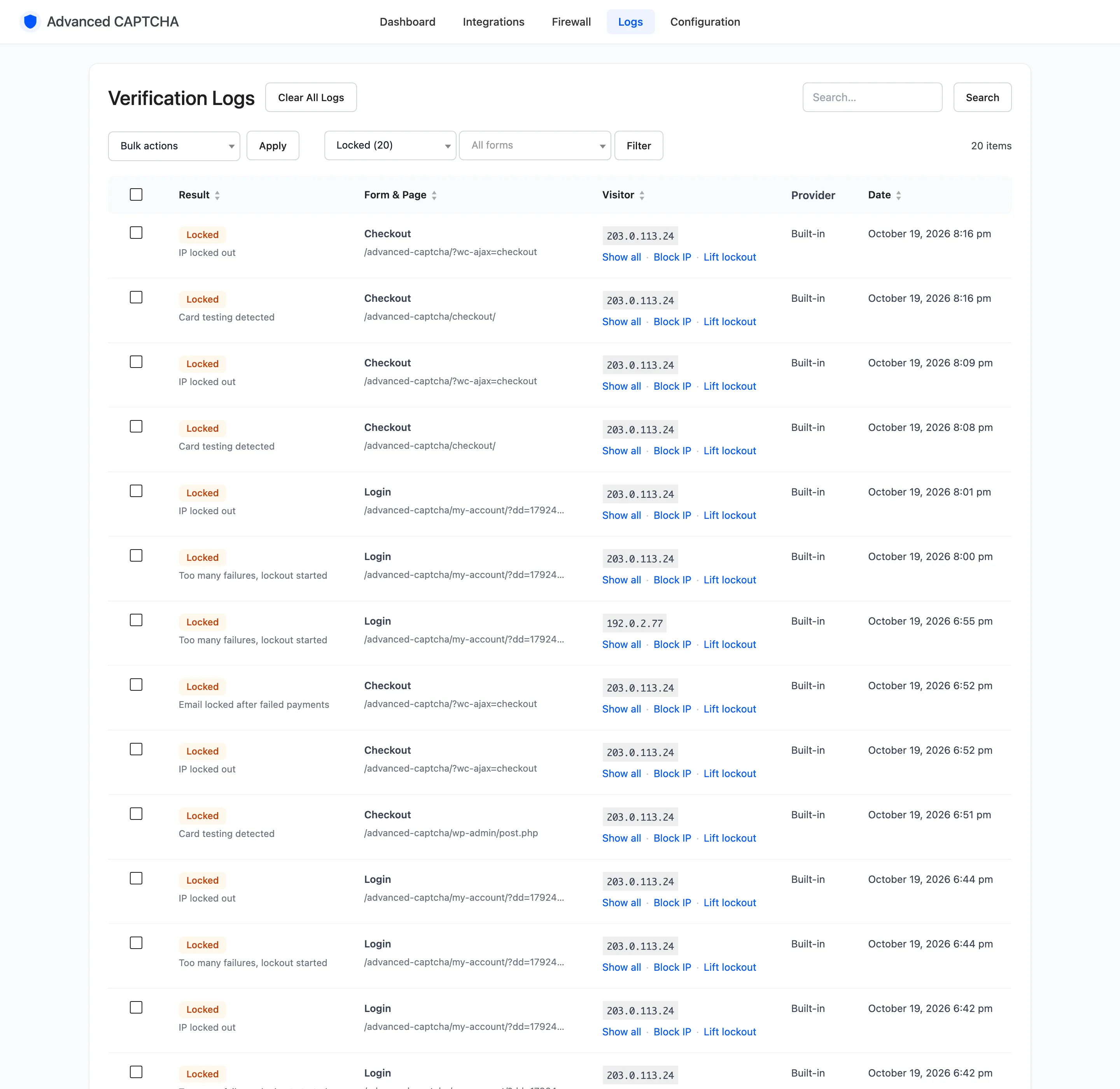
- Locked: a lockout started, or a locked-out IP tried again.
- Provider Error: the hosted provider could not be reached.
- Form & Page: the form, and the address it was posted from.
- Visitor: the IP, with its actions under it.
- Provider: Built-in, Google reCAPTCHA, Cloudflare Turnstile or hCaptcha.
- Date: when the check ran.
Result, Form, Visitor and Date sort when you click their heading.
Reasons
Section titled “Reasons”The reason under a result is the plugin’s own wording. The ones you will see most:
| Reason | What happened |
|---|---|
| Wrong answer | A Built-in answer did not match. |
| CAPTCHA not completed | No answer or token was sent. |
| Honeypot filled | The hidden field had a value. |
| Submitted too fast | The form came back faster than the minimum fill time. |
| Trusted visitor (smart mode) | Passed without a challenge. |
| Too many failures, lockout started | This failure triggered a lockout. |
| IP locked out | A locked-out IP tried again. |
| IP on block list | A blocked IP submitted a form. |
| Country not allowed | Refused by country rules. |
| Disposable email | Refused by the email guard. |
| Payment failed | An order from this IP was marked Failed. |
| Card testing detected | Failed payments reached the limit. |
| Email locked after failed payments | The billing email is locked at checkout. |
| Too many orders per hour | The hourly order limit was reached. |
| reCAPTCHA v3 score too low | The v3 score was below the minimum. |
| Provider unreachable | Google, Cloudflare or hCaptcha did not answer. |
Payment failed and Card testing detected rows show your checkout page, whatever marked the order Failed (a gateway webhook, or staff on the order screen).
Filters and search
Section titled “Filters and search”All results and All forms narrow the list; click Filter. The result filter shows a count next to each result. The search box, with its Search button, finds an IP, a reason or a page.
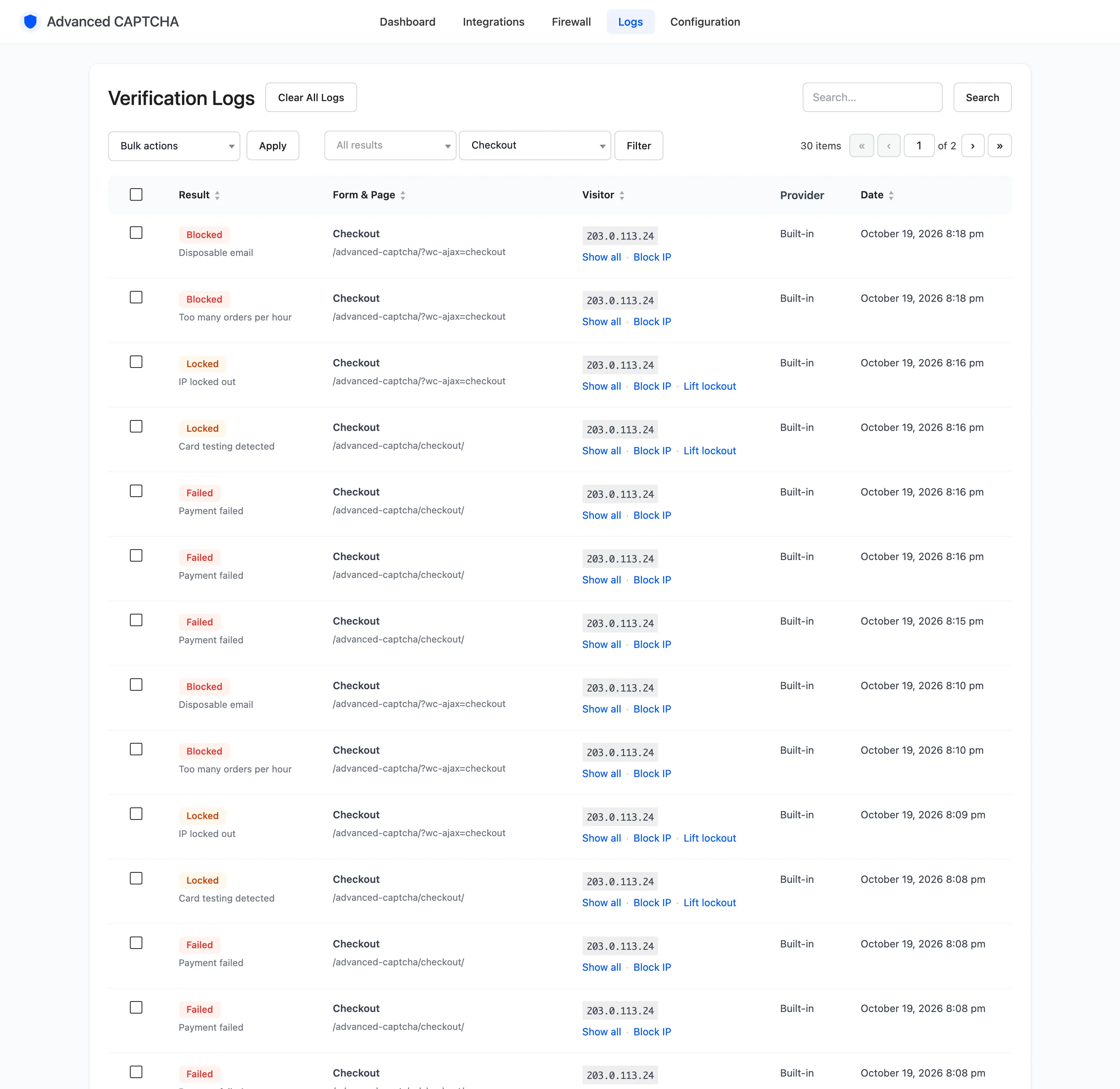
Filtered to Checkout, the log tells the story of a card-testing run on its own:
IP actions
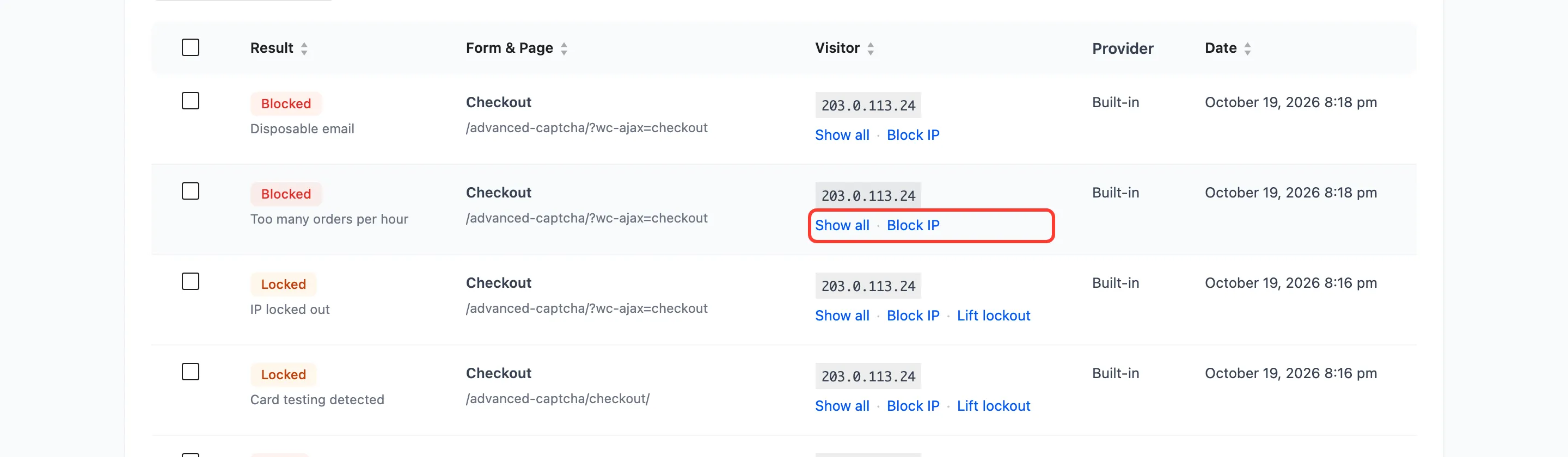
Section titled “IP actions”Under each visitor IP:
- Show all: filters the log to that IP.
- Block IP or Unblock: adds the IP to the block list, or takes it off (Pro).
- Lift lockout: shown while the IP is locked out (Pro).
Deleting entries
Section titled “Deleting entries”- Bulk actions → Delete: tick rows and click Apply.
- Clear All Logs: empties the log after a confirmation.
Old entries also go on their own: after 30 days in the free plugin, or after Keep logs for in Pro. Clearing the log empties the dashboard’s charts for the same period.
Screen Options at the top sets Logs Per Page.