

How to Choose a CAPTCHA Provider
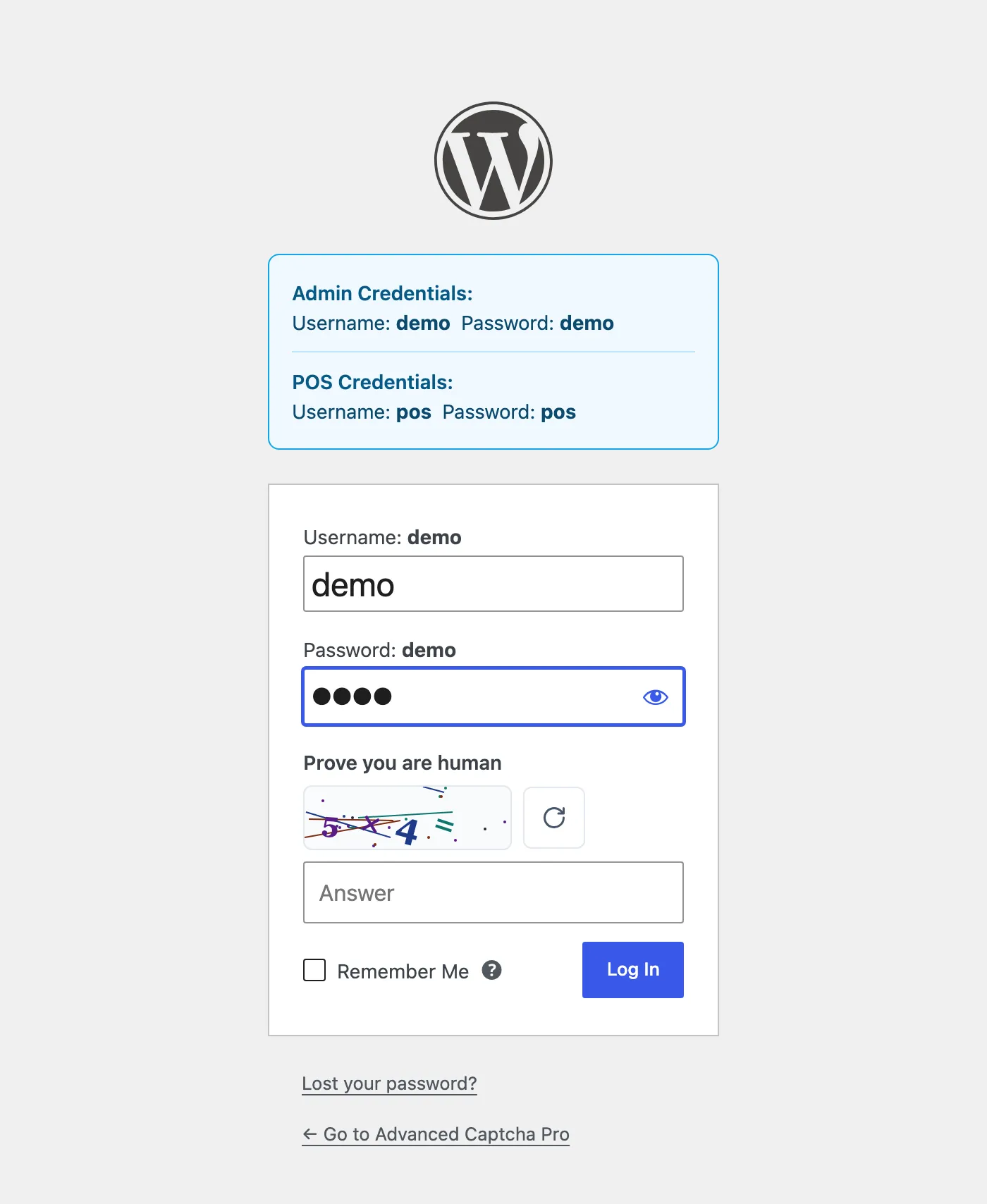
Advanced CAPTCHA offers four challenges. All four work on every protected form, and switching between them changes every form at once. Nothing on your forms needs editing.
Step 1: Decide what matters most
Section titled “Step 1: Decide what matters most”| Built-in CAPTCHA | Cloudflare Turnstile | Google reCAPTCHA | hCaptcha | |
|---|---|---|---|---|
| Account and keys | None | Free account | Free account | Free account |
| What a customer does | Types a sum or 5 characters | Usually nothing | Ticks a box (v2), or nothing (v2 invisible, v3) | Ticks a box, sometimes picks images |
| Data sent to a third party | None | Visitor IP and token to Cloudflare | Visitor IP and token to Google | Visitor IP and token to hCaptcha |
| Works when the provider is down | Always | With Provider outage on, forms let people through | Same | Same |
Some starting points:
- No setup, no consent banner changes: the Built-in CAPTCHA. It is the default.
- The least friction at checkout: Cloudflare Turnstile. Most customers never click anything.
- You already use Google services: reCAPTCHA v2 Checkbox, or v3 if you want nothing on screen.
- A privacy-minded alternative to Google: hCaptcha.
Step 2: Get keys for a hosted provider
Section titled “Step 2: Get keys for a hosted provider”Skip this step for the Built-in CAPTCHA. For the others, create a site for your domain in the provider’s dashboard and copy the site key and secret key:
Step 3: Save the keys on the provider’s tab
Section titled “Step 3: Save the keys on the provider’s tab”Go to Configuration and open the provider’s own tab. Paste the Site key and Secret key and click Save Changes. The Live preview & key test at the bottom then shows the real widget.
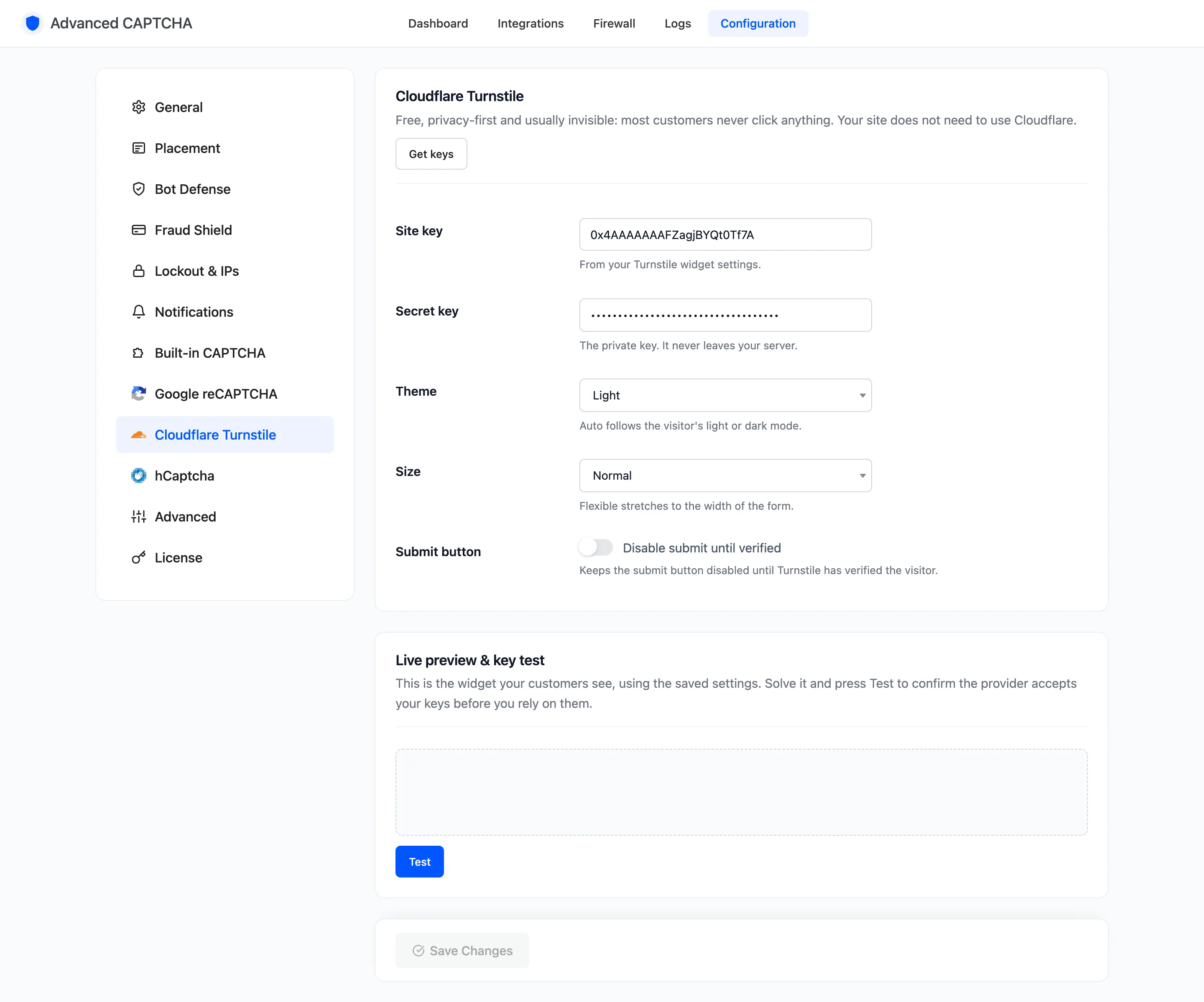
Save the keys before you switch. A hosted provider without both keys cannot show a widget, so the plugin pauses protection rather than lock everyone out.
Step 4: Switch the provider
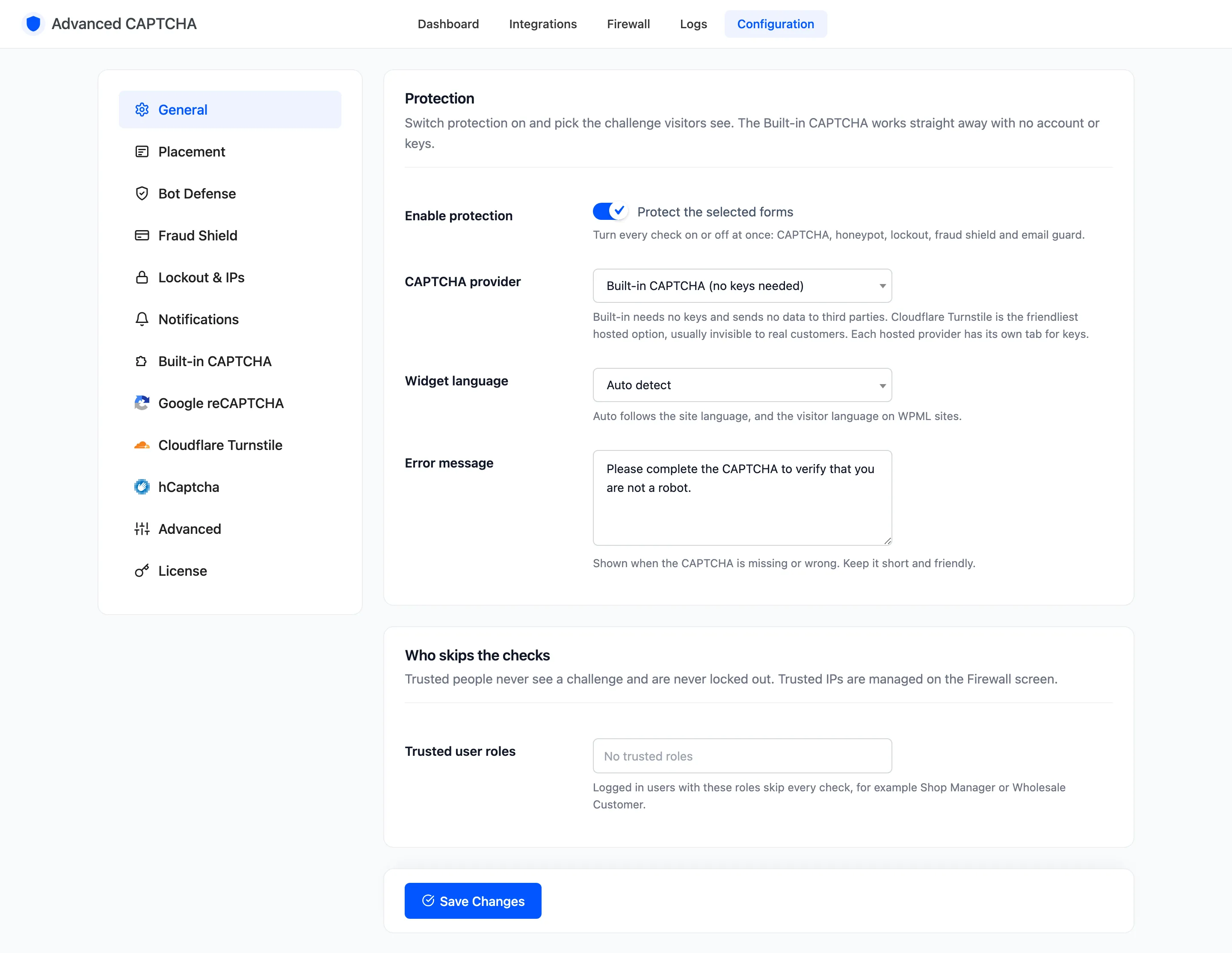
Section titled “Step 4: Switch the provider”On Configuration → General, set CAPTCHA provider and click Save Changes.
Step 5: Check a form
Section titled “Step 5: Check a form”Open /wp-login.php or My Account in a private window. The new widget sits where the old one was.
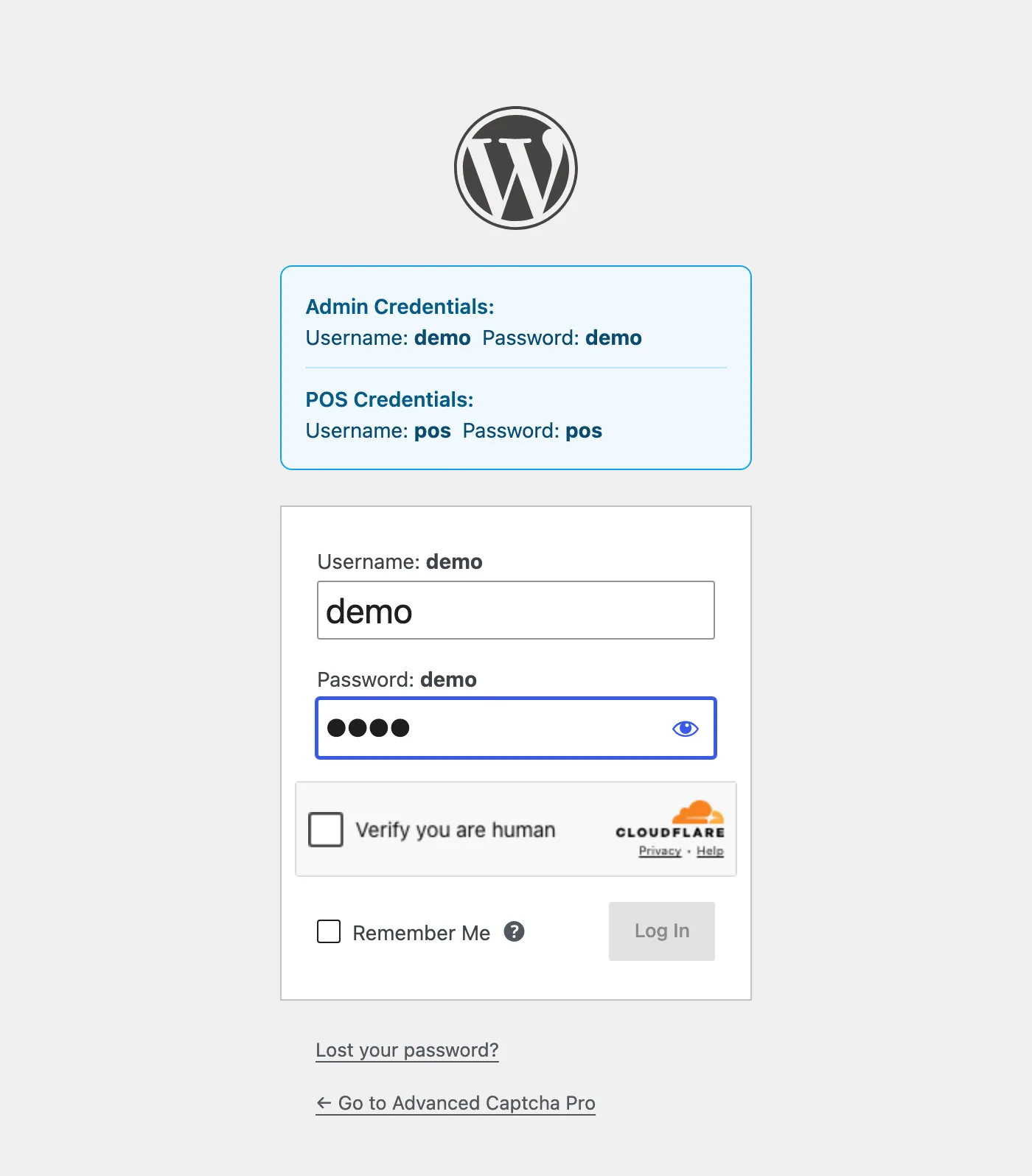
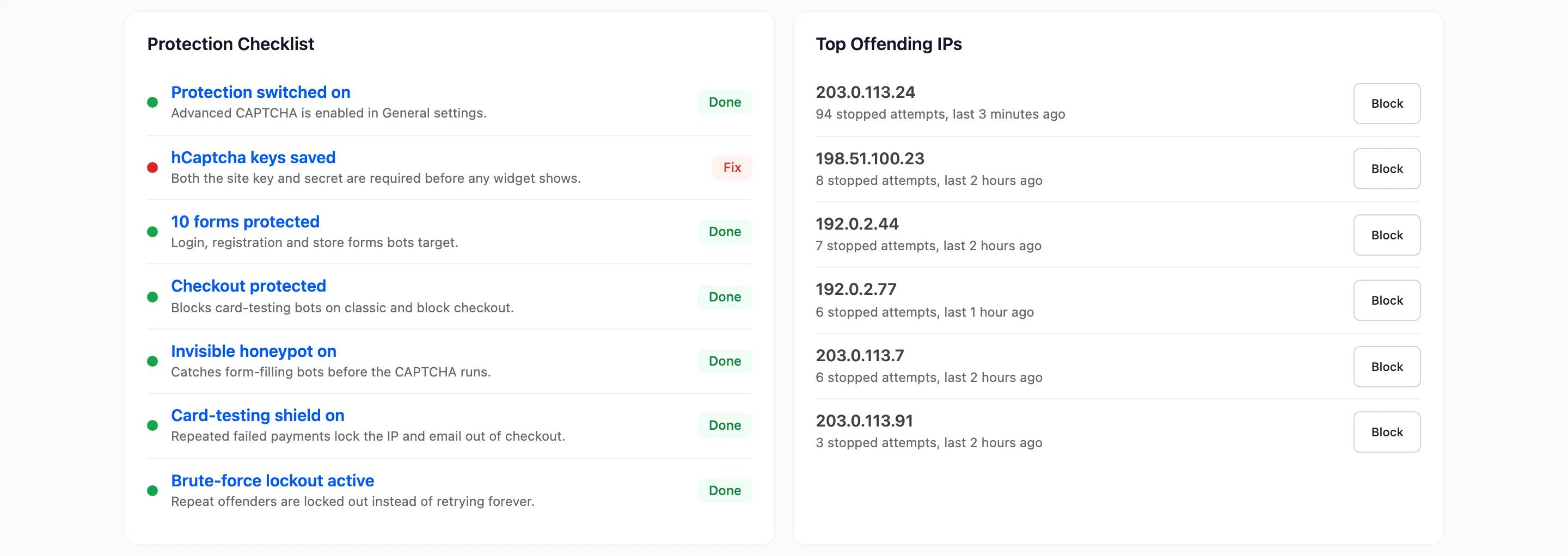
If no widget shows at all, a key is missing. The plugin’s screens show “CAPTCHA protection is paused”, and the dashboard’s Protection Checklist marks the provider row Fix.
Things to know
Section titled “Things to know”- Keys stay saved when you switch. You can switch back to a provider later without re-entering its keys.
- Logs record the provider. The Logs screen’s Provider column shows which challenge each check used, so a switch is visible in the history.
- The honeypot runs with every provider, including the Built-in CAPTCHA.