

How to Add a CAPTCHA to Contact Form 7
Contact Form 7 does not get the CAPTCHA automatically. You place a tag where it should go, which lets you choose its spot in each form.
Step 1: Switch the integration on
Section titled “Step 1: Switch the integration on”Go to Advanced CAPTCHA → Integrations and switch on Contact Form 7. It saves at once and the badge turns to Protected.

Step 2: Add the tag to your form
Section titled “Step 2: Add the tag to your form”Open Contact → Contact Forms and edit the form. Click the Advanced CAPTCHA button in the
editor’s tag bar and then Insert Tag, or type the tag yourself above [submit]:
[ddwcac_captcha]Then click Save.
A name after the tag, such as [ddwcac_captcha captcha], works too. It is optional.
Step 3: Check the form
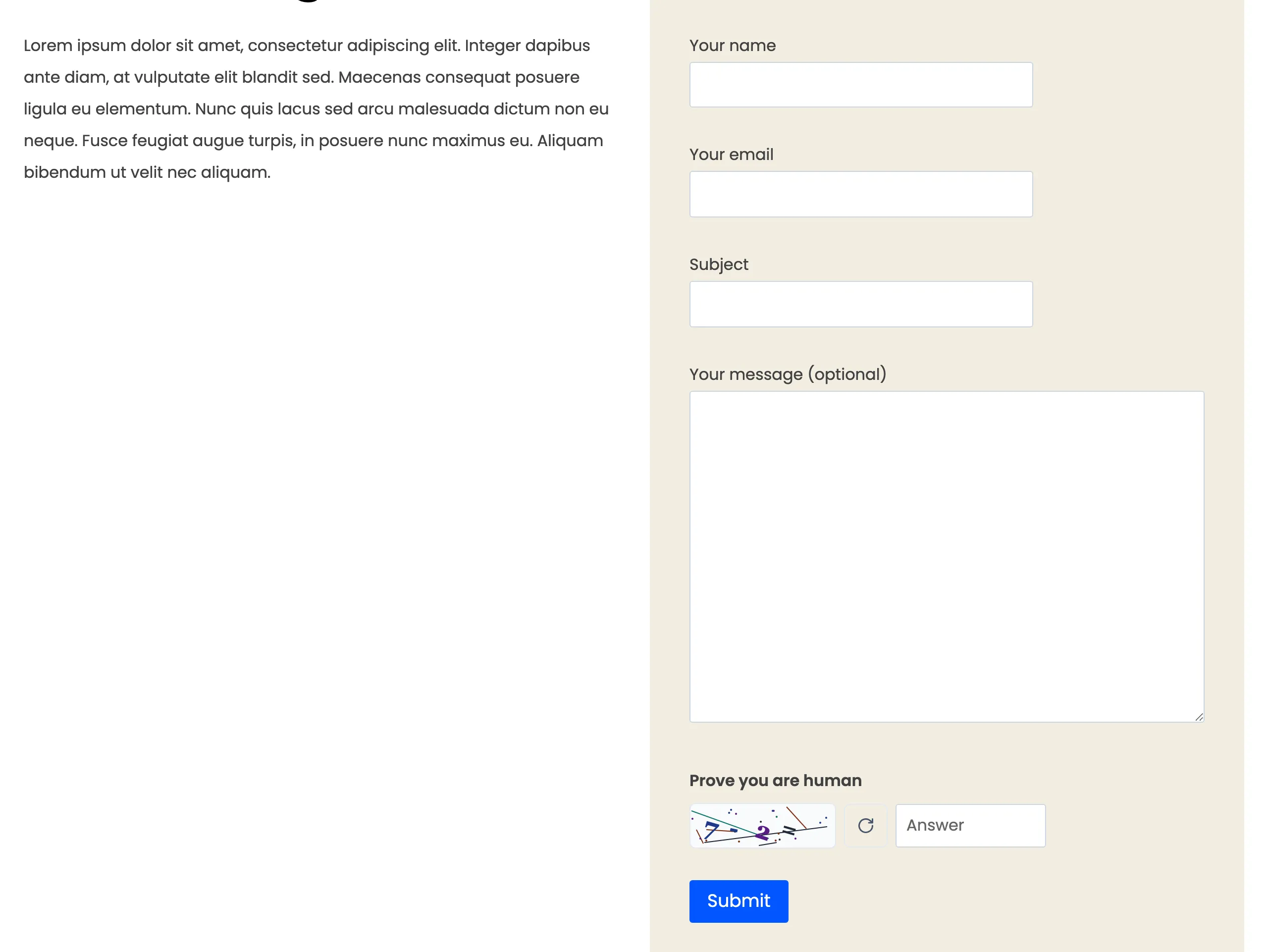
Section titled “Step 3: Check the form”Open the page with the form in a private window. The CAPTCHA sits where you put the tag.
Step 4: Try a wrong answer
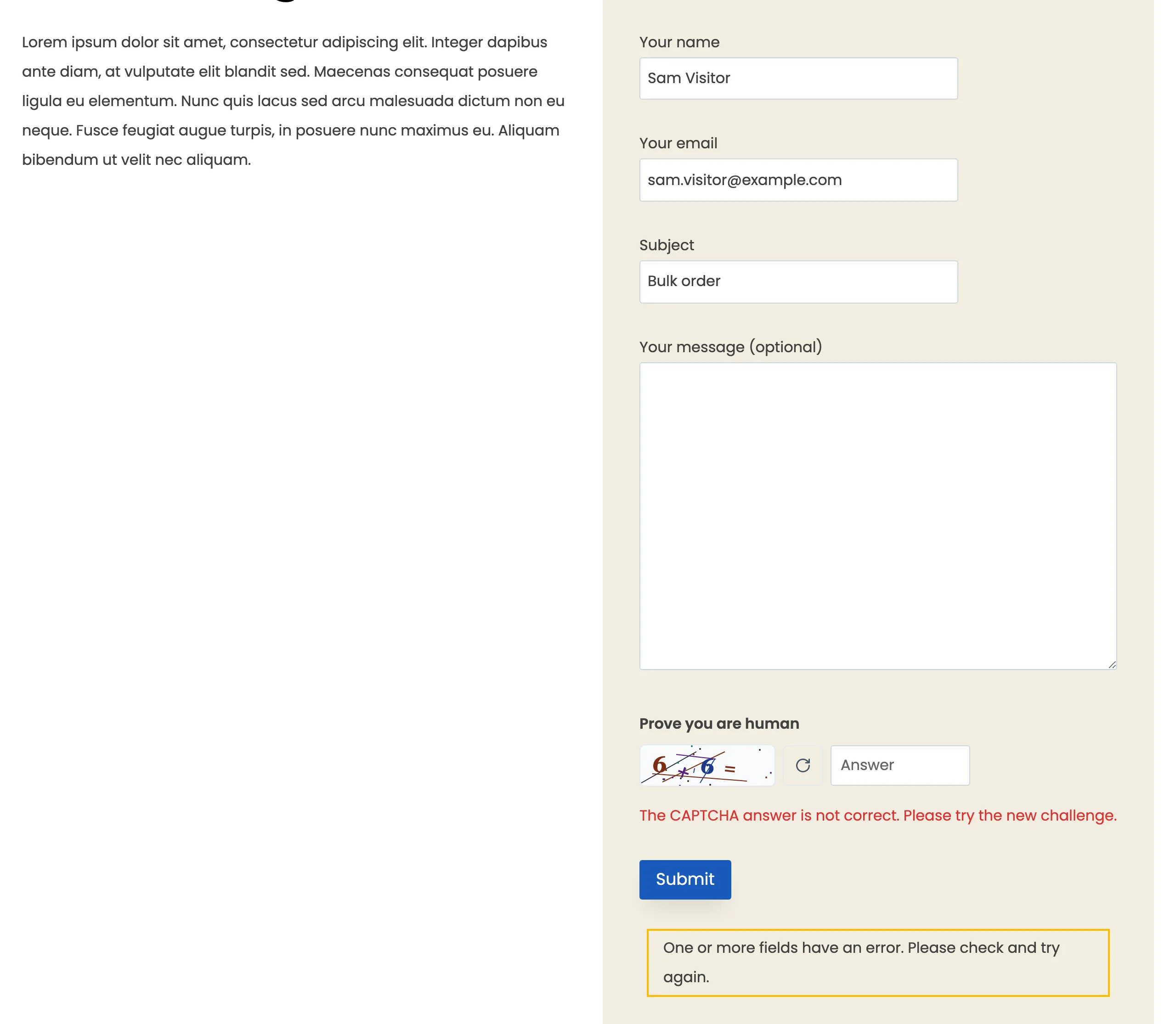
Section titled “Step 4: Try a wrong answer”Fill in the form, give a wrong answer and click Submit. The message is not sent. The error appears under the widget, the way Contact Form 7 shows any field error.
The log records it on the Contact Form 7 form.
Things to know
Section titled “Things to know”- The widget follows the provider. Switch to Turnstile or reCAPTCHA and every Contact Form 7 form changes with it.
- The honeypot comes with the tag. It is part of the same field.
- Switching the card off stops the check, and the tag then prints as plain text. Take the tag out of your forms if you switch the integration off for good.