

Google reCAPTCHA Settings
The Google reCAPTCHA tab holds your reCAPTCHA keys and how the widget looks. It applies only when Google reCAPTCHA is the provider on the General tab. Open Configuration → Google reCAPTCHA.
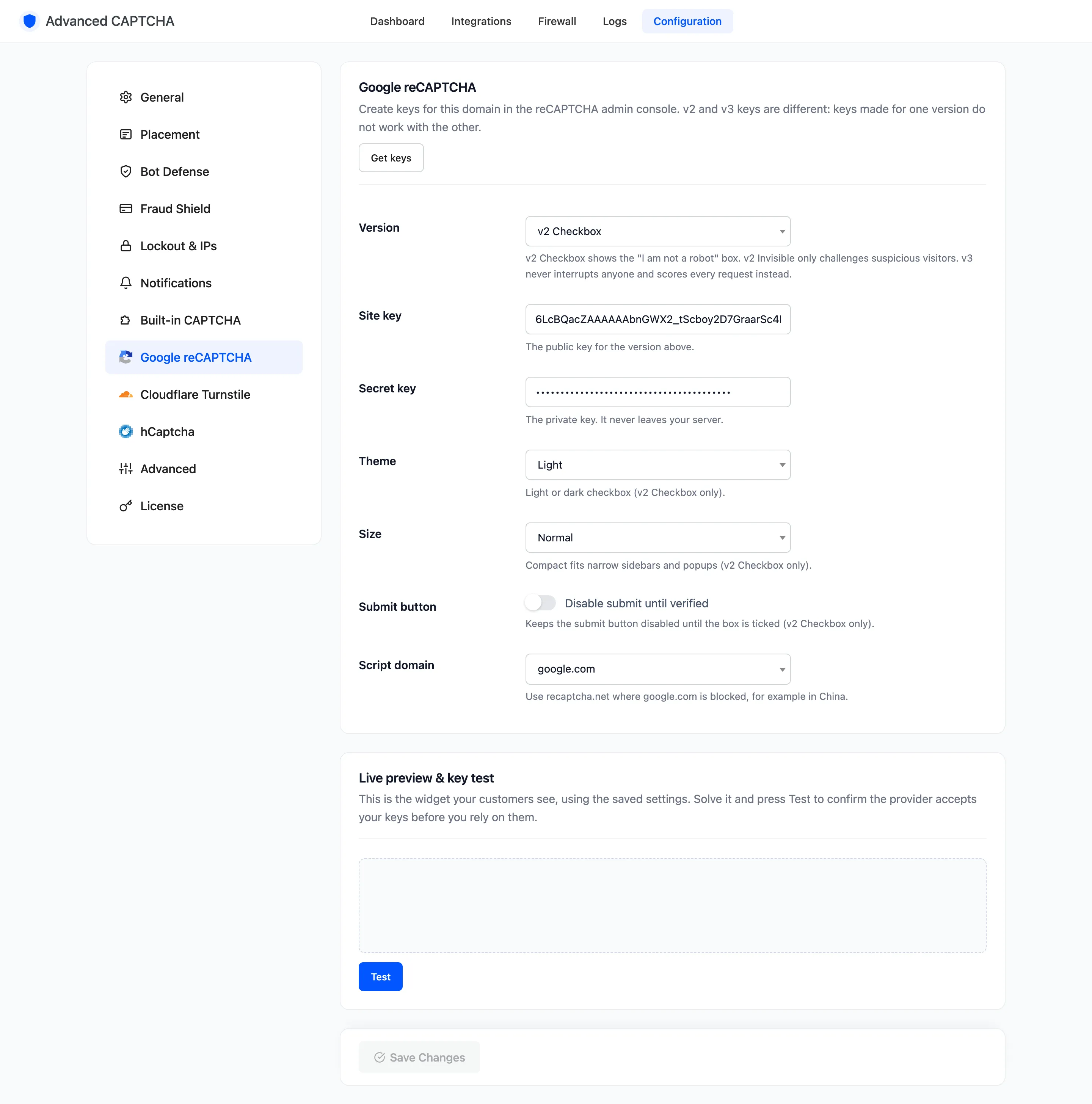
Get keys opens Google’s reCAPTCHA admin console. v2 and v3 keys are different: a key pair made for one version does not work with the other.
Fields for every version
Section titled “Fields for every version”- Version: default v2 Checkbox, the “I’m not a robot” box. v2 Invisible only challenges visitors Google finds suspicious. v3 Invisible score never interrupts anyone and scores every request instead.
- Site key: the public key for the version above.
- Secret key: the private key. It never leaves your server.
- Script domain: default
google.com. Userecaptcha.netwhere google.com is blocked, for example in China.
v2 Checkbox only
Section titled “v2 Checkbox only”- Theme: Light (default) or Dark.
- Size: Normal (default) or Compact, for narrow sidebars and popups.
- Submit button: “Disable submit until verified”. Off by default. Keeps the form’s button greyed out until the box is ticked.
v3 only
Section titled “v3 only”Switching Version to v3 swaps the v2 fields for these.
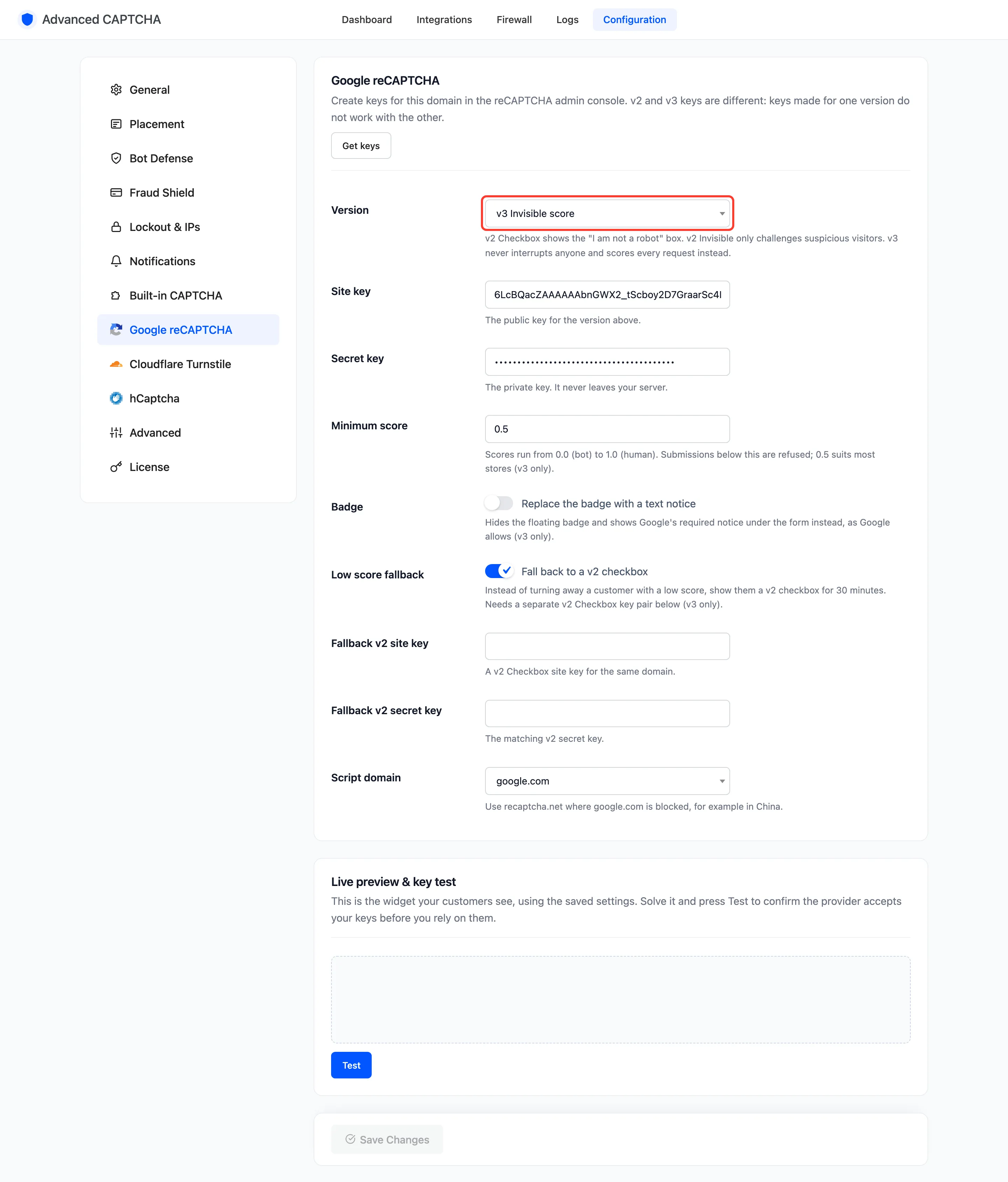
- Minimum score: default
0.5, from 0.0 (bot) to 1.0 (human). Submissions below it are refused, logged “reCAPTCHA v3 score too low”. - Badge: “Replace the badge with a text notice”. Off by default. Hides Google’s floating badge and prints Google’s required notice under the form instead, as Google allows.
- Low score fallback (Pro): “Fall back to a v2 checkbox”. On by default. Instead of turning away a customer with a low score, it shows them a v2 checkbox for 30 minutes.
- Fallback v2 site key and Fallback v2 secret key (Pro): a separate v2 Checkbox key pair for the same domain. The fallback does nothing until both are filled in.
A customer who hits the fallback sees “Please confirm you are human: tick the CAPTCHA box and submit again.” The box replaces v3 for their IP for the next 30 minutes.
Live preview & key test
Section titled “Live preview & key test”The bottom of the tab shows the real widget with your saved keys. Solve it and press Test to confirm Google accepts the keys before customers rely on them.
See How to Set Up Google reCAPTCHA.
Click Save Changes at the bottom of the tab.