

How to Set Up Google reCAPTCHA
reCAPTCHA comes in three versions. Each needs its own keys: a v2 key pair does not work with v3.
Step 1: Register your site with Google
Section titled “Step 1: Register your site with Google”- On the Google reCAPTCHA tab, click Get keys. It opens Google’s reCAPTCHA admin console.
- Add a label, choose the reCAPTCHA type (v2 “I’m not a robot”, v2 Invisible, or v3), and add your domain.
- Submit, then copy the Site key and Secret key.
The console needs your Google sign-in, so it is not shown here.
Step 2: Paste the keys and pick the version
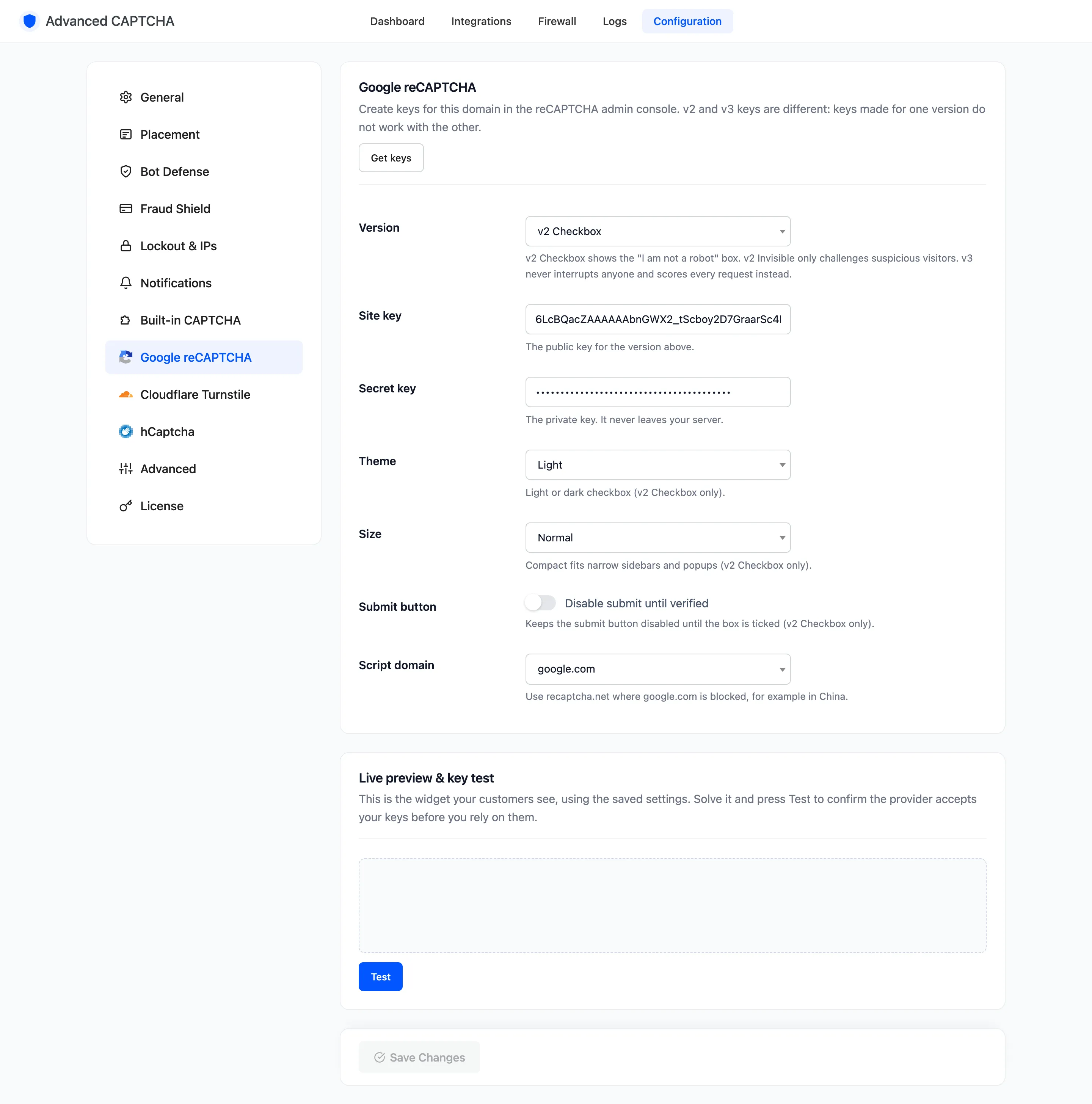
Section titled “Step 2: Paste the keys and pick the version”Go to Configuration → Google reCAPTCHA. Set Version to the type you registered, paste both keys and click Save Changes.
Step 3: Set the version’s options
Section titled “Step 3: Set the version’s options”For v2 Checkbox: Theme, Size and Submit button (“Disable submit until verified”).
For v3, change Version and the v3 fields appear:
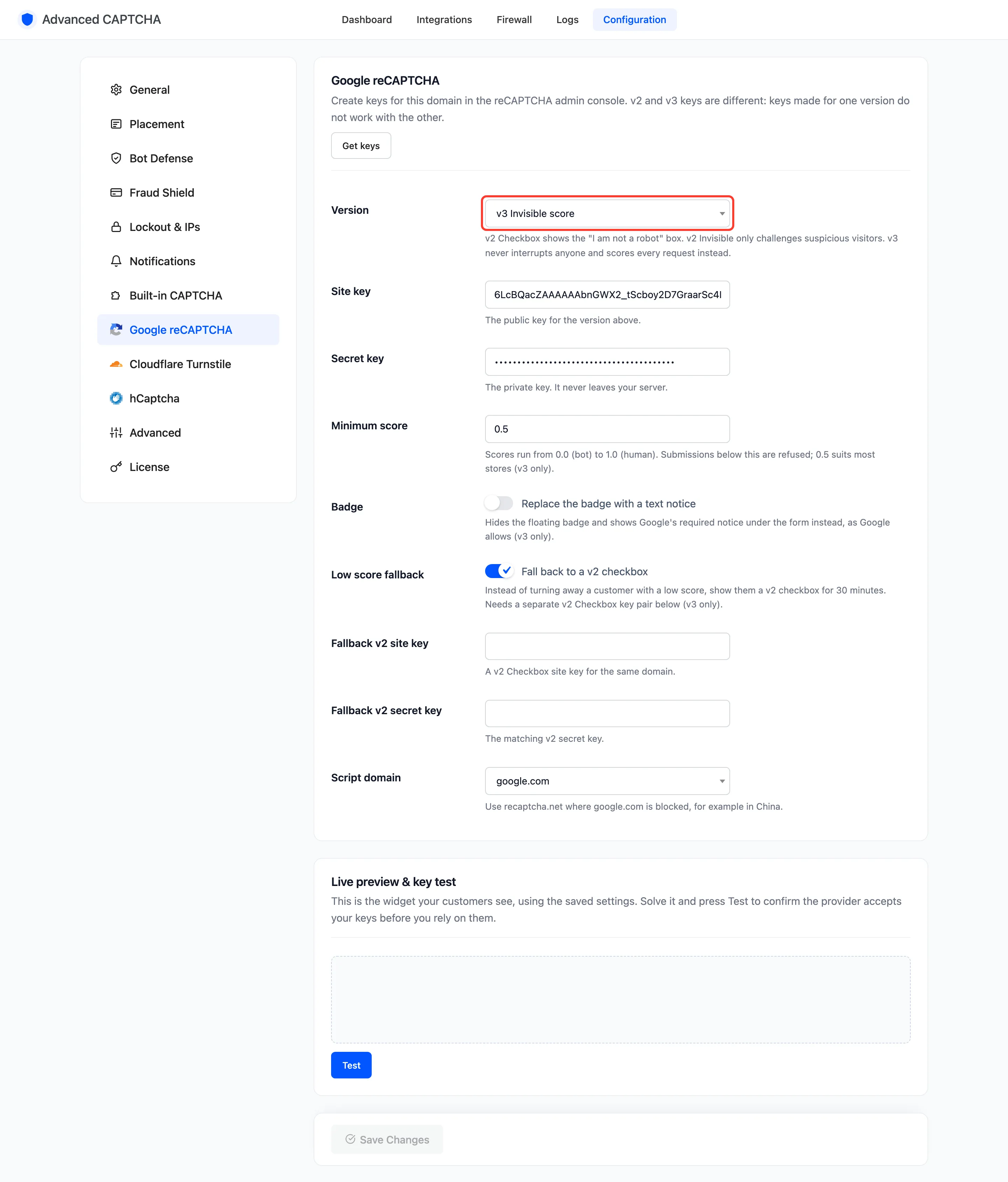
- Minimum score:
0.5suits most stores. Raise it if bots get through; lower it if real customers are refused. - Badge: replaces Google’s floating badge with a text notice under the form.
- Low score fallback (Pro): a customer who scores too low gets a v2 checkbox for 30 minutes instead of a refusal. Register a second, v2 Checkbox key pair for the same domain and paste it into Fallback v2 site key and Fallback v2 secret key.
Step 4: Test the keys
Section titled “Step 4: Test the keys”Solve the Live preview & key test at the bottom of the tab and press Test. A key pair for the wrong version or domain fails here.
Step 5: Switch to Google reCAPTCHA
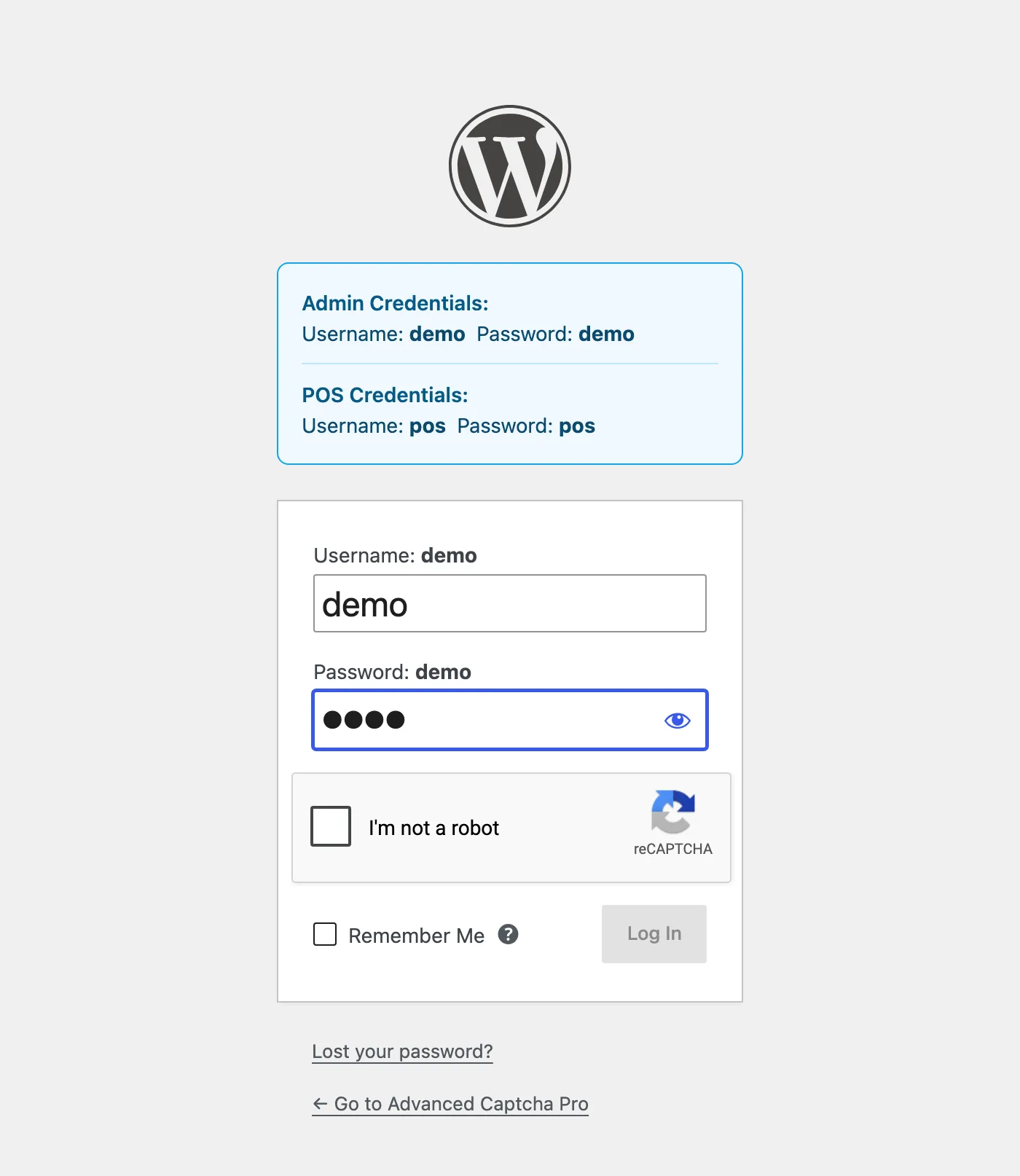
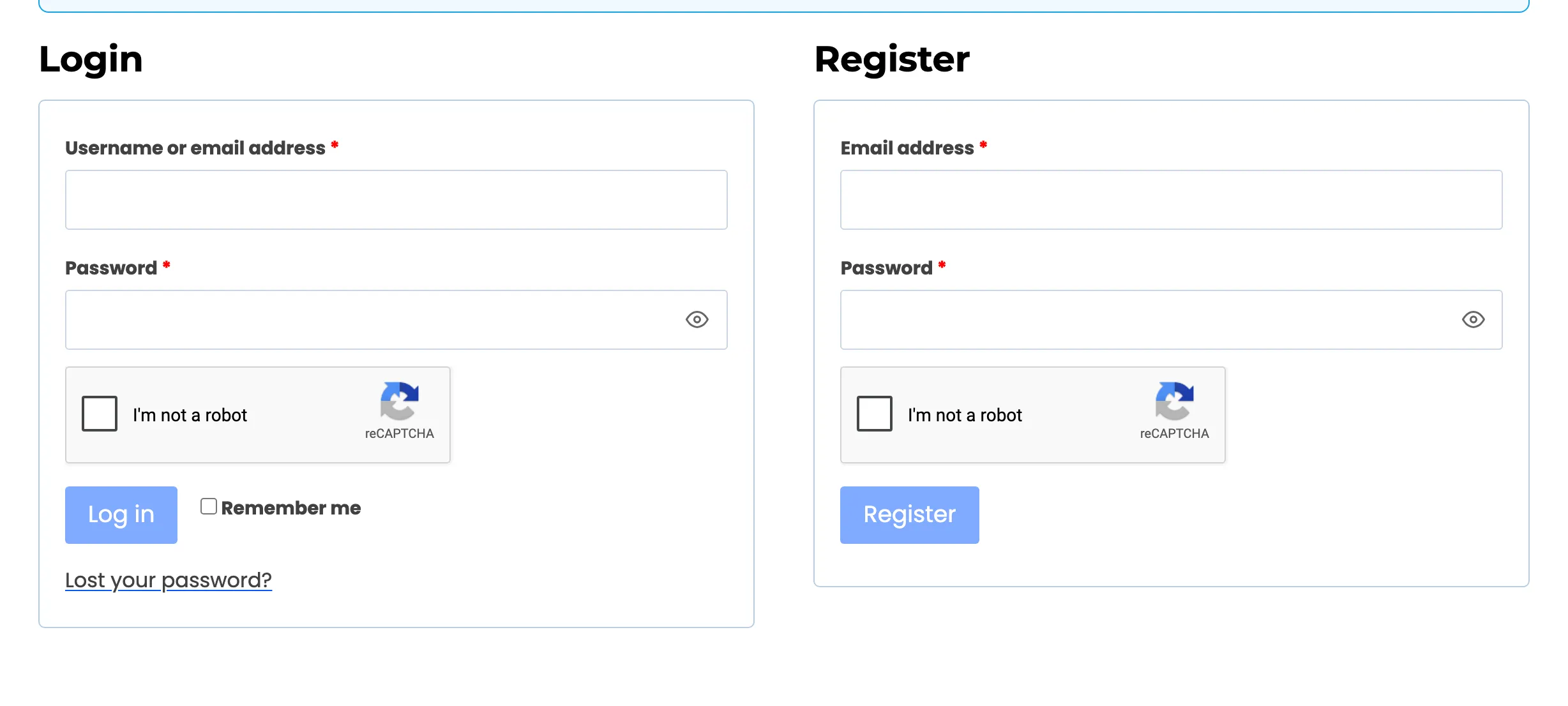
Section titled “Step 5: Switch to Google reCAPTCHA”On Configuration → General, set CAPTCHA provider to Google reCAPTCHA and click Save Changes. Then open your login page in a private window.
Things to know
Section titled “Things to know”- v3 is invisible. Nothing shows on the form. Watch the Logs screen for “reCAPTCHA v3 score too low” in the first days to see whether your minimum score is right.
- google.com blocked? Set Script domain to
recaptcha.net. - The setup wizard always saves v2 Checkbox when you pick Google there. Change Version on this tab afterwards.