

How to Protect Login and Registration Forms
Login and registration are where most bots start: password guessing on one, fake accounts on the other. The lost password form gets flooded with reset emails if it is left open.
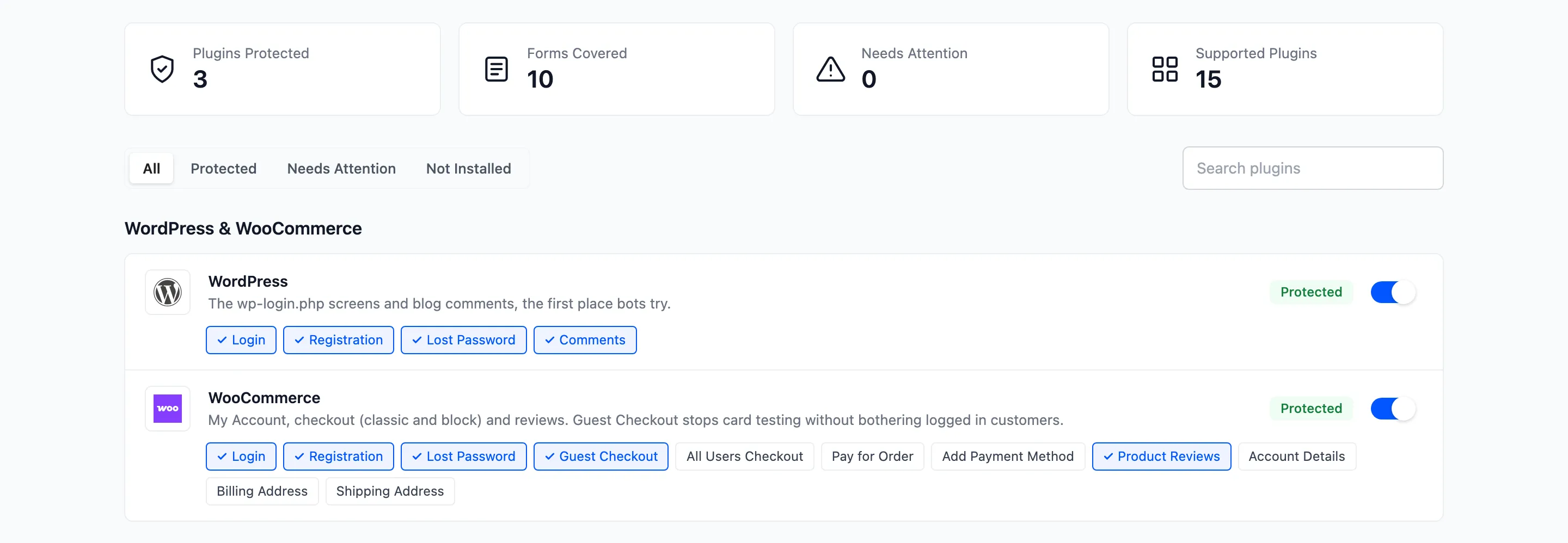
Step 1: Switch the forms on
Section titled “Step 1: Switch the forms on”Go to Advanced CAPTCHA → Integrations. On the WordPress and WooCommerce cards, tick Login, Registration and Lost Password. All six are on by default.
Step 2: Check the WordPress login
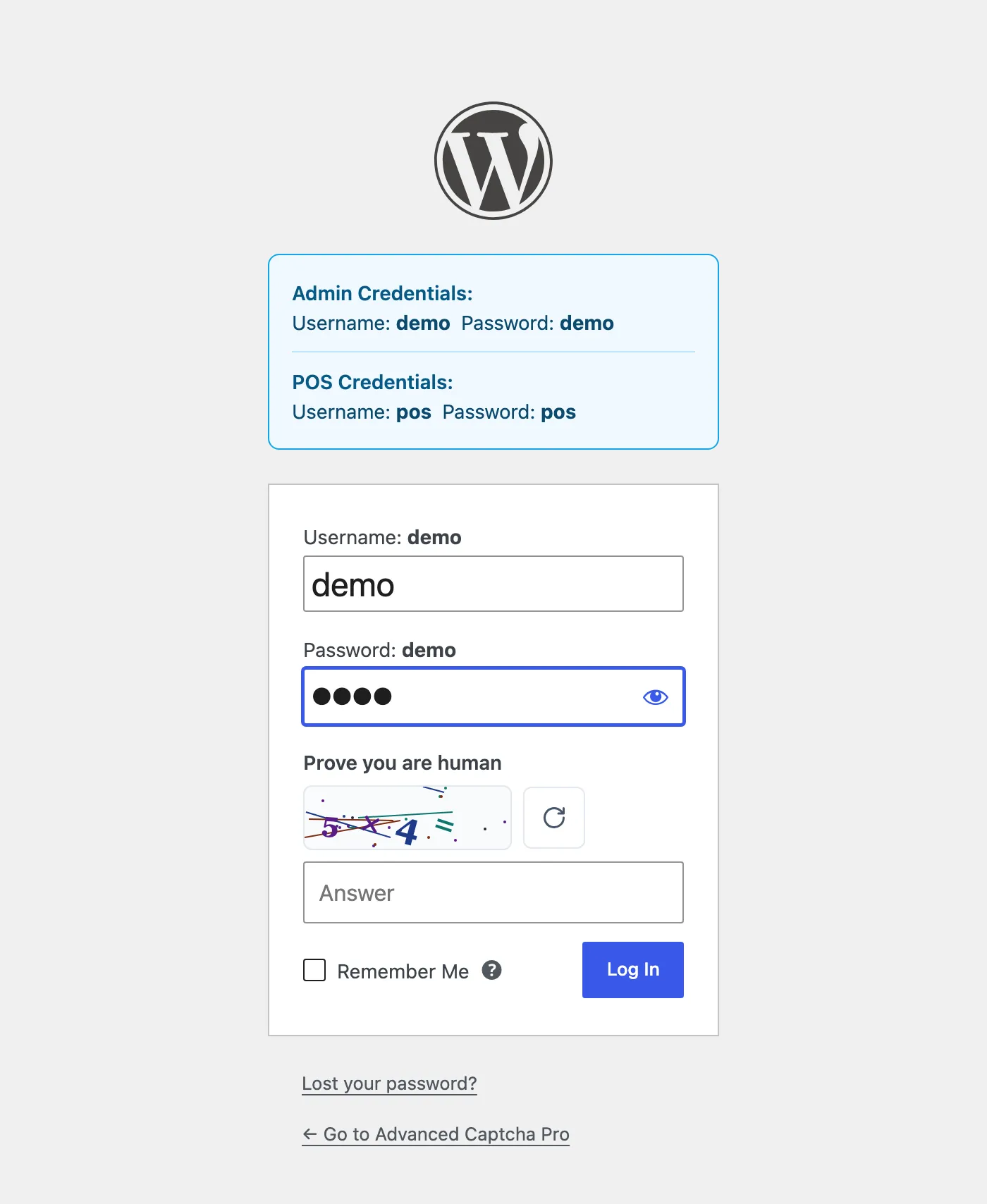
Section titled “Step 2: Check the WordPress login”Open /wp-login.php in a private window. Stay signed in in your normal window while you test.
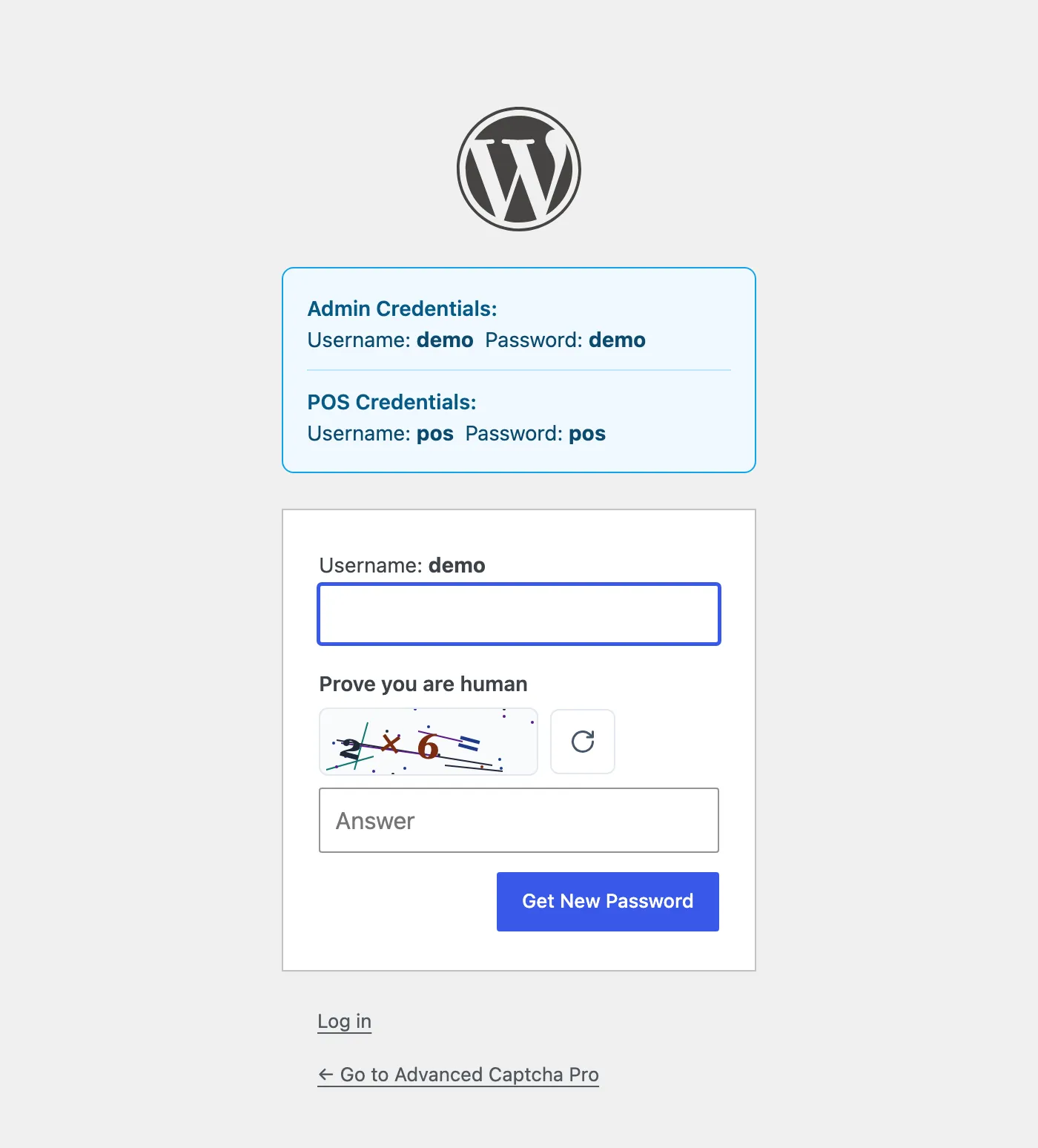
The lost password screen has its own:
Step 3: Check My Account
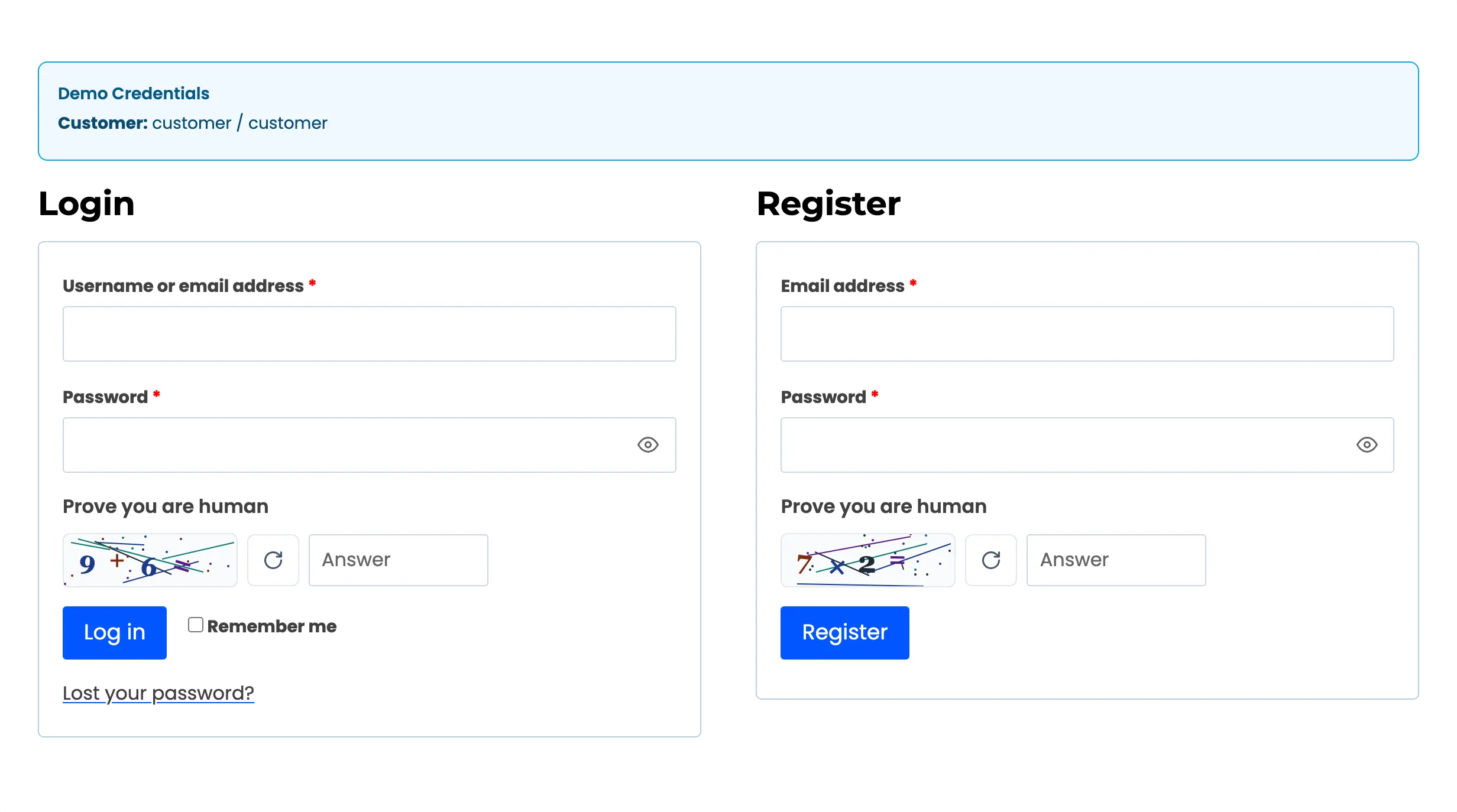
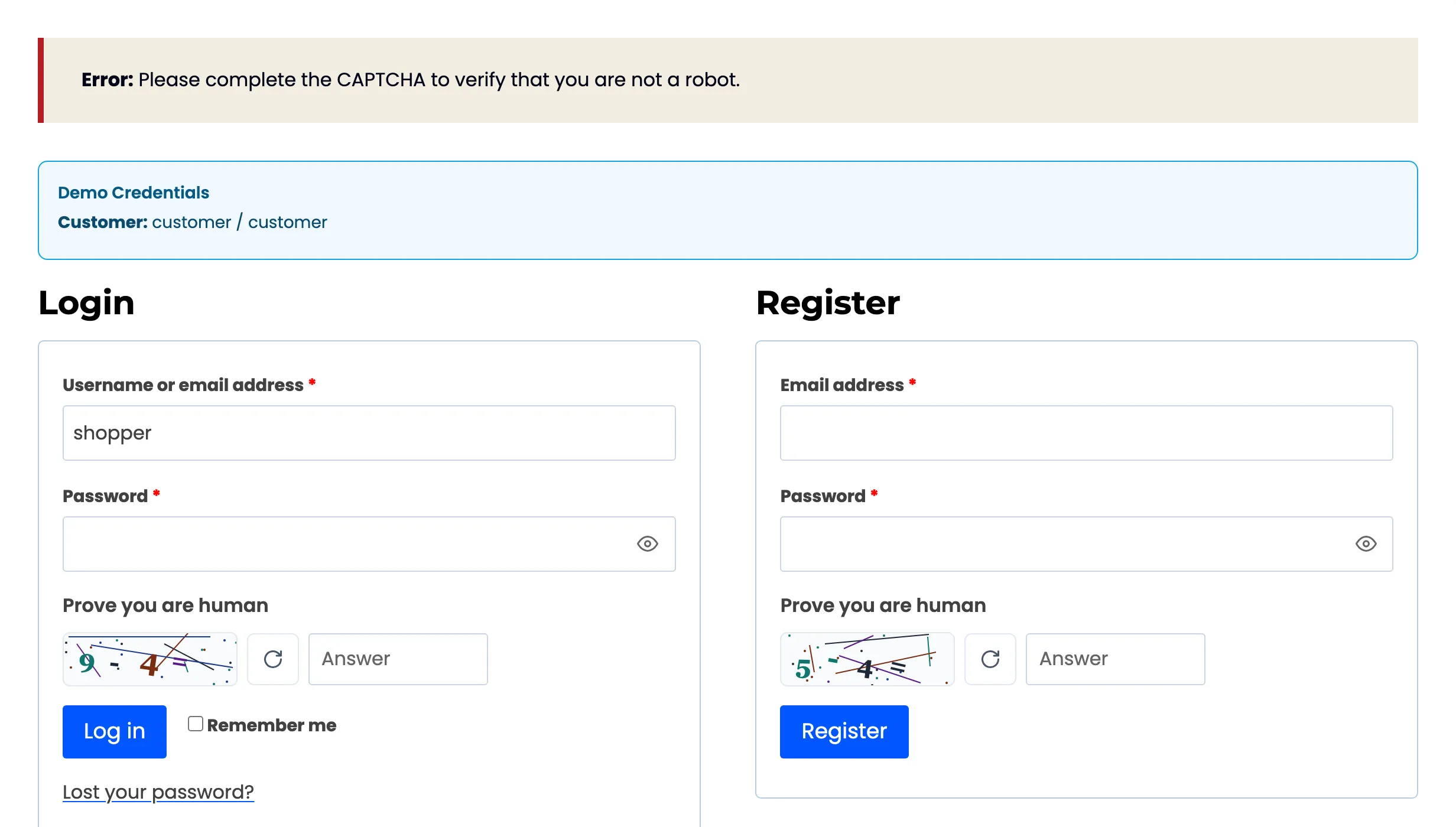
Section titled “Step 3: Check My Account”Open My Account. Login and registration each have their own challenge.
Step 4: Try a wrong answer
Section titled “Step 4: Try a wrong answer”Log in on /wp-login.php with a wrong answer. You are not logged in, and the error reads “The CAPTCHA
answer is not correct. Please try the new challenge.”
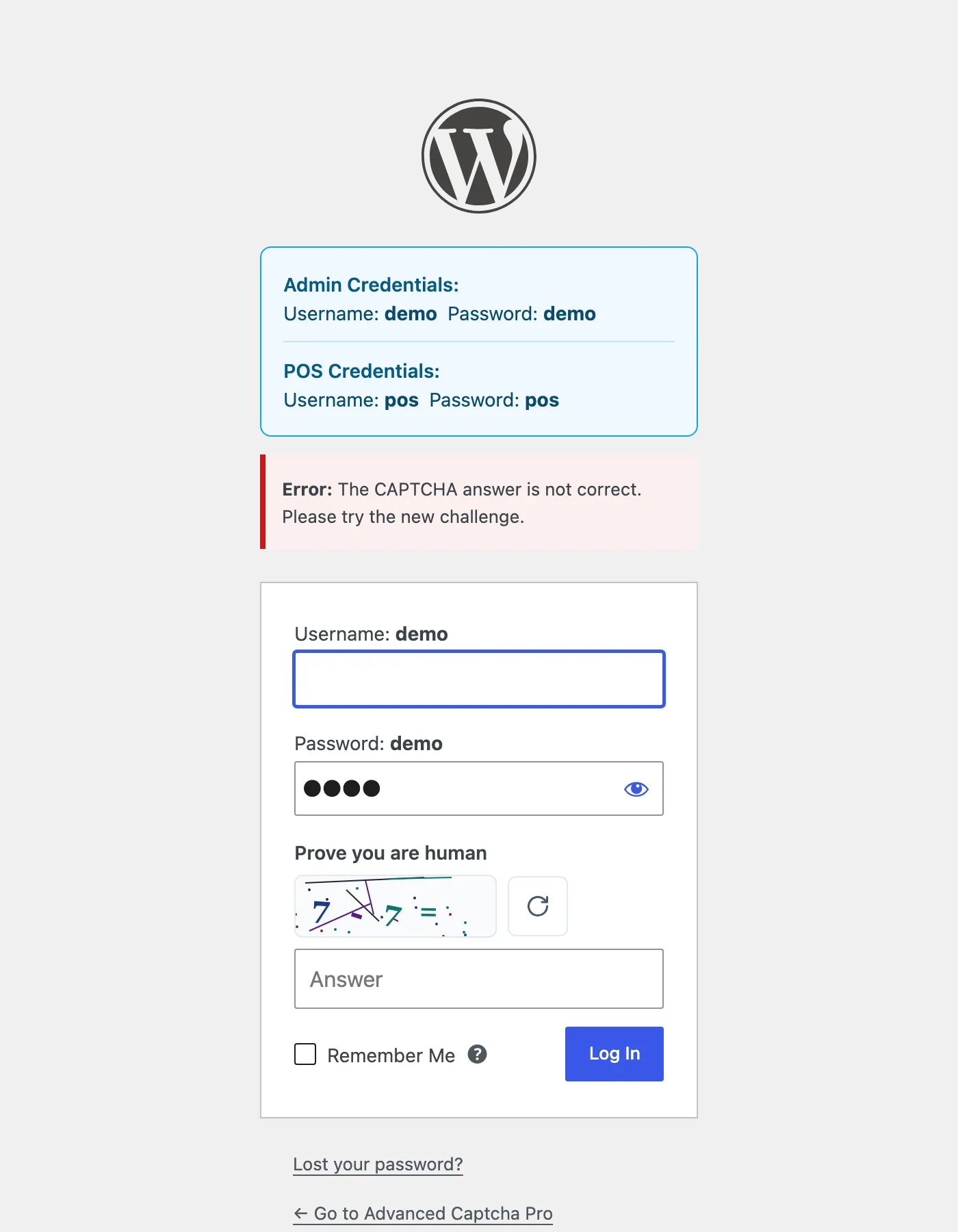
The My Account login shows the same message as a store notice. The CAPTCHA is checked before the username and password, so a failed CAPTCHA never reveals whether a username exists.
Things to know
Section titled “Things to know”- Apps and integrations are not affected. XML-RPC, REST API application passwords and WP-Cron never show a widget, so they are never checked.
- On a multisite network, WordPress registration happens on
wp-signup.php, which is not one of the protected forms. My Account registration is. - Pro adds the lockout. Five failures in 15 minutes lock the IP out for an hour. See How to Lock Out Brute-Force Attacks.