

The Integrations Screen
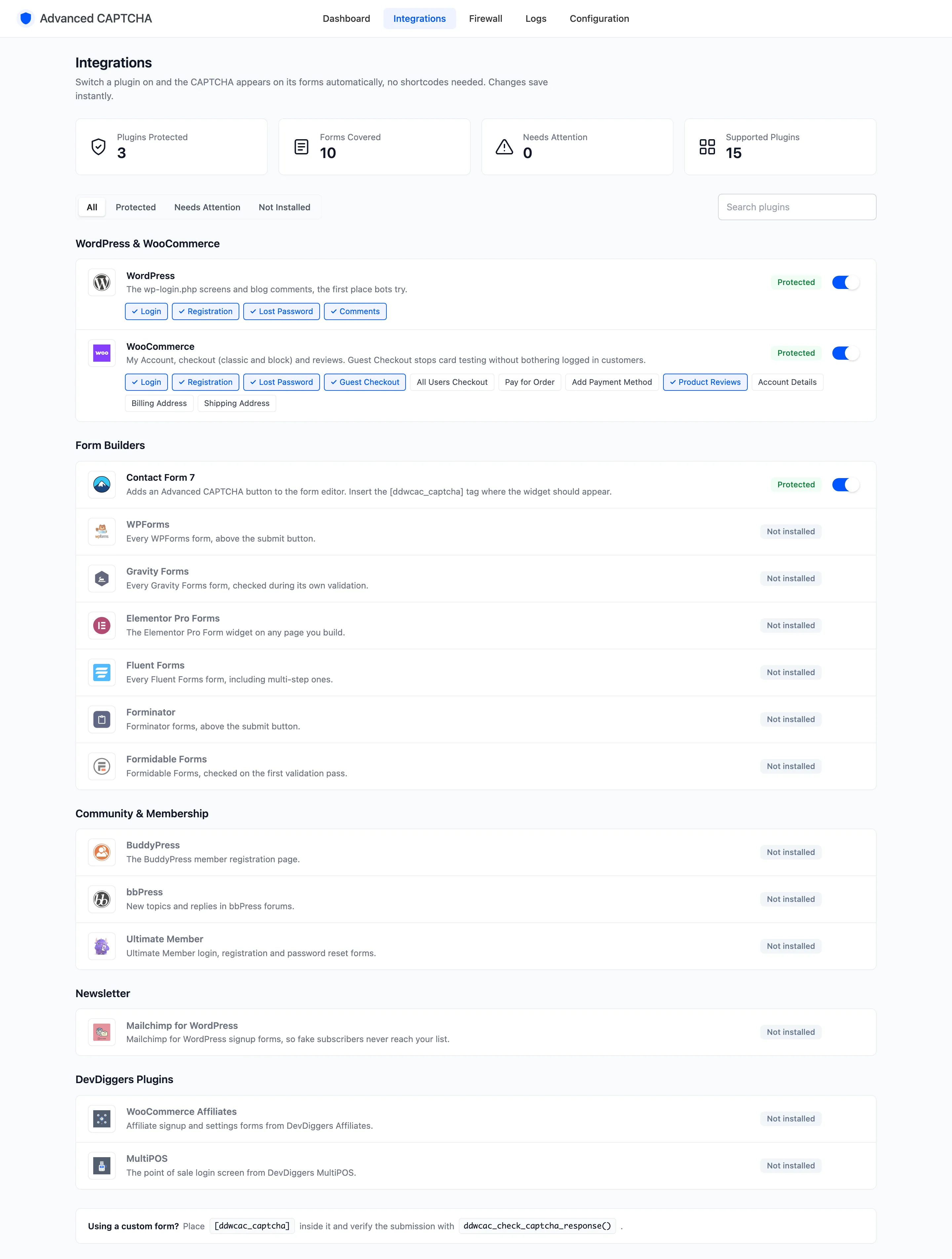
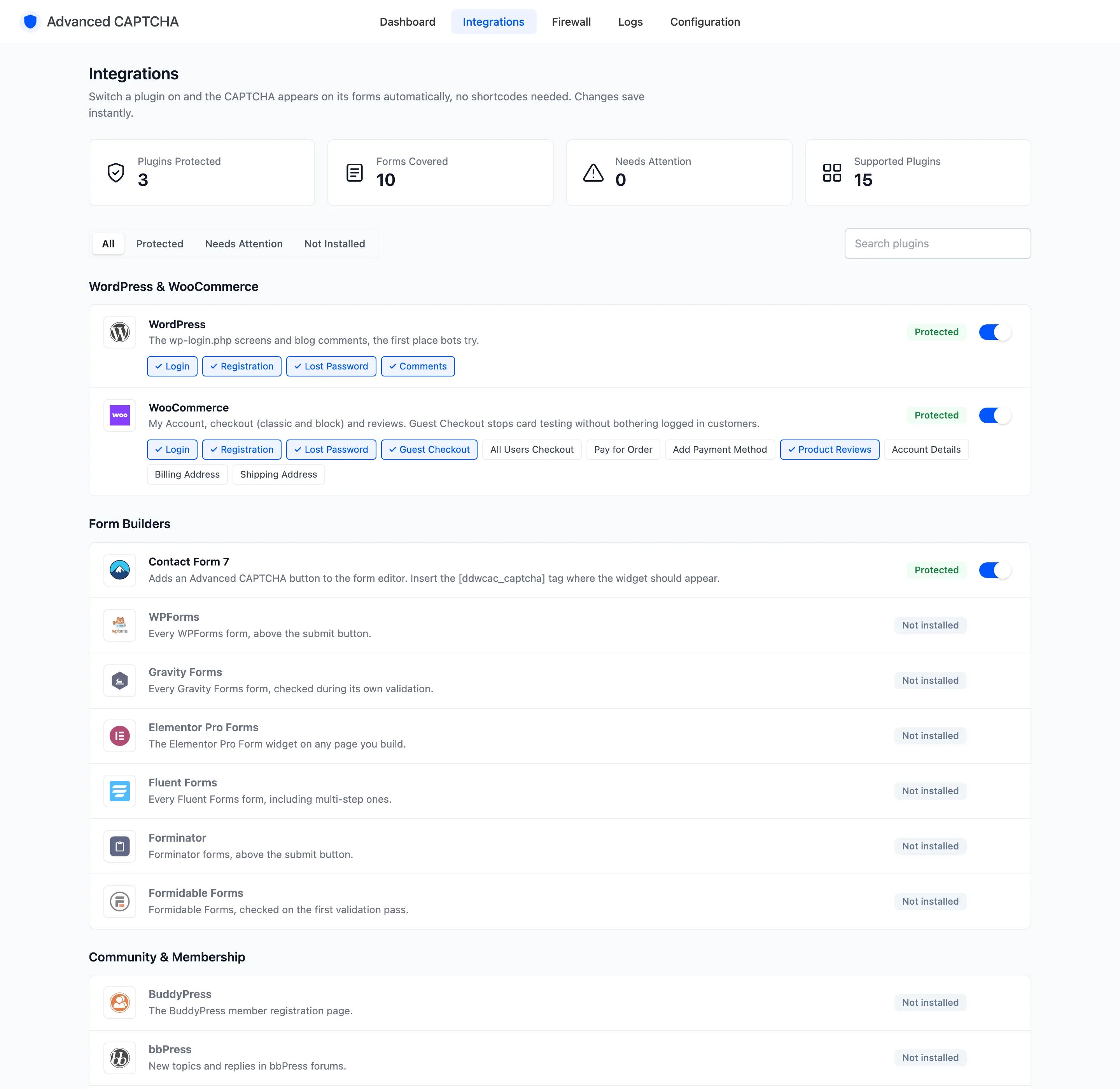
The Integrations screen decides which forms are protected. Every supported plugin has a card with its logo and status. A switch turns the plugin’s protection on, and its form chips pick the forms. Changes save the moment you click, with no Save button. Open Advanced CAPTCHA → Integrations.
The counters
Section titled “The counters”Across the top:
- Plugins Protected: installed plugins with protection on.
- Forms Covered: how many forms those plugins protect in all.
- Needs Attention: installed plugins with protection off.
- Supported Plugins: every plugin the screen knows about.
Cards and their status
Section titled “Cards and their status”Each card shows one of three badges:
- Protected: the plugin is installed and its switch is on.
- Not protected: installed, but switched off.
- Not installed: the plugin is not active on your site, so the card has no switch.
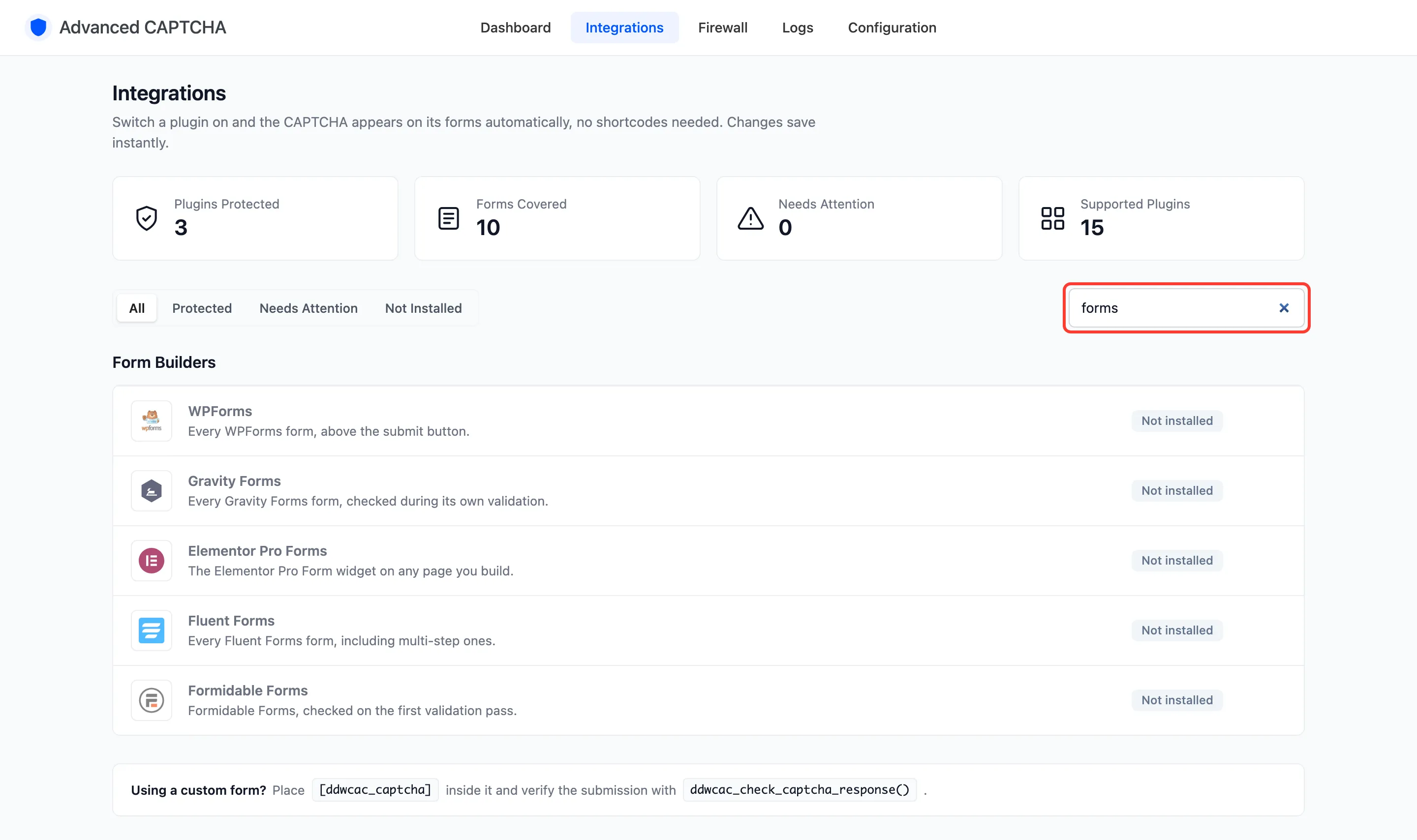
The filter links (All, Protected, Needs Attention, Not Installed) narrow the list, and the search box finds a plugin by name.
WordPress and WooCommerce
Section titled “WordPress and WooCommerce”These two cards have form chips. Tick a chip to protect that form; untick it to stop.
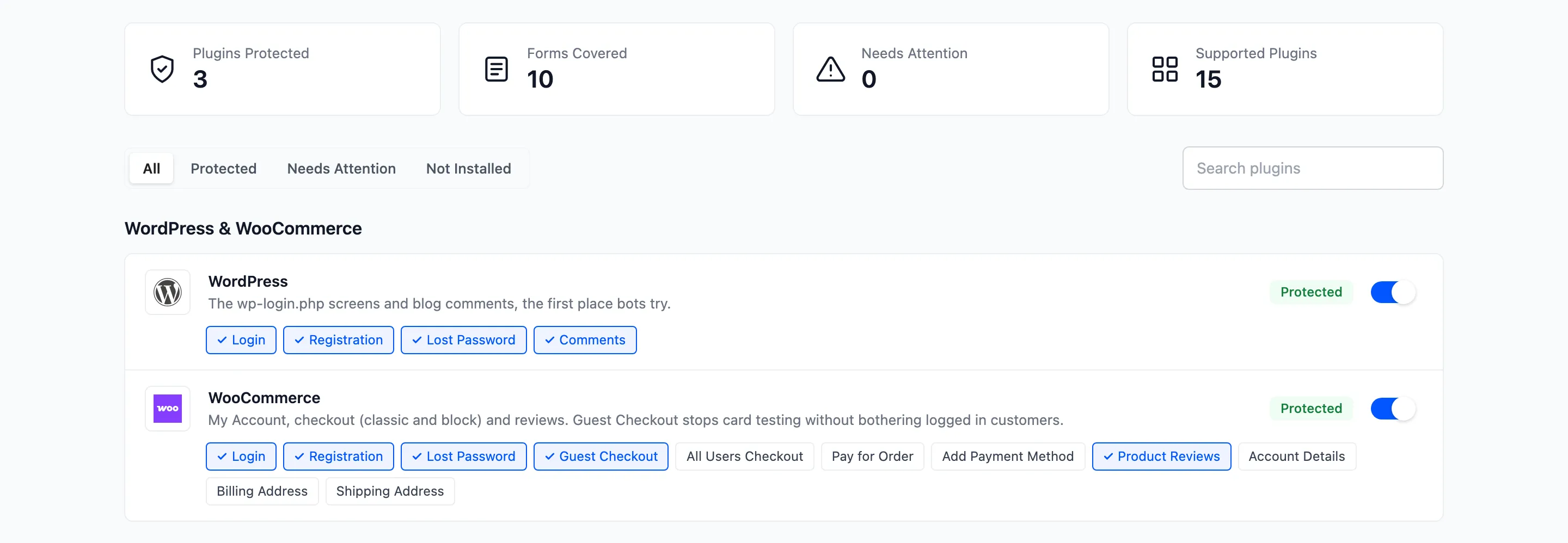
- WordPress: Login, Registration, Lost Password and Comments. All four on by default.
- WooCommerce: Login, Registration, Lost Password, Guest Checkout, All Users Checkout, Pay for Order, Add Payment Method, Product Reviews, Account Details, Billing Address and Shipping Address. Login, Registration, Lost Password, Guest Checkout and Product Reviews are on by default.

Guest Checkout challenges only visitors who are not signed in. All Users Checkout challenges everyone. Switching a card on with no chips ticked turns on its recommended forms.
Form plugins
Section titled “Form plugins”These cards have a single switch. Switched on, the CAPTCHA appears on every form of that plugin, above its submit button, with no shortcode needed. Contact Form 7 is the exception: it adds an Advanced CAPTCHA tag to the form editor, and you place the tag where you want the widget.

| Plugin | Free | Pro |
|---|---|---|
| Contact Form 7 | Yes | Yes |
| WPForms | Yes | Yes |
| Fluent Forms | Yes | Yes |
| Gravity Forms | No | Yes |
| Elementor Pro Forms | No | Yes |
| Forminator | No | Yes |
| Formidable Forms | No | Yes |
| BuddyPress (member registration) | No | Yes |
| bbPress (new topics and replies) | No | Yes |
| Ultimate Member (login, registration, password reset) | No | Yes |
| Mailchimp for WordPress (signup forms) | No | Yes |
DevDiggers plugins (Pro)
Section titled “DevDiggers plugins (Pro)”- WooCommerce Affiliates: Registration, Become an Affiliate and Settings.
- MultiPOS: the point of sale login screen.
Using a custom form
Section titled “Using a custom form”The note at the bottom of the screen: place [ddwcac_captcha] inside your own form and verify the
submission with ddwcac_check_captcha_response(). See
How to Protect a Custom Form.