

How to Track App Installs in Your Analytics
A launch from the home screen is, to your analytics tool, indistinguishable from somebody typing your address. It arrives with no referrer, so it lands in direct traffic along with everything else.
Campaign parameters fix that by tagging the address the app opens on.
Step 1: Open the General tab
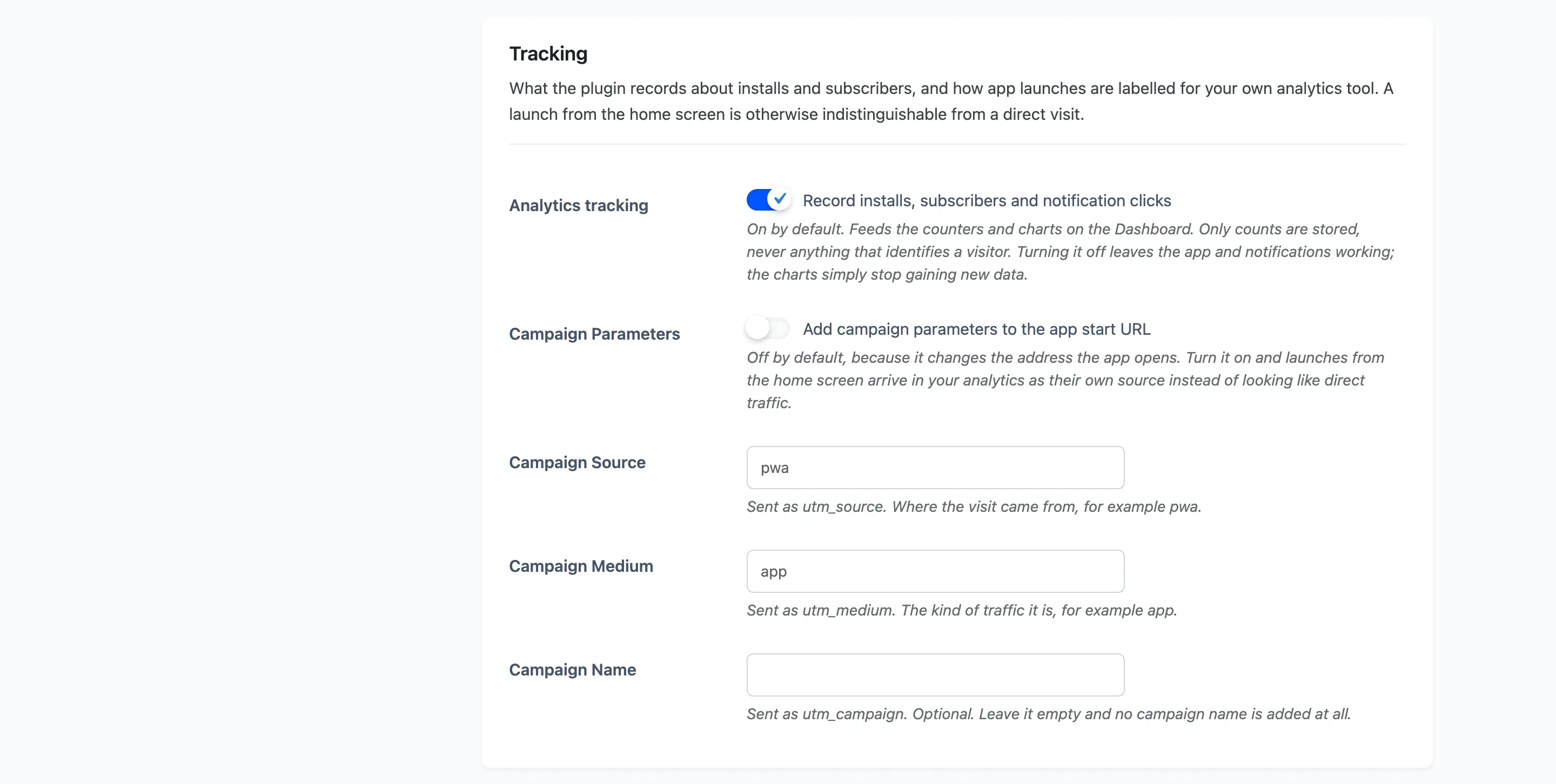
Section titled “Step 1: Open the General tab”Go to DevDiggers Plugins → Progressive Web App → Configuration → General and scroll to Tracking.
Step 2: Check analytics tracking is on
Section titled “Step 2: Check analytics tracking is on”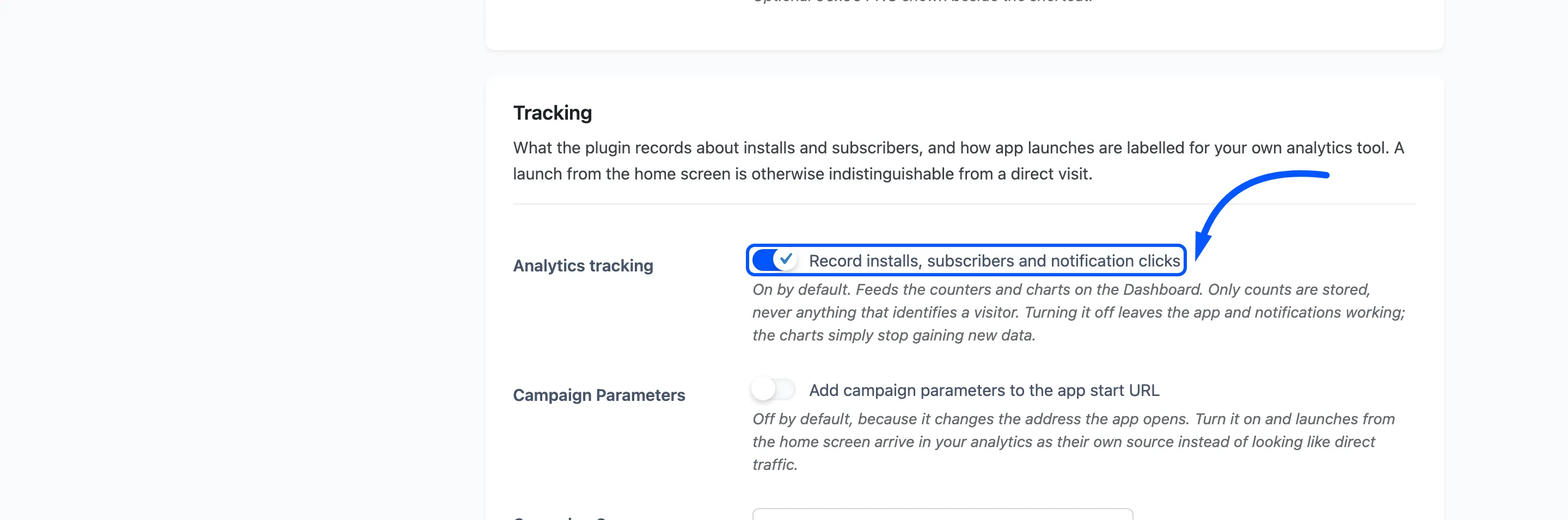
On by default. This is the plugin’s own counting, and it feeds the dashboard cards and charts. Only counts are stored, never anything that identifies a visitor.
With it off, the app and the notifications keep working and the charts simply stop gaining data. It is a separate thing from the campaign parameters below, which feed your own analytics tool instead.
Step 3: Switch campaign parameters on
Section titled “Step 3: Switch campaign parameters on”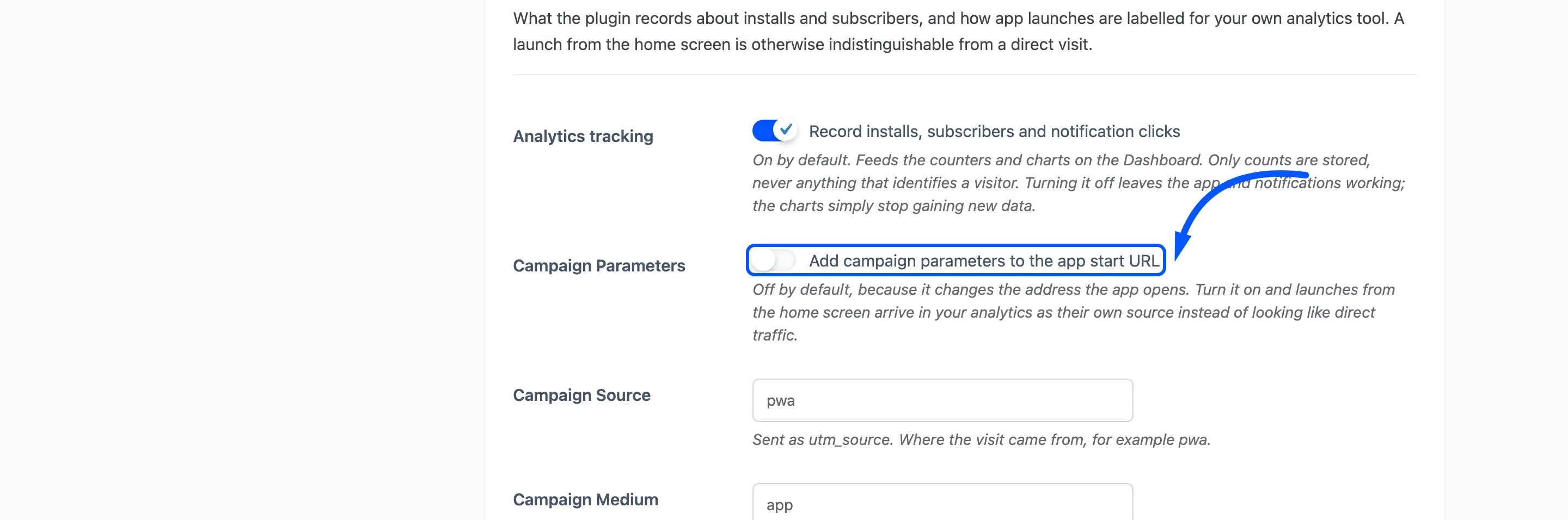
Off by default, because it changes the address the app opens on. That is not a trivial change: it is written into the manifest, and it is what makes an app launch identifiable.
Step 4: Set the source, medium and campaign
Section titled “Step 4: Set the source, medium and campaign”
Three fields, matching the three parameters every analytics tool understands.
- Campaign Source is sent as
utm_source. Defaultpwa. - Campaign Medium is sent as
utm_medium. Defaultapp. - Campaign Name is sent as
utm_campaign. Empty by default, and left out entirely when empty.
The defaults are good. pwa / app is readable in a report a year later, which is more than can be
said for most campaign tags.
Use the campaign name when you want to separate one push of the app from another: a QR code on a receipt against a link in an email, say.
Step 5: Save and reinstall to test
Section titled “Step 5: Save and reinstall to test”Press Save Changes. Saving rewrites the manifest, which is where the start URL lives.
There is nothing to screenshot for this step: the change is inside the manifest file, and the proof is a launch on a real device.
An already-installed app keeps the old start URL until the browser refreshes its copy of the manifest, so testing this means uninstalling and installing again on your test device. That is the one step people miss.
Step 6: Read the numbers in the right place
Section titled “Step 6: Read the numbers in the right place”Two sets of numbers now exist, and they answer different questions.

The plugin dashboard counts installs, subscribers and notification clicks. This is the only place that knows about push at all, because a notification click never touches your analytics tool.
Your own analytics tool now shows app launches as their own source. That is where you compare what app users do against what browser visitors do: pages per session, conversion rate, revenue per visit. The plugin cannot answer any of those.
Where campaign parameters do not reach
Section titled “Where campaign parameters do not reach”Worth knowing before you draw conclusions.
- Only the start URL is tagged. A visitor who opens the app and then follows a link is inside a normal session, so only the entry is attributed.
- Notification clicks are not tagged. The URL on a notification is whatever you typed. Add your own parameters to it if you want those separated.
- An installed app that is never opened records nothing, in either place.