

Shortcode Reference
The banners appear on their own schedule. A shortcode puts the same action inside a page you control, which is what you want on an About page, a landing page or a footer widget.
Go to DevDiggers Plugins → Progressive Web App → Configuration → Shortcodes.
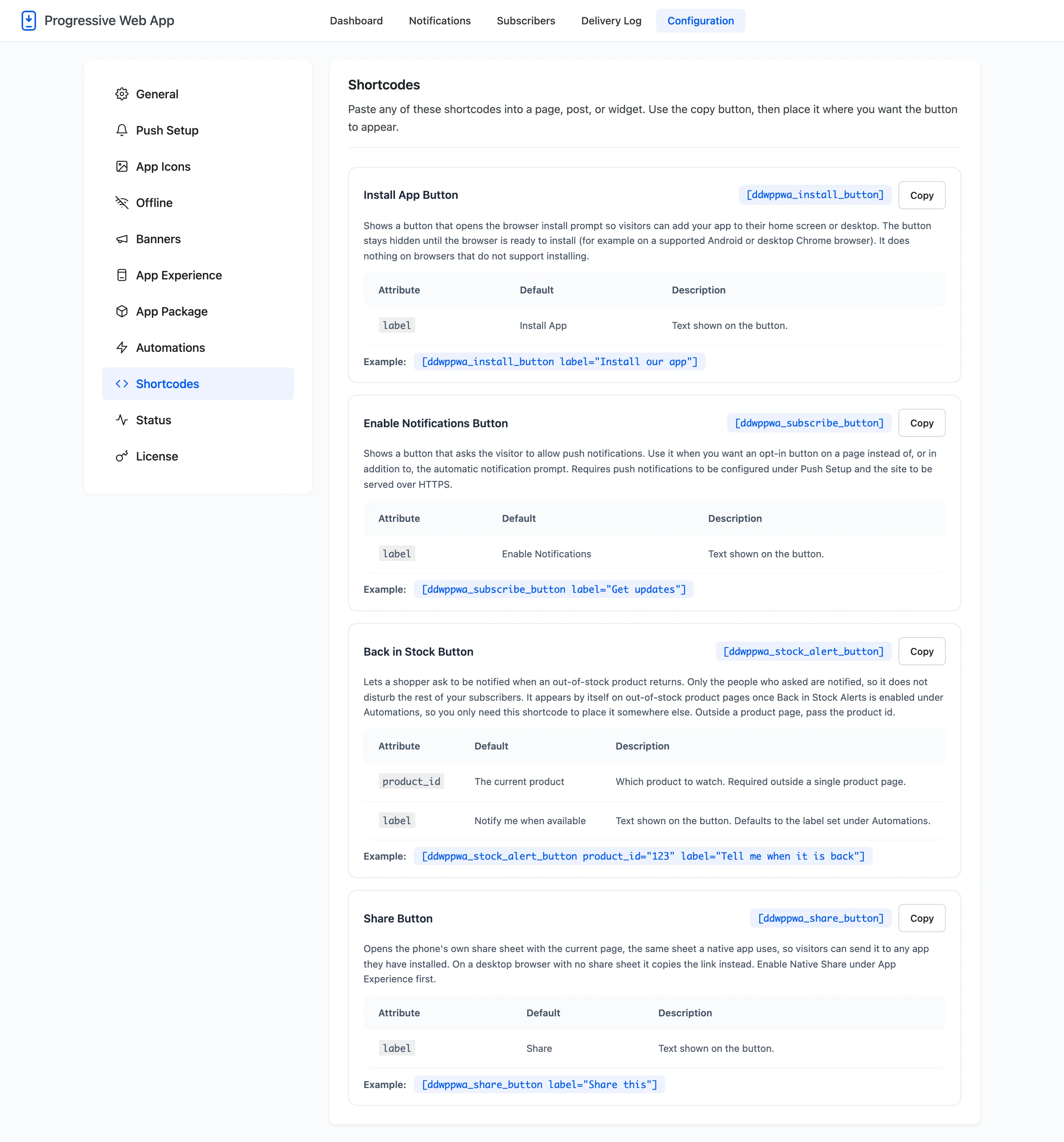
Each card carries a Copy button, so nothing has to be retyped.
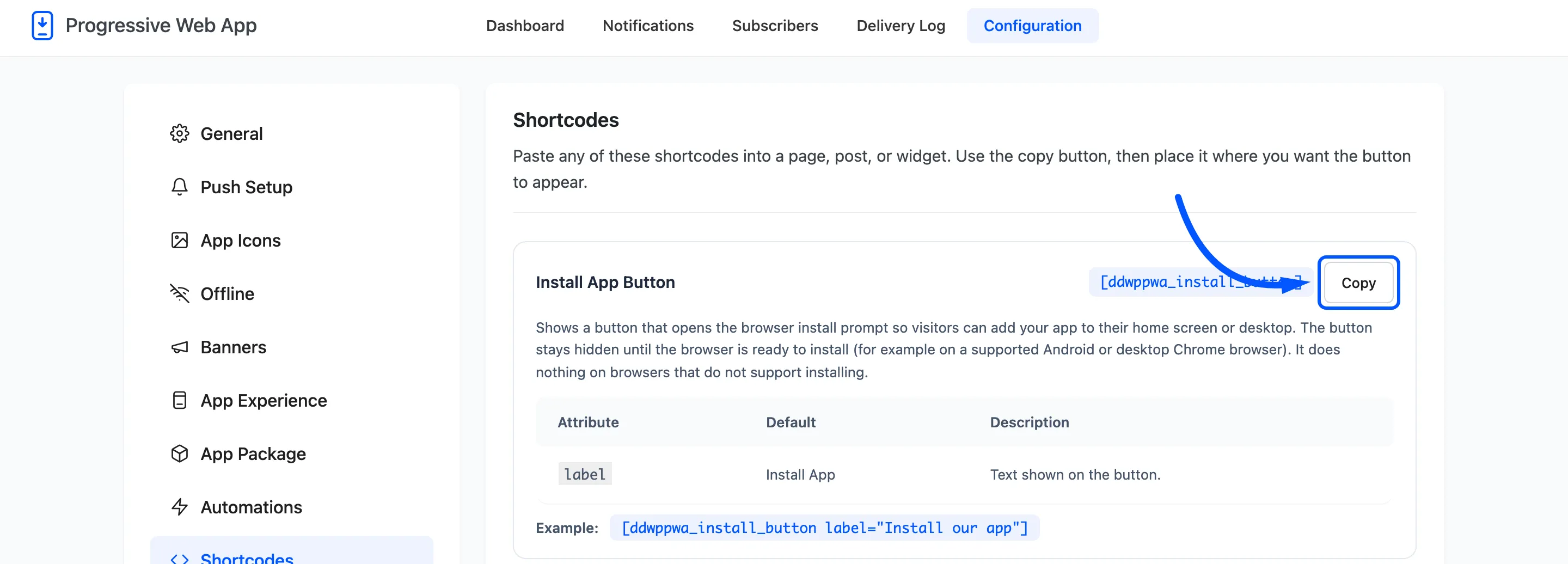
Install App Button
Section titled “Install App Button”[ddwppwa_install_button]
Opens the browser’s install prompt so visitors can add your app to their home screen or desktop.
| Attribute | Default | What it does |
|---|---|---|
label |
Install App | Text on the button |
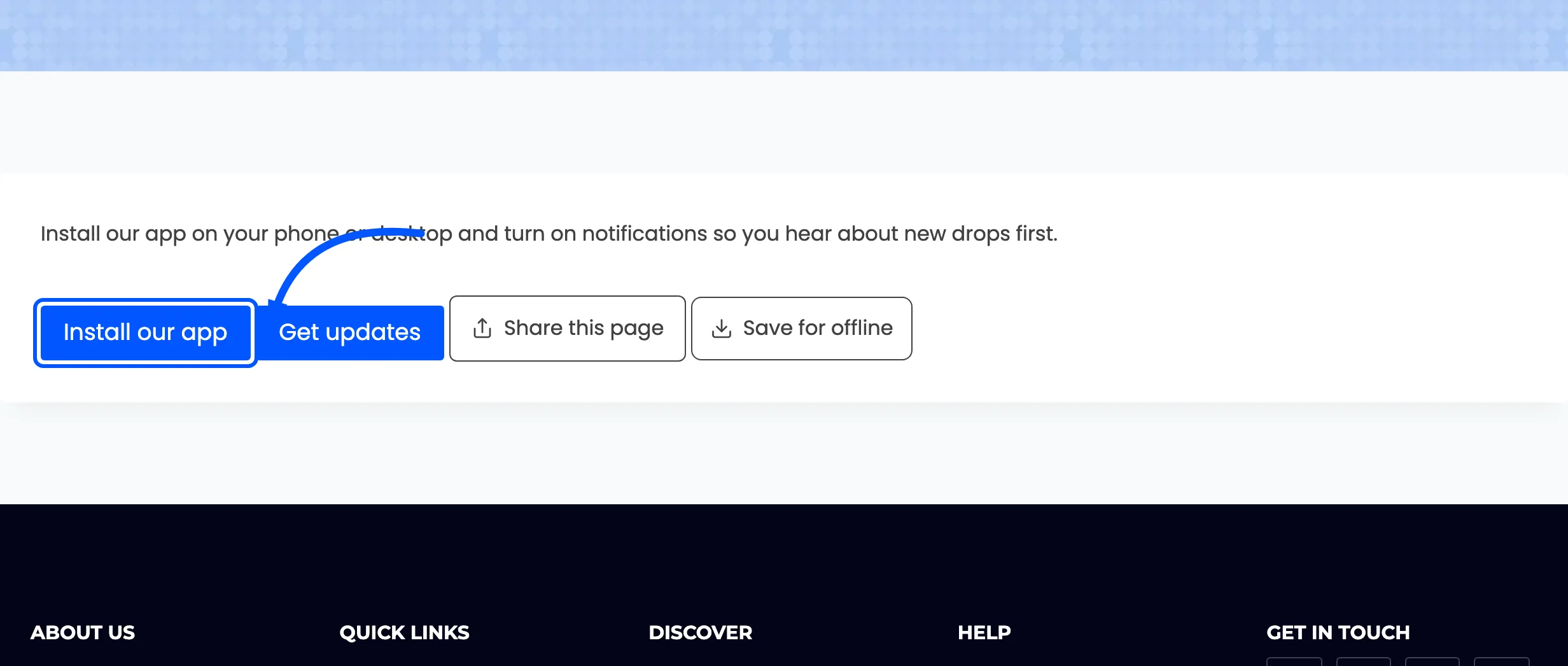
The button stays hidden until the browser is ready to install, so it never appears as a control that does nothing. On a browser that cannot install, it never appears at all.
Example: [ddwppwa_install_button label="Install our app"]
Enable Notifications Button
Section titled “Enable Notifications Button”[ddwppwa_subscribe_button]
Asks the visitor to allow push notifications. Use it when you want an opt-in button on a page instead of, or as well as, the automatic prompt.
| Attribute | Default | What it does |
|---|---|---|
label |
Enable Notifications | Text on the button |
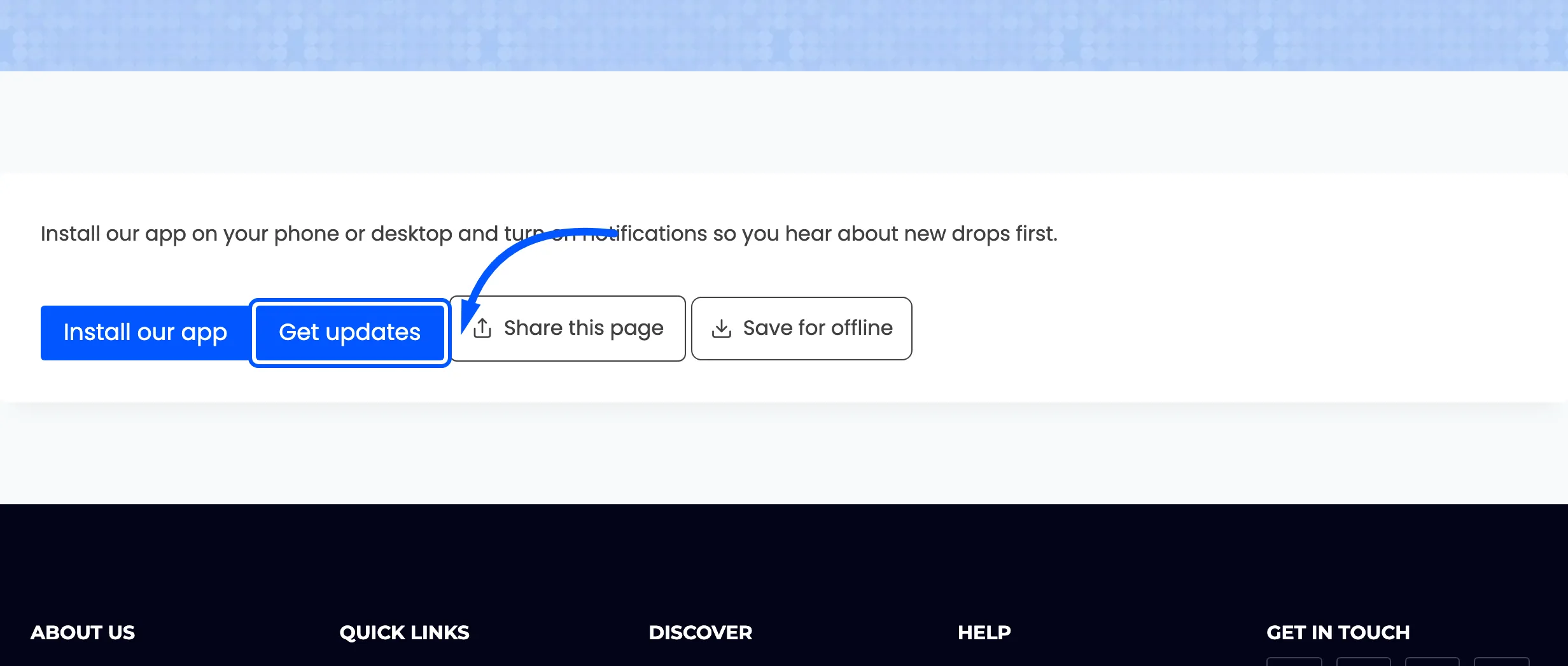
Needs push configured under Push Setup and the site served over HTTPS.
Example: [ddwppwa_subscribe_button label="Get updates"]
Back in Stock Button (Pro)
Section titled “Back in Stock Button (Pro)”[ddwppwa_stock_alert_button]
Lets a shopper ask to be notified when an out-of-stock product returns. Only the people who asked are notified, so it does not disturb the rest of your subscribers.
| Attribute | Default | What it does |
|---|---|---|
product_id |
The current product | Which product to watch. Required outside a single product page |
label |
Notify me when available | Text on the button. Defaults to the label set under Automations |
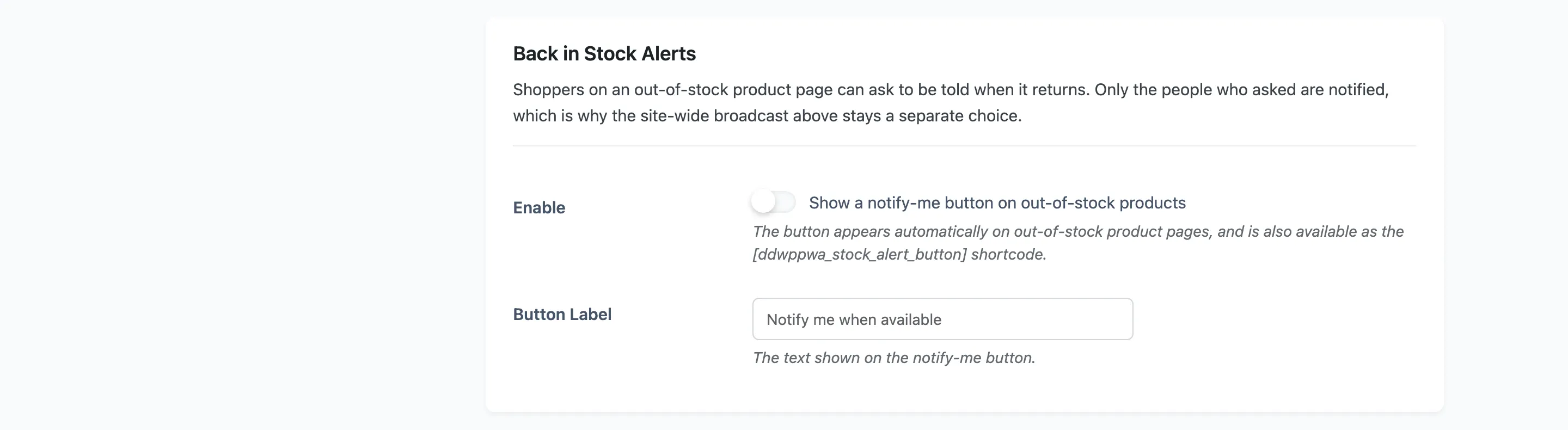
It appears by itself on out-of-stock product pages once Back in Stock Alerts is enabled under Automations, so you only need this shortcode to place it somewhere else.
Example: [ddwppwa_stock_alert_button product_id="123" label="Tell me when it is back"]
Share Button (Pro)
Section titled “Share Button (Pro)”[ddwppwa_share_button]
Opens the phone’s own share sheet with the current page, the same sheet a native app uses. On a desktop browser with no share sheet it copies the link instead.
| Attribute | Default | What it does |
|---|---|---|
label |
Share | Text on the button |
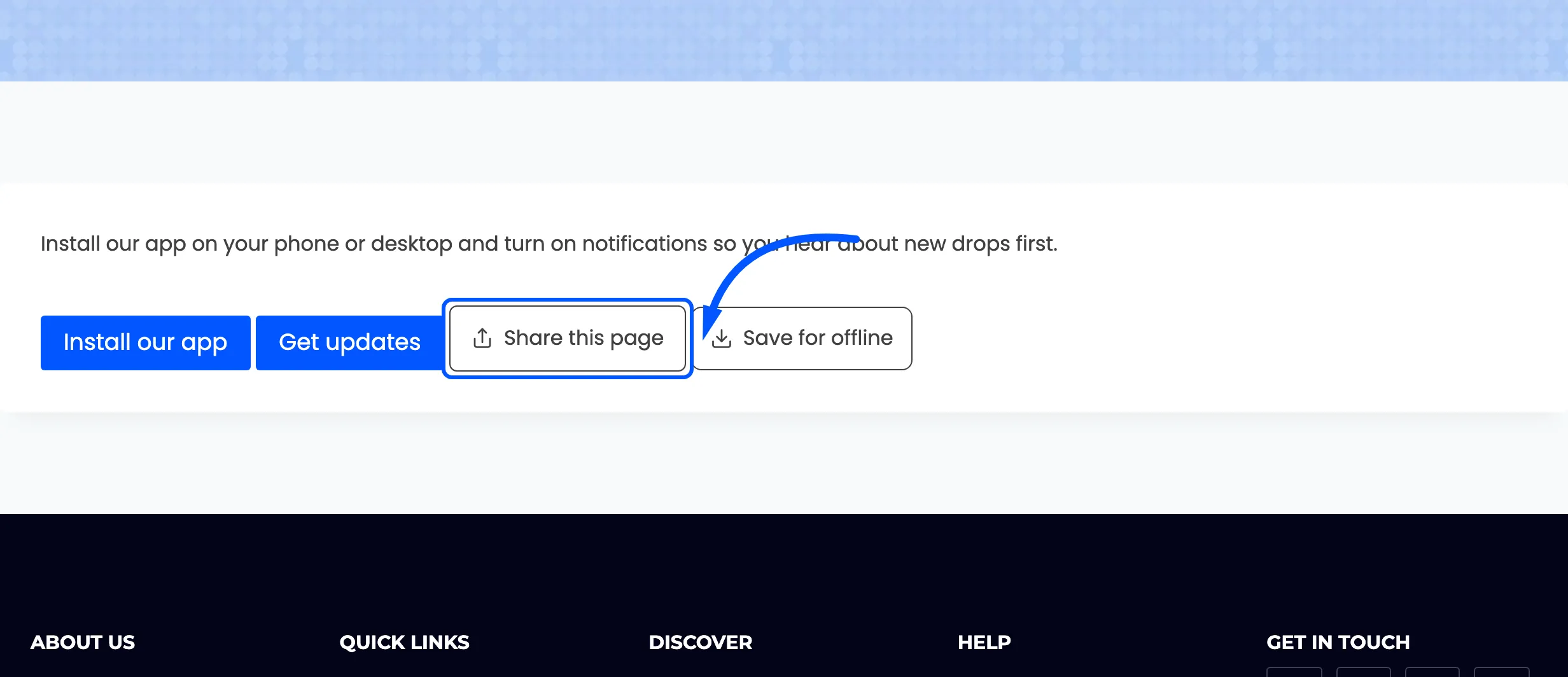
Enable Native Share under App Experience first.
Example: [ddwppwa_share_button label="Share this"]
Save for Offline Button (Pro)
Section titled “Save for Offline Button (Pro)”[ddwppwa_save_offline_button]
Saves the page to the device so it stays readable with no connection. The saved page is listed in the browser’s own downloads area, and removing it there clears the stored copy.
| Attribute | Default | What it does |
|---|---|---|
label |
Save for offline | Text on the button |
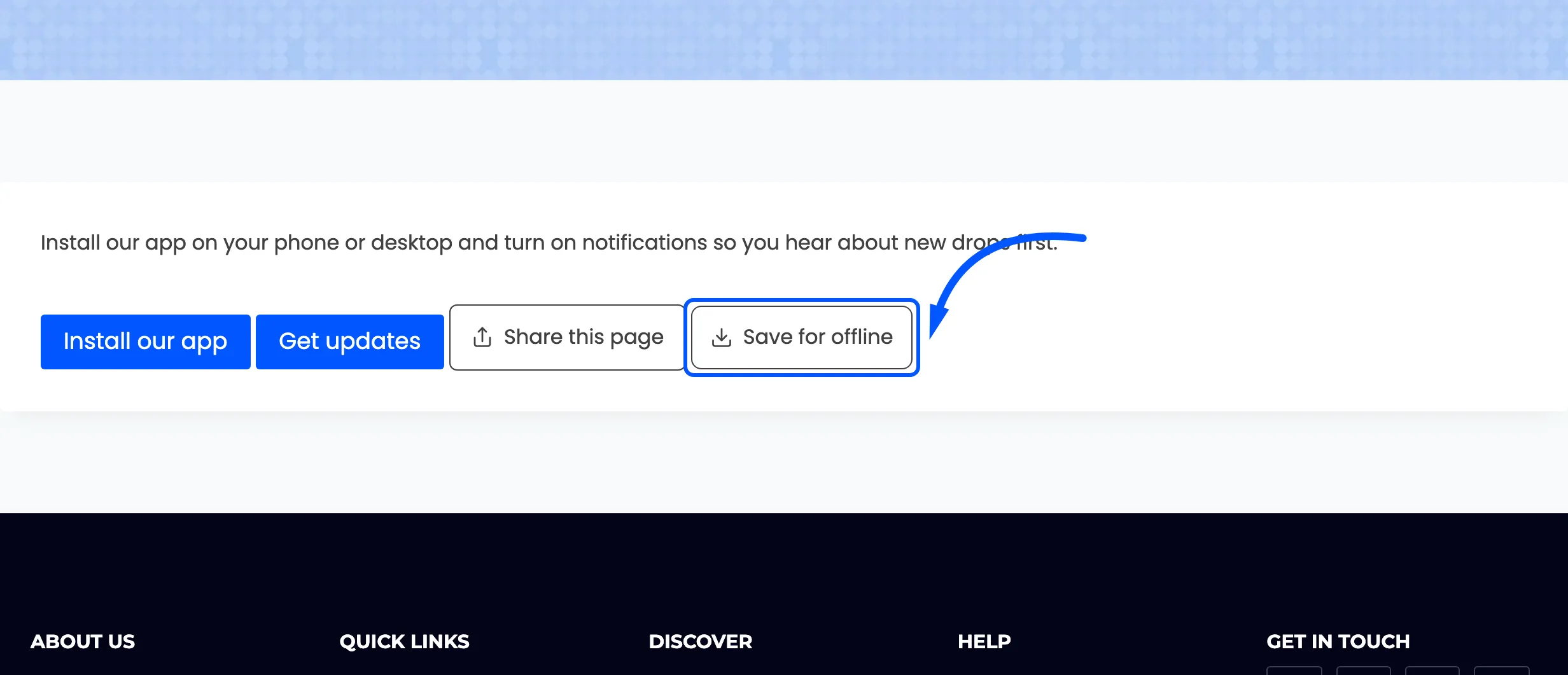
Enable Save For Offline under App Experience first.
Four of them on one page
Section titled “Four of them on one page”
The fifth is missing on purpose. Back in Stock renders nothing unless the product it names is genuinely out of stock, so it cannot sit in a row with the other four on an ordinary page. It appears by itself on a sold-out product page.
Every shortcode is registered whether or not the feature behind it is on. That is deliberate: an
unregistered shortcode renders as literal [ddwppwa_install_button] text on any page already using
one, which is worse than a button that quietly does nothing.