

The Setup Wizard
The wizard runs once, on the first visit to the plugin after activation. It sets the handful of values that decide how the app looks when someone installs it, and leaves everything else alone.
Reopen it any time from Setup Wizard beside the plugin on the Plugins screen, or by adding
&setup-wizard=true to the plugin dashboard address.
Step 1: Welcome
Section titled “Step 1: Welcome”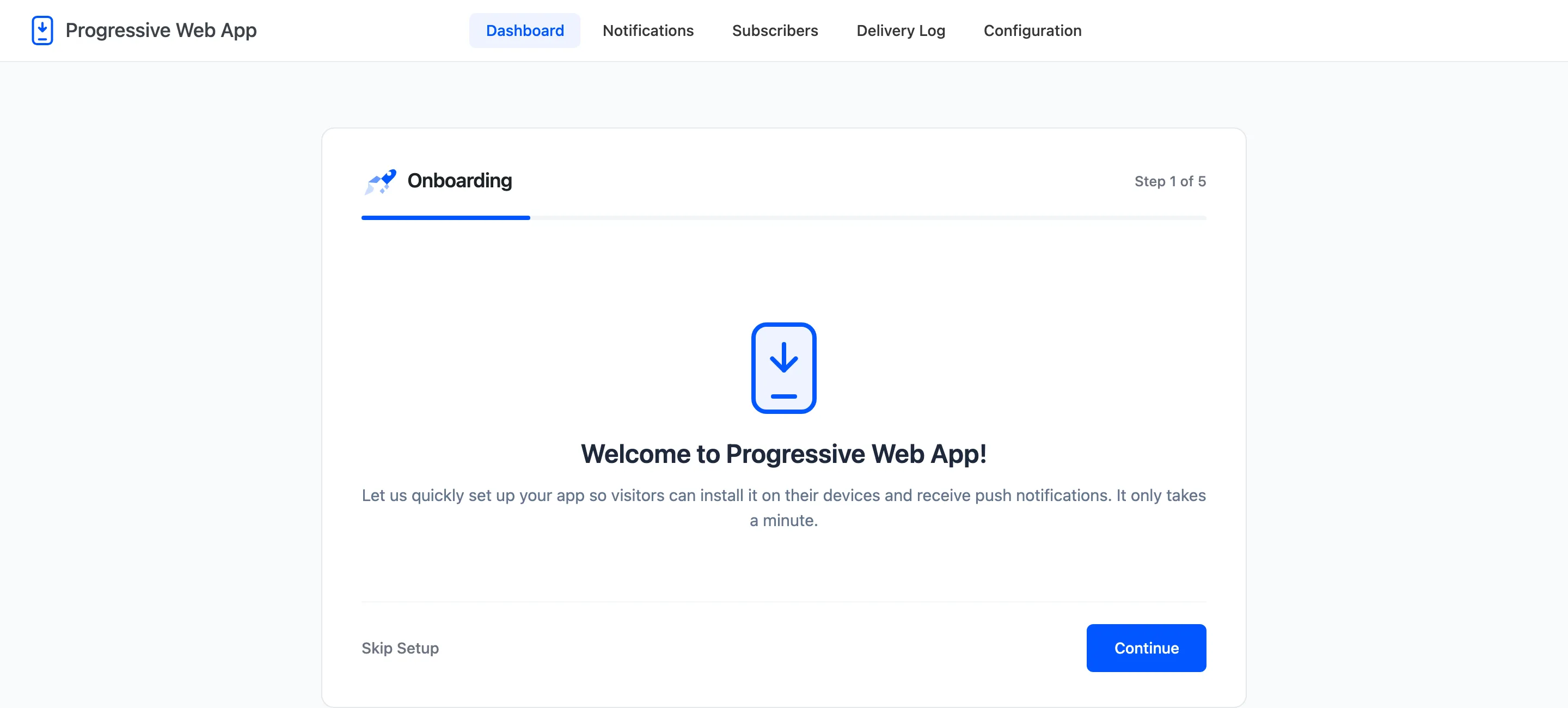
Nothing to fill in. Skip Setup leaves every default in place and takes you straight to the dashboard; the plugin is already installable at that point.
Step 2: License
Section titled “Step 2: License”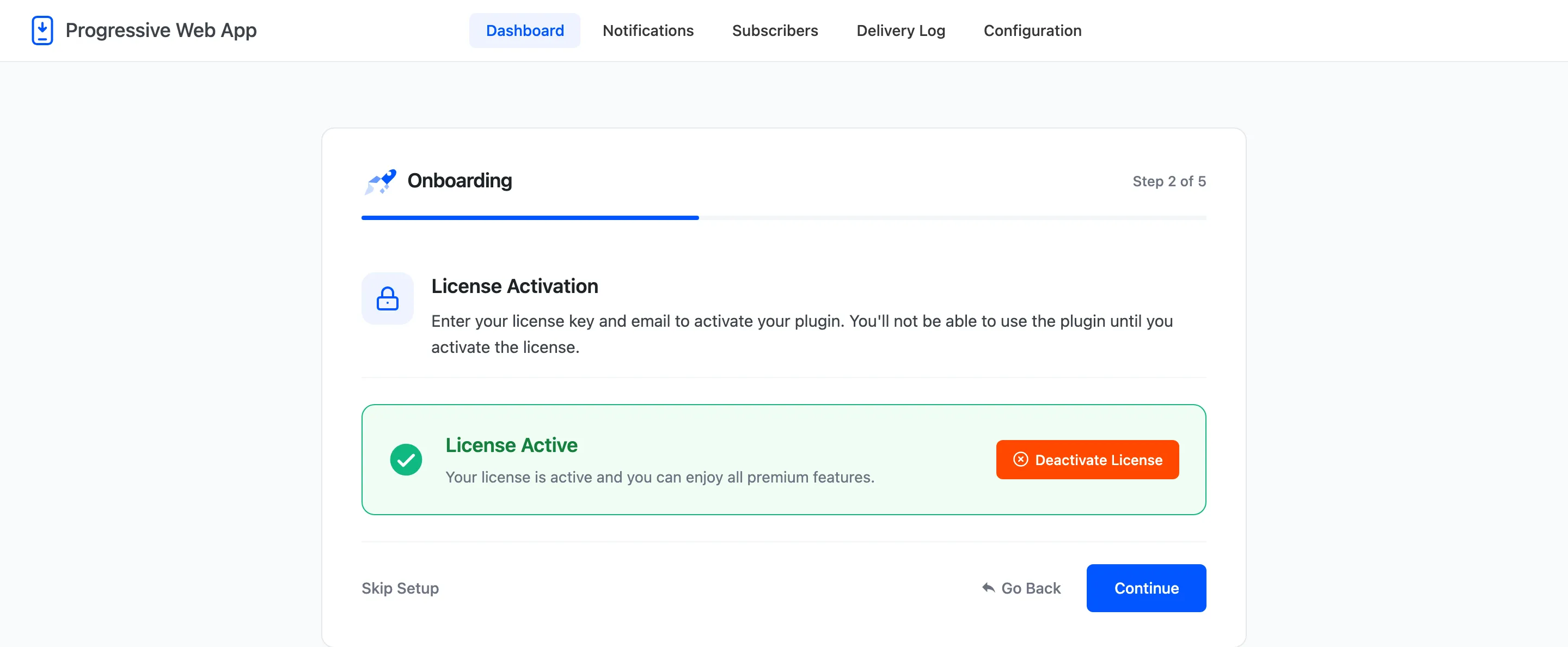
Enter the purchase code and email from your order. The wizard refuses to continue until the license is active, because on Pro the storefront half of the plugin does nothing without it.
Step 3: App Information
Section titled “Step 3: App Information”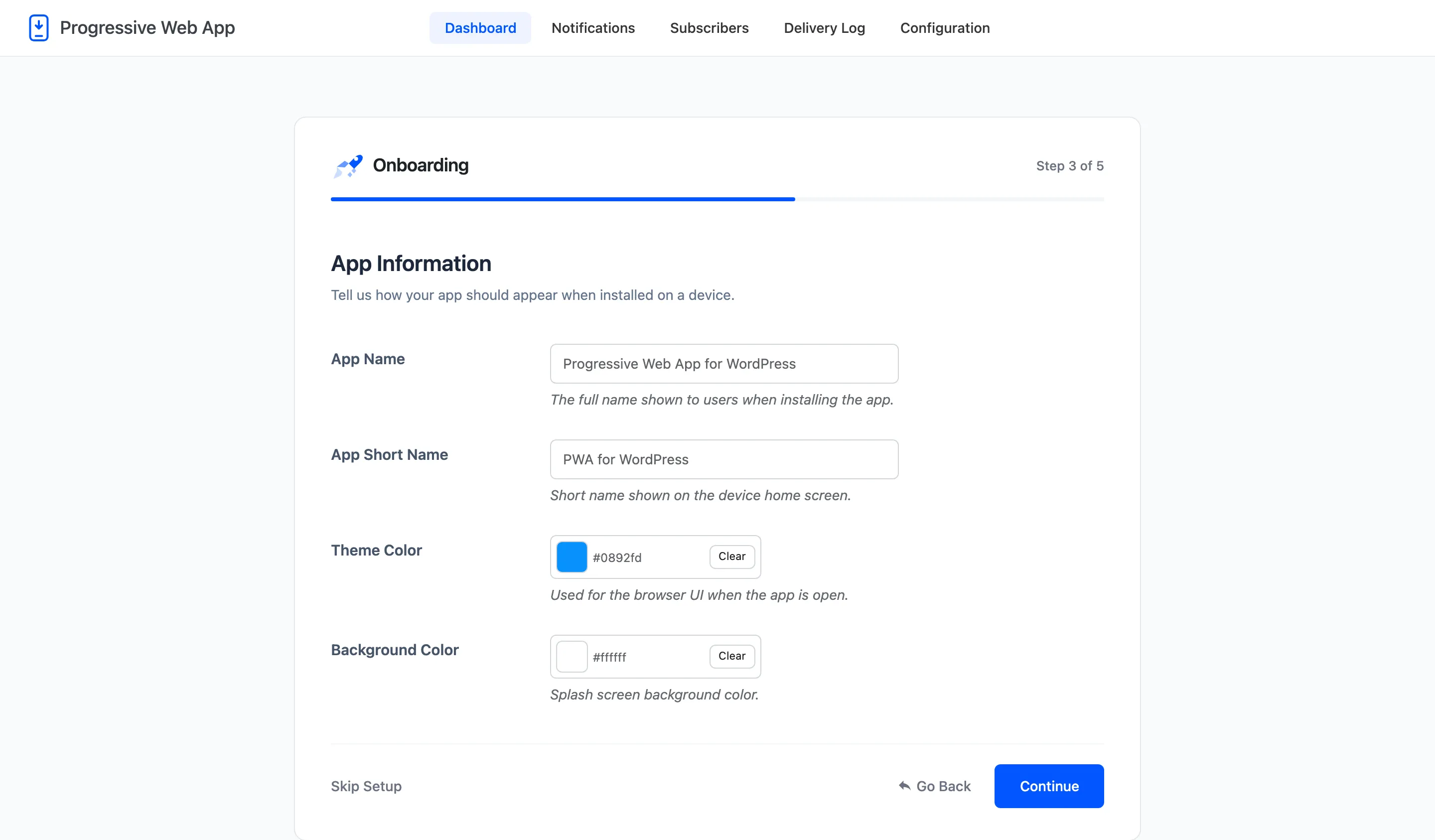
Four fields, and they are the ones a visitor actually sees.
- App Name: The full name in the install dialog and on the splash screen. Defaults to your site name.
- App Short Name: The label under the icon on the home screen. Phones cut this off at roughly 12 characters.
- Theme Color: Tints the address bar and the installed app’s title bar. Defaults to
#0256ff. - Background Color: Fills the splash screen while the app starts. Defaults to white.
All four have their own fields on the General tab, so nothing here is a one-time decision.
Step 4: Push Notifications
Section titled “Step 4: Push Notifications”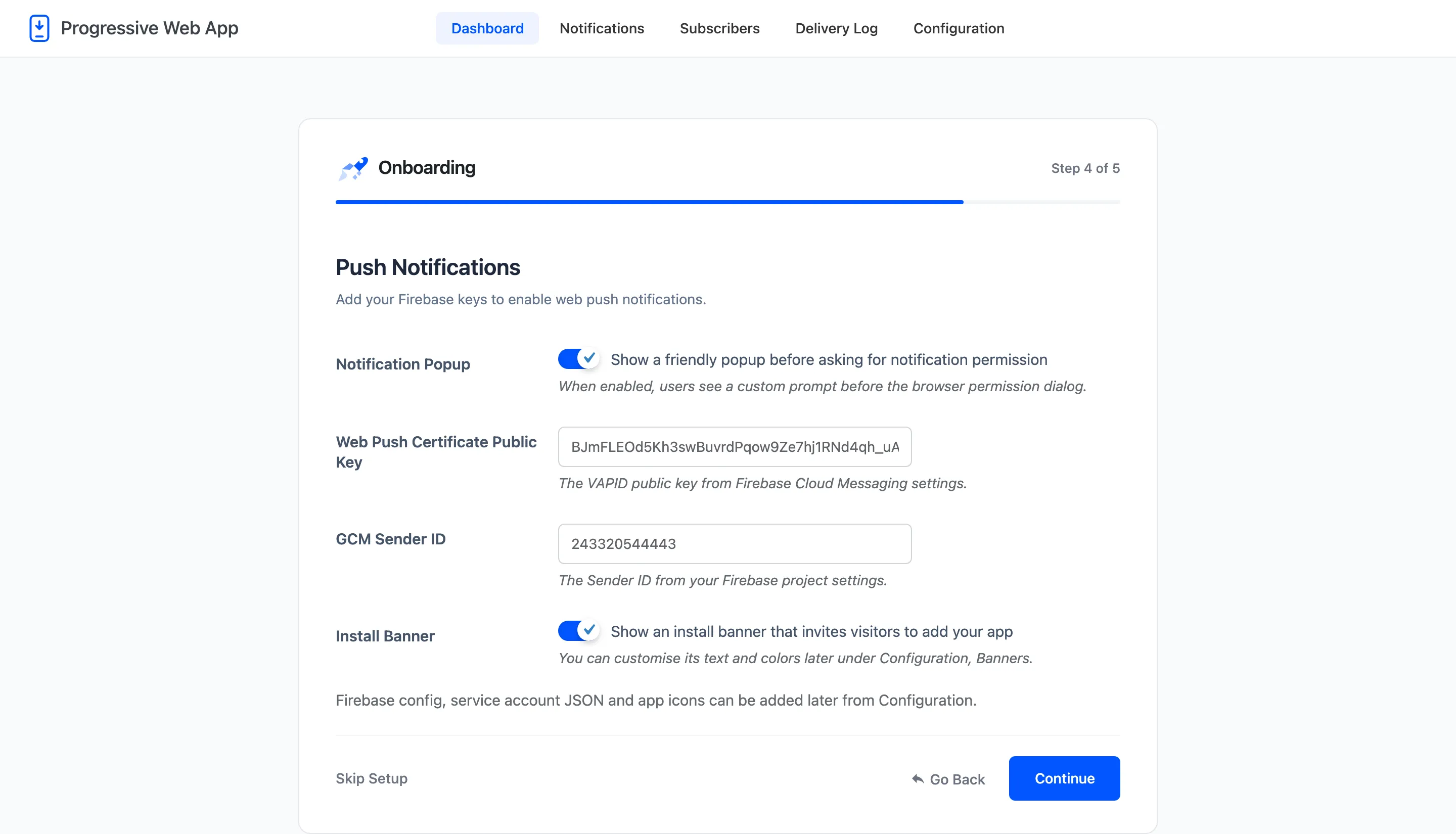
Four fields again, and this is the step people come back to.
- Notification Popup: Show your own friendly prompt before the browser’s permission dialog.
- Web Push Certificate Public Key: The VAPID key from Firebase Cloud Messaging.
- GCM Sender ID: The Sender ID from the same Firebase screen.
- Install Banner: Show the banner that invites visitors to install the app.
The wizard says so itself at the bottom: the Firebase config block, the service account JSON file and the app icons are added later, from Configuration. Those three are what actually let a notification be delivered, so finishing this step does not finish push.
Step 5: Ready
Section titled “Step 5: Ready”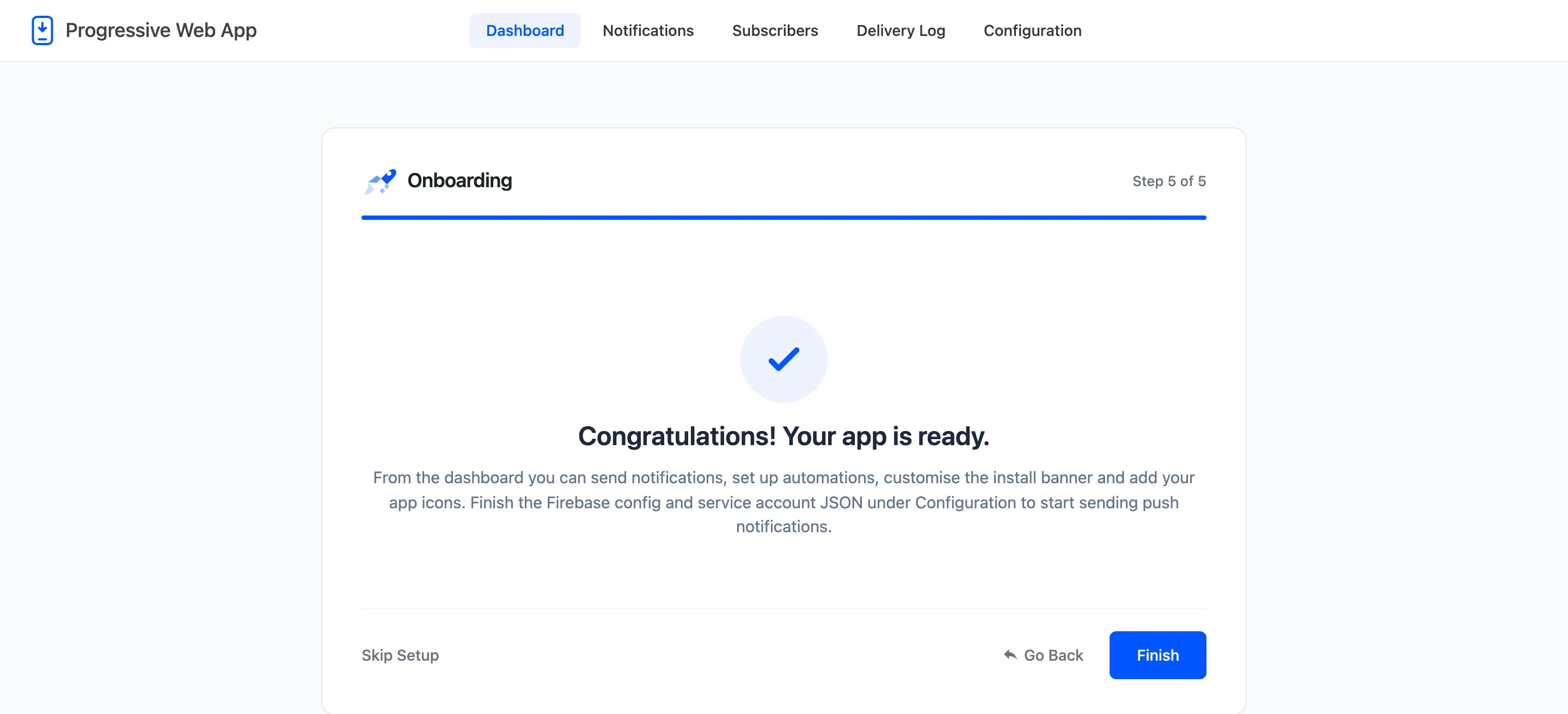
The wizard closes to the dashboard. Your site is installable from this moment. Notifications wait on the two Firebase values the wizard did not ask for.
What the wizard does not set
Section titled “What the wizard does not set”Everything else, on purpose. Icons, the offline cache, the banner wording and colours, the automations, and the whole app experience layer all keep their defaults until you visit their tab.