How Push Notifications Work
A web push notification passes through four parties: your site, the visitor’s browser, Firebase, and the operating system. Knowing which one holds which piece is what makes a failed send easy to diagnose.
Step 1: You create a Firebase project
Section titled “Step 1: You create a Firebase project”Firebase Cloud Messaging is the delivery service. It is free, and you copy four values out of it.
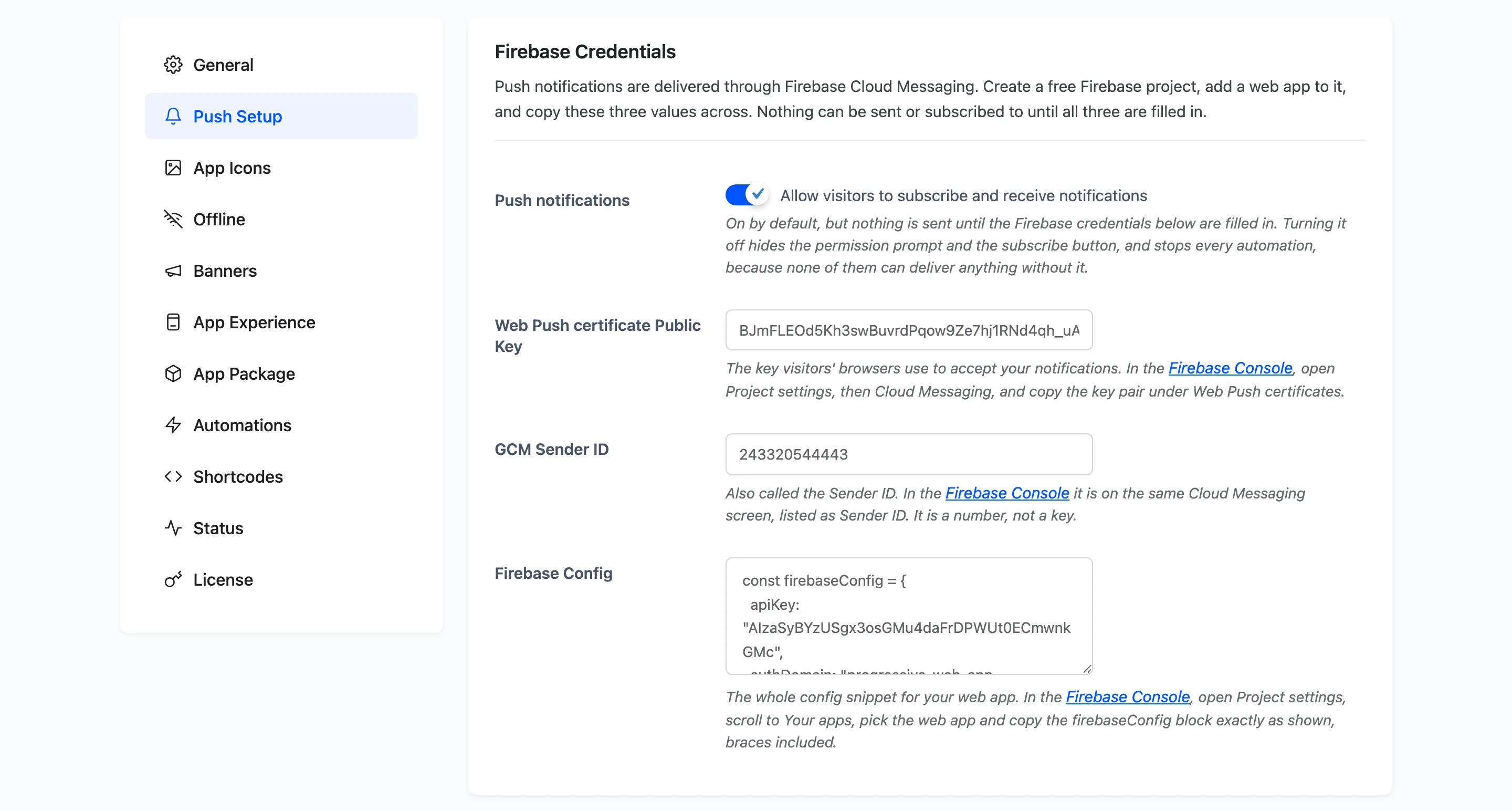
- Web Push certificate Public Key, so browsers will accept your notifications.
- GCM Sender ID, which identifies your project.
- Firebase Config, the whole config block for your web app.
- Service Account JSON, uploaded as a file, which is what signs each send.
The first three let a browser subscribe. The fourth is what lets WordPress deliver. Miss it and visitors subscribe happily while nothing you send ever arrives.
Step 2: The visitor is asked
Section titled “Step 2: The visitor is asked”Every browser lets a site ask for notification permission exactly once. Answer no and it never asks again, which is why the plugin puts its own prompt in front of the browser’s dialog.
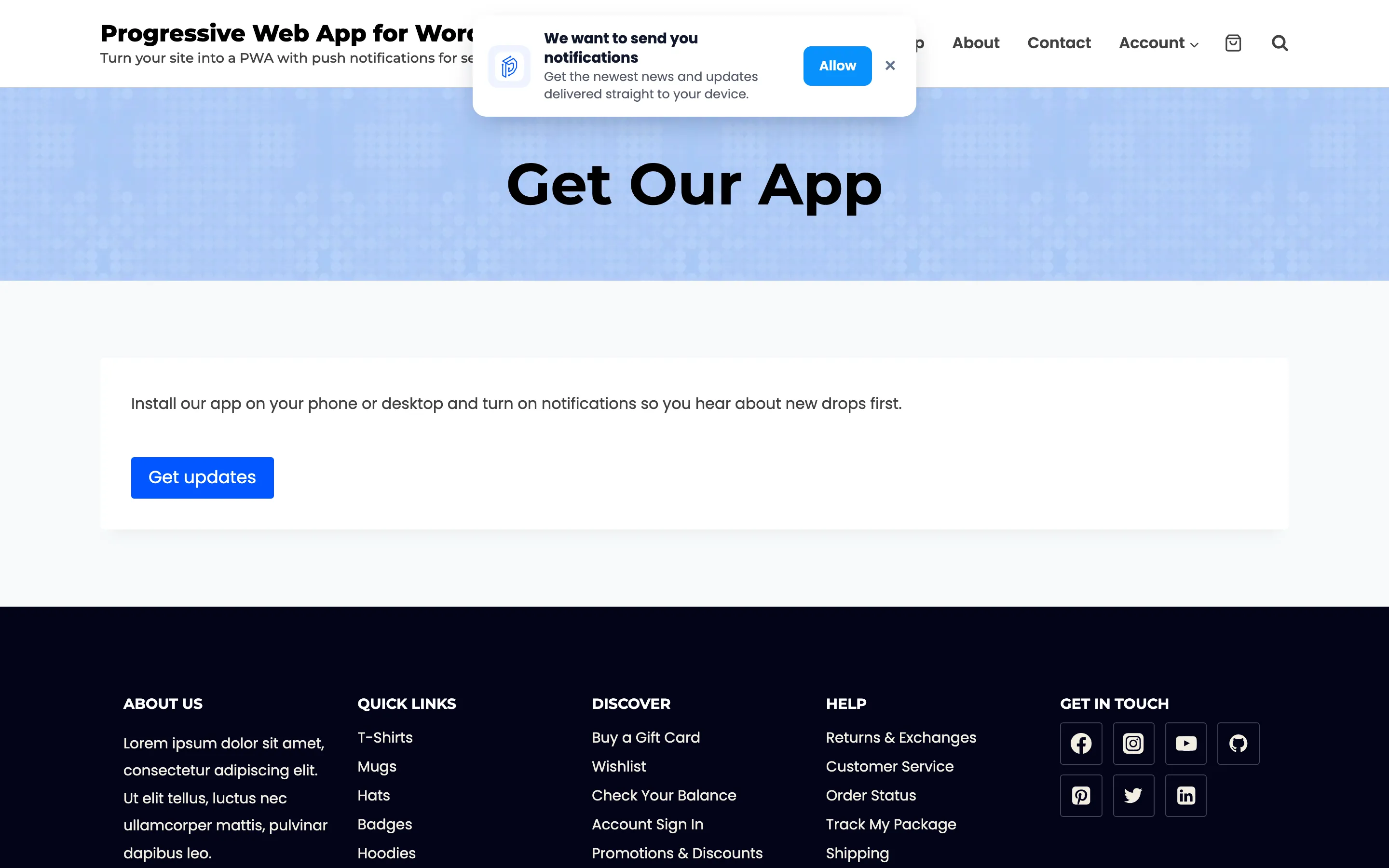
Dismissing your prompt costs nothing, because the browser was never asked. Allow is what triggers the real dialog. The wording and colours are on the Banners tab, and when to show it is on the Push Setup tab.
Step 3: The browser hands over a token
Section titled “Step 3: The browser hands over a token”Once permission is granted, the browser asks Firebase for a token for that device and the plugin stores it. That row is the device on the Subscribers screen.
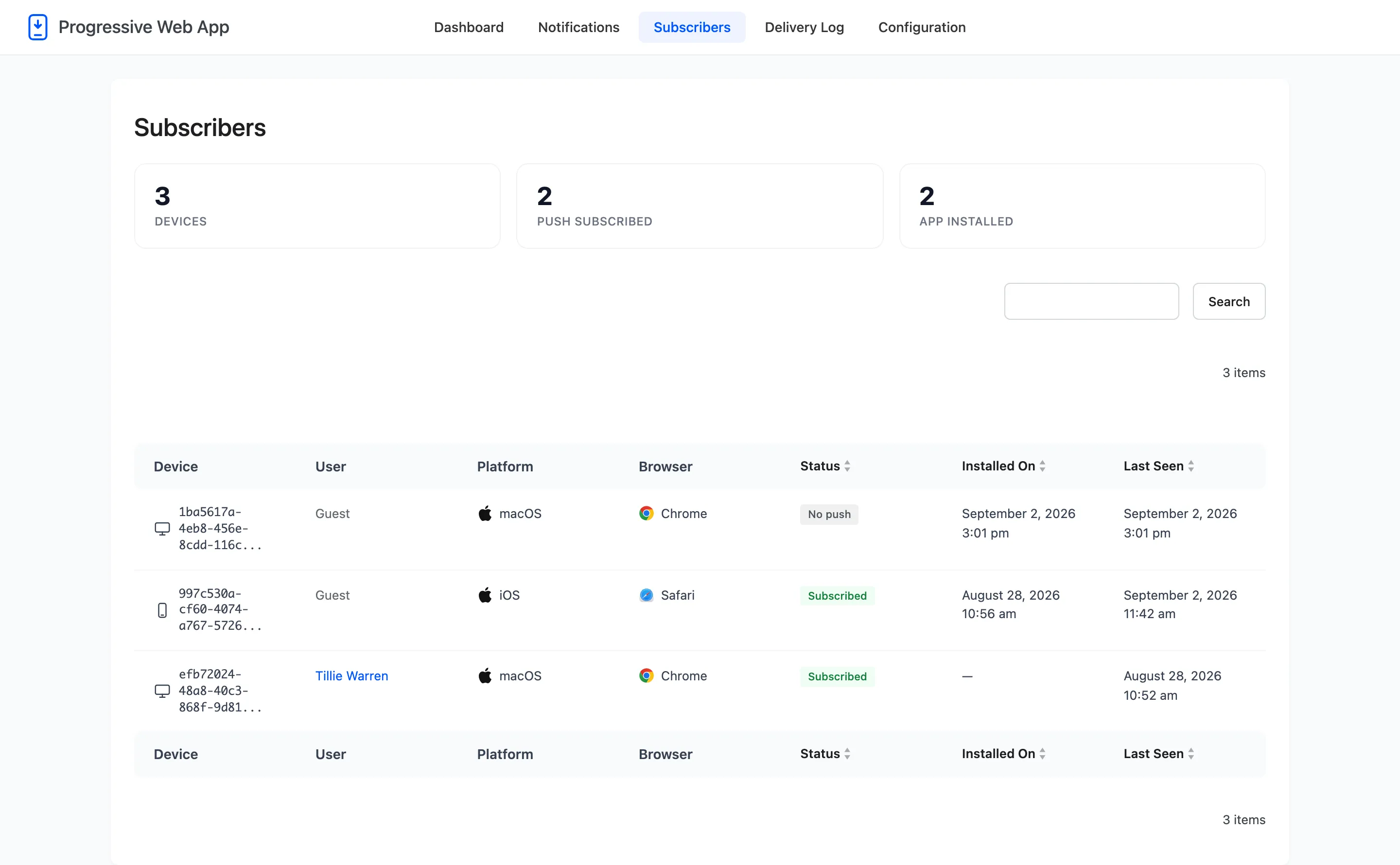
Two things about a token are worth knowing, because both surprise people.
- It belongs to the browser, not to the account. A device counts as logged in once somebody has signed in on it, and stays that way after they sign out.
- It is re-registered whenever the signed-in user changes. That is the only way a device that subscribed as a guest becomes reachable through the logged-in segment. The permission is granted once and never asked for again.
Step 3a: What the visitor actually gets
Section titled “Step 3a: What the visitor actually gets”The message is drawn by the operating system, not by your site, and it arrives whether or not your site is open in a tab. This is a real send from this plugin landing on an Android phone.
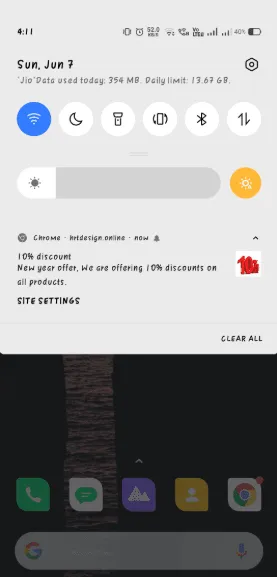
The title, the message and the icon are yours. The frame around them belongs to the device, which is why nothing on the Banners tab changes how it looks.
Step 4: You send
Section titled “Step 4: You send”Writing a notification and pressing Send Now hands the title, message, image and URL to Firebase, which delivers to every token you asked for.
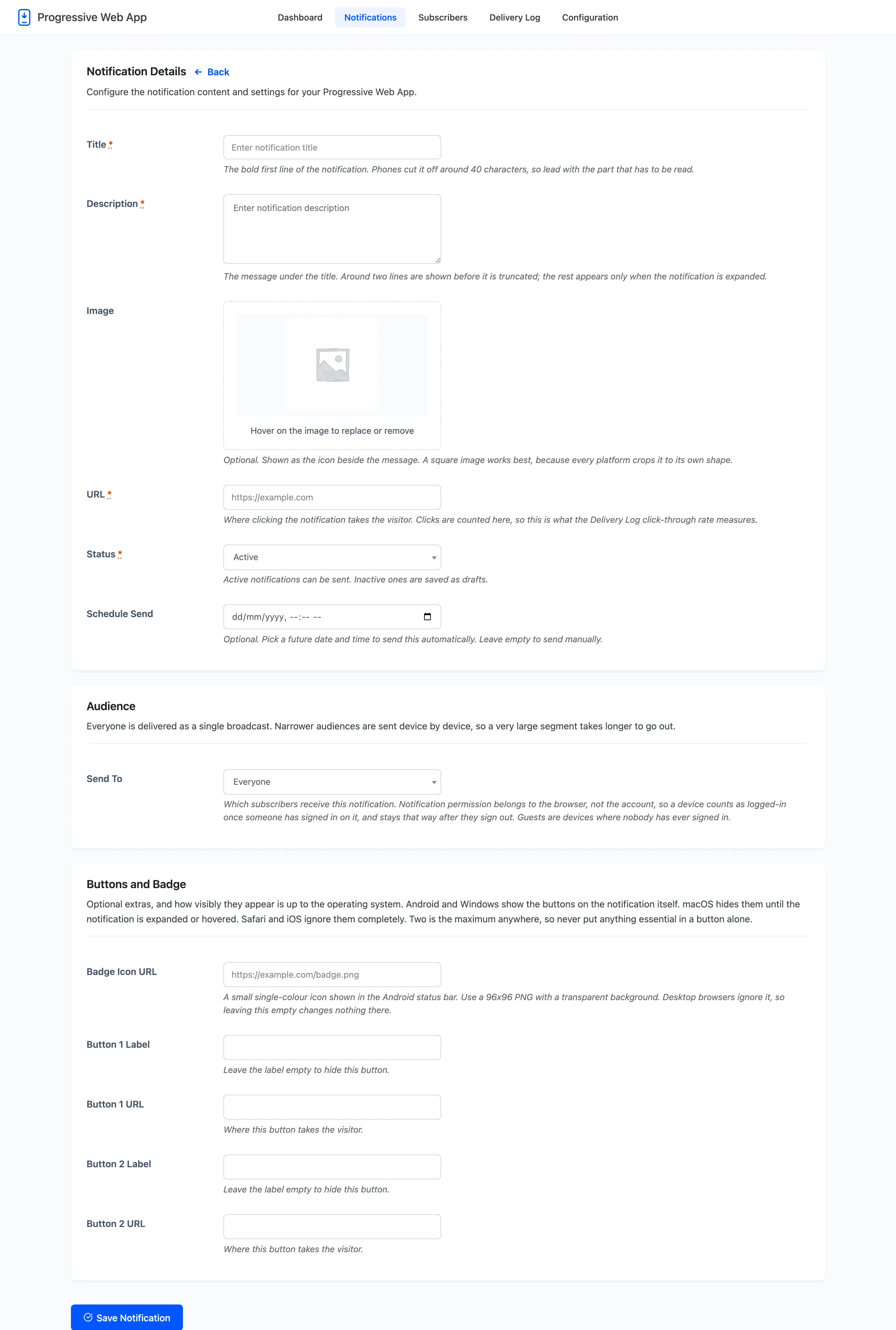
Everyone goes out as a single broadcast to a topic, which is one request however many devices you have. A narrower audience is sent device by device, so a very large segment takes noticeably longer.
Step 5: It lands, and the tap is counted
Section titled “Step 5: It lands, and the tap is counted”The operating system draws the notification. What it shows is up to the platform. Android and Windows display action buttons on the notification itself, macOS hides them until it is expanded, and iOS ignores them.
Tapping opens the URL you set, and that open is what the Delivery Log counts as a click.
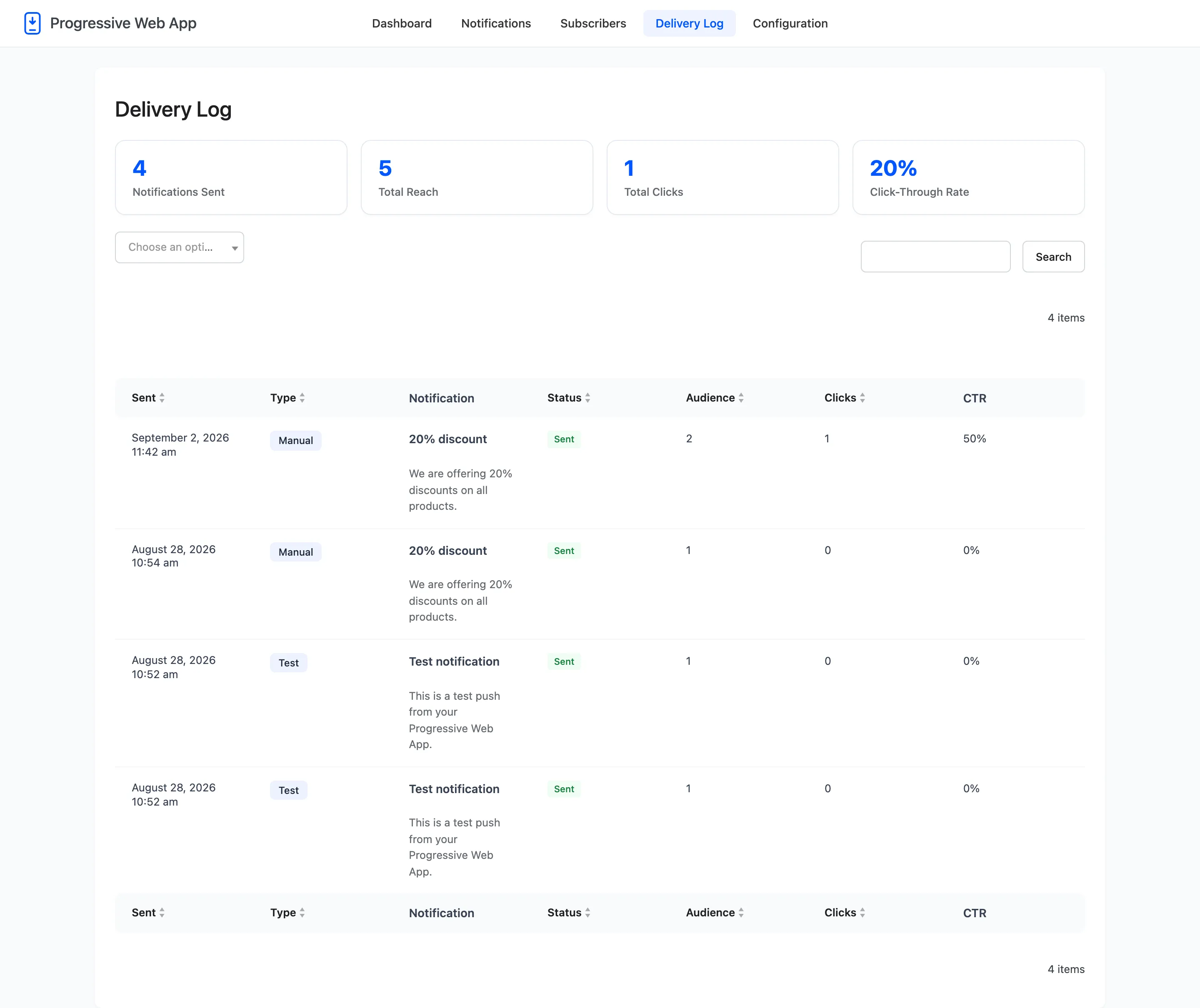
Every send lands here, manual and automatic alike, with the audience size, the status and the failure reason when there is one.
Where a send usually breaks
Section titled “Where a send usually breaks”In order of how often it happens.
- The site is not on HTTPS. Nobody can subscribe, so there is nobody to send to.
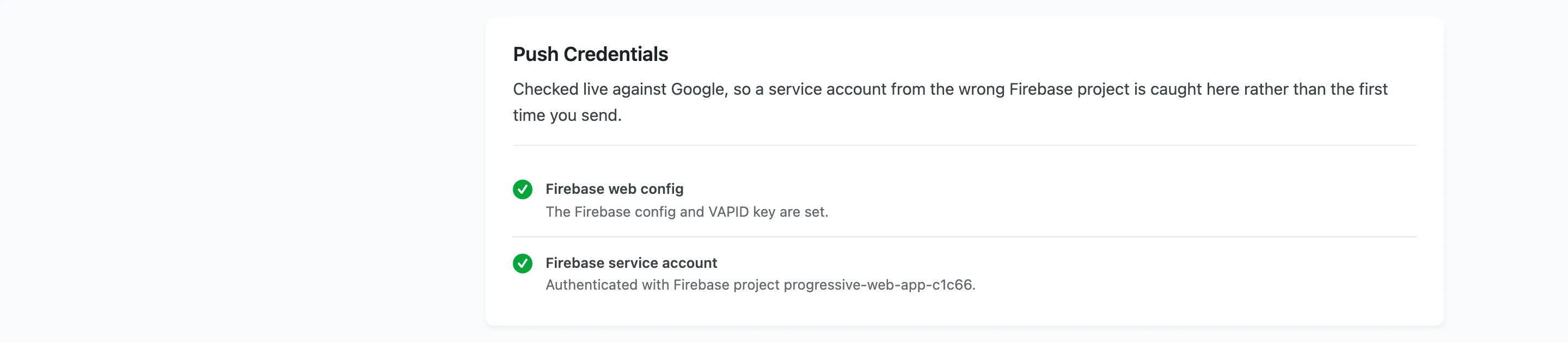
- The service account JSON is missing or from a different Firebase project. The Status tab checks this live against Google rather than waiting for your first send to fail.
- There are no subscribers yet. The Subscribers screen is the answer.
- The visitor denied permission. Nothing brings that back except the visitor changing it in their own browser settings.