

The Visitor Experience
Everything the plugin adds happens on your storefront, in front of people who never see your admin. This is that side, in the order somebody meets it.
The first visit
Section titled “The first visit”Nothing appears immediately. The permission prompt waits for the delay you set, five seconds by default, and the install banner waits for the browser to decide the site is installable.
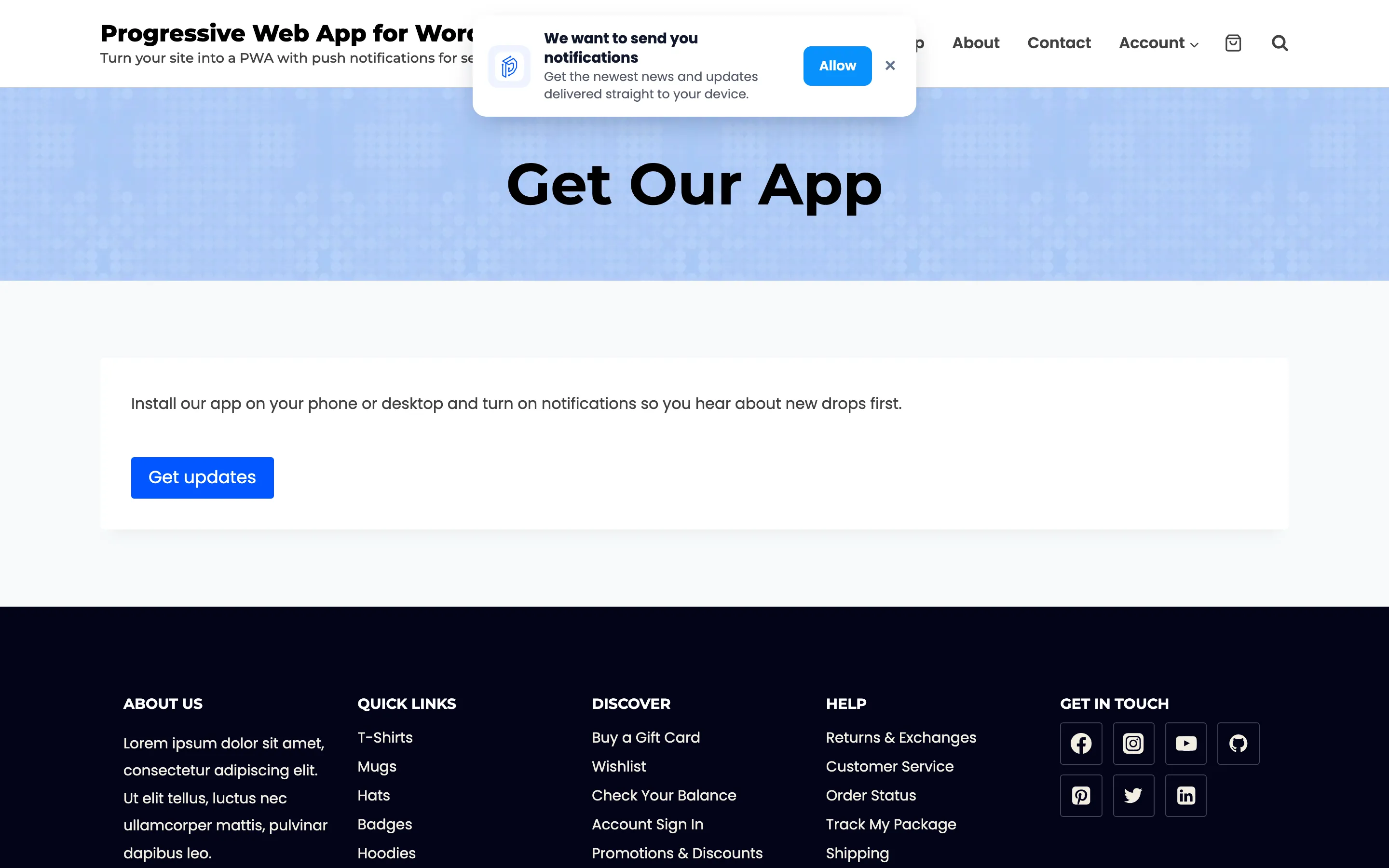
The prompt is the plugin’s own box, not the browser’s. Closing it stores a dismissal and it stays away for an hour. Allow hands over to the browser’s real permission dialog. That one is browser chrome rather than part of your page, so it looks different in every browser and nothing you set here changes it.
The install banner
Section titled “The install banner”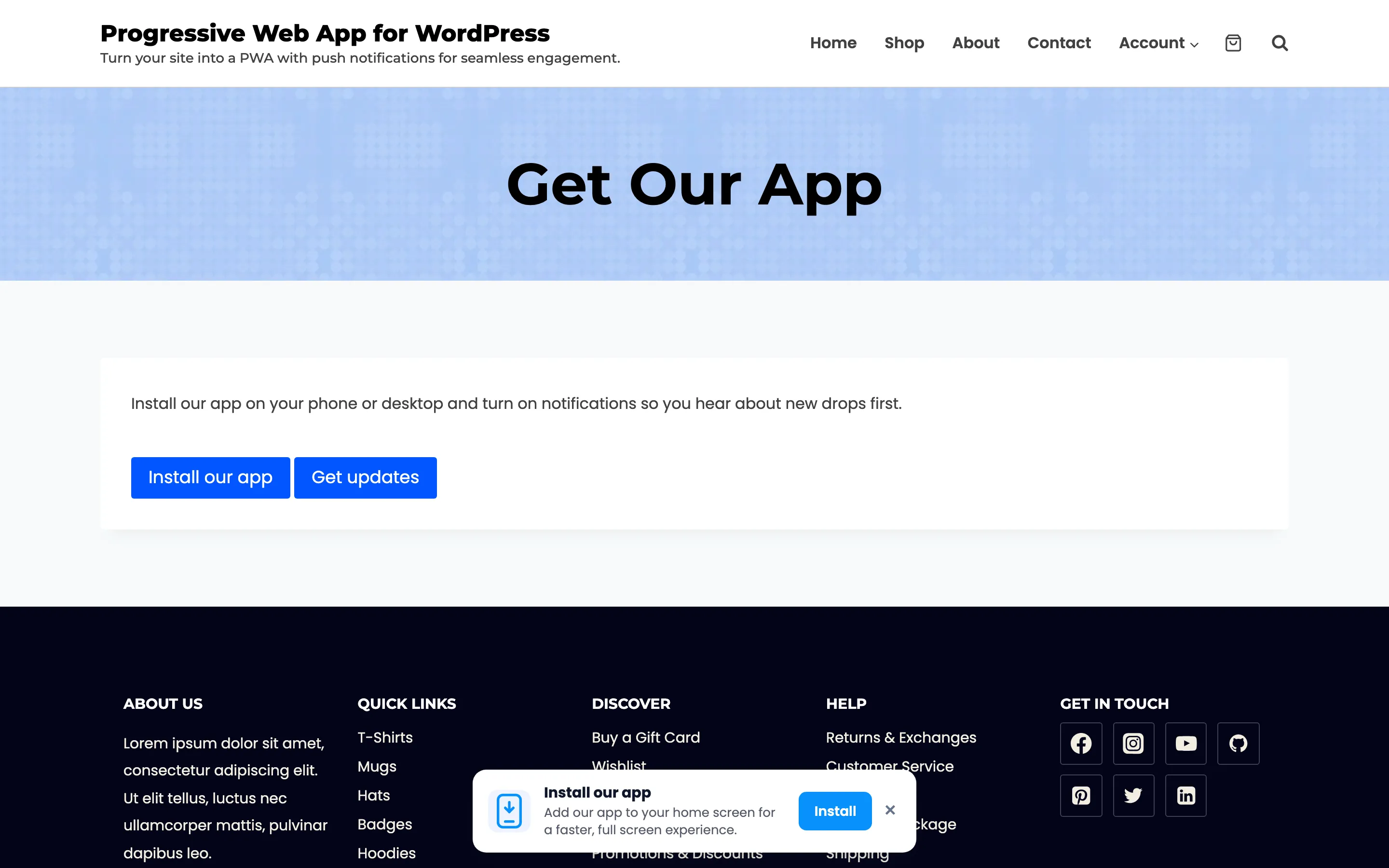
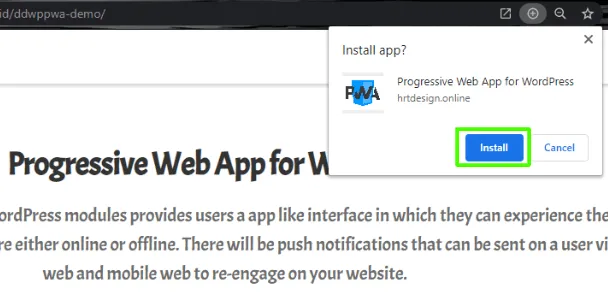
On Android and desktop the banner carries an Install button that opens the browser’s own install dialog.
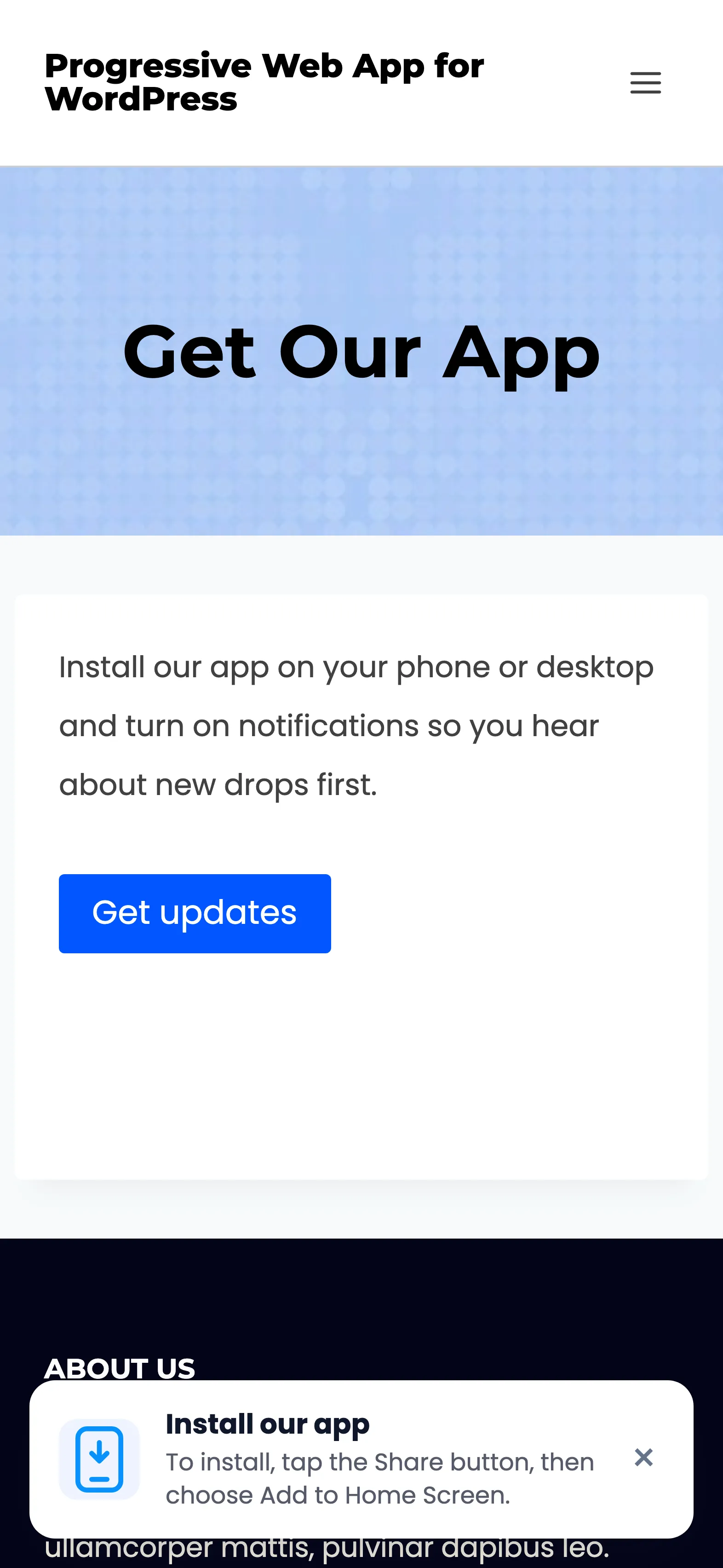
On iPhone and iPad there is no such dialog, so the banner shows the steps instead: tap the Share button, then choose Add to Home Screen.
Dismissing the banner keeps it away for seven days. It also hides itself permanently once the app is installed, so an installed visitor is never asked again.
The buttons you place yourself
Section titled “The buttons you place yourself”Some sites would rather ask on their own page than wait for a banner. Two shortcodes cover that, and Pro adds three more.

[ddwppwa_install_button]stays hidden until the browser is ready to install, so it never appears as a dead control.[ddwppwa_subscribe_button]asks for notification permission on click.[ddwppwa_share_button],[ddwppwa_stock_alert_button]and[ddwppwa_save_offline_button]are Pro.
The Shortcodes tab lists every attribute with its default.
Browsing with no connection
Section titled “Browsing with no connection”Once the service worker has control, a page the visitor has already opened keeps working with the signal gone.
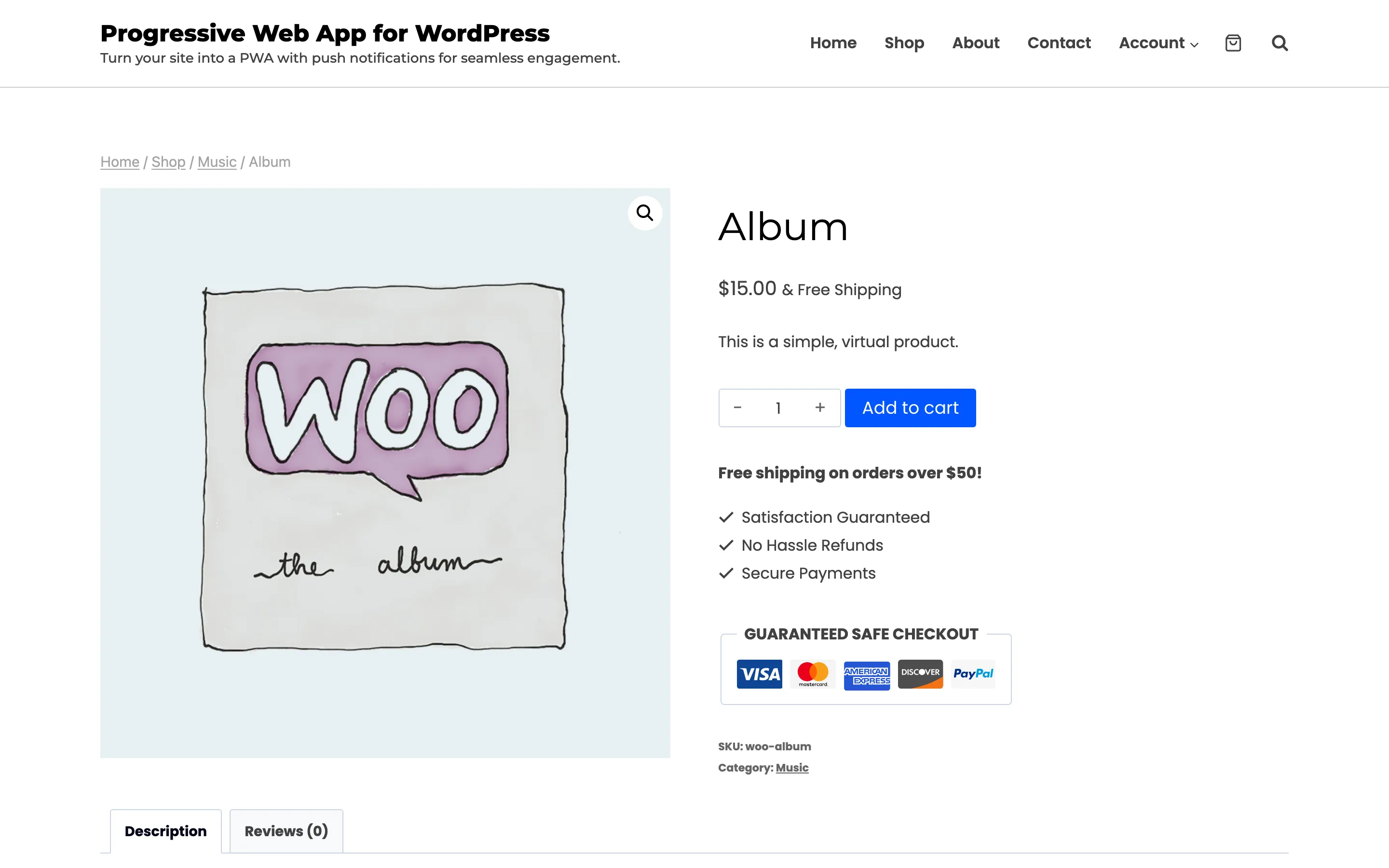
There is no banner and no warning. The page simply loads. A page they have never opened is a different case, and that is what the Offline Fallback Page setting exists for.
Inside the installed app
Section titled “Inside the installed app”Opening from the home screen launches at your Start URL with no address bar, on a splash screen in your background colour.
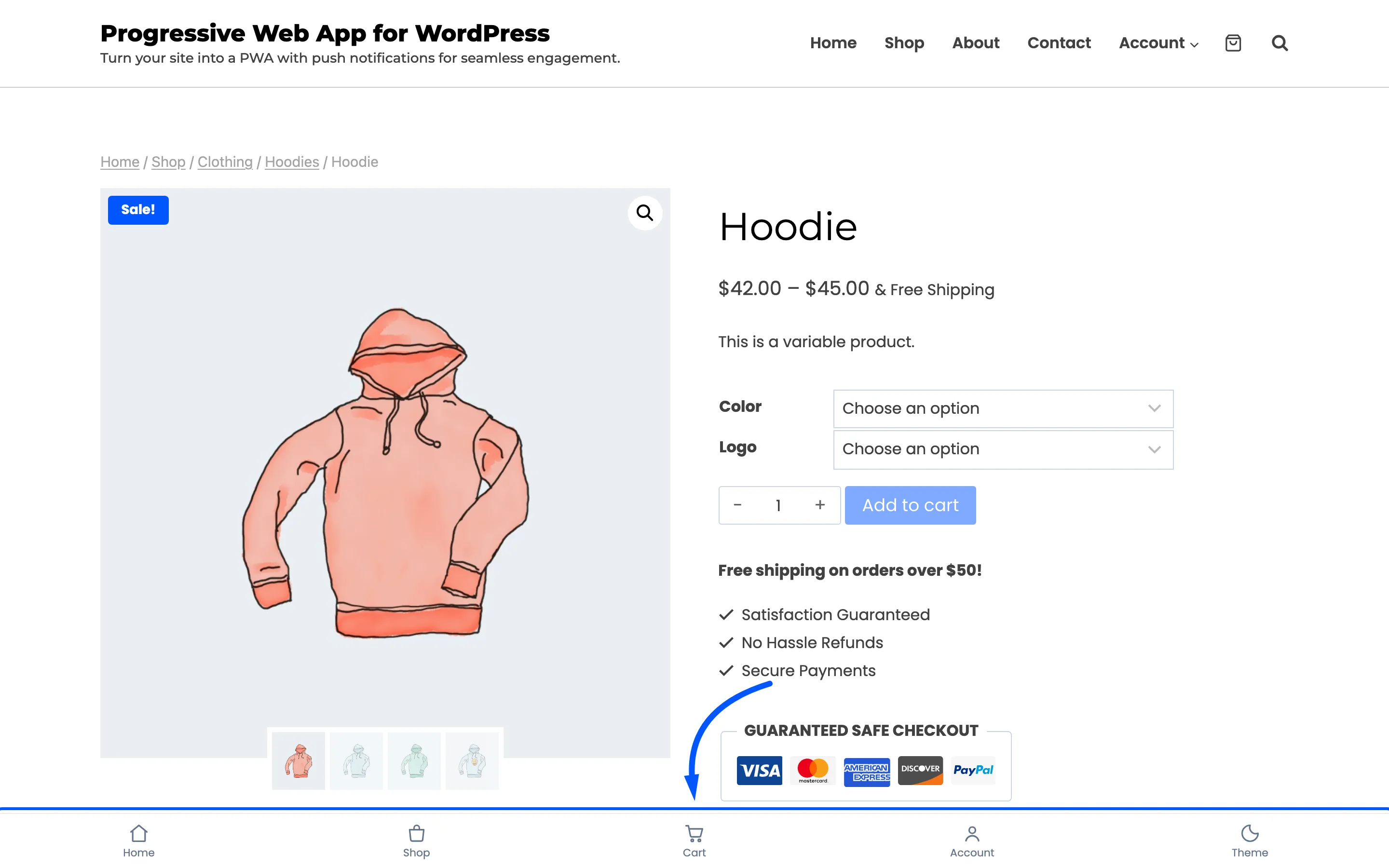
The bar carries the first five items of a WordPress menu, each with an icon picked from where it links: home, shop, cart, account or search.
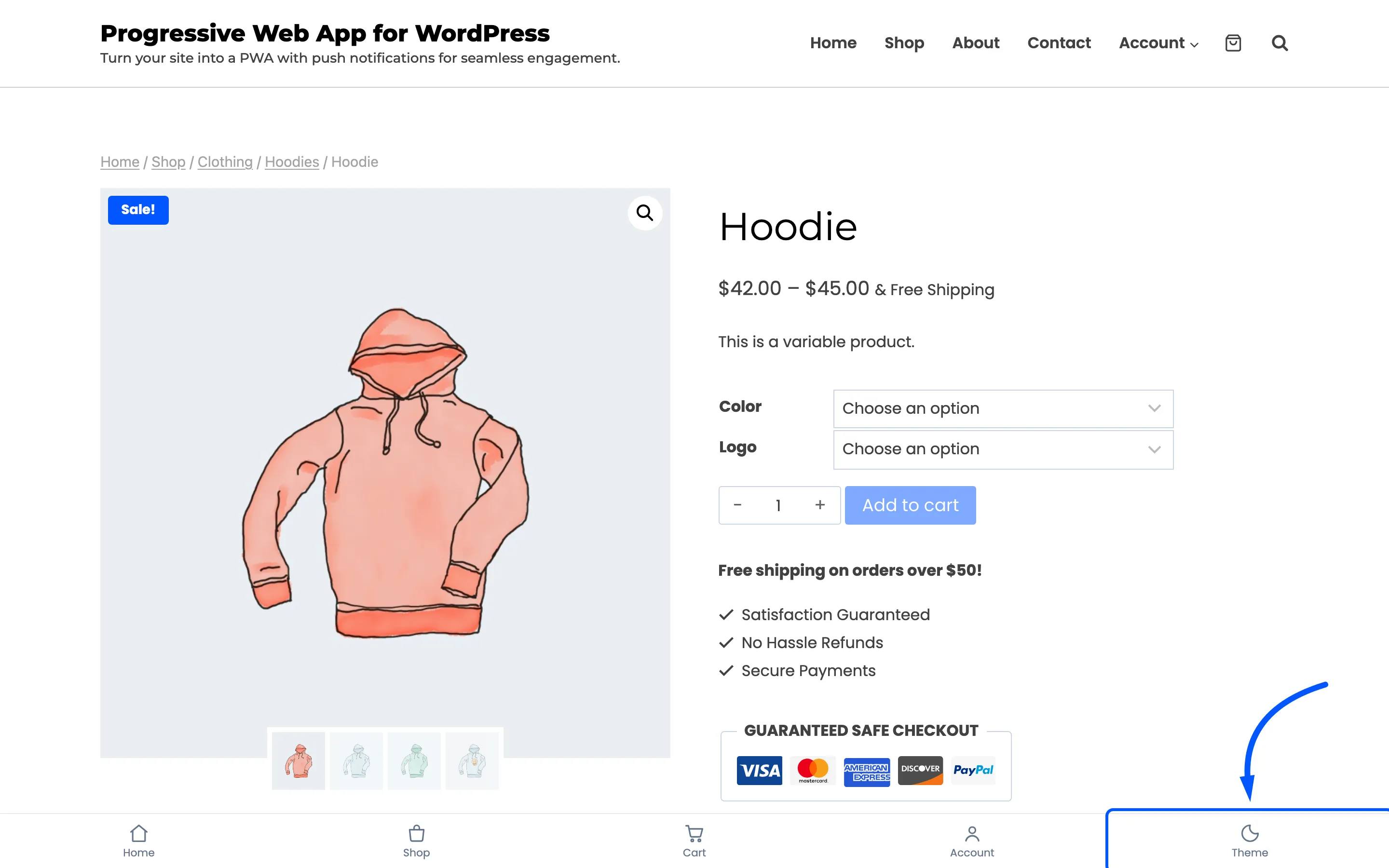
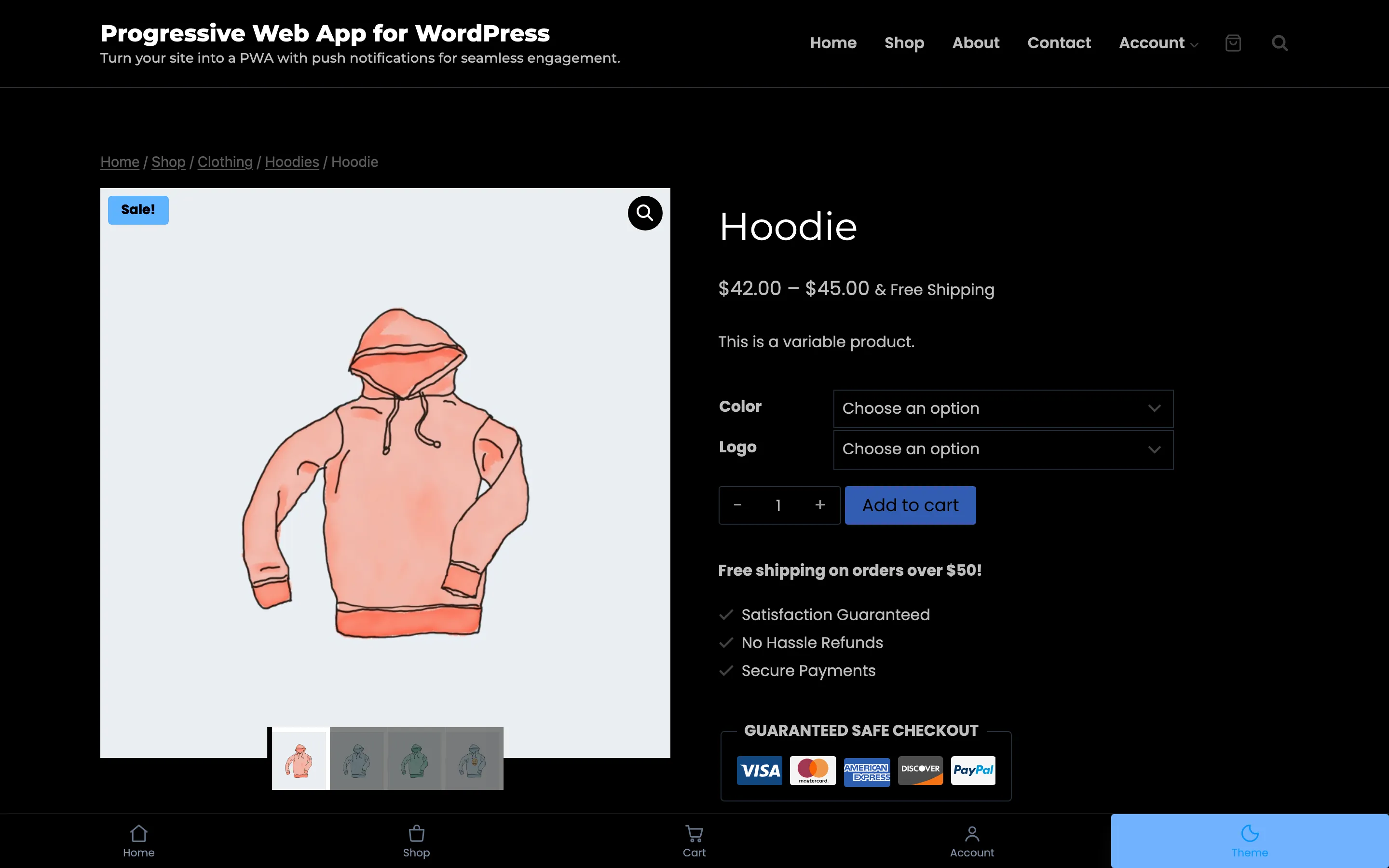
Tapping Theme switches the app to a dark theme. On a theme with no dark styles of its own the app darkens the page itself and re-lightens images and video so the product still looks right.
The notification
Section titled “The notification”When you send, the operating system draws it. Your title is the bold first line, cut off around 40 characters on a phone. Your message is the two lines under it. The image is the icon beside the message, cropped to whatever shape the platform uses.
Tapping opens the URL you set. Nothing else happens, and the visitor is never asked to allow anything a second time.
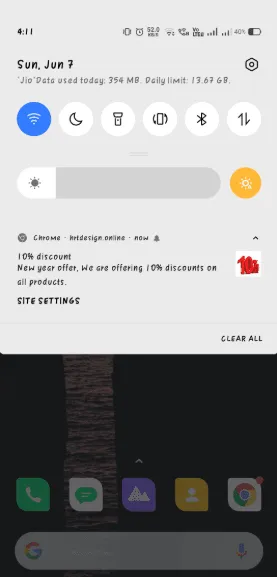
That is Android. The notification is drawn by the operating system rather than by your site, so it looks different on Windows, macOS and iOS, and none of those shapes is something your settings control. What you control is the title, the message, the image and the URL.