

License Activation (Pro)
Go to DevDiggers Plugins → Progressive Web App → Configuration → License.
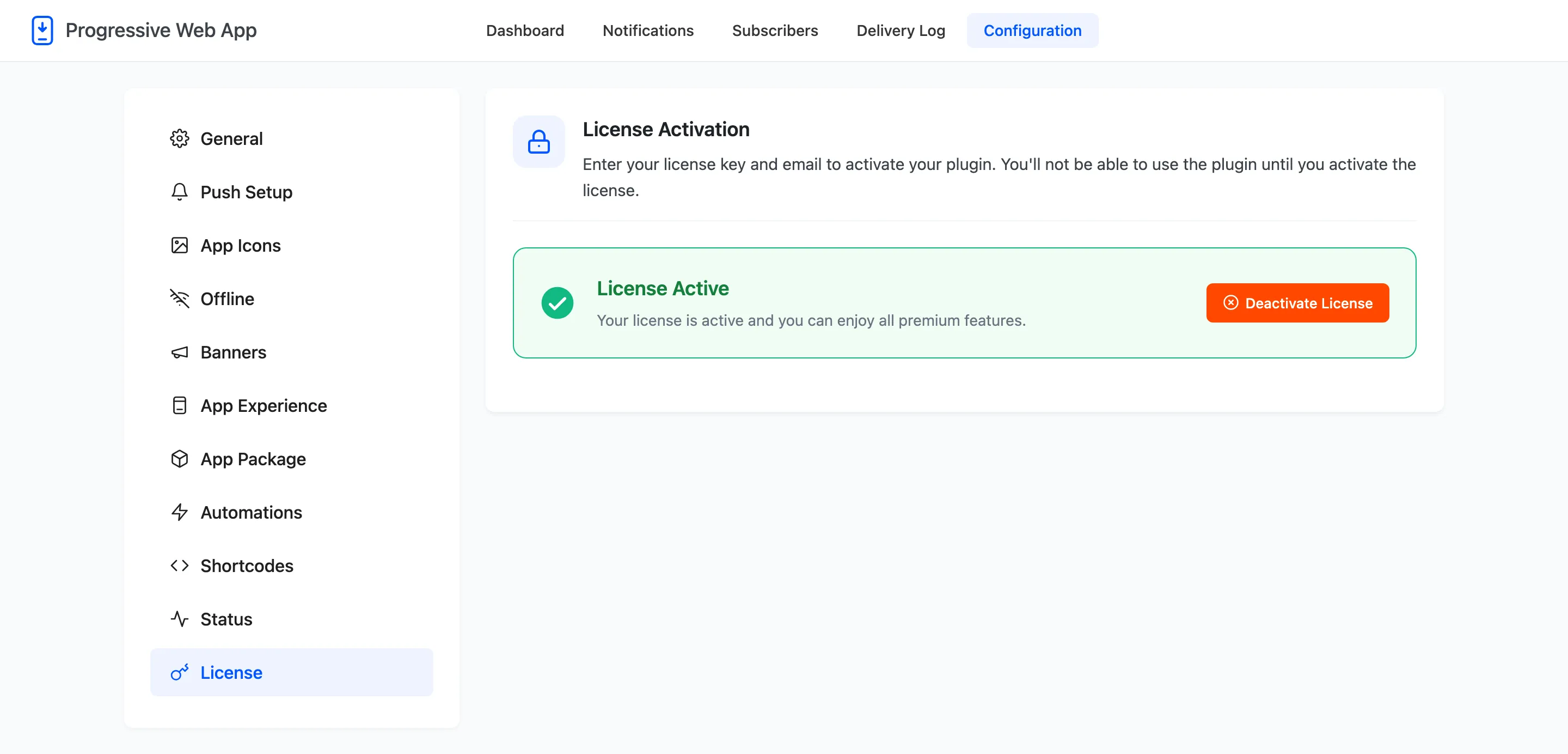
Enter the purchase code and the email address from your order, then press Activate. The tab then reports the license as active and stops asking.
What an inactive license stops
Section titled “What an inactive license stops”This is the part worth reading, because it is not obvious from the screens.
The whole storefront half of the plugin is skipped. No manifest link, no service worker, no install banner, no permission prompt and no shortcode output, on any page. The site behaves exactly as it did before the plugin was installed.
Every admin screen keeps working. The settings save, the dashboard renders, the Notifications screen accepts a notification and the Status tab still reports its checks. That is what makes an expired license hard to spot: nothing looks broken from where you are standing.
So if your settings look right and a real browser shows an ordinary website, check this tab before anything else.
Moving to another site
Section titled “Moving to another site”Deactivate on the old site first, then activate on the new one with the same code and email. The setup wizard’s License step refuses to continue until the license is active, so a fresh install on a new domain will stop there until it is done.
Updates
Section titled “Updates”An active license also enables plugin updates in place, so the plugin appears on the WordPress Updates screen like any other. Without it, updating means uploading a new zip by hand.