

System Status
A progressive web app fails quietly. The site may not be on HTTPS. The generated files may never have reached the web root. The service account may be from the wrong Firebase project. In all three cases the admin looks fine while visitors get nothing.
This tab turns each of those into a plain statement of what is wrong and what to do about it.
Go to DevDiggers Plugins → Progressive Web App → Configuration → Status.
The score
Section titled “The score”
A pass, a warning or a failure across every check below, with the count and a bar. A failure means something is stopping the app or its notifications from working for visitors. A warning is worth fixing but blocks nobody.
The same score appears on the dashboard as the App Readiness widget, out of 100.
Environment
Section titled “Environment”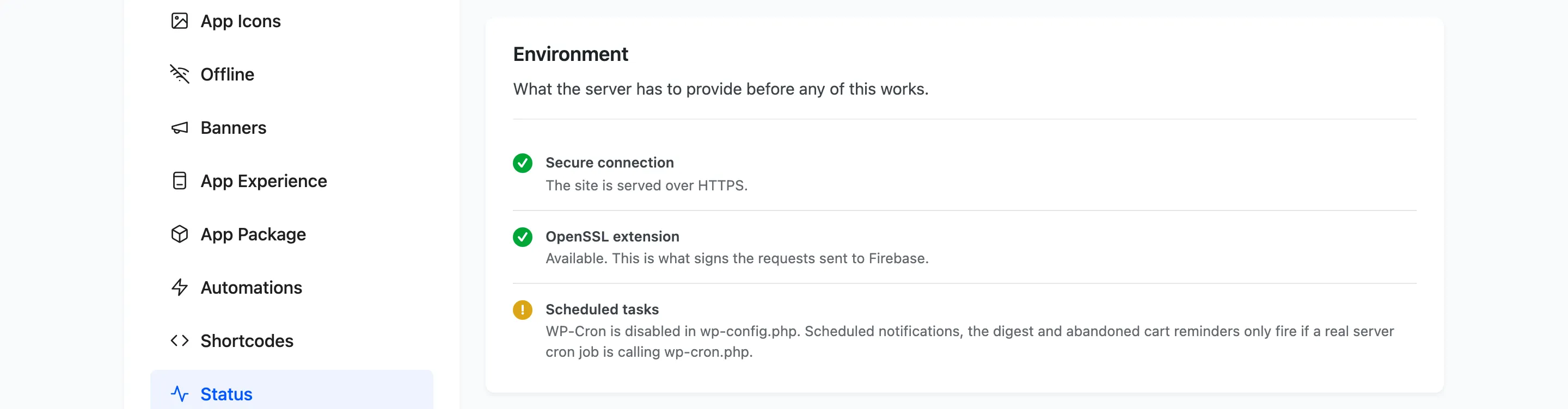
What the server has to provide before any of this works.
- Secure connection: Service workers and push only run over HTTPS.
localhostcounts as secure for development and is reported as a warning, because the live site still needs a certificate. - OpenSSL extension: This is what signs the requests sent to Firebase. Without it nothing can be sent, and it is a question for your host rather than something you can fix in WordPress.
- Scheduled tasks: Warns when
DISABLE_WP_CRONis set inwp-config.php. Scheduled notifications, the digest and abandoned cart reminders only fire when a real server cron job is callingwp-cron.php.
Generated Files
Section titled “Generated Files”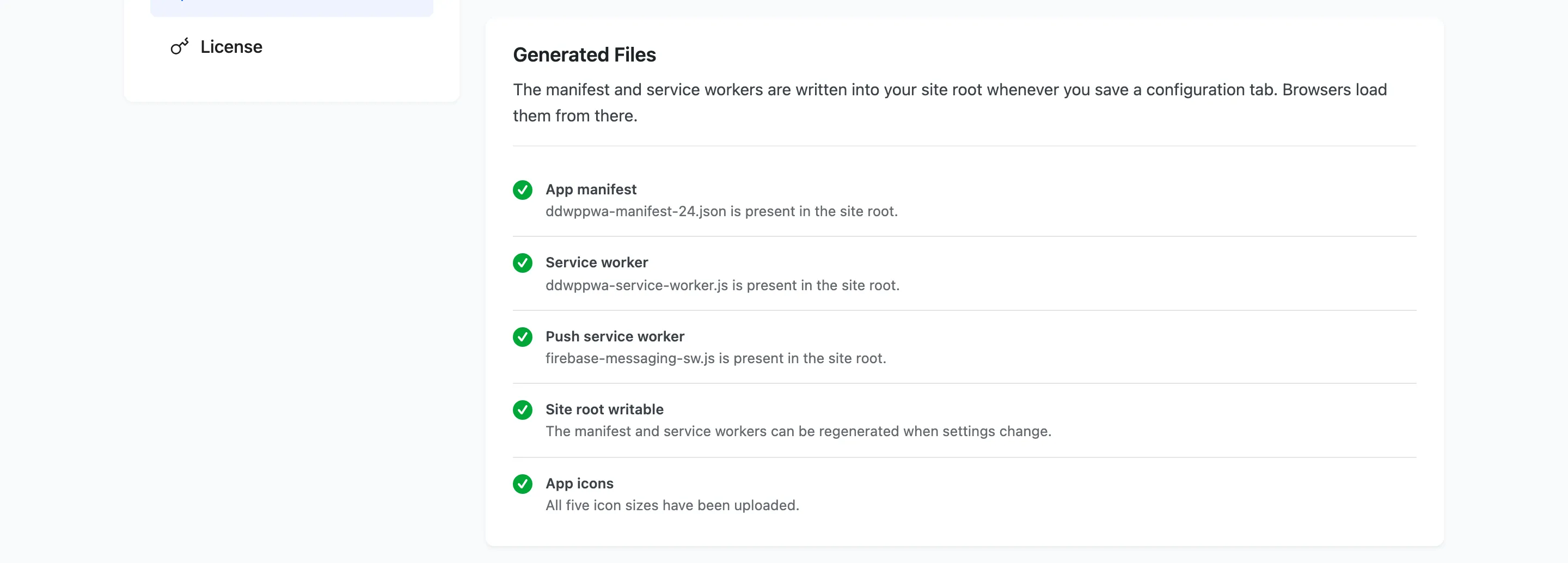
The manifest and both service workers are written into your site root whenever you save a configuration tab, and browsers load them from there.
- App manifest:
ddwppwa-manifest.json, orddwppwa-manifest-<id>.jsonon a multisite network, where each site gets its own. - Service worker:
ddwppwa-service-worker.js, the offline half. - Push service worker:
firebase-messaging-sw.js, which receives notifications. - Site root writable: Whether the three can be regenerated when settings change.
- App icons: How many of the five sizes are set. Any that are missing fall back to the plugin’s bundled placeholders, so the app installs under artwork that is not yours.
If a file is missing, saving any configuration tab writes it again.
Push Credentials
Section titled “Push Credentials”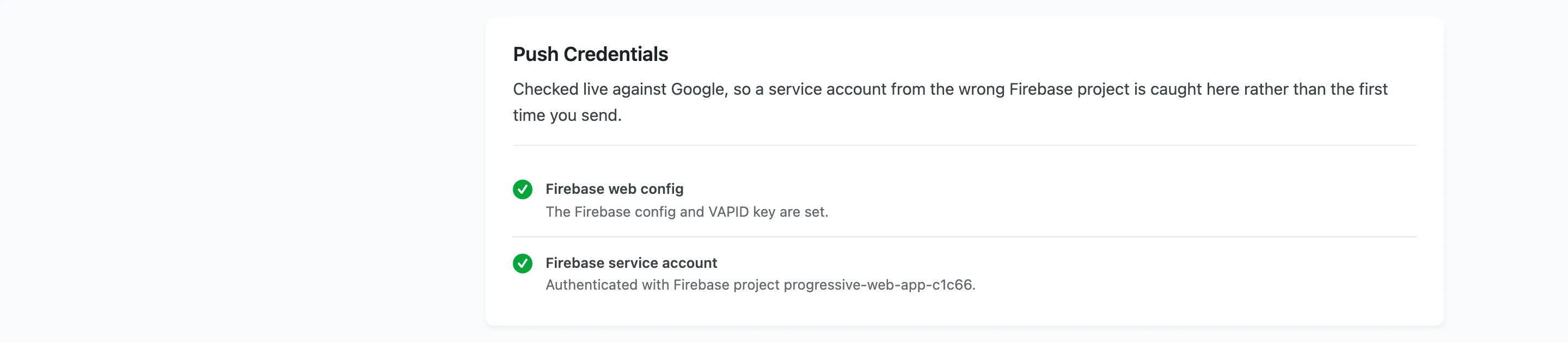
Checked live against Google, which is the point of this group. A service account from the wrong Firebase project is caught here rather than the first time you send to a real audience. When it passes, the row names the Firebase project it authenticated with, so a mismatch is obvious.
Compatibility
Section titled “Compatibility”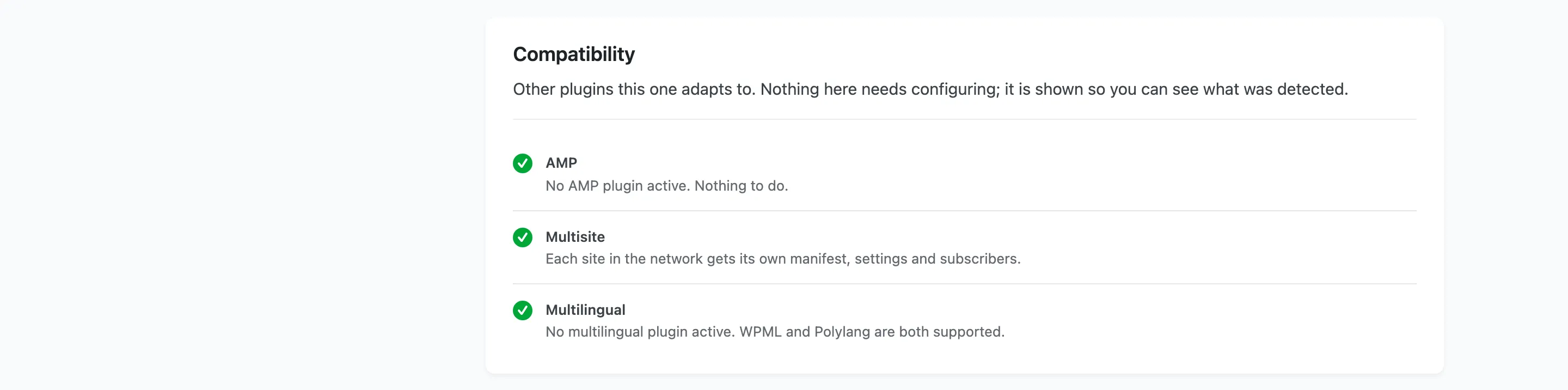
Other plugins this one adapts to. Nothing here needs configuring, and every row passes: it is shown so you can see what was detected.
- AMP: An AMP page is invalid the moment a custom script is added. So on one the plugin prints the manifest link and the app meta tags, and loads no script.
- Multisite: Each site in the network gets its own manifest, settings and subscribers.
- Multilingual: WPML and Polylang are both supported, and the banner and prompt strings are registered for translation when either is active.
These rows are deliberately left out of the score. Counting “no AMP plugin installed” as a failure would drag down a number that is meant to answer whether the app works.
Features
Section titled “Features”
Which of the five parts of the plugin are switched on, each linking to the tab that governs it. This is the fastest way to answer “why is nothing happening” when a whole half of the plugin has been turned off and forgotten.
Browser Support
Section titled “Browser Support”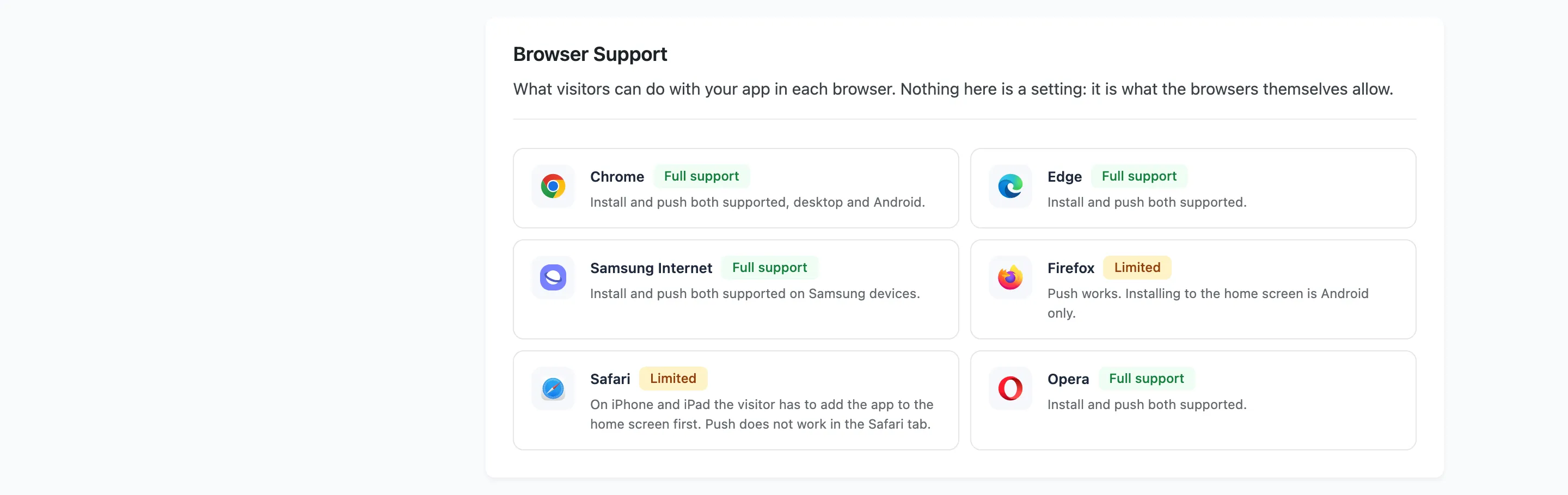
What visitors can do with your app in each browser. Nothing here is a setting: it is what the browsers themselves allow.
Chrome, Edge, Samsung Internet and Opera support both installing and push. Firefox does push everywhere and installs on Android only. Safari is the one to plan around. On iPhone and iPad the visitor has to add the app to the home screen before push works at all, and it never works in a Safari tab.
The Devices by Browser chart on the dashboard tells you how much of your own audience that affects.
Audience
Section titled “Audience”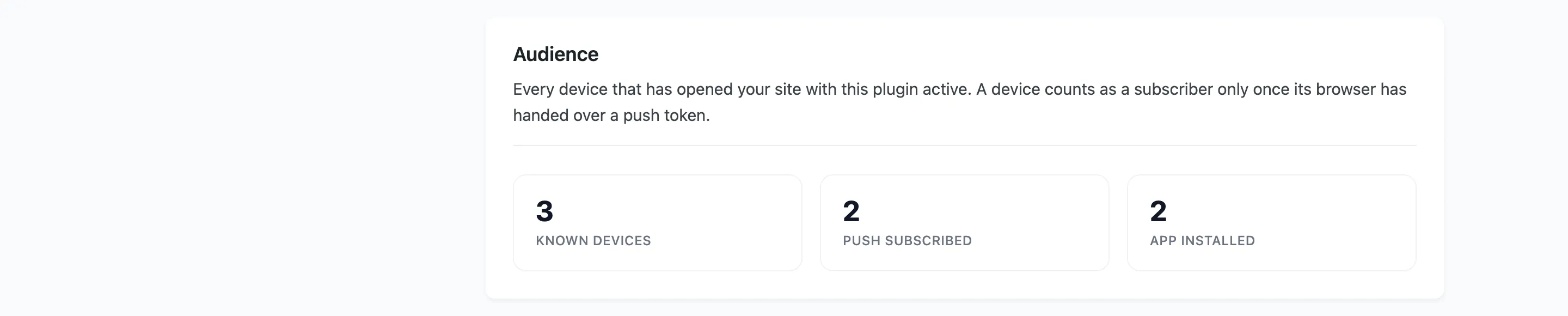
Every device that has opened your site with the plugin active.
- Known devices: Every device recorded.
- Push subscribed: Devices that have handed over a push token.
- App installed: Devices flagged as having installed the app.
A device counts as a subscriber only once its browser has handed over a token, which is why this number is always lower than known devices.
Install Your App
Section titled “Install Your App”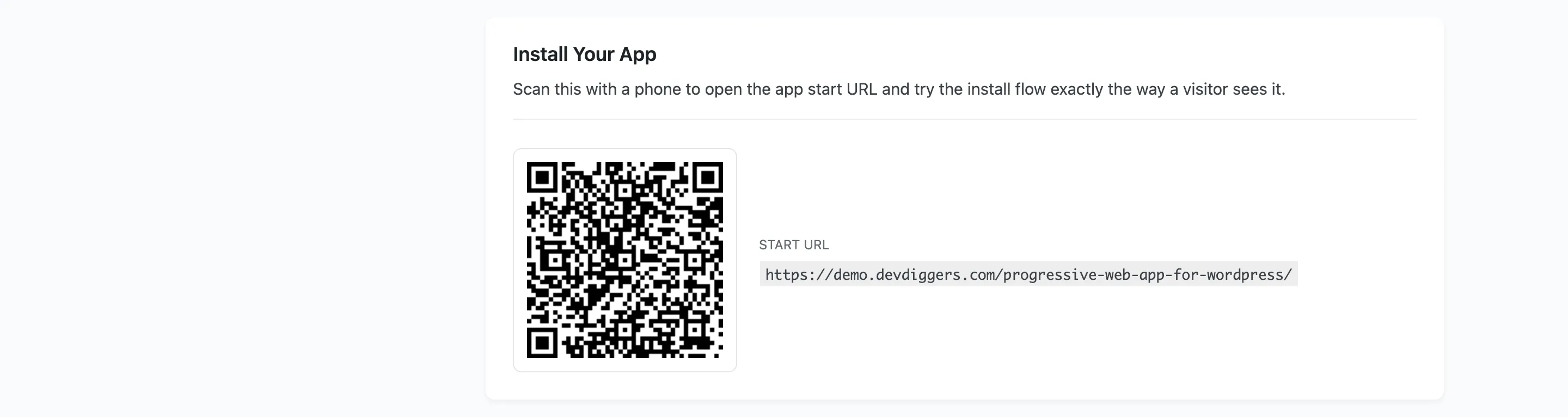
The app start URL, so you can open it on a phone and try the install flow exactly as a visitor sees it.