

Installing and Activating Progressive Web App
The plugin installs like any other WordPress plugin. WooCommerce is not required, and neither is a particular theme.
Step 1: Upload the plugin
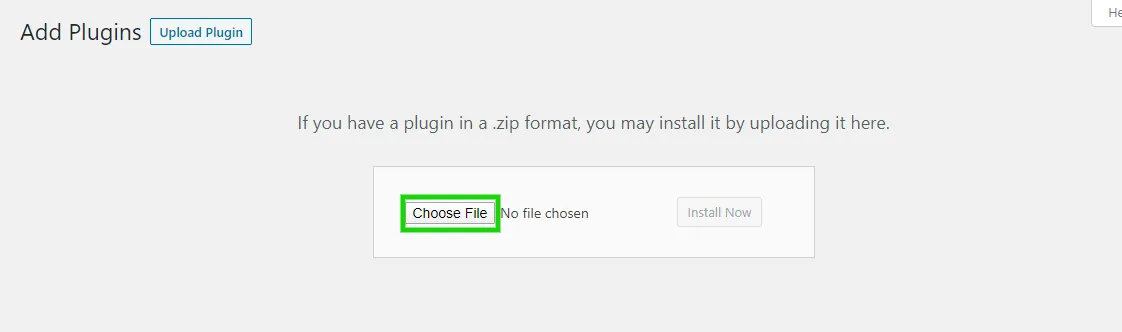
Section titled “Step 1: Upload the plugin”Go to Plugins → Add New and press Upload Plugin.

Press Choose File and pick the zip you downloaded.
Step 2: Install and activate
Section titled “Step 2: Install and activate”Press Install Now and wait for WordPress to unpack the zip.

Then press Activate Plugin.

A Progressive Web App entry appears under DevDiggers Plugins in the admin menu. Activating also writes three files into your site root: the app manifest and the two service workers. The Status tab checks that all three are there.
Step 3: Activate your license
Section titled “Step 3: Activate your license”Go to DevDiggers Plugins → Progressive Web App → Configuration → License and enter the purchase code and email from your order.
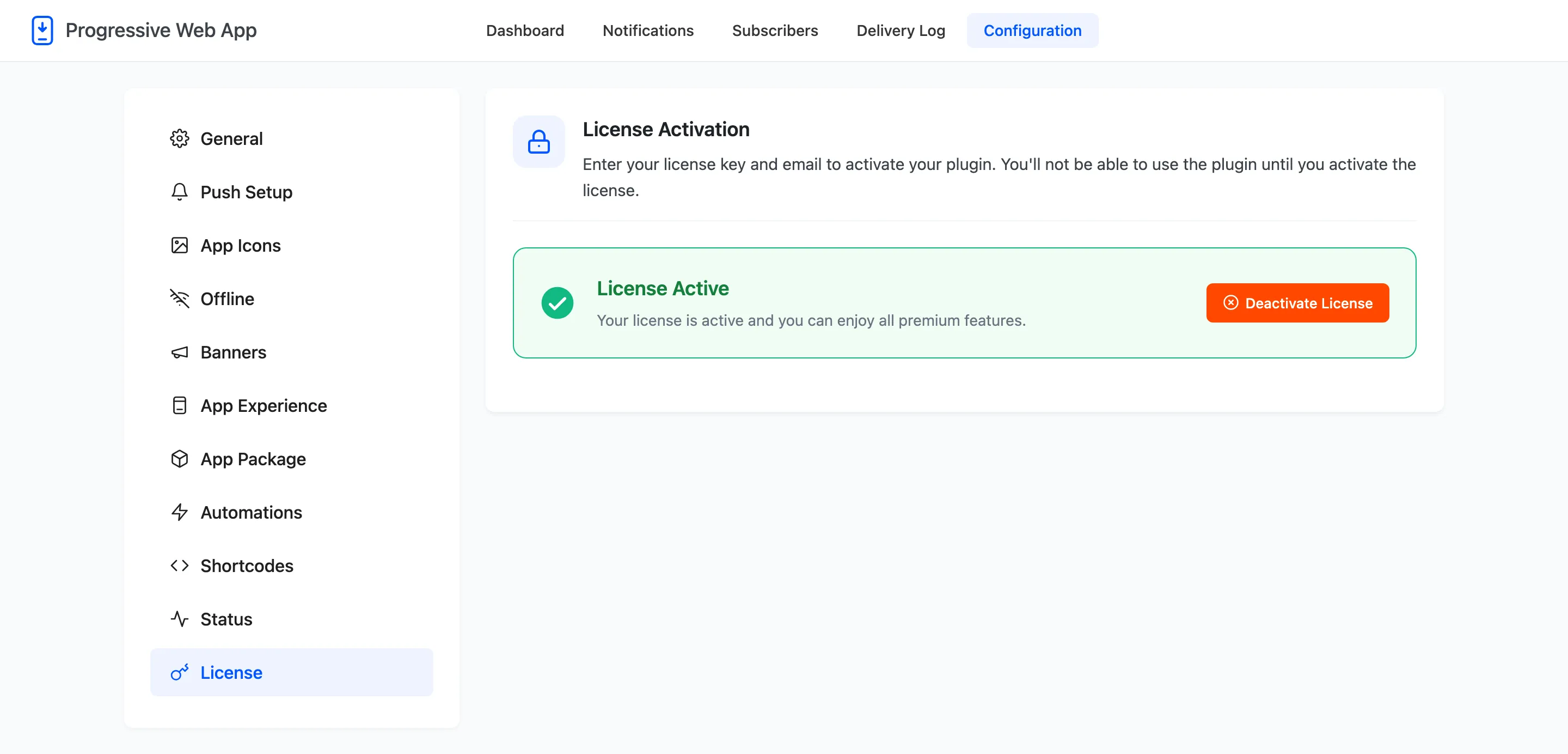
On the Pro version this is not optional. Until the license is active the plugin loads nothing on the storefront. No manifest link, no service worker, no install banner and no permission prompt. Every admin screen keeps working, which is what makes it hard to spot. If your settings look right and the site still behaves like an ordinary website, check this tab first.
Step 4: Finish the setup wizard
Section titled “Step 4: Finish the setup wizard”On a fresh install the wizard opens on its own. Five short steps, and it ends with your app name, your colours and your Firebase keys saved.
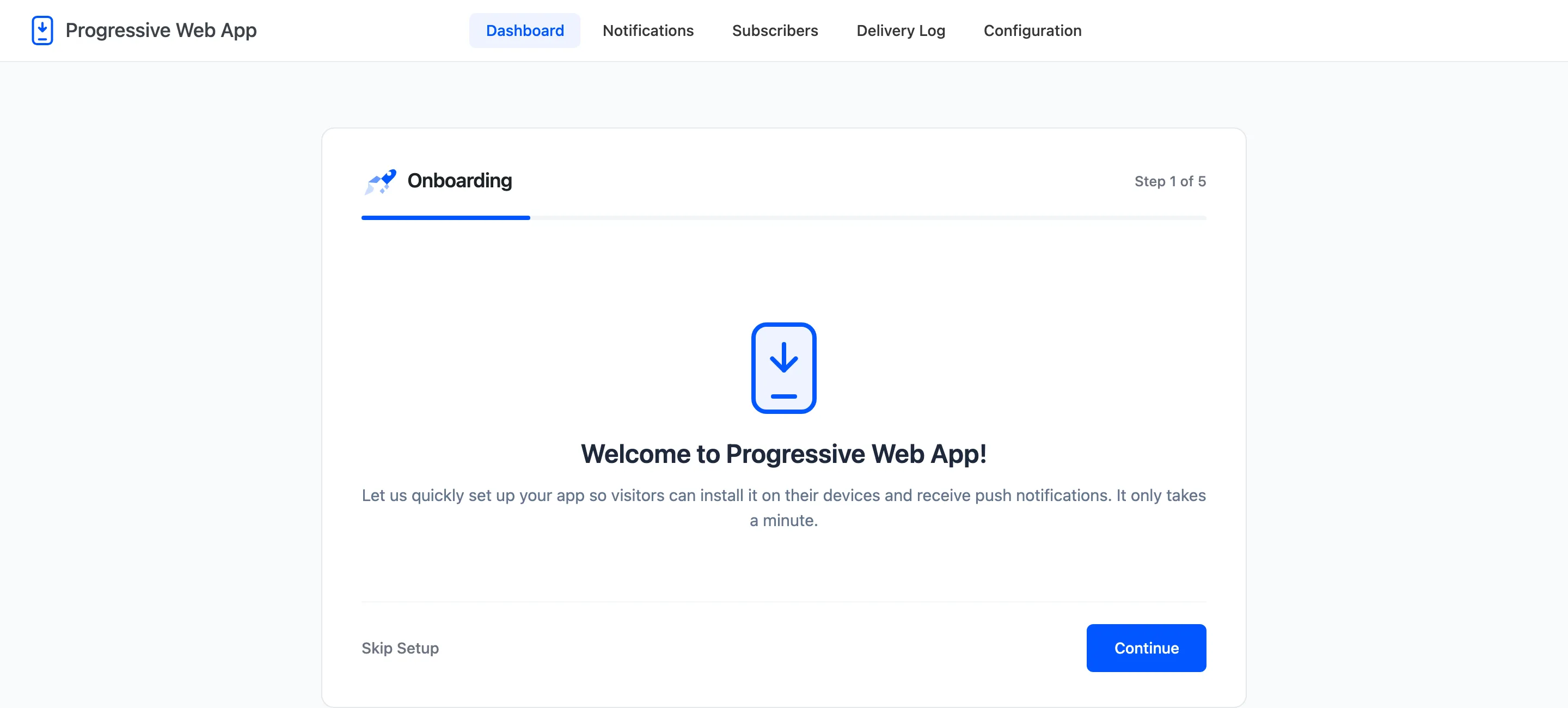
You can reopen it at any time from the Setup Wizard link beside the plugin on the Plugins screen. The Setup Wizard covers what each step sets and what it leaves for later.
Check the site is served over HTTPS
Section titled “Check the site is served over HTTPS”Service workers and web push only run in a secure context. If your site is on plain HTTP the plugin prints a warning across every one of its own screens, and the Status tab fails its first check.
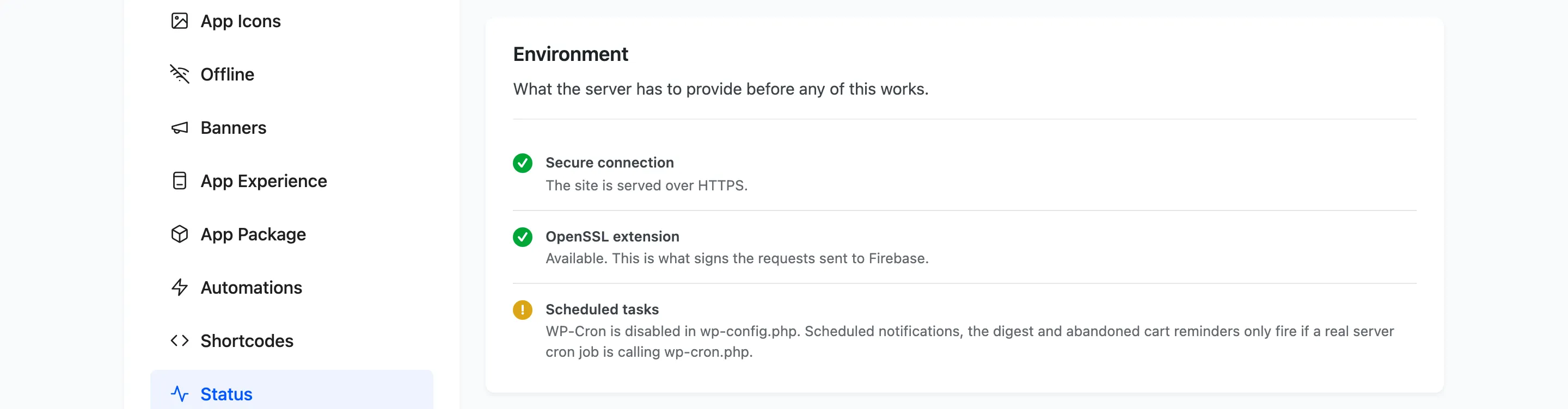
Visitors on an insecure site cannot install the app and cannot subscribe. Sending from the admin may still look like it worked, because the send succeeds and simply reaches nobody. Enable SSL before you go any further.
What to do next
Section titled “What to do next”Activating the plugin already makes the site installable. Notifications need one more step, which is the Firebase project.