

How to Customise the Install Banner
The banner is the only thing on your site that tells a visitor the app exists. Most people never open a browser menu looking for Install, so left off, almost nobody installs.
Step 1: Open the Banners tab
Section titled “Step 1: Open the Banners tab”Go to DevDiggers Plugins → Progressive Web App → Configuration → Banners and scroll to the second section.
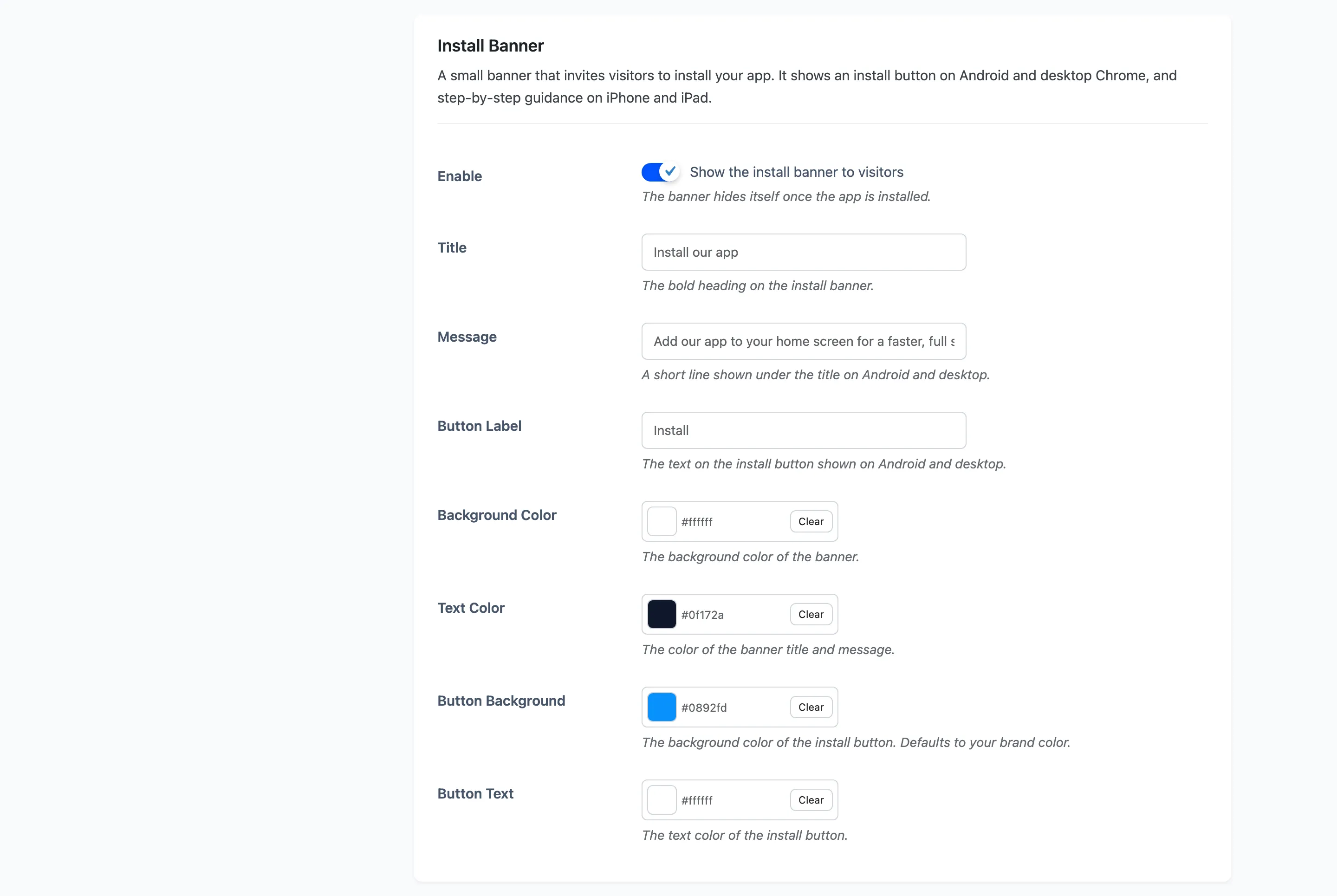
Step 2: Switch the banner on
Section titled “Step 2: Switch the banner on”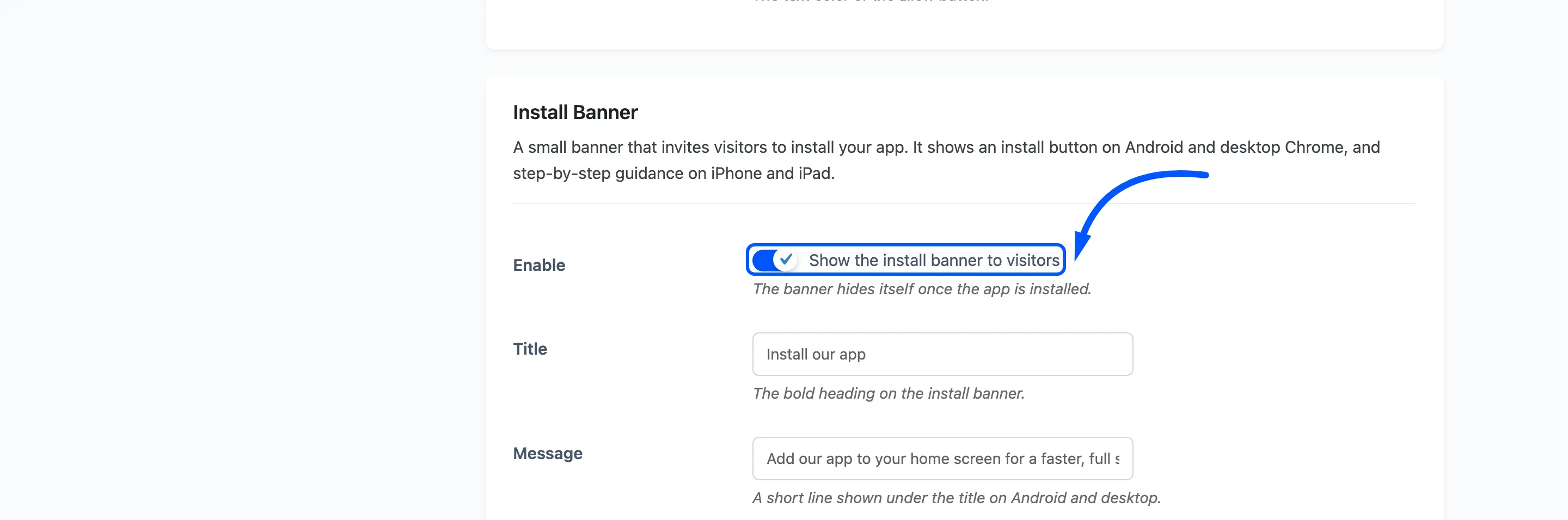
The banner hides itself once the app is installed, so an installed visitor never sees it again. Dismissing it keeps it away for seven days.
Step 3: Write the title and the message
Section titled “Step 3: Write the title and the message”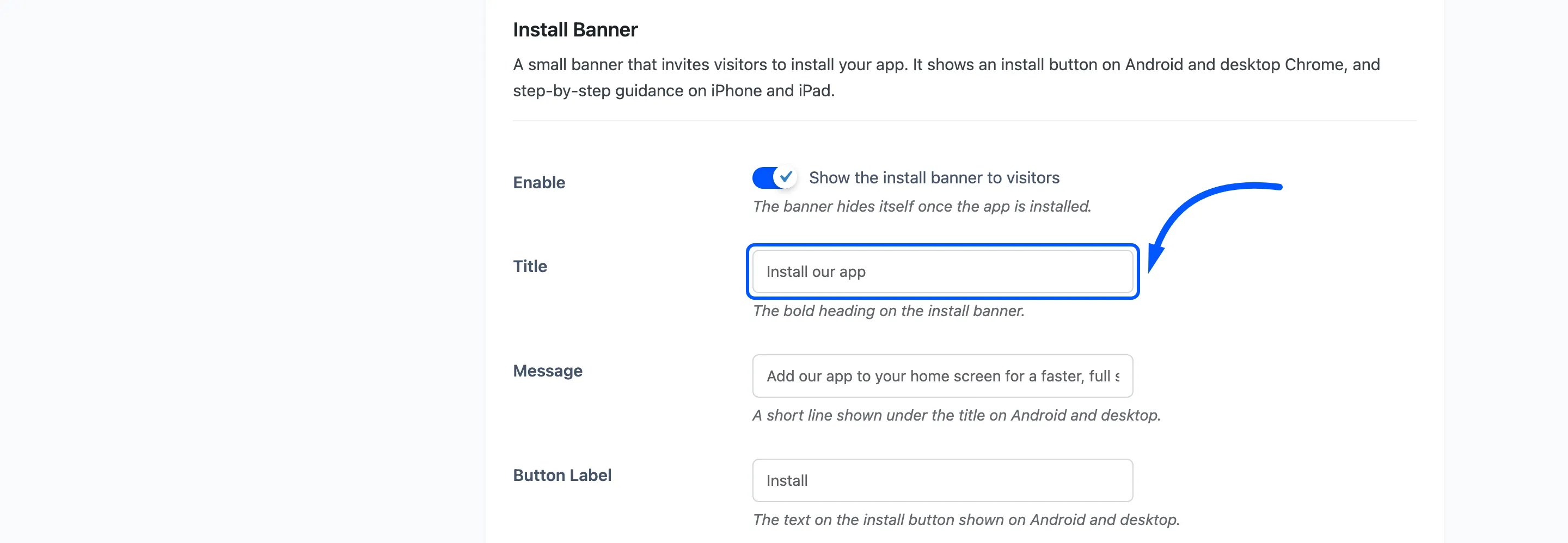
Title defaults to Install our app. That is fine and it is also what every other site says. Something specific does better: Order faster next time, or Get restock alerts first.
Message defaults to Add our app to your home screen for a faster, full screen experience. Say what the visitor gets rather than what the technology is. A shopper does not want a full screen experience, they want to not type their address again.
Keep both short. The banner is one line of a phone screen.
Step 4: Set the button label
Section titled “Step 4: Set the button label”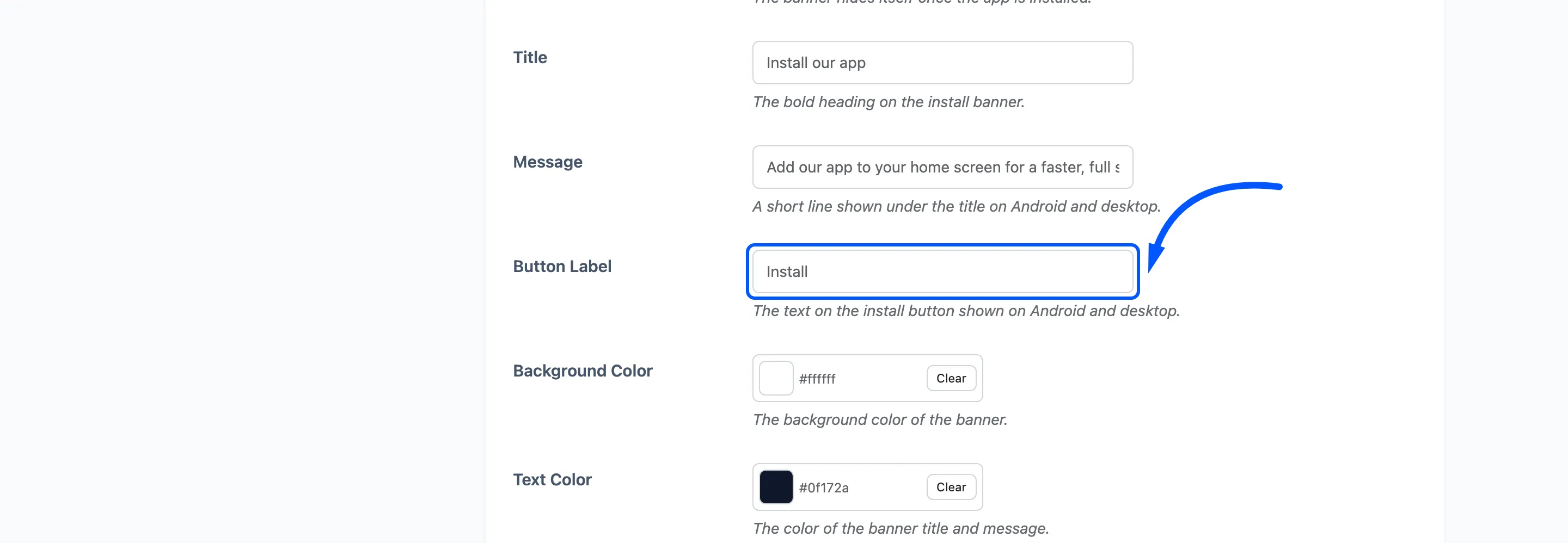
Default Install. One or two words. This is the control, not the pitch, and a long label wraps on a narrow screen.
Step 5: Colour it
Section titled “Step 5: Colour it”
Four pickers, all in the same section.
- Background Color, default
#ffffff. - Text Color, default
#0f172a. - Button Background, defaulting to your theme colour.
- Button Text, default
#ffffff.
The banner floats over your page, so the background needs enough contrast against the content behind it. White on a white site works because the banner carries its own shadow.
Step 6: Know what iPhone and iPad get
Section titled “Step 6: Know what iPhone and iPad get”This is the part the settings do not show you. Android and desktop browsers fire an install event, which is what the Install button triggers. iOS has no such event at all.
On iPhone and iPad the banner keeps your title and colours, drops the button, and shows fixed guidance instead: tap the Share button, then choose Add to Home Screen. That wording is not editable, because it describes the operating system rather than your site.
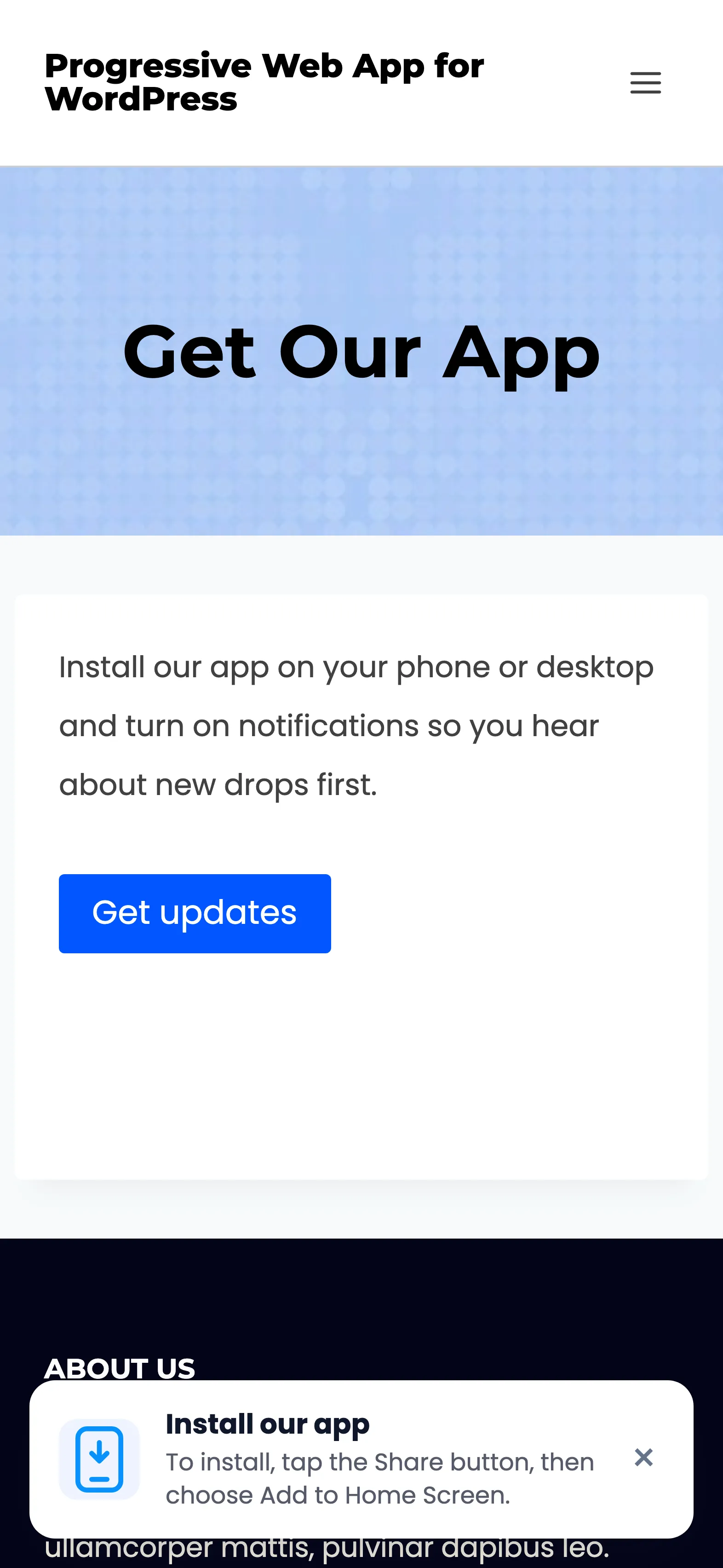
Note what else is missing from that screen. The Install our app button placed by the
[ddwppwa_install_button] shortcode is not drawn either, for the same reason: the plugin only reveals
it once the browser has fired an install event, and Safari never does. The Get updates button
stays, because notifications on iOS work once the app is on the home screen.
So write a title that makes sense with and without a button. Install our app reads oddly above a set of manual steps; Add us to your home screen reads well either way.
Step 7: Check it on the storefront
Section titled “Step 7: Check it on the storefront”Press Save Changes, then open your site in Chrome, Edge, Opera or Samsung Internet.
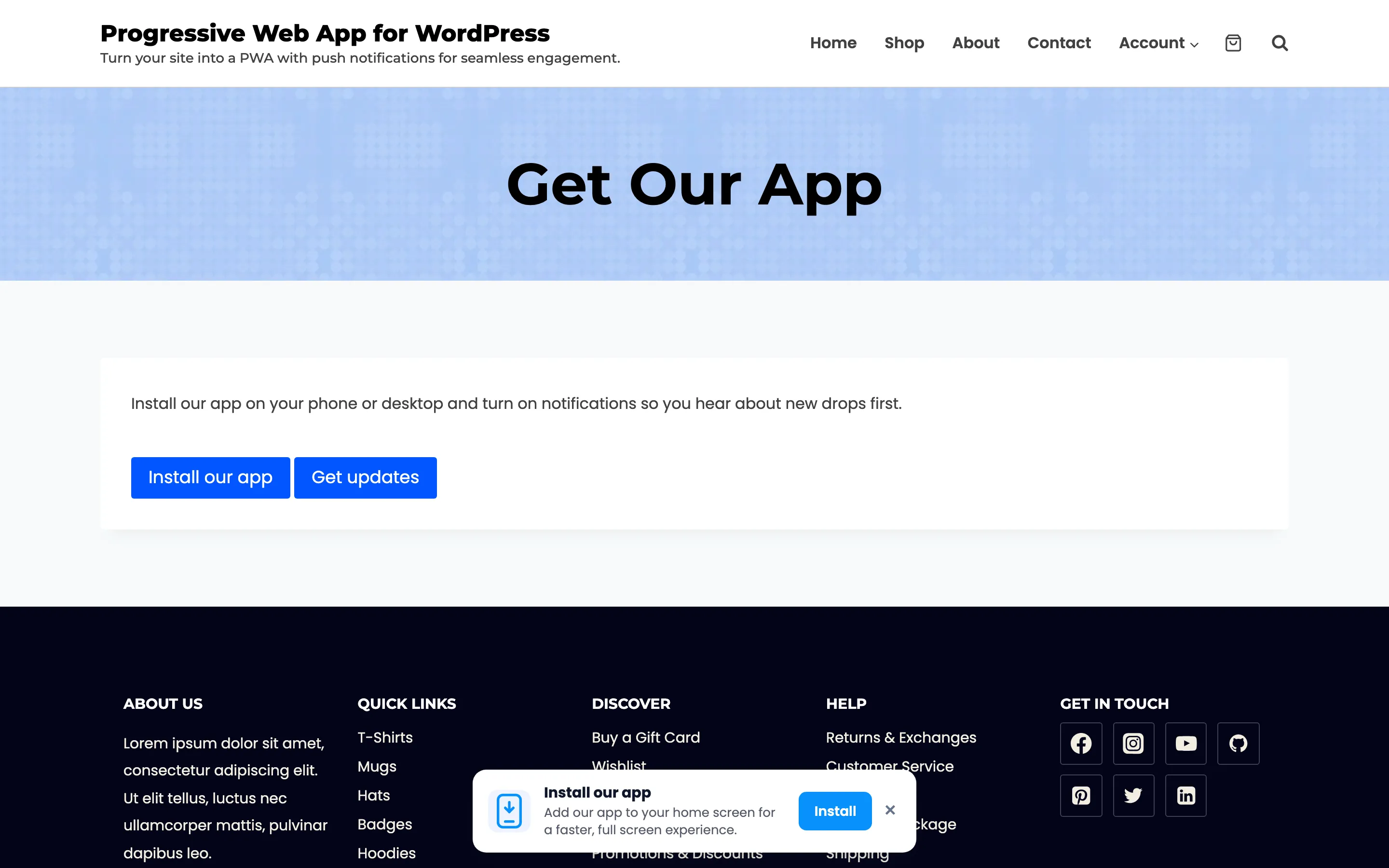
On a phone the same banner wraps its actions onto their own row, so a long title and a long button label have more room than the desktop layout suggests.
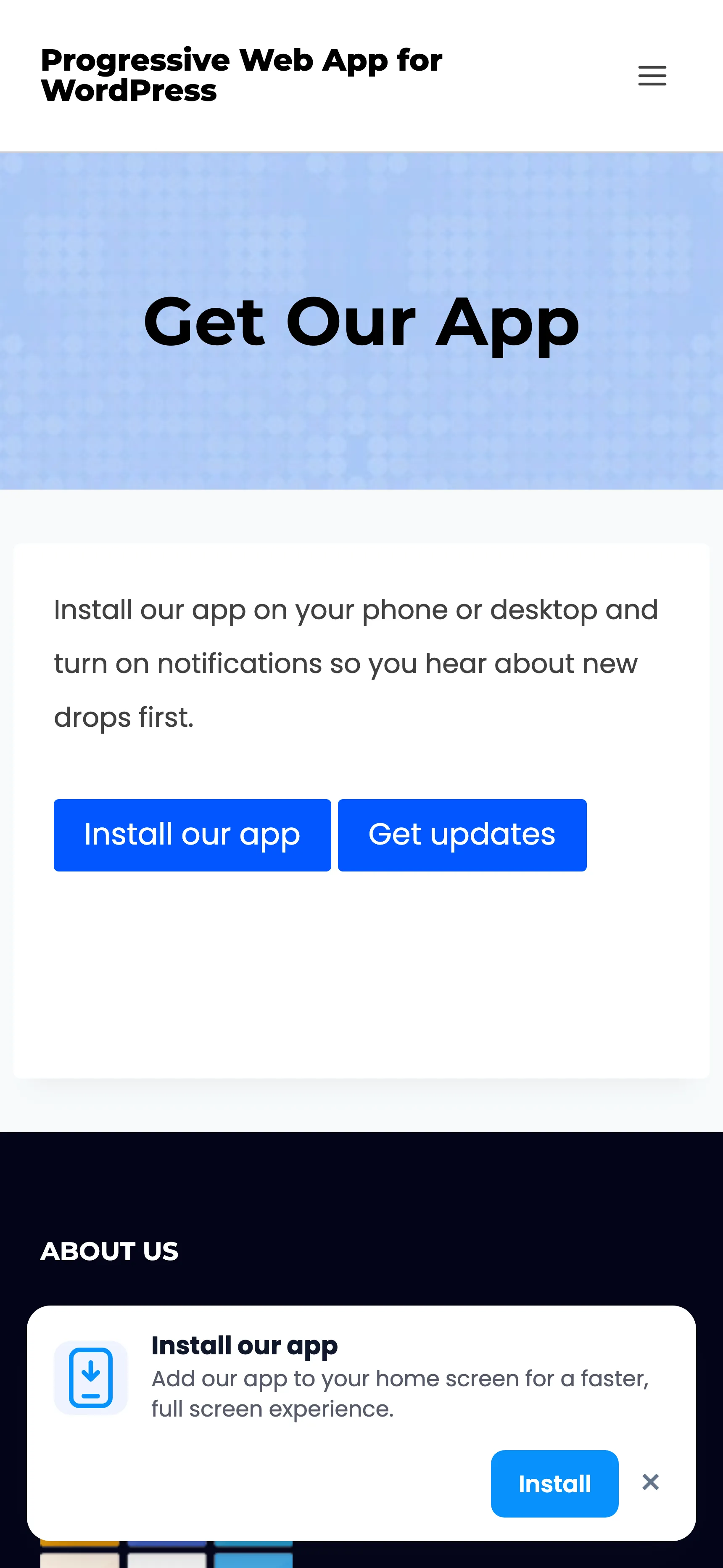
If it does not appear, work through these.
- You have already dismissed it. The dismissal lasts seven days and lives in your own browser. Clear the site’s storage or use a private window.
- You have already installed the app. The banner hides for good once installed.
- The browser has not decided the site is installable. It needs the manifest, an icon and the service worker. The Status tab reports all three.
- You are on Firefox desktop or Safari on a Mac. Neither installs.
Putting the same prompt inside a page
Section titled “Putting the same prompt inside a page”The banner appears when the browser is ready. A shortcode puts the same action where you choose.
[ddwppwa_install_button label="Install our app"]The button stays hidden until the browser is ready to install, so it never renders as a dead control.