

How to Send a Push When You Publish a Post
There are two ways to push a post, and they are not alternatives. The automation fires on every publish without you thinking about it. The editor box is for the post that deserves a message you wrote yourself.
Step 1: Turn on the New Post automation
Section titled “Step 1: Turn on the New Post automation”Go to DevDiggers Plugins → Progressive Web App → Configuration → Automations.
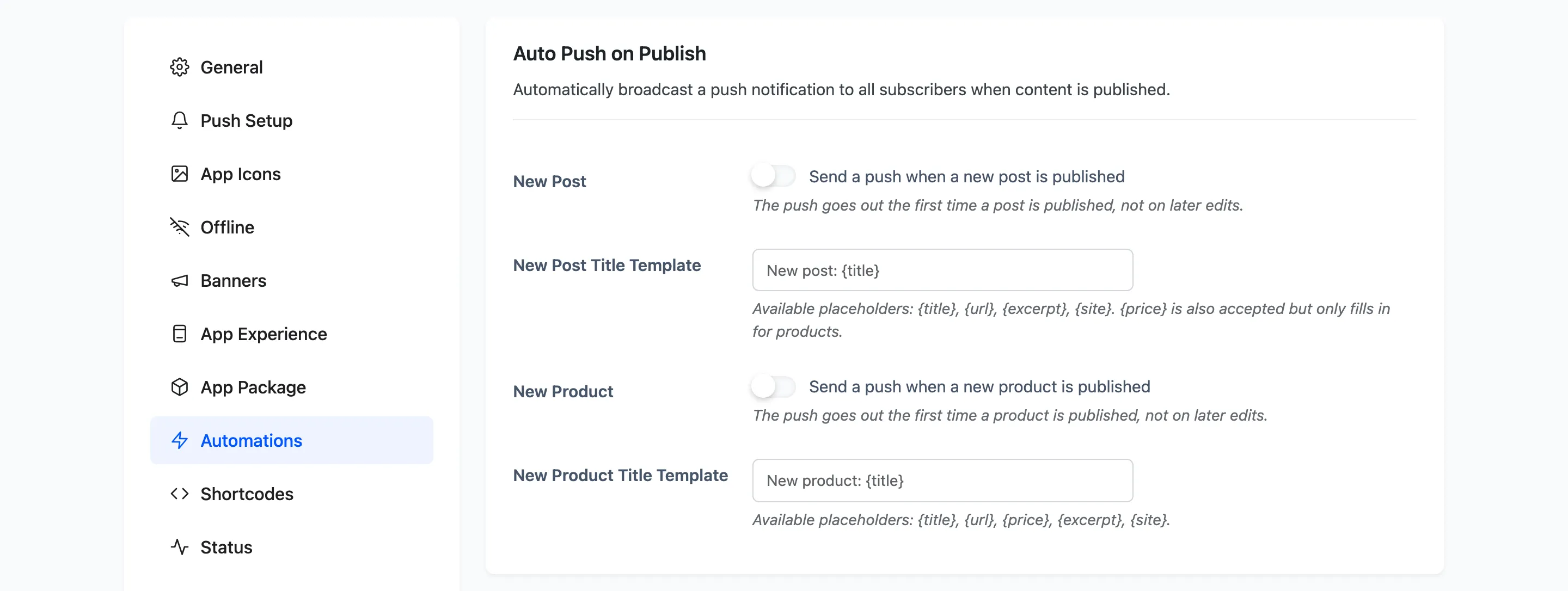
Tick New Post.
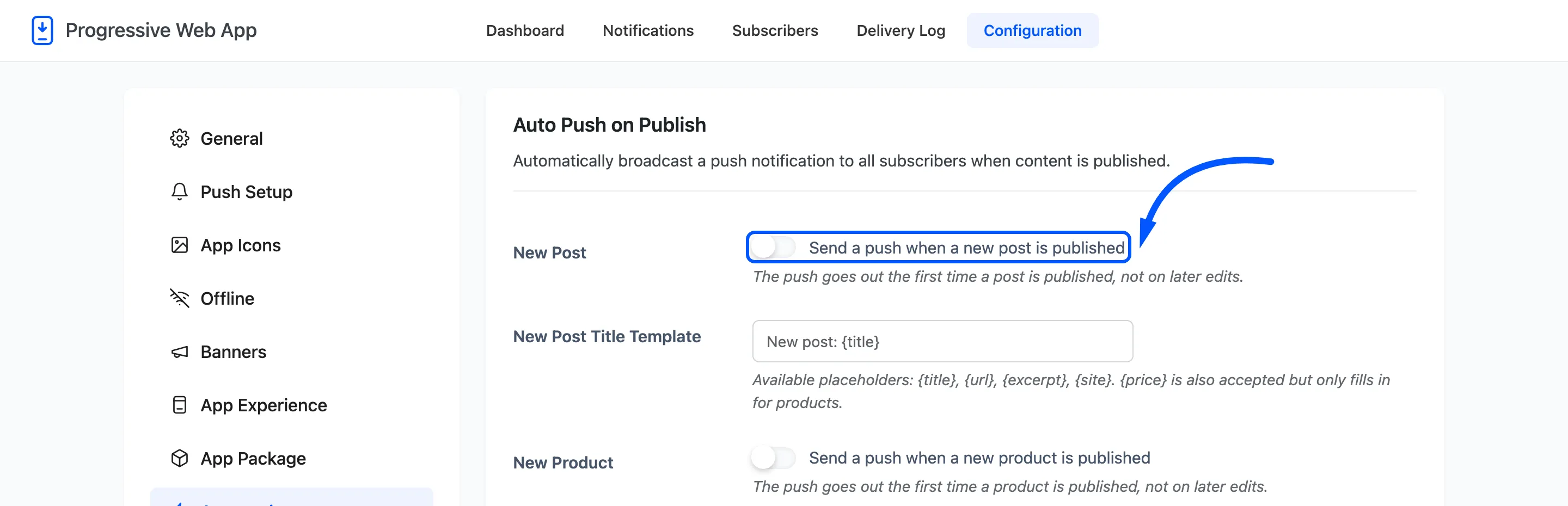
It fires on the first publish only, not on later edits. Editing a published post never sends anything, which is what makes it safe to fix a typo afterwards.
Step 2: Write the title template
Section titled “Step 2: Write the title template”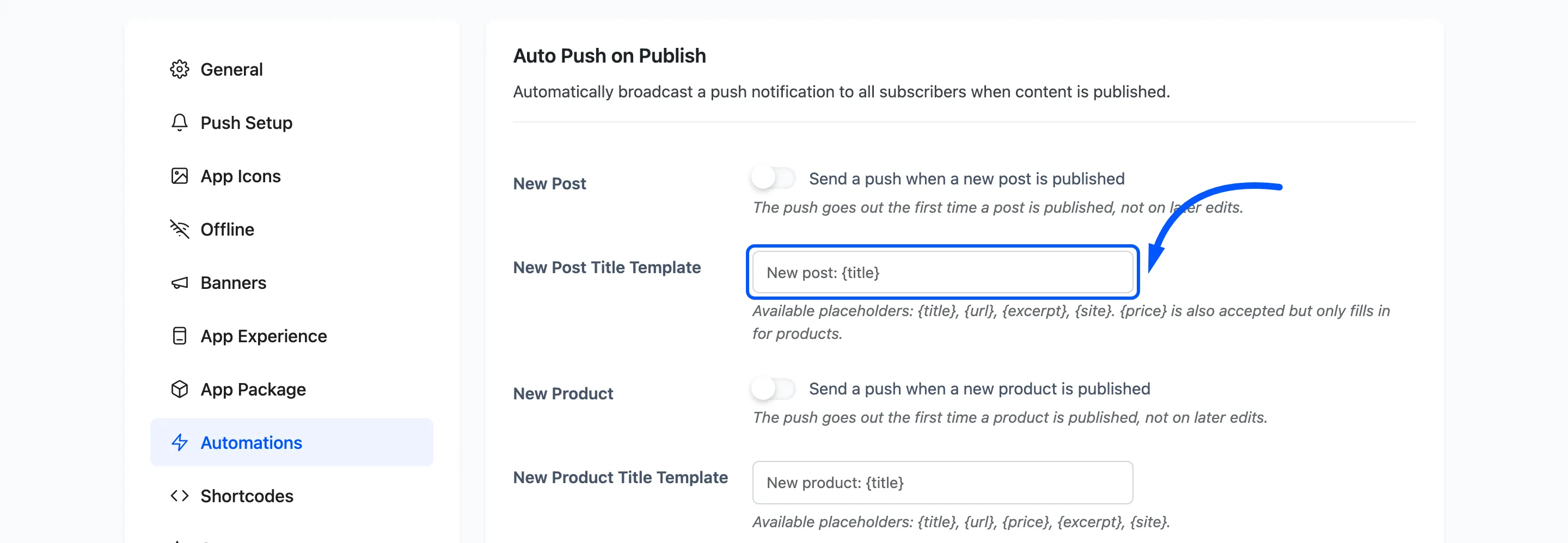
The default is New post: {title}. Four placeholders are available.
{title}is the post title.{url}is its permalink.{excerpt}is the excerpt, or the trimmed opening of the content when there is none.{site}is your site name.
{price} is also accepted, but it only fills in for products, so it is no use here.
Keep the whole thing short. A phone cuts the title off around 40 characters, and New post: has
already spent ten of them. {title} alone is often the better template. Press Save Changes when you are done; nothing is
sent by saving.
Step 3: Publish a post
Section titled “Step 3: Publish a post”Publish as you normally would, from the ordinary WordPress editor, so there is no plugin screen to show here. The push goes out at the moment the post’s status becomes published, to every subscriber, opening the post itself.
Step 4: Send a one-off push instead
Section titled “Step 4: Send a one-off push instead”Every post and product carries a Send Push Notification box in the editor sidebar.
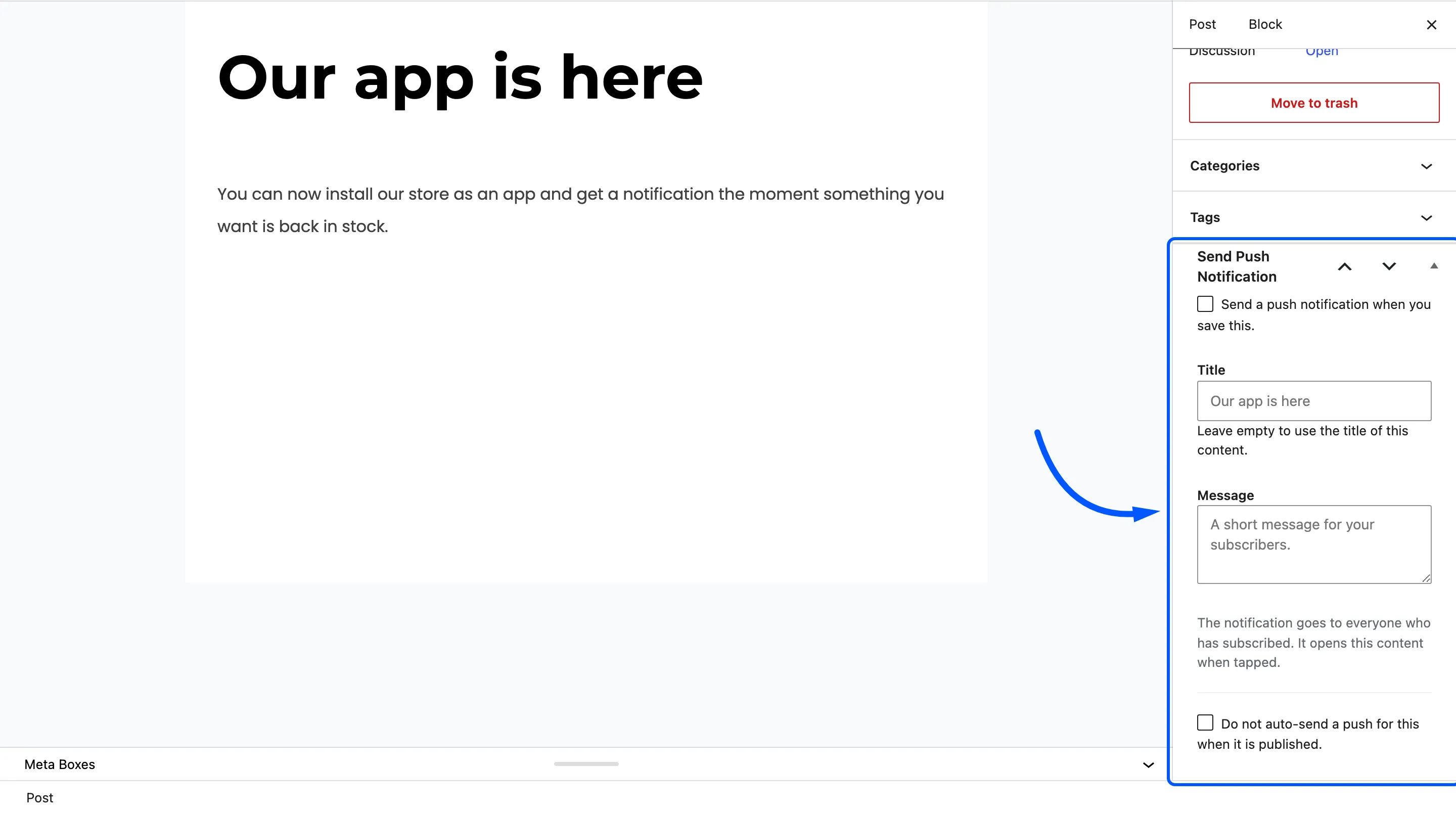
Four controls, and the first and last are the interesting ones.
- Send a push notification when you save this. Unticked by default. Tick it, save, and one push goes out. It is not remembered, so it never fires twice.
- Title: Leave it empty to use the title of the content.
- Message: Leave it empty and the excerpt, or the opening of the content, is used.
- Do not auto-send a push for this when it is published. This one is remembered. Tick it on a post you do not want the automation to announce, and the automation skips it.
The push carries the post’s featured image as its icon and opens the post when tapped. It only ever sends for published content, so ticking the box on a draft does nothing until the draft goes live.
Step 5: Check the Delivery Log
Section titled “Step 5: Check the Delivery Log”Go to Delivery Log and set the type filter.
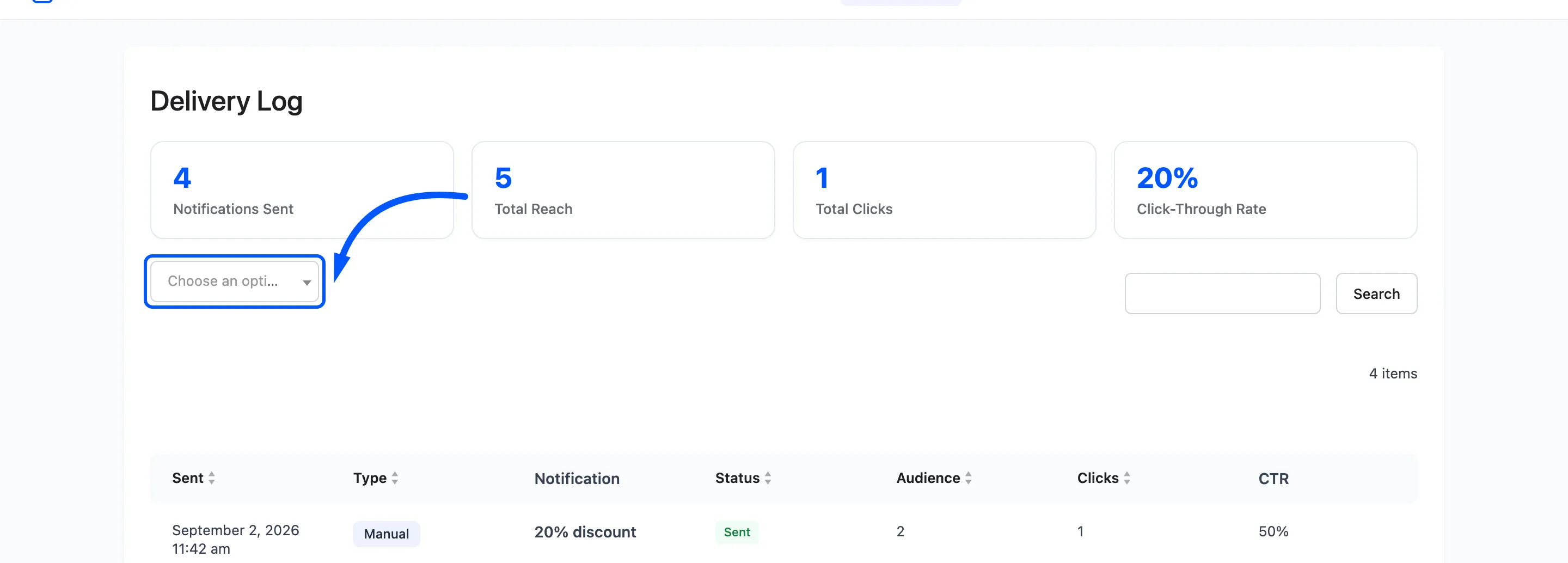
Filter by New Post to see what the automation has sent. A one-off from the editor box is logged as Manual, because that is what it is.
If the filter comes back empty after a publish, work through three causes in order. The automation is off, the post carries the do-not-auto-send flag, or the send failed on bad credentials.