

General Settings
The General tab holds the switch that makes the site installable and everything that ends up in the app manifest. Saving it rewrites the manifest and both service workers.
Go to DevDiggers Plugins → Progressive Web App → Configuration → General.
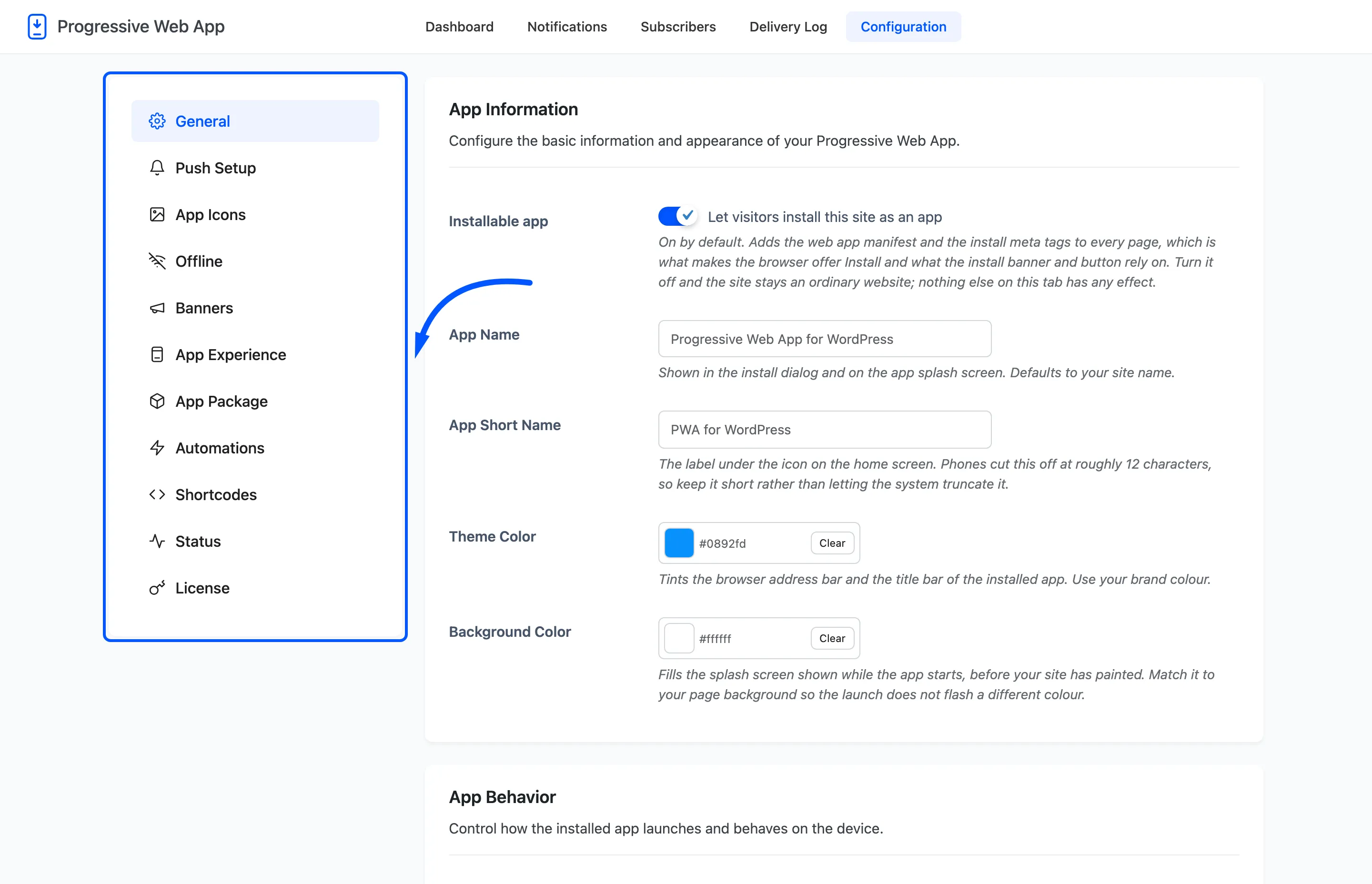
App Information
Section titled “App Information”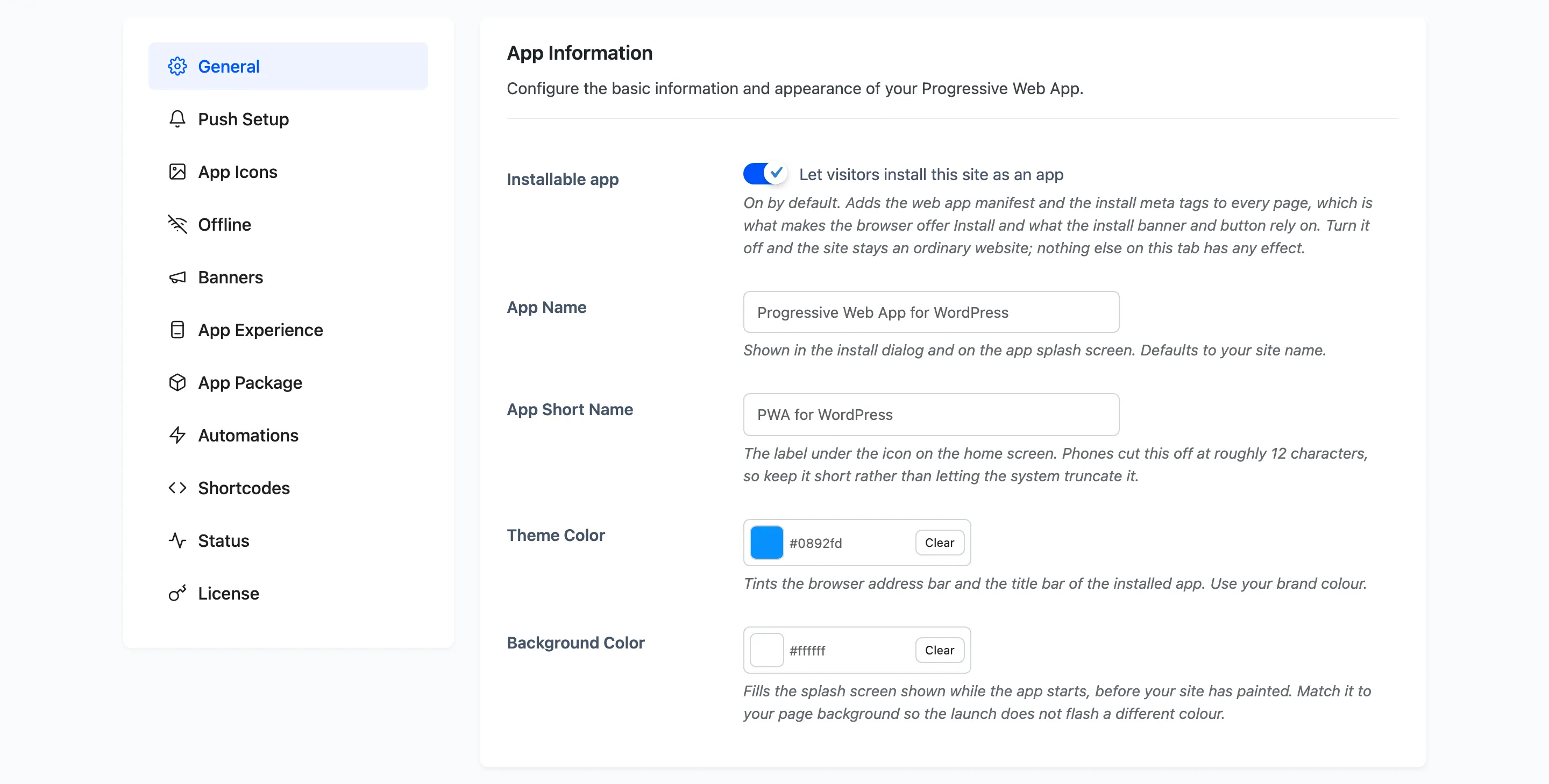
Installable app: On by default. This is the master switch for the app half of the plugin. It adds the manifest link and the install meta tags to every page. That is what makes a browser offer Install, and what the banner and the install button both rely on.
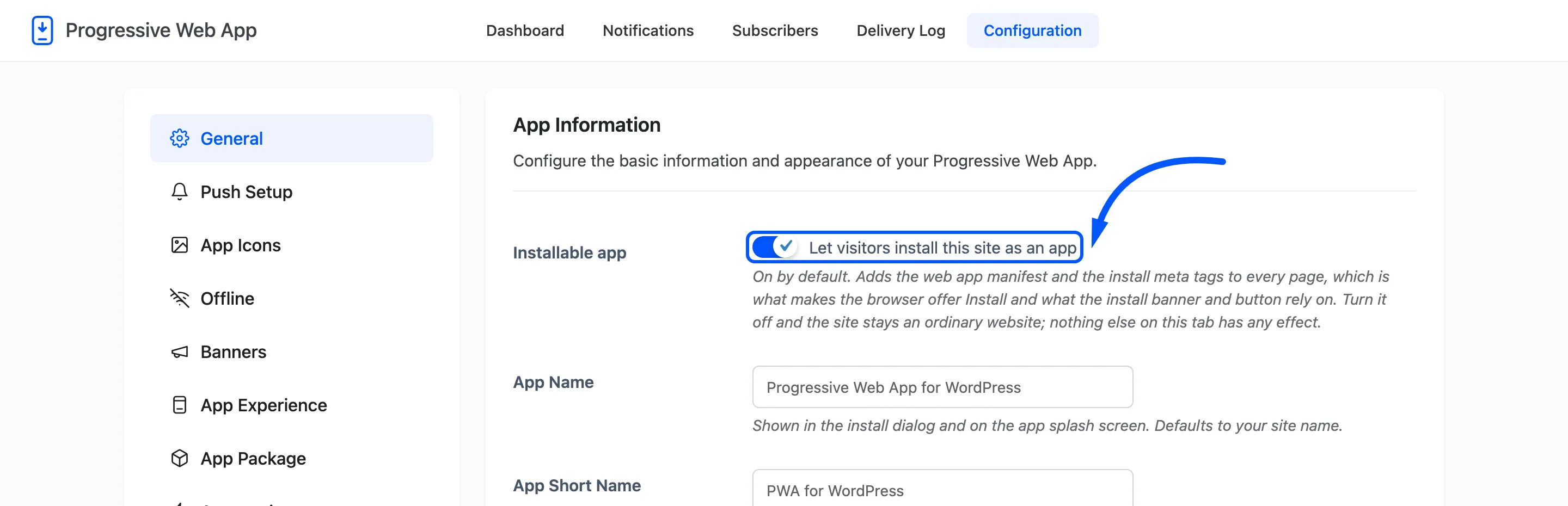
Turn it off and the site is an ordinary website again. Nothing else on this tab has any effect while it is off.
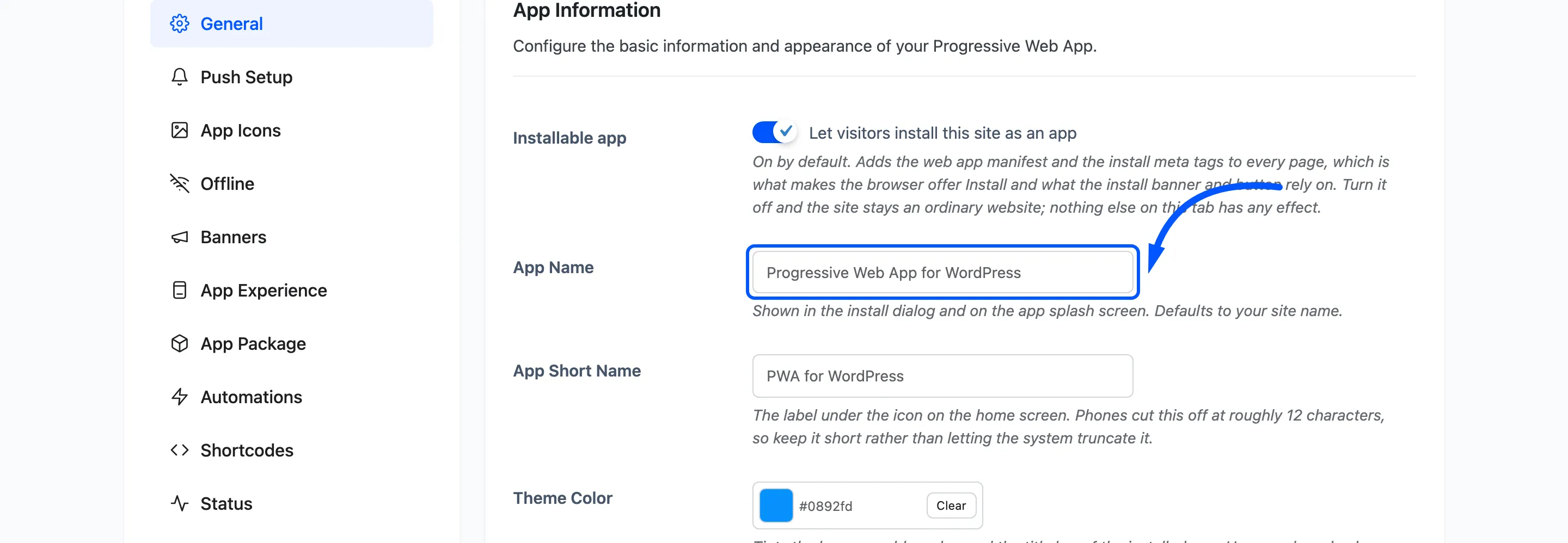
App Name: Defaults to your site name. Shown in the install dialog and on the splash screen.
App Short Name: Also defaults to your site name, and this one matters more than it looks. It is the label under the icon on the home screen, and phones cut it off at roughly 12 characters. Choose something short rather than letting the system truncate it.
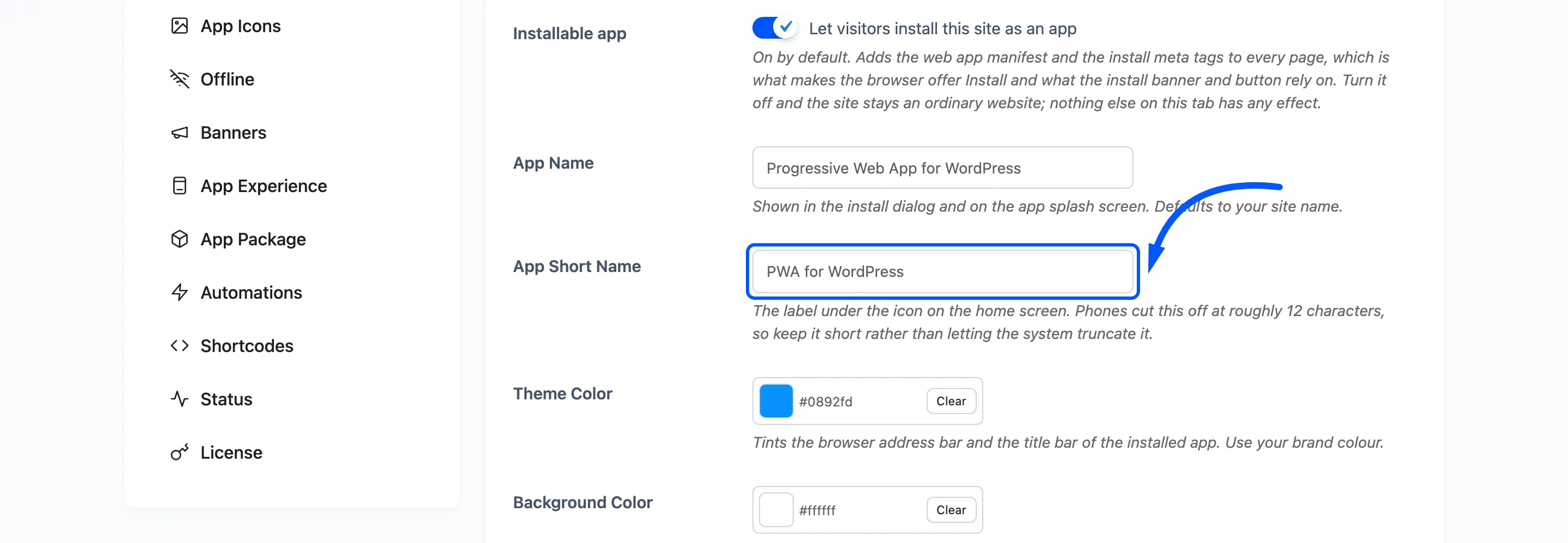
Theme Color: Default #0256ff. Tints the browser address bar and the title bar of the installed
app. Use your brand colour.
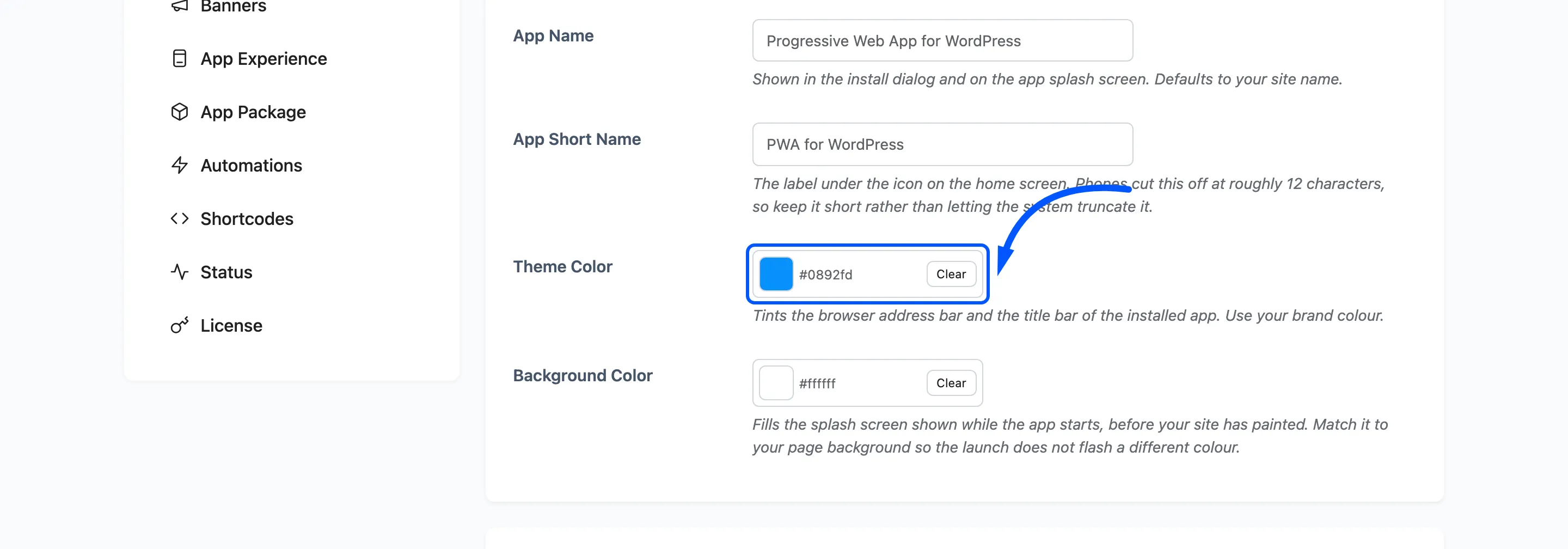
Background Color: Default white. Fills the splash screen while the app starts, before your site has painted anything. Match it to your page background or the launch flashes a different colour.
App Behavior
Section titled “App Behavior”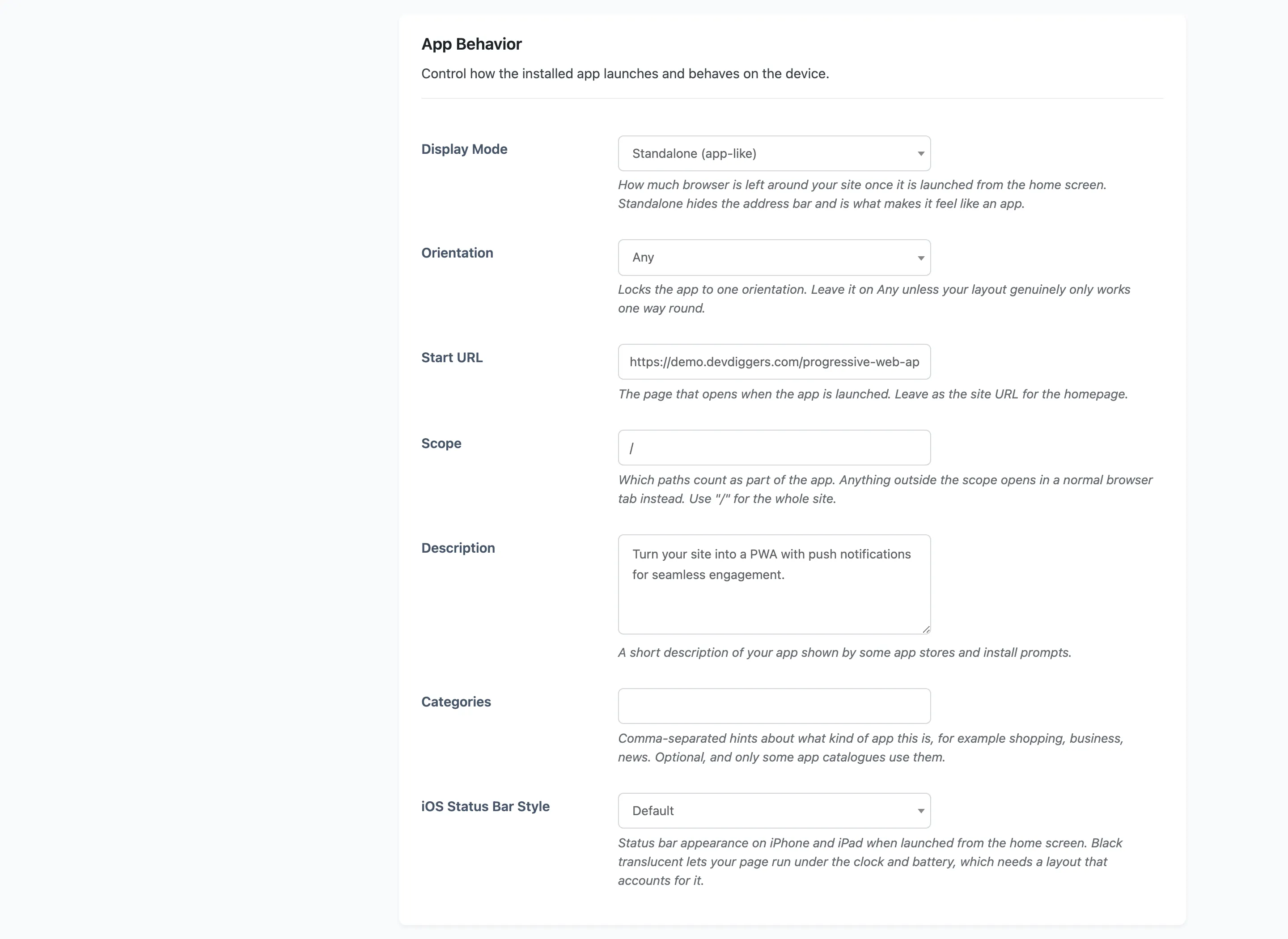
Display Mode: Default Standalone. How much browser is left around your site once it is launched from the home screen.
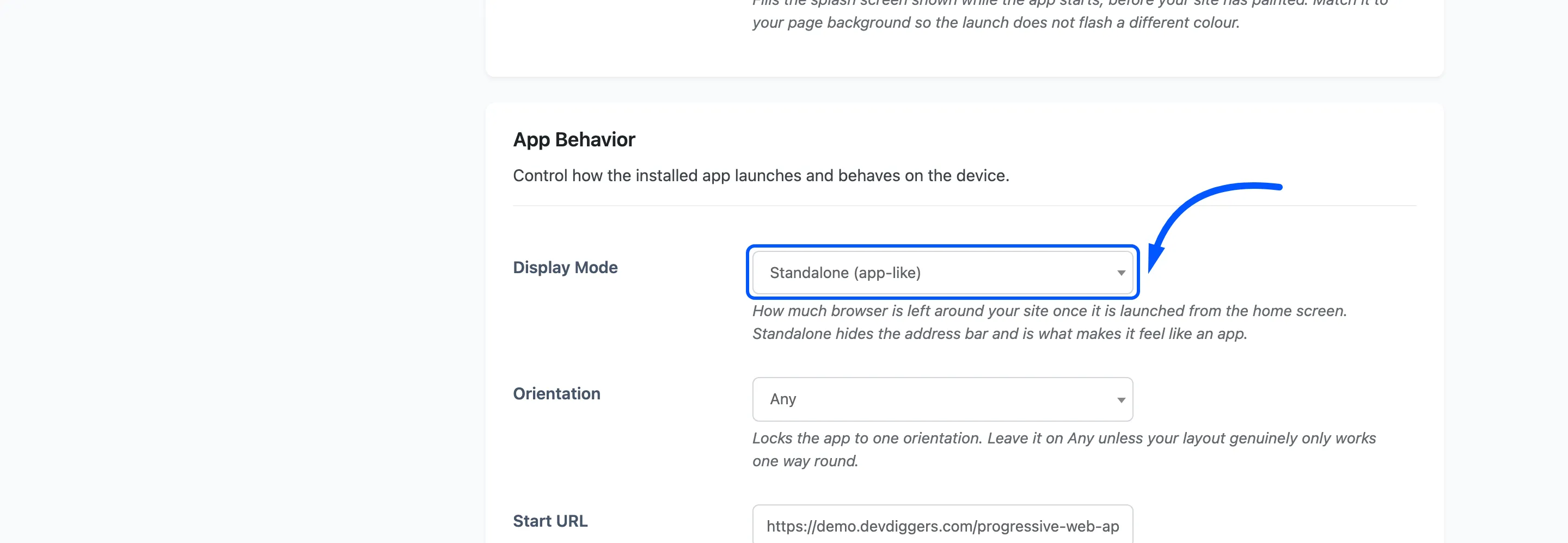
- Standalone hides the address bar. This is what makes it feel like an app.
- Fullscreen hides the status bar as well.
- Minimal UI keeps a slim set of browser controls.
- Browser opens in an ordinary tab, which gives up most of the point.
Orientation: Default Any. Locks the app to portrait or landscape. Leave it on Any unless your layout genuinely only works one way round.
Start URL: Defaults to your site URL. The page the app opens on.
Scope: Default /. Which paths count as part of the app. Anything outside the scope opens in a
normal browser tab instead, so / is right for almost every site.
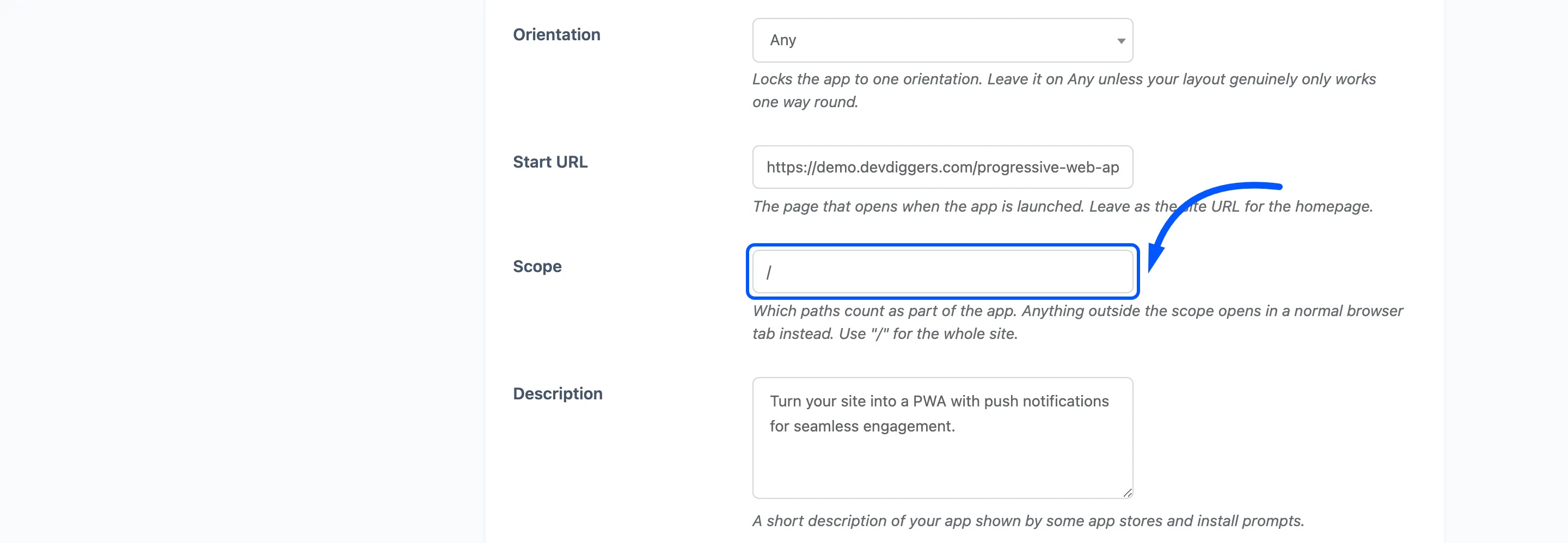
Description: Defaults to your site tagline. A short description some app catalogues and install prompts show.
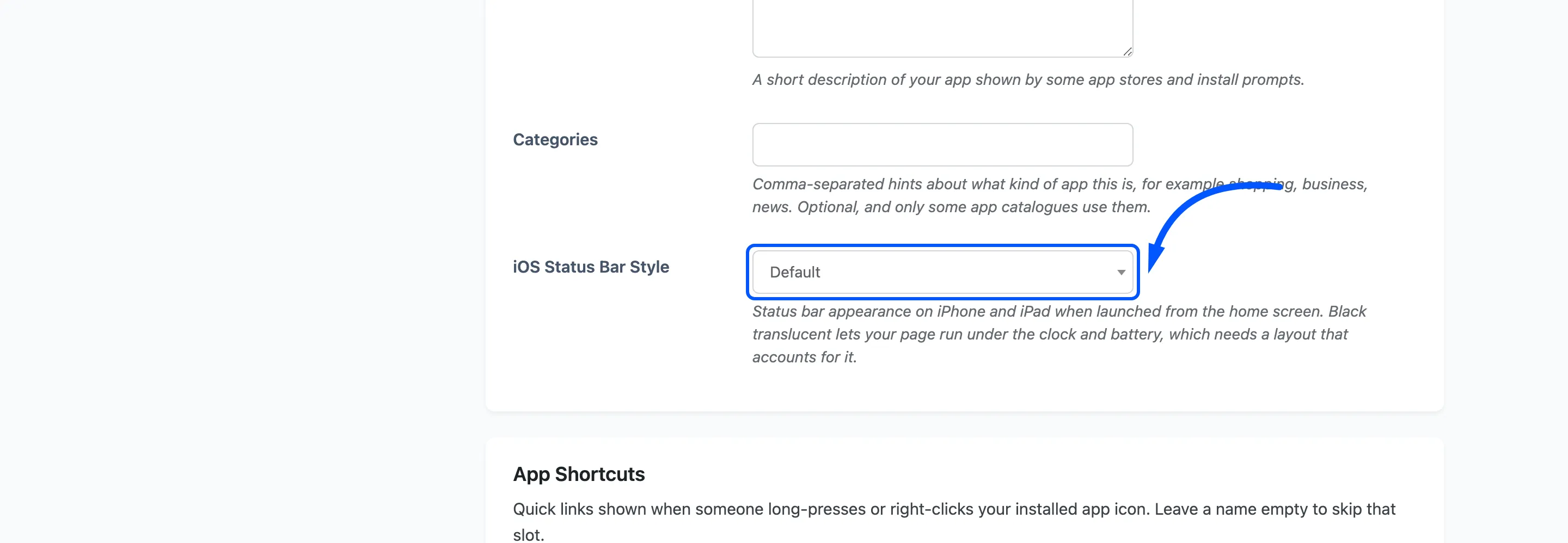
Categories: Empty by default. Comma-separated hints such as shopping, business, news. Optional,
and only some catalogues read them.
iOS Status Bar Style: Default Default. How the status bar looks on iPhone and iPad when the app is launched from the home screen. Black Translucent lets your page run under the clock and battery, which needs a layout that accounts for it.
App Shortcuts
Section titled “App Shortcuts”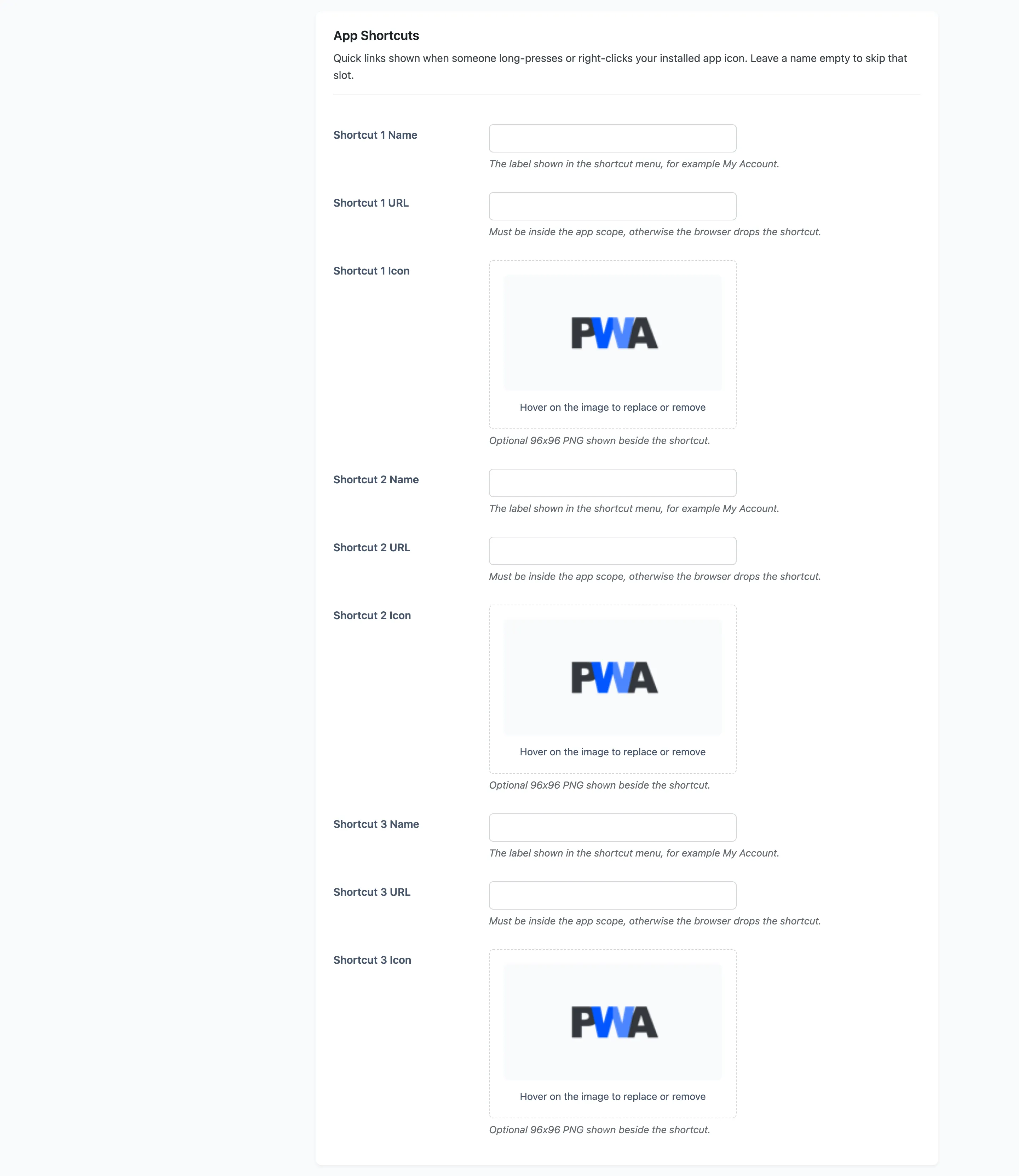
Long-pressing an installed app icon opens a menu of quick links. Three fixed slots, each with a name, a URL and an optional 96x96 icon. Leave a name empty to skip that slot.
A shortcut has to be inside your app scope, otherwise the browser drops it. A slot missing either its name or its URL is dropped rather than written, because a half-filled entry makes some browsers discard the whole list.
Tracking
Section titled “Tracking”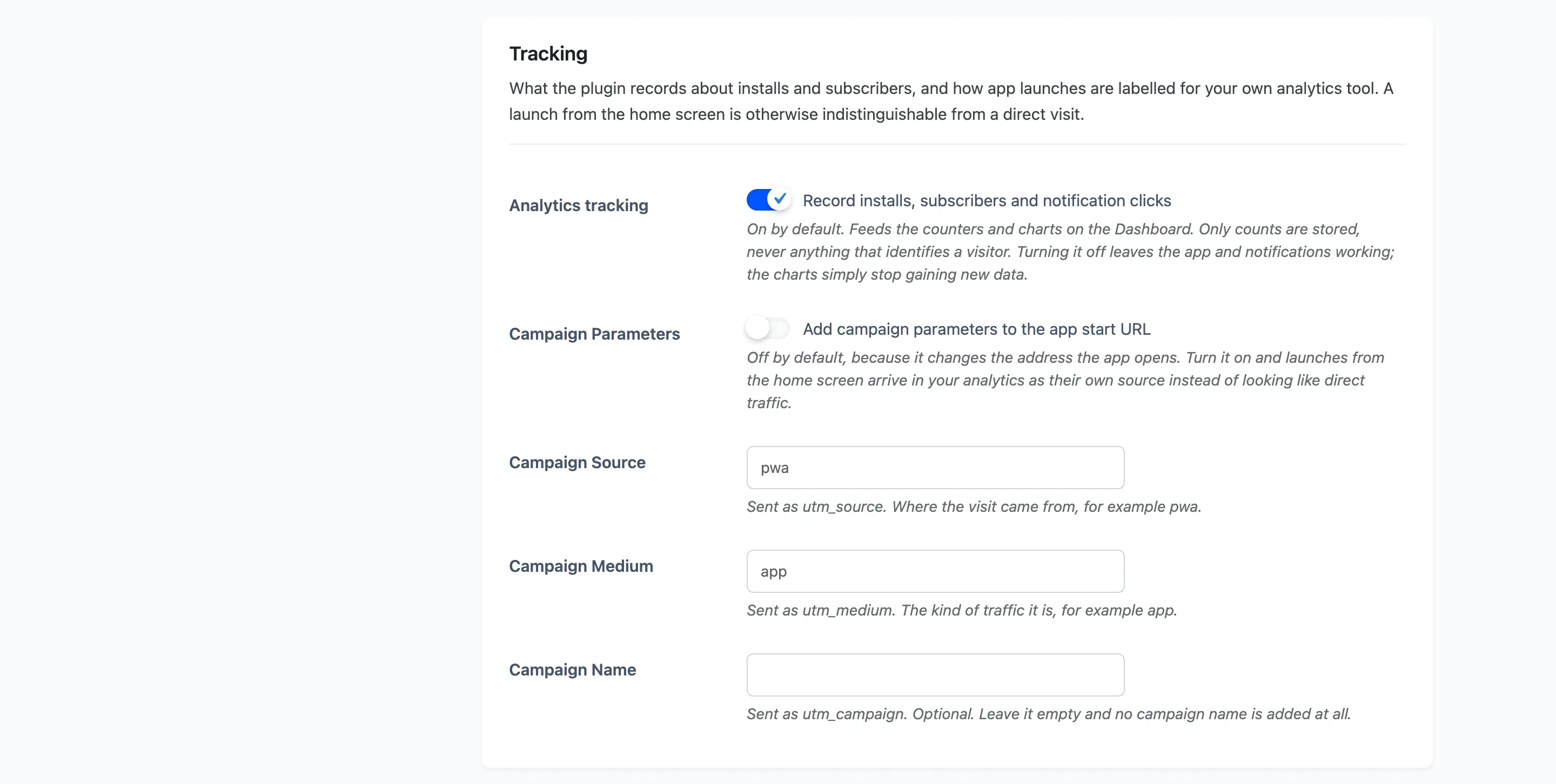
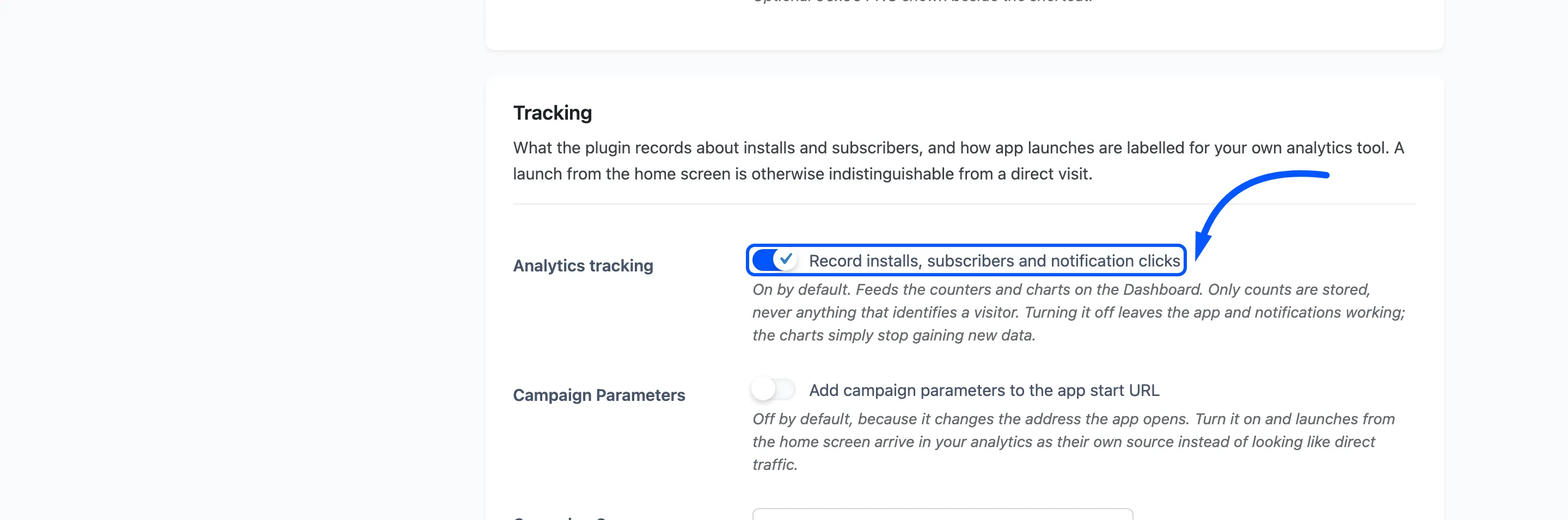
Analytics tracking: On by default. Feeds the counters and charts on the dashboard. Only counts are stored, never anything that identifies a visitor. Turning it off leaves the app and the notifications working and the charts simply stop gaining data.
Campaign Parameters: Off by default, because it changes the address the app opens on. Turn it on and launches from the home screen arrive in your own analytics tool as their own source instead of looking like direct traffic.
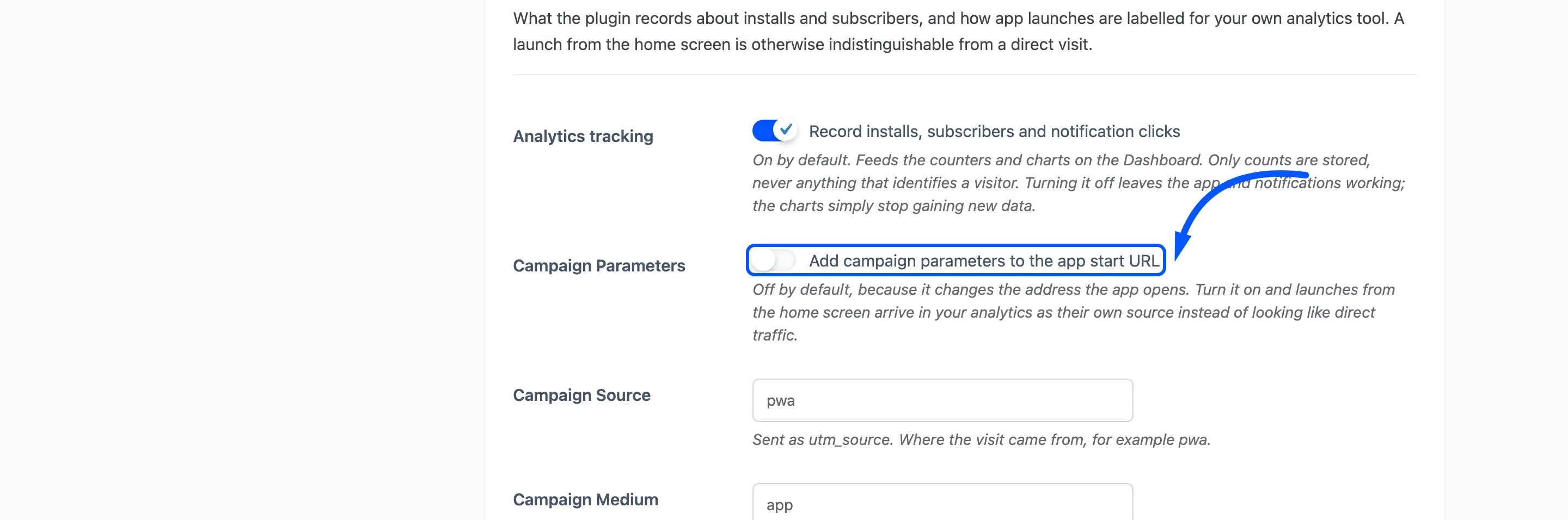
The three fields under it fill in the parameters.
- Campaign Source: Sent as
utm_source. Defaultpwa. - Campaign Medium: Sent as
utm_medium. Defaultapp. - Campaign Name: Sent as
utm_campaign. Empty by default, and left out entirely when empty.
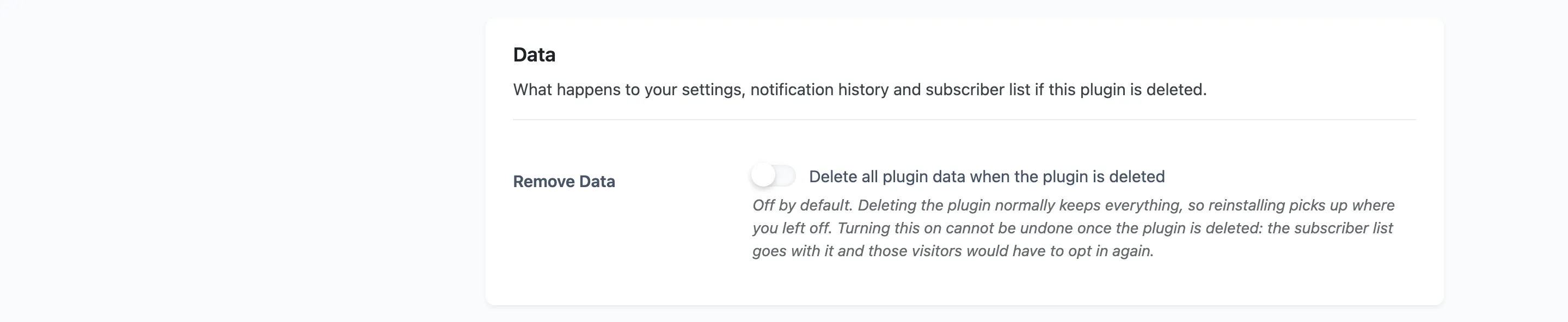
Remove Data: Off by default. Deleting the plugin normally keeps everything, so reinstalling picks up where you left off.