

The Notifications Screen
A notification here is a saved message, not a sent one. You write it once, keep it, and send it when you want to. That is why the list has both a status and a last-sent column.
Go to DevDiggers Plugins → Progressive Web App → Notifications.
The list
Section titled “The list”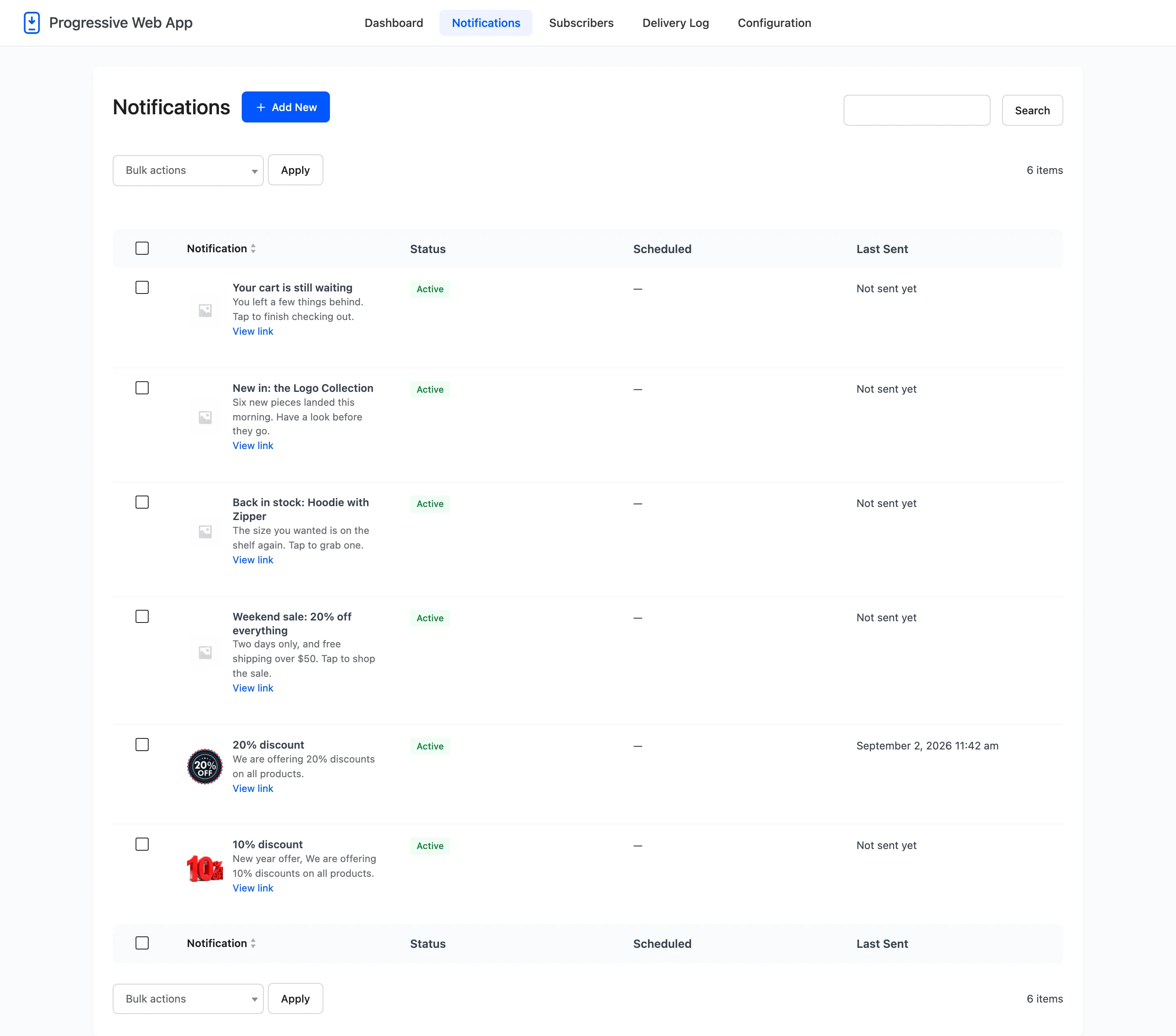
Four columns.
- Notification: The image, the title, a trimmed description and a View link to the URL it opens. Sortable by title.
- Status: Active or Inactive. Only an active notification carries a Send Now action, and only an active one can be swept into a bulk send.
- Scheduled: The date and time a scheduled send is due, or a dash. Pro.
- Last Sent: When it last went out, or Not sent yet.
Row actions
Section titled “Row actions”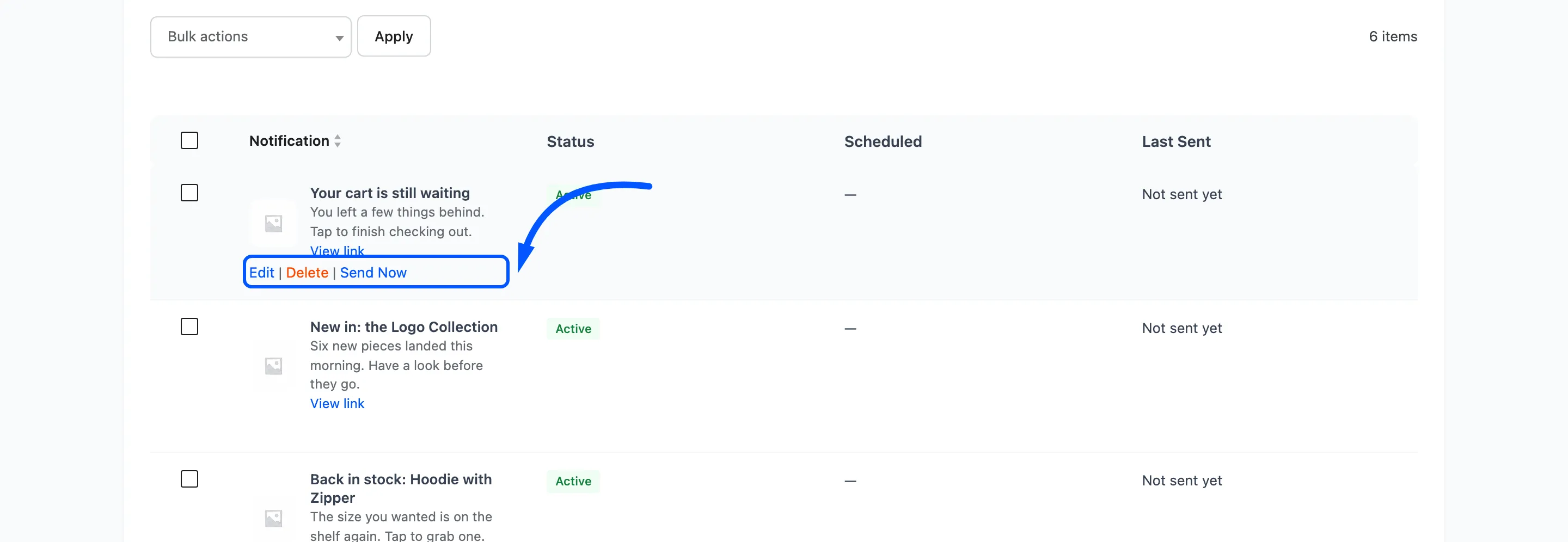
Hover a row for three actions.
- Edit opens the same form you created it with.
- Delete removes the saved notification. It does not recall anything already delivered.
- Send Now broadcasts it immediately. It only appears on an Active row.
Send Now is a real send to real devices. There is no confirmation step, so read the row before you press it.
Bulk actions
Section titled “Bulk actions”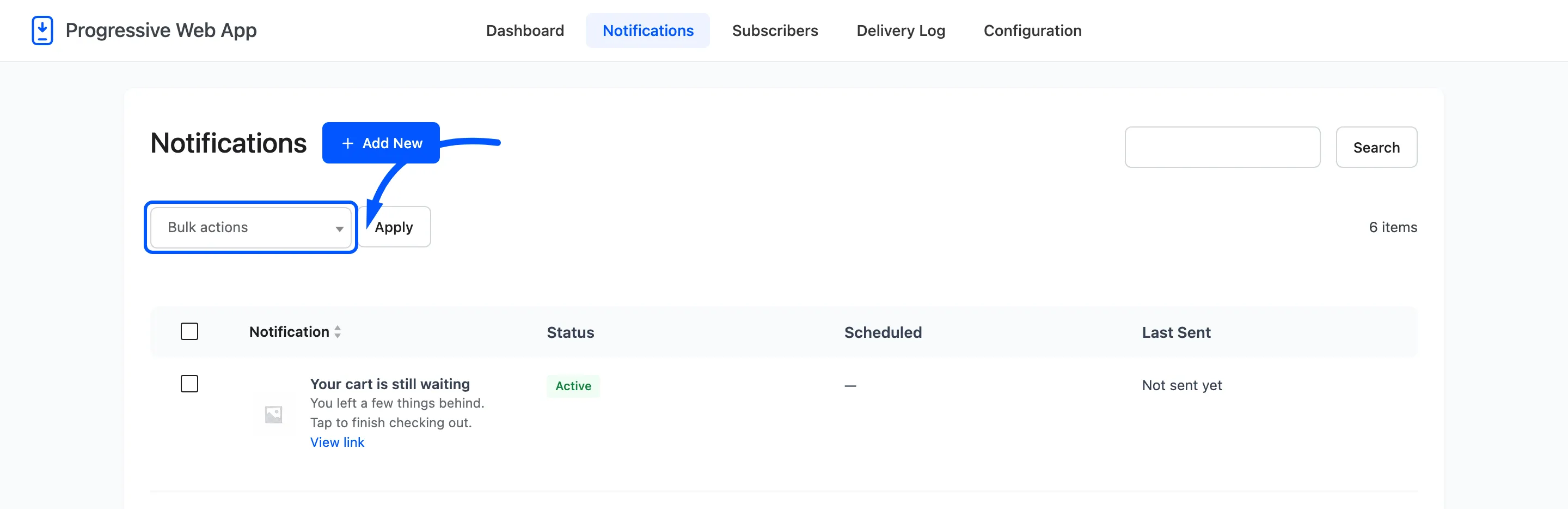
Delete and Send Bulk Notifications, applied to every ticked row.
The checkbox on an inactive row is disabled, so a draft cannot be swept into a bulk send by accident.
Adding one
Section titled “Adding one”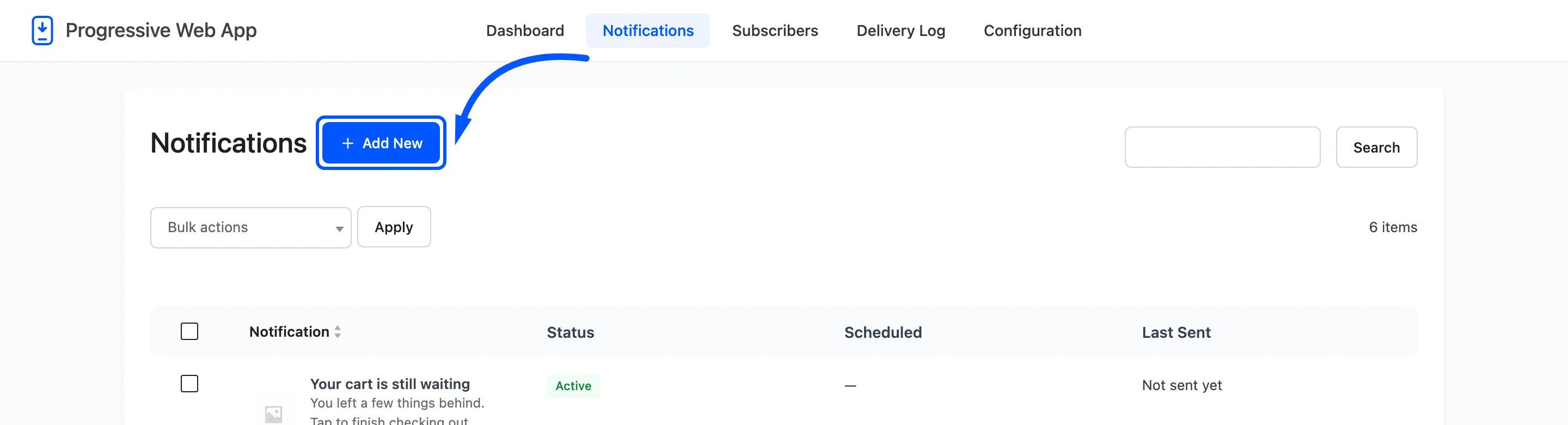
Add New opens the form.
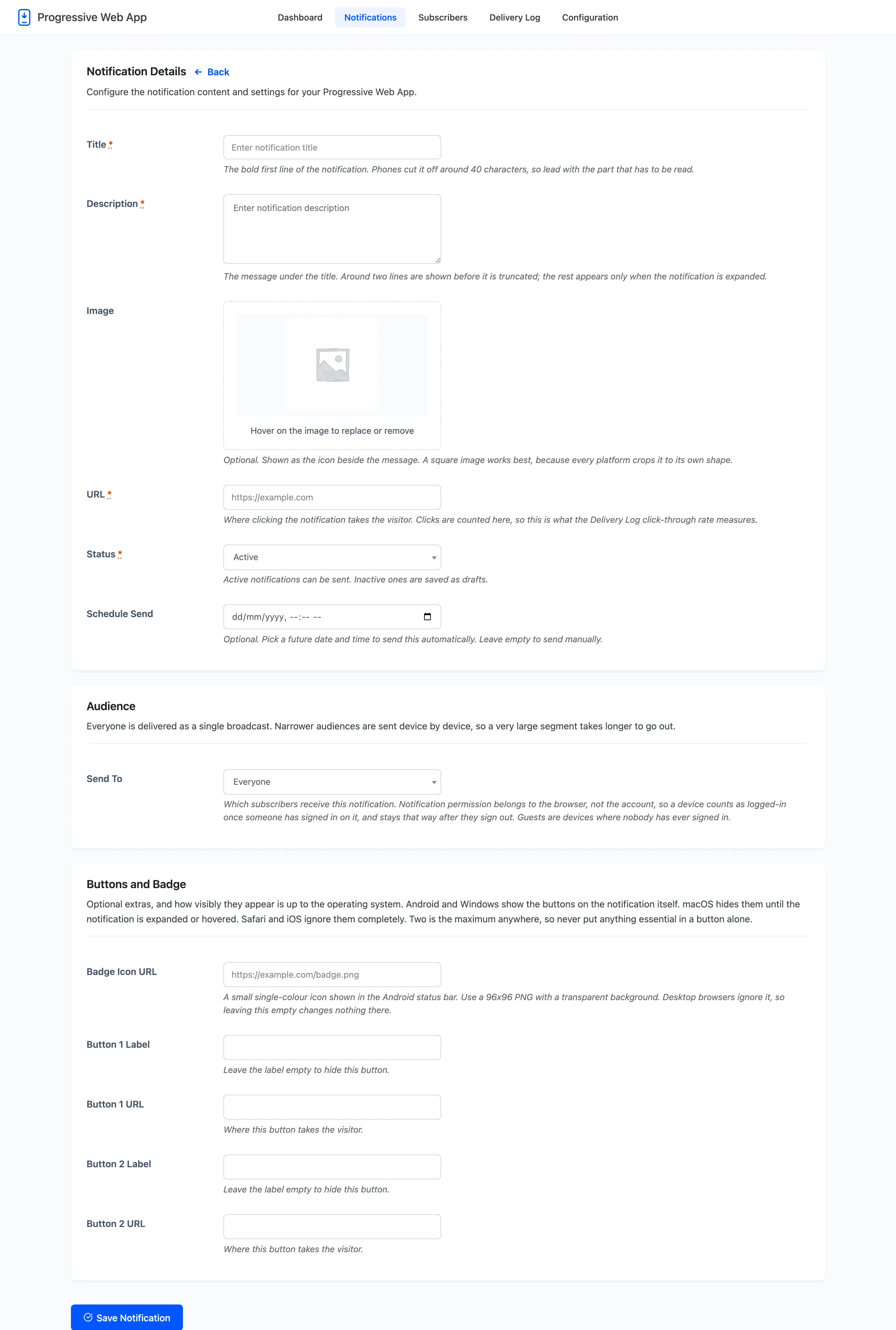
Notification Details
Section titled “Notification Details”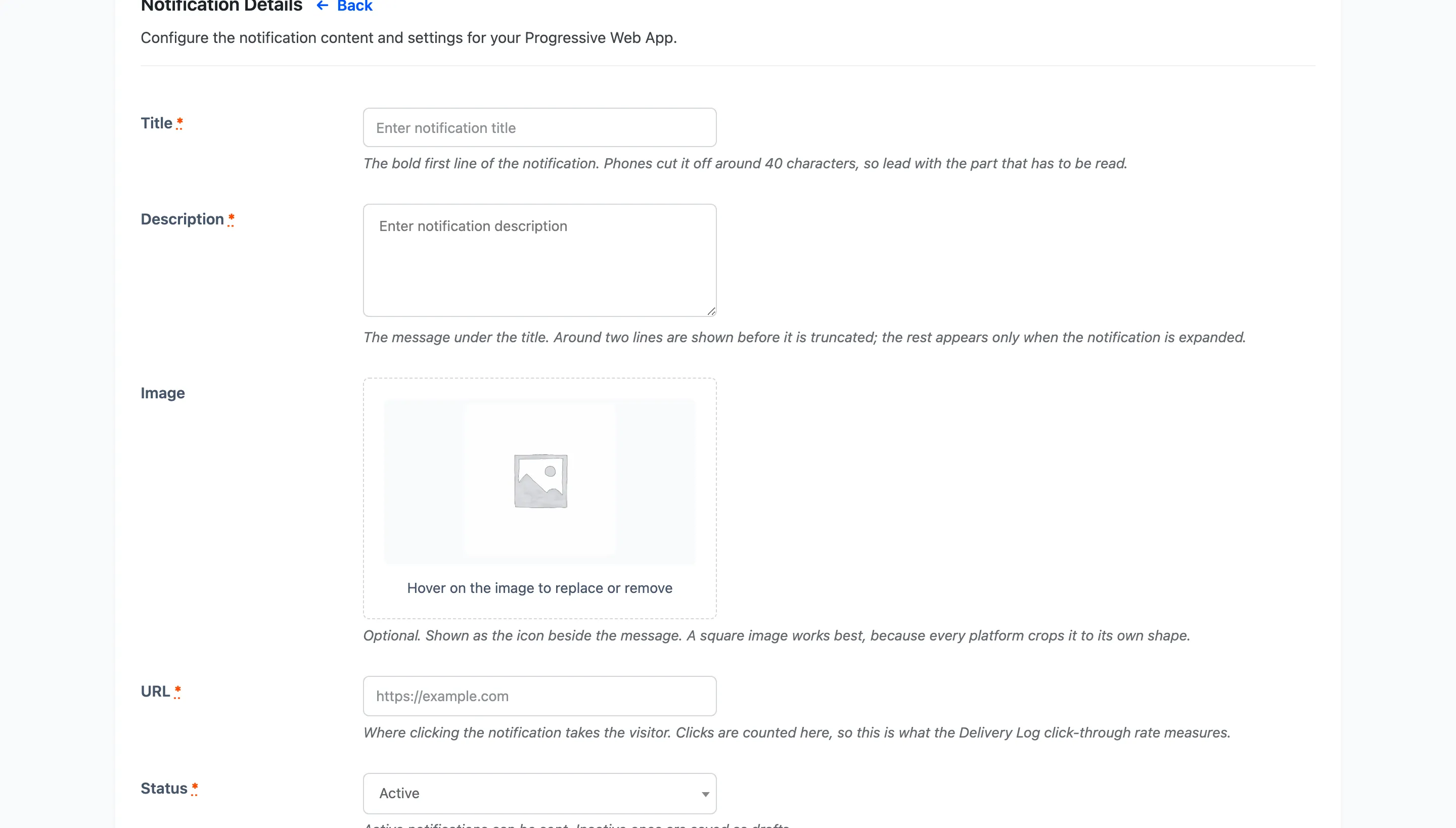
Title: Required. The bold first line. Phones cut it off around 40 characters, so lead with the part that has to be read.
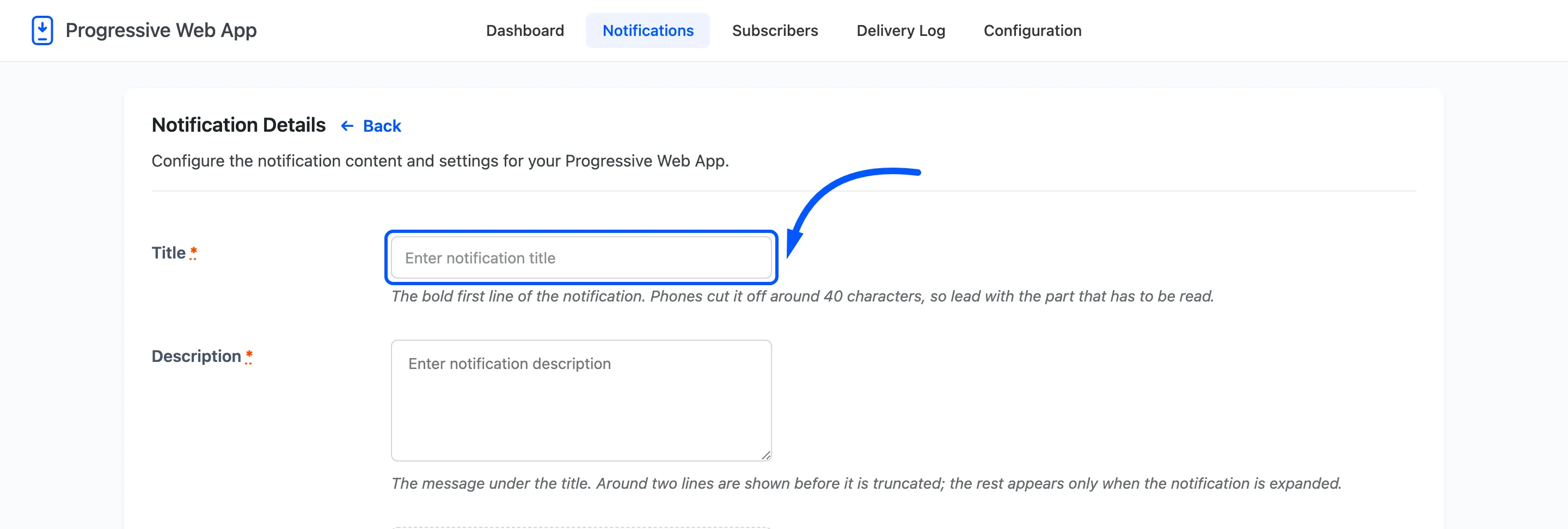
Description: Required. The message under the title. Around two lines are shown before it is truncated, and the rest appears only when the notification is expanded.
Image: Optional. Shown as the icon beside the message. A square image works best, because every platform crops it to its own shape.
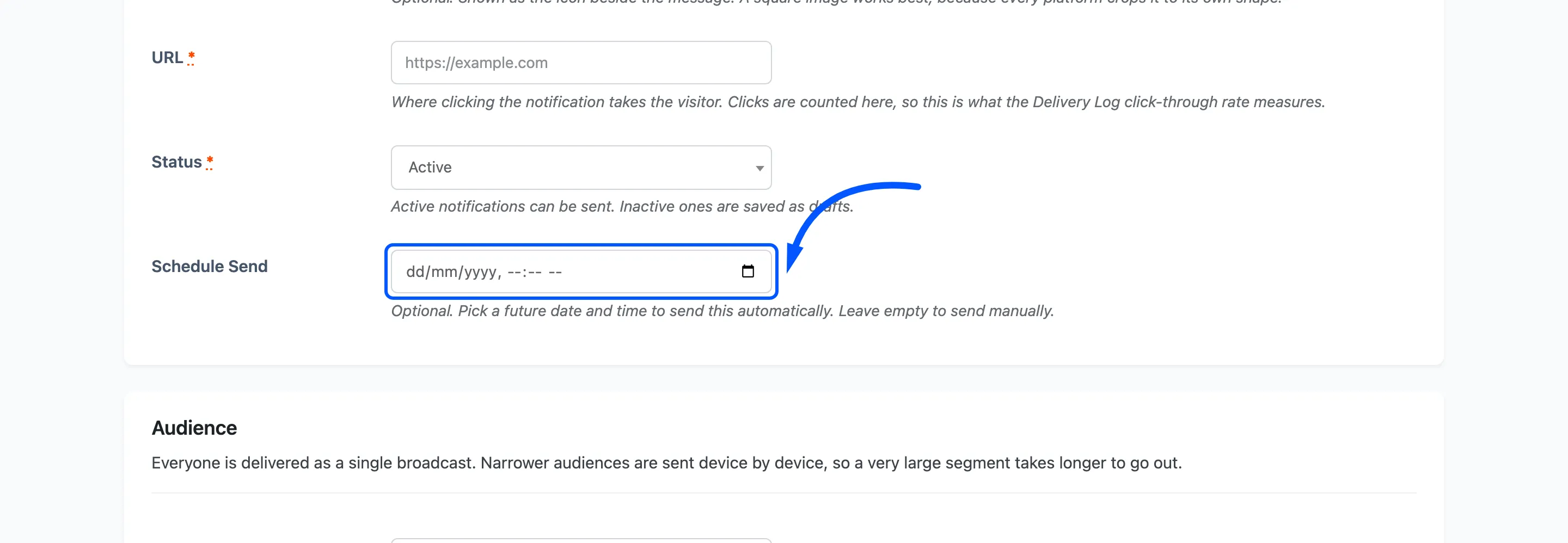
URL: Required. Where a tap takes the visitor. This is also what the Delivery Log’s click-through rate measures, so point it at the page you actually want opened.
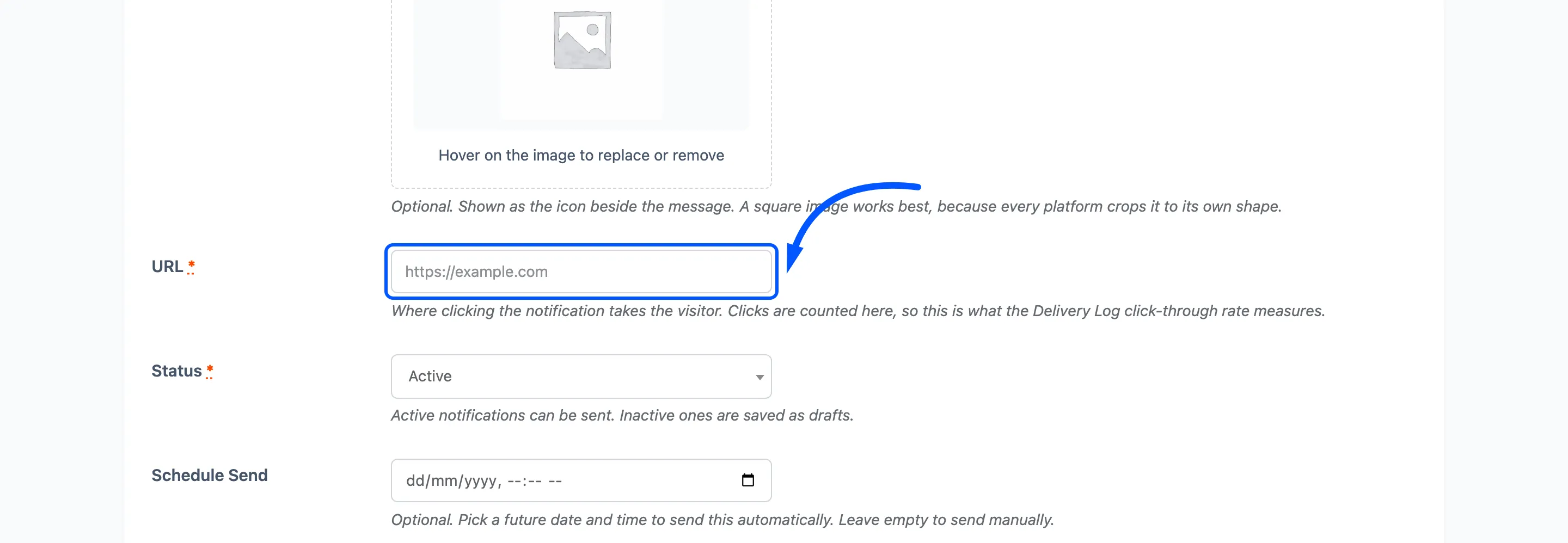
Status: Required. Active carries a Send Now action, Inactive is a draft. Status does not hold back a schedule: a notification with a future date sends itself whatever its status.
Schedule Send: Optional. Pick a future date and time and the notification sends itself.
Audience
Section titled “Audience”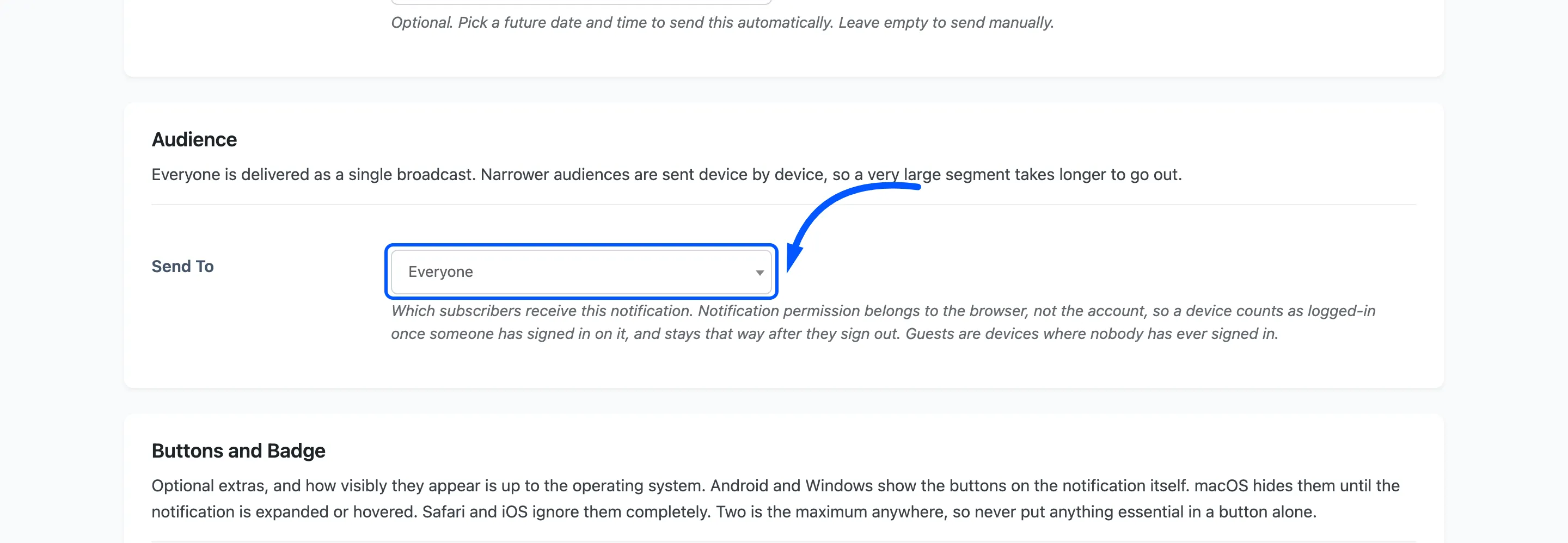
Send To: Default Everyone. The other options are Logged-in users, Guests, Installed app users and, with WooCommerce active, Customers.
Everyone is delivered as a single broadcast, which is one request however large your list. A narrower audience is sent device by device, so a very large segment takes longer to go out.
Notification permission belongs to the browser, not the account. A device counts as logged in once somebody has signed in on it, and stays that way after they sign out. Guests are devices where nobody has ever signed in.
Buttons and Badge
Section titled “Buttons and Badge”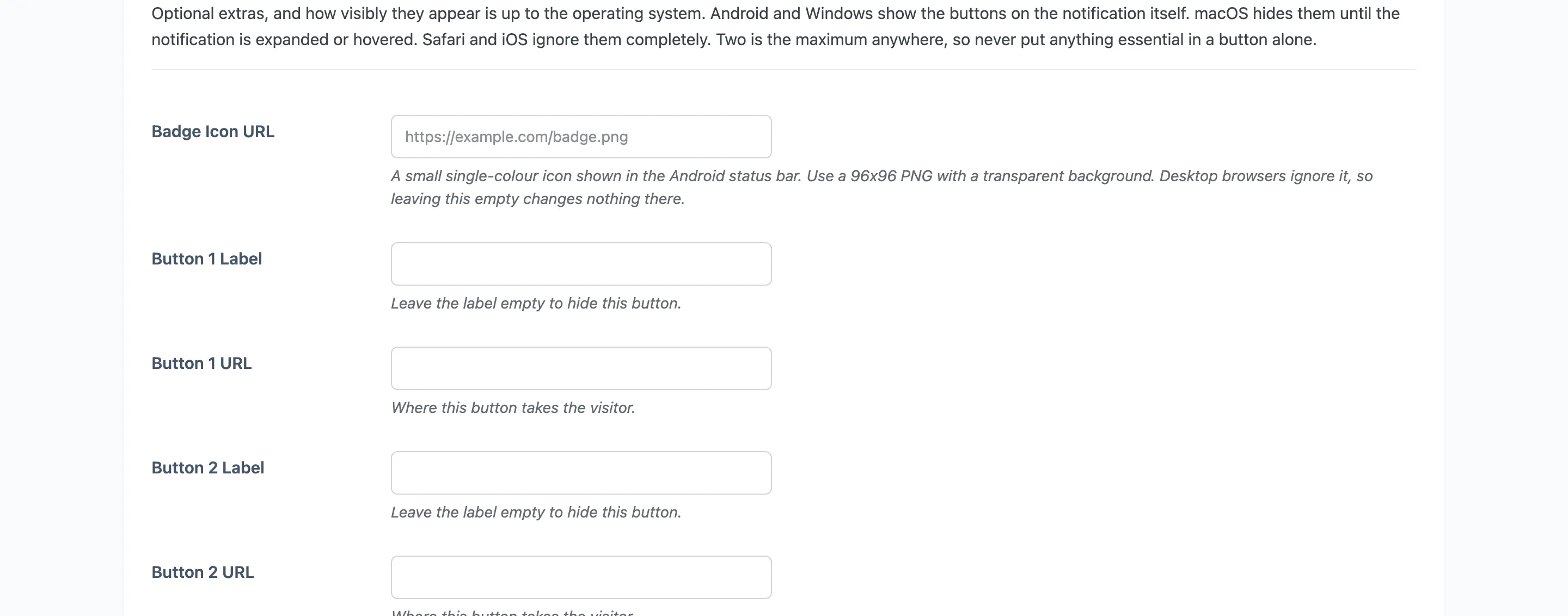
Optional extras, and how visibly they appear is up to the operating system. Android and Windows show the buttons on the notification itself. macOS hides them until it is expanded or hovered. Safari and iOS ignore them completely.
- Badge Icon URL: A small single-colour 96x96 PNG with a transparent background, shown in the Android status bar. Desktop browsers ignore it.
- Button 1 and Button 2, each a label and a URL. Leave a label empty to hide that button.
Two is the maximum anywhere, so never put anything essential in a button alone.