

App Package Settings (Pro)
An installed PWA lives on the home screen, but it is not in a store, so nobody finds it by searching. This tab turns the same site into an Android app you can publish, and handles the part that has to live on your own domain.
Go to DevDiggers Plugins → Progressive Web App → Configuration → App Package.
Store Readiness
Section titled “Store Readiness”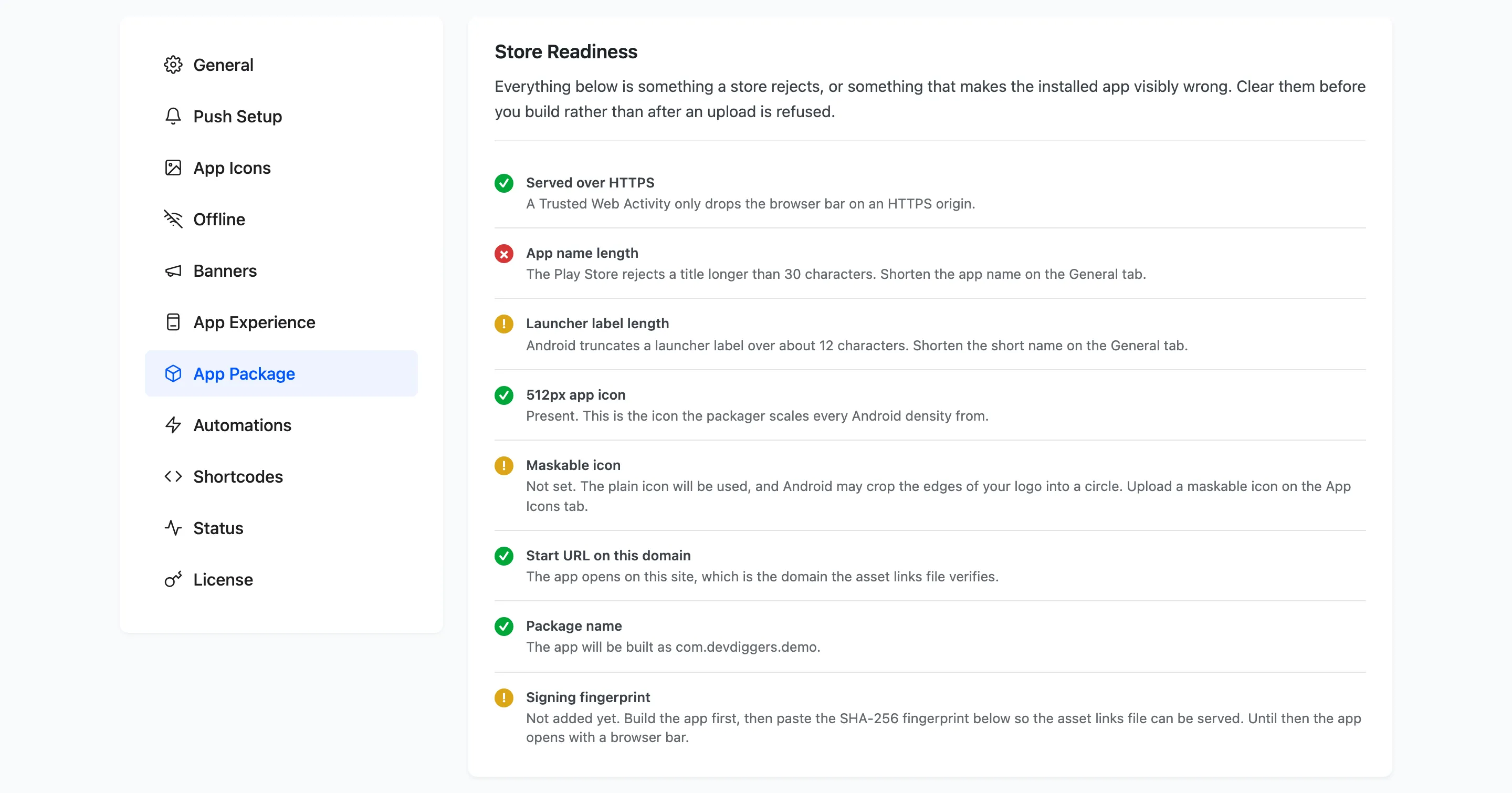
Every row here is either something a store rejects or something that makes the published app visibly wrong. Clear them before you build rather than after an upload is refused.
The checks cover the things a packager cannot guess.
- An HTTPS origin, because a Trusted Web Activity only drops the browser bar on one.
- A start URL on this domain, which is the domain the asset links file verifies.
- An app name inside the 30 characters the Play Store allows.
- A launcher label short enough that Android does not truncate it.
- A 512px icon, which is what every Android density is scaled from.
- A maskable icon, so the launcher shape does not crop into your logo.
- Whether a signing fingerprint has been published yet.
Package Details
Section titled “Package Details”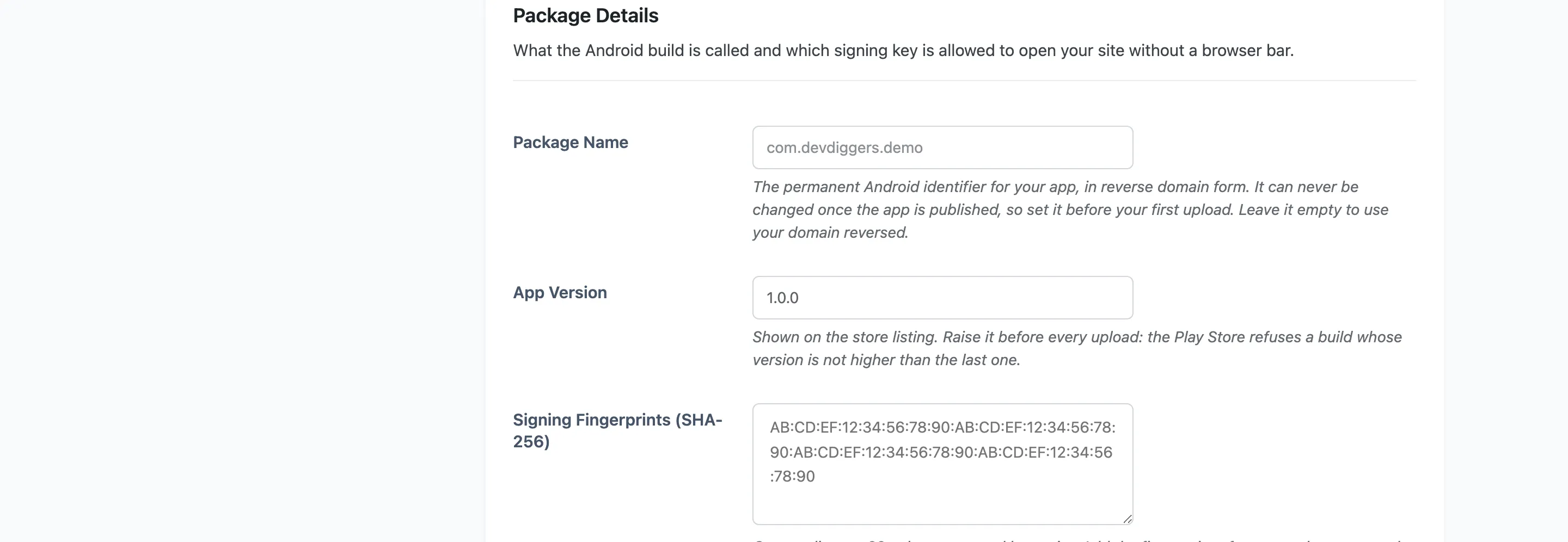
Package Name: The permanent Android identifier for your app, in reverse domain form. Leave it empty to use your own domain reversed.
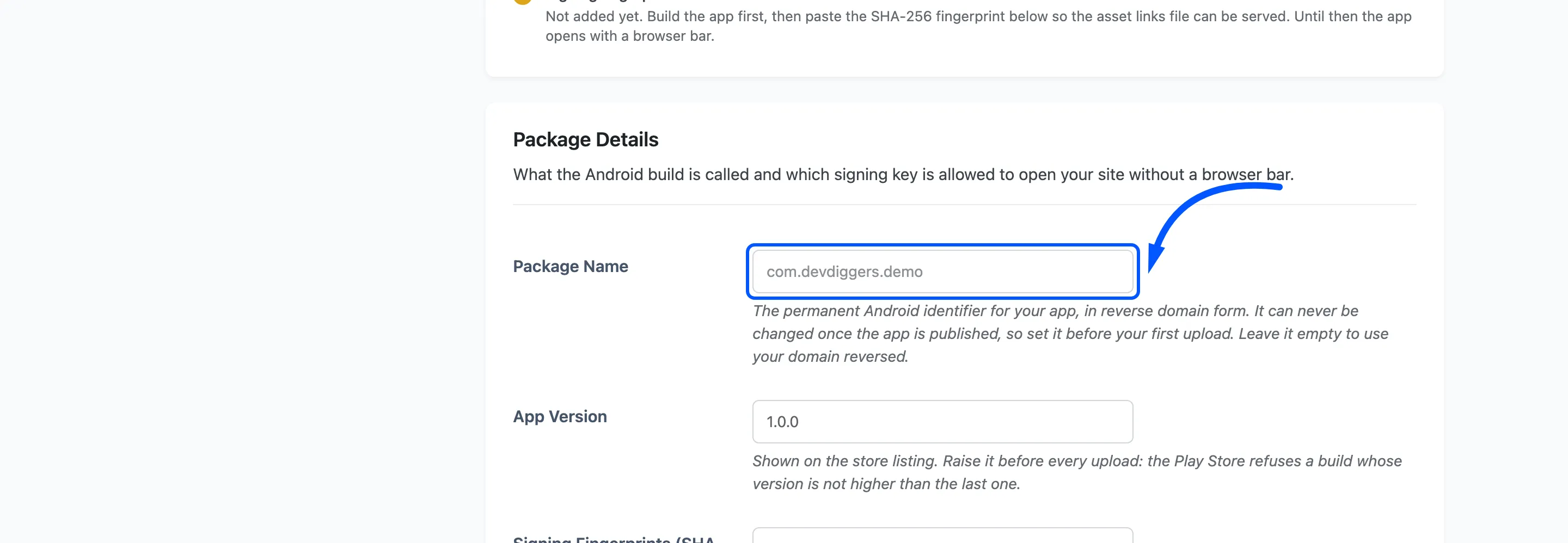
App Version: Default 1.0.0. Shown on the store listing. Raise it before every upload, because
the Play Store refuses a build whose version is not higher than the last one.
Signing Fingerprints (SHA-256): One per line, as 32 colon-separated hex pairs.
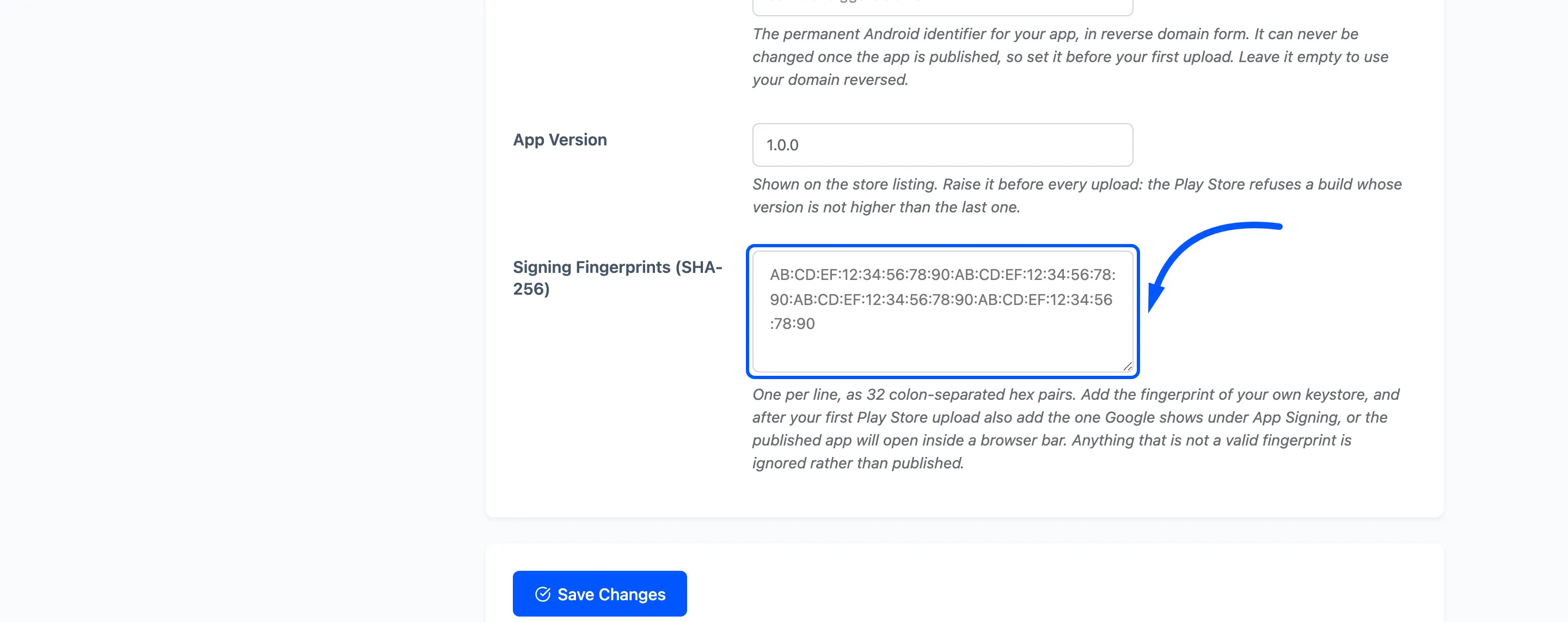
Add the fingerprint of your own keystore, and after your first Play Store upload also add the one Google shows under App Signing. Miss the second one and the published app opens inside a browser bar even though your test build did not.
Anything that is not a valid fingerprint is ignored rather than published, so a half-pasted key cannot break the file for everybody.
Build the Android App
Section titled “Build the Android App”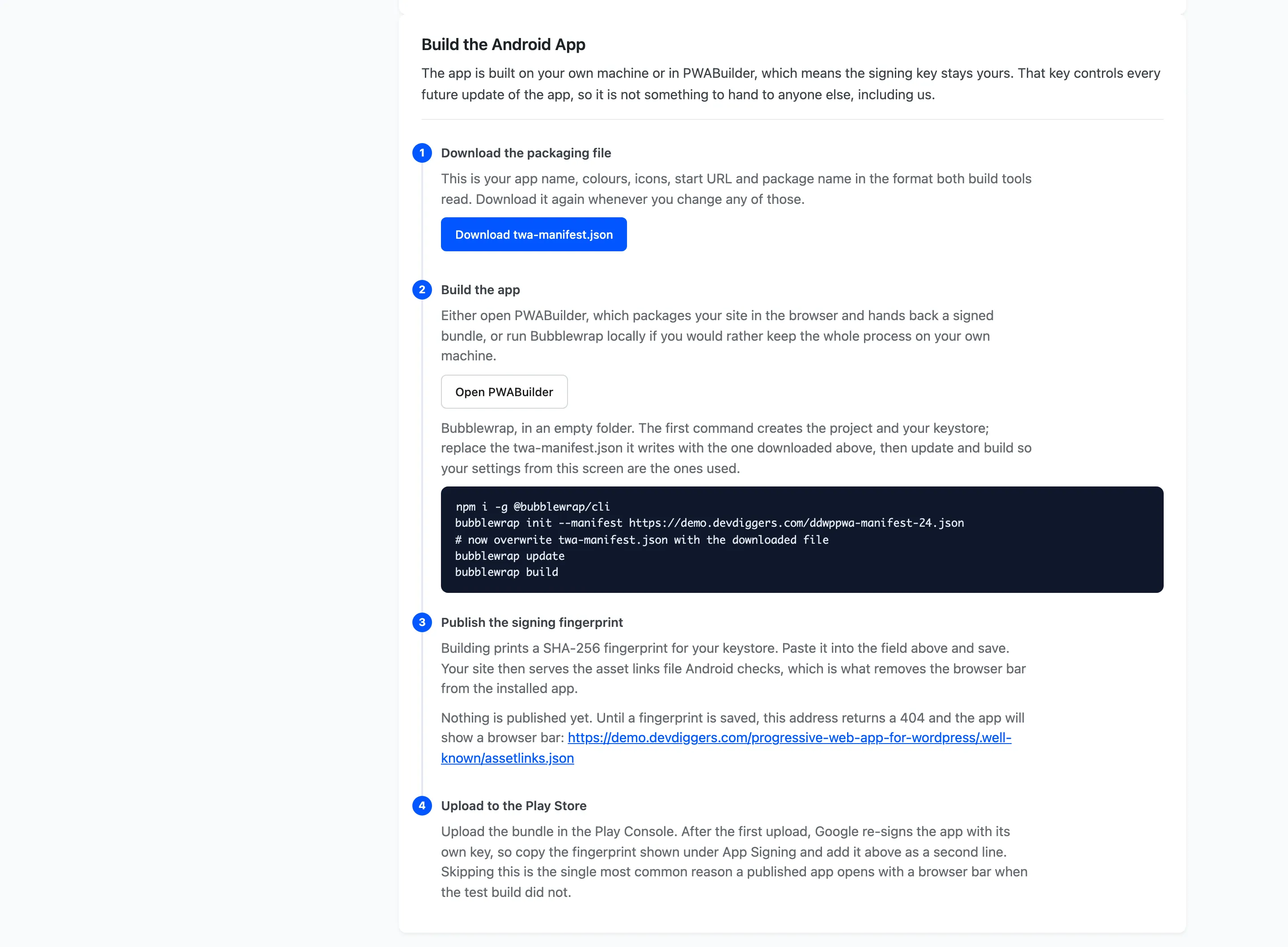
The app is built on your own machine or in PWABuilder, which means the signing key stays yours. That key controls every future update of the app, so it is not something to hand to anyone, DevDiggers included.
Download twa-manifest.json gives you your app name, colours, icons, start URL and package name in the format both build tools read.
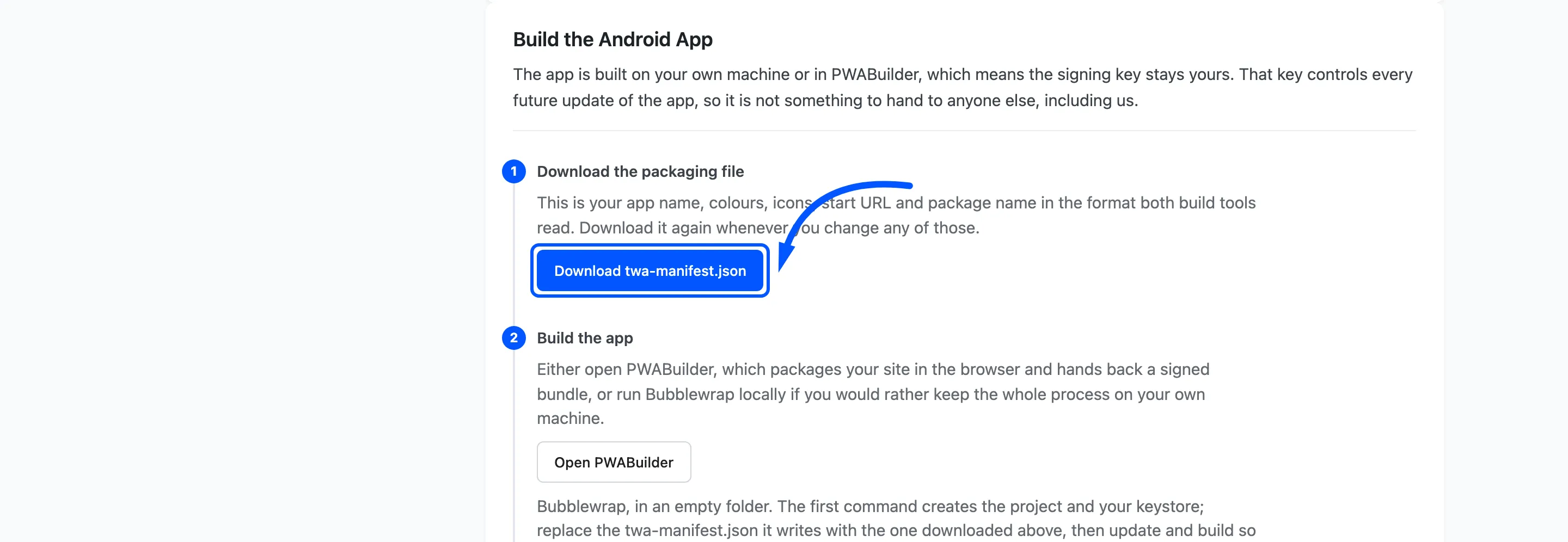
Download it again whenever you change any of those. The section also carries the Bubblewrap commands for building locally.
Once you save a fingerprint, your site serves the asset links file Android checks, at
/.well-known/assetlinks.json. That file is what removes the browser bar from the installed app.
Until a fingerprint is saved the address returns a 404, and the section tells you so with a link you
can open.
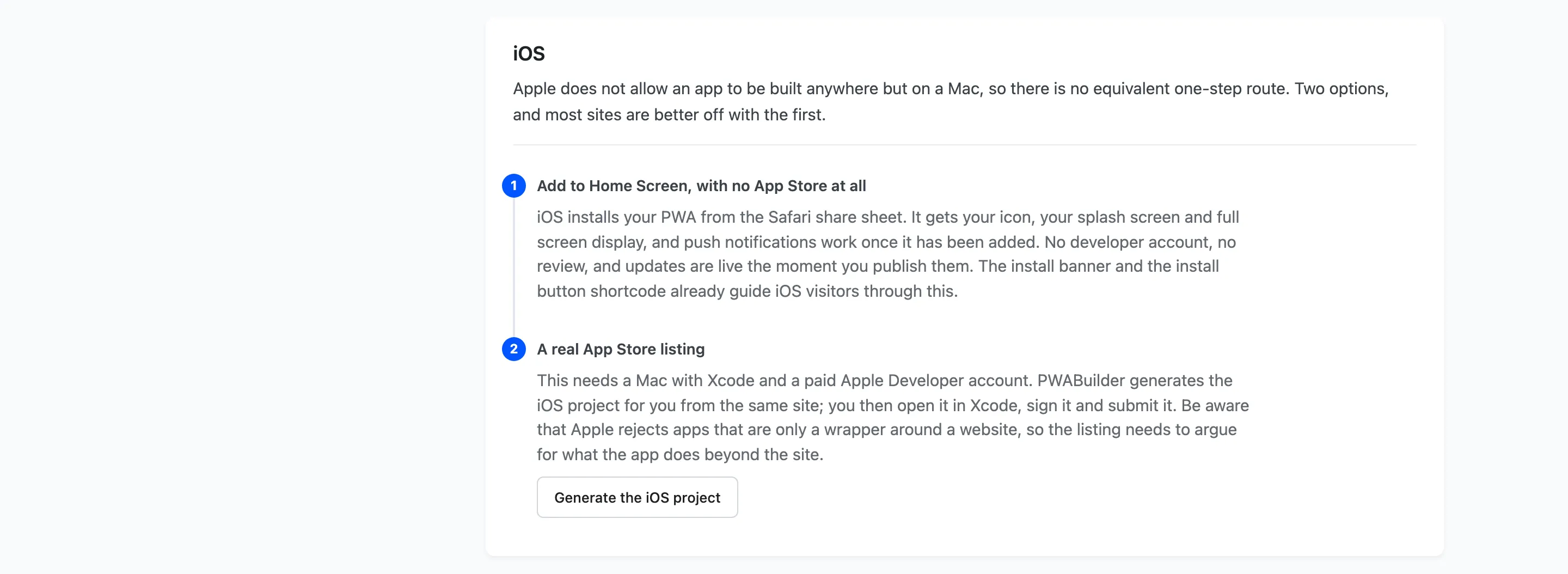
Apple does not allow an app to be built anywhere but on a Mac, so there is no equivalent one-step route. Two options, and most sites are better off with the first.
- Add to Home Screen, with no App Store at all. iOS installs your PWA from the Safari share sheet. It gets your icon, your splash screen and full screen display, and push notifications work once it has been added. No developer account, no review, and updates are live the moment you publish them.
- A real App Store listing: This needs a Mac with Xcode and a paid Apple Developer account. Apple rejects apps that are only a wrapper around a website, so the listing has to argue for what the app does beyond the site.