App Experience Settings (Pro)
An installed app still behaves like a website in a window. This tab is the layer that removes the moments where it gives itself away.
Go to DevDiggers Plugins → Progressive Web App → Configuration → App Experience.
App Experience
Section titled “App Experience”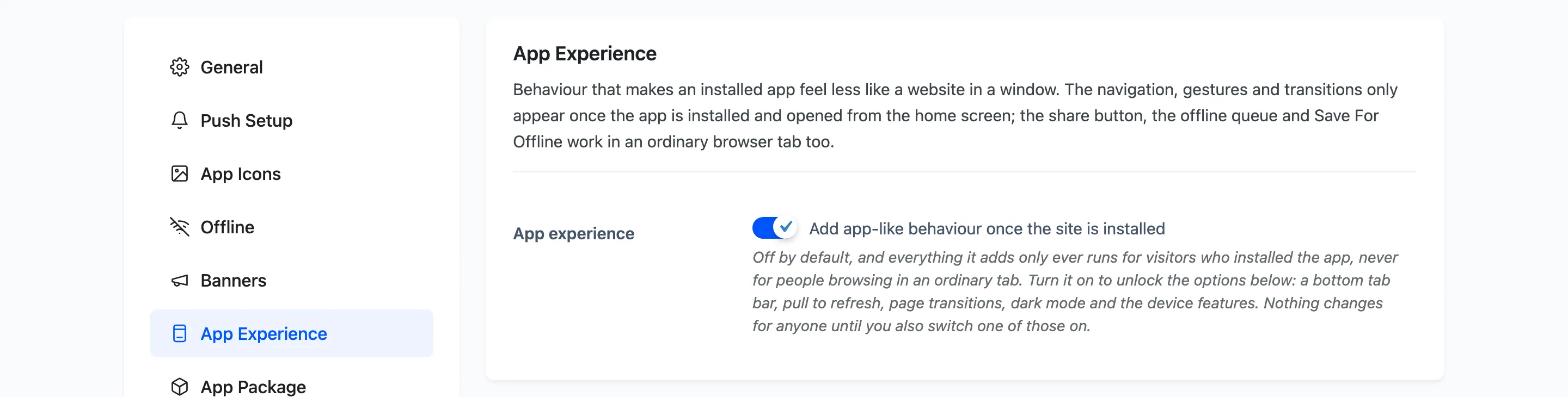
App experience: Off by default, and that is deliberate. Switching a new front end layer on for every existing site during an update is a surprise rather than an upgrade.
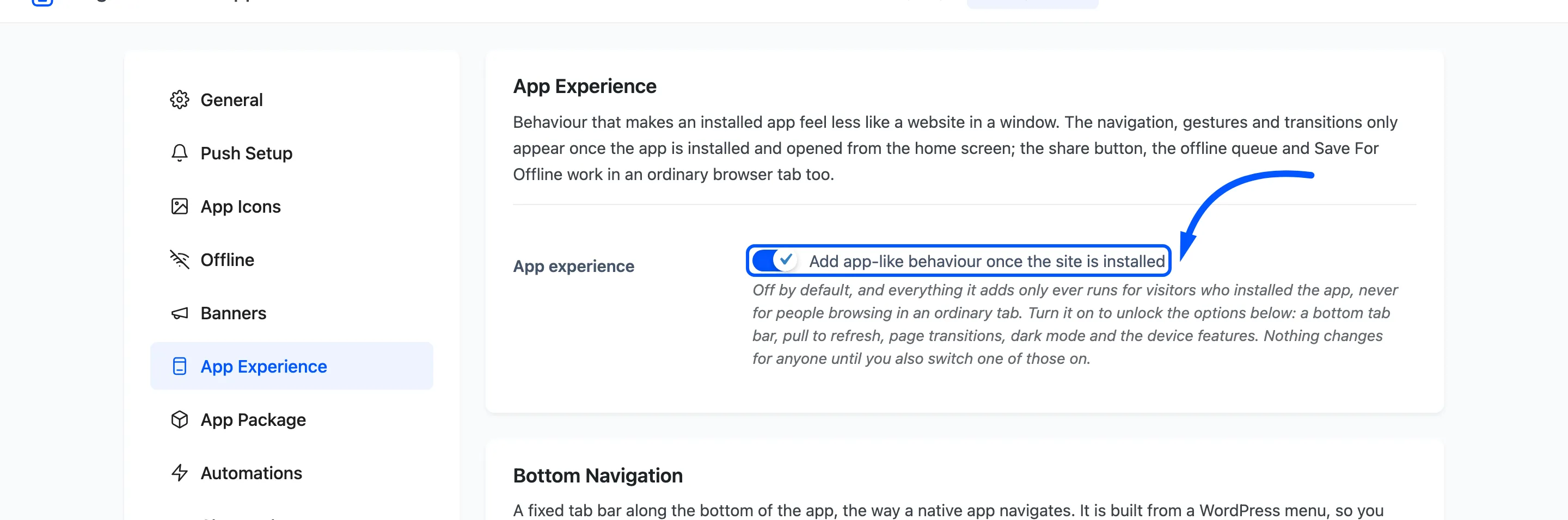
Turn it on to unlock the options below. Nothing changes for anyone until you also switch one of those on.
Almost everything here only runs inside the installed app, never for someone browsing in an ordinary tab. The three exceptions are named where they appear.
Bottom Navigation
Section titled “Bottom Navigation”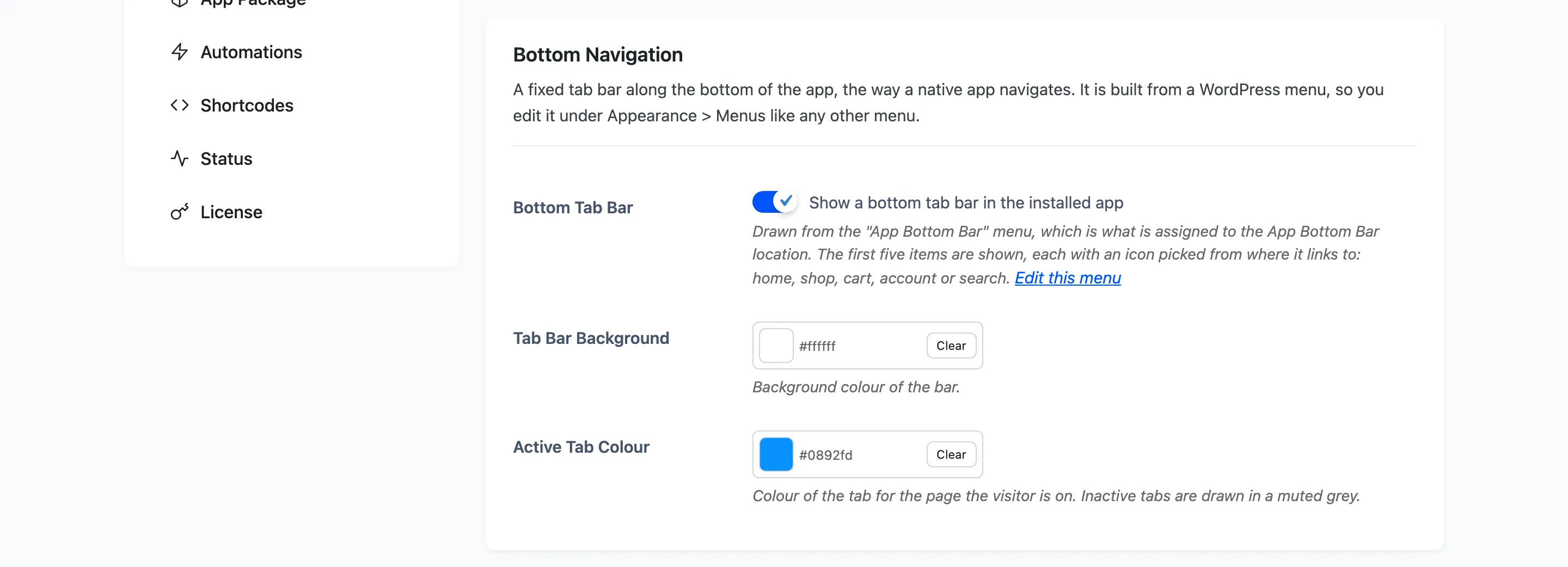
Bottom Tab Bar: A fixed bar along the bottom of the app, the way a native app navigates.
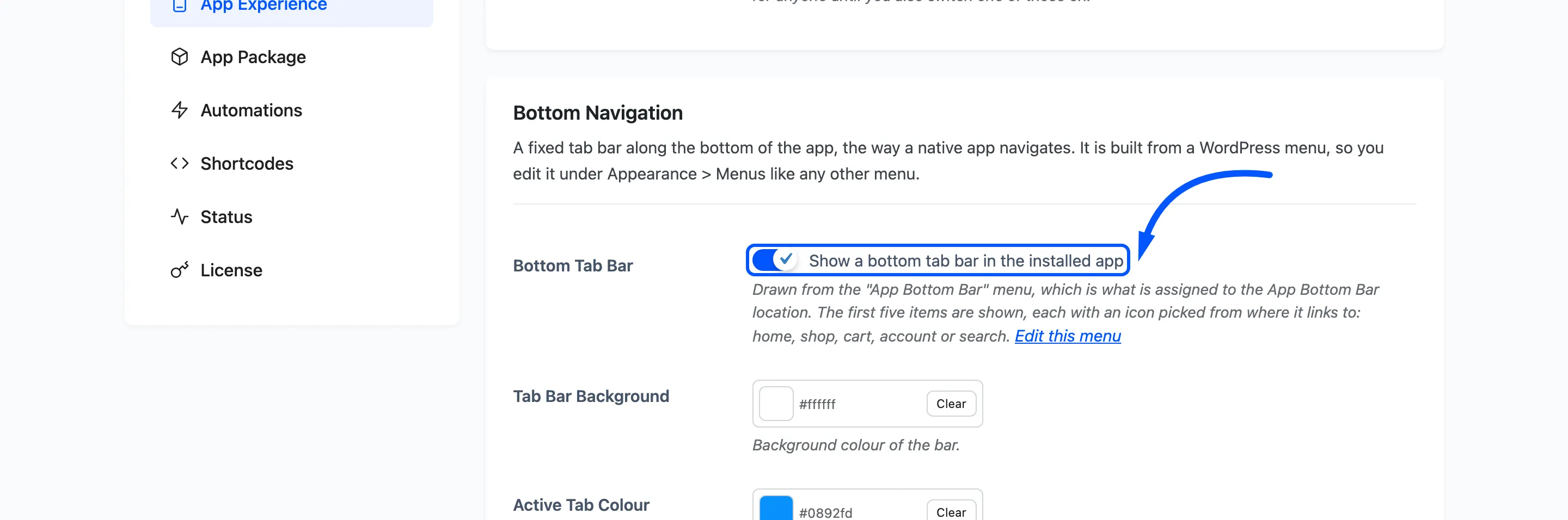
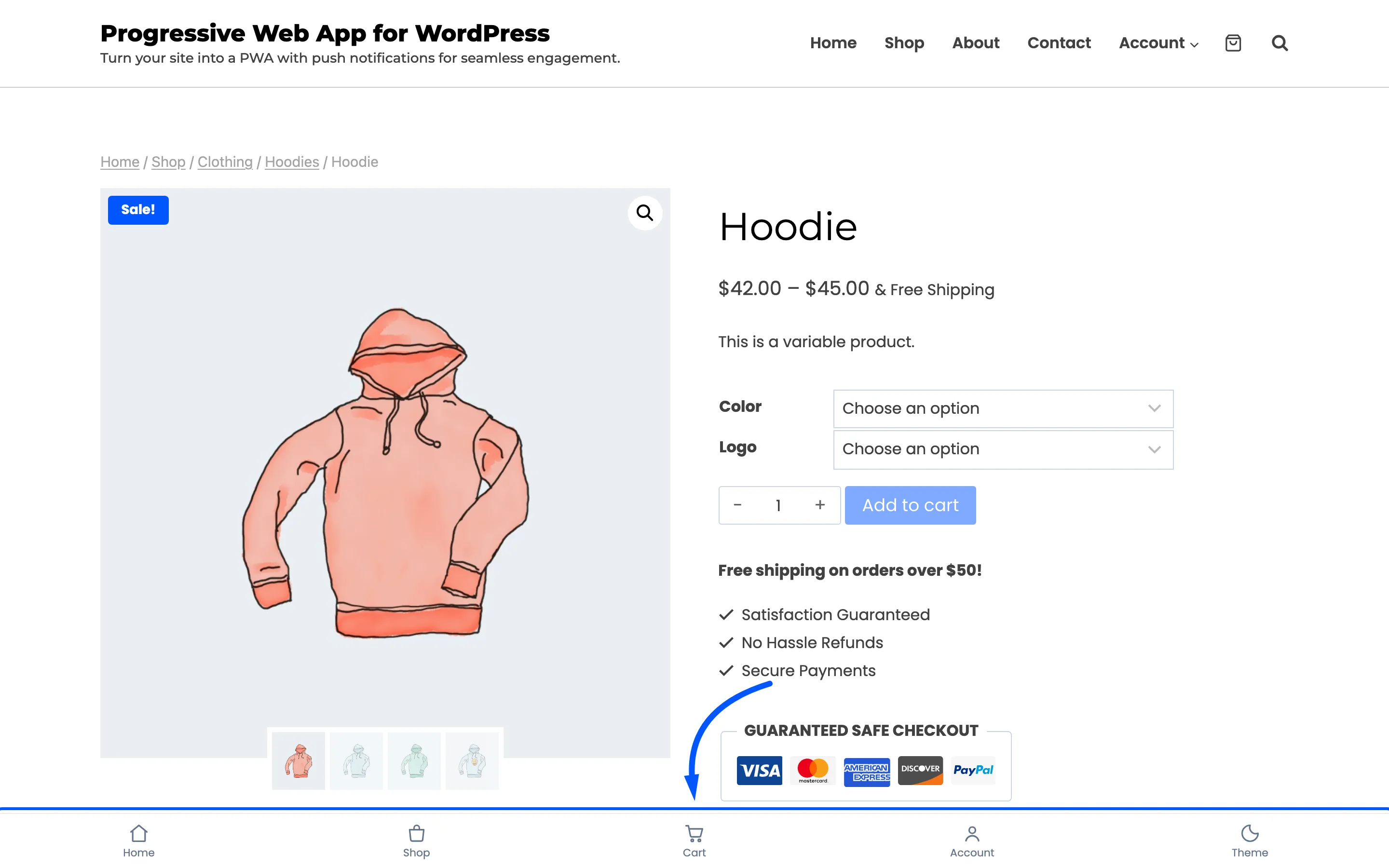
It is built from a WordPress menu assigned to the App Bottom Bar location, so you edit it under Appearance → Menus like any other menu. Saving this tab with the bar switched on creates that menu and assigns it. On a store it is seeded with Home, Shop, Cart and Account, so the bar has something to draw immediately.
The first five items are shown, each with an icon picked from where it links: home, shop, cart, account or search.
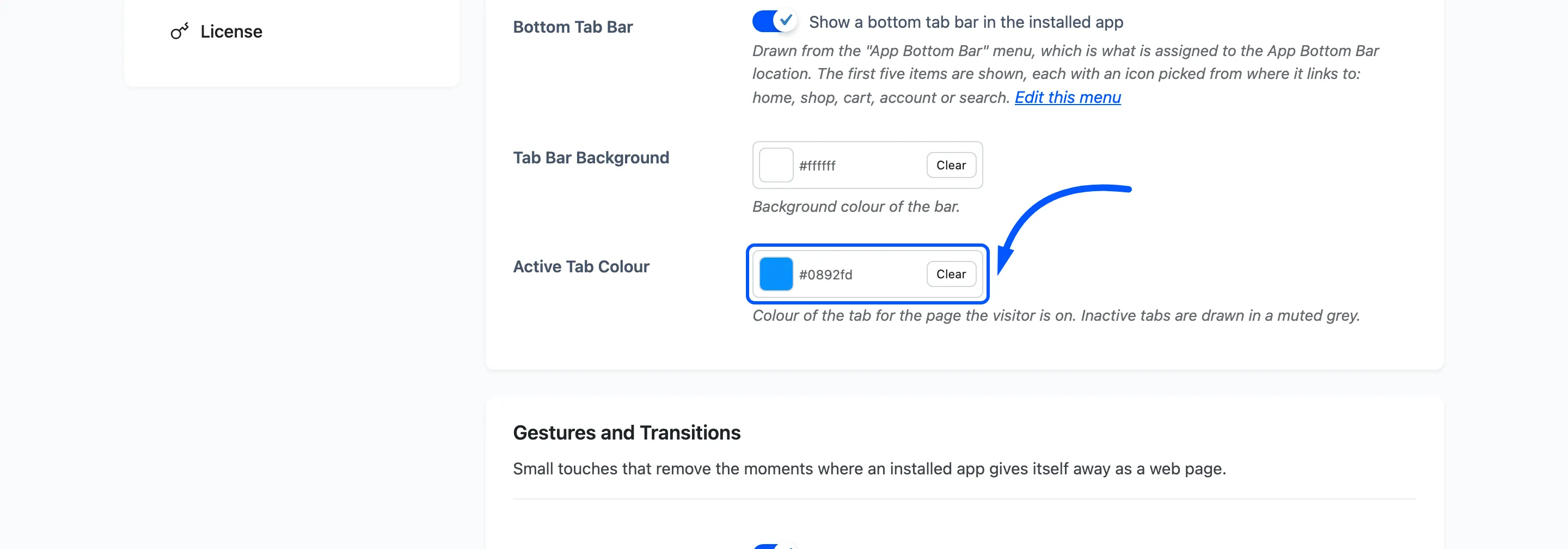
Tab Bar Background: Default #ffffff.
Active Tab Colour: Defaults to your theme colour. The colour of the tab for the page the visitor is on. Inactive tabs are drawn in a muted grey.
This is the result.
Gestures and Transitions
Section titled “Gestures and Transitions”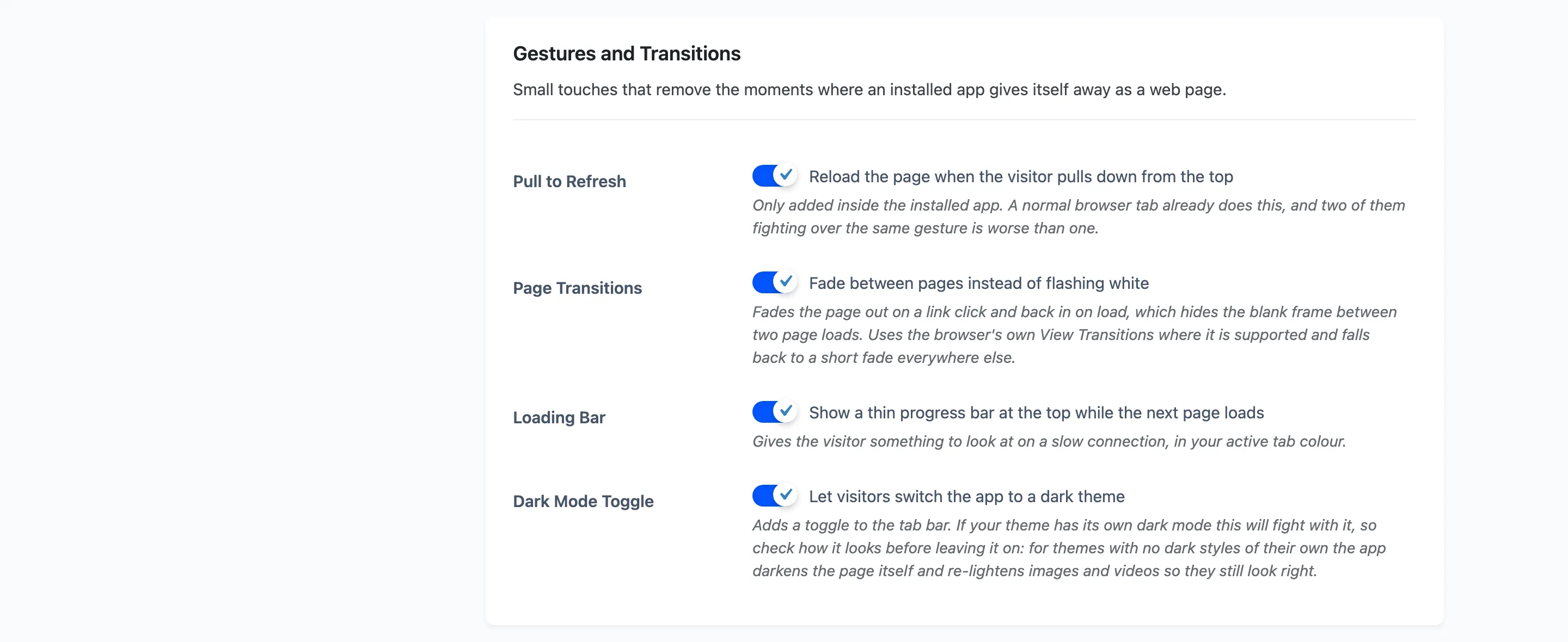
Pull to Refresh: Reloads the page when the visitor pulls down from the top. Only added inside the installed app, because a normal browser tab already does this and two of them fighting over one gesture is worse than either.
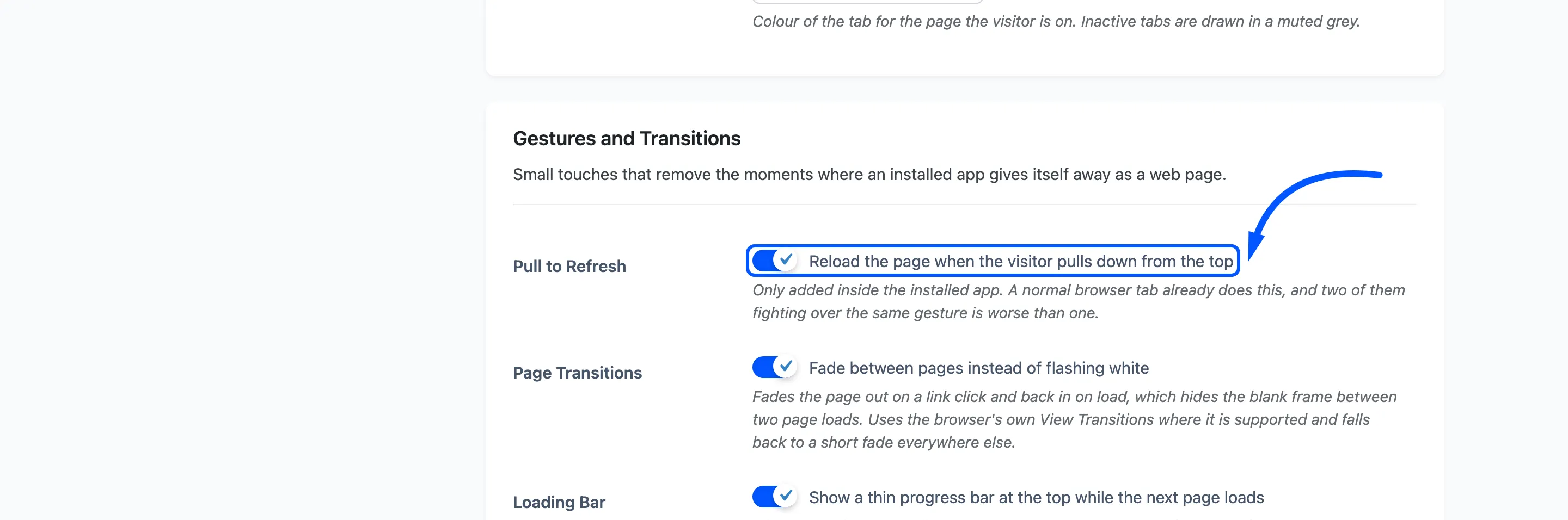
Page Transitions: Fades the page out on a link click and back in on load, which hides the blank frame between two page loads. It uses the browser’s own View Transitions where those are supported and falls back to a short fade everywhere else.
Loading Bar: A thin progress bar across the top while the next page loads, in your active tab colour.
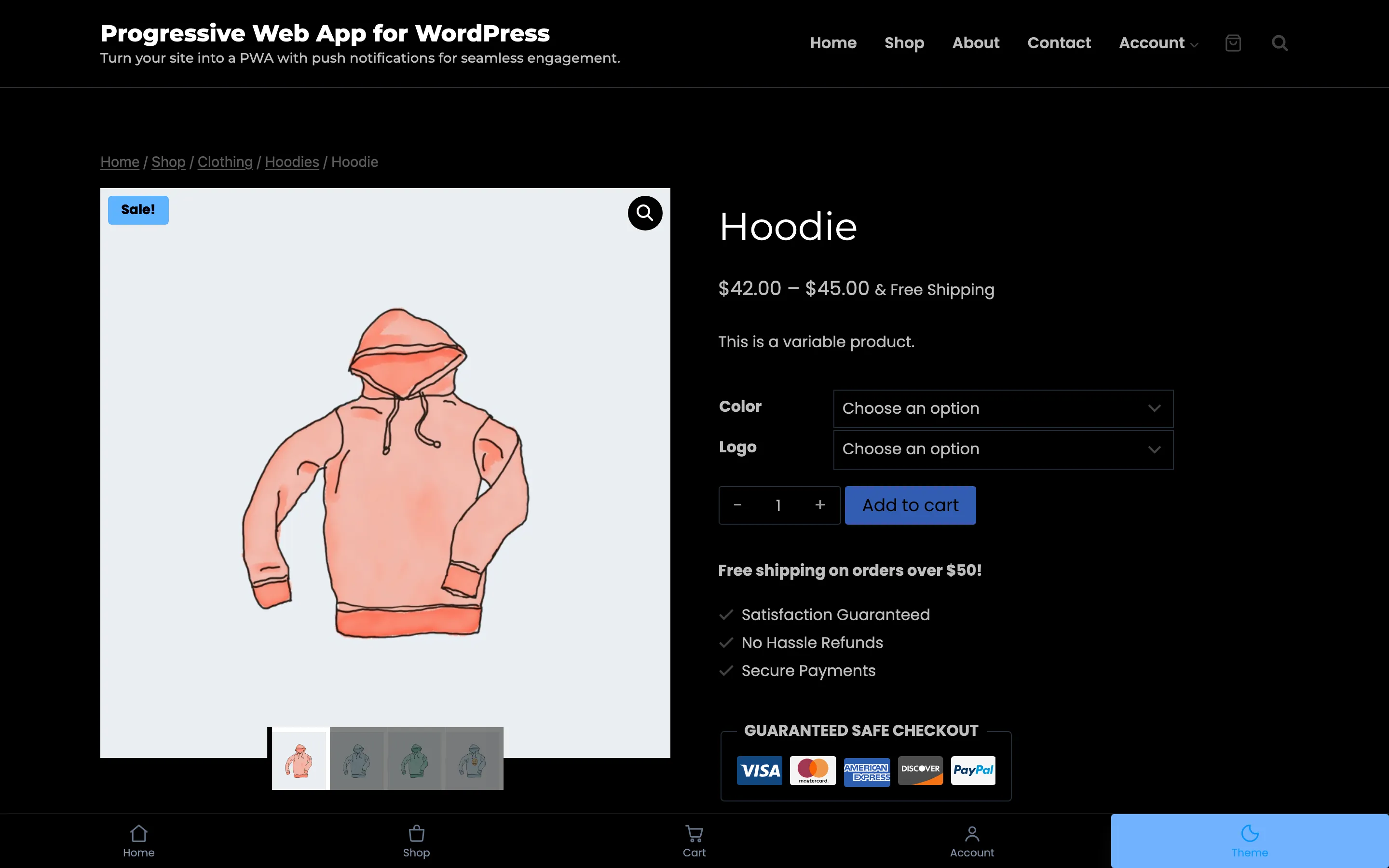
Dark Mode Toggle: Adds a Theme item to the tab bar.
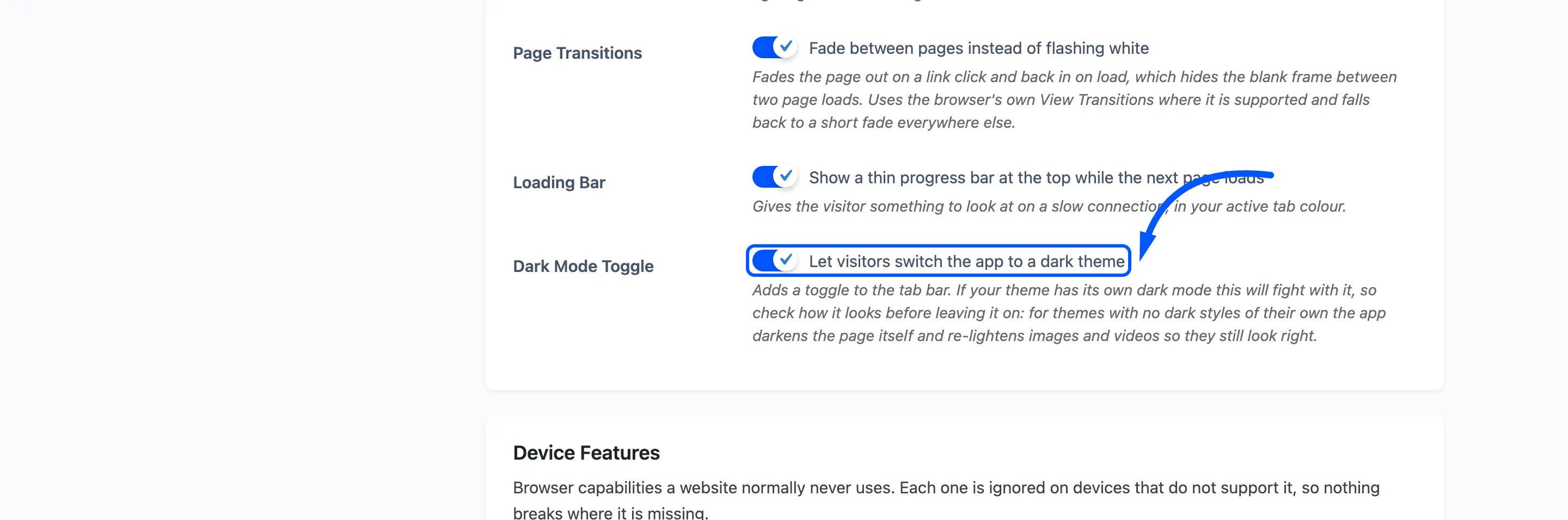
If your theme has its own dark mode this will fight with it, so check how it looks before leaving it on. For a theme with no dark styles the app darkens the page itself and re-lightens images and video so they still look right.
Device Features
Section titled “Device Features”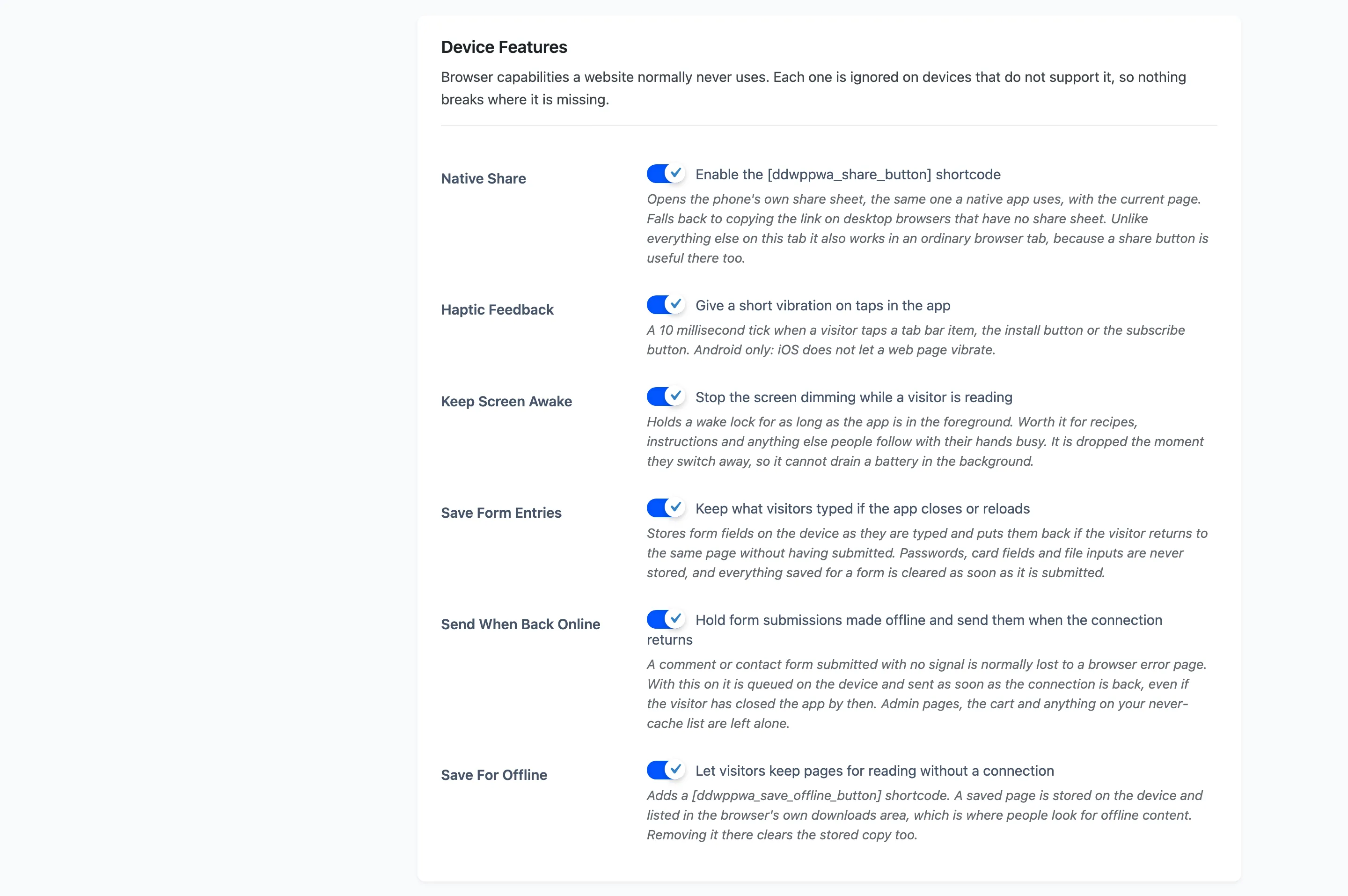
Browser capabilities a website normally never uses. Each is ignored on a device that does not support it, so nothing breaks where it is missing.
Native Share: Enables the [ddwppwa_share_button] shortcode, which opens the phone’s own share
sheet with the current page. On a desktop browser with no share sheet it copies the link instead.
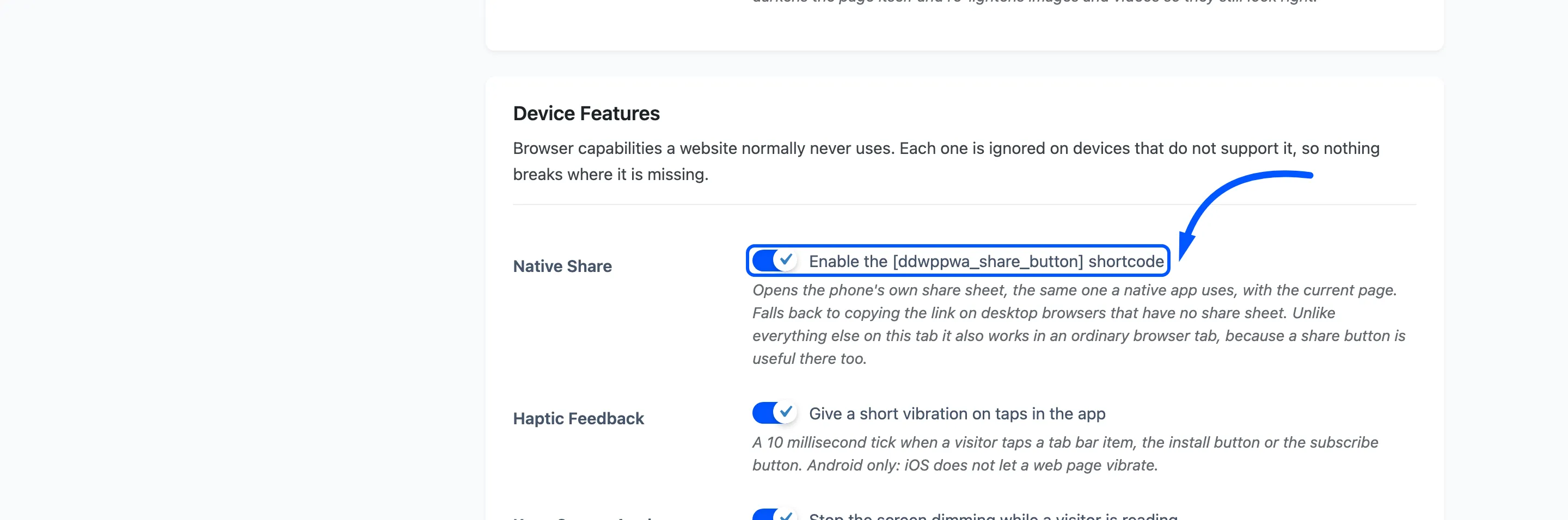
Unlike the rest of this tab it also works in an ordinary browser tab, because a share button is useful there too.
Haptic Feedback: A 10 millisecond tick when a visitor taps a tab bar item, the install button or the subscribe button. Android only, because iOS does not let a web page vibrate.
Keep Screen Awake: Holds a wake lock while the app is in the foreground. Worth it for recipes and instructions, anything people follow with their hands busy. It is dropped the moment they switch away, so it cannot drain a battery in the background.
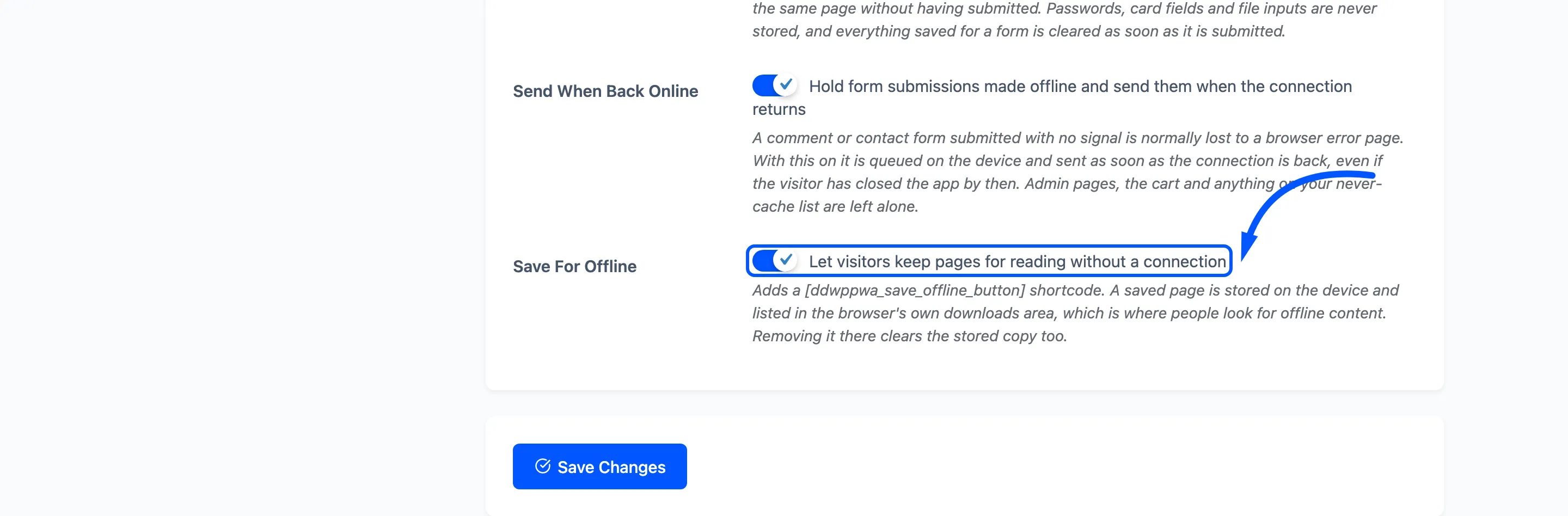
Save Form Entries: Stores form fields on the device as they are typed. They are put back if the visitor returns to the same page without having submitted.
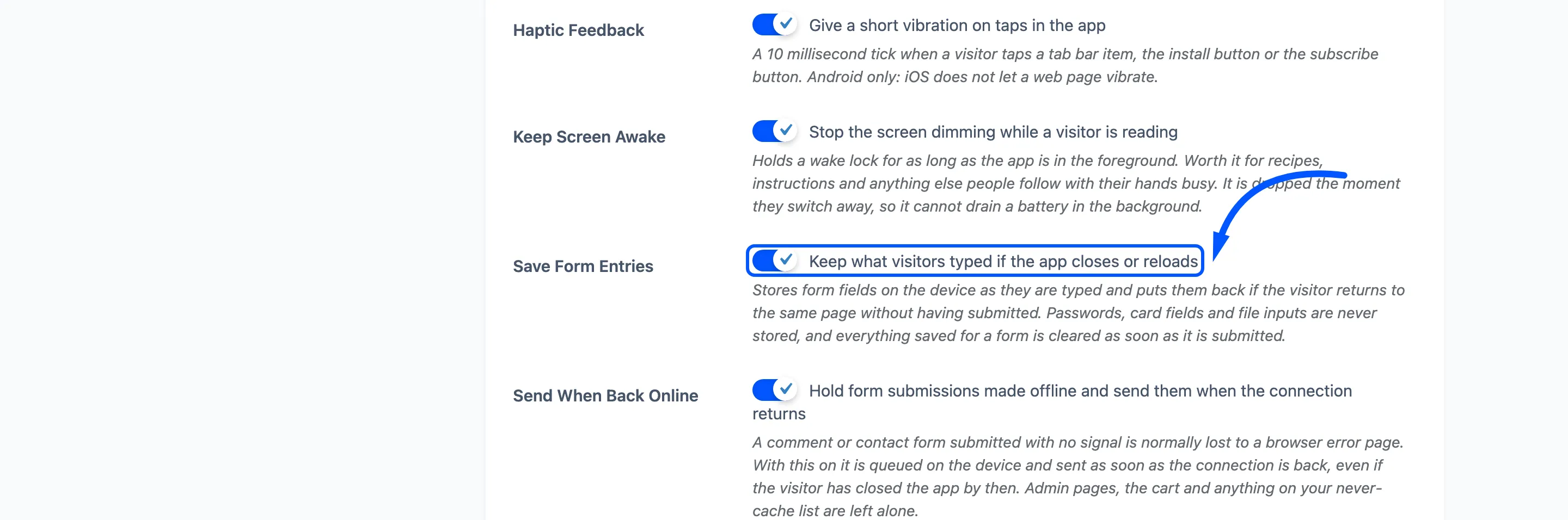
Passwords, card fields and file inputs are never stored, and everything saved for a form is cleared as soon as it is submitted.
Send When Back Online: A comment or contact form submitted with no signal is normally lost to a browser error page. With this on it is queued on the device and sent as soon as the connection returns, even if the visitor has closed the app by then.
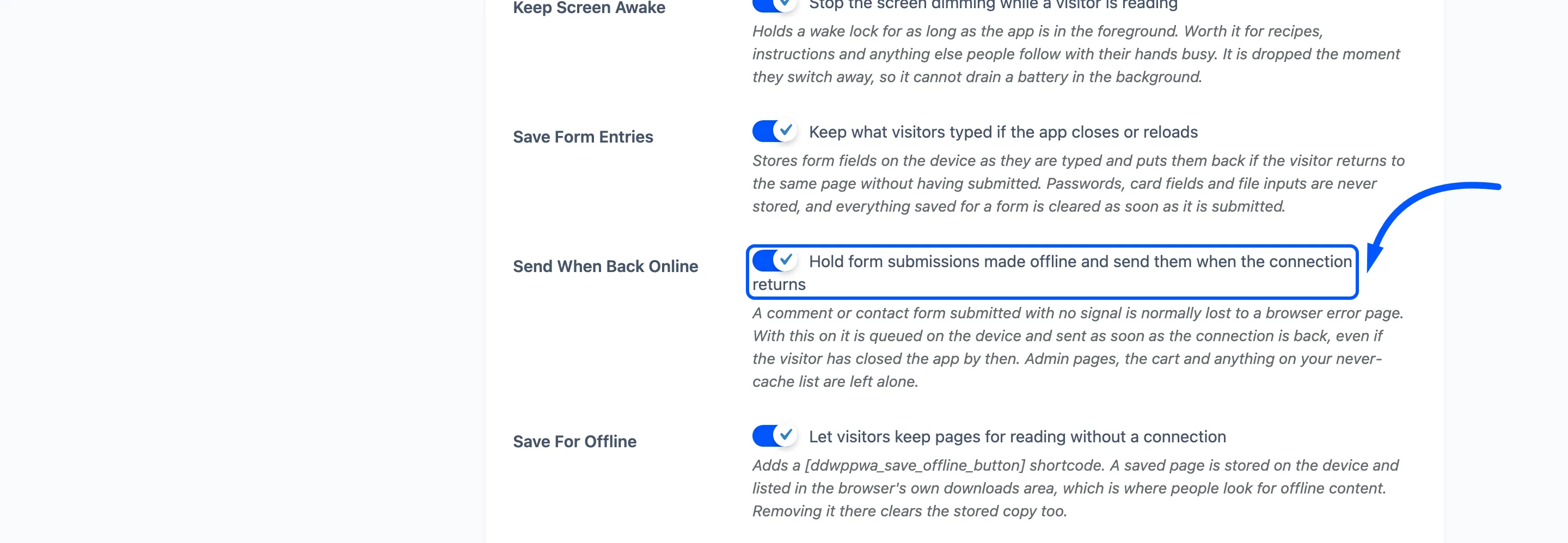
Admin pages, the cart and anything on your never-cache list are left alone. This one works in an ordinary browser tab as well.
Save For Offline: Adds a [ddwppwa_save_offline_button] shortcode. A saved page is stored on the
device and listed in the browser’s own downloads area, which is where people look for offline
content. Removing it there clears the stored copy too. Also works outside the app.